Failed scheduled batches force staff to reconcile recipients and resend messages, costing hours of work each week. This article explains which plans include scheduling and delivery tracking for Sheet Gurus SMS, helping buyers pick the right plan for scheduled batch sends and per-message delivery status tracking. Scheduling and delivery tracking is a feature set that schedules an entire batch at one future time and reports delivery status for each message inside the Sheet Gurus SMS sidebar. Because Sheet Gurus SMS runs directly in Google Sheets and Microsoft Excel, teams keep personalization, a two-way inbox and compliance filtering in one workflow — consult our mass texting guide for workflow examples. Which plan gives you the right mix of scheduled sends, per-message visibility and cost for delivery-critical campaigns?
Growth and Pro include scheduled messaging, while Starter, Growth, and Pro all report per-message delivery status. This matters if you need predictable batch sends from a sheet and per-recipient delivery visibility for compliance or billing. Sheet Gurus SMS plan tiers are Starter $9/mo, Growth $49/mo, and Pro $99/mo.
Feature
Starter
Growth
Pro
Per-message delivery status (delivered, failed, etc.)
Yes
Yes
Yes
Scheduled messaging (schedule a batch send from the sidebar)
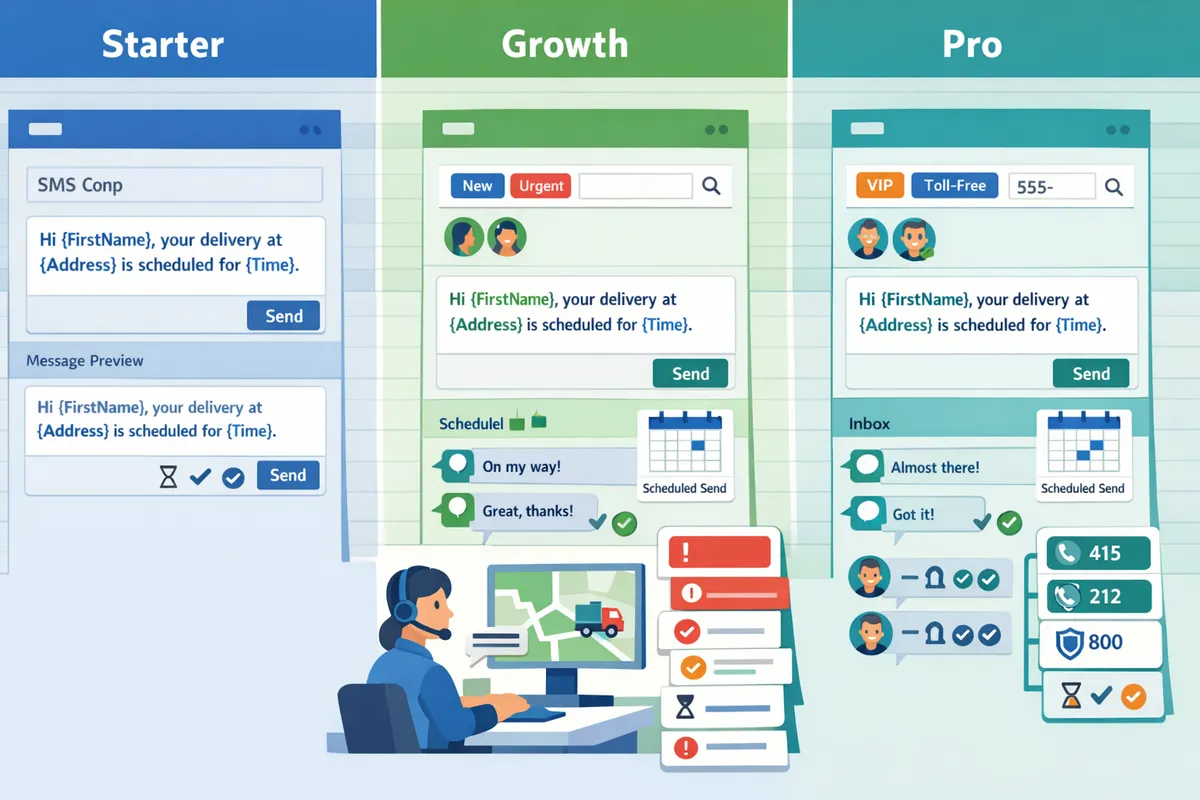
Starter reports delivery status for every sent message but does not include scheduled sends. Use Starter when you send one-off batches, test personalization with curly-brace variables like {FirstName}, or run low-volume outreach that does not require timed sends. Starter includes the sidebar composer, per-recipient preview before send, automated opt-out handling, and basic contact management inside Sheet Gurus SMS. Example: a small clinic sending same-day appointment confirmations after scheduling staff finish their calls will get delivery status for each message without paying for scheduling features. See our step-by-step guide to sending SMS from Google Sheets for sending workflows and personalization examples.
Growth adds scheduled messaging and automated undeliverable-number filtering while keeping per-message delivery reporting. Schedule whole-batch sends from the sidebar so a marketing or reminder batch goes out at a single, predictable time. Growth also includes the two-way inbox with unread filters and assignment, and supports up to three-image MMS for richer messages. Example: an ecommerce team scheduling a morning flash-sale announcement can attach a product image, filter undeliverable numbers before send, and review delivery status after the batch.
⚠️
Warning: A scheduled send captures the tab contents at the moment you schedule it; any rows added or changed afterward are not included in that batch.
Refer to our Send Messages from Google Sheets: 2026 Ultimate Guide for tips on preparing tabs and previews before scheduled sends.
Pro includes Growth’s scheduled messaging and delivery reporting, plus custom local area codes, a smart prioritization queue, unlimited user seats, and priority support. Choose Pro when you need local inbound numbers for better reply rates, higher throughput control for large batches, or to scale across many team members without per-seat limits. Pro’s smart prioritization queue helps manage large-volume sends while honoring carrier throttling rules so delivery behavior remains consistent. Example: a
logistics operator dispatching time-sensitive driver instructions benefits from local area codes for replies and the prioritization queue to keep messages flowing under heavy load.
Growth and Pro include scheduled messaging, while Starter, Growth, and Pro all report per-message delivery status. This matters because scheduled batch workflows and per-recipient deliverability checks affect operational steps like locking a send list and reconciling failed numbers. The table below shows feature availability at a glance and flags behaviors and roadmap items that change how scheduling and delivery work in Sheet Gurus SMS.
This table shows which Sheet Gurus SMS plan includes scheduled messaging, delivery status, two-way inbox features, MMS capacity, custom numbers, user seats, and automated filters.
Feature
Starter
Growth
Pro
Notes
Scheduled messaging
No
Yes
Yes
Scheduled sends read the tab when you schedule. Rows added after scheduling are not included. Per-row send times and triggers are not available yet.
Per-message delivery status
Yes
Yes
Yes
Delivery states (delivered, failed, pending) appear in the sidebar inbox and the message log for reconciliation and audits.
Two-way inbox (tags, assignment, reply linkage)
Yes
Yes
Yes
Inbox supports tags, unread filtering, phone-number search, and replies linked to the recipient row; assignment to team members works once additional seats are added.
MMS image limits
1 image
3 images
3 images
MMS pricing differs by plan; test inbound/outbound flows for large media.
Custom local numbers
Toll-free only
Toll-free only
Toll-free plus custom local area codes
Custom area-code numbers require the Pro plan.
User seats
Additional seats available
Additional seats available (lower per-user fee)
Unlimited user seats
Starter and Growth require adding seats for multi-user inboxes; Pro includes unlimited seats.
Automated filters & compliance
Basic opt-outs and filtering
Includes undeliverable-number filtering
Includes undeliverable filtering and priority handling
Growth and Pro include extra automated filters that reduce manual clean-up of bad numbers.
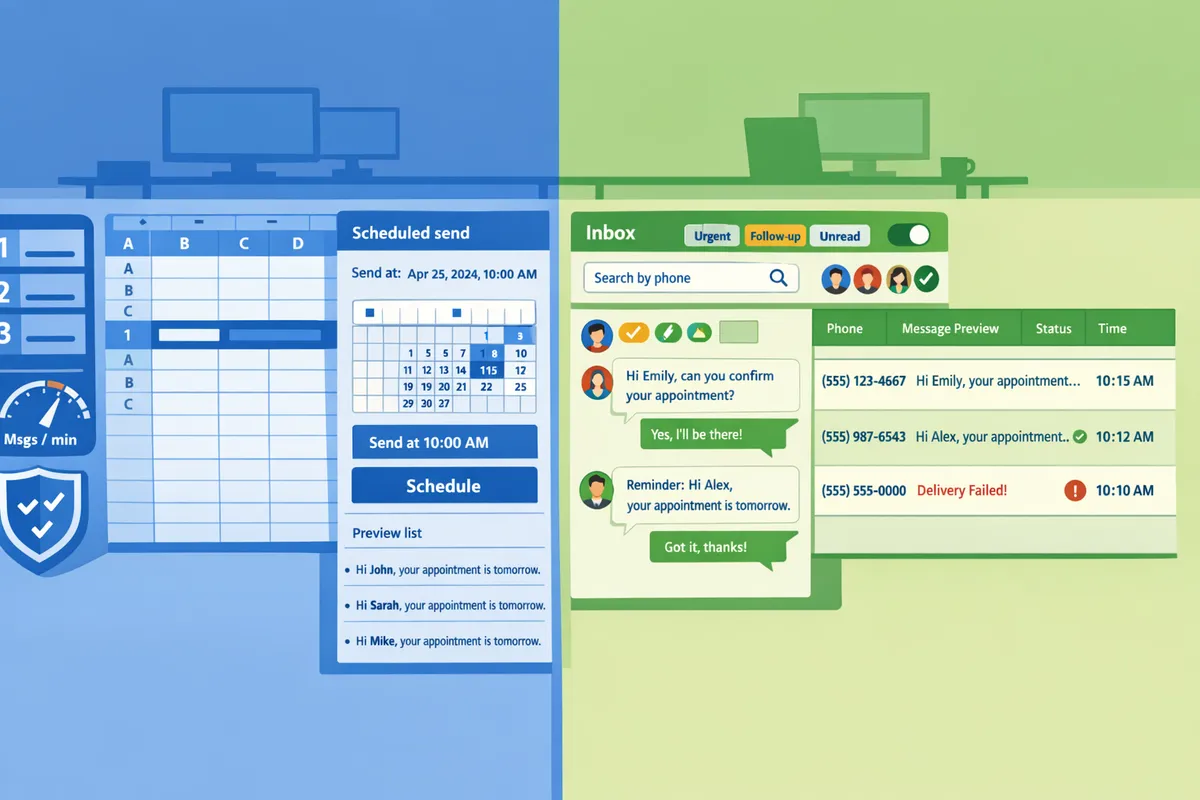
Google Sheets SMS scheduling is a Sheet Gurus SMS feature that schedules a single future send time for an entire batch from the sidebar. When you schedule, the add-on captures the tab contents at that moment and sends to those rows only. That means if you add recipients after scheduling, they are not included unless you reschedule or create a fresh batch tab.
Example: a clinic schedules appointment reminders at 8:00 AM for tomorrow; the staff must finalize the “To Send” tab before clicking schedule to avoid missing late additions. For step-by-step sending workflows from a sheet, see our Beginner’s Guide to sending SMS from Google Sheets.
💡 Tip: Copy rows to a dedicated “To Send” tab or lock the sheet before scheduling so late edits do not change the scheduled batch.
SMS delivery status tracking is a per-message reporting feature in Sheet Gurus SMS that shows post-send states such as delivered, failed, or pending inside the sidebar inbox and the message log. Use those statuses to reconcile credits, identify which numbers need a manual retry, and produce a deliverability audit for stakeholders.
Example: an e-commerce team sends order confirmations and filters the message log for “failed” to extract phone numbers for a re-send list. Note that delivery state depends on carrier and the upstream SMS provider’s callbacks; the inbox shows the latest carrier-reported status available.
Two-way inbox features include tags, assignment, unread filtering, phone-number search, and replies linked to the recipient’s row. These features let small teams assign conversations to agents, tag follow-up reasons, and keep conversation history next to the original spreadsheet row for faster reconciliation.
MMS limits vary by plan: Starter supports one image per MMS; Growth and Pro support three images. Test MMS flows for file size and carrier compatibility before a large campaign to avoid unexpected failures.
Planned or missing capabilities that affect scheduling and delivery include per-row send times and automatic triggers (send when a row is added or a form is submitted). Those features are on the product roadmap but are not available yet; rely on scheduled sends or manual sends in the sidebar today.
Operational behaviors to watch for:
Scheduled sends snapshot the tab at scheduling time. If you expect late adds, build a process to consolidate rows onto a single “final” tab before scheduling.
Message throughput can be throttled to comply with carrier regulations; high-volume batches may be queued. Sheet Gurus SMS uses a prioritization queue to manage large batches while respecting regulatory limits.
Relevant reading: compare scheduling from a sheet with other approaches in our guide comparing the add-on to Apps Script, Zapier, and AppSheet.
Choose Growth for scheduled batch sends plus per-message delivery tracking when you need each batch to go out at a set time without heavy admin; choose Pro when you need custom local area codes, unlimited seats, and priority handling. Growth ($49/month) and Pro ($99/month) include scheduled messaging and delivery status reporting; Starter ($9/month) provides delivery status but does not include scheduled sends. Below are scenario-based recommendations, a focused ROI checklist, and a step-by-step rollout for SMB operations teams.
Delivery dispatchers who schedule route notices usually pick Growth, while high-volume field-service and retail teams typically pick Pro. For example, a local dispatch team that sends 200 weekly route notices and needs 1–3 inbox seats will find Growth’s scheduled messaging, delivery status tracking, and automated undeliverable filtering a direct fit. By contrast, a regional field-service operation sending 2,000+ messages weekly, needing many agent seats and local area codes, will favor Pro for unlimited seats, custom local numbers, and the smart prioritization queue.
Map of common scenarios to plan features:
Local delivery dispatch (200–800 sends/week): Growth. Benefits: scheduled sends, two-way inbox for driver replies, lower per-segment cost.
Small clinic appointment reminders (50–300 sends/week): Growth. Benefits: scheduled sends, previewed {FirstName} variables, delivery status for compliance.
High-volume retail promotions or field service (1,000+ sends/week): Pro. Benefits: custom area codes, unlimited seats, priority support, and lower per-segment cost.
DIY scheduling with disconnected SMS providers and scripts usually costs more staff hours and increases compliance risk compared with sending from the Sheet Gurus SMS sidebar. Our “SMS from Google Sheets” guide shows manual appointment reminders can cost a small clinic team six hours per week in rework. That time loss converts to missed revenue or overtime for staff.
Checklist to evaluate ROI and total cost of ownership:
Time-to-value. Estimate hours saved per week by removing copy-paste, list cleaning, and manual send checks.
Lost-opportunity cost. Calculate revenue lost when confirmations go out late or replies are missed.
Follow a five-step rollout to reduce operational risk and demonstrate time-to-value quickly.
Trial the add-on on a representative sheet. Use a real sheet that reflects your production columns and sample contacts. This validates the sidebar workflow on your platform (Google Sheets or Microsoft Excel).
Verify dynamic variables in previews. Confirm {FirstName}, dates, and other curly-brace variables render correctly for several sample rows so personalized messages look right before any send.
Run a pilot batch and review delivery statuses. Send a 50–200 recipient pilot, monitor per-message delivery status in the sidebar, and confirm the two-way inbox captures replies linked to the correct sheet rows.
Schedule batches on Growth or Pro. Each scheduled send goes out once, at the time you pick, so schedule each weekly or daily batch separately and confirm the scheduled send uses the tab snapshot captured when you scheduled it so final recipient values are correct.
Train agents on the two-way inbox and assignment workflow. Teach agents to tag, search by phone number, and assign conversations so replies route to the right owner.
Key risks to watch are that scheduled sends snapshot the tab at schedule time, variables have no fallback values if cells are empty, and Sheet Gurus SMS does not yet support triggers that send automatically when a row changes. These limitations create the most common user errors: missing personalization where variable cells are blank, unintended omissions of late-added rows, and surprise expectations about automatic sends.
Practical checks to run before scaling:
Add a preflight column for consent and a simple “Ready to send” flag so the scheduled batch only includes vetted rows.
Use a FILTER tab for partial sends (for example, rows still marked Pending) to avoid sending the wrong segment.
Confirm date formatting in the sheet because variables insert what the cell shows, not a separate format.
⚠️ Warning: Store consent source and timestamp in a sheet column before sending. Sheet Gurus SMS applies automated opt-out filtering, but keeping an explicit consent audit reduces compliance risk during audits and helps resolve disputes.
This FAQ explains which Sheet Gurus SMS plans include scheduling and per-message delivery tracking. It answers how scheduled sends behave, limits to expect, and compliance steps to reduce risk before you pick a plan.
Growth and Pro include scheduled messaging; Starter does not. Sheet Gurus SMS provides the scheduling control inside the sidebar so you can pick a future send time without copying messages between tools. If you plan to schedule batch sends from a sheet, choose Growth or Pro. A schedule covers one send at one future time, so a weekly batch is scheduled each week. Starter still provides send and receive capability but requires manual sends. For step-by-step examples of scheduling from a spreadsheet, see our SMS from Google Sheets: The 2026 Beginner’s Guide to Sending, Automating, and Two‑Way Replies (No Formulas).
A scheduled send reads the tab when you schedule it and sends the entire batch at the scheduled time. Sheet Gurus SMS captures the recipient rows and variable values when you schedule, so rows added or changed after scheduling are excluded from that batch. The sidebar shows a per-recipient preview before you confirm the schedule, and large batches may be subject to carrier throttling as required by regulations.
Yes. Starter, Growth, and Pro report delivery status for every sent message. Sheet Gurus SMS records statuses such as delivered, failed, or undeliverable in the sidebar so you can confirm which recipients received a message without cross-checking logs. Use the delivery view to reconcile batches and reduce manual follow-up.
You can only schedule a whole batch; per-row send times are not supported. If you need different send times per recipient, create separate tabs (for example a FILTER-based tab per send window) or schedule multiple batches. Example: build a “9am reminders” tab and a “3pm reminders” tab and schedule each tab separately from the sidebar.
Replies to scheduled sends appear in the real-time two-way inbox and stay linked to the recipient’s row. Sheet Gurus SMS surfaces replies with tags, unread filters, phone-number search, and assignment to team members so your operators can triage incoming messages the same way they handle live batches. After a scheduled batch is sent, its messages behave the same as any manually sent batch in the inbox.
No; triggers that send automatically on row adds or cell changes are not available yet. Sheet Gurus SMS currently requires you to start sends or schedule them from the sidebar; triggers are on the roadmap but have no announced release date. Until triggers arrive, automating via scripts or third-party tools adds maintenance overhead and increases the chance of missed sends or compliance gaps.
Keep opt-in records, honor automated opt-out, and avoid sending protected health information in scheduled SMS. Sheet Gurus SMS applies automatic message filtering to help you avoid obvious compliance mistakes, but scheduled sends do not bypass legal requirements so you must verify opt-ins before scheduling. For example, tie each recipient row to its opt-in timestamp and remove unsubscribed rows from the tab you schedule.
⚠️ Warning: Avoid sending personal health information or other sensitive data by SMS. Messaging that contains protected health details increases legal risk and may violate carrier rules.
Choose Growth if scheduled batch sends and predictable billing make sense for your campaigns; choose Pro if you need higher throughput and team-level support for large, frequent sends. If you searched for which plans include scheduling and delivery tracking, the short answer is Growth and Pro provide scheduled messaging and Sheet Gurus SMS reports delivery status for every message so you can confirm which recipients received each send.
Comparing plans by your use case saves time and avoids costly mistakes like missed follow-ups or compliance gaps. For a practical walkthrough of sending from a spreadsheet and handling two-way replies, see our beginner’s guide to SMS from Google Sheets.
💡 Tip: A scheduled send captures the tab’s rows at the moment you schedule it. Rows added or edited afterwards will not be included in that batch.
Contact our team to pick the right plan and get Sheet Gurus SMS set up for your workflow. For a deeper comparison of add-on workflows, see our ultimate guide to sending messages from Google Sheets.