




The Complete 2026 K-12 Guide to Google Sheets SMS Alerts and Two-Way Calendar Reminders
Manual reminder calls and texts can consume up to eight staff hours weekly at an elementary school; google sheets sms automation for school reminders helps save time and money. Google sheets sms automation for school reminders is a workflow that uses Google Sheets and a sidebar add-on to send scheduled SMS. Sheet Gurus SMS is a Google Sheets add-on that sends from a sidebar, supports variables like {StudentName} and {Date}, and includes a real-time inbox plus compliance filters. See
Automated Text Messaging use case. This beginner’s guide on our K-12 SMS hub starts at zero and walks K-12 administrators and staff through setup, templates, and two-way confirmations. Example: ‘Reminder: {StudentName}‘s conference on {Date} at {Time}.’ Want exact templates and scheduling steps that cut hours?What is Google Sheets SMS automation for school reminders?
Google Sheets SMS automation for school reminders is a spreadsheet-driven workflow that sends scheduled, personalized text messages from a sheet to parents, guardians, and staff. Our Sheet Gurus SMS is an add-on that sends messages from a sidebar and handles personalization, replies, and filtering. This section explains what two-way texting looks like in practice, the core parts of a sheet-based workflow, and the compliance terms school staff must understand to reduce risk.
What does ‘two-way SMS’ mean for schools? 📬
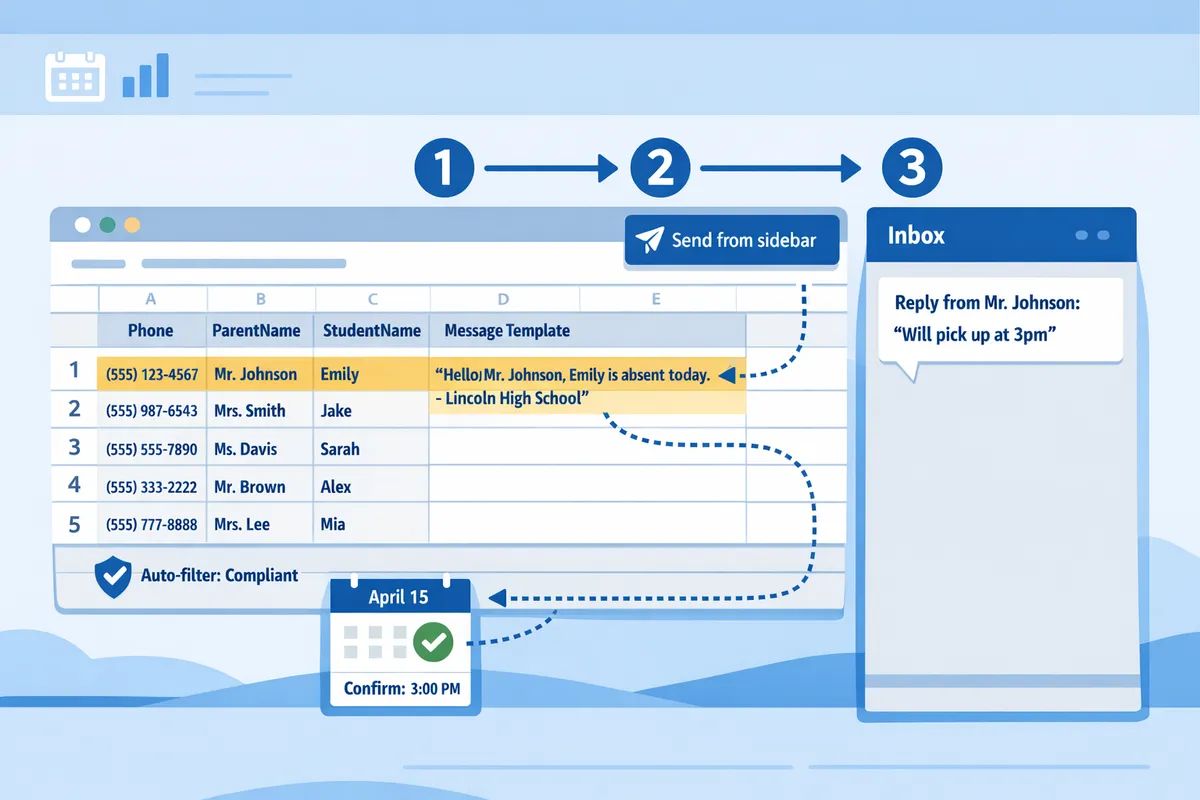
Two-way SMS lets recipients reply to school texts and staff read and respond inside a real-time inbox. Our Sheet Gurus SMS real-time inbox collects replies alongside the originating row so staff avoid copying context between tools. For example, send: ‘Hi {ParentName}, parent-teacher conference for {StudentName} is at {Time} on {Date}. Reply YES to confirm.’ A parent reply of ‘YES’ arrives in the sidebar linked to the same contact row, so office staff can mark attendance or trigger calendar confirmations without searching multiple systems.
💡
Tip: Standardize reply keywords (YES, PRESENT, RESCHEDULE) and document them in staff runbooks to speed triage and reporting.
Use cases where two-way matters.
- Confirmations and RSVP. Send an auto-reminder 48 hours before and let parents reply YES to confirm.
- Quick attendance checks. Send a morning roll-call text and collect PRESENT replies for same-day logging.
- Small rescheduling conversations. Parents can request changes without phone tag; staff reply from the inbox and update the sheet.
See our two-way playbook for handling volume and inbox workflows: K-12 SMS Alerts with Google Sheets in 2026: The Complete Two-Way Playbook (Segments, Calendar Reminders, and Sidebar Sending).
What are the core components of a sheet-driven SMS workflow? ⚙️
A sheet-driven SMS workflow is built from three practical components: a contact sheet, a message template with variables, and a sending mechanism. The contact sheet contains columns such as Phone, ParentName, StudentName, Grade, and EventDate so you can segment and personalize messages. The message template uses curly-brace placeholders, for example: ‘Reminder: Hi {ParentName}, {StudentName} has a conference at {Time} on {Date}. Reply YES to confirm.’
Steps to set up the basic workflow.
- Prepare the contact sheet: include a normalized phone column (+12223334444), name fields, and consent status.
- Draft templates: create a column for the message body with placeholders like {ParentName} and {EventLocation}.
- Choose a sender: install our Sheet Gurus SMS sidebar to send directly from Sheets or use a Zapier/Twilio stack if you need custom middleware.
- Test and schedule: send staged tests to staff numbers, check reply handling in the inbox, then schedule calendar reminders.
For a conference-specific template and drop-in examples, see our guide to automating parent-teacher conference reminders: Automate Parent-Teacher Conference Reminders with SMS.
Which terms and compliance concepts should school staff know? ⚖️
Staff must understand opt-in/opt-out, double opt-in, retention policy, message filtering, FERPA, and COPPA to manage legal and privacy risk. Opt-in is a consent method that requires recipients to agree before receiving texts. Double opt-in is a confirmation process that asks the recipient to verify a subscription, which reduces mistaken enrollments and TCPA exposure. Retention policy is an internal rule that specifies how long you keep contact and message logs; short windows reduce exposure if a device is lost or data is breached. Message filtering is an automated check that blocks sensitive keywords or student health details from leaving the system.
FERPA is a federal privacy rule that restricts what student education records you can share in messages. COPPA is a federal rule that affects direct marketing or data collection from children under 13. Use opt-in wording that documents consent and give a clear STOP keyword. Example opt-in copy: ‘I consent to receive SMS alerts from {SchoolName} at {PhoneNumber}. Msg&Data rates may apply. Reply STOP to opt out.’
⚠️ Warning: Avoid including detailed student health or special education information in SMS; these often fall under FERPA protections and increase compliance risk.
Our Sheet Gurus SMS includes automatic message filtering and inbox controls to help enforce retention windows and block sensitive content. For a compliance-first runbook and templates that meet K-12 needs, review our emergency and parent notification best-practices playbook: School Emergency Alerts and Parent Notifications from Google Sheets: A Two‑Way SMS Best‑Practices Playbook.
How do schools apply Google Sheets SMS automation to common use cases?
Schools apply Google Sheets SMS automation to reminders, attendance alerts, emergency notices, and two-way calendar confirmations from a single spreadsheet. Dynamic variables are placeholders that insert row-specific data into each message, letting you personalize texts at scale. Sheet Gurus SMS supports curly-brace variables, templates stored in a templates tab, and a real-time inbox so staff send messages and receive replies without switching apps.
How to write a parent-teacher conference message template 📝
A clear parent-teacher conference (PTC) template uses personalization variables and a single reply keyword for confirmations. Start by creating a Templates tab in your sheet and store the copy with curly-brace variables such as {ParentName}, {StudentName}, {PTCDate}, and {PTCTime}. Example template: ‘Hello {ParentName}, your conference for {StudentName} is on {PTCDate} at {PTCTime}. Reply YES to confirm or RESCHEDULE to request a different time.’
Steps to implement with Sheet Gurus SMS:
- Add a row per family with columns for phone, {ParentName}, {StudentName}, {PTCDate}, {PTCTime}, and a Status column.
- Save the PTC message in your Templates tab and open the Sheet Gurus SMS sidebar to map variables to columns.
- Schedule the send window (for example, 3 days before) or send immediately from the sidebar.
- Track replies in Sheet Gurus SMS real-time inbox and mark Status as Confirmed, Reschedule, or No Response.
💡 Tip: Use a single confirmation keyword (YES) and a distinct reschedule keyword (RESCHEDULE). That simplifies inbox filtering and reduces manual triage.
See our guide on Automate Parent-Teacher Conference Reminders with SMS for a step-by-step walkthrough and copy-ready templates.
How to use Sheets-driven SMS for attendance and emergencies
Sheets-driven SMS sends rapid attendance alerts and emergency notices to filtered contact lists with short, actionable text and a follow-up channel. Filter your sheet by absence flags or by an Incident column, then send a targeted template that includes the student name, time, and a short next step. For emergency notices include a short status line and a link to your school status page (hosted on your domain) plus an opt-out instruction of one sentence.
Practical steps with Sheet Gurus SMS:
- Maintain an ‘AbsentToday’ or ‘EmergencyRecipients’ filter view in your sheet.
- Create a concise template: ‘Hello {ParentName}, {StudentName} was marked absent at {Time}. Reply HELP for support or CALL to request a phone callback.’
- Use the Sheet Gurus SMS sidebar to send to the filtered view; its automatic message filtering helps reduce compliance risk and the real-time inbox captures replies for follow-up.
- Route replies to escalation owners (attendance clerk, school safety lead) and update the sheet row with the response.
⚠️ Warning: FERPA and COPPA require schools to limit data exposure and record consent. Keep attendance and emergency messages minimal, store consent records in a secure sheet, and delete or archive records according to district policy.
For full best practices on compliant two-way emergency workflows, see our School Emergency Alerts and Parent Notifications playbook and the K-12 two-way playbook for calendar reminders.
How to set up two-way calendar confirmations with Google Calendar ✅
Two-way calendar confirmations link a calendar invite to a follow-up SMS that asks recipients to confirm by reply and syncs send times with the Google Calendar event. Two-way SMS is a messaging method that allows recipients to reply and sends those replies into a real-time inbox for staff review. A Calendar column is a sheet field that stores the event date/time or the Google Calendar event ID used to schedule sends.
Step-by-step setup:
- Add a Calendar column to each row with the event date/time (for example, 2026-05-15 14:00) or a Google Calendar event ID.
- Create the calendar event in Google Calendar for the same time and invite the parent email if appropriate.
- In Sheet Gurus SMS, schedule the reminder relative to the Calendar column (for example, 24 hours before and 1 hour before).
- Use a confirmation template such as ‘Hi {ParentName}, reminder: {EventName} for {StudentName} on {EventDate} at {EventTime}. Reply YES to confirm or NO to decline.’
- Monitor replies in the sidebar inbox and write responses back to the sheet to keep calendar attendance current.
This approach keeps SMS reminders and calendar invites aligned and reduces last-minute no-shows. For a complete playbook on segments, calendar reminders, and inbox handling, see our Complete Two-Way Playbook for K-12 SMS.
What sample templates should districts keep on hand?
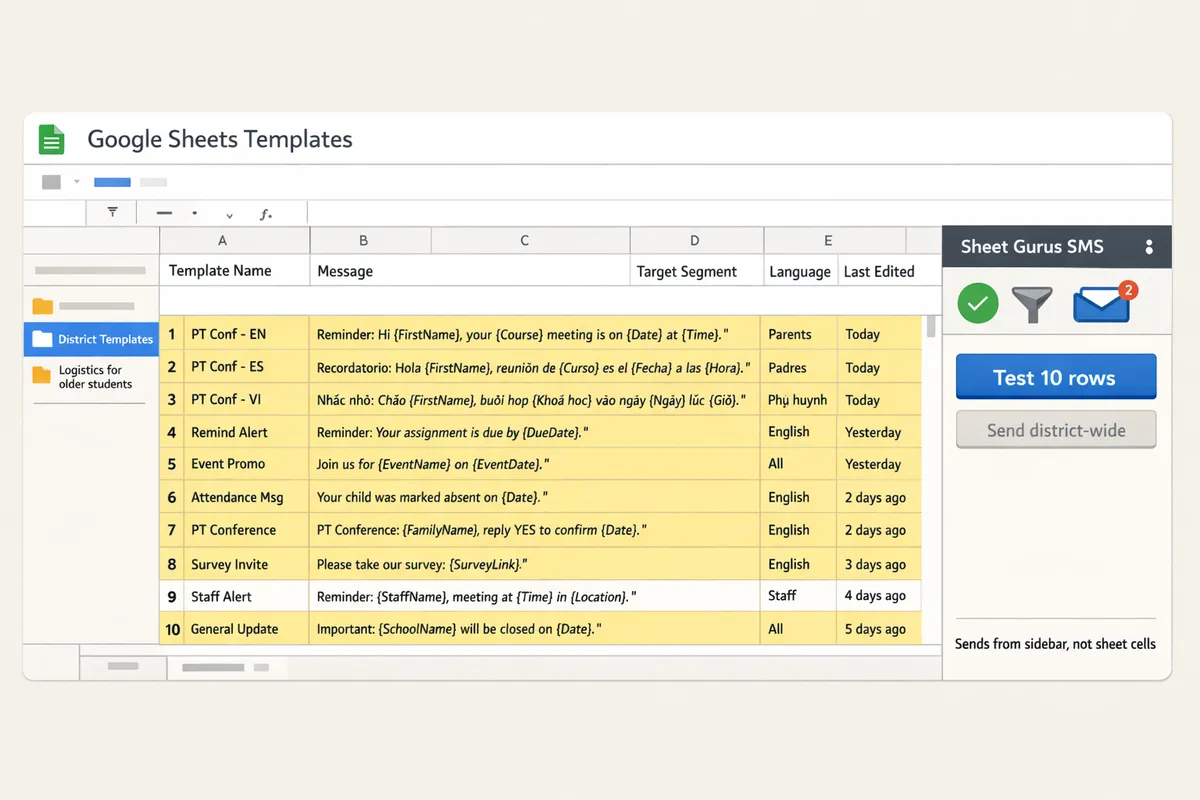
Districts should maintain a Templates tab with ready-to-send messages for PTC reminders, attendance alerts, late bus notices, sports cancellations, and event RSVPs. Store each template with a clear name, a target segment label, and language variants for elementary and secondary audiences.
| Template | Purpose | Example message (use curly-brace variables) |
|---|---|---|
| PTC reminder | Ensure parents confirm conference times | ‘Hello {ParentName}, your conference for {StudentName} is on {PTCDate} at {PTCTime}. Reply YES to confirm or RESCHEDULE to change.’ |
| Attendance alert | Notify guardians of a same-day absence | ‘Hi {ParentName}, {StudentName} was marked absent today at {Time}. Reply CALL for a staff callback or INFO for more details.’ |
| Late bus notice | Notify families of transport changes | ‘Alert: The {BusRoute} is running {Delay} minutes late. Expect arrival at {EstTime}. Reply HELP for assistance.’ |
| Sports cancellation | Cancel or postpone extracurriculars | ‘{EventName} scheduled for {EventDate} is canceled due to {Reason}. Refunds/updates: reply INFO.’ |
| Event RSVP | Collect confirmations for school events | ‘You’re invited to {EventName} on {EventDate}. Reply YES to RSVP or NO if you cannot attend.’ |
Operational tips:
- Keep language simple for elementary families and include brief logistics for older students.
- Version templates for multilingual distribution and label them clearly in the Templates tab.
- Use Sheet Gurus SMS variable mapping to test 10 rows before sending district-wide to prevent accidental data mistakes.
Related resources: review our K-12 School SMS Alerts full guide and the Automate Parent-Teacher Conference Reminders with SMS article for additional templates and district-ready checklists.
How do I get started with Google Sheets SMS automation using Sheet Gurus SMS?
Install our Sheet Gurus SMS add-on, prepare a contacts sheet with the required columns, test dynamic templates, and schedule sends from the sidebar. This section walks through the exact sheet layout, install steps, message testing, calendar connection, and consent checks you need before a schoolwide rollout.
What is the recommended sheet layout to start with? 📋
Start with a contacts sheet containing the columns Phone, ParentName, StudentName, EventName, EventDate, RSVPStatus, and ConsentTimestamp. Use the Phone column for E.164 formatted numbers (example: +12223334444) so sends do not fail during validation. Our Sheet Gurus SMS reads header names and maps curly-brace variables to matching columns, so exact headers speed setup and prevent mismatch errors. Example row:
- Phone: +12223334444
- ParentName: Maria Gomez
- StudentName: Javier Gomez
- EventName: Parent-Teacher Conference
- EventDate: 2026-05-14 15:30
- RSVPStatus: Pending
- ConsentTimestamp: 2026-04-01 09:12
Sample template to copy into the sidebar: ‘Hello {ParentName}, reminder: Parent-Teacher Conference for {StudentName} is on {EventDate}. Reply YES to confirm.’ For a ready-made template you can copy, see our automated conference reminders guide on the site.
How do I install Sheet Gurus SMS and grant permissions? 🔌
Install Sheet Gurus SMS from the G Suite Marketplace, open the add-on sidebar, and grant the minimal permissions needed to send messages and read replies. Follow these steps:
- Open Google Sheets, choose Extensions > Add-ons > Get add-ons, and search for Sheet Gurus SMS.
- Click Install and accept the requested permissions. These allow the sidebar to read rows for variable substitution and to show replies in the real-time inbox.
- Open the add-on via Extensions > Sheet Gurus SMS to show the sidebar and run the onboarding wizard.
- Test with a pilot list of 10–20 internal numbers before a full rollout to confirm domain settings and sender IDs.
If your district manages add-ons centrally, ask IT to approve a domain install to avoid permission blocks. For a full comparison of methods to send two-way alerts from Sheets, see our Add-On vs Apps Script comparison.
How do I create and test dynamic messages with variables? ✉️
Compose messages in the sidebar using dynamic variables and run a test send to verify correct substitution and formatting. Dynamic variables are placeholders that insert row-specific values into messages. Use curly braces around column names exactly as they appear in your sheet (for example {ParentName}, {StudentName}, {PTCDate}).
Steps to test:
- Write the message in the Sheet Gurus SMS sidebar and include variables, for example: ‘Hi {ParentName}, this is a reminder that {StudentName}‘s conference is {PTCDate} at {PTCTime}. Reply YES to confirm.’
- Select a single row and click Preview to see the substituted text in the sidebar.
- Send a single test message to your personal phone to check line breaks, time zones, and readability.
- Confirm the reply lands in the sidebar inbox and that the add-on can update the RSVPStatus cell if you plan two-way confirmations.
For parent-teacher conference workflows specifically, see our dedicated Parent-Teacher Conference reminders article for template examples and scheduling tips.
How do I connect Google Calendar events to sheet-driven reminders? 📆
Add a CalendarID or EventLink column and schedule sends relative to event start times so Sheet Gurus SMS can send timed reminders and handle two-way RSVPs. Use a ScheduledSend column to store when to send (for example, ‘48h-before’ or an absolute datetime) and include EventLink or CalendarID so staff can open the event from the sheet.
Practical steps:
- Export the calendar ID from Google Calendar and paste it into the CalendarID column for the matching rows.
- In the sidebar map CalendarID/EventLink and ScheduledSend columns so the add-on knows which event to reference.
- Choose relative offsets (hours or days before start) when scheduling bulk sends.
- Enable the two-way reply workflow so incoming ‘YES’ or ‘NO’ updates RSVPStatus in the sheet and, optionally, pushes changes back to the Google Calendar event.
This setup reduces manual confirm calls and keeps staff-visible status in one place. For advanced inbox routing and segmenting by grade or building, see our two-way playbook.
What opt-in and consent steps should be implemented before sending? ✅
Collect explicit parent consent before sending any SMS and record the consent timestamp in your sheet to maintain an auditable trail. Double opt-in is a process that requires an initial signup followed by a confirmation reply or link to verify the number owner.
Recommended workflow:
- Capture opt-in via a Google Form or a district sign-up checkbox during registration.
- Implement double opt-in: send an automated confirmation message asking the parent to reply YES or click a confirmation link.
- On confirmed replies, populate ConsentTimestamp and ConsentStatus in the sheet.
- Respect STOP/unsubscribe replies; Sheet Gurus SMS applies automatic filtering and updates subscription columns to prevent future sends.
💡 Tip: Log consent source (form, in-person, phone) and timestamp in separate columns for audits and FERPA/COPPA reviews. ⚠️ Warning: Do not include protected health or disciplinary details in SMS content. Keep messages focused on logistics and opt-in status.
For opt-in wording, templates, and retention guidance tailored to K-12 deployments, see our school emergency alerts best-practices playbook and the automated text messaging use case.
How do I scale, compare options, and measure success for a school-wide SMS program?
Scale a school-wide SMS program by standardizing message templates, assigning role-based access, applying message filters, and tracking delivery and response metrics. These practices reduce staff hours, shrink compliance risk, and make results measurable. Below we compare DIY stacks to Sheet Gurus SMS, show ROI math for a 5,000-message monthly cadence, cover privacy and retention best practices, link to ready templates, and list troubleshooting steps.
DIY stacks vs Sheet Gurus SMS 🧾
Choose Sheet Gurus SMS for lower setup time, fewer moving parts, built-in two-way messaging, and automatic compliance filters; choose a DIY stack only if you need fully custom integrations and have engineering resources. Our comparison highlights setup time, required tools, maintenance burden, compliance risk, and two-way capabilities so you can evaluate time and cost trade-offs.
| Factor | DIY stack (Sheets + Zapier/Pabbly + Twilio) | Sheet Gurus SMS (add-on in Sheets) |
|---|---|---|
| Typical setup time | Weeks for integration, testing, and permission configuration | Hours for install, sheet prep, and a sidebar test send |
| Required tools | Google Sheets, Zapier or Pabbly, Twilio account, possibly Apps Script | Google Sheets and Sheet Gurus SMS add-on only |
| Maintenance burden | High. Multiple services to update and monitor | Low. Single sidebar interface and inbox to manage |
| Compliance risk | Higher. Multiple services increase places to store data and misconfigure filters | Lower. Built-in automatic message filtering and inbox audit logs |
| Two-way messaging | Possible but requires additional connectors and inbox workarounds | Built-in real-time inbox for replies and routing |
| Cost profile | Variable: pay-per-service fees and possible developer time | Predictable: single product subscription plus per-message carrier fees |
See our analysis in Add-On vs Apps Script vs Zapier for a deeper breakdown of failure modes and compliance differences. Link to our two-way playbook for emergency use cases and inbox best practices.
How to calculate staffing ROI and cost per message 🧮
Calculate ROI by multiplying staff hours saved by hourly wage and dividing by monthly message volume to find cost per message and payback period. Use estimated hours saved from template automation, two-way inbox handling, and scheduled sends.
Example math for a 5,000-message monthly cadence. Use the formulas below and replace numbers with your district figures.
- Estimate monthly staff hours saved. Example: automating reminders saves 8 staff hours per week, which equals 32 hours per month.
- Multiply by average hourly wage. Example: 32 hours × $25/hour = $800 saved per month.
- Compute labor savings per message. Example: $800 / 5,000 messages = $0.16 saved per message.
- Subtract subscription and per-message fees to get net savings. Example: if a tool subscription is $200/month and per-message fees are $0.02, net monthly savings = $800 - $200 - (5,000 × $0.02) = $800 - $200 - $100 = $500.
- Payback period on implementation time. If manual launch took a staff of two 10 hours each (20 hours) to build templates, payback = 20 hours × $25 / $500 = 1 month.
Use Sheet Gurus SMS to reduce manual template edits and to manage replies in a single inbox, which shortens the hours-saved estimate because staff no longer copy-paste messages or reconcile replies across tools.
💡 Tip: Build reusable templates with variables like {ParentName}, {Date}, and {Time} to shrink manual personalization time by 60% or more in practice.
What privacy, retention, and compliance practices should districts adopt? 🔒
Districts should adopt FERPA- and COPPA-aware retention policies, keep message content minimal, store signed consent records, and use automatic message filtering to reduce exposure. Consent record is a stored proof that a parent or guardian agreed to receive texts; keep the signer, timestamp, source (form or paper), and message type on file.
Recommended, practical rules our site uses with districts:
- Keep consent records for at least three years after last contact unless your legal counsel requires otherwise.
- Keep message content minimal: use placeholders like {ParentName} and {SchoolName}, and avoid including student health or special education details in SMS.
- Use automatic message filtering. Automatic message filtering is a policy-enforcement tool that flags or blocks messages containing sensitive keywords before send. Sheet Gurus SMS applies filters inside the sidebar to prevent sending restricted content.
- Export audit logs monthly and store them in a locked folder with access logs. Our Sheet Gurus SMS inbox includes export tools to pull message history and delivery receipts for audits.
⚠️ Warning: Avoid sending student health or disciplinary specifics via SMS. Use secure phone calls or encrypted portals for protected information.
For COPPA and FERPA nuance, consult your district counsel. Our posts on emergency alerts and two-way playbooks outline opt-in templates and consent language that reduce TCPA and COPPA risk.
What advanced resources and templates are available next? 📚
Our site provides grade-level templates, emergency escalation scripts, and calendar reminder templates that you can import into Sheets and test immediately. Examples include conference reminders and event RSVPs that use curly-bracket variables for personalization.
Example template for parent-teacher conferences: ‘Hello {ParentName}, this is {SchoolName}. Your {Grade} conference is on {Date} at {Time}. Reply CONFIRM to reserve your slot or RESCHEDULE for options.’ Example emergency acknowledgement: ‘Hi {ParentName}, school will close at {Time} today due to {Reason}. Reply YES to acknowledge.’
Track these KPIs after launch: delivery rate, response rate, time-to-acknowledge, and confirmed RSVPs. Aim to measure baseline performance during a pilot and then set targets you can improve month over month. For drill-down tutorials and importable calendar reminder sheets, visit our Automated Text Messaging use case and the Text Appointment Reminders page.
How to troubleshoot common deployment issues 🛠️
Resolve most issues by running a small pilot, checking Sheet Gurus SMS logs and inbox filters, and verifying phone formatting and consent fields. Start with a pilot of 50 to 200 contacts to exercise templates, reply flows, and escalation rules before a district-wide send.
Step-by-step troubleshooting checklist:
- Confirm phone formatting. Use international format like +12223334444 for carrier reliability.
- Test dynamic variables. Send test rows that include {ParentName} and {Date} to see formatting and missing-variable errors.
- Check permission and sharing settings. Ensure staff using the sidebar have appropriate Google Workspace roles.
- Review the Sheet Gurus SMS inbox filters and delivery logs to find blocked or bounced numbers.
- Validate consent records before bulk sends to avoid TCPA complaints.
If problems persist, replicate the failed send in the sidebar and export the send log to share with our support team for faster resolution.
Related resources: consult our two-way emergency playbook and the two-way SMS playbook for segmentation and calendar reminder best practices. For step-by-step setup, see our guide on sending texts from Google Sheets and the automated text messaging use case.
Frequently Asked Questions
This FAQ answers the operational, technical, and compliance questions school admins ask about google sheets sms automation for school reminders and our Sheet Gurus SMS add-on. Use these concise Q&A entries to resolve setup, consent, delivery, reply handling, cost comparison, and data retention decisions for your district.
Can Google Sheets send SMS messages to parents? 📤
Yes. Google Sheets can act as the data source while an add-on or integration sends the actual SMS. Our Sheet Gurus SMS add-on sends messages from a sidebar using the rows and variables in your sheet rather than relying on spreadsheet formulas. For example, a message template can use curly-brace variables: ‘Hello {ParentName}, school closed today due to {Reason}. Reply YES for updates.’ Scheduled sends, test batches, and dynamic templates work directly from the sidebar, so staff do not have to write scripts or maintain multiple tools. See the two-way emergency and event texting guide for end-to-end examples and templates.
Do parents have to opt in before receiving school texts? ✅
Yes. Parents must provide explicit opt-in before receiving non-transactional school texts. Implement a double opt-in workflow and record consent timestamps in your sheet to create an audit trail; our Sheet Gurus SMS supports consent columns and exportable logs to simplify audits. Use clear opt-in language (channel, frequency, and opt-out instructions) and store the form or timestamp next to the contact row. Follow the opt-in templates in Automate Parent-Teacher Conference Reminders with SMS to reduce TCPA and district risk.
💡 Tip: Always use double opt-in for SMS signups and keep the consent timestamp in a dedicated column called ConsentTimestamp.
How do I format phone numbers so messages deliver reliably? 📞
Use international format with a leading plus and country code for reliable delivery, for example +12223334444. Include a dedicated column for the full phone number and a separate CountryCode column when you need segmentation by country. Store phone fields as plain text in Google Sheets to prevent automatic reformatting. Run a small pilot batch (10–50 numbers) to confirm carrier acceptance before sending to larger groups. Our Sheet Gurus SMS validates numbers before submission and highlights rows that likely need correction so staff can fix entries without guessing. See our sending-from-Sheets guide for recommended column headers and sample cleanup steps.
Can parents reply to messages and how are replies handled? ↩️
Yes. Parents can reply, and replies appear in a real-time inbox where staff can respond or record outcomes in the sheet. Sheet Gurus SMS provides a real-time inbox that captures inbound replies, applies automatic filters (for example tagging YES as an RSVP), and lets staff update an RSVPStatus or Attendance column from the sidebar. Example workflow: set a filter that moves text YES to the Attendance team and auto-populates the RSVPStatus column with the timestamp. According to Sheet Gurus SMS documentation, automatic filtering reduces manual sorting and helps staff focus on high-priority replies. For two-way best practices and inbox runbooks, see the two-way playbook.
How do I compare the cost and time of a DIY stack vs Sheet Gurus SMS? 💸
Compare total setup hours, number of tools to manage, monthly subscriptions, and compliance risk to decide which option saves your district time and money. DIY stacks typically combine a spreadsheet, a messaging provider, and an automation tool, which increases the number of accounts to maintain and the potential points of failure. Our Sheet Gurus SMS centralizes sending, templates, scheduling, and replies inside Google Sheets and reduces ongoing maintenance. To build a simple ROI check: estimate staff hours spent on manual sends per month, multiply by an average hourly cost, subtract the expected monthly service fee, and factor in reduced error-handling time. Use that calculation to compare a DIY Zapier/Twilio path against the streamlined Sheet Gurus SMS workflow.
What happens to student data and how long should we retain it? 🔒
Limit student-identifying data in SMS content and retain contact records only as long as legally and operationally necessary. Store only the fields needed for the use case (for example, Phone, ParentName, ConsentTimestamp, and RSVPStatus) and document retention windows per use case: short-term event reminders can be purged or archived 30 days after the event; ongoing notifications may follow district retention policy or parent opt-out. Our documentation recommends exportable audit logs and supports scheduled exports to an archived sheet so you can purge the live contact list without losing proof of consent and sends. Follow FERPA and COPPA guidance in your district policy and avoid sending sensitive health or disciplinary details via SMS.
⚠️ Warning: Avoid sending student health or disciplinary specifics via SMS. Use secure phone calls or encrypted portals for protected information.
You can send tailored SMS reminders from Google Sheets today.
This guide leaves you with a clear, practical path: set up a Sheet, map curly-bracket variables, schedule messages, and test two-way confirmations so parents get timely alerts without extra staff hours. google sheets sms automation for school reminders reduces manual calls and missed acknowledgments. For examples of two-way emergency and event workflows, see our guide on two-way emergency and event texting.
Sheet Gurus SMS is a Google Sheets add-on for sending bulk SMS from a sidebar rather than spreadsheet formulas. Personalize each message with curly-brace variables such as {FirstName}, handle replies in a real-time two-way inbox, and rely on automatic message filtering to help keep your sends compliant.
If you want templates for conferences, see our article on automating parent-teacher conference reminders with SMS.
Try Sheet Gurus SMS now: follow the getting-started guide to create your first message and test a live reminder from the sidebar. Subscribe to our newsletter for implementation tips and calendar reminder templates.