



The 2026 K‑12 Guide to Google Calendar SMS Reminders: ICS Setup, Tool Comparisons, and Two‑Way Text Templates
A single missed school closure text can trigger dozens of parent calls and tie up front-office staff for hours. Google Calendar SMS reminders for schools is a workflow that converts calendar events into text alerts so staff reach families directly from calendar entries. This practical beginner’s guide shows K‑12 staff how to set up ICS-based reminders, compare DIY Calendar scripts with purpose-built tools, and use our Sheet Gurus SMS platform for two-way templates and replies. Our Sheet Gurus SMS platform sends bulk SMS from Google Sheets via a sidebar (not formulas), supports {curly brackets} for dynamic variables, offers a real-time inbox for replies, and applies automatic message filtering for compliance. Which approach saves the most time and reduces missed alerts?
How do Google Calendar SMS reminders work for schools?
Google Calendar SMS reminders for schools are automated text notifications triggered when a calendar event fires. They let staff turn events such as closures, conferences, or field trips into SMS messages sent to guardians, students, or staff using an add-on, automation, or an SMS platform.
What is a Google Calendar SMS reminder for schools? 📅
A Google Calendar SMS reminder is a scheduling tool that sends text messages based on calendar events. A Google Calendar SMS reminder is a tool that reads event details and sends a tailored SMS when a scheduled event occurs. Schools use this for attendance alerts, event reminders, field trips, and parent‑teacher conferences because it replaces manual phone trees and one-off mass texting tasks.
Example scenarios and message templates:
- One-off event reminder. Message: “Reminder: {StudentName}‘s conference on {Date} at {Time}. Reply YES to confirm.” This template uses curly-bracket variables to personalize messages.
- Recurring class notifications. Message: “Dear {ParentName}, today’s early dismissal for {Grade} is at {DismissalTime}. Reply HELP for options.”
Sheet Gurus SMS integrates directly with Google Sheets and sends messages from a sidebar. Our add-on supports curly-bracket variables like {StudentName}, includes a real-time inbox for two-way replies, and applies automatic message filtering to help keep content compliant. For full setup steps, see our Sending SMS from Google Sheets guide.
How does Google Calendar connect to SMS: common patterns 🔁
There are three common connection patterns: Google Workspace add-ons, Sheets-based automations, and standalone SMS platforms that import ICS files. ICS is a calendar file format that exports event details (date, time, description) so another system can read and act on the event.
| Pattern | How it works | Pros | Cons | Best for |
|---|---|---|---|---|
| Google Workspace add-on | Add-on reads calendar events and sends SMS from Calendar or sidebar | Tight UI integration, easy install | May hit quota or scale limits | Small schools or single-campus teams |
| Sheets-based automation | Calendar events export to Google Sheets which acts as a staging table, then an add-on sends SMS | Full data control, template preview, two-way inbox possible | Requires mapping and occasional maintenance | Districts with complex templates or roster imports |
| Standalone SMS platform (ICS import) | Platform ingests ICS exports and schedules SMS deliveries | Robust delivery reporting, enterprise features | Extra step to export ICS or sync | Districts needing centralized control and SLAs |
Practical example: export a weekly calendar of parent‑teacher conferences to an ICS file or a Sheets row, map {EventName}, {EventDate}, and {Location}, then use Sheet Gurus SMS to send scheduled reminders and capture replies in the sidebar. See our Calendar-to-SMS workflow for a step-by-step example and two-way reply handling.
What compliance terms matter for school SMS (FERPA, opt-in, PII) ⚖️
Schools must manage FERPA constraints, obtain explicit opt-in consent, and avoid sending sensitive PII over SMS. FERPA is a federal law that protects student education records and limits what you can include in non-secure communications. Opt-in is documented permission from recipients to receive texts; maintain a timestamped record of that consent inside your roster or Sheets export.
Operational controls to implement:
- Keep opt-in logs in Google Sheets and include a column for consent timestamp and source.
- Use short, non-sensitive templates that reference only needed variables (for example, {StudentName} and {EventDate}, not grade history or medical info).
- Apply automatic message filters before sending so messages with restricted keywords or numbers do not go out.
⚠️
Warning: Do not include student health details, grades, or full ID numbers in SMS messages; store those records in secured systems and reference only minimal, non-sensitive variables in texts.Sheet Gurus SMS supports automatic message filtering and keeps opt-in indicators in Sheets so staff can audit consent and prevent accidental PII exposure. For FERPA-specific playbooks and opt-in templates tailored to K‑12, see our two-way playbook and the complete K-12 guide to Google Sheets SMS alerts.
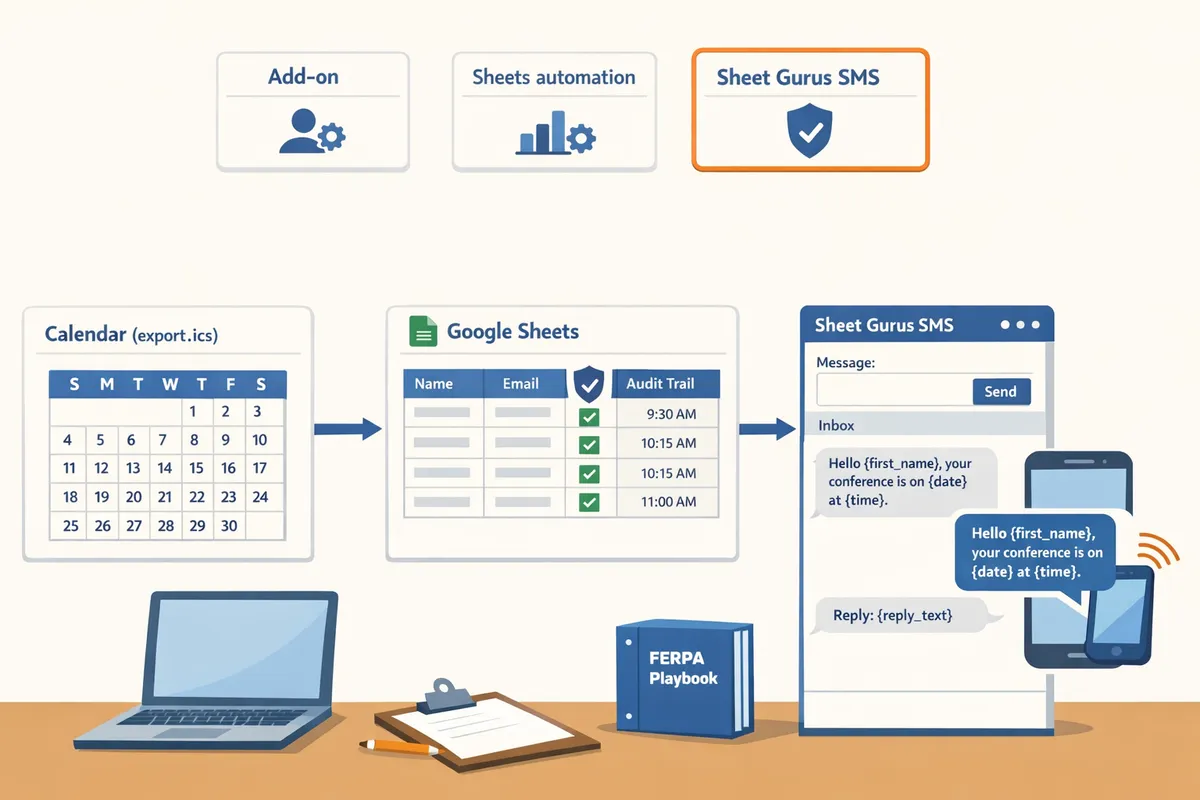
Which setup option should my school choose: add-on, Sheets automation, or Sheet Gurus SMS?
Choose the option that matches staff bandwidth, scale, and privacy needs: Google Calendar add-ons for small teams, Sheets automation for flexible DIY workflows, and Sheet Gurus SMS for districts that need two-way messaging, roster automation, and compliance controls. Small offices can accept more manual steps; large districts should prefer a purpose-built platform to reduce staff hours and regulatory risk. The rest of this section gives a quick side-by-side comparison, the DIY risks to quantify, and the school features that matter most when buying.
Comparison table: Google Calendar add-ons vs Sheets automation vs Sheet Gurus SMS 📊
The table below compares ease of setup, roster import, two-way support, compliance controls, scheduling options, cost model, expected staff hours, and operational risk to help districts scan trade-offs quickly.
| Feature / Attribute | Google Calendar add-ons | Sheets automation (DIY) | Sheet Gurus SMS |
|---|---|---|---|
| Ease of setup | Very fast. Install from Workspace Marketplace and authorize. | Moderate. Build Sheets, scripts or third-party automations and test triggers. | Fast to configure. Install the add-on and map columns in the sidebar. |
| Roster import | Basic CSV or manual attendee lists. | Uses Google Sheets as the roster; can import CSVs from SIS. | CSV + Google Sheets import; supports curly-brace variables for dynamic fields. |
| Two-way support | Rare or limited; replies often go to an email or external inbox. | Possible but requires extra tools (separate SMS provider or inbox). | Native real-time inbox for replies and simple reply workflows. |
| Compliance controls (opt-in, filters, audit logs) | Minimal. Mostly manual opt-in tracking. | Manual opt-ins and logs unless you build extra checks. | Built-in automatic filtering and audit-friendly metadata. |
| Scheduling options | Simple event-triggered reminders from Calendar. | Highly flexible scheduling via Sheets formulas or automation tools. | Schedule per-row or link Calendar events to scheduled sends in the sidebar. |
| Expected staff hours (routine reminders) | Low for one-off events; 1–3 hrs/week. | Moderate to high; 3–8 hrs/week depending on scale. | Low; typically under 2 hrs/week for routine reminders once set up. |
| Cost model | Free or low-cost Marketplace add-on; may require paid SMS credits. | Low software cost; staff time is primary expense. | Subscription with tiered seats and included sending credits (varies by plan). |
| Reliability / operational risk | Medium. Dependent on Marketplace app support and Google Calendar behavior. | High risk of errors: broken automations, missing personalization, opt-in lapses. | Lower risk: sidebar sending reduces spreadsheet errors; inbox and filters reduce compliance incidents. |
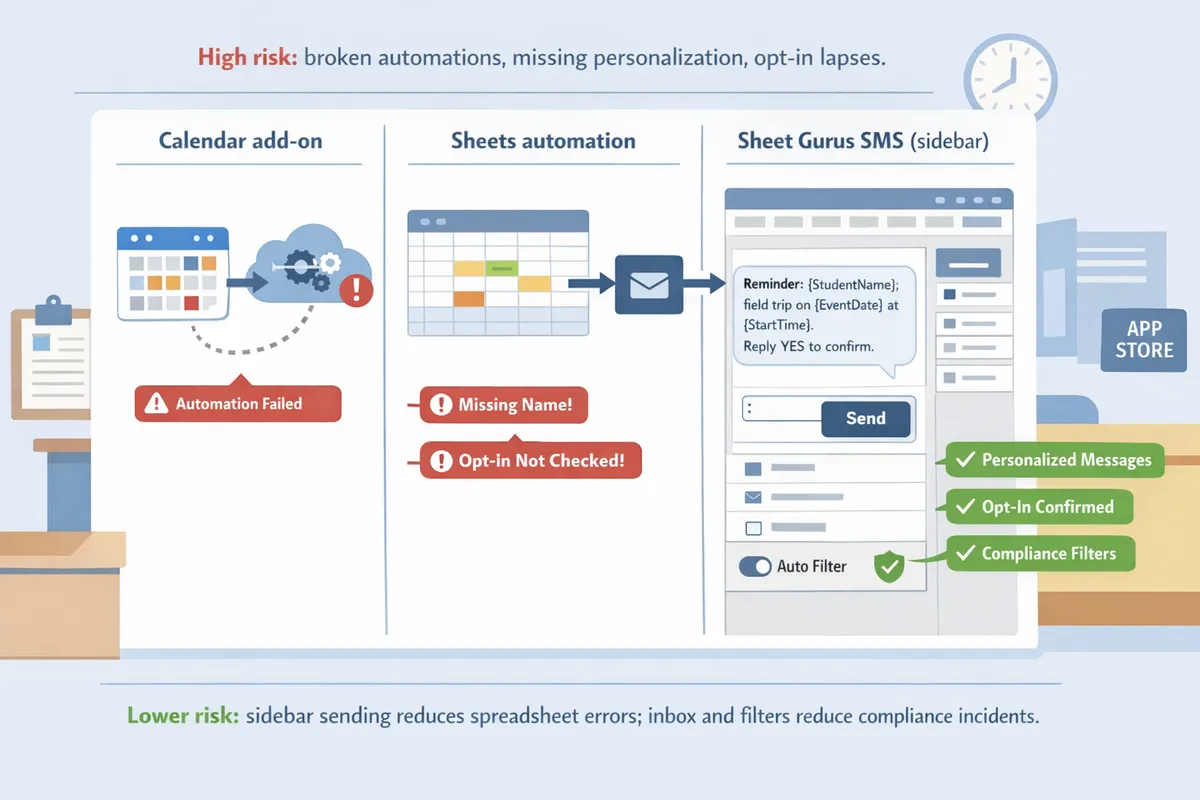
What are the business risks of a DIY Sheets workflow? ⚠️
DIY Sheets workflows increase staff time, error risk, and compliance exposure compared with purpose-built platforms. For example, front offices that manage event reminders manually can spend multiple hours each week sending messages, reconciling opt-ins, and following up on replies; an elementary school can see up to eight staff hours weekly on manual reminder tasks. See our analysis in The Complete 2026 K-12 Guide to Google Sheets SMS Alerts and Two-Way Calendar Reminders for context on time savings and common failure modes.
Common failure modes and their business impacts:
- Missed deliveries. Missed messages trigger parent calls, unplanned pickups, and reputation damage.
- Incorrect personalization. Wrong names or dates lead to extra staff time to correct errors and reduced trust.
- Manual opt-in tracking lapses. That causes regulatory risk and creates audit gaps if a parent contests receipt.
- Reply handling gaps. Without a central inbox, replies scatter across phones or emails and need manual triage.
Example cost illustration. If a staff member spends 4 hours/week on reminders at $25/hour for a 40-week school year, that totals $4,000 annually in labor. That calculation excludes indirect costs like parent callbacks and lost instructional time.
⚠️ Warning: Storing student PII in shared spreadsheets without clear access controls increases FERPA risk; document who can view and export SMS rosters before starting any DIY workflow.
How Sheet Gurus SMS reduces these risks. Use the add-on sidebar to send messages (not spreadsheet formulas), apply curly-brace variables like {StudentName} and {Date} consistently, and manage replies in the real-time inbox. Automatic message filtering helps you enforce opt-in rules and reduce manual review time. For a step-by-step Calendar-to-SMS example, see How to Deliver School Event Text Reminders from Google Sheets: Calendar-to-SMS Workflow with Two-Way Replies (2026).
Which school features matter most when evaluating SMS tools 🧾
Prioritize roster imports, two-way inboxes, automated filtering, multi-language templates, and audit logs when selecting an SMS tool for K-12. Those features directly reduce staff hours, lower compliance risk, and improve parent response rates.
Feature checklist and why each matters:
- Roster imports (CSV / SIS). Saves manual entry and keeps contact data current; a daily sync avoids sending to outdated numbers. Example: import a weekly substitute roster so event reminders only go to affected families.
- Two-way inbox. Captures replies centrally so staff do not chase texts across phones. Example template: “Reminder: {StudentName}‘s conference on {Date} at {Time}. Reply YES to confirm.”
- Automated filtering and opt-in enforcement. Prevents messages to unsubscribed numbers and creates a compliance trail.
- Dynamic variables and language templates. Use {ParentName}, {StudentName}, and {Language} to create localized messages without manual editing.
- Audit logs and delivery status. Required for FERPA audits and for verifying that critical alerts reached recipients.
Sheet Gurus SMS supports curly-brace variables for personalization, a real-time inbox for two-way communication, and automatic filtering to help maintain compliance. For practical templates, scheduling steps, and a full two-way playbook, see our Sending SMS from Google Sheets guide and the Automated Text Messaging use case on the Sheet Gurus site.
How to set up Google Calendar SMS reminders for schools using Google Sheets and Sheet Gurus SMS
You can set up Google Calendar SMS reminders for schools by mapping calendar events into Google Sheet rows, composing curly-brace templates, and scheduling sends from the Sheet Gurus SMS sidebar. This flow keeps event metadata (event_id, occurrence_date) in the sheet so reminders avoid duplicates and record consent. The step-by-step playbook below targets school office staff and district admins with low-risk settings for parent communications and event reminders.
Step 1 — Prepare the Google Sheet roster and data columns 📋
Prepare a single roster sheet with consistent phone formats, recipient type, language, event_id, and opt-in status so personalization and compliance work reliably. Opt-in status is a column that records whether a guardian or staff member consented to receive SMS messages; use values like YES, NO, or PENDING. Keep these columns at minimum: {student_name}, {parent_name}, {parent_phone} (format +12223334444), {recipient_type} (guardian/student/staff), {language}, {event_id}, {occurrence_date}, and {opt_in}. Sheet Gurus SMS reads curly-brace variables from these headers, so exact column names speed up template previews and reduce errors.
Use a separate tab for archived phone numbers and opt-out history to avoid accidental resends. If your district imports rosters nightly, add a checksum or last_updated column to detect changed consent. See our Sending SMS from Google Sheets guide for detailed examples and CSV import tips:
Sending SMS from Google Sheets with Sheet Gurus SMS (Updated 2025).⚠️ Warning: Follow district FERPA rules; do not store unencrypted student PII in publicly shared sheets and require double opt-in for guardian phone numbers.
Step 2 — Map calendar events to sheet rows using ICS exports or automations 🔗
Map events by exporting the event as an ICS or by using an automation that appends a row per event occurrence so each sendable row contains the event metadata needed for templating. ICS is a calendar export format that contains event metadata and occurrence times; importing it into Sheets gives you event_id, start/end times, and description fields to map. For one-off events, export ICS from Google Calendar and import rows; for repeating schedules use an automation (Zapier, Make, or a scheduled export) that writes event_id and occurrence_date to prevent duplicate sends.
Always include event_id plus occurrence_date in the sheet to deduplicate recurring events. If you prefer a hands-off setup, pair the mapping step with our calendar-to-SMS workflow guide for school events: Calendar-to-SMS workflow with two-way replies. Remember that Sheet Gurus SMS sends from the sidebar rather than spreadsheet formulas, so the mapped rows only need accurate columns, not complex formulas.
Step 3 — Compose templates with dynamic variables and schedule sends ✉️
Compose message templates with curly-brace variables and schedule them from the Sheet Gurus SMS sidebar so each recipient receives a personalized reminder. Use variables that match your sheet headers exactly, for example: “Reminder: {student_name}‘s conference is on {event_date} at {event_time}. Reply 1 to confirm.” Sheet Gurus SMS previews each row’s personalized message before sending, which lets staff catch formatting issues or missing data.
Follow these steps to schedule a batch send from the sidebar:
- Select the sheet range that contains your event rows.
- Open the Sheet Gurus SMS sidebar and choose the template or paste your curly-brace message.
- Click Preview to inspect a sample of personalized rows.
- Set Send Time or a calendar-triggered schedule and apply language filters if needed.
- Confirm and queue the campaign; delivery status appears in the sidebar.
For more template examples and appointment-reminder patterns, see our text appointment reminders use case: Text Appointment Reminders.
Step 4 — Configure two-way replies and sample scripts for parent‑teacher conferences 💬
Enable the Sheet Gurus SMS real-time inbox to receive guardian replies in the add-on sidebar and to keep an auditable reply trail tied to each event row. Real-time inbox is a Sheet Gurus SMS feature that displays incoming replies instantly in the add-on sidebar and links them to the originating row by event_id or phone number. Turn on automatic message filtering to keep common confirmations and opt-outs from cluttering staff queues and to reduce compliance risk.
Use short scripted responses to handle the majority of replies and save staff time. Example quick replies for a conference workflow:
- Parent confirms: “Thanks {parent_name}. {student_name}‘s conference confirmed for {event_date} at {event_time}.”
- Parent requests reschedule: “We received your request to reschedule {student_name}. Office will call to arrange a new time.”
- Opt-out: “You have been unsubscribed for {student_name}. Reply START to re-subscribe.”
Handle replies with a simple triage process:
- Review filtered inbox items flagged as “Action Needed.”
- Send a scripted quick reply or mark as confirmed in the sheet (update {opt_in} or {status}).
- Escalate to a phone call if a parent requests special accommodations or mentions health information.
For two-way playbooks and inbox best practices at scale, consult our two-way playbook for school alerts: K-12 SMS Alerts with Google Sheets: Complete Two-Way Playbook.
What next: scaling, compliance, and reporting for district-wide SMS reminders?
Scale districts safely by centralizing rosters, enforcing opt-in records, filtering sensitive content automatically, and tracking delivery plus reply metrics. These steps reduce staff hours spent on repeat sends and lower compliance risk for large recipient lists. The playbook below shows how to run scheduled batch sends, maintain FERPA-safe message flows, and build weekly reports principals can act on.
Scaling playbook: batch sends, roster segmentation, and multi-language templates 🌍
Segment rosters and schedule batched sends by school, grade, or language to avoid rate limits and reduce staff overhead. Roster segmentation is a data organization practice that groups students or guardians by attributes such as school, grade, or preferred language. Practical steps:
- Centralize roster imports into one master sheet and tag each row with {School}, {Grade}, and {preferred_language}. Use the {preferred_language} tag to select language templates automatically.
- Create named segments (for example: East_MS_9th, Central_Elementary_K-2) and queue each segment as its own scheduled batch in Sheet Gurus SMS to spread load across the day.
- Build reusable language templates with curly-bracket variables. Example: “Reminder: {StudentName}‘s field trip on {EventDate} at {Time}. Reply YES to confirm.” This lets front-office staff reuse one template across buildings while preserving personalization.
Operational notes:
- Schedule non-urgent sends during off-peak windows per district policy.
- Use Sheet Gurus SMS batch scheduling to automate repeats for weekly routines like attendance nudges.
Link to our two-way calendar workflow for event-driven sends: How to Deliver School Event Text Reminders from Google Sheets: Calendar-to-SMS Workflow with Two-Way Replies (2026).
Privacy and compliance checklist for K-12 SMS deployments ⚖️
Maintain auditable opt-in logs, block sensitive PII from message bodies, and set clear retention policies for message records. Double opt-in is an enrollment method that requires recipients to confirm subscription twice so consent records remain defensible. Required controls and actions:
- Maintain a signed opt-in log and capture timestamp, source (web form, phone), and consent text in the master sheet.
- Use Sheet Gurus SMS automatic message filtering to detect and block messages that include protected student data such as Social Security numbers or detailed health information.
- Limit who can edit the master sheet and require approval workflows for district-wide blasts to reduce accidental sends.
- Define retention: export delivery logs weekly and retain according to district records policy.
💡 Tip: Always use double opt-in for SMS signups.
For FERPA-sensitive scenarios, route sensitive updates through secure portals and use SMS only for high-level notifications. See our automated messaging use case for guidance on secure reminder workflows: Automated Text Messaging use case.
Monitoring and measuring impact: which metrics to track 📈
Track delivery rate, reply rate, confirmation rate for events, and attendance lift to measure program health and operational value. Define each metric in your reporting sheet so principals and communications teams see the same definitions. Suggested weekly report layout:
- Delivery rate (messages accepted by carriers) with exceptions listed.
- Reply rate (percentage of recipients who respond) and common reply keywords (YES, NO, INFO) captured from Sheet Gurus SMS inbox.
- Confirmation rate for event RSVPs using a template variable such as “Reply YES to confirm {EventName}.”
- Operational indicator: staff hours saved versus manual calling by tracking sends per minute and follow-up volume.
Build the report:
- Export delivery status and inbox data from Sheet Gurus SMS into a weekly Google Sheet tab.
- Calculate trends and flag segments with low delivery or low confirmations.
- Share a one-page dashboard with principals showing top 3 issues and recommended actions.
For a full implementation playbook that ties calendar events to two-way replies, review our complete two-way playbook: K-12 SMS Alerts with Google Sheets in 2026: The Complete Two-Way Playbook.
Frequently Asked Questions
This FAQ answers the most common operational, technical, and compliance questions schools ask about Google Calendar SMS reminders and Google Sheets workflows with Sheet Gurus SMS. Use these answers to pick the right workflow, avoid common pitfalls, and get two-way confirmations into staff hands without manual follow-up. Each item links to deeper how-to articles and the Sheet Gurus SMS guides when useful.
How do I connect a Google Calendar event to an SMS send? 📅
You connect a Google Calendar event to an SMS by exporting the event as an ICS or using an automation that appends event fields to a Google Sheet row which Sheet Gurus SMS reads. Map calendar fields (title, start_date, start_time, location, description) to columns in your roster or events sheet. Configure Sheet Gurus SMS to use those columns as variables in a template and schedule sends from the sidebar rather than from formulas. Typical steps: 1) export ICS or enable a calendar-to-sheet connector, 2) verify each calendar row contains an event_id and occurrence_date, 3) set Sheet Gurus SMS to send relative to occurrence_date. See our Calendar-to-SMS workflow for mapping examples and troubleshooting steps.
Can I send parent-teacher conference reminders from Google Sheets? 🧾
Yes. Use a roster sheet with per-row variables and a Sheet Gurus SMS template that injects those variables at send time. Build columns such as {student_name}, {parent_phone}, {event_date}, {event_time}, {teacher_name}, and then create a message like: “Reminder: {student_name}‘s conference on {event_date} at {event_time} with {teacher_name}. Reply 1 to confirm.” Schedule the send per row or use a filter column to target only families with upcoming meetings. Test on a small sample roster, confirm reply handling in the real-time inbox, and save the template for repeat use. Our step-by-step guide to sending SMS from Google Sheets shows a full build of this pattern with sample templates and scheduling tips.
How do I set up two-way replies and capture confirmations? ↔️
Enable the real-time inbox in Sheet Gurus SMS and include explicit reply options in each message so confirmations are captured automatically. The inbox displays replies as they arrive, links replies to the original row by phone number and event_id, and lets staff tag or move confirmations back into the sheet for attendance or follow-up. Recommended message pattern: give a single-digit quick reply (for example, “Reply 1 to confirm, 2 to reschedule”) so parsing is reliable. Train staff to use the inbox filters (unread, awaiting-confirmation) and to export confirmation logs regularly for the front office. See our Calendar-to-SMS two-way playbook for inbox workflows and escalation patterns.
What are the privacy risks and how can schools reduce them? 🔒
Primary privacy risks are sending sensitive PII in plain text and failing to document consent; you reduce risk by filtering message content, securing phone numbers in an access-controlled sheet, and logging opt-ins and opt-outs. Store phone numbers in a restricted Google Sheet or directory with role-based access, avoid transmitting medical or disciplinary details via SMS, and keep an audit column that records the opt-in source and timestamp. Use Sheet Gurus SMS automatic message filtering to flag potentially sensitive phrases before sending. Always consult district counsel on FERPA and local rules for student contact records and retention.
💡 Tip: Always require double opt-in for parent and guardian SMS signups and record the opt-in row with date, source, and consent language.
⚠️ Warning: Do not include full student health or disciplinary details in SMS messages; use secure phone calls or portals for that data.
How do I automate event-to-sheet workflows for recurring calendar events? 🔁
Automate recurring events by scheduling calendar-to-sheet exports or using a connector that appends one row per occurrence with an event_id and occurrence_date. Ensure each occurrence row carries a stable event_id so Sheet Gurus SMS can skip duplicates and track replies per occurrence. For example, set your connector to add rows for each weekly field trip occurrence three months in advance, include a send_status column, and have Sheet Gurus SMS schedule messages based on occurrence_date minus your chosen lead time. Confirm timezone consistency between Calendar and the sheet to avoid sends at the wrong local time. See our event reminder guide for recommended connector settings and sample filters.
How much staff time will a typical setup require? ⏱️
A basic single-school setup usually requires one to two hours to prepare a roster, map calendar fields, create templates, and run test sends; district rollouts require several days to weeks for roster imports, policy review, and training. Plan time for: 1) data cleanup and standardizing phone formats (e.g., +12223334444), 2) mapping calendar fields to sheet columns, 3) building and testing message templates with variables like {StudentName} and {EventDate}, and 4) training front-office staff on the inbox. Using Sheet Gurus SMS reduces recurring manual steps by centralizing templates and reply handling in the sidebar, which typically cuts daily operational time on reminders and follow-ups.
Related resources: see our guide on delivering event reminders from Google Sheets, the complete K-12 two-way playbook, and the Sending SMS from Google Sheets guide for step-by-step setup and templates.
Next steps to run reliable school SMS reminders
Move from one-off calendar alerts to a repeatable Google Sheets workflow that records deliveries and two-way replies. If your district still depends on native google calendar sms reminders for schools, plan a migration to a Sheets-based system that schedules messages, captures replies, and reduces staff hours. Use practical templates like “Reminder: {StudentName}‘s conference on {Date} at {Time}.” See our Complete 2026 K-12 Guide to Google Sheets SMS Alerts and Two-Way Calendar Reminders for setup tips and sample flows.
Sheet Gurus SMS is a Google Sheets add-on for sending bulk SMS from a sidebar rather than spreadsheet formulas. Personalize each message with curly-brace variables such as {FirstName}, handle replies in a real-time two-way inbox, and rely on automatic message filtering to help keep your sends compliant.
Create your first campaign with our getting-started guide to schedule your first two-way reminder from Sheets. Subscribe to our newsletter for implementation tips and template updates. Then open Sheet Gurus SMS and schedule your first automated reminder.