



The 2026 K‑12 Google Calendar SMS Reminder Playbook: Google Sheets Templates, Two‑Way Replies, and a Cost Calculator
A single missed
parent-teacher conference can trigger dozens of follow-up calls and cost a school office three hours of admin time. k-12 google calendar sms reminders is a messaging workflow that syncs Google Calendar events to scheduled, personalized SMS sent from Google Sheets using Sheet Gurus SMS. Sheet Gurus SMS is a Google Sheets add-on that sends messages from a sidebar (not formulas), supports curly-bracket variables like {student_name}, provides a real-time inbox for two-way replies, and applies automatic message filtering for compliance. Our playbook pairs planning templates, two-way reply workflows, and a simple cost calculator with hands-on steps from our sending SMS from Google Sheets guide and the K-12 school SMS playbook. You will see example messages such as “Reminder: {event_name} for {student_name} on {date} at {time}” and learn how to measure response rates to reduce no-shows.Clear rules, a mapped data model, and consent records prevent privacy breaches and missed messages. What core policies and data setup must districts use to run K-12 Google Calendar SMS reminders?
A single set of policies plus a single canonical roster file keeps calendar-driven SMS compliant and reliable. Use a clear schema, documented consent records, and role-based controls so calendar events map predictably to guardians and staff. Sheet Gurus SMS fits into this flow by sending from a sidebar, applying automatic filtering, and surfacing replies in a real-time inbox.
One canonical roster and a Google Sheets schema that maps events to recipients 📁
Use one canonical roster sheet with these exact columns to feed Calendar-to-SMS workflows: StudentID, StudentName, GuardianName, Role, Phone_E164, ConsentFlag, EventID, EventName, EventDate, EventTime, School. This single-sheet approach prevents mismatched phone numbers and duplicate sends. Use StudentID or GuardianName+StudentID as the join key when linking a Calendar export or event list; include EventID on both the roster and the calendar extract so your join is deterministic. In practice, export Calendar events with EventID and match against the roster in Google Sheets, then open the Sheet Gurus SMS sidebar to send messages using variables like “Reminder: {GuardianName}, {StudentName} has a conference on {EventDate} at {EventTime}. Reply YES to confirm.” See the Sending SMS from Google Sheets guide for templates and sample sheets.
Documented consent, automated filtering, and retention lower FERPA and TCPA risk 🔐
Capture written consent and log it with timestamps to defend against TCPA complaints and FERPA exposures. Use at least two capture methods: a checkbox on online registration with time-stamped form data and verbal consent recorded in the SIS with a staff name and timestamp. Retain consent records for the current school year plus two years or follow your district legal counsel if they require a longer period. Configure Sheet Gurus SMS automatic message filtering to strip sensitive fields (for example, test scores or special education flags) from outgoing templates and block messages that match protected-data patterns. Audit logs matter: store who scheduled a send, which roster version was used, and delivery outcomes so you can trace any incident back to its source.
💡
Tip: Always use double opt-in for SMS signups where possible; an initial opt-in followed by a confirmation reply reduces accidental adds and strengthens your compliance record.
Role separation and least-privilege permissions to prevent accidental sends 👥
Map three core roles with narrowly defined actions: Communications Lead (compose templates, schedule sends, monitor inbox), School Admin (approve recipient lists, handle escalations), Data Steward (maintain roster, manage consent flags). Limit sheet edit rights to the Data Steward and give the Communications Lead view + Sheet Gurus SMS send permissions via the sidebar. The real-time inbox in Sheet Gurus SMS lets Communications Leads handle two-way replies without editing roster rows, and automatic filters reduce exposure for non-technical staff. Use the table below for a simple permission matrix.
| Role | Allowed actions | Not allowed | Tool guardrails |
|---|---|---|---|
| Data Steward | Upload roster, update consent, correct phone formatting | Sending mass messages | Protect sheet with restricted editors and version history |
| Communications Lead | Compose {variables}, schedule sends, monitor replies | Modify consent flags | Send from Sheet Gurus SMS sidebar and use inbox filters |
| School Admin | Approve send lists, escalate replies, audit logs | Directly edit roster without steward approval | Review audit logs before approvals |
Operationalize this matrix in your IT change control and include a lightweight SOP that shows how to export Calendar EventIDs, run the join, open Sheet Gurus SMS, and schedule the send. For real-world workflows and role examples, see our Automated Text Messaging use case and the Complete Two-Way Playbook for district playbooks.
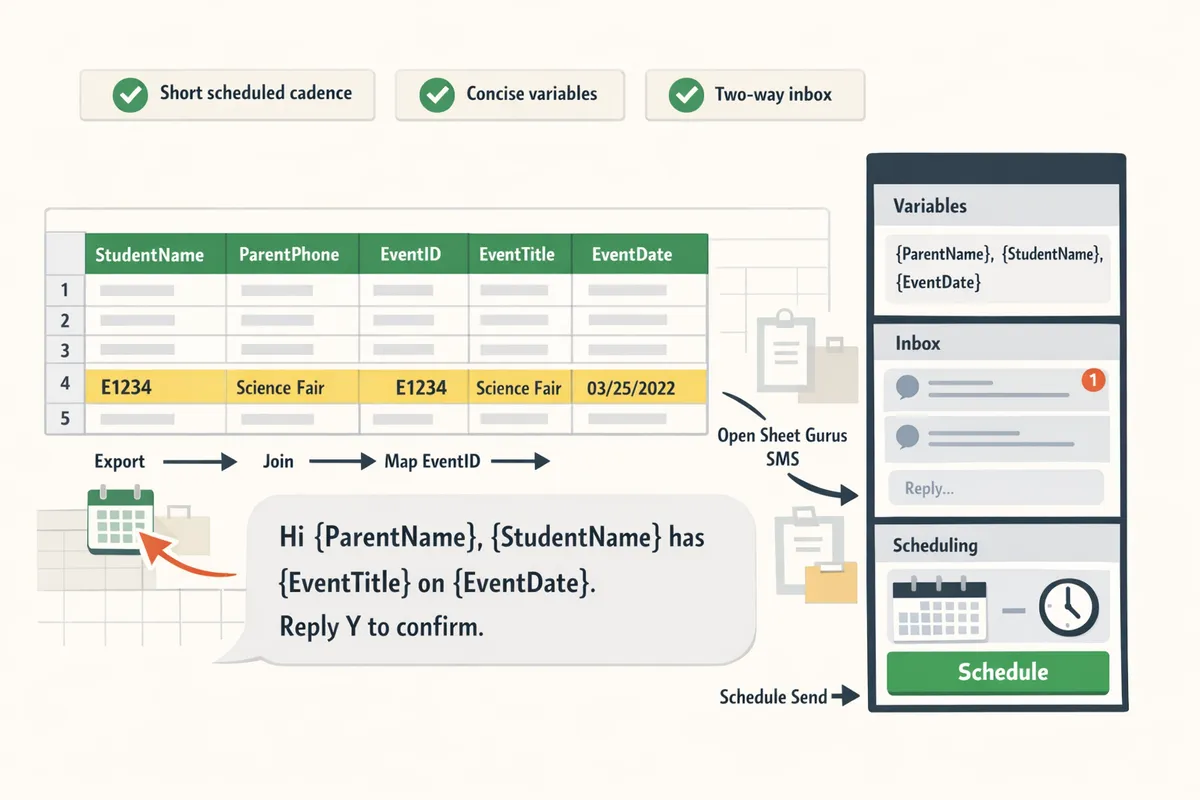
Timed sends, concise variables, and two-way inbox management increase attendance and reduce no-shows. What proven strategies and techniques reliably improve K-12 Google Calendar SMS reminders?
Using a short, scheduled cadence plus template variables and a monitored two-way inbox reliably increases confirmations and reduces no-shows. These three controls cut staff time spent chasing responses and keep message volume low enough to avoid opt-outs. Below are field-tested tactics, ready-to-drop-into Google Calendar + Google Sheets workflows using Sheet Gurus SMS.
⏰ Timing and cadence: When and how often should districts send reminders? ⏰
A three-step cadence—initial invite, 72-hour reminder, and 24-hour reminder—balances visibility with low opt-outs. Schools that follow this cadence typically see higher confirmations without overwhelming families.
- Schedule pattern and reasoning:
- Initial invite at event creation (or when appointment is booked). This ensures parents see the date while availability is still fresh. Map this to Calendar event creation and mark a column in Sheets like send_first = TRUE.
- 72-hour reminder for planning time. This reduces last-minute reschedules and gives staff time to follow up on non-responses.
- 24-hour reminder for day‑of attendance and quick confirmations.
- Message length and tone: Keep SMS to 1–2 lines (≈120 characters). Use a clear CTA (Reply YES, Reply RESCHEDULE). Short messages lower opt-out rates and improve reply accuracy.
- How to set rules: Create Google Calendar notifications at the corresponding offsets and export or sync event fields to a roster sheet. Use Sheet Gurus SMS scheduled sends from the sidebar to map event_date offsets to your SMS queue without relying on fragile cell formulas.
Example 72-hour template:
Reminder: {guardian_first}, {student_name} has a conference on {event_date} at {event_time}. Reply YES to confirm or RESCH to request a new time.
See our guide on how to deliver calendar-triggered reminders from Sheets for step-by-step scheduling and scheduling examples.
💡 Tip: Avoid sending SMS before 8:00 AM or after 8:00 PM local time to respect family routines and carrier rules.
✉️ Concise variables and templates: How should templates use dynamic fields? ✉️
Curly-brace variables are placeholders that insert per-recipient data directly from the sheet and keep messages personalized without complex formulas. Use only the essential variables and consistent column names to avoid errors.
- Recommended variables: {guardian_first}, {student_name}, {event_date}, {event_time}, {location}. Keep templates to 1–2 variable placeholders plus the CTA.
- Template patterns (drop-in examples):
- Initial invite: Hi {guardian_first}, schedule a PTC for {student_name} on {event_date} at {event_time}. Reply YES to confirm.
- 72-hour reminder: Reminder: {student_name} has a PTC on {event_date} at {event_time}. Reply YES or RESCH.
- 24-hour reminder: Today: {student_name} conference at {event_time}. Reply YES to confirm.
- Why use Sheet Gurus SMS: The Sheet Gurus SMS sidebar inserts variables from your roster columns when sending, so messages do not depend on spreadsheet concatenation formulas. That reduces broken merges when rows move or columns change.
Practical example: keep a canonical roster tab with header names that match your variables. If a column is missing, Sheet Gurus SMS flags the row before sending so you can fix data errors.
💬 Two-way inbox workflows: How do two-way replies and automated filters improve follow-up? 💬
A monitored two-way inbox with automatic filters for common replies and staff assignment consolidates replies and reduces follow-up time. Filtering common responses (YES, RESCH, NEED INFO) lets staff act only on exceptions.
- Core inbox workflow:
- Incoming SMS lands in the Sheet Gurus SMS real-time inbox. The system auto-tags replies containing YES, RESCH, or STOP.
- Auto-filter routine groups straight confirms (YES) separately from action items (RESCH, NEED INFO). Confirmations require no further work.
- Action items route to a staff column or team queue for manual follow-up; add a follow-up deadline (for example, 24–48 hours).
- Non-responses escalate: if no reply after the 24-hour reminder, flag the household for phone follow-up.
- Assignment and audit trail: Use the inbox labels and a staff assignment column so one staff member owns the case and the sheet captures timestamps for compliance audits.
Sheet Gurus SMS provides the real-time inbox and automatic filtering that power this workflow, so your office does not need to maintain separate message logs or custom scripts.
⚠️ Warning: Avoid including protected student health or special education details in plain SMS. Use the inbox to request a secure follow-up call or portal message when sensitive information is required.
🌐 Multi-channel and accessibility: When should schools send email or translated messages? 🌐
Send parallel email for longer instructions and use translated SMS templates when families prefer another language; measure channel responses and adjust accordingly. Combining channels increases reach and reduces missed appointments.
- When to use parallel channels:
- Initial invite: send both SMS and email. Email can hold attachments (forms, consent docs). SMS acts as the quick reminder.
- 72-hour and 24-hour reminders: send SMS first; follow with email for families who did not confirm.
- Translations and accessibility:
- Maintain translated templates in your roster or a translations tab. Tag each family with preferred_language and send the localized template from the sidebar.
- Provide alternatives for families without SMS: automated voice calls or secure portal messages.
- Measure and iterate: Track reply rates by channel (SMS reply rate vs. email click/acknowledgement). If a school sees low SMS replies for a segment, increase translated templates or add voice reminders for that segment.
For full implementation examples and two-way playbooks, see our Complete 2026 K‑12 Guide to Google Sheets SMS Alerts and our step-by-step Calendar-to-SMS workflow.
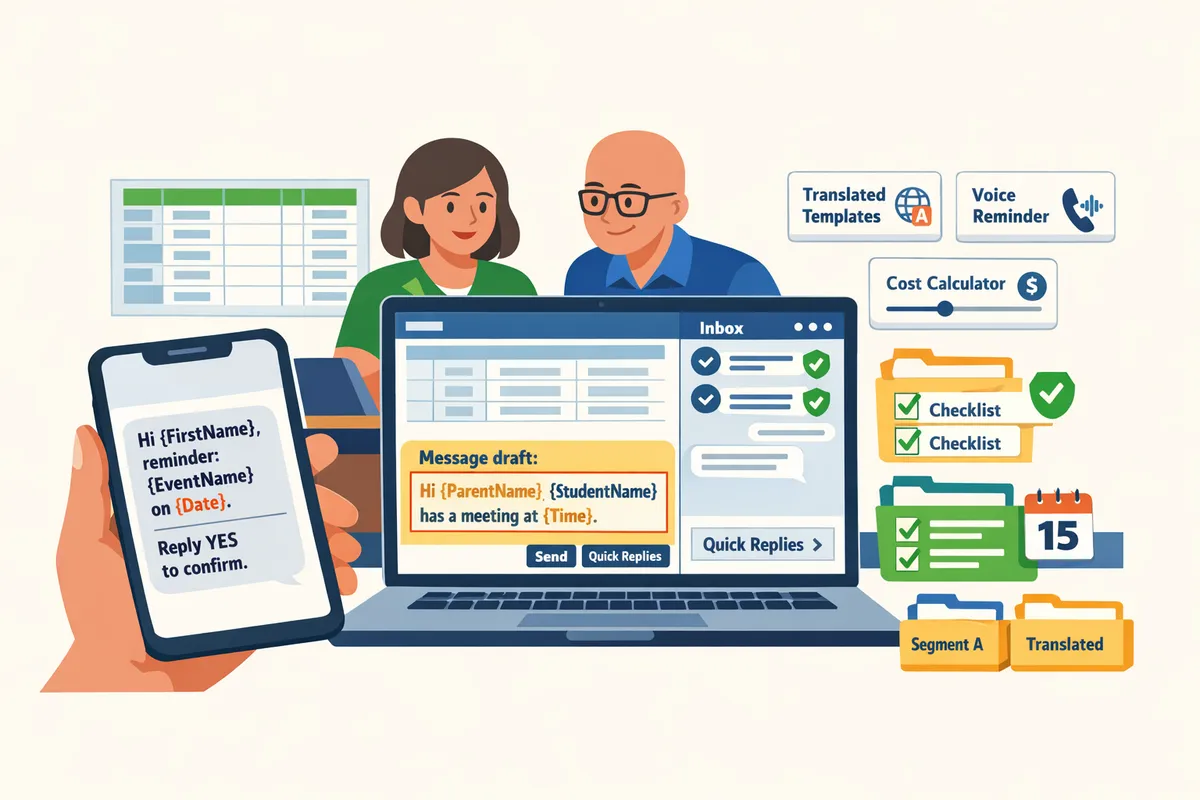
A tested Google Sheets + Calendar workflow, templates, and a simple cost calculator speed deployment and reduce admin hours. How do districts implement, test, and measure Google Calendar SMS reminders at scale?
A repeatable Google Sheets plus Google Calendar workflow with ready-made templates and a simple ROI worksheet lets districts go from pilot to district-wide in weeks while cutting weekly admin hours. Use measured milestones (pilot runs, deliverability checks, inbox workflows, and an ROI sheet) to prove time saved and attendance impact before full rollout. Follow the step-by-step setup in our Sending SMS from Google Sheets guide for detailed, clickable instructions.
Copyable Google Sheets templates and a short setup checklist speed initial rollout. How do you set up Google Sheets SMS reminders for events? 🛠️
Use this eight-step checklist to connect roster data, map calendar events, and send personalized SMS from Google Sheets. 1) Prepare roster. Create a canonical roster sheet with columns: StudentID, StudentName, ParentName, ParentPhone (format +12223334444), OptInStatus, and SchoolID. 2) Map event IDs. Export or link Calendar event IDs into a Events sheet with EventID, EventName, EventDate, Time, Location, and TargetSchoolID. 3) Install Sheet Gurus SMS. Add the Sheet Gurus SMS sidebar to Google Sheets and grant the permissions needed to schedule messages and monitor replies. 4) Create message templates with variables. Write templates using curly brackets like: “Reminder: {StudentName}‘s parent-teacher conference on {EventDate} at {Time}. Reply YES to confirm.” 5) Test single sends. Send one message to test numbers, verify variable substitution, and check the inbox for replies. 6) Schedule bulk sends. Use Sheet Gurus SMS scheduling to queue waves (48 hours, 24 hours, 2 hours). 7) Enable inbox and filtering. Turn on the real-time inbox and automatic filtering to route replies and catch opt-outs. 8) Turn on audit logs. Enable delivery and audit logging for compliance and troubleshooting.
Sample templates you can paste into Sheets:
- “Hello {ParentName}, this is {SchoolName}. {StudentName} has a conference on {EventDate} at {Time}. Reply YES to confirm attendance.”
- “Reminder: {EventName} at {Location} on {EventDate} starts at {Time}. Reply STOP to opt out.”
Sheet Gurus SMS supports curly-bracket variables and sends from the sidebar rather than formulas, which reduces formula errors and speeds sending. For a full walkthrough, see our Guide: Sending SMS from Google Sheets for step-by-step instructions.
How do the main integration options compare? 📊
Use this table to compare ICS feeds, no-code Google Sheets workflows, and Sheet Gurus SMS across reliability, two-way capability, setup time, compliance, and per-message cost.
| Option | Reliability | Two-way replies | Setup time | Compliance features | Per-message cost |
|---|---|---|---|---|---|
| ICS-based reminders | Low for dynamic parent lists; breaks if calendar export changes | Typically none | Low (export once) | Minimal (no inbox or filters) | Low (depends on vendor) |
| Custom Google Sheets automation | Medium if manually maintained; risk of mapping errors | Limited unless custom inbox built | Medium to high (scripting or multiple add-ons) | Depends on add-ons; higher risk of missed opt-outs | Variable; hidden overhead from staff hours |
| Sheet Gurus SMS | High: built to send from Sheets sidebar and handle Calendar variables | Full: real-time inbox and reply routing | Low to medium (install add-on, map fields) | Built-in filtering, opt-out handling, and audit logs | Predictable per-message fee plus time saved |
Use the table to choose by scale and staff capacity: small pilots or one-off events may get by with ICS or a manual Sheets approach, while district-scale programs benefit from Sheet Gurus SMS to reduce staff hours and compliance risk.
Run end-to-end tests and staged rollouts to catch mapping and delivery issues before district-wide use. How should districts test schedules and delivery? ✅
Run staged pilots at 2 to 3 representative schools and validate sender ID, variables, deliverability, and opt-out flows before scaling. Testing checklist:
- Sender ID validation. Confirm the number or sender name displays properly for carriers that serve your community.
- Variable substitution. Send messages that include {StudentName}, {EventDate}, and {Time} to ensure mapping matches roster rows.
- Opt-out and STOP flow. Verify STOP/HELP replies remove numbers and appear in audit logs.
- Carrier deliverability checks. Run sends across major local carriers and log bounce/rejection reasons.
- Inbox workflows. Simulate two-way replies (e.g., YES, NO, NEEDS RIDE) and confirm routing to the right staff inbox or Slack/email escalation.
- Audit trail and logs. Verify timestamps, sender IDs, and delivery receipts store in a compliance sheet.
💡 Tip: Always use double opt-in for SMS signups.
Use Sheet Gurus SMS to test two-way flows: its real-time inbox and automatic filtering let you route replies to office staff and flag messages that need manual follow-up. Run A/B timing tests (48 hours vs 24 hours vs 2 hours) at pilot schools and measure confirmation rates and staff time spent handling follow-up.
Link to the Complete 2026 K-12 Guide to Google Sheets SMS Alerts for broader testing scenarios and inbox handling strategies.
How do you build a cost calculator for SMS reminders? 🧾
Build a simple ROI sheet that contrasts admin hours and per-message fees to show the breakeven point for manual sends, custom Sheets automation, and Sheet Gurus SMS. Calculator inputs:
1) Admin hourly rate. Enter the fully loaded hourly cost for staff who run reminders. 2) Admin hours per month to maintain workflow. Estimate time for manual sends, troubleshooting, and reply triage. 3) Average sends per month. Use historical event counts or pilot data. 4) Per-message carrier fee. Enter carrier or vendor costs per SMS. 5) Expected reduction in no-shows. Estimate the percent drop in no-shows from pilot results. 6) Cost of follow-up calls. Estimate hours saved that would have been spent chasing no-shows.
Calculation steps:
1) Manual monthly cost = Admin hours per month × Admin hourly rate + (Sends per month × carrier fee). 2) Sheet automation monthly cost = Setup hours amortized + maintenance hours × hourly rate + (Sends × carrier fee). 3) Sheet Gurus SMS monthly cost = Subscription or add-on setup time × hourly rate + (Sends × per-message fee). 4) Net savings = Manual monthly cost − Sheet Gurus SMS monthly cost − (value of reduced no-shows).
Example scenario: for a 5-school pilot sending 3,000 messages per month at $0.03 per message and 6 admin hours saved weekly, the worksheet shows time savings that cover add-on fees in weeks. Use that sheet to present a clear buy-vs-build case to district finance and IT.
Provide a Sheet Gurus SMS worksheet template that pre-populates the calculator fields and links to the sample roster and events templates in our Sending SMS from Google Sheets guide. Use the ROI sheet during the pilot to capture actual send counts, confirmed replies, and staff hours logged so your district decision has measured outcomes.
See the Complete Two-Way Playbook for more on inbox routing and segmentation that improves reply handling.
Frequently Asked Questions
This FAQ answers the operational, technical, and policy questions district teams ask when launching Google Calendar SMS reminders. Use these answers to choose an approach, run a compliant pilot, and map results to the cost calculator and analytics.
Can I send SMS directly from Google Calendar? 📅
No. Google Calendar cannot send SMS natively. Third-party tools read Calendar data via ICS feeds or an API export and then send messages; those workarounds often lose personalization, scheduling controls, and two-way replies. Many districts use an ICS-to-SMS bridge or a Sheets-driven workflow; the Sheets approach gives explicit control over message timing, per-recipient variables, and a monitored inbox. Sheet Gurus SMS sends from a sidebar inside Google Sheets, pulls variables at send time, schedules deliveries, and provides a real-time inbox for two-way replies—so you retain templates, consent filters, and delivery reporting without exporting raw CSVs.
For a step-by-step Calendar-to-Sheets workflow, see our guide on how to deliver school event text reminders from Google Sheets.
How do parent-teacher conference SMS reminders Google Sheets templates work? 👨👩👧
They map each appointment to row fields such as event_id, student_name, guardian_phone, consent_flag, and a message_template with curly-brace variables. The pattern keeps one canonical roster row per appointment so you avoid duplicated sends and can filter out non-consenting contacts. In practice you prepare columns like event_id, student_first, guardian_first, guardian_phone, event_date, event_time, consent_flag, and message_template. Sheet Gurus SMS reads those columns when you send from the sidebar and merges templates like “{guardian_first}, your appointment for {student_name} is {event_date} at {event_time}. Reply YES to confirm.” That approach reduces copy-paste errors and ensures the correct message goes out at the scheduled time.
See our Sending SMS from Google Sheets guide for downloadable templates and the exact column mapping.
What consent and opt-out practices should schools follow for SMS? 📝
Schools must maintain documented consent, support clear opt-out keywords, use retention policies for consent logs, and automatically filter sensitive education records before sending. Keep a timestamped consent record that notes the method (paper, web form, phone) and the exact language parents accepted. Require simple opt-out keywords (for example STOP or UNSUBSCRIBE) and automate processing so opt-outs apply immediately. Store consent logs for the period your district requires for audits and delete or archive old consent data according to policy.
💡 Tip: Record consent with a timestamp, the submitting account, and the exact form text. This shortens audits and resolves disputes faster.
Sheet Gurus SMS applies automatic filtering to flag or block messages that include protected student data, which reduces manual review and lowers compliance risk. For K-12 FERPA questions specific to SMS wording and storage, reference the district legal team and our K-12 Google Calendar SMS reminders guide for example opt-in language.
How many schools should a district pilot before full rollout? 🚸
Pilot with 2–3 schools that vary by size, device access, and language demographics. Select one small elementary, one medium mixed-grade school, and one larger middle or high school if possible. Run the pilot for 4–6 weeks to exercise weekly scheduling cycles, capture deliverability patterns, and measure reply handling workload. Set concrete goals: verify carrier deliverability, test 2–3 template variants, confirm consent capture and opt-out processing, and quantify admin hours saved for reminder preparation and follow-up.
Track a representative sample of appointment volumes (for example 200–500 reminders across the pilot) and use Sheet Gurus SMS inbox workflows to route replies to office staff. Our Complete 2026 K-12 Guide to Google Sheets SMS Alerts and Two-Way Calendar Reminders explains pilot checklists and staffing plans.
What metrics should districts track for SMS reminder programs? 📈
Districts should track delivery rate, reply rate, confirmed attendance or RSVPs, opt-out rate, and staff time spent managing reminders. Delivery rate shows carrier success or number formatting problems. Reply rate and confirmed attendance measure parent engagement and program effectiveness. Opt-out rate flags message quality or consent issues. Track admin time before and after automation to calculate hours saved and feed those numbers into the cost calculator to produce ROI estimates.
Use Sheet Gurus SMS analytics to export delivery and reply logs, then compare those against calendar event outcomes. For longer-term planning, include a deliverability review after 30, 90, and 180 days to identify carriers or numbers that consistently fail.
Can I personalize messages at scale from Google Sheets? ✍️
Yes. Sheet Gurus SMS reads curly-brace variables from sheet columns and merges them into per-recipient templates to create personalized messages without fragile formulas. Create columns for each variable you need (for example guardian_first, student_name, event_date) and set message_template cells like “{guardian_first}, reminder: {student_name}‘s conference on {event_date} at {event_time}. Reply YES to confirm.” Always validate phone formats (for example +12223334444), filter rows by consent_flag, run small test sends, and use the add-on’s preview to confirm merges before a batch send. This workflow reduces manual errors and preserves a clear audit trail of what was sent.
For full template sets and examples used in parent-teacher and event reminders, see our two-way playbook on K-12 SMS alerts with Google Sheets.
Start with the highest-impact practice to get reminders sending this week.
Pick one reliable workflow—link your Calendar events to a Google Sheet, map event fields to variables, and schedule the first batch of messages. k-12 google calendar sms reminders work best when you begin small, measure attendance or reply rates, then expand to other event types. For setup details and templates, see our guide on How to Deliver School Event Text Reminders from Google Sheets and the Complete 2026 K-12 Guide to Google Sheets SMS Alerts and Two-Way Calendar Reminders.
Sheet Gurus SMS is a Google Sheets add-on for sending bulk SMS from a sidebar rather than spreadsheet formulas. Personalize each message with curly-brace variables such as {FirstName}, handle replies in a real-time two-way inbox, and rely on automatic message filtering to help keep your sends compliant.
💡 Tip: Start with parent-teacher conference SMS templates and test two-way replies with a small parent segment before scaling.
Begin the rollout by following the Sending SMS from Google Sheets getting-started guide with Sheet Gurus SMS. Subscribe to our newsletter for template updates and implementation tips.