




SMS from Google Sheets: The 2026 Beginner’s Guide to Sending, Automating, and Two‑Way Replies (No Formulas)
Manual appointment reminders can cost a small clinic team six hours per week in rework when messages get copied and pasted incorrectly. SMS from Google Sheets is a workflow that sends personalized bulk texts directly from a spreadsheet using an add-on sidebar instead of spreadsheet formulas. Our website recommends Sheet Gurus SMS, a Google Sheets add-on that sends messages from a sidebar, uses curly-brace variables like {FirstName} for dynamic content, offers a real-time inbox for two-way replies, and applies automatic message filtering to help keep campaigns compliant. Sheet Gurus SMS helps small businesses save time and money by scheduling sends and monitoring delivery. See our step-by-step guide to sending SMS from Google Sheets and examples for small-business workflows and mass texting use cases.
Add-ons or scripts map sheet rows to text messages. How does sending SMS from Google Sheets work?
Sending SMS from Google Sheets maps each spreadsheet row to a text message and routes that message through either an add-on, a script plus an SMS provider, or a device. This model treats the sheet as the data source and a separate sender as the execution layer. That separation keeps contact data editable in Sheets while the sender handles personalization, scheduling, delivery status, and replies.
What is Sheet Gurus SMS and how does it differ from formula-based methods?
Sheet Gurus SMS is a Google Sheets add-on that sends messages from a sidebar using curly-brace variables and a
built-in two-way inbox. The add-on composes messages with templates such as “Hi {FirstName}, your appointment at {Location} is at {Time}” so each row becomes a personalized message without formulas in cells. Sidebar sending avoids brittle formula scaffolding, which reduces accidental triggers when someone edits a cell and removes the need for hidden helper columns. Sheet Gurus SMS also shows delivery status and incoming replies in real time, which shortens follow-up loops compared with manual copy-paste or formula-driven mail-merge methods.Refer to our step-by-step Guide: Sending SMS from Google Sheets with Sheet Gurus SMS for data setup and template examples.
What DIY methods are available for sending SMS from Google Sheets?
DIY methods include Google Apps Script calling an SMS API, routing messages through an Android device, or using an integration platform (iPaaS) like Zapier or Make.
- Google Apps Script + SMS API. Example: a marketing coordinator writes a script that reads rows and calls an SMS provider. Business consequence: expect multiple setup hours plus ongoing maintenance to prevent duplicate sends and to handle API errors.
- Android/device routing. Example: teams use a dedicated phone and an automation app to forward messages. Business consequence: reliable for small, local lists but risks device downtime, SIM carrier limits, and inconsistent delivery when scale grows.
- iPaaS connectors (Zapier, Make). Example: a Zap triggers on new rows and sends SMS. Business consequence: faster setup than code but adds per-action costs and a dependency on the integration platform.
⚠️
Warning: Avoid placing personal health information or other sensitive data in SMS fields without explicit consent and proper data handling.Read our comparison in Send Messages from Google Sheets: 2026 Ultimate Guide — Add-on vs Apps Script vs Zapier vs AppSheet for real-world setup time estimates.
How do DIY scripts, paid add-ons, and integration platforms compare for sending SMS from Sheets?
A side-by-side table shows paid add-ons like Sheet Gurus SMS usually require less initial setup and reduce compliance risk versus pure DIY scripts, while iPaaS sits between those options on cost and reliability.
| Option | Typical initial setup hours | Ongoing admin time | Delivery reliability | Compliance features | Typical cost drivers |
|---|---|---|---|---|---|
| Google Apps Script + SMS API | 8–20 hours (example) | Weekly monitoring and fixes | High if built correctly; higher failure risk without retries | Must implement consent logging and opt-out handling yourself | Developer time, API per-message fees |
| Android / device routing | 1–4 hours physical setup | Device maintenance, SIM churn | Low-to-medium; carrier restrictions and device outages common | Minimal built-in controls; high compliance risk for scale | Device cost, SIM plan limits |
| Sheet Gurus SMS (add-on) | 1–2 hours to install and map columns | Minimal: campaign scheduling and inbox triage | High: built for bulk sends and status tracking | Built-in filtering, opt-out handling, and two-way inbox | Per-message fees, optional subscription |
| iPaaS connectors (Zapier/Make) | 1–6 hours depending on workflow | Monitor runs, manage task usage | Medium: depends on connector limits and task queuing | Some platforms offer tools; still require configuration | Zap/task or scenario fees, connector limits |
According to Sheet Gurus SMS documentation, the sidebar approach reduces setup friction compared with spreadsheet formulas and centralizes inbox and compliance controls. For automation patterns and no-code triggers, see Automate SMS in Google Sheets (No Code).
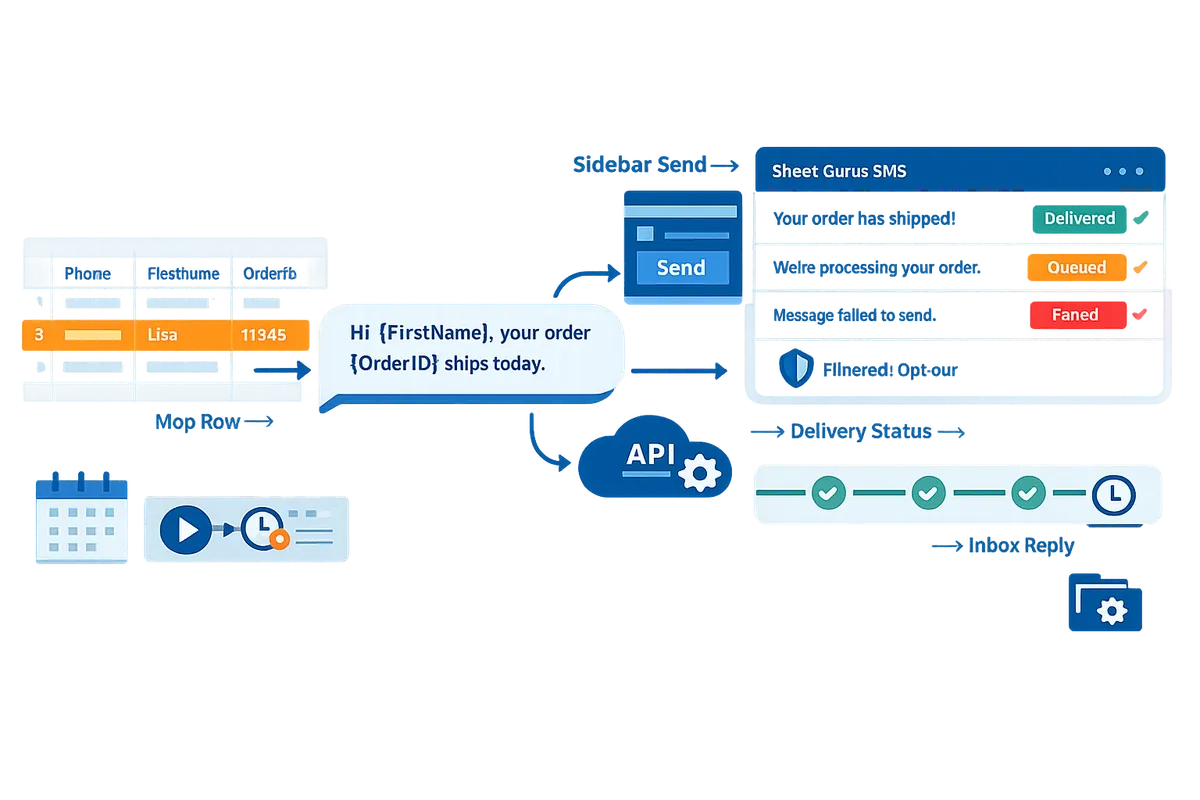
A short, reliable setup gets you sending personalized SMS from Sheets in under an hour. How to get started sending SMS from Google Sheets (step-by-step)
Follow this step-by-step checklist to go from a blank Google Sheet to a scheduled, personalized SMS campaign in under an hour. This section gives a minimal data template, an install path for our Sheet Gurus SMS add-on, message-variable examples, and simple safeguards so you do not waste budget or trigger carrier blocks.
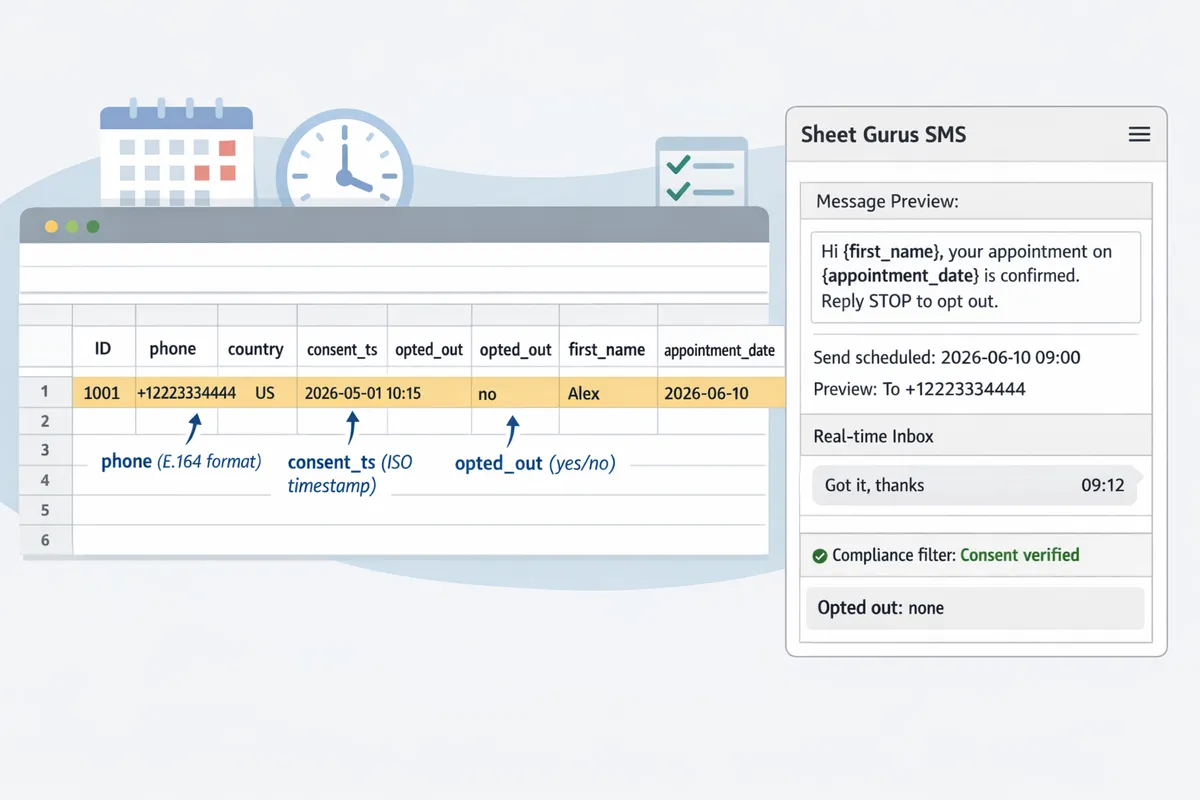
How should I structure my Google Sheet and capture consent before sending SMS? 📋
A properly structured sheet has columns for unique ID, phone, country code, consent timestamp, opt-out flag, and personalization variables. Unique ID is a column that holds a stable, non-changing identifier for each contact to prevent duplicate sends. Phone is the raw number column; country code is a separate column so you can format international numbers reliably (example format: +12223334444). Consent timestamp is a column that records when the recipient opted in; opt-out flag is a boolean that marks unsubscribed contacts for filtering. Personalization variables are columns named to match your message tokens, for example first_name and appointment_date.
Minimal template (column headers):
- id
- phone
- country_code
- consent_ts
- opted_out
- first_name
- appointment_date
Why each column matters. Auditors and carriers expect records for opt-in and opt-out. A stable id prevents accidental re-sends when you sort or dedupe. Country code plus phone reduces failed deliveries from formatting errors.
💡 Tip: Use a consent_ts populated by a form submission or a timestamped export; it makes audits simple and shows proof of permission.
You can compare a DIY sheet setup versus an add-on workflow in our comparison guide on sending messages from Google Sheets to see where manual cleanup costs time and increases risk.
How do I install and configure Sheet Gurus SMS to send SMS from Google Sheets? ⚙️
Install the Sheet Gurus SMS add-on from the Google Workspace Marketplace, open its sidebar, map your phone and variable columns, and enable scheduling in the sidebar. 1) Open your sheet and go to Extensions > Add-ons > Get add-ons, then search for Sheet Gurus SMS and install it. 2) From Extensions, open Sheet Gurus SMS to launch the sidebar; the sidebar is where you compose, map, schedule, and view the real-time inbox because Sheet Gurus SMS sends messages from the sidebar instead of sheet formulas. 3) In the sidebar map the phone column, the country_code column (if used), and each personalization column to its curly-bracket token.
Enable scheduling by selecting a send window in the sidebar and choose batch size if you need to spread sends over hours. For step-by-step screenshots and alternative install paths, consult our updated guide on sending SMS from Google Sheets with Sheet Gurus SMS and the install instructions in How to Send Text Messages From a Spreadsheet.
How do I create message templates that use variables like {first_name} and {appointment_date}? ✍️
Curly-bracket variables are a template format that replace tokens like {first_name} with the matching column value for each sheet row. Create a message template in the Sheet Gurus SMS sidebar using tokens that match your column headers. Example template with fallback values: “Hi {first_name|Friend}, your appointment at {location} is on {appointment_date} at {time}. Reply STOP to opt out.” The fallback syntax shown (pipe and fallback) ensures a sensible default when a cell is empty.
Sheet Gurus SMS maps each token to the specified column and shows a per-recipient preview in the sidebar before you send. Use the preview to scan the first 10 messages for formatting issues and international number handling. For automations and trigger-based templates, see our Automate SMS in Google Sheets (No Code) guide for trigger examples that act on replies.
How do I prevent duplicate messages and handle rate limits when sending from Sheets? ⛔
Prevent duplicates by using a unique-send flag column, scheduling sends in batches, and relying on Sheet Gurus SMS automatic filtering to block invalid or duplicate numbers. Add a column named sent_flag that you set to TRUE after a successful send; use the sidebar filter to only target rows where sent_flag is empty. For rate limits, choose a batch size and a scheduling window that match your carrier and use-case (for example, 200 messages per hour for routine reminders). Sheet Gurus SMS also applies automatic filtering to remove known invalid or blocked numbers before they count toward your batch.
Business consequences of ignoring safeguards are direct: wasted spend on duplicate sends, customer complaints from multiple texts, and possible carrier throttling or blocks that stop future campaigns. Implementing sent_flag plus hourly batching usually eliminates these risks without extra technical work.
⚠️ Warning: Do not send messages to contacts without recorded consent. Missing consent_ts or ignoring opt-out flags exposes you to fines and carrier complaints.
For a side-by-side view of DIY scripts versus add-ons and the cost and reliability trade-offs, see our ultimate guide comparing add-on, Apps Script, Zapier, and AppSheet approaches to sending messages from Google Sheets.
Automation, replies, and measurement keep SMS workflows reliable and auditable. How to automate sends, manage two-way replies, and measure ROI from Google Sheets
Automation, two-way replies, and measurement make SMS campaigns auditable and reduce manual hours and mistakes. Sheet Gurus SMS provides scheduling, a real-time inbox, and automatic filters so teams can send SMS from Google Sheets sidebar instead of formulas and keep a full audit trail. The examples below show practical setups, compliance checkpoints, troubleshooting steps, and a simple ROI framework to choose between a DIY script and Sheet Gurus SMS.
How do I schedule and automate SMS campaigns from Google Sheets? 🕒
You schedule campaigns by adding date/time columns or by using sheet-change triggers that the add-on watches. An automation trigger is a rule that starts an action when a row meets conditions, for example when a “SendAt” column equals today or when a “Status” column flips to “Ready”. Set up automation with these steps:
- Add columns: Phone, SendAt (YYYY-MM-DD HH:MM), MessageTemplate, Status.
- Compose a template in the MessageTemplate column using curly-brace variables: “Hi {FirstName}, your {Service} appointment is at {Time}. Reply YES to confirm.”
- Configure Sheet Gurus SMS to watch the SendAt column or to run on row updates. See our Automate SMS in Google Sheets (No Code) guide for trigger options.
- Test with 5 internal numbers, confirm status updates to “Sent”, then enable recurring rules.
Workflows suited to scheduling: appointment reminders, payment confirmations, subscription renewals, and drip follow-ups. Scheduling replaces repetitive copy-paste tasks and, for many teams, cuts admin time on recurring messages by several hours per week.
How does a two-way SMS inbox inside a Google Sheets add-on work? 📥
A two-way SMS inbox inside a Google Sheets add-on routes replies to the matching contact row and displays messages in a real-time sidebar. The two-way inbox is a component that links inbound replies to sheet rows by phone number and thread ID, letting you view context without leaving the sheet. Typical behaviors:
- Replies attach to the original row in a “Replies” or “LastReply” column and also show in the sidebar inbox for team triage.
- Tagging supports labels such as “Confirmed” or “Needs Follow-up” so agents can filter threads quickly.
- Automations can watch for keywords. Example: when a customer replies “YES” the add-on updates Status to “Confirmed” and schedules a confirmation email.
Sheet Gurus SMS includes a real-time inbox so your team sees replies and can act without manual copy-paste. For a walkthrough of composing messages and using the inbox, see our Sending SMS from Google Sheets with Sheet Gurus SMS guide.
How do I stay compliant when sending SMS from Google Sheets? ⚖️
Compliance requires documented opt-ins, clear opt-out processing, and a suppression list that blocks flagged numbers before sends. A suppression list is a maintained set of phone numbers or tags that the system will not message. Practical steps:
- Record opt-in source and timestamp in a column (e.g., OptInDate).
- Include an opt-out keyword and automated handler (e.g., replies containing STOP set an “OptOut” flag).
- Maintain a suppression sheet and configure Sheet Gurus SMS to block those numbers automatically before any send.
- Localize message language and include business name and contact info for markets that require it.
⚠️ Warning: Failing to honor opt-outs risks regulatory fines and damaged customer trust. Always remove numbers flagged as opt-out before running a campaign.
Our mass-texting article shows common opt-in patterns and international considerations when sending to global lists.
What troubleshooting steps fix failed deliveries and duplicate sends from Sheets? 🛠️
Troubleshoot failed deliveries by checking phone number format, suppression status, carrier blocks, and delivery logs; prevent duplicates with a send-status column and duplicate protection. Follow this checklist in order:
- Confirm E.164-style formatting (e.g., +12223334444) in the Phone column.
- Check the suppression list and OptOut column for blocked numbers.
- Review the add-on delivery logs in the sidebar for carrier error codes and timestamps.
- Use a “SentAt” and “SendStatus” column. Mark rows as “Queued” before send and update to “Sent” only after acknowledgement to avoid duplicate sends.
- If a transient carrier error occurs, schedule an automatic retry for 15 and 60 minutes later.
💡 Tip: Log every failure to a dedicated “LastError” column. Having the error code next to the row cuts diagnosis time in half and prevents repeated manual checks.
If problems persist, consult the delivery log in the Sheet Gurus SMS sidebar and match row IDs to carrier responses for faster resolution.
Should I build a DIY script or use Sheet Gurus SMS for my SMS workflow? 💰
Choose Sheet Gurus SMS when you need consistent reliability, built-in compliance filters, and lower ongoing admin time; choose a DIY script when monthly volume is tiny and you have engineering hours to maintain the system. Use these decision criteria:
- Monthly volume. Higher volumes favor a managed add-on because it reduces per-message operational overhead.
- Engineering availability. If you cannot commit to ongoing maintenance, an add-on reduces downtime risk.
- Compliance sensitivity. If you message sensitive audiences or operate in regulated regions, use the add-on’s suppression and opt-out features.
- Tolerance for errors. DIY solutions often require more checks to avoid duplicates and missed opt-outs.
Simple break-even framework:
- Estimate admin hours saved per month by automating (for example, 8 hours).
- Multiply by hourly admin rate to get monthly savings.
- Compare savings to monthly message cost plus any subscription fee or engineering cost.
- If savings exceed ongoing costs and you remove compliance risk, the add-on is usually the better choice.
For a deeper comparison of add-ons versus Apps Script, Zapier, and AppSheet, read our 2026 Ultimate Guide — Add-on vs Apps Script vs Zapier vs AppSheet with Two-Way SMS and our how-to overview for small businesses.
Frequently Asked Questions
This FAQ answers the most common operational, compliance, formatting, and cost questions about sending SMS from Google Sheets with Sheet Gurus SMS. Use these short, actionable answers to move from setup to a running campaign, automation, or two-way messaging. Refer to the step-by-step setup and templates if you need guided configuration.
Can I send SMS from Google Sheets without using formulas? 📤
Yes — you can send SMS from Google Sheets without using formulas by using a sidebar add-on such as Sheet Gurus SMS. The sidebar flow lets you map columns to message variables, preview per-row messages, and send or schedule from the extension UI instead of putting logic into cells. For example, write “Hi {FirstName}, your appointment at {Location} is at {Time}” in the composer and Sheet Gurus SMS replaces the curly-brace variables per row. Follow the step-by-step setup and use the provided templates in the Guide: Sending SMS from Google Sheets with Sheet Gurus SMS to finish configuration faster.
How do two-way replies appear inside Google Sheets when using an add-on? 💬
Two-way replies appear in a real-time inbox inside the Sheet Gurus SMS sidebar and link back to the matching contact row. A two-way inbox is a feature that captures incoming messages, shows sender, timestamp, and message body, and finds the correct sheet row by matching phone number or unique ID. The add-on can update a “Last Reply” or “Reply Status” column and append replies to an audit log column so your team sees conversation history without leaving the sheet. Use the real-time inbox when you need immediate responses for confirmations, support, or follow-ups; see the Automate SMS in Google Sheets (No Code) guide for trigger examples that act on replies.
How should I format international phone numbers in Google Sheets? 🌍
Format phone numbers using E.164 (example +12223334444) to minimize delivery failures. E.164 is the international phone-number format that requires a plus sign, country code, and the national subscriber number. Recommended steps: keep a dedicated phone column in E.164, add a separate Country Code column when you collect raw numbers, and run a quick validation check that each number starts with a plus sign and only digits afterwards. Sheet Gurus SMS accepts E.164 and can combine a country-code column with a local-number column during import if you prefer collecting numbers separately; the Guide shows a simple mapping workflow.
What do I need to do to stay compliant when texting customers from Sheets? ⚖️
You must record explicit opt-in, honor opt-outs, and maintain a do-not-contact list for any marketing messages sent from Sheets. Core items to track in your sheet: opt-in timestamp, opt-in source (web form, in-person, SMS keyword), and an opt-out flag that the add-on uses to suppress sends. Sheet Gurus SMS applies automatic filtering to suppress known opt-outs and can block numbers on your do-not-contact list before a send.
💡 Tip: Always use double opt-in for SMS signups.
Log consent and source in your sheet fields to create an auditable record. See the mass-texting use case and automation guide for examples of consent capture and suppression workflows.
How do I stop duplicate messages when sending bulk SMS from a spreadsheet? 🔁
Use a unique ID column plus a sent-flag column and let Sheet Gurus SMS skip rows already marked as sent. Practical setup: add a stable UniqueID per row (order number, customer ID), create a “SentStatus” column that accepts values like Pending, Sent, Failed, and run sends against a filtered view of Pending rows only. Normalize phone numbers to E.164 and include a de-duplication step before sending; Sheet Gurus SMS respects both the sent-flag and your suppression lists so the add-on avoids double-sends even when the sheet contains duplicates.
How much does it cost to send SMS from Google Sheets? 💸
Cost depends on per-message carrier fees, Sheet Gurus SMS pricing plan, and the administrative time spent preparing contact lists. Carrier fees vary by country and volume, and add-on pricing typically charges per-seat or per-message components, so total cost equals carrier + add-on fees plus internal admin hours. For decision-making, compare three scenarios in the ROI framework: manual copy-paste, a DIY Apps Script flow, and using Sheet Gurus SMS; the Ultimate Guide to sending messages from Google Sheets includes a simple calculator and examples to estimate total cost of ownership.
Can I log message delivery status back into my Google Sheet? ✅
Yes — Sheet Gurus SMS can write delivery status, timestamps, and error codes back into reserved columns on your sheet for auditing. Reserve columns such as “DeliveryStatus,” “DeliveredAt,” and “CarrierError” before your first campaign so the add-on maps delivery reports cleanly. Logging helps you retry failed sends, count billable deliveries, and produce an audit trail for compliance or billing reconciliation; see the step-by-step guide for the exact column names and mapping steps.
Take action to start sending SMS from Google Sheets with minimal setup.
You can send, schedule, and handle two-way replies without writing formulas by using an add-on that runs from a sidebar. This guide proved that SMS from Google Sheets works for personalized outreach and automated workflows when you use a purpose-built tool rather than manual copy‑paste.
💡 Tip: Always use double opt-in for SMS signups to reduce compliance risk and keep delivery rates high.
Sheet Gurus SMS is a Google Sheets add-on for sending bulk SMS from a sidebar rather than spreadsheet formulas. Personalize each message with curly-brace variables such as {FirstName}, handle replies in a real-time two-way inbox, and rely on automatic message filtering to help keep your sends compliant.
Get started with Sheet Gurus SMS by following the getting-started guide to send your first campaign from the sidebar. For more context on add-ons versus scripts and automation patterns, see our add-on vs Apps Script comparison and the small business texting guide. Subscribe to our newsletter for implementation tips and updates.