



SMS Compliance for Google Sheets Senders in 2026: TCPA, 10DLC, GDPR/CCPA, and Carrier Filtering Best Practices
Mishandled opt-in records lead to TCPA fines and carrier filtering that stop bulk SMS campaigns. TCPA SMS compliance 2026 is a regulatory and carrier-policy checklist that requires verifiable consent, clear opt-out paths, and message-level controls for A2P traffic. This best-practices guide shows Google Sheets users how to run those checks before
sending SMS from Google Sheets and how Sheet Gurus SMS saves time. Sheet Gurus SMS is our Google Sheets add-on that sends from a sidebar (not formulas), supports {FirstName} and {AppointmentDate} variables, provides a real-time inbox for two-way replies, and applies automatic message filtering. Example: “Hi {FirstName}, your appointment on {AppointmentDate} is confirmed.” Later we show the exact pre-send checklist and Sheet Gurus SMS settings for automated and scheduled reminders such as appointment reminders.What are the core TCPA SMS compliance principles Google Sheets senders must follow in 2026?
Google Sheets senders must capture documented opt-in, honor revocations immediately, register commercial U.S. campaigns for 10DLC when required, and apply carrier content rules to avoid filtering and fines. These controls reduce legal risk and lower the chance carriers block or filter your messages.
What counts as valid SMS consent in 2026?
Consent is a recorded permission that proves a recipient agreed to receive SMS from your organization and specifies who sends messages, the message purpose, the opt-in method, and a timestamp. Record these minimum fields in your spreadsheet to maintain an auditable trail for TCPA SMS compliance 2026 and SMS consent record keeping Google Sheets: FirstName, PhoneNumber, SourceChannel, OptInText, ConsentTimestamp, LegalBasis (if EU), and RetentionUntil.
- Example marketing opt-in text stored in the row: “User typed YES on 2026-03-10 via signup_form. Message purpose: Promotions from {CompanyName}.”
- Example transactional opt-in for reminders: “Signed up via appointment page. Purpose: Appointment reminders for {service_name}.”
- For GDPR/CCPA across-border cases, also store LegalBasis (consent vs legitimate interest) and PreferredLanguage. EU consent must be affirmative and specific; California opt-ins must include how data will be sold or shared if applicable.
Sheet Gurus SMS reads bracketed variables like {first_name} and {appointment_date} from your columns and stores the opt-in fields automatically when you import a consent ledger. For implementation patterns, see our guide on the consent ledger and templates in SMS Compliance for Google Sheets: The Complete Guide with Opt‑In Templates and a Free Consent Ledger.
How do revocation and frequency rules apply? 💬
Recipients can revoke consent at any time and you must stop messaging that number promptly while logging the revocation. Immediate actions in Google Sheets should include marking the contact as OptOut=true, writing OptOutTimestamp, OptOutMethod, and an OptOutNote, then preventing any scheduled sends from the Sheet Gurus SMS sidebar.
Practical revocation workflow steps:
- Stop sending immediately. Mark the row with OptOut=true and OptOutTimestamp.
- Archive the original consent row to an “opt_out_log” sheet or add an OptOutReason column for audits.
- Flag the contact with a blocked tag so Sheet Gurus SMS filters prevent future sends and the real-time inbox shows the revocation.
- Notify downstream systems by exporting the updated row to CRM or webhook if you sync consent status.
💡
Tip: Always use double opt-in for SMS signups.
Frequency rules. Limit unsolicited promotional sends and document your cadence. For recurring marketing, include FrequencyDescription in the row (for example, “weekly offers”) so reviewers and carrier vetting see a precise sending cadence.
Which messages require 10DLC registration and carrier vetting?
Commercial or recurring promotional messages to U.S. mobile numbers normally require 10DLC registration and campaign vetting to avoid filtering and carrier penalties. Map each campaign in your sheet to a use case (marketing, debt collection, appointment reminders, alerts), then add the registration fields next to your contacts and campaigns: CampaignName, UseCase, SampleMessage, OptInColumn, ConsentTimestampSample, EstimatedMonthlyVolume, and SenderID.
How to prepare a registration packet in Sheets:
- Create a “campaigns” sheet with a SampleMessage column showing the exact copy you will send, including variables like {first_name}.
- Add UseCase and BusinessProfile columns describing your organization and message purpose.
- Add a ConsentEvidence column linking to the row IDs or a consent ledger where Sheet Gurus SMS can pull opt-in rows.
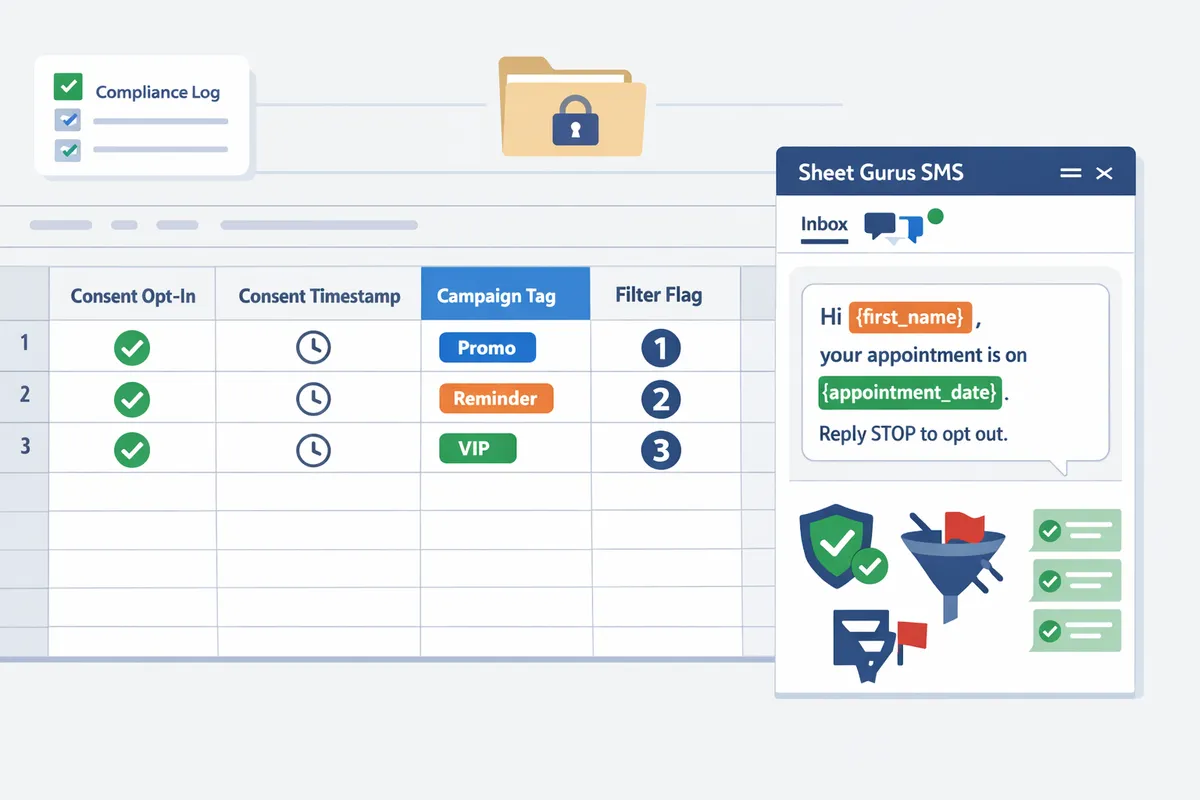
Sheet Gurus SMS helps by automatically tagging campaigns for vetting and applying message filtering before dispatch, which cuts manual rework and reduces rejection rates. For a deeper walkthrough of campaign tagging and automatic filtering, see Automatic Compliance Filtering for Bulk Texting Campaigns: TCPA Checklist for Google Sheets Senders (2026) and our use-case examples in Effortless SMS Blasts for Effective Communication.
What proven strategies reduce TCPA risk and carrier filtering for Google Sheets SMS senders?
Standardized opt-in and opt-out copy, automated message filtering, clear sender identification, and centralized consent logs materially reduce TCPA risk and carrier filtering for Google Sheets SMS senders. These controls prevent single-message violations that trigger carrier blocking and simplify responses to regulatory audits. Sheet Gurus SMS ties those controls into the Google Sheets workflow so teams can send personalized blasts from the sidebar while preserving audit trails and inbox context.
How to write compliant opt-in and opt-out copy 📝
Compliant opt-in copy must clearly identify the sender, the purpose of messages, expected frequency, that message and data rates may apply, and how to opt out. Use short, explicit lines that match the example below and include dynamic variables so messages stay personalized when sent from Sheet Gurus SMS.
Examples (use curly braces for variables):
- Opt-in via web form: “Yes, I agree to receive marketing texts from {CompanyName} at {phone}. Msg freq: up to 3/mo. Msg&data rates may apply. Reply STOP to opt out.”
- Opt-in via in-person form: “Receive appointment reminders from {CompanyName} for {service}. Reply YES to opt in. Msg&data rates may apply. Reply STOP to opt out.”
- Opt-out confirmation: “You have been unsubscribed from {CompanyName} texts. Reply START to re-subscribe.”
State-specific notes: some states require additional disclosure language or recordkeeping fields; include a column in your consent ledger noting state jurisdiction and the acquisition source. For a full set of templates and a downloadable consent ledger, see our SMS Compliance for Google Sheets guide.
💡 Tip: Always use double opt-in for higher-risk lists (e.g., purchased leads or cross-border contacts) to strengthen proof of consent.
Sheet Gurus SMS supports dynamic {first_name} and {appointment_date} variables so the opt-in copy recorded can match the exact message users received.
How to implement message filtering sms marketing and automated compliance ⚙️
Automated message filtering scans outbound messages for risky words, personal health identifiers, and restricted categories, and then blocks or flags messages before they reach carriers. This prevents single-message violations that cause downstream carrier filtering and account-level action. Sheet Gurus SMS applies a rules engine in the sidebar that evaluates templates and final content before send.
Rule set example (marketing vs collections vs healthcare):
- Marketing: block profanity, deceptive offers, time-limited scarcity claims without terms, and unapproved short links.
- Collections: block threatening language, avoid HIPAA-sensitive phrases, include clear sender ID and dispute instructions.
- Healthcare: block specific diagnosis or treatment details; require patient consent tag before send.
Safe-fail process: flagged messages enter a review queue with the original Sheet row, the filtered phrase, and an auditor comment field. The message stays paused until a reviewer approves a sanitized version or marks it for manual override. For more on rules-driven filtering for Google Sheets senders, read our automatic compliance filtering checklist and see examples in our automated messaging workflows.
How to document and store sms consent record keeping google sheets 📁
A minimal consent ledger in Google Sheets must store the consent text, timestamp, acquisition channel, and a unique consent ID to defend against disputes. These four fields establish who gave consent, what they saw, when they consented, and how you acquired the consent.
Suggested sheet schema:
| Column | Purpose | Example |
|---|---|---|
| consent_id | Unique identifier for the record | CONS-20260504-0001 |
| phone_number | Recipient phone in E.164 format | +15551234567 |
| consent_text | Exact opt-in copy presented | “Reply YES to receive {CompanyName} alerts. Msg&data rates may apply. Reply STOP.” |
| timestamp_utc | ISO timestamp of consent | 2026-05-04T13:22:10Z |
| acquisition_channel | Where consent was captured | Web form / Phone / In-person |
| state_jurisdiction | U.S. state if applicable | FL |
| source_record_link | URL to the form entry or CRM record | CRM-12345 |
Retention and audit checklist:
- Keep consent records for the active customer life plus three years or as state law requires.
- Export an audit bundle (consent rows, send logs, and inbox threads) when responding to carrier or regulator inquiries.
- Reconcile send logs to consent IDs daily for high-volume campaigns.
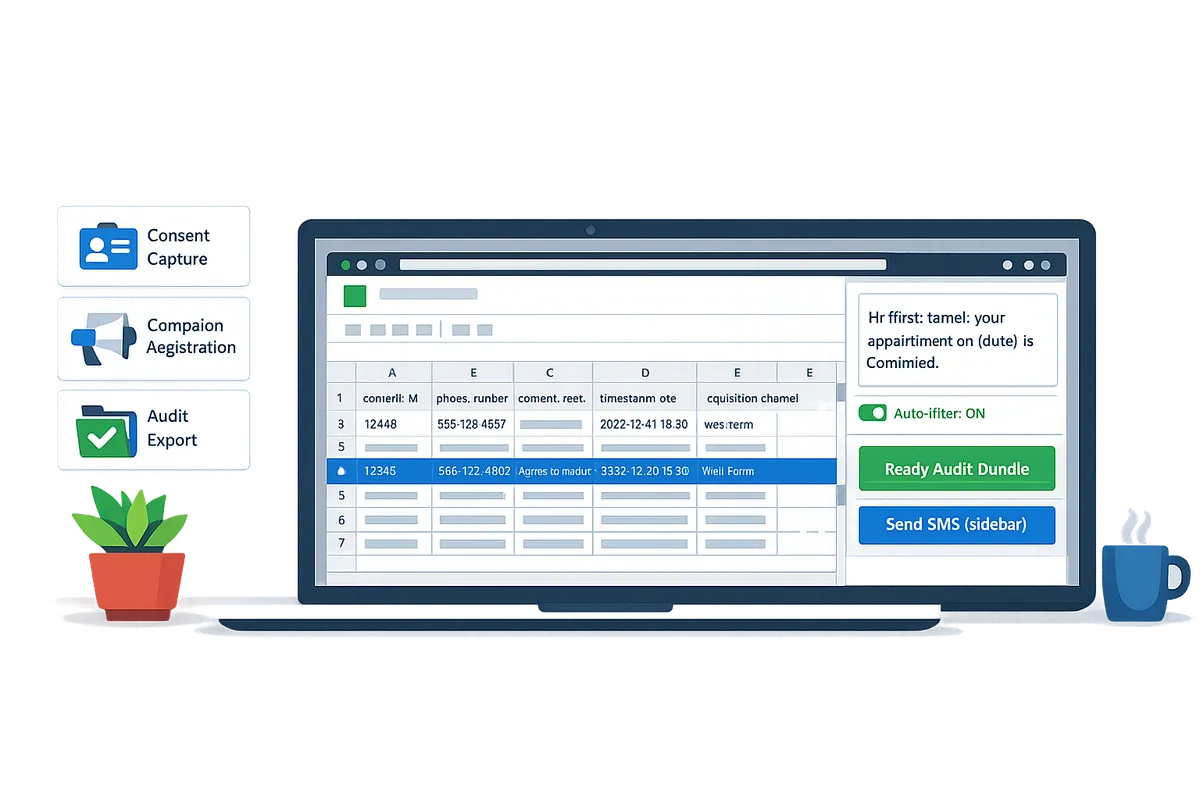
Sheet Gurus SMS links each send and incoming reply to the consent_id and the real-time inbox thread, which makes building an export-ready audit bundle a single-click operation from the add-on sidebar. For a full step-by-step playbook on maintaining consent ledgers in Sheets, see our complete compliance guide and the appointment reminder playbook for handling sensitive schedules.
How do you implement and measure a TCPA compliance program from Google Sheets?
Implementing a TCPA compliance program from Google Sheets requires a repeatable workflow that captures consent, applies automated filtering, registers campaigns, handles opt-outs, and stores auditable evidence. A documented playbook cuts manual hours and reduces legal exposure by turning ad hoc checks into verifiable steps tied to Sheet Gurus SMS logs.
What step-by-step workflow should Google Sheets senders follow? ⚙️
A repeatable workflow captures consent, validates and tags rows, registers the campaign, filters messages, sends from the sidebar, and archives evidence. Follow these operational steps inside your spreadsheet and Sheet Gurus SMS sidebar:
- Capture consent in the sheet using template language and a consent timestamp. Example opt-in copy to paste into a cell next to the phone number: “I agree to receive recurring SMS from {OrgName} at this number for account updates and offers. Msg & data rates may apply. Reply STOP to opt out.” Record the opt-in column as Yes/No and a separate timestamp column. Use double opt-in for high-risk lists when possible.
- Verify consent and tag rows. Add status tags such as VERIFIED, PENDING, or EXPIRED. Use filters to surface PENDING entries before any send. Sheet Gurus SMS automatic filtering reads these tags and prevents sends to unverified rows.
- Register the campaign and assign a campaign ID. For commercial messages, complete 10DLC registration before scheduling. Store the 10DLC campaign ID in a dedicated column so each row links to the registered campaign.
- Run automated filtering and preview. Use Sheet Gurus SMS filtering to check opt-ins, opt-outs, content triggers, and number reachability. Preview the first 50 messages and sample dynamic variables such as {first_name} and {appointment_date} to spot formatting errors.
- Send via the Sheet Gurus SMS sidebar. Use curly-bracket variables in the message body (example: “Hi {first_name}, your appointment on {appointment_date} is confirmed. Reply STOP to opt out.”) and send a small pilot batch to validate delivery and filter behavior.
- Archive send and consent evidence. Export consent ledger rows, message bodies, delivery receipts, and opt-out receipts to a timestamped folder for audits. Link these exports back to the spreadsheet using the campaign ID column.
See our Automatic Compliance Filtering guide for rules-driven pre-send checks and examples from our automated messaging workflows.
Which KPIs and audit routines measure compliance effectiveness? 📊
Track measurable KPIs and run regular audits to detect gaps before regulators or carriers escalate. Below are the primary KPIs, how to calculate them in Google Sheets, and recommended audit routines.
- Consent coverage rate. Consent coverage rate is the share of phone numbers with verified opt-in. Calculate: =COUNTIF(C2:C100,“Yes”)/COUNTA(A2:A100). Trigger a pause if coverage falls below your internal threshold (for example, 90%).
- Opt-out rate. Opt-out rate is the percentage of sends that result in STOP replies. Calculate: =COUNTIF(D2:D100,“STOP”)/TotalSends. A sustained increase signals list quality or messaging problem.
- Delivery rejection rate. Delivery rejection rate is the percent of messages rejected by carriers. Calculate: =COUNTIF(StatusRange,“Rejected”)/COUNT(StatusRange). High rejection rates often precede carrier filtering.
- Filter hit rate. Filter hit rate is the share of messages blocked by pre-send filters. Calculate: =COUNTIF(FilterFlagRange,TRUE)/TotalPlannedSends. Use this to tune filtering rules so legitimate messages pass while risky content blocks.
- Audit completion frequency. Audit completion frequency is the cadence of full compliance checks. Track last audit date per campaign and set reminders.
How to operationalize with Sheet Gurus SMS analytics:
- Pipe Sheet Gurus SMS delivery and filter events into a dashboard sheet using the add-on export. The add-on maps campaign ID, recipient, delivery status, filter reason, and timestamps so formulas above update automatically.
- Build a monitoring tab that highlights red flags (consent coverage below threshold, sudden spike in rejections) and sends internal Slack or email alerts.
Audit cadence and artifacts:
- Monthly compliance snapshot: export consent ledger, last 30 days of message logs, opt-out receipts, and 10DLC registration snapshot.
- Quarterly full audit: include historical consent exports, campaign registration history, inbox reply threads, and policy-change notes.
- Required artifacts per audit: consent export (CSV), message body archive (with {variables} expanded), delivery receipts, opt-out receipts, and campaign registration records.
Link to our complete guide for opt-in templates and a consent ledger to bootstrap your audit artifacts.
How should teams respond to revocation disputes and carrier filtering incidents? 🚨
A documented incident response plan stops sends, secures evidence, notifies stakeholders, and remediates root causes on a predictable timeline. Use this playbook when a recipient disputes consent or carriers begin filtering your campaign:
- Immediate stop (within 1 hour). Pause sends to the impacted number and related segments in Sheet Gurus SMS. Prevent further delivery attempts while collecting evidence.
- Export evidence (within 24 hours). Export the consent row, timestamped opt-in record, message history (sent messages and inbound replies), delivery receipts, and the campaign ID for linkage.
- Notify stakeholders (within 24 hours). Alert legal/compliance and the campaign owner with the exported evidence and a written summary of actions taken.
- Root-cause analysis (24–72 hours). Check whether the issue was a consent mismatch (wrong number, expired consent), a messaging content filter, or a 10DLC registration mismatch. Use the Sheet Gurus SMS filter logs to identify the exact filter reason.
- Remediate and document (72 hours). If consent is missing, stop messaging that contact until re-consent occurs. If filtering was triggered by content, adjust template copy and update Sheet Gurus SMS flagging rules. Record remediation steps in an incident log column in the sheet.
- Prevent recurrence. Add an automated row-level rule or conditional formatting that flags similar records before future sends. Maintain a change log that records filter-rule updates and the date they took effect.
⚠️ Warning: Preserve original evidence files (original message text, timestamps, and delivery receipts) for at least the retention period required by your compliance policy. Deleting raw logs increases legal risk.
Suggested incident reply template to send after review: “We received your revocation request and have stopped messages to this number. If you believe this was sent in error, please reply HELP and include your account number {account_id}.” Record the recipient response in the sheet and the Sheet Gurus SMS inbox.
Frequently Asked Questions
This FAQ answers the operational and legal questions Google Sheets senders ask about TCPA SMS compliance 2026. It focuses on what to store, how to phrase consent, handling disputes, and how Sheet Gurus SMS reduces recordkeeping and filtering risk.
What is the minimum information I must store in Google Sheets to defend a TCPA claim? 🗂️
At minimum you must store the exact opt-in copy shown to the recipient, the timestamp, the acquisition channel, and a unique consent identifier. A consent record is a data row that links a phone number to the opt-in language, the time the user agreed, the source (web form, phone, in-person), and a consent ID for quick joins. Add columns for: phone_number, consent_text, consent_timestamp, acquisition_channel, consent_id, and opt_out_timestamp.
Export quickly by filtering the consent_id(s) and using Google Sheets’ CSV export or the Sheet Gurus SMS sidebar export. Sheet Gurus SMS links sends to the consent row so you can open a consent ID in the sidebar and pull the related message thread and delivery receipts for legal requests. See our SMS Compliance with opt-in templates for an example consent ledger.
Can I use Google Sheets to capture consent for GDPR and CCPA as well as TCPA? 🌍
Yes. Google Sheets can capture cross-jurisdiction consent if you record the recipient’s jurisdiction, consent scope, and the exact opt-in language used. Consent scope is the set of purposes the recipient agreed to (for example, transactional reminders or promotional marketing), and you should store that as a discrete field (consent_scope).
For GDPR, add purpose_limitation, data_controller_contact, lawful_basis, and a retention_until date. For CCPA, record whether the contact is a consumer opting out of sale and how to honor Do Not Sell signals. Tag EU or CA rows with a jurisdiction column and use filters in the sheet or the Sheet Gurus SMS sidebar to prevent accidental sends to EU/CA contacts without the proper scope. See our automated SMS messaging workflows for integration examples.
How do I phrase opt-in language for appointment reminders versus marketing messages? 📅
Opt-in language must match message purpose: appointment reminders should state the reminder purpose and frequency, while marketing opt-ins must state promotional intent and frequency. Use concise, action-oriented wording and include opt-out instructions.
Templates with dynamic variables (curly brackets) you can use in Sheet Gurus SMS:
- Appointment reminder template: “I agree to receive appointment reminders from {BusinessName} about my appointment on {appointment_date}. Up to 3 messages. Reply STOP to opt out.”
- Marketing opt-in template: “I agree to receive promotional texts from {BusinessName} about offers and events. Up to 4 messages/month. Msg&data rates may apply. Reply STOP to opt out.”
Note that 10DLC registration requires declaring the campaign type. Appointment reminders normally register as transactional while promotional campaigns must register as marketing; review the campaign classification during brand and campaign setup in your 10DLC workflow. Our Effortless SMS Blasts guide explains campaign differences and registration steps.
How effective is automated message filtering at preventing carrier filtering? 🛡️
Automated message filtering reduces carrier filter hits by flagging risky content and PII before messages send. Filters catch sensitive words, likely personal health or financial references, URLs with redirectors, and disallowed categories that carriers flag for higher scrutiny.
Tune filters to reduce false positives by whitelisting known safe dynamic variables (for example, {first_name}), maintaining a short allowlist of campaign-approved phrases, and reviewing weekly delivery reports to adjust rules. Sheet Gurus SMS applies automatic message filtering and shows flagged rows in the sidebar so you can edit content or override with documented justification. For a deeper checklist of filters that matter, see our Automatic Compliance Filtering for Bulk Texting Campaigns.
What should I do if a recipient disputes they opted in? ⚖️
Immediately stop messaging the number, export the consent record and full message thread, and document the revocation or dispute in your audit log. If you cannot produce a clear consent record tied to that phone number, honor the dispute and log the incident as a revocation.
Checklist of evidence to gather:
- Exact consent_text and consent_timestamp for the phone number.
- Acquisition channel proof (form submission, print sign, call script) and IP or agent ID if available.
- Full message thread, delivery receipts, and opt-out receipts.
- Any revocation message or complaint timestamp.
⚠️ Warning: Stop messaging instantly on any verified dispute to avoid compounding liability; preserve all records in an exportable bundle.
Sheet Gurus SMS stores inbox history and links sends to consent rows so you can produce a time-ordered audit file without copying threads manually.
Does Sheet Gurus SMS help with recordkeeping and audit exports? 📁
Yes — Sheet Gurus SMS links every send to the consent row and preserves message threads, delivery metadata, and an exportable audit bundle. From the sheet, filter the consent rows you need, open the Sheet Gurus SMS sidebar, and run the audit export to produce a combined CSV of consent fields, message bodies (with {dynamic} variables expanded), timestamps, delivery status, and opt-outs.
Using the export-ready bundle reduces hours of manual assembly and cuts the risk of missed records during legal or carrier inquiries. For implementation patterns and export examples, see our Text Appointment Reminders and Automated Text Messaging use-case articles.
Take practical steps now to keep Google Sheets SMS compliant.
Follow the checklist and prioritize consent, filtering, and clear timing to reduce legal and delivery risk while sending from spreadsheets. TCPA SMS compliance 2026 requires documented opt-ins, timely opt-out handling, and content checks before dispatch. See the Automatic Compliance Filtering guide for a downloadable TCPA checklist and rules-driven preflight checks to prevent carrier blocks. Automatic Compliance Filtering for Bulk Texting Campaigns.
Sheet Gurus SMS is a Google Sheets add-on for sending bulk SMS from a sidebar rather than spreadsheet formulas. Personalize each message with curly-brace variables such as {FirstName}, handle replies in a real-time two-way inbox, and rely on automatic message filtering to help keep your sends compliant.
Download the TCPA checklist and try sending a compliance-safe campaign from your sheet with Sheet Gurus SMS. For implementation patterns and opt-in templates, review our complete compliance guide. SMS Compliance for Google Sheets: The Complete Guide.
💡 Tip: Start by exporting your consent ledger and enabling automatic filtering before your first bulk send to reduce risks.