




Sheet Gurus SMS vs Excel SMS Add-Ins (2026)
Small teams lose 6–10 hours per week copying numbers into separate messaging apps and fixing personalization errors. comparison: sheet gurus sms vs excel sms add-ons compares Sheet Gurus SMS with Excel add-ins and AppSource alternatives to help buyers choose the best spreadsheet-based SMS workflow for small teams. Sheet Gurus SMS is an add-on that sends messages from a sidebar inside Google Sheets and Microsoft Excel, using curly-brace variables, per-recipient previews, a real-time two-way inbox and scheduled sends. This comparison evaluates setup time, message personalization, delivery reporting, two-way inbox workflow and compliance filtering so you can pick the option that actually reduces manual work. Which workflow keeps your team fast without adding compliance risk?
Which Excel SMS add-ins and AppSource alternatives should buyers evaluate?
Buyers should evaluate Sheet Gurus SMS alongside Sheet SMS, ClickSend, Vonage, and EZ Texting to narrow options for no-code bulk texting from spreadsheets. Choose vendors by where they run natively, whether the workflow lives inside Excel or requires exports or APIs, and how well each handles replies and compliance.
Top contenders and where they run 🧭
The leading contenders are Sheet Gurus SMS, Sheet SMS, ClickSend, Vonage, and EZ Texting, and they differ mainly by installation model and native Excel support. Below is a practical table you can use to filter vendors before a pilot.
| Vendor | Typical installation model | Native Excel / Microsoft 365 support? | Notes for spreadsheet-first teams |
|---|---|---|---|
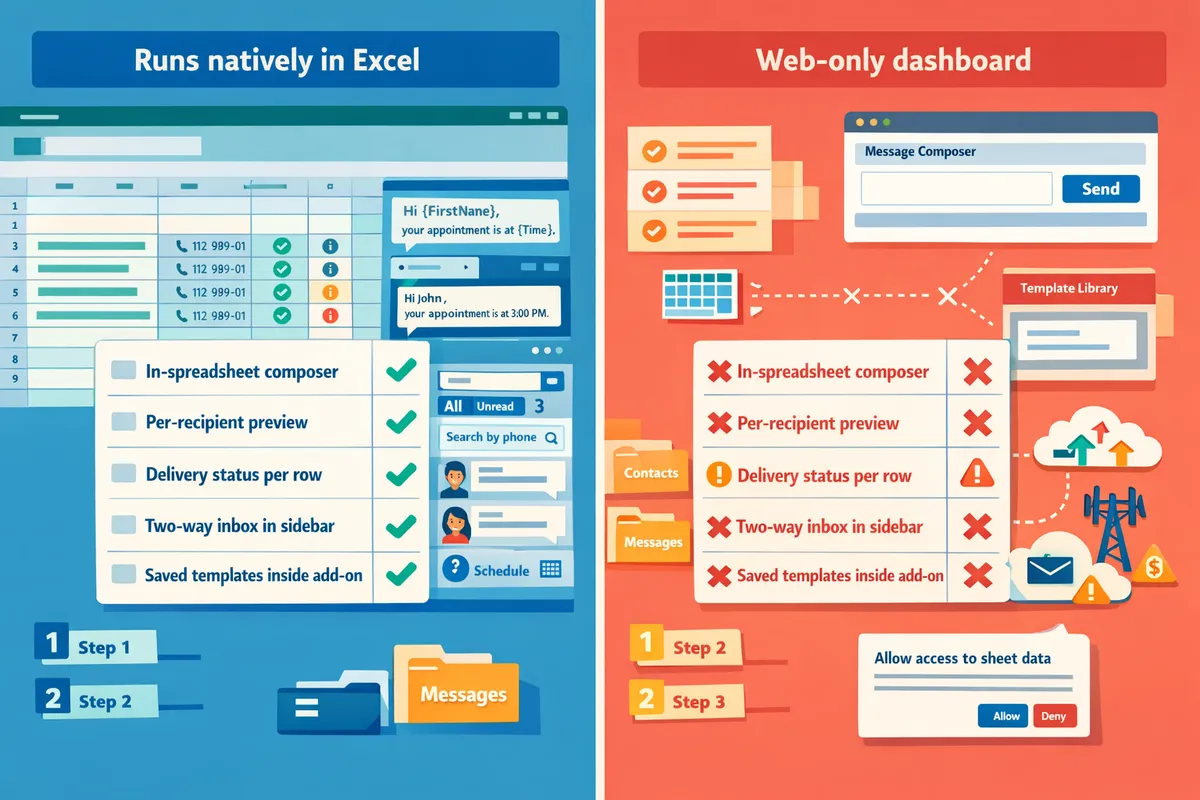
| Sheet Gurus SMS | Office add-in for Excel and a Google Sheets add-on | Yes. Runs in Excel for Microsoft 365 on Windows, macOS, and the web, and in Google Sheets | Sidebar composer, per-recipient preview, two-way inbox inside the sheet; no export required.See our guide on how it works with Excel for setup details. |
| Sheet SMS | Google Sheets add-on or web dashboard (varies by vendor) | Varies. Confirm Office add-in or AppSource listing before assuming Excel support | Often built for Sheets first; some vendors offer third-party Office add-ins or require data export. |
| ClickSend | Web dashboard plus API and integrations | Typically no native Excel sidebar; integrations via connector or API | Good for higher-volume use and multi-channel messaging; expect extra integration work to get replies linked to rows. |
| Vonage | Cloud messaging platform with API and partner apps | Usually delivered via partner integrations, not a built-in Office add-in | Strong enterprise reach and deliverability controls; expect developer or connector work for sheet integration. |
| EZ Texting | Web dashboard and partner integrations | Often requires export or a connector for spreadsheet workflows | Designed for marketing lists; two-way reply handling may live outside the sheet. |
If your requirement is a sidebar composer and replies tied to spreadsheet rows, Sheet Gurus SMS is explicitly built for that workflow; for API-first, high-volume use, ClickSend or Vonage may suit existing engineering teams.
For a short note on Excel compatibility, see Does Sheet Gurus SMS Work with Microsoft Excel?. For a broader look at no-code spreadsheet options, see No‑Code SMS from Excel and Google Sheets in 2026.
Quick capability check for busy evaluators ⚡
A practical shortlist must include sidebar composition, per-recipient preview, a two-way inbox, scheduling, and built-in compliance filters. Use this checklist to exclude add-ins that force exports, require VBA, or need developer work.
- Sidebar composer. Compose messages inside Excel without formulas or exports. Sheet Gurus SMS composes and sends from a sidebar, not via sheet formulas.
- Per-recipient preview. Preview what each recipient will receive before sending. Sheet Gurus SMS shows a preview filled with curly-brace variables like {FirstName}.
- Two-way inbox. Receive and manage replies from inside the spreadsheet UI. Sheet Gurus SMS provides a real-time inbox in the sidebar with tagging and assignment tied to the recipient row.
- Scheduling. Schedule a batch to send at a future time from the sidebar. Sheet Gurus SMS supports scheduled sends that read the tab at scheduling time.
- Compliance filters. Built-in filters for opt-out and undeliverable numbers reduce regulatory risk. Sheet Gurus SMS applies automatic message filtering to help keep sends compliant.
If any candidate requires VBA, regular CSV exports, or an external dashboard to send messages, mark it out for small teams unless you have dedicated ops support.
💡
Tip: Always use double opt-in for SMS signups to reduce spam complaints and carrier filtering.
How to shortlist AppSource listings vs external add-ins 🔎
On AppSource and vendor sites verify platform compatibility, permission scopes, message-preview behavior, whether the add-in uses a third-party SMS provider, and available migration support before you install. Follow these verification steps to avoid surprises.
- Confirm platform support and install model. Check the AppSource listing or vendor docs for “Excel for Microsoft 365” support, macOS and web compatibility, and whether the tool is an Office add-in or a connector that opens a separate dashboard. Sheet Gurus SMS lists native Office add-in support and a mirrored Google Sheets sidebar workflow.
- Inspect permission scopes and data flow. Verify what the add-in can read and write. Avoid add-ins that request broad mailbox or file permissions unless clearly necessary for the feature set.
- Verify message-preview and send location. Confirm whether the send originates from a sidebar in Excel (preferred) or from an external dashboard. A sidebar send keeps data and replies together in the sheet.
- Check reply handling and inbox behavior. Determine if replies land in the spreadsheet UI, a vendor inbox, or a separate tool; ask how replies map back to rows for reporting. Sheet Gurus SMS ties replies to the recipient row and exposes inbox features in the sidebar.
- Confirm third-party SMS provider and deliverability posture. Ask whether the add-in uses its own gateway or a provider such as Twilio, and whether throttling or regional limits apply. Sheet Gurus SMS uses Twilio as its SMS provider.
- Ask about migration and support. Request migration paths for existing lists, export formats, and available support channels for onboarding and data access.
⚠️ Warning: Avoid installing add-ins without checking billing and message routing. Some vendors route messages through third parties or require separate message credits; that changes cost and data control.
How do Sheet Gurus SMS and Excel SMS add-ins compare on features, deliverability, and cost?
This section compares Sheet Gurus SMS and leading Excel SMS add-ins across feature sets, deliverability, compliance, security, and pricing models. Use the feature matrix and scoring to match vendor trade-offs to your team’s top priorities.
Side-by-side feature matrix (table) 📋
The table below shows a side-by-side feature comparison and buyer-weighted scores for Sheet Gurus SMS versus common Excel SMS add-ins.
| Feature | Sheet Gurus SMS (sidebar add-on) | Typical Excel SMS add-ins (market average) | Buyer weight (1-5) | SG score (0-5) | Typical score (0-5) | Weighted SG | Weighted Typical |
|---|---|---|---|---|---|---|---|
| Platform support (Excel + Google Sheets) | Native Office add-in and Google Sheets sidebar | Often Excel-only or Sheets-only; some require export | 5 | 5 | 3 | 25 | 15 |
| Message composition UI (sidebar vs formulas) | Compose in a sidebar with per-recipient preview | Some use formulas, others require external dashboards | 5 | 5 | 2 | 25 | 10 |
| Per-recipient preview before send | Shows every recipient’s filled-in preview in sidebar | Varies; many lack per-recipient preview | 4 | 5 | 3 | 20 | 12 |
| Curly-brace variables (e.g., {FirstName}) | Supported and match column headers | Common but implementation quality varies | 4 | 5 | 4 | 20 | 16 |
| Two-way inbox and reply linking | Real-time two-way inbox, tags, assignment, replies linked to rows | Many add-ins rely on external dashboards or lack two-way threading | 5 | 5 | 3 | 25 | 15 |
| Scheduling (batch send time) | Scheduled sends supported from the sidebar | Common feature, sometimes limited | 3 | 4 | 4 | 12 | 12 |
| Triggers (automatic sends on row change) | Not available yet (roadmap) | Several competitors offer triggers or webhooks | 3 | 1 | 4 | 3 | 12 |
| Saved message templates inside tool | Templates stored in sheet (no native saved templates) | Many add-ins include template storage | 2 | 1 | 4 | 2 | 8 |
| Delivery reporting per message | Delivery status shown for every message | Most provide delivery reporting but detail varies | 5 | 5 | 4 | 25 | 20 |
| Country coverage | US and Canada only (provider integrated) | Some add-ins offer broader international coverage | 4 | 3 | 4 | 12 | 16 |
| Sender number options (toll-free, local) | Toll-free; upgrade for custom local area codes; short codes on request | Varies widely by vendor | 3 | 4 | 3 | 12 | 9 |
| Enterprise controls (multi-user, assignment) | Two-way assignment, multi-user seats by plan, inbox controls | Varies; enterprise tooling often add-on | 4 | 4 | 3 | 16 | 12 |
| Totals | 197 | 157 |
How to use this matrix. Pick the three features you cannot trade away and weight them higher. For steps to get Sheet Gurus SMS running inside Excel, see our guide on whether Sheet Gurus SMS works with Microsoft Excel.
Deliverability, two-way messaging, and compliance 📬
Deliverability depends largely on the underlying SMS provider and message hygiene; Sheet Gurus SMS uses an integrated Twilio provider and applies automatic message filtering to reduce regulatory risk for US and Canada sends. The filtering flags opt-out language and undeliverable numbers, which helps prevent common compliance slips.
Sheet Gurus SMS keeps replies in a real-time inbox in the sidebar and links replies to the recipient’s row, which reduces missed responses and manual reconciliation. Many Excel add-ins either lack a built-in inbox or route replies to a separate web console, increasing the chance of missed messages and extra admin time.
💡 Tip: Always use double opt-in for SMS signups and keep a column that records consent date and the opt-in source to simplify audits.
For more on no-code spreadsheet workflows and deliverability trade-offs, see our No‑Code SMS from Excel and Google Sheets in 2026 comparison.
Pricing structure and total cost of ownership (non-numeric guidance) 💰
Compare subscription fees, per-message usage, per-seat charges, and trial credits to estimate total cost of ownership for spreadsheet-based SMS tools. Monthly plan fees cover platform features; usage charges cover message segments, and seat fees add to recurring costs. Trial credits reduce initial testing risk; confirm how credits are consumed and whether inbound messages count.
How to calculate TCO (step-by-step):
- Estimate monthly message volume and multiply by vendor per-message rate. Include extra segments for long messages and MMS.
- Add the monthly plan fee and per-seat fees for your team.
- Add projected support and administrative time (hours spent preparing lists, resolving failed sends, reconciling replies).
- Add one-time migration or onboarding costs and expected increase in volume after automation.
Sheet Gurus SMS does not bundle usage credits with paid plans. It bills usage per segment at the plan’s rate, at the end of the billing period or when a threshold is reached. Ask vendors for a sample invoice. When comparing vendors, request a sample 3-month TCO using your actual contact list and message templates.
Security, access controls, and enterprise needs 🔐
Teams should verify single sign-on, audit logs, multi-user seat management, message retention policies, and whether replies map directly back to sheet rows. Replies linked to row data reduce the need for separate CRM reconciliation; Sheet Gurus SMS links replies to the recipient’s row in the sidebar to keep conversation context in the sheet.
Questions to ask vendors before buying:
- Do you offer SSO and what identity providers are supported?
- Can I export audit logs and delivery histories for a given date range?
- How long are messages and attachments retained and where is data stored?
- How are inbound messages associated with users and rows for accountability?
⚠️ Warning: Confirm data residency and retention policies if you handle regulated data. Don’t assume an add-on stores everything in your spreadsheet; many keep copies on vendor servers.
For step-by-step setup options and enterprise checklist items, see our Microsoft Excel SMS Add-On: Send Personalized Bulk guide.
Platform fit: Excel vs Google Sheets — which should you pick? 🗂️
Choose Excel when you need heavy local workbook logic, offline access, or deep Windows integration; choose Google Sheets when you prioritize browser-first sharing and simple installs. For example, logistics teams using complex local macros and large offline files typically prefer Excel, while small remote teams that share one live roster often pick Google Sheets for collaboration.
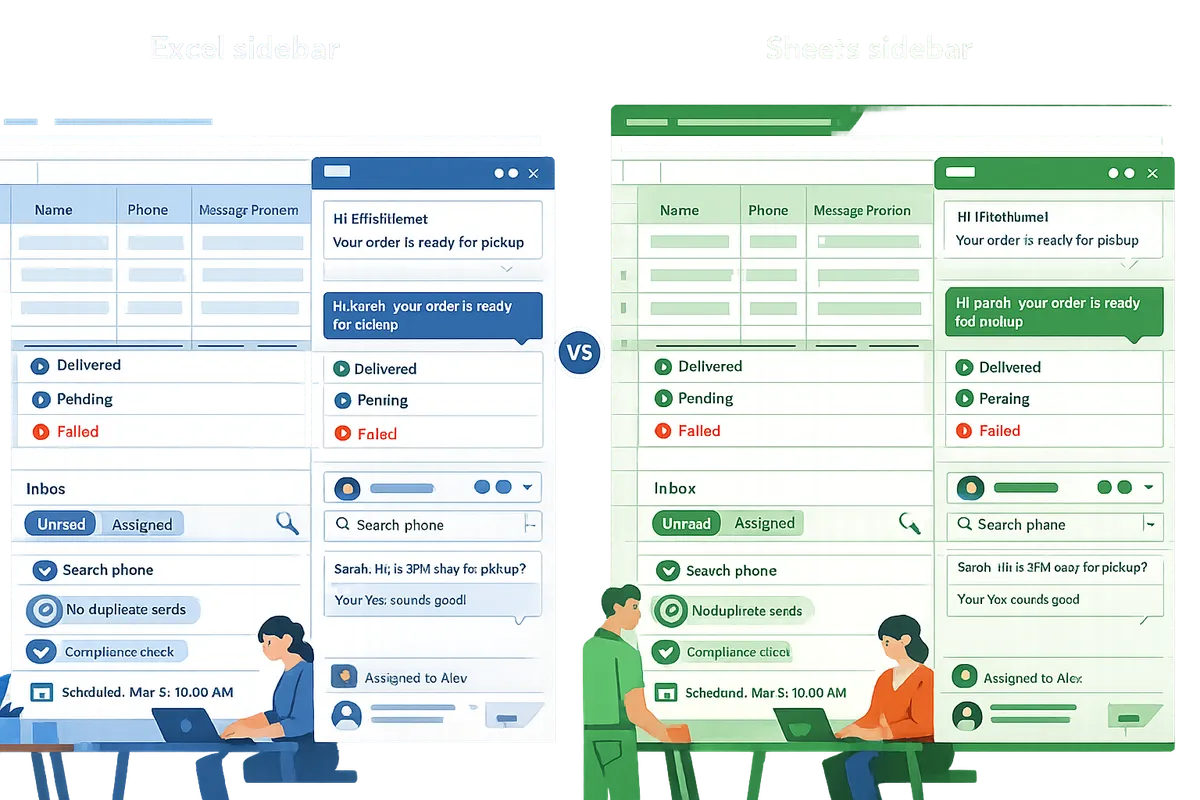
Sheet Gurus SMS runs natively in both Excel and Google Sheets and mirrors the same sidebar workflow in each environment, so you can keep the same send and reply process regardless of which spreadsheet platform your team already uses. If you maintain separate lists in both platforms, consider consolidating the primary outreach list into the sheet that your operations team already uses to avoid duplicate sends and manual syncs.
For more on choosing the right spreadsheet-first approach, read No‑Code SMS from Excel and Google Sheets in 2026 and our Sending SMS from Google Sheets with Sheet Gurus SMS guide.
Which option reduces time, risk, and long-term support costs for small teams?
Sheet Gurus SMS reduces time, compliance risk, and ongoing support overhead for most small teams by keeping composition, delivery status, and two-way replies inside the spreadsheet sidebar. Our No‑Code SMS from Excel and Google Sheets guide shows how keeping messages and data together removes repeated exports, reduces mis-sends, and shortens follow-up cycles.
Pros and cons: Sheet Gurus SMS ✅
Sheet Gurus SMS cuts operational friction with sidebar composition, per-recipient previews, and an integrated two-way inbox. The sidebar composes messages (not spreadsheet formulas), shows {FirstName}-style previews before any send, and links replies to the recipient’s row so staff spend less time reconciling inboxes with sheets. Automatic message filtering reduces common compliance slips by flagging opt-out language and undeliverable numbers. Scheduled sends are available in Growth and Pro plans which helps move reminders and dispatch messages from a manual task to a single scheduled batch.
Known limits that affect workflows include no saved message templates inside the add-on, no per-row send times for staggered deliveries, no recurring schedules, and no automatic triggers when a row changes. Variables have no fallback values, so empty cells appear blank in messages. These limits mean teams keep reusable templates inside a sheet and plan sends in batches rather than per-row timing. For details on Excel compatibility and the sidebar workflow, see Does Sheet Gurus SMS Work with Microsoft Excel? and our Sending SMS from Google Sheets with Sheet Gurus SMS guide.
Pros and cons: Excel SMS add-in alternatives ⚖️
Excel SMS add-ins vary: some provide saved template libraries and advanced routing, while others require external dashboards or developer setup and add maintenance cost. Typical trade-offs across alternatives:
| Feature or need | Add-ins with built-in templates | External-provider dashboards or custom add-ins | DIY/VBA solutions |
|---|---|---|---|
| Saved templates inside the add-in | Often available | Rare | Manual only |
| Two-way replies in-sheet | Less common | Possible via API sync | Possible but fragile |
| Per-row send times and triggers | Some competitors offer this | Usually via external scheduler | Flexible but high maintenance |
| International coverage beyond US/Canada | Some vendors offer broader coverage | Varies by provider | Depends on gateway |
| Setup and ongoing maintenance | Low for no-code add-ins | Medium to high | High (developer time) |
Add-ins that add built-in templates and routing reduce day-to-day admin but sometimes rely on external syncing or developer configuration. Those trade-offs raise long-term support costs if your team lacks a dedicated admin. For a practical walkthrough of choosing no-code Excel and Sheets options, see No‑Code SMS from Excel and Google Sheets in 2026.
Recommended buyer scenarios and migration tips 🔁
Choose Sheet Gurus SMS when you need fast setup, two-way replies kept with contact rows, and minimal ongoing ops work for appointment reminders, delivery dispatch, and single-batch campaigns. If you must send per-recipient timed messages, need immediate triggers on row changes, or require broad international sender ID options, evaluate competing Excel add-ins or a provider that supports those features.
Migration and testing checklist for teams moving from another add-in or a manual process:
- Export reusable message text and variables into a dedicated sheet tab so templates live in the workbook. This compensates for the add-on not storing templates.
- Map column headers to curly-brace variables (for example {FirstName}, {Time}) and confirm a small preview batch of 5 recipients shows expected values. The preview step prevents personalization errors.
- Schedule a test send, add a row before it goes out, and confirm the new row isn’t included. Add rows after scheduling to confirm they are excluded from that batch.
- Test inbound replies and assignment by sending to staff phones and tagging replies inside the two-way inbox.
⚠️ Warning: DIY VBA-based SMS flows often lack built-in opt-out handling and centralized delivery status, increasing compliance exposure and support time. Use a tested add-on workflow or script formal runbooks if you must maintain a custom solution.
For step-by-step setup and platform choice guidance, see Microsoft Excel SMS Add-On: Send Personalized Bulk and our Sending SMS from Google Sheets guide.
Frequently Asked Questions
This FAQ answers the most common buyer questions about Sheet Gurus SMS and Excel SMS add-ins for spreadsheet-based bulk texting. It focuses on platform compatibility, scheduling behavior, personalization edge cases, reply handling, and compliance safeguards so buyers can compare options quickly.
Can I send bulk SMS from Excel without VBA? 🤔
Yes, Sheet Gurus SMS and several Office add-ins let you send bulk SMS from Excel without writing VBA or custom scripts. The add-in runs inside Excel as a sidebar where you compose messages, preview each recipient with curly-brace variables (for example {FirstName}), and send or schedule a batch. For a broader comparison of no-code spreadsheet SMS workflows across both Excel and Google Sheets, see our No‑Code SMS from Excel and Google Sheets in 2026 guide.
Does Sheet Gurus SMS run natively in Excel for Mac and Excel for the web? 💻
Yes, Sheet Gurus SMS runs as an Office add-in on Microsoft 365 for Windows, macOS, and Excel for the web. The sidebar workflow mirrors the Google Sheets experience so you do not need to export or sync data to another platform. If you want a short compatibility checklist and install steps, our article Does Sheet Gurus SMS Work with Microsoft Excel? walks through permissions, browser requirements, and first-run setup.
How do scheduled sends, recurring schedules, and per-row send times work? 🕒
A scheduled send in Sheet Gurus SMS captures the current tab and sends the entire batch at the scheduled time; recurring schedules and per-row individual send times are not supported. That means if you schedule a send for 10:00, the add-on reads the sheet at scheduling time and any rows added later are excluded. For teams that need per-recipient timing or automated repeats, plan for manual scheduling of each batch or evaluate automation tools until triggers and recurring sends arrive on the product roadmap.
What happens if a variable cell is blank in my sheet? 📭
If a variable cell is empty, the variable inserts as blank in the recipient’s message because Sheet Gurus SMS does not support fallback values inside the composition UI. For example, “Hi {FirstName}, your appointment is at {Time}” will become “Hi , your appointment is at 10:00” if FirstName is blank. A practical workaround is to keep a helper column with a formula that supplies a fallback (for example an IF that writes “Friend” when the name is empty) and send from that column so the sidebar shows the intended preview.
How are replies and delivery status handled in the spreadsheet workflow? 📎
Replies appear in a real-time two-way inbox inside the sidebar and stay linked to the recipient’s row; delivery status is reported per message after sends. The Sheet Gurus SMS inbox supports tagging, unread filters, search by phone number, and assignment to team members so small teams can triage replies inside the same sheet where they manage contacts. If you need a step-by-step on testing sends and viewing delivery results, see our Microsoft Excel SMS Add-On: Send Personalized Bulk guide for checklists and troubleshooting tips.
What compliance safeguards exist for US/Canada texting? ⚖️
Vendors typically provide automated opt-out handling and message filtering; Sheet Gurus SMS applies automatic message filtering to help reduce compliance risk in supported countries. You still must obtain proper consent and follow TCPA rules and local regulations; the add-on processes STOP replies automatically but does not replace legal compliance processes.
💡 Tip: Always use double opt-in for SMS signups and store consent timestamps in your sheet to simplify audits.
Choose the workflow that keeps messages and replies inside your spreadsheet.
For small teams comparing options, the fastest way to reduce errors and keep conversations together is to send and manage SMS from the sheet you already use. This comparison: sheet gurus sms vs excel sms add-ons shows that moving between tools adds hours and increases the chance of sending to the wrong list. Sheet Gurus SMS keeps composition, per-recipient previews, and a two-way inbox in a sidebar inside Excel or Google Sheets so your team stays aligned without exporting data.
Try Sheet Gurus SMS with a 30-day free trial and follow our getting-started guide to send your first batch from Excel or Google Sheets. For Excel-specific setup, see the article on how Sheet Gurus SMS works with Microsoft Excel to confirm compatibility and install steps.
If you prefer a no-code route to send bulk SMS from Excel without VBA, check the No‑Code SMS from Excel and Google Sheets in 2026 comparison for alternative workflows and operational trade-offs.
💡 Tip: Use the free trial to run a small live send and verify delivery status and reply routing before a full rollout.