




Sheet Gurus SMS Product Update: October 2026
Sheet Gurus SMS product update October 2026 adds inbox threading, smarter automated filtering, and refined scheduling controls to reduce time spent managing replies and undeliverable numbers. Sheet Gurus SMS is a Google Sheets add-on that lets users send bulk SMS from a sidebar (not spreadsheet formulas), use curly-brace variables like {FirstName} for per-recipient personalization, and handle two-way replies in a real-time inbox. This product update and changelog walks through bug fixes, UX improvements, and new admin controls that matter to clinics, schools, and delivery teams. For setup or to see dynamic messaging examples, consult
our sending SMS from Google Sheets guide. Read the changelog to see sample messages such as ‘Hi {FirstName}, your pickup is scheduled for {Date}’ and what changed.What do the official Sheet Gurus SMS release notes 2026 say?
The official Sheet Gurus SMS release notes for October 2026 list shipped changes to the composer sidebar, inbox threading, and Office add-in parity, plus a set of beta and planned items. This summary pulls only documented items so teams can scan what shipped, what to test now, and which items remain beta or planned.
Release notes at a glance
The release notes confirm shipped edits to the composer sidebar, inbox handling, and cross-platform parity between Google Sheets and Excel. Our website lists these as the primary, documented changes in October 2026; see the official release notes for the full diffs on UI changes and API surface.
Confirmed change items (shipped).
- Composer sidebar: refined scheduling controls, clearer send-status indicators, and simplified variable insertion for {FirstName} style dynamic messaging.
- Real-time inbox: reply threading and tighter message-filter interaction rules are now active in the sidebar.
- Cross-platform parity: the Office add-in mirrors the Google Sheets sidebar workflow for most core actions.
Quick actions for admins.
- Open the sidebar and confirm the new scheduling controls load.
- Send a short test to confirm status indicators update.
- Check reply threading on an existing conversation.
Refer to our blog category for the release post and full technical notes on each item.
Confirmed updates to the real-time inbox 📨
The release notes state that the real-time inbox now groups replies into threaded conversations and respects configured message filters. Threading groups replies so teams see a single conversation per recipient, reducing duplicate follow-ups. The notes clarify that message-filter rules now suppress filtered threads from the primary stream rather than deleting them, which preserves audit trails.
What to test after updating.
- Send a test campaign using a message with variables, for example: “Hi {FirstName}, your appointment is at {Time}. Reply HELP for options.” Verify the reply appears threaded under the original message.
- Confirm that muted or filtered threads move out of the primary inbox but remain searchable in the archive view.
- Check delivery and undeliverable flags in-thread so agents see bounce context while handling replies.
💡
Tip: Always use double opt-in for SMS signups to reduce compliance risk and reduce filtered replies.
For step-by-step handling in the sidebar, see our guide on sending and handling replies from Google Sheets.
Excel add-in parity and cross-platform notes
The release notes confirm the Office add-in mirrors the Google Sheets sidebar workflow, with team-level checks recommended for cross-platform deployments. Sheet Gurus SMS now provides the same composer, variable insertion, and inbox features inside Excel for the web and desktop, but the release notes call out minor platform-specific prompts and permission flows that may require admin approval.
Checklist for cross-platform teams to verify after upgrading.
- Install or update the Office add-in across one test tenant and confirm sidebar load time and composer availability.
- Send a scheduled message from Excel and confirm it appears on Google Sheets users’ dashboards if your team shares a workspace.
- Test dynamic variables such as {FirstName} and {OrderNumber} for message rendering parity.
- Test two-way replies to ensure inbound messages thread into the Excel sidebar as they do in Google Sheets.
- Confirm Microsoft 365 admin consent prompts and required permissions are documented for your IT team.
For use-case examples on coordinating sends across teams, see our Sheet Gurus SMS for Last Mile Delivery and our eCommerce messaging guide.
Planned items vs documented changes
The release notes separate shipped features from beta and planned items so teams can prioritize testing and postpone risky changes. Items listed as shipped are ready for general use; items marked beta require opt-in testing; planned items are scheduled for future releases and have no guarantee of ship date.
Key beta and planned items called out in October 2026.
- Beta: refined automation triggers and a new template gallery (opt-in testing available).
- Planned: expanded security controls, detailed migration/onboarding guides, and additional data-handling options for workspace admins.
How to prioritize testing.
- Validate shipped items first (composer, inbox threading, add-in parity) in a test sheet or tenant.
- Opt into beta features only in a staging environment and monitor for message throttling or filter edge cases.
- Delay critical production campaigns until planned items affecting compliance or data handling are released as stable.
⚠️ Warning: Do not enable beta automation triggers on high-volume production campaigns until you verify undeliverable filtering and duplicate protection in a test run.
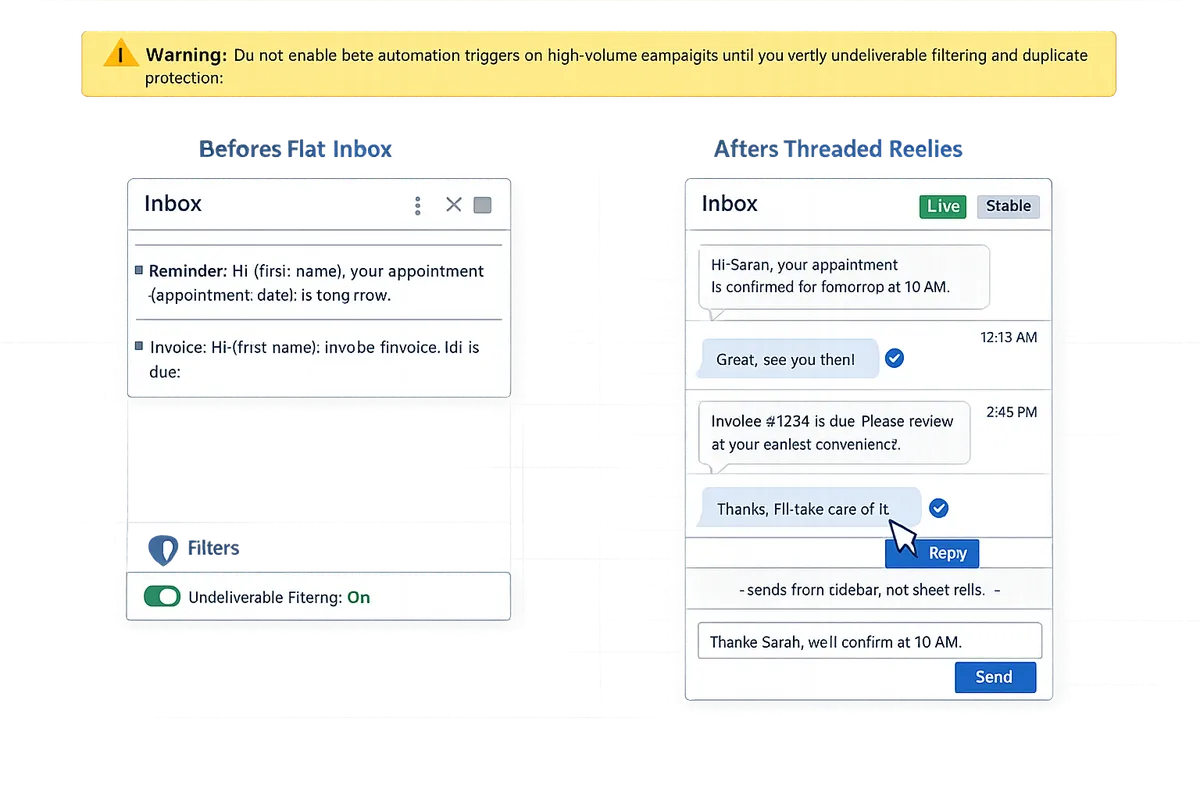
For the full release notes and technical diffs, see our blog category with the release post and follow-up guides on rollout and testing.
How do the October 2026 updates change workflows and who benefits?
The October 2026 updates shift message composition, reply handling, and compliance checks so teams spend less time managing flows and face fewer delivery risks. These changes matter because the Google Sheets SMS add-on update real-time inbox and smarter filtering move common manual tasks from spreadsheets into the sidebar, cutting repetitive work and reducing missed deliveries. Small businesses, last-mile dispatchers, and marketing teams will see the largest time savings and lower compliance exposure.
Feature deep dive: Composer, variables, and scheduling ✍️
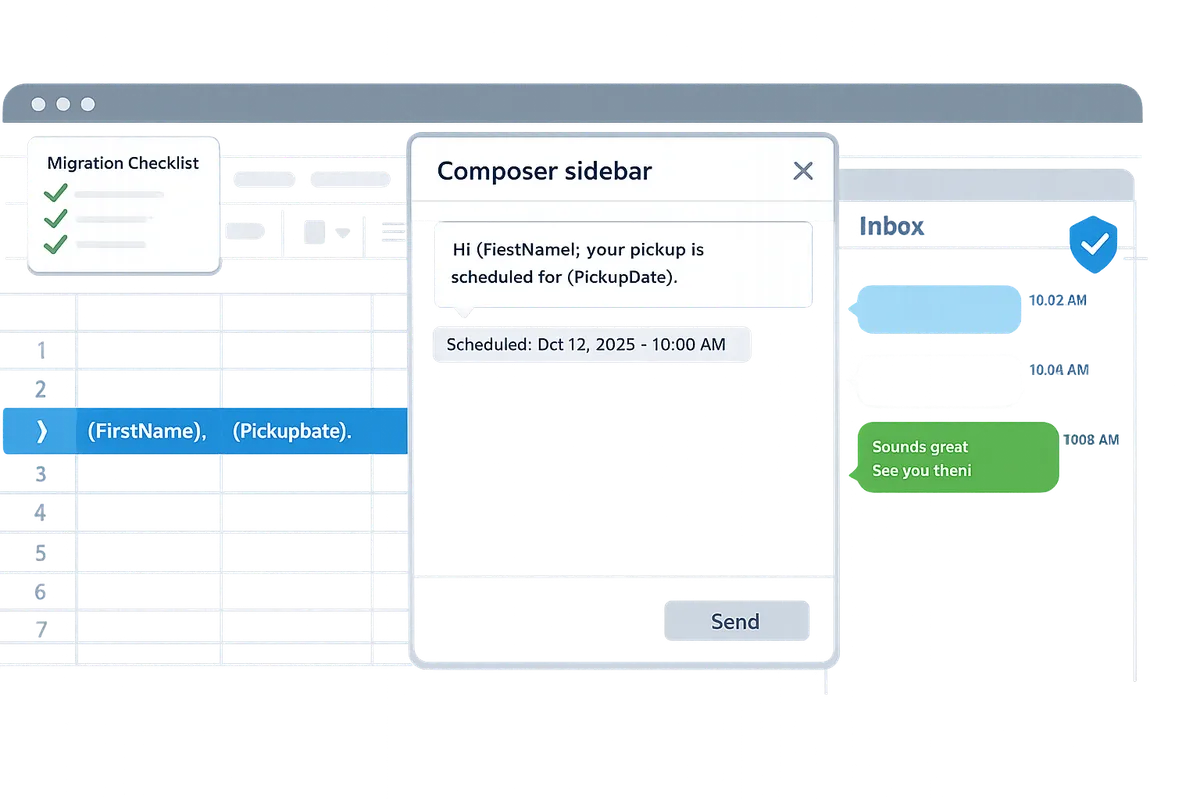
The composer now keeps curly-brace variables and adds tighter scheduling controls in the sidebar to speed personalized sends and reduce manual edits. For example: “Hi {FirstName}, your pickup for {OrderID} is scheduled for {PickupDate}. Reply STOP to opt out.” Map {FirstName} to a column named FirstName, {OrderID} to OrderID, and so on. Sheet Gurus SMS reads column headers exactly, so header spelling and capitalization must match the variable names.
Practical steps to prepare a send:
- Standardize phone numbers to the format +1XXXXXXXXXX and remove rows with blank numbers.
- Trim extra spaces and remove duplicate rows or merged cells.
- Create a small seed list (10–20 numbers) and send a scheduled test to confirm variable substitution and delivery status.
Who should schedule a migration window and how long:
- Small-business appointment reminders: schedule 30–60 minutes for setup and a test batch.
- Delivery dispatch teams: schedule a 1–2 hour transition during a low-traffic window to test route updates and inbox threading. See our last-mile guidance in Sheet Gurus SMS for Last Mile Delivery for workflow examples.
- Marketing teams with large blasts: reserve a 2–4 hour window and run staged sends to validate filters and templates.
💡 Tip: Always use double opt-in for SMS signups to reduce opt-out complaints and improve deliverability.
How does the automatic message filtering affect compliance? ⚖️
Automatic message filtering applies content rules to outgoing text to reduce carrier rejections and regulatory exposure. Sheet Gurus SMS checks message text at send time and flags patterns that commonly trigger carrier or regulatory filters. Typical triggers include explicit medical or prescription claims, heavy use of promotional superlatives combined with payment links, and missing opt-out language.
Business risks of ignoring filters include carrier blocks, widespread non-delivery, and potential regulatory fines for prohibited content. For example, wording like “Get prescription meds now” or “Guaranteed cure” will more likely trigger a filter than a neutral appointment reminder.
Validation steps before a large send:
- Run a preview on multiple rows to catch variable-specific language that might trigger rules.
- Send a seed test to internal numbers and confirm delivery plus inbox threading behavior.
- If a template flags, reword to plain language and include a clear opt-out such as “Reply STOP to opt out.” Growth plan customers can also use automated undeliverable-number filtering to remove bad numbers before retrying.
⚠️ Warning: Avoid using personal health info in SMS messages.
DIY vs Sheet Gurus SMS: cost, time, and compliance (table)
Using Sheet Gurus SMS cuts time and compliance risk compared with manual spreadsheet-and-phone workflows.
| Metric | DIY (manual SMS by copy/paste or single-number tools) | Sheet Gurus SMS (add-on sidebar) |
|---|---|---|
| Time to send (per 1,000 recipients) | Hours of copy/paste, manual personalization, and scheduling; high human time cost | Minutes to prepare, schedule, and monitor from the sidebar using dynamic variables and scheduling |
| Error & compliance risk | High. Missed opt-outs, inconsistent personalization, greater chance of policy-triggering language | Lower. Automatic filtering, required opt-out text, and two-way inbox reduce violations |
| Maintenance burden | Ongoing: maintain scripts, phone lists, and manual delivery tracking | Low: update templates in the sidebar, use the inbox for replies, automated undeliverable handling on Growth |
| Typical cost drivers | Staff hours, carrier fees if using another provider, ad hoc short codes | Plan tier and per-segment usage; scheduling and inbox reduce wasted sends |
| Two-way replies and tracking | Hard to centralize; replies scattered across phones or platforms | Real-time inbox in the add-on centralizes replies and threads conversations |
For setup examples and a step-by-step walkthrough, see our sending SMS from Google Sheets guide. If you manage promotions or route notifications, compare this table with the workflows shown in Sheet Gurus SMS for Ecommerce and the Last Mile Delivery guide to pick the right migration window.
How can I access the October 2026 update and adapt my account?
Install the October 2026 release from the Sheet Gurus SMS sidebar or the Office add-in manager, then verify the version and migrate scheduled campaigns using the checklist below. This matters because the release changes composer controls, inbox threading, and scheduling behavior that affect live campaigns. Follow the step-by-step update, a short migration checklist, and targeted tests to avoid duplicate sends or compliance gaps.
Step-by-step: update the add-on or add-in 🔄
Use the in-app updater in the Google Sheets sidebar or the Office add-in manager for Excel to install the October 2026 release. 1) Back up the contact sheet and any campaign templates as separate copies in Google Drive or OneDrive. 2) Open the Sheet Gurus SMS sidebar in Google Sheets or the Office add-in manager in Excel and run the provided updater. 3) Confirm the sidebar shows the October 2026 version in Settings > About before continuing. 4) Send a 5–10 number pilot using a dedicated test column (label it TEST) to validate composition, variables, and replies.
If the updater does not appear, sign out of the add-on, refresh the spreadsheet, and retry the in-app update. If updates still fail, reinstall the add-on from the Office add-in manager or Sheets add-on listing, then re-open your workbook and confirm the sidebar version.
💡 Tip: Always use double opt-in for SMS signups.
Example test message to validate curly-brace variables:
- Message: “Hi {FirstName}, your pickup is scheduled for {Date} at {Time}. Reply YES to confirm.” 2. Send to the TEST column to confirm {FirstName}, {Date}, and {Time} populate correctly and that replies land in the Sheet Gurus SMS inbox.
Migration checklist for existing campaigns 📦
Follow this checklist to move scheduled sends, contact tags, suppressed lists, and templates to the new release with minimal downtime. 1) Export a copy of all scheduled campaigns and their scheduled timestamps to a CSV. 2) Export suppressed lists and opt-out logs to a separate file and mark the suppressed column in your live sheet. 3) Reconcile contact tags: compare tag names in your active campaigns with tag names after the update and standardize mismatches. 4) Recreate or confirm templates in the updated composer, especially any that used scheduling controls now refined in October 2026. 5) Re-schedule high-volume sends in staggered batches (for example, by region or tag) to reduce throttling risk.
Common failure points that cost hours or produce duplicates: tag name mismatches, missing suppressed lists, timezone shifts on scheduled timestamps, and rescheduling the same campaign twice. Use the exported CSVs as a rollback snapshot.
⚠️ Warning: Duplicate sends most often occur when a team member re-schedules a campaign before confirming the previous schedule was canceled. Always verify the scheduled-campaign export before rescheduling.
Testing, reporting, billing, and rollback notes 📊
Validate delivery by running a pilot send, verifying inbox replies, and reviewing delivery reports before scaling to the full list. Pilot sends should include recipients on different carriers and both toll-free and local numbers if you use them. Confirm replies appear in the Sheet Gurus SMS real-time inbox and that automatic message filtering flags any compliance issues.
Check usage and billing after the pilot. Credits are usage-based and are billed at the end of the billing period or when a usage threshold is reached. For large campaigns expect Twilio-based delivery throttling; if you see throttling, use Sheet Gurus SMS’s prioritization queue and staggered batches to smooth delivery.
If you detect widespread delivery failures, billing anomalies, or unexpected filtering behavior, contact Sheet Gurus SMS support with your exported campaign CSV, the sidebar version, and sample message IDs so the team can investigate. Support can advise on rollback steps or scheduler adjustments if the issue originates from the update.
For step-by-step sending and inbox examples, see our updated guide on sending SMS from Google Sheets and related workflows in the Sheet Gurus blog category.
October 2026 update improves scheduling, inbox handling, and compliance in the Sheet Gurus SMS sidebar.
The core takeaway is practical: this release reduces the hours teams spend copying messages and hunting replies, and it lowers compliance risk by tightening message filtering and inbox workflows. For people who manage delivery routes or high-volume promotions, that means less manual work and fewer missed replies. The Sheet Gurus SMS product update October 2026 explains these changes and where to find the new controls.
Sheet Gurus SMS is a platform that helps users save time and money by enabling them to send bulk SMS to their recipients easily from within Google Sheets. Follow our step-by-step guide to sending SMS from Google Sheets to create your first campaign and start a free trial. That guide shows how to compose sends from the sidebar, schedule messages, and handle replies without formulas.
Check our Company News and recent posts for ongoing notes and examples, including practical uses for small businesses and delivery dispatchers. Subscribe to our newsletter for implementation tips and future release notes.