




Send SMS From Excel via Google Sheets
A messy Excel contact list costs small businesses 4–10 hours weekly when exporting and cleaning data for SMS campaigns. Our guide shows how to send SMS from Excel via Google Sheets with Sheet Gurus SMS, a Google Sheets add-on that sends from a sidebar, not formulas. Sending SMS from Excel via Google Sheets is a workflow that converts Excel contacts into scheduled bulk SMS with curly-bracket variables, a real-time inbox, and automatic compliance filtering. Manual setups lead to missed messages and compliance risk; Sheet Gurus SMS automates imports, dynamic {first_name} variables, two-way replies, and filtering. Example: ‘Hi {first_name}, your appointment at {location} is at {appointment_time}. Reply Y to confirm.’ See the
sending SMS with Sheet Gurus SMS guide for Excel compatibility tips — could a sidebar replace hours of manual work?How do I prepare Excel contacts and choose the best method?
Prepare contacts by cleaning phone numbers, recording consent, mapping fields, and matching your method to budget and skill level. These checks prevent wasted hours, delivery failures, and compliance headaches. The steps below give exact checks, expected outcomes, and a quick decision tree to pick the no-code, low-code, or Excel-import path.
Step 1: Clean and normalize phone numbers 📱
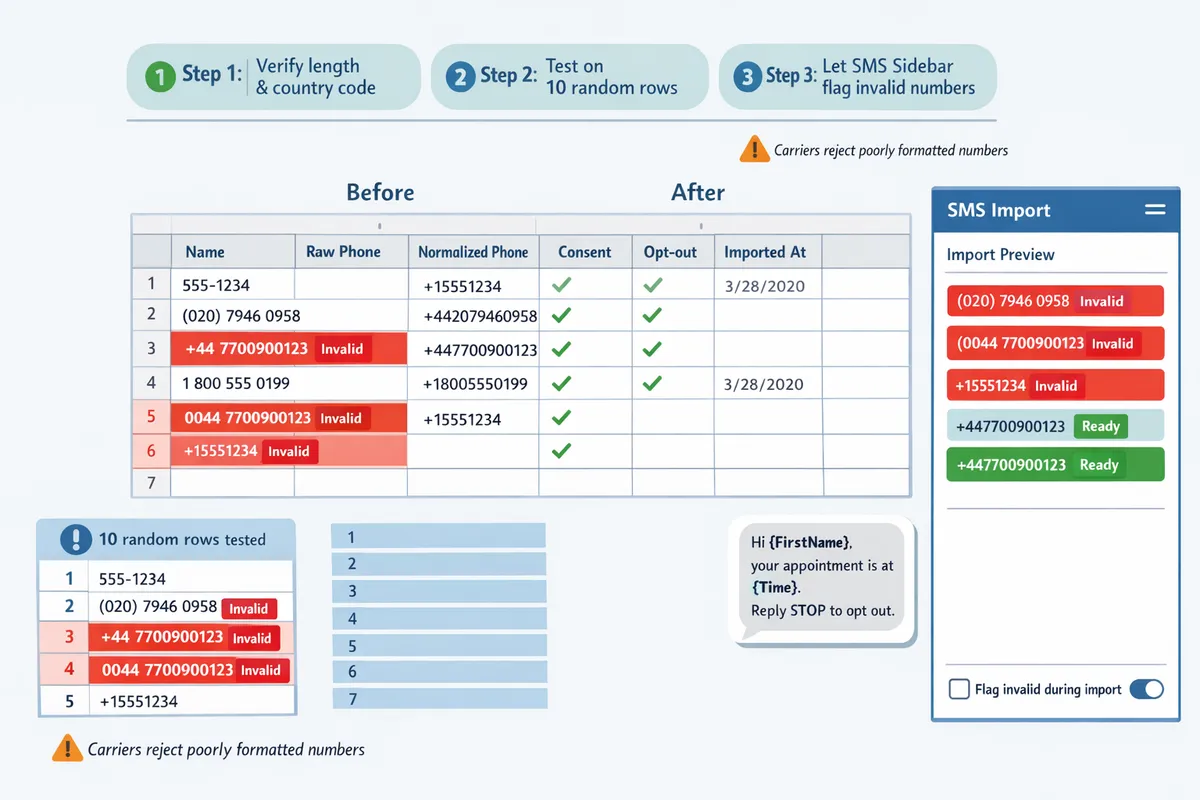
Normalize phone numbers to an international format (for example +12223334444) so carriers accept them and delivery failures drop. Remove spaces, parentheses, and local formatting, ensure a leading plus sign and country code, and keep the phone column as plain text to avoid automatic reformatting. Expect outcome: a smaller send list with higher deliverability and fewer bounced messages.
Actionable checks:
- Scan for non-numeric characters and strip them. What goes wrong: stray characters or hidden spaces create hard bounces. Recover by re-running the cleanup and comparing against the original file.
- Verify length and country code with a single verification formula or a quick data validation step; test on 10 random rows first.
- Let Sheet Gurus SMS flag invalid numbers during import; this saves manual correction time and prevents wasted sends.
⚠️
Warning: Carriers reject poorly formatted numbers; a single invalid format can trigger higher bounce rates or temporary sender blocks.
Step 2: Record consent and opt-out status ✅
Store explicit consent and an opt-out flag with timestamps so you can prove permission during audits. Add columns like Consent (Yes/No), ConsentTimestamp, OptOut (Yes/No), and OptOutTimestamp. Missing timestamps or ambiguous consent entries increases the risk of fines and of your messages being blocked by carriers.
Practical steps:
- Import consent records with the contact list and keep the timestamp in ISO format (YYYY-MM-DD HH:MM).
- Audit sample rows weekly: confirm consent exists before sending to any new segment.
- Use Sheet Gurus SMS automatic message filtering and the real-time inbox to record replies and opt-outs; the add-on captures opt-out actions so you do not need to maintain separate workflows.
⚠️ Warning: If you cannot produce a timestamped opt-in, do not send messages to that contact. The legal and deliverability risks outweigh any immediate gain.
Step 3: Map fields and design message variables ✍️
Map column headers to message variables and draft messages using curly-brace placeholders like {FirstName} so sends stay personalized and audit-friendly. Create a simple mapping table (FirstName, AppointmentDate, Phone) and write sample messages that use those exact column names.
Example message templates to test in 10 rows:
- “Hi {FirstName}, your appointment at {Location} is at {AppointmentDate}. Reply HELP for options.”
- “{FirstName}, your invoice #{InvoiceID} of {Amount} is due on {DueDate}. Reply PAY to receive a payment link.”
Why this matters: using {Placeholders} reduces manual mistakes and improves response rates. Sheet Gurus SMS reads curly-brace variables from your sheet and sends messages from the sidebar, so you do not rely on spreadsheet formulas to personalize content. Always preview messages for 10 recipients before a full send.
Step 4: Decision checklist and quick decision tree 🧭
Match approach to budget, time, and technical skill to minimize hours spent and reduce error risk. Compare the three main paths below and follow the decision steps to pick the right one.
| Method | Best for | Time to set up | Skill required | Business trade-offs |
|---|---|---|---|---|
| Sheet Gurus SMS add-on (no-code) | Small teams that need speed and low maintenance | 15–60 minutes | Low (install + map columns) | Fast sends, fewer errors, built-in compliance filtering; subscription cost but lowest time investment |
| Google Apps Script (low-code) | Custom automations and scheduled flows | 2–6 hours | Medium (script familiarity) | Flexible automations and integrations; higher maintenance and testing time |
| Export Excel → Google Sheets import | Teams keeping Excel as master file | 30–90 minutes per import | Low to medium (CSV handling) | Keeps Excel workflows but adds manual CSV steps and higher risk of formatting or consent errors |
Decision steps:
- Need a quick, low-risk send with compliance filters? Use the Sheet Gurus SMS add-on and follow our sending guide.
- Need custom triggers or scheduled logic not available in the add-on? Choose Apps Script but budget extra testing time.
- Must keep Excel as source of truth? Export as UTF-8 CSV and import to Sheets, then send via Sheet Gurus SMS; expect repeated import overhead.
For a full comparison of add-on vs Apps Script vs Zapier and two-way SMS options, see our Send Messages from Google Sheets: 2026 Ultimate Guide.
Step 5: Export and import tips for Excel users 📂
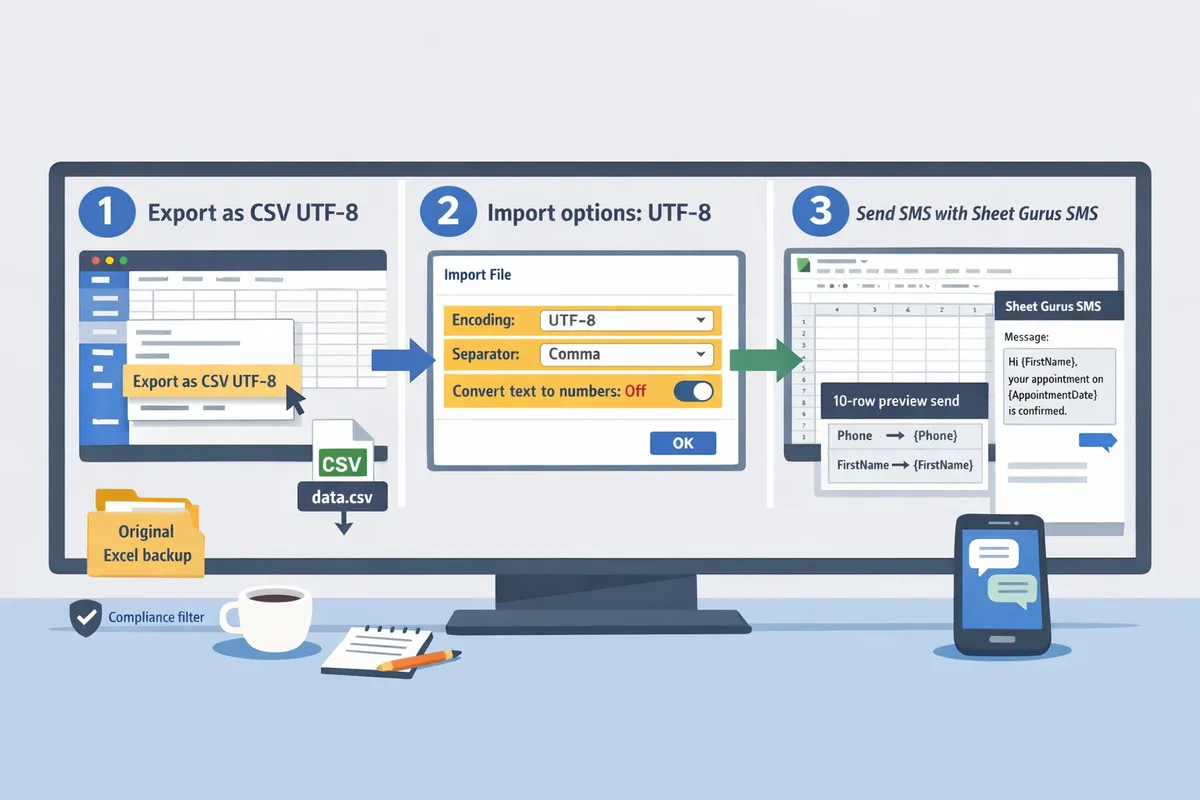
Export Excel as UTF-8 CSV and import into Google Sheets with text columns preserved to keep phone numbers and leading zeros intact. Use these steps to avoid lost zeros, broken delimiters, and encoding errors.
Quick checklist:
- In Excel, Save As > CSV UTF-8.
- Open Google Sheets and choose File > Import, select Upload, and pick the CSV; use the import option that preserves text formatting for the phone column.
- If delimiters or decimal separators look wrong, re-export using a semicolon or comma based on your locale, then re-import.
- After import, run a 10-row preview send with Sheet Gurus SMS to confirm formatting and placeholder mapping.
💡 Tip: Always keep an original Excel backup before exporting a CSV so you can recover formatting if an import changes phone numbers.
Related reading: if you need deeper help on Excel compatibility or step-by-step Sheets setup, read Does Sheet Gurus SMS Work with Microsoft Excel? and our Sending SMS from Google Sheets with Sheet Gurus SMS guide.
Path B — Low-code: Apps Script with an SMS API (flexible) 🧰
An Apps Script integration is a low-code script that posts spreadsheet rows to an SMS API for highly customized workflows but requires scripting, thorough testing, and monitoring. Use this path when you need custom routing, conditional sends, or integrations not available in the add-on.
- Plan the mapping and error policy. Define which columns become variables, how to handle duplicates, and the retry policy for failed sends. Expected outcome: a one-page spec you can test against.
- Create Apps Script and set permissions. Open Extensions > Apps Script, paste your integration logic (no formulas in Sheets), and authorize. Expected outcome: script runs under your account.
- Implement send, logging, and retries. Have the script post to your chosen SMS API, write a result row for each attempt, and retry failed rows up to N times. Expected outcome: a status column showing Sent, Failed, or Retrying.
- Add triggers and rate control. Use time-based triggers to batch sends and avoid hitting API quotas. Expected outcome: controlled send rate and fewer blocked requests.
- Test with a small set. Run the script against 5–10 test numbers before scaling. Expected outcome: confirmed delivery and correct variable substitution.
Business consequences of DIY scripting. Apps Script gives control but costs more hours to build, increases the chance of formatting mistakes (phone normalization, date conversions), and requires ongoing monitoring for quota and API changes. For a feature comparison and to see why many teams pick the add-on for faster time-to-value, read our 2026 Ultimate Guide comparing add-ons and Apps Script.
Path C — Excel-to-Sheets workflow and sync (best for Excel-first teams) 🔁
An Excel-to-Sheets workflow is the process of exporting Excel as CSV, importing to Google Sheets with specific settings, running integrity checks, and then using the add-on to send SMS. This preserves Excel-first workflows while removing manual copy-paste errors.
- Export Excel as CSV with explicit settings. Save as CSV (UTF-8) and ensure phone columns are stored as plain text. Expected outcome: a CSV file with correct encoding and raw phone numbers.
- Import into Google Sheets using recommended settings. In Google Sheets choose File > Import > Upload, select Replace current sheet or Append as needed, and set Separator type to Comma and Convert text to numbers unchecked. Expected outcome: phone numbers remain intact and do not convert to dates.
- Run data integrity checks. Verify country code format (+1…), strip non-numeric characters, check opt-in/consent column, and remove duplicates. Expected outcome: a clean sheet ready for messaging.
- Open Sheet Gurus SMS and send. Use the sidebar to map phone and variable columns, preview dynamic messages, then schedule or send. Expected outcome: personalized messages sent without manual copy-paste.
Common Excel pitfalls and recovery. Excel can auto-change long numbers to scientific notation or convert date-like strings. If import changes values, re-export with leading apostrophe for numbers or import via File > Open in Google Drive to preserve formatting. Our guide on Excel compatibility explains these edge cases in detail: Does Sheet Gurus SMS Work with Microsoft Excel?
| Criterion | No-code add-on (Sheet Gurus SMS) | Low-code Apps Script | Excel-to-Sheets + Add-on |
|---|---|---|---|
| Setup hours | 0.5–2 hours | 4–20+ hours | 1–4 hours |
| Monthly cost | Low to moderate (add-on + SMS fees) | Varies (API fees + developer time) | Low to moderate (same add-on + sync tools) |
| Technical skill required | Low (non-technical) | Medium to high (scripting) | Low to medium (data handling) |
| Scalability | High (built-in batching & inbox) | High but requires work (rate handling) | High (depends on sync frequency) |
| Compliance risk | Low (automatic filtering & inbox) | Medium to high (manual rules) | Low to moderate (depends on import accuracy) |
The table shows the add-on offers the fastest path and lowest error surface for most small teams; use the add-on unless you need heavy customization that only scripting can provide. For a broader comparison of add-ons, Apps Script, Zapier, and AppSheet see our 2026 Ultimate Guide.
Deployment checklist and go-live steps ✅
- Final data audit. Confirm phone format, consent column, and no duplicates. Outcome: green flag to test. If errors remain, filter and fix rows before testing.
- Test batch to 5–10 numbers. Send personalized messages using the {FirstName} and other variables. Outcome: confirm correct substitutions and delivery. If variables fail, re-map columns in the sidebar.
- Confirm delivery and opt-out behavior. Check delivery receipts and test replying with STOP to verify automatic opt-out works. Outcome: confirmed compliance. If opt-out does not register, pause sends and contact support.
- Schedule full send. Use staggered scheduling for large lists to reduce risk. Outcome: steady send rate and fewer failed messages.
- Monitor inbox for replies and errors. Assign staff to handle replies and escalate failed sends. Outcome: two-way communication captured in the Sheet Gurus SMS inbox.
💡 Tip: Always use double opt-in for SMS signups to reduce complaint rates and compliance risk.
Implementation note: how Sheet Gurus SMS handles variables and inbox
Sheet Gurus SMS is a Google Sheets add-on that uses curly brackets for per-recipient variables and provides a real-time inbox for two-way replies. The add-on previews sample substitutions, shows delivery status, and applies automatic message filtering to help you remain compliant. For starter templates and scheduling best practices, see our Small Businesses guide with example messages and workflows.
How to avoid common mistakes and troubleshoot delivery issues?
Fixing phone-format errors, quota hits, consent gaps, and template mismatches prevents most delivery failures when you send SMS from Excel via Google Sheets. This section gives step-by-step checks, ready-to-use message templates with curly-brace variables, and a short privacy checklist you can apply before every blast.
Troubleshooting: Phone formats and common import errors 🔍
Validate and normalize phone numbers so every cell matches an international format before sending. Run these steps in order to catch the issues that cause the majority of bounces.
- Filter quickly. Use a filter to show non-numeric cells, unusually short or long values, and blank numbers.
- Clean characters. Use Find and Replace to remove spaces, parentheses, plus signs, and dashes. Expect to remove 5–15% junk characters on raw Excel imports.
- Add country codes. Identify rows missing a country code by checking typical local lengths, then add a single-country prefix for bulk lists (for mixed countries, flag for manual review).
- Verify leading zeros. Replace local-leading zeros only when the number lacks a country code; otherwise leave the full international string.
- Test-send. Send a 10-contact test from the Sheet Gurus SMS sidebar to confirm carrier acceptance and delivery preview.
Expected outcome: a list with consistent E.164-like entries that reduces delivery failures and flags bad rows in the Sheet Gurus SMS import preview.
Troubleshooting: Quotas, rate limits, and partial sends ⚠️
Monitor API and add-on quotas and throttle sends into batches to avoid partial sends. Exceeding quotas typically causes queued, delayed, or dropped messages and can split a single campaign into successful and failed groups.
- Check quota status in the Sheet Gurus SMS sidebar before large sends. The sidebar shows remaining send allowance and scheduled jobs.
- Use batching. Break large lists into batches (for example, 200–500 rows) and schedule each batch 10–30 minutes apart to avoid spikes during peak carrier periods.
- Recover from partial sends. Export the delivery report from Sheet Gurus SMS, filter the failed rows, and requeue only those rows after fixing issues.
- Automate retries. If you repeatedly hit limits at certain times, schedule sends off-peak using the add-on scheduler to spread traffic across the day.
⚠️ Warning: If you repeatedly exceed quota limits carriers may flag your account. Monitor the Sheet Gurus SMS dashboard and contact support before resending large failed lists.
Expected outcome: predictable send throughput, fewer dropped messages, and a clear requeue path for failed recipients.
Handling two-way replies and inbox routing 📥
Route replies into the Sheet Gurus SMS real-time inbox and automate keyword filters to process opt-outs and common responses. This keeps conversational traffic organized and maintains compliance for opt-out handling.
- Enable the real-time inbox in the Sheet Gurus SMS sidebar and map a routing folder (for example, Support, Billing, or Appointments).
- Create automated filters for STOP, UNSUBSCRIBE, HELP, and common keywords. Configure STOP to immediately mark the contact as opted out and remove them from future sends.
- Triage rules. Route urgent keywords (“issue”, “refund”) to an escalation folder and tag them for human follow-up.
- Audit replies daily. Export replies weekly to spot recurring issues that need a template change or a corrected phone number.
Expected outcome: replies are categorized automatically, opt-outs are processed instantly, and staff can focus on high-priority responses.
Sample templates and mapping examples with variables ✉️
Use curly-brace variables exactly as column headers are named so the add-on substitutes each value correctly. Mismatched names cause empty fields or literal braces in outbound messages.
Column header mapping example:
- Sheet column: FirstName → Variable: {FirstName}
- Sheet column: AppointmentDate → Variable: {AppointmentDate}
- Sheet column: Location → Variable: {Location}
Copy-ready templates (paste into the Sheet Gurus SMS composer):
- Appointment confirmation: “Hi {FirstName}, your appointment on {AppointmentDate} at {Location} is confirmed. Reply STOP to opt out.”
- Payment reminder: “Hi {FirstName}, your invoice {InvoiceNumber} for ${Amount} is due on {DueDate}. Pay now: {PaymentLink} Reply STOP to opt out.”
- Delivery update: “{FirstName}, your order #{OrderID} will arrive on {DeliveryDate} between {DeliveryWindow}. Track: {TrackingLink} Reply STOP to opt out.”
Testing steps:
- Verify each mapped header appears in the Sheet Gurus SMS variable picker.
- Send a 5-row preview to yourself to confirm substitutions and links render correctly.
Expected outcome: fully personalized messages with zero missing fields when column names match variables exactly.
Privacy and compliance checklist for bulk SMS 🔐
Keep a consent log, include clear opt-out language, and store consent timestamps to reduce carrier blocks and regulatory risk. These items become evidence during audits and carrier disputes.
Checklist:
- Consent column. Create a dedicated column (ConsentSource) listing how consent was obtained (web form, in-store, verbal + date).
- Consent timestamp. Store a separate ConsentTimestamp column with date and time for each contact.
- Opt-out language. Add explicit opt-out text in every template: e.g., “Reply STOP to opt out.” The Sheet Gurus SMS automatic message filtering recognizes common opt-out replies.
- Frequency limit. Set a sending cadence in your internal policy (for example, no more than 4 promotional messages per month) and mark the column LastSentDate.
- Data retention. Archive consent records for the period required by your local regulator and restrict access to the sheet.
💡 Tip: Always use double opt-in for SMS signups when possible. Double opt-in reduces carrier complaints and clarifies consent origin.
Expected outcome: a defensible consent trail that lowers the chance of carrier blocks and regulatory fines.
Common mistakes to avoid and quick fixes 🛠️
Avoid sending to untested lists, missing consent fields, and inconsistent variable names; use small test batches and backups as quick fixes. These three mistakes cause most campaign failures and wasted time.
Common mistakes and fixes:
- Sending without testing. Fix: send internal test batches of 5–20 contacts and confirm delivery and variable substitution in the Sheet Gurus SMS preview.
- Missing consent columns. Fix: add a ConsentSource and ConsentTimestamp column, then suspend sends to rows lacking entries until consent is recorded.
- Inconsistent field names. Fix: standardize headers using our sheet template and the column mapping step in the Sheet Gurus SMS sidebar.
- No backup before bulk edits. Fix: duplicate the sheet tab or export a CSV before mass Find and Replace so you can restore quickly.
Resources: use the comprehensive comparison and setup steps in our Send Messages from Google Sheets: 2026 Ultimate Guide and the step-by-step Sending SMS from Google Sheets with Sheet Gurus SMS guide for templates and troubleshooting workflows.
Expected outcome: fewer emergency fixes, faster recovery from failures, and standardized sheets ready for repeatable sends.
Frequently Asked Questions
This FAQ answers the common practical questions for sending SMS from Excel via Google Sheets, including import steps, testing, delivery failures, consent, and replies. Each answer points to Sheet Gurus SMS resources and gives short, actionable steps you can run immediately.
How do I import Excel CSV to Google Sheets to send SMS? 📁
Export your Excel file as CSV UTF-8 and import it using Google Sheets’ File > Import > Upload, choosing Replace current sheet or Append. After import, set the Phone column to plain text, confirm curly-brace variables (for example, {FirstName}) remained intact, and run a quick column mapping to ensure Phone and Consent columns match the add-on fields. If Excel stripped leading plus signs or dropped zeros, add a +country prefix using a short formula or the Sheet Gurus SMS mapping step before sending. See the step-by-step import checklist in our Sending SMS from Google Sheets with Sheet Gurus SMS guide.
Can I send text messages from Excel contacts using Google Sheets add-on? 📱
Yes. Import your Excel contacts into Google Sheets and use the Sheet Gurus SMS add-on sidebar to compose messages, insert {variables}, schedule sends, and view replies. Messages send from the sidebar rather than sheet formulas, which prevents accidental re-sends from sheet edits. Example message: “Hi {FirstName}, your appointment at {Location} is at {Time}. Reply STOP to opt out.” For a full comparison of add-on vs Apps Script and other methods, see our 2026 ultimate guide to sending messages from Google Sheets.
What are the quickest steps to test a bulk send? ✅
Send a live test to 5–10 real contacts during business hours and confirm delivery receipts and replies appear in the Sheet Gurus SMS real-time inbox. Steps: 1) Create a test group with diverse carriers and country codes. 2) Include an explicit opt-out like “STOP” in the message. 3) Send the batch and watch the inbox for delivery reports and any bounce or error messages. Expected outcome: you catch mapping, formatting, and template issues before the full campaign.
What causes the most delivery failures and how do I fix them? ⚠️
Missing country codes, incorrect number formats, and invalid or expired numbers cause the majority of failures; fix them by normalizing to +country format, running a phone-validation pass, and removing bad entries. Use Sheet Gurus SMS delivery receipts to identify specific error codes, then correct numbers in your sheet and retry only the failed rows. If a carrier blocks messages, the inbox error will indicate the reason so you can adjust timing, content, or sender ID.
Do I need explicit consent to send promotional SMS? 📝
Yes. Maintain an explicit consent column and a timestamp for each recipient, and include a clear opt-out instruction in every promotional message. Proper consent reduces legal and carrier risk and improves deliverability. Example message with consent-aware variable: “Hi {FirstName}, get 10% off today at {Location}. Reply STOP to unsubscribe. Consent on file: {ConsentDate}.”
💡 Tip: Always use double opt-in for SMS signups to reduce accidental captures and disputes.
For compliance best practices and wording templates, see our Effortless SMS Blasts guide.
How do I handle opt-outs and two-way replies? 🔁
Use Sheet Gurus SMS’s real-time inbox and automatic filtering to detect STOP and other opt-out keywords and mark those contacts in your sheet automatically. After a reply arrives, the add-on shows the message in the sidebar, applies filtering rules (for example, flag “STOP”), and lets you update the Opt-Out column or trigger an automatic confirmation message. Recommended flow: 1) Incoming reply appears in inbox. 2) Automatic filter flags opt-outs. 3) The add-on updates the sheet row and optionally sends a confirmation message.
Next steps to start sending from your spreadsheet
Use Sheet Gurus SMS to send sms from excel via google sheets in minutes. This lets you move from manual copy-paste to scheduled, personalized sends while keeping two-way replies and compliance controls in one place.
Sheet Gurus SMS is a Google Sheets add-on for sending bulk SMS from a sidebar rather than spreadsheet formulas. Personalize each message with curly-brace variables such as {FirstName}, handle replies in a real-time two-way inbox, and rely on automatic message filtering to help keep your sends compliant.
💡 Tip: Test a small sample list first and include a variable like {FirstName} to confirm personalization and delivery.
For guidance on CSV imports and presets, see our 2026 Ultimate Guide for text messages from excel contacts using google sheets add-on (comparison of add-on vs Apps Script and automation). Then start a free trial of Sheet Gurus SMS and follow the getting-started guide to send your first campaign. For Excel compatibility questions, check our Excel Compatibility overview.