


Send Messages from Google Sheets: 2026 Ultimate Guide — Add-on vs Apps Script vs Zapier vs AppSheet, with Two-Way SMS
Small business operators often spend 3–5 hours each week cleaning contact lists before they can send messages from Google Sheets. Google Sheets SMS Automation is a method that connects a spreadsheet to an SMS platform so you can schedule, personalize, and monitor bulk texts without manual copy-paste. Our Sheet Gurus SMS add-on sends messages via a sidebar (not spreadsheet formulas), uses curly-brace variables like “Hi {FirstName}, your appointment at {Location} is at {Time}”, provides a real-time inbox for two-way SMS, and applies automatic filtering to help with compliance. This beginner’s guide compares the add-on, Apps Script, Zapier, and AppSheet and links to our step-by-step guide and mass-texting use case so you can choose the best path.Which methods let you send messages from Google Sheets?
Four practical methods let you send messages from Google Sheets: no-code add-ons, Google Apps Script, integration tools like Zapier, and low-code builders such as AppSheet. Each option trades setup time, customization, and compliance controls differently, so pick the path that matches your staff skills, budget, and need for two-way replies. Our Sheet Gurus SMS add-on sends messages from a sidebar, supports curly-brace variables for personalization, and includes a real-time inbox plus automatic filtering to help maintain compliance.
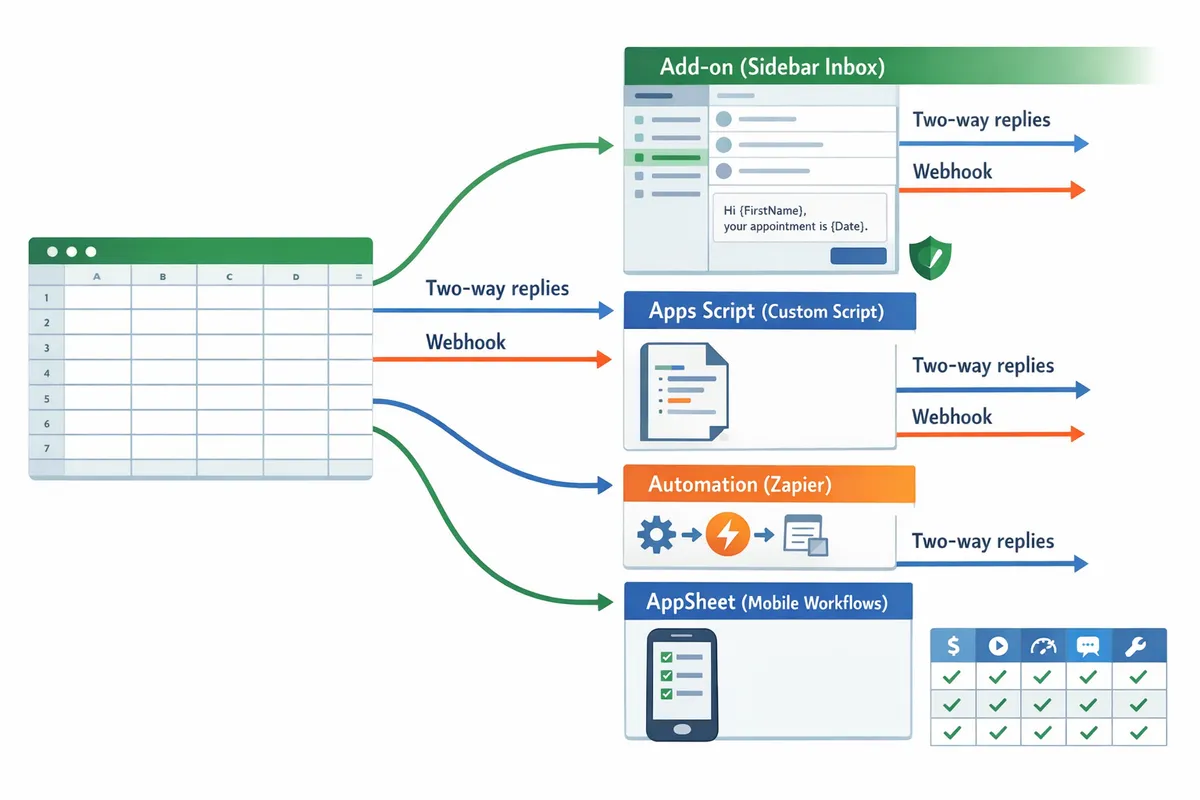
Comparison matrix: Add-on vs Apps Script vs AppSheet 📊
This matrix compares cost model, setup time, throughput, two-way messaging, and maintenance so you can pick the best fit. The table uses two solution buckets: No-code Add-on (our Sheet Gurus SMS) and Developer/Integration options (Apps Script, Zapier, AppSheet).
| Feature | No-code Add-on (Sheet Gurus SMS) | Developer / Integration options (Apps Script, Zapier, AppSheet) |
|---|---|---|
| Cost model | Subscription with tiered monthly pricing; predictable per-user or per-message tiers. | Variable: development hours plus per-task or API usage fees (Zapier), or hosting and phone-number costs (Apps Script + provider). |
| Setup time | Minutes to an hour to install and start sending from a sidebar. | Hours to weeks depending on scope: script writing, provisioning numbers, or multi-step automations. |
| Throughput / delivery speed | Typically suitable for small-to-medium blasts with batching controls and queued delivery. | Can achieve high throughput but needs phone number provisioning and scaling with the messaging provider. |
| Two-way messaging | Built-in real-time inbox in the sidebar for reply handling and tagging. | Requires inbound number + webhook or Zapier trigger; then extra work to store replies in Sheets or a CRM. |
| Maintenance burden | Low: vendor applies updates and maintains inbox and filters. | Medium to high: custom code or Zapier workflows break when spreadsheets change or APIs update. |
| Personalization | Curly-brace variables like {first_name} and message preview before send. | Full control via templates, but you must build variable mapping and previews yourself. |
| Compliance & filtering | Automatic message filtering and opt-out handling included. | You must implement opt-out capture, filtering, and retention yourself. |
| International support | Built into tiers and settings; carrier handling is managed by the add-on. | Depends on messaging provider and number provisioning complexity. |
| SLA / reliability | Vendor-managed delivery and status reporting in the sidebar. | Depends on provider SLAs and your integration architecture. |
| Inbox support | Real-time inbox visible in the Sheets sidebar. | Requires external inbox or CRM integration; no native inbox in Sheets without custom work. |
See our buyer’s guide and TCO calculator for a deeper cost comparison and scenarios that match different sending volumes. Refer to our step-by-step product guide for using Sheet Gurus SMS with curly-brace variables and scheduled sends.
Pros and cons of each approach ✅
Each approach makes predictable trade-offs between speed to send, customization, and compliance risk. Below are concise pros and cons with business-focused examples to help choose.
No-code add-on (our Sheet Gurus SMS)
- Pros: Install in minutes, send personalized messages like “Hi {FirstName}, your appointment on {Date} is confirmed.”, built-in inbox for replies, and automatic filtering that reduces compliance risk. This saves staff hours on list cleanup and reply routing.
- Cons: Less low-level customization for exotic routing or provider-specific features; you rely on the vendor for uptime and rate limits.
Google Apps Script
- Apps Script is a scripting environment that runs custom code inside Google Workspace and connects Sheets to external APIs. It gives full control to call any SMS provider and map fields, but it requires developer time to build, test, and maintain. Business impact: useful when you need unique logic, but expect ongoing maintenance costs and the need to provision phone numbers.
Zapier (or Make)
- Zapier is an automation platform that connects apps using triggers and actions. It speeds prototyping without code and supports many providers. Latency, per-task costs, and fragile triggers are common pain points. For recurring campaigns, Zapier often becomes an ongoing cost that surpasses an add-on subscription.
AppSheet
- AppSheet is a low-code app builder that turns Sheets into mobile workflows. It fits field teams who need forms plus messaging. Messaging flexibility is lower than a dedicated add-on, and two-way inbox features usually require external integrations.
If you want a short guide on trade-offs and total ownership costs, review our buyer’s guide comparing add-ons, Apps Script, and Zapier/Make.
Two-way messaging capabilities and routing 🔁
Two-way SMS is a messaging flow that captures recipient replies and routes them back to staff or a CRM. Two-way setups require three pieces: an inbound phone number or short code, a reply capture mechanism, and routing rules.
- Provision an inbound number or use a shared reply path through your provider.
- Capture replies: our Sheet Gurus SMS stores replies in a real-time sidebar inbox; Apps Script or Zapier typically receive webhook payloads and then write rows to a sheet or push to a CRM.
- Route replies: tag messages, assign to staff, push notifications to Slack or email, and archive the thread in Sheets for audit.
Example two-way message template using dynamic variables: “Hi {first_name}, your delivery arrives tomorrow between {start_time} and {end_time}. Reply YES to confirm or RESCHEDULE to change.” Our Sheet Gurus SMS shows replies instantly in the sidebar and preserves context so staff can reply from the inbox without leaving Sheets. For custom routing with Apps Script or Zapier, plan extra time and testing to ensure replies map to the right contact and conversation ID.
Phone formatting, data quality, and deliverability checklist 📋
Deliverability depends on correct phone formatting, deduplication, consent fields, and controlled test sends. E.164 is a numbering standard that formats phone numbers with a leading plus and country code, for example +12223334444. Follow this checklist before any large send:
- Ensure a column with E.164-formatted numbers and a separate country code column for validation.
- Remove duplicates and include a last-opt-in timestamp to document consent.
- Keep columns for timezone and preferred language to avoid off-hour sends and irrelevant content.
- Run a test batch (50 to 100 recipients) and review delivery reports and carrier responses.
- Include a preview step in the workflow so staff can see the message with curly variables substituted before sending. Our Sheet Gurus SMS preview shows the final personalized text for the first 10 rows before you commit.
Compliance basics and opt-in/opt-out policies ⚖️
SMS compliance requires explicit opt-in records, clear opt-out instructions, and documented retention policies. Required fields for opt-in documentation typically include the subscriber name, phone number, opt-in timestamp, opt-in source, and the exact consent language presented.
Suggested sample opt-in wording for a signup form: “I agree to receive SMS updates from {company_name} at the phone number provided. Message frequency varies. Reply STOP to unsubscribe.” Store the signed wording and timestamp in your contact sheet.
💡
Tip: Always use double opt-in for SMS signups. ⚠️ Warning: Avoid sending or storing sensitive personal health information in SMS messages.Automated filters in our Sheet Gurus SMS block common opt-out patterns and flag potential compliance issues before messages send. For higher-risk campaigns, keep an audit sheet of sent messages, delivery statuses, and opt-out events to demonstrate compliance during audits.
Related reading: our guide on sending SMS from Google Sheets explains step-by-step setup and templates, and our emergency alerts comparison shows how inbox features and automatic filtering affect compliance and reliability.
Simple ROI calculator and decision factors for SMBs 💰
A compact ROI calculator compares monthly messaging costs plus add-on fees to revenue per successful contact and time saved to estimate months to payback. Use these inputs in a single-sheet calculator: messages_per_month, average_response_rate, revenue_per_successful_contact, staff_hourly_rate, hours_saved_per_month, cost_per_message, add_on_monthly_fee, initial_setup_cost.
Calculation steps:
- Monthly incremental revenue = messages_per_month average_response_rate revenue_per_successful_contact.
- Monthly labor savings = staff_hourly_rate * hours_saved_per_month.
- Monthly messaging cost = messages_per_month * cost_per_message + add_on_monthly_fee.
- Net monthly benefit = Monthly incremental revenue + Monthly labor savings - Monthly messaging cost.
- Months to payback = initial_setup_cost / Net monthly benefit (round up).
Example: if a bakery sends 2,000 messages/month, expects a 3% response that yields $20 in revenue per success, saves 10 hours/month at $25/hour, and pays $150/month for an add-on, plug those numbers into the steps above to compute months to payback. Use the buyer’s guide for comparative total cost of ownership scenarios when you evaluate Apps Script or Zapier alternatives.
When to choose Sheet Gurus SMS versus a DIY script or Zapier ⚖️
Pick Sheet Gurus SMS when you need a low-ops solution with a real-time inbox, curly-bracket personalization, and built-in filtering; choose Apps Script or Zapier if you need a one-off prototype or highly custom routing you can maintain. The table below compares the three options across practical dimensions.
| Option | Setup time | Maintenance effort | Two-way SMS / Inbox | Compliance & filtering | Cost predictability |
|---|---|---|---|---|---|
| Sheet Gurus SMS | Low (minutes to hours using sidebar) | Low (managed updates, UI controls) | Yes (real-time inbox) | Built-in filtering and opt-out handling | Predictable monthly fee |
| Google Apps Script | Medium to high | High (you maintain scripts and credentials) | Possible with more engineering | Manual implementation required | Low variable cost but higher maintenance risk |
| Zapier (or Make) | Low to medium | Medium (breaks when sheet changes) | Limited—requires multi-step zaps | Some automation possible but fewer safeguards | Pay-as-you-go plus per-action costs |
Choose Sheet Gurus SMS if you prefer minimal setup time, an inbox that connects to your sheet, and automatic filtering that reduces compliance risk. Choose Apps Script if you have in-house developer capacity and need custom logic embedded in your systems. Choose Zapier when you need a no-code proof of concept that you plan to replace before scaling. For a full TCO comparison and step costs, read our buyer’s guide: How to Integrate Google Sheets with SMS: Add-on vs Apps Script vs Zapier/Make (Buyer’s Guide + TCO Calculator).
Frequently Asked Questions
This FAQ answers the operational and selection questions small businesses ask about sending messages from Google Sheets. It focuses on practical choices, likely failure points, and the two-way workflows that matter for customer-facing teams.
How do I send SMS from Google Sheets? 📤
You can send SMS from Google Sheets using an add-on like Sheet Gurus SMS, a custom Google Apps Script that calls a messaging API, an integration platform such as Zapier/Make, or a low-code builder like AppSheet. Add-ons provide the fastest non-technical path because they work inside a sidebar and avoid scripting or external automations. For custom logic (conditional routing, complex personalization) Apps Script or Zapier gives more control but requires maintenance. See the buyer’s guide for a side-by-side comparison and total cost of ownership in “How to Integrate Google Sheets with SMS: Add-on vs Apps Script vs Zapier/Make (Buyer’s Guide + TCO Calculator).”
Can I send bulk text messages from Google Sheets using a sidebar? 🗂️
Yes. A sidebar-based add-on lets you select rows, compose a message, and send bulk SMS without spreadsheet formulas. Sheet Gurus SMS uses a sidebar where you compose messages with curly-brace variables (for example: “Hi {first_name}, your appointment on {appt_date} is confirmed”) and then schedule or send immediately. Sidebars also show delivery status and let you retry failures in a few clicks, which reduces the manual tracking time that typically costs small teams several hours per week. For step-by-step setup inside Sheets, see our guide: “Guide: Sending SMS from Google Sheets with Sheet Gurus SMS [Updated 2025].”
How do I handle two-way replies and route them to staff? ↔️
Two-way replies require an inbox or webhook that captures incoming messages and writes them back to your sheet or routes them into email or CRM. Two-way SMS is a messaging flow that lets recipients reply and staff respond in real time; it needs reply routing, conversation IDs, and a place to record consent and timestamps. Sheet Gurus SMS provides a real-time inbox inside the add-on so staff can read and reply without extra setup, or you can forward replies into a CRM or email using built-in routing rules.
💡 Tip: Create a “status” column and a “last_reply_at” timestamp in your sheet to track ongoing conversations and assign follow-ups to team members.
What are the common causes of failed sends and how do I fix them? ❌
Failed sends usually come from incorrect phone formatting, missing country codes, duplicate numbers, expired consent, or carrier filtering. Fix phone issues by storing numbers in E.164 format (for example, +12223334444), deduplicate rows before sending, re-confirm consent if opt-ins are old, and test in small batches to spot carrier filtering quickly. Sheet Gurus SMS includes automatic message filtering and validation that flags common issues before you send, which reduces failed sends and manual rework.
Are there compliance rules I must follow for SMS campaigns? ⚖️
Yes. You must keep explicit opt-in records, provide clear opt-out instructions, disclose message frequency at opt-in, and protect personal data according to applicable privacy and telecom rules. Maintain consent columns (who opted in, when, how) in your sheet and store the opt-in text or a timestamp for audits. Sheet Gurus SMS applies automatic filters to block numbers flagged for Do Not Disturb or known compliance risks and can append opt-out instructions automatically.
⚠️ Warning: Sending SMS without documented opt-in can create carrier complaints and legal exposure. Keep the opt-in proof (timestamp and source) with each contact.
How much does it cost to send SMS from Google Sheets? 💸
Cost depends on per-message fees, destination country, volume discounts, and any monthly add-on or platform fees. When you compare options, include the time cost of cleaning lists, troubleshooting failed sends, and maintaining integrations; those labor hours often exceed direct messaging fees for small teams. Sheet Gurus SMS uses an add-on model with per-message billing plus optional plans that reduce admin time; compare that to the pay-per-run cost of Zapier automations or the overhead of provisioning and managing Twilio numbers in Apps Script. For a detailed buyer-side calculation, see the TCO section in “How to Integrate Google Sheets with SMS: Add-on vs Apps Script vs Zapier/Make (Buyer’s Guide + TCO Calculator).”
Can I prototype with Apps Script and later switch to an add-on? 🔁
Yes. Start with an Apps Script prototype to validate message templates and workflows, but expect migration work when you scale. A DIY prototype helps confirm business logic, but moving to an add-on like Sheet Gurus SMS saves ongoing maintenance and adds a real-time inbox and compliance filters that reduce manual monitoring time. Our migration guides cover common data mappings and recommended sheet layouts to minimize switching costs.
How do I keep number formatting and data quality consistent across a large sheet? 🧹
Standardize phone numbers as E.164 in a dedicated column and run periodic deduplication and validation checks before sends. Use Sheets formulas or Sheet Gurus SMS validation to flag malformed entries, and store country code as a separate column if you need per-country routing. For recurring lists, add a batch-cleaning step to your workflow so each campaign starts from a validated dataset.
Which method gives the most reliable delivery for two-way, time-sensitive messages? ⏱️
An add-on that integrates directly inside Google Sheets and provides delivery monitoring and a real-time inbox gives the most predictable operations for time-sensitive two-way messages. Sheet Gurus SMS offers in-dashboard delivery status, retries, and a live inbox so teams see replies and failures immediately, avoiding the lag and breakage that can happen with multi-step Zapier flows or bespoke scripts.
For a deeper decision guide and cost model, read How to Integrate Google Sheets with SMS: Add-on vs Apps Script vs Zapier/Make (Buyer’s Guide + TCO Calculator) and the hands-on setup in our Guide: Sending SMS from Google Sheets with Sheet Gurus SMS [Updated 2025].
Final steps to pick the right method.
Choose the approach that balances setup time, compliance risk, and ongoing maintenance for your team; small business owners should prioritize reliability and two-way workflows when they send messages from Google Sheets. Compare the cost and support burden of custom scripts or Zapier against the faster setup and inbox controls an add-on provides. For a detailed cost comparison, see our buyer’s guide and TCO calculator for Google Sheets SMS integration.
💡 Tip: Always use double opt-in and clear opt-out language to reduce compliance risk when sending bulk SMS.
Sheet Gurus SMS is a platform that helps users save time and money by enabling them to send bulk SMS to their recipients easily from within Google Sheets. The product is a Google Sheets add-on and messages are sent via a sidebar not via spreadsheet formulas. The product has the following features:
- Text messages can be sent with curly brackets as variables to allow for dynamic content.
- A real time inbox to allow for two way communication with recipients.
- Automatic message filtering to keep users compliant with regulations.
If you want personalized advice for your workflow, schedule a consultation with Sheet Gurus SMS to map a two-way or bulk plan that fits your team. For hands-on setup steps, follow our sending guide or read our practical walkthrough on how to send text messages from Google Sheets.