




School SMS: Google Sheets Texting 2026-2027
A mis-sent
emergency text can trigger dozens of parent calls and a scramble in the front office. School SMS is a communication channel that delivers time-sensitive alerts and personalized reminders to parents, staff, and guardians. Sheet Gurus SMS is a Google Sheets sidebar add-on that composes and sends messages from a sidebar instead of spreadsheet formulas.It supports curly-brace variables like {FirstName}, a real-time two-way inbox for replies, and automatic message filtering to reduce compliance risk. This best-practices guide for K-12 administrators and communications teams includes sample dynamic messages, scheduling tips, and links to our automated messaging playbook and appointment-reminder workflows. You will get ready-to-use templates and a compliance checklist many districts overlook.
What core consent, privacy, and compliance rules must a school SMS program follow.
Schools sending SMS must comply with TCPA telemarketing rules, COPPA for children under 13, FERPA for education records, carrier terms, and district policy. Failure to follow these rules risks fines, carrier blocking, and emergency miscommunication that creates hours of extra staff work. Our website frames the rules as operational controls your district can implement in Google Sheets and with Sheet Gurus SMS.
What is School SMS? 🔎
School SMS is a communication channel that sends short message service texts for alerts, reminders, and two-way messages while protecting student data. This distinguishes the texting channel from other uses of the acronym “SMS” such as a school name; use precise labels (“School SMS texting”) in public pages to avoid search confusion. Examples: “School SMS: emergency alert to parents” versus “Lincoln Middle School (LMS)“. According to Sheet Gurus SMS, messages can include dynamic variables like {ParentName} and {StudentName} to personalize safely from the sidebar.
Which consent and opt-in methods satisfy federal rules and carriers? ✅
Written, documented opt-in that names the sender and allows easy opt-out satisfies TCPA expectations for recurring or automated messages. For school operations, a short written consent that shows who will message, message types, and a clear opt-out method reduces regulatory risk. Example written opt-in templates you can use verbatim in outreach or registration forms:
- Parent/guardian web form consent (registration): “I agree to receive text messages from {SchoolName} about attendance, emergencies, and events. Msg frequency varies. Reply STOP to opt out.”
- Text-to-opt-in (inbound): “Reply YES to receive {SchoolName} alerts from {SenderName}. Msg rates may apply. Reply STOP to opt out.”
- Paper/permission slip wording: “Mobile number provided for SMS alerts from {SchoolName}. Reply STOP to opt out.”
- Log consent in Google Sheets with explicit columns: DateCaptured, Source (web/form/paper), ConsentText, Phone, ParentName, StudentID, StaffInitials, ProofLink (PDF or form image).
- Time-stamp each row and never overwrite consent rows; add a new row for renewed consent or revoked consent.
- Use Sheet Gurus SMS automated opt-out to ensure STOP replies update your opt-out list immediately and prevent further sends from the sidebar.
💡
Tip: Use a two-step confirmation (double opt-in) for numbers captured via text-to-opt-in to reduce mistaken entries and give stronger proof of consent.
See our two-way playbook for reply handling and opt-in workflows in real scenarios: K-12 SMS Alerts with Google Sheets: The 2026 Complete Two-Way Playbook.
How do FERPA and COPPA affect what you can text parents and students? 📚
FERPA restricts sharing personally identifiable education records over SMS without a permissible exception or written consent, and COPPA requires parental consent before collecting personal data from children under 13. Do not place grades, IEP details, disciplinary actions, or detailed health incidents in an SMS. Instead, send a neutral notification and provide a secure follow-up channel.
Permissible examples:
- “Reminder: {StudentName}‘s conference on {Date} at {Time}. Call {OfficePhone} to reschedule.”
- “School closed {Date} due to {Reason}. Reply YES to confirm you received this.” (no education-record detail)
Prohibited or high-risk examples:
- “{StudentName} received a 62 on math.” (education record detail)
- “{StudentName} visited the nurse for fever and was sent home.” (health detail linked to student)
Practical steps to avoid violations:
- Route sensitive conversations from the Sheet Gurus SMS real-time inbox to a phone call or a secure student information system.
- Redact student identifiers in mass blasts; use only {FirstName} or parent names when possible.
- Retain consent evidence and message archives per your district retention schedule; many districts keep communications records at least three years, but follow your local policy.
What technical controls reduce regulatory and deliverability risk? 🛡️
Message filtering, undeliverable-number removal, throttling, and sender management lower compliance and carrier block risk. Sheet Gurus SMS applies automatic message filtering to help keep sends compliant, and our Growth plan provides automated undeliverable-number filtering to remove bad numbers before repeat sends.
Controls to apply now:
- Message filtering: block messages containing sensitive keywords or student identifiers in mass sends. Use preview or test segments before full sends.
- Undeliverable removal: enable automated undeliverable filtering so repeated failed numbers do not harm deliverability metrics.
- Throttling and prioritization: schedule large sends and let the system queue messages; our prioritization queue handles large sends but messages will be throttled as required by carriers and Twilio rules.
- Sender management: use consistent sender names and document any temporary numbers; Sheet Gurus SMS supports toll-free and custom local area codes on upgraded plans, which helps with carrier trust.
Operational checklist: test sends to staff groups, enable automatic opt-out handling in Sheet Gurus SMS, and keep a test phone list to verify two-way flows before every large campaign. For scheduling best practices, see our Google Sheets Schedule Template Free for K‑12 SMS.
What records and audit items should every school track in Google Sheets? 📁
Keep a single audit-ready spreadsheet or linked workbook with these core sheets: Consent Log, Message Archive, Delivery Summary, Opt-Out List, Sender Change Log, and Action/Complaint Log. These items support audits and incident reviews.
Minimum columns and examples:
- Consent Log: DateCaptured | Source | Phone | ParentName | StudentID | ConsentText | ProofLink | StaffInitials
- Message Archive: DateSent | SenderNumber | SegmentName | MessageText | RecipientsCount | CampaignID
- Delivery Summary: Date | CampaignID | Sent | Delivered | Failed | UndeliverableIDs (reference)
- Opt-Out List: DateOptOut | Phone | Reason (if provided) | Method (STOP/revoked web) | StaffAction
- Sender Change Log: Date | OldNumber | NewNumber | Reason | ApprovedBy
- Action/Complaint Log: Date | Reporter | Phone | IssueSummary | Resolution | TimeTaken
- Export message CSVs from Sheet Gurus SMS sidebar after large sends and append to Message Archive.
- Reconcile Delivery Summary weekly against your telephony credits and billing to identify unusual failure spikes.
- Keep the Consent Log immutable: add new rows for changes rather than editing previous entries.
⚠️ Warning: Limit spreadsheet sharing to named staff accounts and remove personal Google account access for PII. Store proof documents (signed forms) in a secured district drive and link to the Consent Log rather than embedding PII in public sheets.
If your district needs a step-by-step opt-out incident response or an audit template, refer to K-12 School SMS Alerts with Google Sheets: The 2026 Complete Guide to Two-Way Emergency and Event Texting for detailed playbooks and templates.
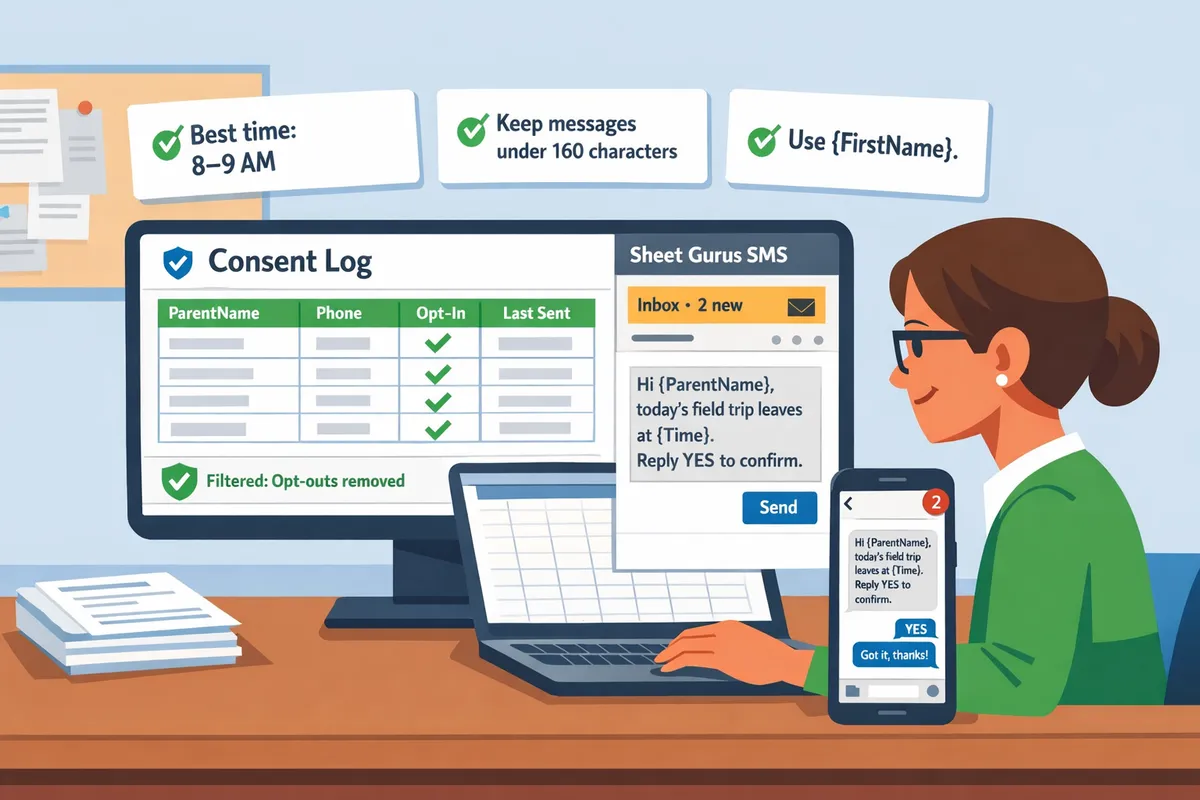
What proven SMS strategies and templates produce higher parent engagement and better outcomes.
Targeted timing, concise copy, and personalized templates raise reply and click rates while reducing opt-outs and staff time. The recommendations below pair tested send windows, message-length rules, and ready-to-drop-in Google Sheets templates you can use with Sheet Gurus SMS to run attendance alerts, conference reminders, fundraising asks, and emergency notices.
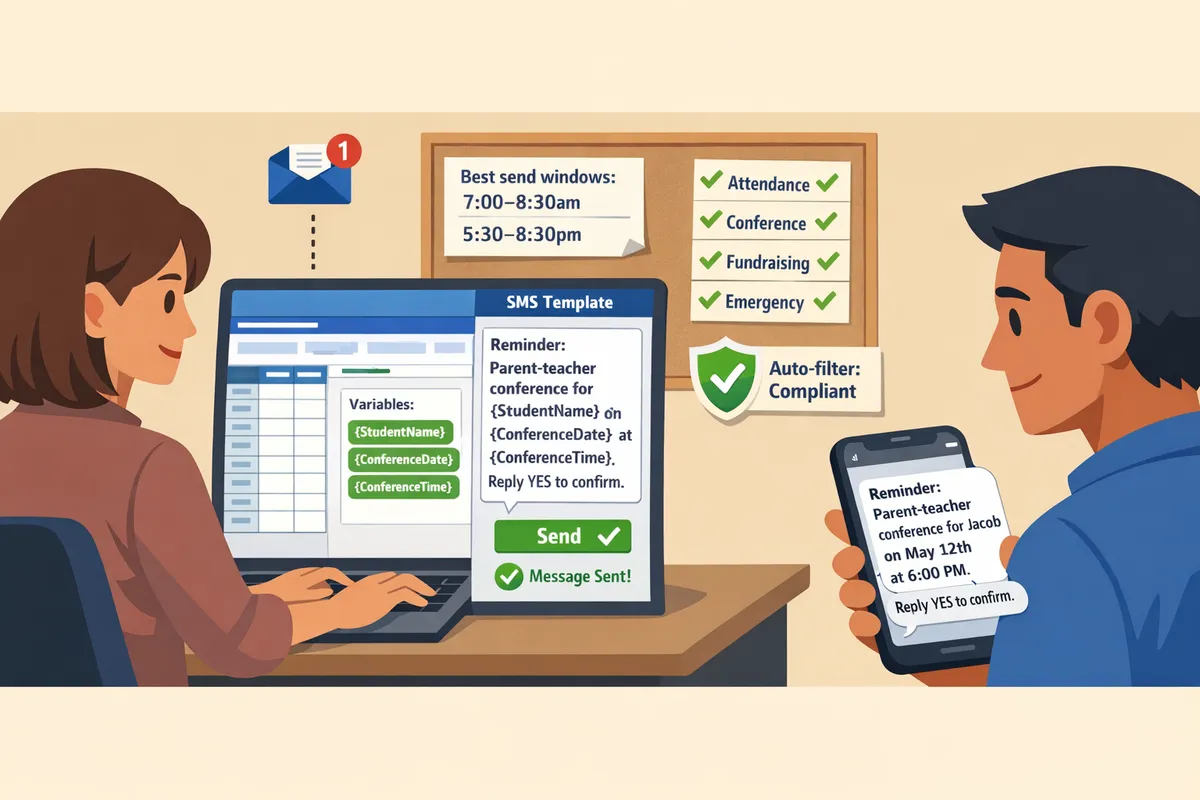
Timing and frequency rules that increase response rates ⏱️
Best windows are before school (7:00–8:30am) and early evening (5:30–8:30pm); routine sends should stay under three messages per week per recipient. Parents check texts quickly outside work hours. For audiences with daytime availability (PTA volunteers, staff) schedule between 9:00–11:30am.
- Attendance and time-sensitive alerts. Send within 15–30 minutes of the event and send one follow-up after 60 minutes if no response. Immediate delivery keeps office phone traffic low.
- Reminders (conferences, events). Use a 3-step cadence: 7 days before, 2 days before, and day-of. Use Sheet Gurus SMS scheduled messaging to queue these from the sidebar.
- Weekly limits. Cap non-essential messages at two to three per week to reduce opt-outs and missed critical alerts.
Examples of consequences. Repeated daytime texts often increase opt-outs and result in more inbound calls to the front office. Scheduling and segmentation reduce those downstream costs.
How to write short, actionable messages that encourage replies and clicks ✉️
Aim for 90 characters or fewer and put the action first so recipients know what to do immediately. Short messages get higher reply rates and reduce the chance of truncation across carriers.
- Structure: Intent line, personalization, clear CTA, opt-out clause. Example: “Hi {ParentFirstName}, Conference for {StudentFirstName} on {Date} at {Time}. Reply YES to confirm. STOP to opt-out.”
- Calls to action to use: Reply YES, Confirm at {Time}, Click {DonationLink}, or Call {SchoolPhone} for help. Use curly-brace variables like {FirstName} or {StudentName} for personalization.
- Avoid: long URLs in the body, all caps, and unclear CTAs. Instead use a short link in a separate column and map it to {DonationLink} or {RSVPLink}.
sms reminder for parent-teacher conferences google sheets 📆
Use three ready-to-send templates and map each variable to a column header in your sheet; Sheet Gurus SMS pulls values from matching column names in the sidebar. The product replaces {variables} with the sheet values when you send or schedule messages.
- Initial reminder (7 days before).
- Template: “Hi {ParentFirstName}, Reminder: Parent-Teacher Conference for {StudentFirstName} is on {Date} at {Time}. Reply YES to confirm or CLICK {RSVPLink}.”
- Required columns: ParentFirstName, ParentPhone, StudentFirstName, Date, Time, RSVPLink.
- Two-day reminder.
- Template: “Hi {ParentFirstName}, Quick reminder: {StudentFirstName}‘s conference is {Date} at {Time} in {Location}. Reply CHANGE to reschedule.”
- Required columns: ParentFirstName, ParentPhone, StudentFirstName, Date, Time, Location.
- Day-of check-in.
- Template: “Hi {ParentFirstName}, Today: {StudentFirstName}‘s conference at {Time}. Reply \“ON MY WAY\” so front office can expect you.”
- Required columns: ParentFirstName, ParentPhone, StudentFirstName, Time.
Use Sheet Gurus SMS scheduling to queue these messages from the sidebar rather than formulas in the sheet. Schedule the three messages at once and enable automated opt-out filtering so you do not message unsubscribed numbers. For a step-by-step setup, see our guide to two-way emergency and event texting and our scheduling template for Google Sheets.
💡 Tip: Always use double opt-in for new parent signups. Add a verification message: “Reply YES to receive school texts from {SchoolName}.”
school fundraising sms ideas and templates with dynamic fields 💡
Segment your lists (donors, volunteers, alumni) and send short, specific asks with a clear next step to increase conversions. Tailored asks outperform one-size-fits-all blasts because they match the recipient’s likely motivation.
Segmented templates.
- Donors (recurring or recent): “Hi {FirstName}, Thank you for supporting {SchoolName}. Can you help with a $25 donation to fund new classroom supplies? Donate: {DonationLink} Reply DONE when complete.”
- Volunteers (event staffing): “Hi {FirstName}, {SchoolName} needs volunteers for {EventDate}. Can you help as {VolunteerRole}? Reply YES to sign up.”
- Alumni (engagement): “Hi {FirstName}, Join our alumni giving day on {EventDate}. Every gift unlocks matching funds. Donate: {DonationLink}”
Follow-up and receipts.
- Follow-up script after donate: “Thank you {FirstName}. We received your gift. Your receipt will arrive by email. Reply HELP for questions.” Map email column to generate receipt notifications in your donor CRM.
- Timing: Run a 10-day campaign with 2 asks (launch and reminder) and a thank-you message one day after donation confirmation.
For a deeper playbook on donation cadence and examples used by other schools, see our fundraising use case article.
How to structure emergency alerts versus routine messages 🚨
Emergency alerts must be concise, labeled as emergencies, and use escalation to voice when immediate safety actions are required. Routine informational messages should be distinct in tone and sent at non-urgent hours.
- Emergency template (immediate safety): “EMERGENCY: {SchoolName} LOCKDOWN. Stay indoors now. Reply HELP if you are at {Location}.”
- High-priority closure (weather): “ALERT: {SchoolName} is CLOSED today due to {Reason}. Check email for details or reply YES to acknowledge.”
- Routine informational: “INFO: Tomorrow’s early-release schedule starts at {Time}. See {InfoLink} for details.”
Priority rules and escalation.
- Use Sheet Gurus SMS priority queue to mark emergency sends so they process promptly (available per account settings). If safety is at risk, follow SMS with an automated voice call or district-wide email for redundancy.
- Save emergency templates in the sidebar as quick-send drafts and lock them behind permissioned users to prevent accidental sends.
⚠️ Warning: Avoid including specific medical details or student health information in SMS to reduce FERPA risk.
How two-way messaging changes outreach workflows ↔️
Two-way messaging requires dedicated inbox assignment, quick-reply templates, and a clear process to log responses back into Google Sheets for case tracking. The real-time inbox in Sheet Gurus SMS centralizes replies so staff do not juggle phone lines.
Steps to operationalize two-way replies:
- Assign one staff member per shift to monitor the Sheet Gurus SMS inbox.
- Create templated quick replies in the sidebar for common answers: Confirmations, Reschedule options, and Escalation to phone.
- Route replies using simple tags (e.g., RSVP, HELP, ESCALATE) and assign tickets to staff.
- Log reply status back to your sheet: add columns like ReplyStatus, ReplyText, ReplyTime and update them manually or via your school’s automation tools.
- Audit weekly for missed or escalated threads and update contact preferences.
Two-way reduces call volume and speeds confirmations, but it requires role clarity and a short training script for staff. For playbook examples that map inbox routing to calendar reminders, see our two-way playbook and the complete scheduling guide.
How to implement, run, and measure a school SMS workflow from Google Sheets using Sheet Gurus SMS.
Implement a complete school SMS workflow in Google Sheets by installing the Sheet Gurus SMS add-on, preparing cleaned contact data, composing messages in the sidebar, routing replies through the real-time inbox, and tracking KPIs inside the same spreadsheet. This approach keeps your contact list, send history, and analytics in one place so staff do not juggle multiple tools. The steps below show how to set up, operate, and measure a district-ready program with Sheet Gurus SMS.
How to set up Sheet Gurus SMS and prepare contact data. 🧩
Install Sheet Gurus SMS from the Google Workspace Marketplace, authorize the add-on, and open the sidebar in the Google Sheet you will use for sends.
- Open the target Google Sheet, choose Extensions > Add-ons > Get add-ons, install Sheet Gurus SMS, then open the Sheet Gurus SMS sidebar and follow the onboarding prompts.
- Create a single “master” contacts sheet with the recommended column headers: FirstName, LastName, ParentName, Phone, StudentID, Grade, Building, OptInSource, OptInDate, and Notes. These columns let you segment messages and preserve consent proof.
- Normalize phone numbers to +1XXXXXXXXXX before importing. Use one pass of find/replace for stray characters, then a small formula or Google Sheets built-in functions to confirm length.
- Run a 100-row test list and send to internal staff to confirm variable substitution and message previews in the sidebar. The free trial includes 30 days and 50 credits to validate sends and inbox routing during setup.
💡 Tip: Keep OptInSource and OptInDate visible for every record. Those fields reduce TCPA risk when you need to demonstrate consent.
Link to related setup resources: use the K‑12 School SMS Alerts guide for two-way emergency workflows and the Google Sheets Schedule Template Free if you want a ready calendar paired with your contacts.
How to compose and send messages from the add-on sidebar ✍️
Compose messages inside the Sheet Gurus SMS sidebar and insert curly-brace variables like {StudentFirstName} or {ParentName} to personalize every outbound SMS.
- Open the sidebar, select the contact range, and click New Message.
- Type the message body in the sidebar editor and insert variables from the dropdown (for example: “Hello {ParentName}, {StudentFirstName} has a parent-teacher conference on {EventDate} at {Time}. Reply YES to confirm.”).
- Use the sidebar preview to confirm substitutions for several sample rows before sending.
- Schedule delivery inside the sidebar by selecting a future date and time; Sheet Gurus SMS stores the schedule and executes the send at the appointed time.
Sending from the sidebar avoids formula errors and accidental resends that happen when users try to launch messages from cell formulas. See the Complete Two-Way Playbook for scheduling examples and calendar reminder patterns that reduce no-shows.
How districts should route and handle replies using the real-time inbox 📥
Use Sheet Gurus SMS’s real-time inbox to assign replies, tag conversations, and export reply logs back to specific Sheets for attendance or case management.
- Configure inbox assignment rules in the Sheet Gurus SMS admin settings: route by building, grade, or keyword.
- Tag replies automatically (for example: ATTENDANCE, TRANSPORT, EMERGENCY) so staff can filter by priority.
- Train two staff members per building to monitor the inbox during school hours and use canned replies for common confirmations.
- Export reply logs from the inbox to a dedicated Responses sheet with timestamp, sender, matched contact row, and tag; use that sheet for attendance reconciliation or behavioral case notes.
⚠️ Warning: Closely monitor any reply that indicates a student safety issue and escalate immediately to your district incident protocol. Automated tags help surface those messages faster.
Which KPIs and reports show program success and ROI 📊
Track delivery rate, response rate, confirmed RSVPs, opt-outs, and staff hours saved to measure success and ROI.
- Delivery rate = delivered messages / attempted sends. Use the delivery column exported from Sheet Gurus SMS to compute this weekly.
- Response rate = unique replies / delivered messages. Export replies and use COUNTUNIQUE on the Responses sheet.
- Confirmed RSVPs and acknowledgements should map back to the Events sheet so you can report confirmations by school and by event.
- Measure time saved by comparing manual-call hours with automated sends. For example, manual reminder calls can consume up to eight staff hours weekly at an elementary school; record baseline hours in Week 0 then log weekly staff time after using Sheet Gurus SMS.
- Build a month-over-month dashboard in a separate sheet with simple formulas and sparklines: total sends, delivery rate, response rate, opt-outs, and hours saved. Link the dashboard to your master contacts and response exports for automated reporting.
Use the Complete K‑12 Guide to Google Sheets SMS Alerts and Two-Way Calendar Reminders for dashboard templates and example formulas.
Integration and number options to evaluate before upgrading 🔄
Compare local area code numbers, toll-free numbers, short codes, and alphanumeric sender IDs by use case, two-way requirements, and regulatory constraints.
| Option | Best for | Two-way support | Sheet Gurus SMS notes |
|---|---|---|---|
| Local area code numbers | Community feel, higher reply trust | Yes | Available as a custom local area code on upgraded plans with Sheet Gurus SMS |
| Toll-free numbers | Large-scale outbound, recognizable across regions | Yes | Supported out of the box by Sheet Gurus SMS |
| Short codes | High-volume alerts, carrier-filtered delivery | Limited two-way unless provisioned | Short codes can be arranged by contacting Sheet Gurus SMS but are not standard out of the box |
| Alphanumeric sender ID | Brand recognition for one-way notices | No for US/Canada | Not available out of the box; request options if your use case requires it |
When evaluating numbers, prioritize two-way support if you need replies recorded in the inbox. Confirm whether the vendor applies automatic filtering for undeliverable numbers and compliance; Sheet Gurus SMS applies automatic message filtering to help keep sends compliant.
How to run a 4-week pilot and scale across buildings 📈
Run a focused 4-week pilot with 1–2 schools to validate consent capture, timing, inbox routing, and KPIs before district-wide rollout. Week 0: Select pilot schools, export a consent-verified contact list, and set up the Sheet Gurus SMS sidebar and inbox rules. Week 1: Send low-risk reminders (events, conferences) and collect replies; monitor inbox assignment and tag accuracy. Week 2: Expand message types to include attendance confirmations and targeted grade-level reminders; measure delivery and response rates. Week 3: Test scheduling patterns and run a time-saver audit comparing manual calling time with automated sends. Week 4: Review KPIs, opt-outs, and staff feedback; adjust message copy, schedule windows, and routing rules.
Target clear acceptance criteria before scaling: delivery rate above your baseline, response handling under established SLA, and measurable reduction in staff hours. Use the pilot exports as the template when rolling out to additional buildings.
Feature comparison: Sheet Gurus SMS versus typical vendor features 🧾
Use a scoring table to compare Google Sheets sidebar integration, dynamic variables, two-way inbox, automated filtering, scheduling, SIS integration, and US/Canada support.
| Feature | Sheet Gurus SMS | Typical vendor |
|---|---|---|
| Google Sheets sidebar integration | Yes, native sidebar for composing and scheduling | Sometimes, often requires CSV import or external dashboard |
| Curly-brace dynamic variables | Yes, insert {FirstName}, {StudentName}, etc. | Varies, sometimes limited personalization |
| Real-time two-way inbox | Yes, with assignment and tagging | Often one-way or limited reply handling |
| Automatic message filtering | Yes, to reduce compliance risk | Varies by vendor |
| Scheduled messaging in UI | Yes, schedule inside the sidebar | Usually available but may require separate workflow |
| SIS integration | Integrations available or via Sheet exports | Varies widely |
| US and Canada support | Yes | Varies by provider |
Score vendors by how many must-have rows they check for your district. Use this table during vendor demos to confirm hands-on features rather than marketing claims.
Frequently Asked Questions
This FAQ answers the most common operational, compliance, and product questions about sending school SMS from Google Sheets using Sheet Gurus SMS. It focuses on practical steps, consent rules, two-way reply handling, scheduling, and supported number types so administrators can act quickly and reduce risk.
Can ‘SMS’ mean both a school name and short message service in search results? ❓
Yes. “SMS” commonly appears both as school initials and as short message service in search results. Use clarifying phrases such as “school SMS texting,” “school SMS alerts,” or “Google Sheets SMS” to reduce ambiguity in your pages and search metadata. For example, title a page “School SMS Alerts with Google Sheets” rather than “SMS at Lincoln Middle School.” See our K-12 two-way alerts guide for wording examples and opt-in templates that improve discoverability and reduce confused clicks.
How do I send an sms reminder for parent-teacher conferences from Google Sheets? 📝
Install Sheet Gurus SMS, prepare your contact columns, compose a variableized message in the sidebar, and schedule the send. Steps:
- Install the Sheet Gurus SMS add-on and open the sidebar.
- Standardize columns: ParentFirstName, Phone (E.164 like +12223334444), StudentName, Date, Time.
- Draft the message in the sidebar using curly-brace variables: “Reminder: {ParentFirstName}, your conference for {StudentName} is on {Date} at {Time}. Reply YES to confirm.” Test-send to a staff number before batch sends.
- Select rows, choose schedule or immediate send, and monitor replies in the two-way inbox.
Refer to our calendar template for scheduled reminders and the two-way playbook for inbox workflows that reduce manual callbacks.
Are there special privacy rules for texting students under FERPA or COPPA? 🔒
Yes. Schools must avoid sending protected education records via SMS, document parental consent for communications with minors, and keep retention logs for audits. Do not include grades, discipline details, medical data, or unique student identifiers in plain texts. Use Sheet Gurus SMS automatic message filtering to flag risky content before sends and export send/receipt logs to Google Sheets for retention and compliance reviews. COPPA requires parental consent for accounts of children under 13; FERPA restricts disclosure of education records without authorization.
⚠️ Warning: Never text student grades, social security numbers, or health details. If a message requires that data, use a secure portal link instead.
Does Sheet Gurus SMS support two-way messaging and reply handling? ↔️
Yes. Sheet Gurus SMS includes a real-time two-way inbox that receives replies, lets staff respond, and exports reply logs to Google Sheets. Use the inbox to triage replies (ACKs, questions, opt-outs) and assign follow-ups to staff members. The add-on also applies automated opt-out handling and message filtering, which reduces staff time spent policing replies and helps maintain TCPA compliance. See our complete two-way playbook for inbox routing templates and suggested canned responses.
Can I schedule messages for future dates from within Google Sheets? 📅
Yes. The Sheet Gurus SMS sidebar supports scheduling messages for future delivery without exporting data. Choose date and time in the sidebar, preview the personalized preview for a sample row, and confirm. For recurring reminders, import your calendar or use the Google Sheets schedule template to generate scheduled rows; the Growth and Pro plans include scheduled messaging features that let you queue reminders across grades and campuses.
What countries and number types does Sheet Gurus SMS support? 🌐
Sheet Gurus SMS supports the United States and Canada and offers toll-free numbers and optional custom local area code numbers; short codes and alphanumeric sender IDs can be arranged on request. Two-way replies work within these supported countries, and carrier rules may affect short-code approval and delivery. If you need a dedicated local area code for a district, contact the Sheet Gurus SMS team to request custom numbers and confirm setup timelines.
Start with one high-impact practice and send compliant reminders from Google Sheets.
A focused, repeatable task—such as scheduled parent-teacher reminders—reduces missed responses and cuts administrative hours while improving family engagement for school sms programs. For example, a single scheduled reminder that uses {ParentName}, {StudentName}, and {Date} can replace several manual phone calls and clear up staff time for higher-value work.
Sheet Gurus SMS is a Google Sheets add-on for sending bulk SMS from a sidebar rather than spreadsheet formulas. Personalize each message with curly-brace variables such as {FirstName}, handle replies in a real-time two-way inbox, and rely on automatic message filtering to help keep your sends compliant.
💡 Tip: Start by scheduling one weekly reminder (example: “Reminder: {StudentName}‘s conference on {Date} at {Time}.”) and confirm replies in the sidebar inbox.
Start a free 30-day trial and send your first scheduled message from the Sheet Gurus SMS sidebar via the automated messaging guide. Subscribe to our newsletter for implementation tips and templates.