


How to Set Up Google Sheets SMS Reminders for Events, With Y/N Confirmations
Google Sheets can’t send texts on its own, so a reminder setup needs an add-on that sends from your sheet, plus a plan for what happens when a patient or client replies. This guide shows how to build a 2 to 3 touch reminder cadence with a Y/N confirmation in Sheet Gurus SMS, and it is upfront about one limit: nothing sends automatically when a row is added, a form is submitted or a cell changes. You start or schedule each batch from the sidebar, which suits a front desk that already works through the next day’s list every afternoon.
What do you need before you start?
You need a sheet with one row per appointment, phone numbers in a consistent format, and proof that each person agreed to be texted.
Set these columns up first:
| Column | Example | Why it matters |
|---|---|---|
| FirstName | Maria | Fills{FirstName} in the message |
| Phone | +15555550123 | One number per row, with country code |
| Date | Thu, Oct 15 | Printed in the message as typed |
| Time | 2:30 PM | Printed in the message as typed |
| Provider | Dr. Patel | Optional, makes the text feel personal |
| Status | Pending | You update it: Pending, Confirmed, Reschedule |
| ApptDate | 10/15/2026 | A real date value, used by the filter below |
Keep the display text in Date and Time and the real date value in ApptDate. Variables insert what the cell shows, so a cell that shows “Thu, Oct 15” reads naturally in a message, while the filter needs a true date to compare against.
Consent comes first. Only text people who opted in, and keep a record of when and how. The
opt-in and consent guide includes a free consent ledger you can copy into the same workbook. Sheet Gurus SMS applies automatic message filtering to help keep sends compliant, and it handles opt-outs, but the consent record is yours to keep.If you haven’t installed the add-on yet, Getting Started With Sheet Gurus SMS covers installation and the 30-day free trial, which includes 50 credits. Sheet Gurus SMS also works in Microsoft Excel with the same sidebar, so the steps below apply there too.
Which plan do you need for scheduled reminders?
Scheduled sends are on the Growth plan ($49/month) and the Pro plan ($99/month), not on Starter ($9/month).
Messages cost $0.04 per 160-character segment on Starter, $0.03 on Growth and $0.02 on Pro, and the rate is the same for US and Canadian numbers. Service is limited to the US and Canada. If you only want to try one reminder by hand, the trial is enough. For the cadence in this guide, plan on Growth or Pro.
How do you schedule an SMS 24 hours before an appointment in Google Sheets?
Build a tab that lists only tomorrow’s appointments, then schedule one send from the sidebar for a fixed time the day before.
Sheet Gurus SMS sends one scheduled batch at one time. Rows can’t each carry their own send time, so a true “exactly 24 hours before each appointment” isn’t possible. A fixed time the afternoon before, such as 2 pm for everyone on tomorrow’s list, gets you the same result in practice and is simpler to supervise.
Add a tab called
Tomorrowand copy your main tab’s header row into its row 1, since variables take their names from the first row.In cell A2, paste a filter that pulls tomorrow’s pending rows from your main tab (here named
Appointments, with ApptDate in column G and Status in column F):=FILTER(Appointments!A2:G, Appointments!G2:G = TODAY()+1, Appointments!F2:F = "Pending")Open the Sheet Gurus SMS sidebar from the Tomorrow tab and choose your recipients.
Write the message, using the preview to check a few recipients.
Choose a schedule time and confirm.
The filter works because the add-on sends from whichever tab you select. It is the same approach recommended for texting only some rows, such as those still marked Pending.
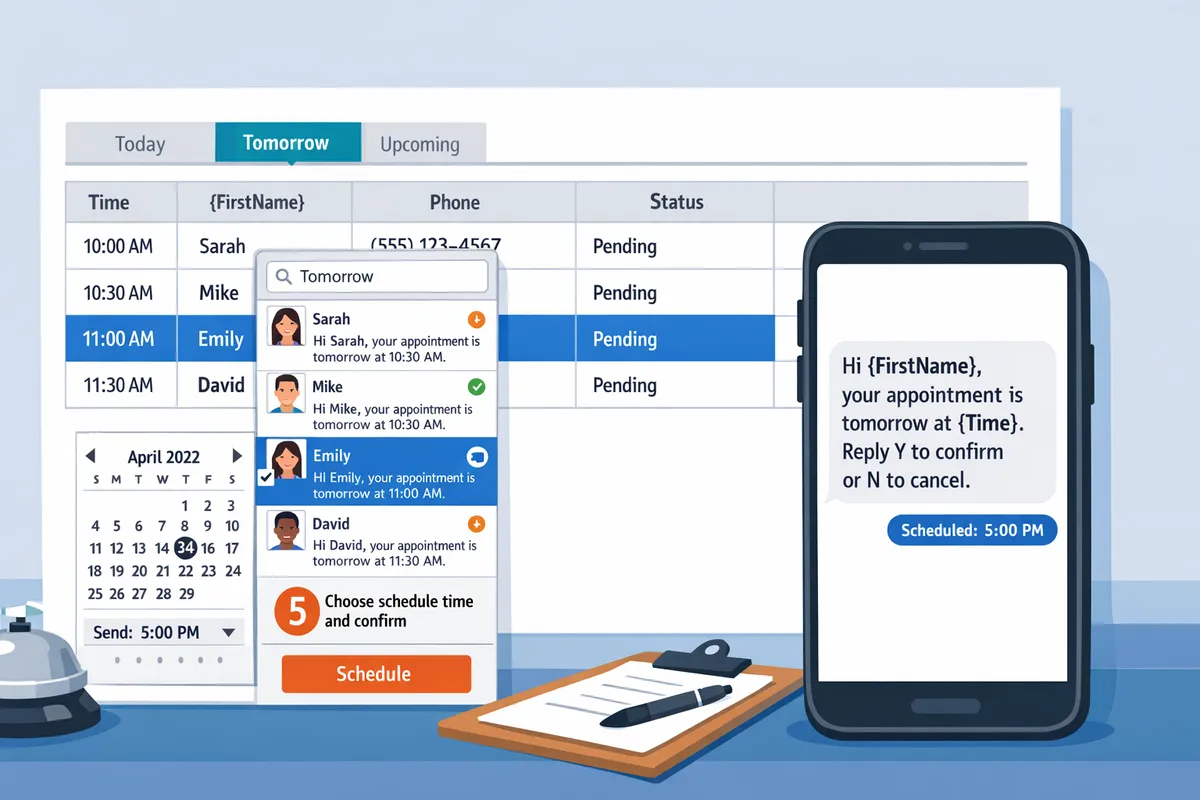
The filter calculates whenever the sheet recalculates, so build the Tomorrow tab and send or schedule the batch on the same day. On Friday, change TODAY()+1 to TODAY()+3 to catch Monday’s appointments.
How do you write the reminder and ask for a Y/N confirmation?
Ask one clear question at the end of the message and tell people exactly what to type back.
Put your message wording in a cell in your own sheet, since the add-on doesn’t store templates, then paste it into the sidebar. A confirmation request for a dental office could read:
Hi {FirstName}, this is Bright Smile Dental. Reminder: you’re booked {Date} at {Time} with {Provider}. Reply Y to confirm or N to reschedule.
Variables fill from each recipient’s row, and the preview shows each finished message before you send. Check it, because an empty Provider cell leaves a gap such as “with .” and there is no fallback value. If some rows have no provider, split them onto their own tab with their own wording. For more on personalization, see dynamic SMS personalization with variables.
Watch the length. A segment holds 160 characters, and you pay per segment, so a message that runs to 175 characters costs two segments. Short names and a short office name keep most messages in one.
What happens when someone replies Y or N?
Replies arrive in the two-way inbox in the sidebar, linked to the recipient’s row, and your team updates the Status column by hand.
Plan on marking Confirmed yourself rather than relying on the reply to change the row. The inbox lets you tag conversations, filter to unread, search by phone number and assign threads to teammates, so a practical routine looks like this:
- After the send goes out, open the inbox and filter to unread.
- Reply Y: set Status to Confirmed in the row the reply links to.
- Reply N: set Status to Reschedule, answer the patient with a call or text, and offer another slot.
- No reply by the end of the day: call, since a text can go unseen.
Because replies stay attached to the row, nobody has to match a phone number to a patient by memory. If several people share the front desk, assign each N reply to one person so two staff don’t contact the same patient. Opt-out requests are handled by the add-on’s automated opt-out, so don’t treat them as reschedule requests.
Setting Status to Confirmed matters for the next step. The filter above only selects rows still marked Pending, so a confirmed patient drops off the list for any follow-up send.
How do you build a 2 to 3 touch cadence?
Use three messages with different jobs: a booking confirmation, a reminder the day before that asks for Y/N, and an optional short note on the morning of the appointment.
| Touch | When | Who gets it | Message job |
|---|---|---|---|
| 1. Booking confirmation | Same day as booking | Rows added today | Confirm date, time, address |
| 2. Day-before reminder | 2 pm the day before | Tomorrow’s Pending rows | Ask for Y/N |
| 3. Morning-of note | 7:30 am on the day | Today’s rows marked Confirmed | Parking, arrival time, what to bring |
Each touch is its own batch from its own filtered tab (copy the Tomorrow tab and change the filter). Since scheduling is per batch, every recipient in a batch gets the same send time. That is fine for touches 2 and 3, which go to a whole day’s list. For touch 1, send from a tab of rows added today, since nothing triggers on a new row.
For a small office, two touches (1 and 2) are often enough. Add the third if no-shows are still a problem after a month of data in your Status column.
What does it cost at your volume?
A 300-appointment month with three touches costs about $76 on Growth, using 900 outbound segments.
These figures use published rates, assume every message fits in one segment, and count only messages you send. Plans bill monthly. Pro includes free inbound messages, which matters if many patients reply, so check how replies are counted on your plan.
| Appointments per month | Segments (3 touches) | Growth ($49 + $0.03) | Pro ($99 + $0.02) |
|---|---|---|---|
| 300 | 900 | $76 | $117 |
| 1,200 | 3,600 | $157 | $171 |
| 3,300 | 9,900 | $346 | $297 |
On outbound messages alone, Growth is cheaper up to 5,000 segments a month and Pro is cheaper beyond that. A single-location practice sits on the left of that table. A multi-location group with thousands of appointments is where Pro starts to pay off, along with its extra user seats and custom area codes. Extra users cost $5/month each on Growth and $9/month on Starter, and Pro seats are unlimited.
A worked example: a dental front desk
A front desk with about 15 appointments a day, five days a week, can run this routine as a short daily check.
- Each afternoon, open the sheet. The Tomorrow tab already lists the Pending rows.
- Scan for gaps in the Provider and Phone columns.
- Open the sidebar on the Tomorrow tab, preview three or four messages, and schedule the send for 2 pm.
- At 3 pm, open the inbox, filter to unread, and update Status for each Y or N.
- First thing the next morning, call anyone still Pending, then send the morning-of note to Confirmed rows if you use touch 3.
- As new bookings come in during the day, add them to the main sheet and send touch 1 from a tab of today’s additions.
With 15 appointments a day over about 20 working days, that is 300 appointments and roughly 900 segments, the first row of the cost table. Salons can use the same layout with a Stylist column instead of Provider, as covered in the guide to texting for hair salons. Practices that also send medication or follow-up texts can look at patient follow-ups and medication reminders.
What are the limits to plan around?
The main limit is that sends are started or scheduled by a person, because triggers aren’t available yet.
- Nothing sends automatically when a row is added, a form is submitted or a cell changes. Triggers are on the roadmap with no announced date.
- One send time per scheduled batch, never per row.
- No saved templates or variable fallbacks, so keep wording in your sheet and check the preview.
- Staff mark Status by hand after reading each reply.
- US and Canada only.
If you need fully hands-off sending or automatic Y/N parsing, this setup isn’t that. If a daily review of tomorrow’s list is already part of your day, it fits well and you stay in control of who gets a message.
FAQ
Can Google Sheets send SMS reminders by itself? No. Sheets has no text-sending feature, so you use an add-on such as Sheet Gurus SMS that sends from the sheet through its sidebar.Can I schedule texts to go out 24 hours before each appointment automatically? You can schedule a batch for a fixed time the day before. Each row can’t have its own send time, so build one batch per send time.
Does the Y/N reply update my Google Sheet? Plan on setting it by hand. Replies land in the inbox linked to the person’s row, and your team sets the Status.
Which plan includes scheduling? Growth ($49/month) and Pro ($99/month). Starter doesn’t include scheduled messaging.
Does it work with Excel? Yes, through an Office add-on on Microsoft 365 for Windows, Mac and the web.
Where can I learn more? Start at sheetgurus.com and begin the free trial to test one batch on your own sheet.