


Phone Number Validation vs Verification vs Reachability: The Google Sheets Pre‑Send SMS Checklist (+ Free Template)
A single misread digit in a phone column can trigger hundreds of failed SMS sends. SMS number reachability verification is a validation process that checks whether a phone number can receive SMS before you send. This guide compares number validation and verification methods and provides a Google Sheets pre-send checklist that works with Sheet Gurus SMS. Our Google Sheets add-on sends messages from a sidebar, supports dynamic variables like ‘Hi {first_name}, your appointment at {location} is at {time}’, includes a real-time inbox, and automatic message filtering to reduce compliance risk. For core concepts, see our
SMS Messaging Basics and the article on How to Verify that Recipient Phone Numbers Are Reachable. Which checks catch false positives and which add unnecessary delays?What are the core differences between phone number validation, verification, and sms number reachability verification?
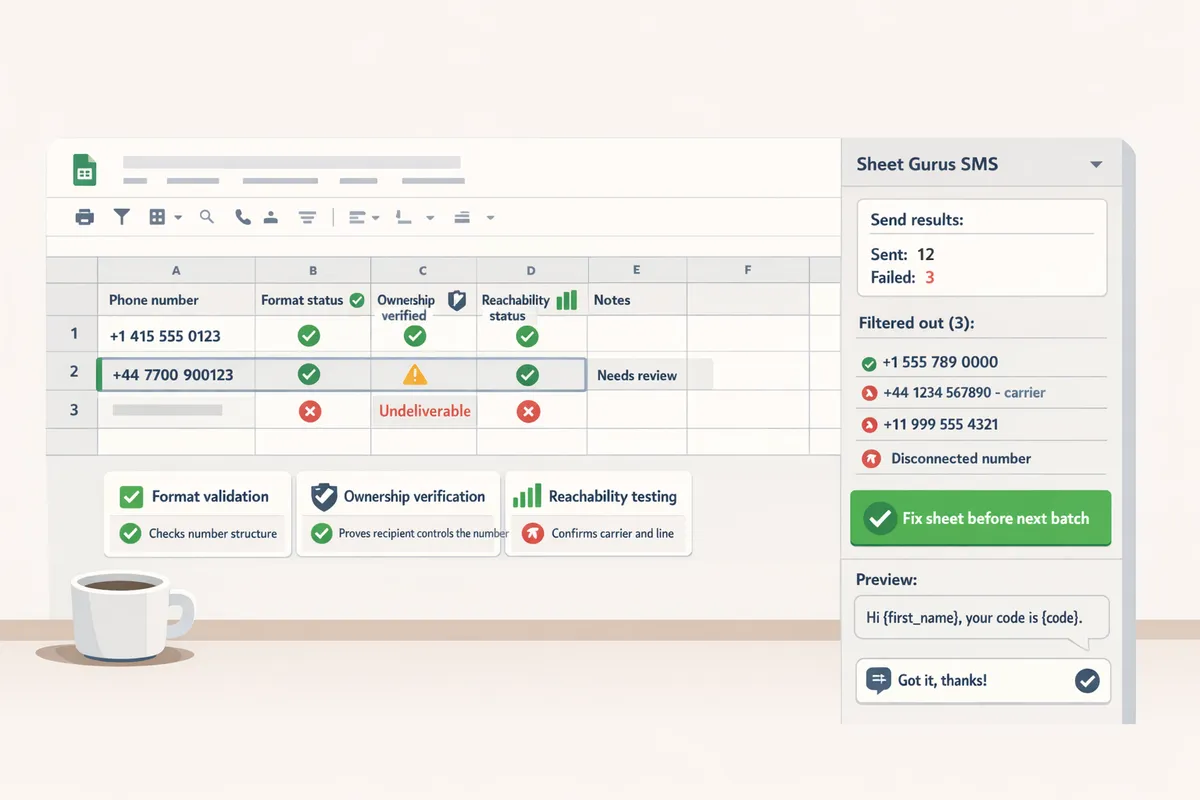
Validation checks formatting, verification proves the recipient controls the number, and SMS number reachability verification confirms the number can receive SMS messages rather than only whether it exists. These three checks sit on a spectrum of risk control: format validation is cheap and fast, ownership verification prevents spoofed or wrong-user sends, and reachability testing prevents wasted send credits and deliverability problems. Use all three in sequence when preparing a list in Google Sheets to minimize wasted time and compliance exposure.
What is SMS number reachability verification?
SMS number reachability verification is a test that confirms whether a specific phone number can accept SMS messages rather than only existing or being controlled by someone. SMS reachability is a category of deliverability checks that examines line type and carrier routing to confirm SMS traffic will be delivered. For example, a reachability check will mark a number as unreachable if it is a landline, a carrier-blocked VoIP line, or a short-term virtual number that rejects SMS. In practice, run reachability tests before large campaigns so you do not spend credits on numbers that cannot accept messages. Sheet Gurus SMS helps here by surfacing send failures and filtering out numbers flagged as undeliverable in the sidebar, so you can fix the Google Sheet before the next batch.
How does reachability differ from format validation and ownership verification?
Validation checks number structure, verification proves the recipient controls the number, and reachability testing confirms the carrier and line accept SMS. Format validation checks that a phone number follows E.164 or a valid local pattern and removes entries like “555-abc” before you send. Ownership verification is a confirmation method that proves control, typically via an OTP or a reply; for example you can send ‘Your code is {OTP}’ with Sheet Gurus SMS and capture the reply in the real-time inbox. Reachability testing goes further by querying line type and carrier routing to catch landlines, fixed-wire numbers, or blocked virtual numbers that will fail SMS even if the user controls them. Use format validation to stop simple errors, ownership verification to avoid wrong-recipient sends, and reachability checks to prevent wasted credits and higher complaint rates.
How to tell if a number can receive SMS vs calls 🔎
You can tell if a number can receive SMS by checking the line type and carrier routing rather than relying on number format or OTP alone. Follow these numbered steps in Google Sheets before you send:
- Run a batch format cleanse to normalize numbers to E.164. This removes obvious input errors quickly. See the guide on sending SMS from Google Sheets for formatting tips.
- Perform a carrier and line-type lookup for each number to classify mobile, landline, VoIP, or service number. Mobile equals SMS-capable in most countries; landline usually does not. Using a lookup takes minutes for a few hundred rows but much longer at scale.
- Flag numbers classified as landline or VoIP and isolate them for follow-up. If a number shows as VoIP, treat it as higher risk for SMS rejection.
- Optionally send a lightweight ownership check to confirm control: a one-time code message like ‘Your verification code is {OTP}’ and capture replies in the Sheet Gurus SMS inbox.
Doing these checks manually costs time and invites errors at scale. Sheet Gurus SMS reduces manual work by filtering likely-undeliverable numbers during the send flow and collecting delivery failure reasons in the sidebar.
Common failure modes and campaign consequences
Unreachable numbers cause wasted send credits, lower engagement metrics, and increased risk of carrier throttling or account blocks. Typical failure modes include misformatted numbers, landlines treated as mobile, VoIP or virtual numbers that reject SMS, and recently recycled numbers that still route unpredictably. For example, sending 10,000 messages with a 5% unreachable rate wastes 500 sends and the time to investigate each bounce. Those failures also depress open and reply rates, which carriers use to judge sender reputation.
⚠️ Warning: Repeatedly sending to unreachable or complaint-prone lists can trigger carrier-level blocks and regulatory scrutiny; follow opt-in rules in our SMS Compliance for Google Sheets guide to stay safe.
Sheet Gurus SMS mitigates these consequences by marking failed sends, filtering numbers flagged during pre-send checks, and keeping two-way replies in a real-time inbox so you can reconcile ownership verification quickly. For a step-by-step checklist you can run inside Google Sheets, see our sending guide and the integration buyer’s guide to choose the right automation approach for your team. For ecommerce teams, our Sheet Gurus SMS for Ecommerce page shows common workflows that prioritize deliverable numbers for promotions and order confirmations.
Which methods reliably verify reachability at scale and which fits a Google Sheets workflow?
Temporary numbers, dedicated verification numbers, and in-house automated reachability checks are the three practical methods for SMS number reachability verification at scale. Each method trades off cost, speed, privacy, and maintenance, so the right choice depends on campaign length, volume, and internal resources. The rest of this section compares the options, shows when to pick each one, and explains how Sheet Gurus SMS fits a Google Sheets workflow.
Comparison table: practical trade-offs at a glance 📊
The table below shows practical trade-offs between temporary numbers, dedicated verification numbers, and in-house validation for SMS reachability verification.
| Method | Cost per check | Time to implement | Privacy implications | Accuracy for SMS vs calls | Required maintenance |
|---|---|---|---|---|---|
| Temporary numbers | Low per-check; rental fees can add for high volume | Minutes to hours with third-party provider | Good. Minimizes storing user numbers long-term | High for SMS testing; not suitable for verifying call routing | Low ongoing; rotate numbers as needed |
| Dedicated verification numbers | Higher upfront and monthly fees | Days to weeks (procure number, configure short codes or long codes) | Lower privacy risk if you store numbers securely and maintain consent | High for both SMS and call flows when configured correctly | Medium. Manage provisioning, sender reputation, opt-out lists |
| In-house validation (automated checks + carrier queries) | High fixed cost; lower marginal cost at scale | Weeks to months (engineering + carrier contracts) | Higher compliance burden. You store and process raw numbers | Variable. Dependent on carrier data and integration quality for SMS vs calls | High. Maintenance, compliance updates, and monitoring |
Check if a number can receive SMS vs calls by testing both SMS delivery and call routing separately; a number that accepts SMS may still forward or block calls. Use a staged test: sample 1% of list with SMS and call checks before full send.
How temporary numbers work and when to pick them 🕒
Temporary numbers are virtual phone numbers that allow short-term inbound SMS testing without storing recipient numbers. Providers rent numbers you can send a single test SMS to; the provider reports whether the message delivered. For short campaigns, event confirmations, or privacy-sensitive workflows, temporary numbers let you validate reachability quickly without long-term data storage.
Example: run a pre-send sweep of 500 numbers from a Google Sheet. Use temporary numbers to send a 1-word probe message and record delivery status back into the sheet. That approach minimizes your exposure if the list contains many invalid or non-SMS-capable numbers.
Trade-offs: temporary numbers are cost-effective for low-volume tests and fast verification, but they do not provide a consistent sender identity for ongoing conversations. For Google Sheets users, Sheet Gurus SMS accepts pre-send status flags from temporary-number checks and filters out unreachable records in the sidebar, saving hours of manual filtering. See our step-by-step setup in the Guide: Sending SMS from Google Sheets with Sheet Gurus SMS Guide.
When dedicated verification numbers are the better choice 💳
Dedicated verification numbers are permanent phone numbers you control that provide consistent sender identity and better deliverability for recurring verification flows. Organizations running subscription notifications, appointment reminders, or multi-step onboarding benefit from a stable number because it builds sender recognition and reduces carrier filtering.
Example: an ecommerce store using Google Sheets for order notifications chooses a dedicated long code to send verification codes and follow-ups. The store maintains the number, manages opt-outs, and monitors reputation to keep deliverability stable.
Costs and duties: expect higher monthly fees and ongoing management for opt-out lists, compliance audits, and sender reputation. Sheet Gurus SMS integrates with dedicated numbers so you can send dynamic messages like ‘Hi {FirstName}, your pickup code is {Code}’ and track two-way replies in the sidebar. For legal checklists and consent templates, consult the SMS Compliance for Google Sheets guide SMS Compliance for Google Sheets when needed.
Tip: Use a dedicated number only if you need repeated two-way conversations or brand consistency; otherwise temporary checks reduce storage and compliance work.
When in-house validation makes sense and the business costs 🏗️
In-house validation is a company-built system that queries carrier data and runs automated reachability checks, and it makes sense only for high-volume operations with engineering capacity. Large enterprises with steady SMS volume may justify the fixed build and carrier-contract costs because marginal costs fall as volume rises.
Hidden costs: engineering time, carrier agreements, compliance monitoring, and ongoing maintenance. Those translate into hundreds of hours and unpredictable legal risk compared with a turnkey add-on. If your team lacks a full-time engineer or legal point person for TCPA/GDPR, in-house validation often costs more than expected.
Example: compare total cost of ownership using our buyer’s guide to integrating Google Sheets with SMS add-ons, Apps Script, and no-code platforms for setup and maintenance burdens Guide.
⚠️ Warning: Avoid storing consent records and raw phone data without a documented retention policy and secure access controls; this increases regulatory risk.
How Sheet Gurus SMS fits these methods and the Google Sheets workflow 🧩
Sheet Gurus SMS is a Google Sheets add-on that performs pre-send reachability checks and filters inside the sidebar to reduce manual cleanup time. The add-on reads status flags, removes unreachable rows from a send queue, and lets you send personalized messages with variables such as ‘Hello {FirstName}, your code is {Code}.’ How it helps by method: with temporary-number testing, Sheet Gurus SMS accepts the test results and automatically excludes unreachable records. With a dedicated verification number, the add-on sends from your configured sender and logs two-way replies in the real-time inbox. For teams considering in-house validation, Sheet Gurus SMS shortens time to value by handling the most common checks without custom engineering.
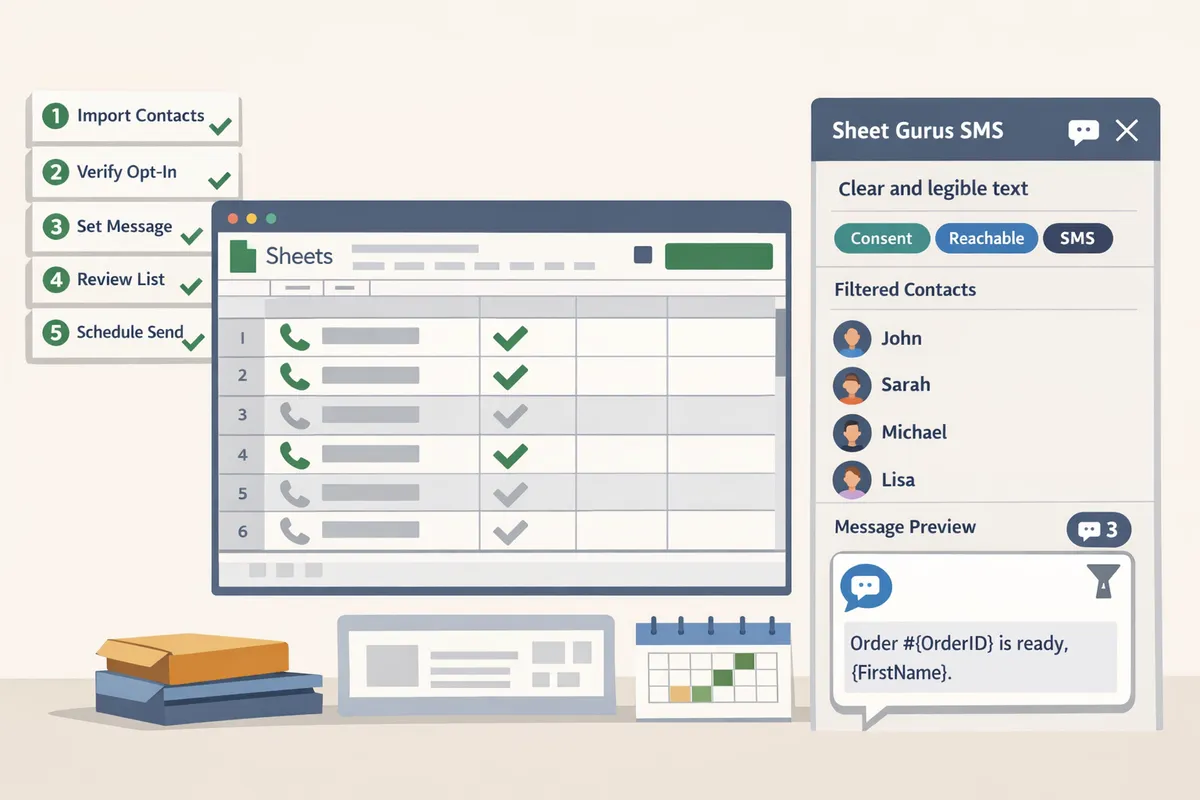
Practical example: run a pre-send checklist in your sheet—clean formatting, run a one-off temporary-number probe on 2% of the list, then use the Sheet Gurus SMS sidebar to filter unreachable rows and send the remaining messages with dynamic fields like ‘Order #{OrderID} is ready, {FirstName}.’ For full setup steps, follow the sending guide Guide.
How do I implement a pre-send reachability checklist in Google Sheets and measure results?
Build a five-step pre-send checklist in Google Sheets that normalizes numbers, runs reachability checks, filters non-SMS or non-consenting contacts, and queues validated rows for Sheet Gurus SMS. Use the Sheet Gurus SMS sidebar to run formatting and reachability tests, send messages with variables, and capture delivery results back into the sheet.
Step 1: Normalize phone numbers to E.164 (how to format phone numbers in E.164 in Google Sheets) 🧭
Format every phone number in E.164 inside the sheet before any reachability call. Use the Sheet Gurus SMS formatter in the sidebar to convert messy inputs into +[country code][national number] with no spaces or punctuation; for example, +12223334444. If you must use formulas, create a single phone_e164 column and strip non-numeric characters, then prepend the country code where missing. Name the column phone_e164 and lock it for downstream checks so other team members do not overwrite standardized values.
Example: keep original_phone, country_hint, and phone_e164 columns. Run the sidebar formatter and record a formatter_timestamp column for auditability.
Step 2: Identify line type and carrier to avoid non-SMS sends 📱
Detecting whether a number is mobile, landline, or VoIP prevents wasted SMS spend and failed sends. Use Sheet Gurus SMS line-type and carrier lookups in the sidebar to tag each row as mobile, landline, VoIP, or unknown. Filter out landlines and known non-SMS virtual numbers before you queue a send. For example, a list of 10,000 with 2% landlines would create 200 failed sends and added carrier expense if you skip this step.
Record line_type, carrier_name, and lookup_timestamp columns. Use a policy column (send_allowed TRUE/FALSE) so reviewers can batch-approve exceptions without changing raw lookup data.
Step 3: Run a reachability test to check if a number can receive SMS vs calls 📶
A reachability test confirms whether the carrier will accept SMS for that specific number. Run the Sheet Gurus SMS reachability check from the sidebar in bulk and write results to reachability_status (reachable, undeliverable, unknown). Use a conservative rule: include only rows marked reachable; hold unknowns for re-check or manual review.
Keep a reachability_check_id and reachability_timestamp to track repeated checks. For low-confidence cases, re-run the check after 24 hours to avoid transient carrier errors. This step is the core of SMS number reachability verification inside Sheets.
Step 4: Apply consent and compliance filters (TCPA, GDPR, recordkeeping) ⚖️
Filter out rows that lack a clear opt-in record or that show recent opt-outs to avoid regulatory risk and complaints. Require these columns before sending: opt_in_timestamp, consent_source, consent_text, and opt_out_flag. Use the Sheet Gurus SMS automatic message filtering to block sends to opted-out numbers at send time, and keep an audit tab with consent records for each campaign.
💡 Tip: Always use double opt-in for SMS signups to reduce dispute risk and improve inbox quality.
Link your consent ledger to the sheet fields described in SMS Compliance for Google Sheets: The Complete Guide with Opt‑In Templates and a Free Consent Ledger to match audit expectations.
Step 5: Queue validated rows and send with Sheet Gurus SMS (example dynamic message and column setup) 🚀
Move only rows that pass E.164 formatting, line-type checks, reachability_status=reachable, and consent filters into a Ready to Send tab and initiate the campaign from the Sheet Gurus SMS sidebar to preserve audit trails. Use columns like first_name, appointment_time, phone_e164, reachability_status, opt_in_timestamp, and campaign_id.
Example dynamic message: ‘Hi {first_name}, your appointment is at {appointment_time}. Reply STOP to opt out.’ Sheet Gurus SMS supports curly-brace variables and a real-time inbox, so replies and delivery updates appear back in the sheet. Schedule sends from the sidebar and retain the send_batch_id and delivery_report columns for post-campaign analysis. See Guide for step-by-step sending instructions.
Measuring reachability and ROI 📊
Track pre-send reachability rate, delivered messages, cost per delivered message, time saved on list cleanup, and complaint or opt-out rates to calculate ROI. Compute reachability_rate = reachable_count ÷ checked_count. Compute cost_per_delivered = total_sms_spend ÷ delivered_count. Estimate time_saved_hours = manual_cleanup_hours_before ÷ automated_cleanup_hours_after.
Pull delivery and complaint data from Sheet Gurus SMS into the sheet and keep a rolling campaign dashboard. Use the integration comparison in How to Integrate Google Sheets with SMS: Add-on vs Apps Script vs Zapier/Make (Buyer’s Guide + TCO Calculator) to quantify maintenance and total cost of ownership when you compare manual processes to sending via an add-on.
Sample KPI thresholds to monitor: pre-send reachability above your historical baseline, delivered rate within 24 hours of send, and complaint rate below your legal threshold. Maintain a trends tab to measure whether pre-send checks reduce failed sends and lower cost per delivered message over time.
Related resources: read our blog for broader SMS messaging tactics and templates, including the free Google Sheets template and implementation playbook available in the sending guide.
Frequently Asked Questions
This FAQ answers common questions about SMS number reachability verification and how Sheet Gurus SMS automates pre-send checks inside Google Sheets. Use these short, actionable answers to decide which verification method fits your list size, compliance needs, and campaign cadence.
How accurate is SMS number reachability verification? 📊
Accuracy varies by method and data freshness. Carrier lookups paired with live test checks usually give the clearest signal because carrier data identifies line type and live probes confirm delivery capability. For example, a carrier lookup that marks a number as ‘mobile’ plus a successful delivery probe reduces false positives compared with format-only checks. Sheet Gurus SMS runs carrier checks in the sidebar and can optionally perform live reachability probes before you send, which cuts time spent chasing failed deliveries.
Can I check if a number can receive SMS vs calls? 📩
Yes. Line-type and carrier lookups indicate whether a phone number is mobile, fixed line, VoIP, or a service number that may not accept SMS. These lookups return explicit line-type labels you can filter on, so you only queue mobile-capable numbers for SMS. In practice, use Sheet Gurus SMS to filter out numbers labeled ‘fixed line’ or ‘non-SMS’ and keep your send credit for valid mobile recipients.
How do I format phone numbers in E.164 in Google Sheets before running checks? 🔢
Normalize numbers to E.164 format: +[country code][national number] with no spaces or punctuation. A practical sheet workflow is: create a helper column, strip non-digits, apply your default country code for numbers missing one, and validate length against the country pattern. Save hours by using the Sheet Gurus SMS formatter in the sidebar to standardize the column automatically instead of building many sheet formulas. See our step-by-step sending guide for setup details in Google Sheets.
Does reachability verification respect TCPA and GDPR rules? ⚖️
Reachability checks do not remove the need for consent; you must maintain opt-in records and apply consent filters before running checks. Run reachability only on contacts with documented consent, and do not send probe messages to numbers lacking permission. Sheet Gurus SMS logs consent status, enforces automatic message filtering, and helps you apply opt-in filters before any pre-send checks.
💡 Tip: Keep a consent ledger and use double opt-in when possible to reduce TCPA and GDPR risk. See our SMS Compliance for Google Sheets guide for templates and a consent ledger.
How long does bulk reachability verification take for large lists? ⏱️
Time depends on the verification method and provider rate limits; batch carrier lookups complete far faster than serial live-test probes. As an example, a 50,000-row list processed with parallel batch lookups and sidebar batching finishes in minutes to a few hours depending on the provider, while one-by-one live probes can run much longer. Sheet Gurus SMS reduces wall-clock time by batching lookups in the sidebar and writing results back to the sheet as they arrive.
What are the top reasons a valid number cannot receive SMS? 🚫
Common causes include the number being a landline or VoIP service, carrier-level blocking or spam filters, roaming or international routing restrictions, and temporary issues from number porting. Each cause creates a different business impact: failed sends waste credits, blocked messages harm campaign ROI, and porting delays can cause missed time-sensitive alerts. Sheet Gurus SMS flags these failure types so you can remove or reclassify problematic contacts before sending.
Can Sheet Gurus SMS run pre-send reachability checks inside the Google Sheets sidebar? 🔍
Yes. Sheet Gurus SMS runs pre-send checks from the Google Sheets sidebar, filters non-SMS numbers, and logs results directly back into your sheet. The sidebar shows status columns (valid, non-SMS, unknown), lets you queue only valid rows, and supports dynamic message variables like ‘Hello {first_name}, your order {order_id} is ready’ so you send personalized messages without exporting data. For implementation steps and screenshots, follow our guide to sending SMS with Sheet Gurus SMS and our ecommerce playbook for common retail use cases.
Use a short pre-send checklist to confirm formatting, validation, verification, and reachability before sending SMS from Google Sheets.
A tight pre-send routine prevents wasted credits, delivery failures, and compliance headaches. Prioritize SMS number reachability verification after format and syntactic validation, then run sample sends to catch provider-level blocks. For example, fix formatting first (see how to format phone numbers in E.164 in Google Sheets), then remove duplicates and flagged opt-outs before scaling your campaign.
💡 Tip: Test 20 random rows from your sheet with Sheet Gurus SMS before a full send to catch formatting and consent issues early.
Sheet Gurus SMS is a platform that helps users save time and money by enabling them to send bulk SMS to their recipients easily from within Google Sheets. The product is a Google Sheets add-on and messages are sent via a sidebar, not via spreadsheet formulas. The product has the following features:
- Text messages can be sent with curly brackets as variables to allow for dynamic content.
- A real-time inbox to allow for two-way communication with recipients.
- Automatic message filtering to keep users compliant with regulations.
Download the free pre-send checklist and template to apply these steps directly in Sheet Gurus SMS and follow the step-by-step sending guide in our Sending SMS from Google Sheets guide. For compliance and opt-in examples, see SMS Compliance for Google Sheets, and visit the SMS Messaging Basics section of our blog for broader best practices.