


Patient SMS Reminders from Google Sheets in 2026: Complete No-Code Setup, Two-Way Replies, and PHI-Safe Templates
A 20% no-show rate can cost a small clinic thousands a year. Patient SMS reminders via Google Sheets is a no-code system that sends scheduled, personalized appointment reminders directly from a Google Sheets sidebar. This step-by-step beginner’s guide walks small clinics and practices from zero through setup, two-way replies, and PHI-safe templates. Our Sheet Gurus SMS add-on sends bulk messages from a sidebar (not spreadsheet formulas), uses curly-brace variables like “Reminder: {patient_name}, your {service} at {time} is tomorrow”, includes a real-time inbox for two-way communication, and automatic message filtering to reduce compliance risk. Follow our
text appointment reminders and automated text messaging guides and our blog for more Healthcare Texts examples, and then try the workflows that most clinics miss.What are patient SMS reminders via Google Sheets and how do they work?
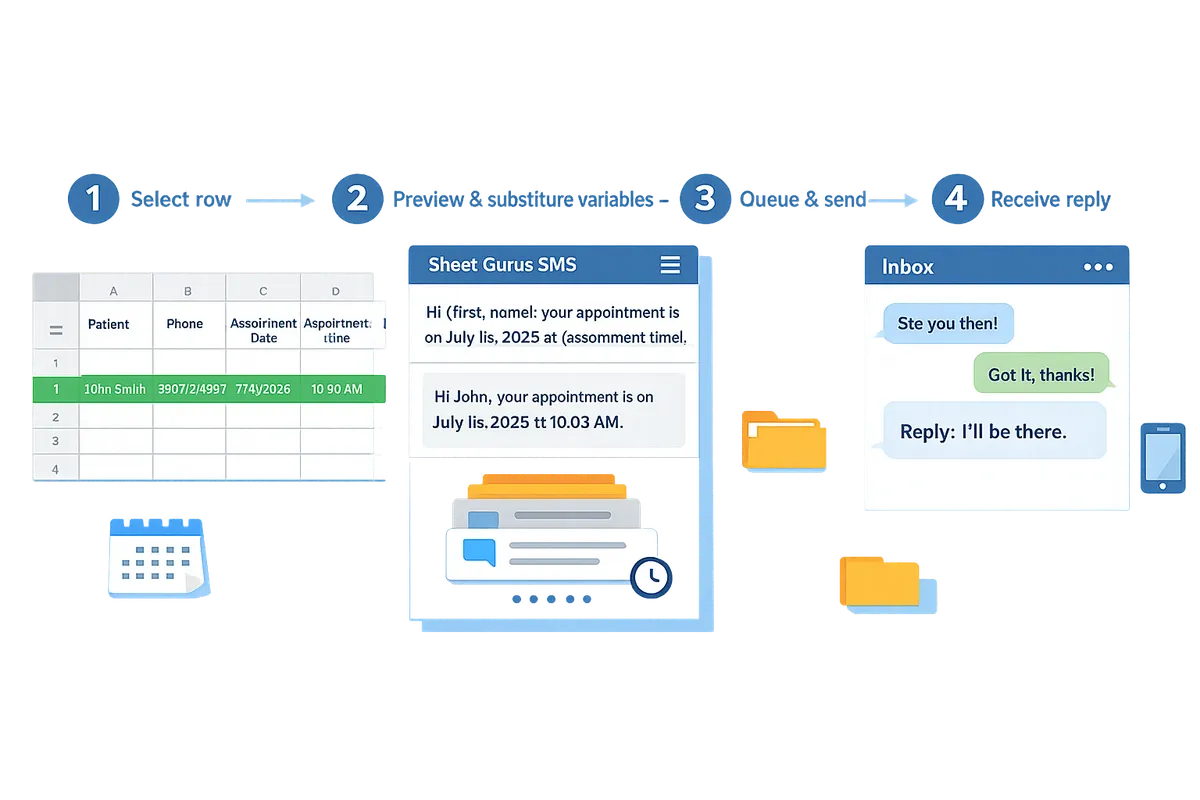
Patient SMS reminders via Google Sheets is a spreadsheet-driven workflow that uses a Google Sheet as the single source of truth and sends scheduled, personalized SMS messages by pulling variables from each row. Sheet Gurus SMS operates as a Google Sheets add-on that sends from a sidebar, substitutes curly-bracket variables (for example, {FirstName}), shows replies in a live inbox, and applies automatic message filtering to reduce compliance risk. This section explains the row-to-message flow, shows a short layout you can drop into a sheet, and gives copy-ready templates that work with two-way replies.
What a basic Google Sheets reminder flow looks like 🧾
A basic flow stores one patient per row and uses columns for phone, appointment date and time, consent status, and a send-trigger column. Example column layout you can copy into a sheet:
- PatientID
- FirstName
- Phone
- ApptDate
- ApptTime
- ClinicName
- ConsentStatus (values: OPTED_IN, OPTED_OUT)
- SendTrigger (values: SEND_ON or a scheduled datetime)
- MessageTemplate
Sheet Gurus SMS reads each row, substitutes curly-bracket variables like {FirstName}, {ApptDate}, and {ApptTime}, and queues messages for the scheduled send time. The add-on sidebar shows mapping controls so you match each variable to a column, and it marks rows as sent to prevent duplicates. For two-way flows, incoming replies land in Sheet Gurus SMS’s real-time inbox and attach to the originating row so staff see the full context.
How Sheet Gurus SMS differs from DIY scripts or Zapier chains ⚙️
Sheet Gurus SMS runs from a sidebar inside Google Sheets, collects two-way replies in a live inbox, and enforces automatic message filtering to reduce compliance risk. DIY approaches such as Google Apps Script, direct Twilio scripts, or multi-step Zapier chains often require ongoing maintenance, frequent credential updates, and separate inboxes for replies. Common failure points with DIY flows include broken API keys, missing variable mappings that send blank fields, and fragmented reply handling that scatters conversations across tools. By contrast, Sheet Gurus SMS centralizes the workflow inside Sheets, minimizes spreadsheet formulas, and surfaces errors before sending. For practical examples of appointment-focused workflows and compliance-minded templates, see our Text Appointment Reminders use case and the Automated Text Messaging use case.
💡
Tip: Always use double opt-in for SMS signups.
Sample 24-hour reminder template for Google Sheets appointment reminder texts 24 hour ⏰
A 24-hour reminder text should include the patient’s name, appointment date and time, clinic location, and clear opt-out instructions. Copy-ready template that uses curly-bracket variables:
“Hi {FirstName}, this is a reminder for your appointment at {ClinicName} on {ApptDate} at {ApptTime}. Reply C to confirm or STOP to opt out.”
Where to place this text and how to map it:
- Put the message in a MessageTemplate column on the same row, or paste it into the Sheet Gurus SMS sidebar template field.
- Ensure your sheet has matching columns named FirstName, ApptDate, ApptTime, ClinicName, Phone, and ConsentStatus.
- In the Sheet Gurus SMS sidebar, map {FirstName} → FirstName, {ApptDate} → ApptDate, and so on.
- Use the SendTrigger column to schedule sends (set SEND_ON or a datetime) and only include rows with ConsentStatus=OPTED_IN.
Example mapping note: if your sheet stores dates as 2026-07-15, map ApptDate and set the sidebar to format displayed text as July 15, 2026 for patient-facing clarity. If you want more templates for follow-ups and billing texts, see our guide on Streamlining Patient Follow-Ups & Medication Reminders with SMS & Google Sheets.
How do I set up patient SMS reminders from Google Sheets with no code?
Set up patient SMS reminders by preparing a Google Sheet with the required columns, installing the Sheet Gurus SMS add-on, and running a controlled test send before scheduling bulk reminders. This approach keeps PHI inside your spreadsheet while using Sheet Gurus SMS sidebar tools for variable substitution, scheduling, and two-way replies. Follow the three short tasks below and use the field-mapping examples to avoid common setup errors.
Three-step launch checklist for non-technical clinic staff. ✅
Complete three steps: prepare the sheet, install and authorize Sheet Gurus SMS, and run a test send to verify delivery and replies.
- Prepare the spreadsheet (5–8 minutes).
- Create a new Google Sheet named “SMS Reminders - Test.”
- Add a header row using the exact column names from the field-mapping template below.
- Fill one row with a staff test contact using an internal phone number.
- Install and authorize Sheet Gurus SMS (5 minutes).
- Open Extensions > Add-ons > Get add-ons and install Sheet Gurus SMS.
- Open the Sheet Gurus SMS sidebar and follow the on-screen authorization prompts.
- In the sidebar, confirm the account that will send messages and check automatic message filtering is active.
- Run a single-row test send and review replies (7–10 minutes).
- Use the sidebar to send a personalized test SMS to the staff test phone.
- Confirm delivery and reply to the test message as if you were a patient.
- Verify the reply appears in the Sheet Gurus SMS real time inbox and that opt-out keywords are filtered.
Suggested quick-test script to run in 5 minutes: send to one internal phone, confirm delivery, then reply “YES” and “STOP” to validate two-way flow and opt-out handling.
Field-mapping template: required columns and example names. 🧾
Use these column names exactly so the Sheet Gurus SMS variable parser matches fields without errors.
- PatientID — unique internal ID. Example: CLINIC-00123.
- FirstName — patient first name. Example: Maya.
- LastName — patient last name. Example: Rivera.
- Phone — patient phone in E.164 format. Example: +15551234567.
- ApptDate — appointment date in YYYY-MM-DD. Example: 2026-07-15.
- ApptTime — appointment time in HH:MM (24-hour preferred). Example: 14:30.
- ReminderWindow — when to send (e.g., 24h, 48h, 72h).
- ConsentStatus — opt-in values: CONSENT, NO_CONSENT, TEST.
- Balance — optional numeric balance for billing reminders. Example: 45.00.
How columns map to message variables: use curly brackets in messages that match column headers. For example, a 24-hour appointment reminder message in Sheet Gurus SMS looks like:
“Hi {FirstName}, this is {ClinicName}. You have an appointment on {ApptDate} at {ApptTime}. Reply YES to confirm or CALL to reschedule.”
Example balance reminder template for ‘clinic patient balance sms reminders google sheets’:
“Hi {FirstName}, your balance at {ClinicName} is ${Balance}. Please pay or call us at {ClinicPhone}. Reply PAY to receive a payment link.”
For more templates on payment and follow-up reminders, see our guide on How to Effectively Send Patient Balance Reminders via SMS and Streamlining Patient Follow-Ups & Medication Reminders with SMS & Google Sheets.
Scheduling and testing 24-hour appointment reminder sends. ⏰
Use the ReminderWindow column and the Sheet Gurus SMS scheduler to trigger 24-hour reminders and confirm sends via the add-on inbox.
- Scheduler setup (3 steps).
- In ReminderWindow enter “24h” for rows needing a 24-hour notice.
- Open the Sheet Gurus SMS sidebar scheduler and select the column ReminderWindow as your trigger.
- Set the scheduler to run hourly so the add-on evaluates rows and sends when now >= ApptDate/ApptTime minus ReminderWindow.
Timezone handling and testing.
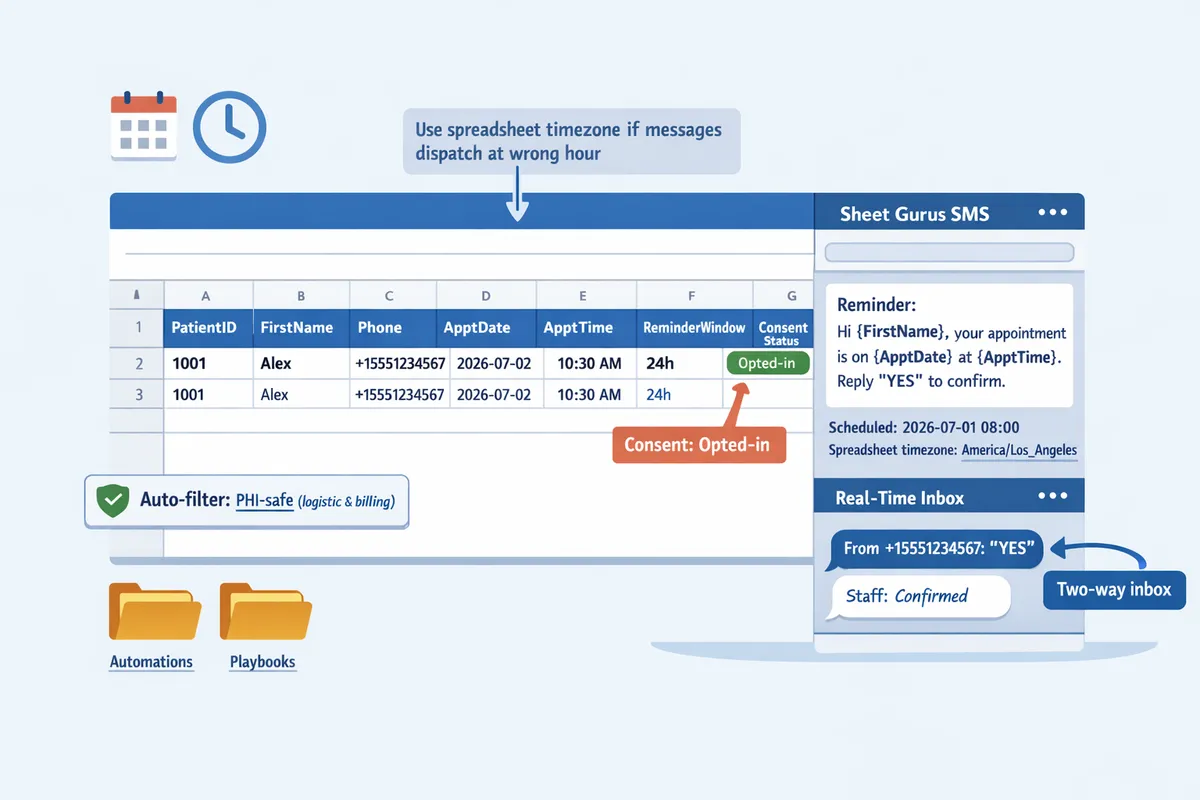
Sheet Gurus SMS reads the sheet timezone set under File > Spreadsheet settings. Make sure the spreadsheet timezone matches your clinic’s local timezone.
To test the 24-hour trigger: set ApptDate/ApptTime to one hour from now and ReminderWindow to “1h” on a test row. Confirm the scheduler sends within the expected hour.
Confirming sends and replies.
Check the Sheet Gurus SMS real time inbox in the sidebar to see outgoing status and incoming replies.
Verify ConsentStatus rows marked NO_CONSENT are never sent messages and that STOP replies get recorded as opt-outs in the sheet.
💡 Tip: Use a staff test phone and a test ConsentStatus row to validate opt-out handling before sending to patients.
Practical test scenario: a small clinic with 40 daily appointments can validate scheduling logic by testing 10 staged rows across three timezones, observing the inbox, and adjusting the spreadsheet timezone if messages dispatch at the wrong hour. For additional automation ideas and inbox workflows, see our Automated Text Messaging use case and the K-12 two-way playbook for examples of sidebar sending and reply handling.
How do I keep patient SMS reminders PHI-safe, consented, and compliant?
Keep patient SMS reminders PHI-safe by limiting messages to logistics and billing, recording explicit consent, restricting spreadsheet access, and using an add-on with automatic filters plus a real-time inbox for audit trails. Sheet Gurus SMS centralizes these controls inside Google Sheets so staff can send scheduled reminders while keeping PHI exposure minimal and searchable. This lowers the operational risk of improper disclosures and reduces time spent on manual audits.
What minimal PHI to include and how to capture consent 📝
Only include nonclinical logistics in texts: patient name, appointment date/time, location, and billing amounts when needed. For example, use a message like: “Reminder: {PatientName}, your appointment is {Date} at {Time} at {Location}. Balance: ${Balance}. Reply YES to confirm.” That message uses curly-bracket variables supported by Sheet Gurus SMS and avoids diagnostics or treatment details.
Capture consent with a timestamped intake field and a double opt-in to verify the number and consent date. Example intake wording for a web form: “I consent to receive appointment and billing reminders via SMS at the number I provide. Msgs may include appointment details and balances. Reply YES to confirm.” Double opt-in flow (step-by-step):
- Patient enters number and checks the consent box on intake. Record the IP, timestamp, and user agent in separate sheet columns.
- Send an automatic verification SMS from Sheet Gurus SMS: “Please reply YES to confirm SMS reminders for {PatientName}.” Record the reply and timestamp in the inbox.
- Only mark the row as “SMS Consent = Yes” when the verification reply appears.
⚠️ Warning: Avoid including health condition details in texts; use phone calls or secure portals for clinical information.
Use the international E.164 phone format (for example, +12223334444) so carrier filtering works correctly and verification succeeds.
How to control access, retention, and audit trails for Sheets-based reminders 🔐
Restrict editors, use Google Workspace controls, and keep a structured audit column to show who changed consent or deleted rows. Limit editor access to essential schedulers and managers; set protected ranges for consent and phone number columns. Use Google Drive version history and the Sheets activity dashboard to record who edited the sheet and when.
Add clear retention metadata in your sheet. Practical fields: ConsentDate, LastSentDate, DeleteAfterDate, and DeletedBy. Use a weekly admin task to export rows flagged for deletion and then permanently remove them. This creates a reproducible audit trail if regulators request records.
Sheet Gurus SMS’s real-time inbox captures incoming replies and links them to the originating row, which reduces time spent combing drive histories. Automatic message filtering flags disallowed content before send, lowering the chance of an accidental clinical disclosure. Combined, those features reduce manual auditing hours and the operational risk that leads to lost revenue or regulatory penalties if consent records cannot be produced.
Compliance checklist for small practices (HIPAA and local rules) ✅
Follow this five-step operational checklist to reduce compliance risk and keep reminders effective:
- Documented consent. Keep a ConsentDate, ConsentMethod (web, phone), and ConsentSource (intake form) column in the sheet. Link consent capture to your intake workflow and keep verification replies in the Sheet Gurus SMS inbox.
- Limit message content. Send only logistics and billing amounts. See our guide on sending clinic patient balance sms reminders google sheets for sample billing templates and timing strategies.
- Restrict access and enforce protections. Use Google Workspace roles, protected ranges, and limit editors to essential staff. Keep a small list of admin accounts that can delete rows.
- Retention and audit trail. Record DeleteAfterDate and run a monthly purge workflow. Export inbox threads from Sheet Gurus SMS for audits and store them in an access-controlled archive.
- Vendor agreements and legal review. Obtain a written BAA where required and have counsel review local retention requirements. For technical feature details that support compliance, compare our Appointment Reminders and Text Appointment Reminders pages and see how Sheet Gurus SMS tracks sends, replies, and filters.
Operational note: failing to produce consent or audit logs during an inspection incurs direct remediation costs and potential fines; keeping a short, enforced checklist prevents those business risks.
Related reading: our walkthrough on Streamlining Patient Follow-Ups & Medication Reminders with SMS & Google Sheets shows practical intake templates and follow-up cadence. For broader messaging automation features, see our Automated Text Messaging use case.
What are the next steps to measure impact and scale after launch?
Measure confirmation, cancellation, no-show rates, and revenue recovered, then use automation, localization, and two-way workflows to scale efficiently. Tracking those KPIs shows whether reminders reduce missed appointments and recover billable visits, while automation and locale-aware scheduling let you expand without hiring more staff.
Which metrics should I track and how do I calculate ROI? 🧾
Track confirmed appointments, cancellations, no-show rate, and appointment revenue recovered to compute a monthly ROI. For each message batch log: SentTimestamp, MessageID, Reply, Status (Confirmed, Cancelled, No-show), and RevenueRecovered. Use simple pivot tables or COUNTIF formulas to convert those columns into rates and totals.
Simple ROI framework. Monthly ROI = (Revenue recovered from reduced no-shows − Monthly platform and messaging cost) / Monthly platform and messaging cost. Example: for a clinic processing 200 appointments per month, a baseline 20% no-show rate equals 40 missed visits. If scheduled reminders cut no-shows to 12% (24 missed), that saves 16 visits. At an average visit value of $150, recovered revenue = 16 × $150 = $2,400. If platform and message costs total $300, ROI = (2400 − 300) / 300 = 6x. Label this as an example and replace values with your clinic’s averages.
How to log outcomes back into Google Sheets. Add the outcome columns to the same sheet you use to send messages. Use Sheet Gurus SMS’s real-time inbox to capture replies and mark Status in the sheet. Then build a pivot on Status to show month-over-month changes.
💡 Tip: Always use double opt-in for SMS signups to improve consent records and reduce opt-out rates.
How does DIY middleware compare to Sheet Gurus SMS? ⚖️
A side-by-side comparison shows DIY Google Sheets + Zapier and Twilio scripts require more maintenance and technical oversight than Sheet Gurus SMS. The table below summarizes trade-offs across setup time, maintenance, two-way reply support, compliance risk, and cost of ownership.
| Approach | Setup time | Maintenance burden | Two-way replies | Compliance risk | Cost of ownership | Best for |
|---|---|---|---|---|---|---|
| Google Sheets + Zapier | Low to moderate (1–4 hours) | Moderate: flows require reauthorization and monitoring after API changes | Limited without extra tools | Medium: data moves through multiple services | Medium: Zapier + Twilio fees + staff time | Clinics comfortable with no-code tools but want cheap start |
| Twilio with custom scripts | High: developer time | High: code updates, hosting, monitoring | Full support but requires dev ops | High unless you add audit logs and access controls | High: developer + hosting + Twilio | Teams needing custom integrations and in-house engineering |
| Sheet Gurus SMS | Low: install add-on and send from the sidebar | Low: managed sending, inbox, and automatic filters | Native real-time inbox for two-way workflows | Lower: built-in message filtering and PHI-safe options | Predictable: subscription + messaging fees | Small clinics that want no-code, PHI-safe reminders |
Sheet Gurus SMS reduces the number of moving parts by keeping sends inside Google Sheets and offering a built-in inbox and compliance filters. For a deeper walkthrough of Google Sheets reminder workflows, see Streamlining Patient Follow-Ups & Medication Reminders with SMS & Google Sheets.
What advanced templates, localization, and accessibility should I add? 🌐
Use variable-driven templates, language columns, and timezone fields to send balance reminders, confirmations, and 24-hour appointment notices that read correctly for every patient. Store language and timezone per row, then select the matching template when sending.
Advanced templates (use curly-brace variables exactly as shown):
- Balance reminder: “Hello {FirstName}, your balance of {BalanceAmount} at {ClinicName} is due. Pay or reply INFO for options. Reply STOP to opt out.” Use this for clinic patient balance sms reminders Google Sheets and link payment URLs or codes only after confirming consent.
- 24-hour appointment reminder: “Reminder: {FirstName}, your appointment at {ClinicName} is tomorrow at {Date} {Time}. Reply Y to confirm or CALL {ClinicPhone} to reschedule. Reply STOP to unsubscribe.” This template fits Google Sheets appointment reminder texts 24 hour workflows.
- Two-way confirmation flow: “Hi {FirstName}, please confirm your {Date} appointment at {Time}. Reply YES to confirm or NO to cancel.” Use Sheet Gurus SMS’s inbox to capture YES/NO replies and update the sheet automatically.
Implementing localization and fallbacks.
- Add columns: Language (en, es), Timezone (IANA zone), TemplateKey, and FallbackText. 2. Maintain translated templates in a secondary sheet keyed by TemplateKey + Language. 3. If a translation is missing, send FallbackText in the patient\‘s preferred channel.
Accessibility and privacy best practices.
- Keep language plain and avoid medical details in the SMS body.
- Include a phone number for questions and a clear opt-out instruction.
- Use short sentences and avoid abbreviations for readers with low health literacy.
⚠️ Warning: Avoid sending personal health information in SMS bodies. Use appointment logistics only and route sensitive details to secure patient portals or phone calls.
For a template set and step-by-step balance reminder examples, see How to Effectively Send Patient Balance Reminders via SMS. For two-way playbooks and inbox workflows, our K-12 two-way guide shows how a real-time inbox captures responses and updates sheet records in practice.
Frequently Asked Questions
This FAQ answers operational, compliance, and setup questions about sending patient SMS reminders via Google Sheets using a no-code add-on. Use these Q&A items to set policy, train staff, and run a safe pilot.
Can I send two-way SMS from Google Sheets? 🤝
Yes. You can send two-way SMS from Google Sheets by using a sidebar add-on that provides a real-time inbox, such as Sheet Gurus SMS, to receive and manage replies directly from the sidebar. Configure the add-on to map inbox replies back to columns like Status, LastReply, and Activity so every reply gets a timestamp and staff initials for auditability.
Set clear reply rules in the sheet: treat single-letter confirmations (C, Y) as confirmations and update the Status column automatically; route clinical or sensitive replies to phone follow-up. Sheet Gurus SMS’s real-time inbox and automatic message filtering let you preview replies, hide potential PHI, and log the full reply thread back to the spreadsheet. For a step-by-step example of two-way workflows and inbox routing, see our two-way playbook for Google Sheets SMS.
Are text reminders secure enough for patient information? 🔒
Text messages are suitable only for logistical details and should avoid clinical specifics. PHI is protected health information that identifies an individual and requires special handling under HIPAA.
Keep PHI out of SMS content when possible, store the minimum patient data needed in the sheet, enforce strict Google Drive sharing settings, enable protected ranges, and pick an add-on with filtering and an audit-capable inbox such as Sheet Gurus SMS. Confirm legal requirements with counsel, request a signed BAA (BAA is a Business Associate Agreement that documents vendor responsibilities for PHI under HIPAA) from any vendor, and document retention and access policies for audits.
⚠️ Warning: Avoid using personal health information in SMS messages. Request a signed BAA from vendors before sending PHI-related notifications.
How do I capture and document opt-in consent in Google Sheets? ✍️
Record opt-in consent explicitly in your sheet with columns such as ConsentStatus, ConsentDate, ConsentSource, and ConsentProof (for example, a form response ID or SMS confirmation ID). Double opt-in is a consent method that requires two separate confirmations from the patient before you record their number; use Sheet Gurus SMS to send the confirmation message and log the reply automatically as ConsentDate and ConsentSource.
Keep the consent source granular (web form, phone call, in-person), timestamp every action, protect Consent columns from edits, and retain consent records according to your documented policy. Linking consent fields to appointment records makes audits faster and shows a clear chain from opt-in to message sends.
💡 Tip: Always use double opt-in for SMS signups.
What is a good 24-hour reminder text template? ⏰
A good 24-hour reminder is short, non-clinical, and includes clear confirm and opt-out instructions. Example template using curly-bracket variables: ‘Hi {FirstName}, reminder: your appointment with {ClinicName} is on {ApptDate} at {ApptTime}. Reply C to confirm or STOP to opt out.’
Keep messages concise (aim for under 160 characters for broad carrier compatibility) and avoid diagnoses, symptom descriptions, or treatment instructions. Sheet Gurus SMS supports curly-bracket variables so you can preview each personalized message from the sidebar before sending; see Text Appointment Reminders for scheduling and template variations.
Can I send clinic patient balance SMS reminders from Google Sheets? 💳
Yes. You can send patient balance reminders from Google Sheets using variable templates while keeping message content non-sensitive. Example template: ‘Hello {FirstName}, your balance of {BalanceAmount} is due at {ClinicName}. Reply PAY for payment link or STOP to opt out.’
Do not include full card numbers or detailed billing histories in SMS. Capture explicit billing consent in ConsentSource, route payment actions to a PCI-compliant payment page (PCI is the Payment Card Industry standard for handling payment data), and log the patient’s payment interactions in the sheet. For templates and a dedicated walkthrough, see How to Effectively Send Patient Balance Reminders via SMS.
How should staff handle replies and cancellations received by text? 📲
Staff should monitor the add-on inbox and follow a short SOP: read the reply, update appointment status, escalate clinical replies to a clinician by phone, and log actions in the sheet. The protocol keeps the schedule accurate and creates an auditable trail.
Suggested SOP:
- Open the Sheet Gurus SMS inbox and read the new message.
- If the reply confirms (C, Y), set Status to Confirmed and record the timestamp in LastReply.
- If the reply cancels, update Status to Cancelled, free the slot in your scheduling column, and call the patient to offer rescheduling if appropriate.
- If the reply contains clinical questions or PHI, call the patient immediately and record the call result in Activity.
- Mark the message handled with staff initials and time.
Train staff on response-time expectations and use Sheet Gurus SMS filters to flag urgent words so clinical staff can prioritize callbacks. See Streamlining Patient Follow-Ups & Medication Reminders with SMS & Google Sheets for examples of inbox-driven follow-up workflows.
Start sending PHI-safe patient SMS reminders directly from Google Sheets with a no-code sidebar add-on.
Small clinics and practices can set up two-way, privacy-safe reminders in minutes and cut no-shows without building integrations. Patient SMS reminders via Google Sheets lets staff schedule messages, collect replies in a real-time inbox, and use template variables to personalize messages while avoiding PHI leaks.
Sheet Gurus SMS is a Google Sheets add-on for sending bulk SMS from a sidebar rather than spreadsheet formulas. Personalize each message with curly-brace variables such as {FirstName}, handle replies in a real-time two-way inbox, and rely on automatic message filtering to help keep your sends compliant.
💡 Tip: Use templates like “Reminder: {PatientName} appointment on {Date} at {Time}. Reply CONFIRM to confirm.” to keep messages PHI-safe and clear.
Install Sheet Gurus SMS and follow the Text Appointment Reminders guide to send your first scheduled reminder. For billing-focused templates, see our guide on clinic patient balance sms reminders google sheets and our patient follow-ups and medication reminders article for additional templates and workflows. Subscribe to our newsletter for implementation tips and template updates.