




No‑Code SMS from Excel and Google Sheets in 2026
Small teams often spend hours copying contact lists between Excel and Google Sheets to send texts. This article compares No-code SMS from Excel without VBA 2026 options and recommends practical workflows for small teams and ops managers. No-code SMS from Excel without VBA 2026 is a comparison guide that evaluates methods to send SMS from Excel and Google Sheets without macros, focusing on ease of use, compliance, and operational cost. Our Sheet Gurus SMS add-on runs inside Google Sheets and Excel via a sidebar, supports curly-brace variables such as {FirstName}, includes a real-time two-way inbox, and applies automatic message filtering to reduce compliance risk (e.g., \“Hi {FirstName}, your appointment is at {Time}\”). Which no-code path saves the most time while keeping replies and compliance intact?
Which no-code options let you send SMS from Excel without VBA in 2026?
Three practical no-code paths let teams send SMS from Excel without VBA in 2026: sidebar add-ins, connector-based automations, and manual export or script-driven sends. Each path balances setup time, operational risk, and auditability differently, so pick the one that matches your team’s permissions and compliance needs. Sheet Gurus SMS provides the sidebar add-in approach for both Google Sheets and Excel, using a compose sidebar, dynamic {curly-brace} variables, scheduling, and a two-way inbox.
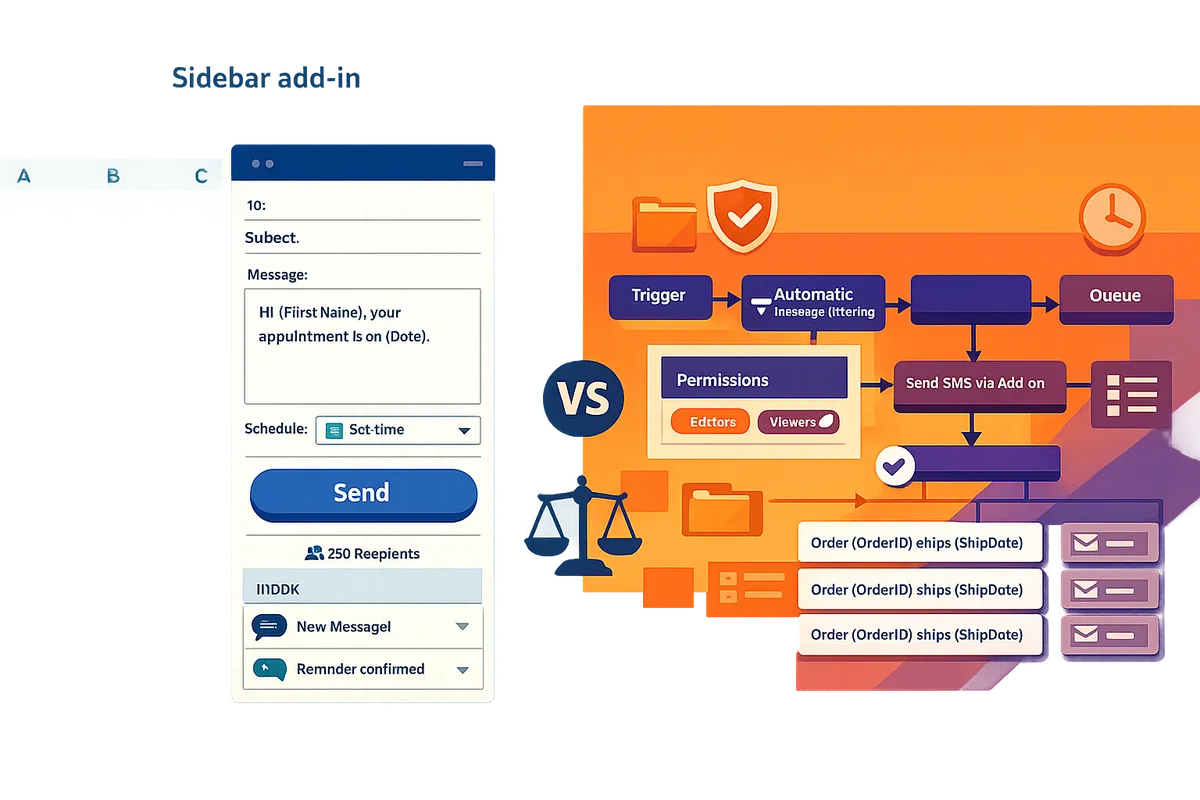
Add-ins and sidebars (no-code) 📋
An add-in is a UI extension that lets you compose and send messages from a sidebar instead of spreadsheet formulas. Sheet Gurus SMS uses that pattern: you compose messages in the sidebar, insert dynamic variables like {FirstName}, schedule sends, and handle replies in a real-time inbox. This approach removes manual exports and reduces maintenance because you do not rely on VBA or repeated copying.
How it works in practice. Open the Sheet Gurus SMS sidebar, map column names (phone, {FirstName}, opt-in flag), write a message such as \“Hi {FirstName}, your appointment is at {Time}. Reply YES to confirm,\” schedule or send now, and monitor delivery and replies from the inbox. Failure points to watch: tenant/add-in approval in corporate Microsoft 365 or Google Workspace environments, incorrect phone formatting, and regulatory throttling for large bursts. Use the step-by-step sending guide in our Sheet Gurus SMS guide to test with a small batch before a full send.
Relevant reading: see our
Send SMS From Excel Without VBA: 2026 No‑Code Guide and the sending guide for setup tips.Connector workflows (Zapier, Power Automate) — what do they require? ⚙️
Connector workflows are no-code automations that move rows to an SMS provider and trigger sends based on mapped fields. These flows typically require accounts for the connector (Zapier, Power Automate), the SMS provider, careful field mapping, and test runs to prevent duplicates or bad personalization.
What you must do. Map phone columns, opt-in and opt-out flags, and any personalization fields; add a sent-status column to prevent repeats; and create delivery logging so you can audit who received what and when. Typical failure modes include duplicate sends when triggers fire on updates, mismatched column names after a sheet edit, and harder-to-track replies because replies may land at the SMS provider rather than your spreadsheet.
Short checklist for connector flows:
- Map phone, name, and opt-in columns before enabling the flow.
- Add a \“Sent\” or \“MessageID\” column for deduplication.
- Test with 10–20 rows and verify personalization variables render correctly.
- Store delivery logs in a separate sheet or database for auditing.
⚠️
Warning: Test connector flows on a small sample and include a dedupe flag. Connector triggers can resend if a sheet row updates, causing accidental duplicates.
Connector flows offer flexibility but add operational overhead and audit complexity compared with a purpose-built add-in like Sheet Gurus SMS. If you prefer an add-in UX and built-in reply handling, review our SMS from Google Sheets beginner’s guide.
CSV export or VBA-based methods — why do teams still use them? 🧾
CSV export or VBA-based sends rely on manual exports or custom scripts and remain common for one-off campaigns or where admins deny add-in installs. Teams use them because they require no external approvals, but they increase time and error risk for recurring campaigns.
Business consequences. Manual exports cost staff hours (for example, preparing and uploading a 300-row appointment list can add several hours of work), increase the chance of wrong personalization or sending to unsubscribed numbers, and break reply tracking since inbound messages do not link back into the sheet automatically. If you must use exports, standardize phone formats (e.g., +12223334444), include an opt-in column, log every send in a separate sheet, and plan a manual reply reconciliation process.
If your organization allows add-ins, switching to Sheet Gurus SMS reduces the manual steps: the sidebar sends from Sheets or Excel directly, applies automatic message filtering, and captures replies in a real-time inbox. See our walkthrough on sending SMS from Excel via Google Sheets for an export-to-add-in migration playbook.
How do add-ins, connector workflows, and manual exports compare on cost, deliverability, setup time, and compliance?
Add-ins reduce setup time and compliance risk, connector workflows trade integration flexibility for more operational overhead, and manual exports lower upfront cost but raise ongoing error and audit risk. These differences matter because small teams pay for mistakes with staff hours, missed messages, and regulatory headaches. The rest of this section defines the comparison criteria and shows a side-by-side view so you can pick the route that fits your team.
Comparison criteria: what matters and why 📊
Deliverability is whether messages reach recipients on time and how carriers treat your traffic. Poor deliverability leads to dropped messages and lost appointments; use a provider that supports throttling and undeliverable filtering. For example, our Sheet Gurus SMS runs through a managed SMS provider and uses a prioritization queue to limit carrier pushback.
Compliance is the set of controls that prove opt-in and prevent regulatory violations. Small clinics and retailers need opt-out handling, automatic filtering, and a record of consent. Sheet Gurus SMS provides automated message filtering and built-in opt-out handling to reduce audit friction.
Setup time is the hours required to send your first campaign. A sidebar add-in typically gets you to first send in under an hour. Connector workflows (Zapier, Power Automate) take a few hours to configure and test. Manual export or VBA can take days to build or many hours every week to run.
Cost-of-ownership covers platform fees, per-message charges, and staff time for maintenance. Calculate annual staff hours saved versus the add-in subscription and provider credits when comparing options. See our step-by-step sending guide for sample setups and testing checklists.
Message personalization measures how easily you send dynamic content at scale. Use curly-brace variables like \“Hi {FirstName}, your appointment is at {Time}. Reply YES to confirm\” for personalization that looks manual but sends at scale.
Side-by-side comparison table 🔍
The table below compares sidebar add-ins, connector workflows, and manual exports across setup, operations, compliance, personalization, deliverability, scale, and cost drivers.
| Option | Setup time | Ongoing ops time | Compliance features | Two-way replies | Scheduling | Message personalization | Deliverability controls | Scale and throttling | Cost drivers |
|---|---|---|---|---|---|---|---|---|---|
| Sidebar add-in (Sheet Gurus SMS) | Low (minutes–hours) | Low (single UI) | High (automatic filtering, automated opt-out) | Yes (real-time inbox) | Yes (in-add-on scheduling) | High (curly-brace variables like {FirstName}) | Medium-High (managed provider + prioritization) | High (throttling per carrier rules) | Platform fee + per-message credits + user seats |
| Connector workflows (Zapier / Power Automate + SMS provider) | Medium (hours) | Medium-High (monitoring, error handling) | Low-Medium (depends on connector/provider) | Varies (depends on provider) | Varies (connector + provider) | Medium (field mapping, templates) | Medium (depends on provider) | Medium (connector and provider limits) | Connector subscription + SMS provider fees + setup time |
| Manual exports / VBA | High (days to build or frequent manual work) | High (manual QA, exports) | Low (manual opt-out tracking, audit risk) | No (requires separate inbox) | No (requires scheduler) | Low-Medium (mail-merge prone to errors) | Low (no built-in controls) | Low-Medium (operational limits) | Staff hours, error cost, carrier fees |
Operational trade-offs and hidden costs — what teams often miss ⚠️
Connector and manual approaches introduce hidden operational costs like mapping errors, repeated QA cycles, and audit complexity; add-ins such as Sheet Gurus SMS reduce these costs by keeping composition, send scheduling, and reply handling inside the spreadsheet sidebar.
Typical failure modes and mitigations:
- Data mapping errors. Mapping phone columns or country codes wrong causes bounces. Mitigation: run a 50-contact pilot and validate formats before full send. Use our Send SMS From Excel Without VBA: 2026 No‑Code Guide for a checklist.
- Missing opt-in records. Manual exports often lose consent metadata. Mitigation: centralize opt-in logs and use automated opt-out handling in the add-in.
- Reply drift. If two-way replies route to a separate system, teams miss customer confirmations. Mitigation: pick a solution with a real-time inbox (for example, our Sheet Gurus SMS sidebar inbox) so replies and follow-ups stay visible in one place.
- Undeliverable and rate-limit failures. Connectors can silently drop messages when hitting carrier limits. Mitigation: use a tool that shows undeliverable filtering and a throttling queue.
- Hidden staff time. Manual reconciliations cost hours weekly. Mitigation: factor recurring staff hours into your TCO and compare against an add-in that keeps operations in-sheet.
⚠️ Warning: Missing opt-in records or failing to honor opt-outs often triggers carrier filtering and compliance penalties. Keep consent logs and use automated opt-out handling.
💡 Tip: Run a small pilot (25–100 contacts) during business hours to check deliverability, reply flow, and opt-out handling before scheduling a full campaign.
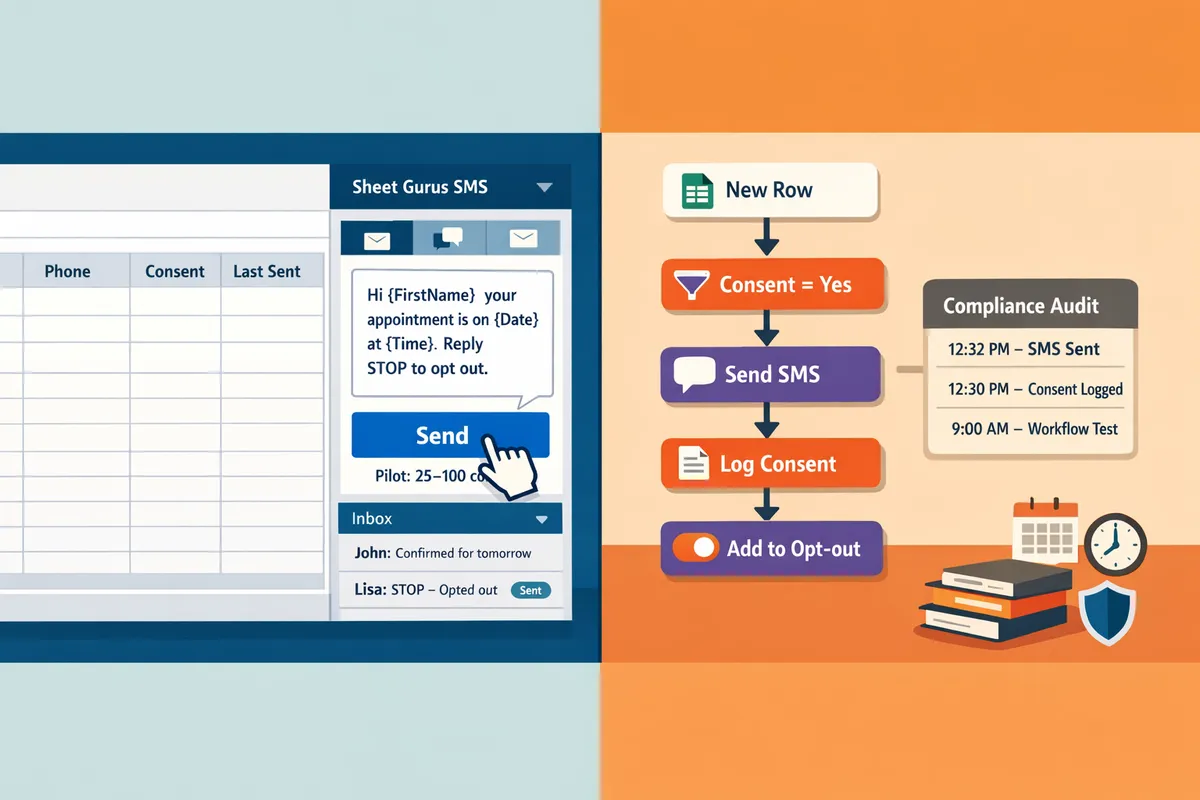
For step-by-step examples and a copyable test message you can try in minutes, see our sending guide and the SMS from Google Sheets beginner’s guide.
Which option should your team choose and how do you get started with Sheet Gurus SMS?
Choose based on team size, campaign frequency, and compliance needs; most small teams should use a sidebar add-in like Sheet Gurus SMS to cut setup time and improve reply handling. Sheet Gurus SMS offers a 30-day free trial that includes 50 credits so teams can test a full workflow without upfront spend.
Decision guide by team size and use case
Small teams with ad-hoc campaigns should use a sidebar add-in; ops teams benefit from connector workflows; enterprise teams should evaluate direct provider integrations or contact Sheet Gurus for custom sender options.
| Team size / need | Recommended path | Why it fits | Key cautions |
|---|---|---|---|
| Solo or small teams (1–5 people), occasional sends | Sheet Gurus SMS sidebar add-in (Sheets or Excel Office add-in) | Fast setup, curly-brace personalization ({FirstName}), two-way inbox for replies | Watch for contact hygiene; test opt-out flows on first campaign |
| Ops teams (integrations across CRM, booking, helpdesk) | Connector-based automations (Zapier, Make, or native connectors) | Integrates systems for scheduled and triggered sends | Plan for logging, retry rules, and test runs to avoid duplicate sends |
| High-volume or enterprise | Direct SMS provider integration; consult Sheet Gurus for custom numbers/short codes | Custom sender options and higher throughput control | Regulatory checks, number provisioning time, and compliance audits |
Practical example: a five-person clinic sending 300 appointment reminders weekly can cut 3–6 hours of manual copy-paste work by using an add-in sidebar instead of exporting CSVs. See our no-code guide for sending SMS from Excel without VBA for a side-by-side workflow comparison.
Quick start playbook for Sheet Gurus SMS (templated workflow) 📄
Follow these steps to prepare contacts, install the add-in, compose with dynamic variables, schedule or send, and monitor replies in the real-time inbox.
- Prepare your sheet. Create columns: Phone (E.164 or local format), {FirstName}, {Time}, OptIn (yes/no), and InternalID. Include a header row.
- Validate opt-ins and remove blocked numbers. Filter OptIn != \“yes\” and export a test set of 10 numbers.
- Install the add-on. Add Sheet Gurus SMS to Google Sheets or the Excel Office add-in so the same sidebar workflow appears in both apps.
- Compose in the sidebar. Use a message like: \“Hi {FirstName}, your appointment is tomorrow at {Time}. Reply STOP to opt out.\” Remember messages are composed and sent from the sidebar, not from spreadsheet formulas.
- Send or schedule. Use the built-in scheduler for timed campaigns and the real-time inbox to handle replies.
- Monitor delivery and undeliverables. Use the add-on’s delivery status and automated filtering to remove bad numbers for future sends.
Checklist: data hygiene, opt-in validation, test batch sends (10–20 messages), save send logs to a campaign sheet, and archive reply threads for 90 days. See the step-by-step sending guide for detailed screenshots and Excel compatibility tips.
Estimating ROI and ongoing costs — how to calculate your monthly spend
Estimate monthly spend as: monthly plan fee + (per-segment rate × total segments sent) − staff cost savings from eliminated manual work.
Formula you can copy into a sheet:
- Monthly cost = Plan fee + (Per-seg rate × Segments per message × Messages sent)
- Staff savings = Hourly wage × Hours saved per month
- Net monthly impact = Monthly cost − Staff savings
Worked example (generic numbers you can swap into a template):
- Messages sent this month: 2,000
- Average segments per message: 1.3
- Segments needed = 2,000 × 1.3 = 2,600
- Plan fee = $X
- Per-seg rate = $Y
- Monthly cost = $X + ( $Y × 2,600 )
- If switching from manual exports saves two staff hours/week at $25/hr, Staff savings = $200/month
- Net monthly impact = Monthly cost − $200
Template column list for a calculator sheet: CampaignName, MessagesSent, AvgCharsPerMessage, SegmentsPerMessage, TotalSegments, PlanFee, PerSegmentRate, MonthlyCost, HoursSavedPerMonth, HourlyRate, StaffSavings, NetImpact. Use this template to compare current manual costs versus using Sheet Gurus SMS; our sending guide shows how to export delivery stats for accurate segment counts.
Compliance and data handling checklist — must-do items before sending ⚠️
Before any send, confirm opt-in, store proof, enable automatic opt-out handling, and filter undeliverable numbers.
- Confirm opt-in evidence for each contact. Keep signed forms, timestamped web forms, or timestamped checkboxes exported alongside the contact list.
- Store opt-in proof in a secure location and link it to the contact’s InternalID. Retain proof per your legal retention policy.
- Enable automatic opt-out handling in Sheet Gurus SMS so replies like STOP are recorded and future sends exclude those numbers. Sheet Gurus SMS applies automatic message filtering to reduce regulatory risk.
- Filter undeliverable and duplicate numbers before large sends. Use a 10–20 message test batch to detect formatting issues or carrier blocks.
- Log every send with timestamp, campaign name, sender ID, and delivery status. Export logs monthly for audits.
💡 Tip: Always use double opt-in for SMS signups.
For a compliance-focused rollout, map your data flow (source sheet → add-on sidebar → delivery logs), assign a single owner for opt-in records, and schedule weekly audits of the opt-out list. If your needs include custom sender IDs or short codes, contact Sheet Gurus to discuss provisioning timelines and requirements.
Related resources: our guide to sending SMS from Google Sheets and the no-code Excel guide explain add-in installation, message templates, and two-way reply handling in more detail.
Frequently Asked Questions
This FAQ supplies concise answers to common buyer questions about No-code SMS from Excel without VBA 2026, Sheet Gurus SMS capabilities, and compliance. Sheet Gurus SMS is a spreadsheet add-in that composes and sends messages from a sidebar rather than from spreadsheet formulas. Use these answers to validate fit quickly and follow the linked guides for setup or deeper examples.
Can I send SMS from Excel without VBA using Sheet Gurus SMS? ✅
Yes. Sheet Gurus SMS works as an Office add-in for Microsoft 365 that composes and sends from a sidebar, so no VBA or formula hacks are required. The add-in mirrors the Google Sheets sidebar workflow and runs on Excel for Windows, macOS, and Excel for the web. For step-by-step installation and a test send, see our Send SMS From Excel Without VBA: 2026 No‑Code Guide and follow the Excel setup section.
Can I use curly-brace variables for personalized messages? 🧾
Yes. Sheet Gurus SMS supports curly-brace dynamic variables like {FirstName}, so each recipient receives a personalized message. Example message to test: \“Hi {FirstName}, your order {OrderID} ships today.\” Make sure your sheet column headings exactly match the variable names and use the add-on\‘s preview feature to confirm substitutions before a bulk send. See the sending guide for template examples and troubleshooting.
Do I get two-way messaging and how are replies handled? ↔️
Yes. Sheet Gurus SMS includes a real-time two-way inbox that collects replies inside the add-on so teams can respond without exporting logs. The inbox threads replies to the original send and marks unread messages, which reduces missed customer responses and streamlines follow-up. For workflows that route replies to teammates or integrate with your CRM, review the two-way SMS examples in our beginner’s guide to sending and automating SMS through Sheets.
What countries and sender types are supported? 🌐
Sheet Gurus SMS supports sending in the US and Canada and offers toll-free numbers plus custom local area code numbers on upgraded plans. Short codes and alphanumeric sender IDs are not available out of the box but can be made available on request; two-way reply support is provided for the supported countries. If you need global coverage or a short code, review carrier requirements and contact our team to discuss procurement and approval timelines.
How does Sheet Gurus SMS help with compliance? ⚖️
Sheet Gurus SMS applies automatic message filtering and automated opt-out handling to reduce regulatory risk during sends. Keep opt-in records in your spreadsheet and run the add-on’s filtering step before each campaign to exclude unsubscribed or blocked numbers.
💡 Tip: Always use double opt-in for SMS signups to reduce spam complaints and protect deliverability.
⚠️ Warning: Avoid sending personal health information or other sensitive personal data by SMS unless you have an approved secure workflow.
What if I need higher throughput or a custom sender ID? ⏩
Contact Sheet Gurus to discuss short code procurement, alphanumeric sender IDs, or higher throughput priorities; the platform supports a prioritization queue to handle large sends while respecting carrier throttling rules. Our team will review your expected volume, timing windows, and any sender‑ID approvals required, then recommend the plan and onboarding steps for your campaign. For examples of bulk workflows and scheduling, see our Automated Text Messaging Services use case.
Next steps for choosing a no-code SMS workflow.
For small teams and operations managers, the fastest way to cut wasted hours and compliance risk is a sidebar-based add-on that composes and sends messages from inside spreadsheets instead of exporting contacts or building macros. No-code SMS from Excel without VBA 2026 points to using that sidebar workflow so you can preview messages, personalize per recipient, and handle replies without fragile formulas or manual copy-paste.
Sheet Gurus SMS is an add-in for Microsoft Excel and Google Sheets that sends bulk SMS from a sidebar rather than spreadsheet formulas. Personalize each message with curly-brace variables such as {FirstName}, handle replies in a real-time two-way inbox, and rely on automatic message filtering to help keep your sends compliant.
💡 Tip: Always use double opt-in for SMS signups.
Schedule a consultation with our team to map your workflow and test a sidebar-based send. Read our Send SMS From Excel Without VBA: 2026 No‑Code Guide or follow the sending SMS with Sheet Gurus SMS guide to see how to send sms from google sheets sidebar instead of formulas.