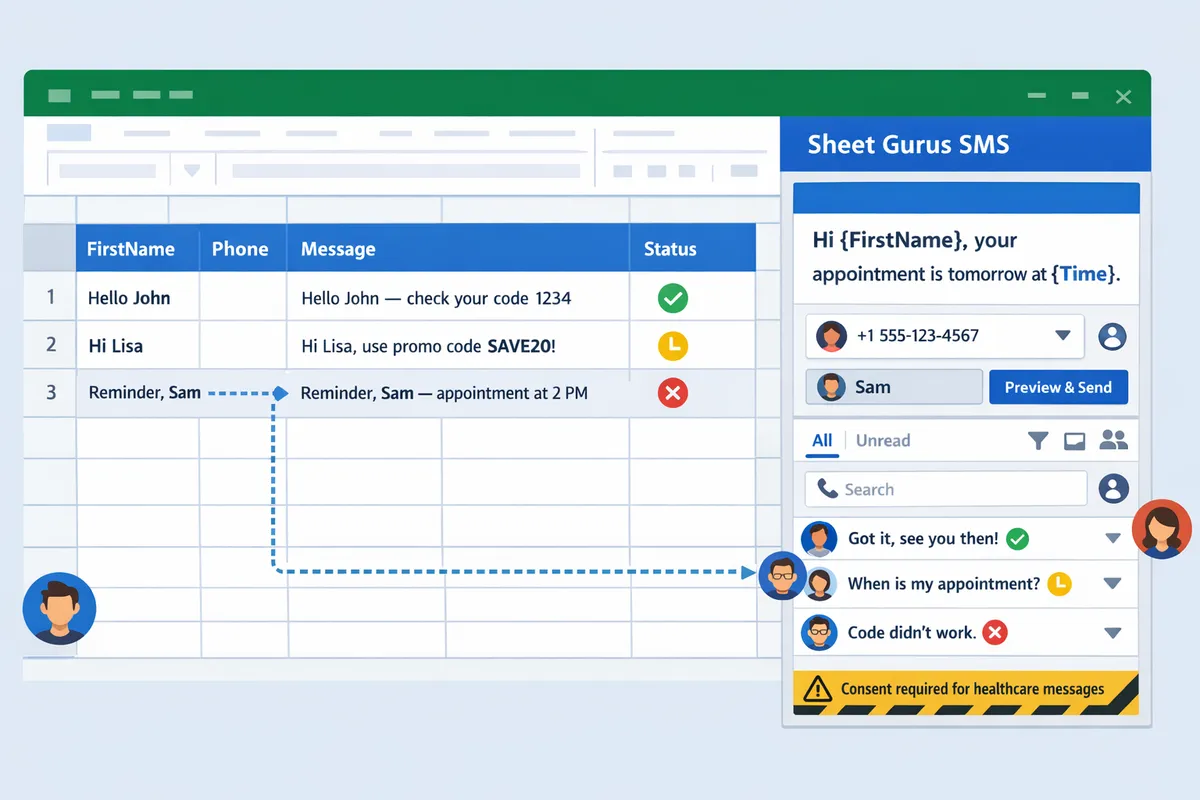
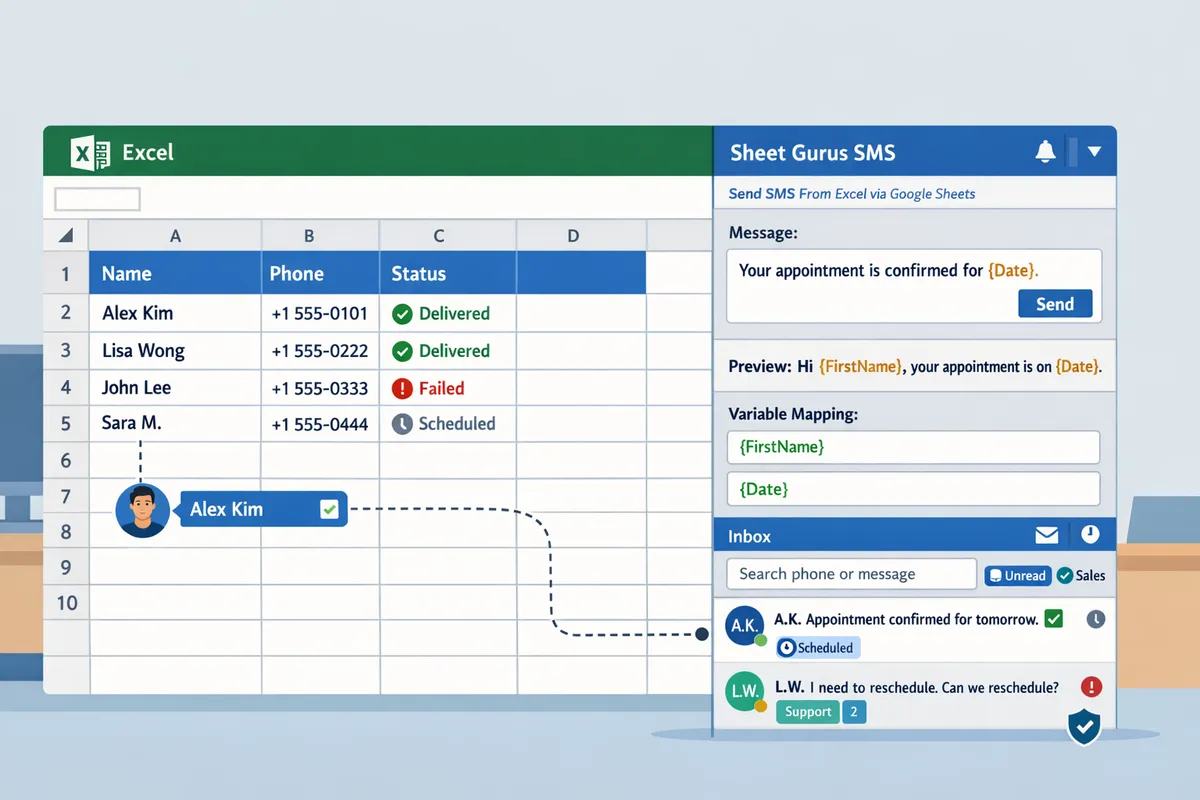
Manually exporting contacts from Excel to a separate SMS dashboard wastes hours and risks sending the wrong list. A Microsoft Excel SMS add-on is an Office add-in that lets you compose and send personalized SMS from a sidebar inside Excel. Our
guide to sending SMS from Google Sheets explains the same sidebar workflow; this article focuses on installing and configuring the Excel add-in, setting curly-brace variables like {FirstName}, previewing each recipient’s message, testing delivery status, and troubleshooting common send failures. We also outline plan tiers, pricing, and how to start a 30-day free trial with 50 credits so you can test real sends. The guide finishes with a one-page checklist that gets you from install to your first two-way reply inside Excel’s sidebar.
You need Microsoft 365, permission to install Office add-ins, and an active Sheet Gurus SMS account to run the Excel add-on. Confirm your Excel build supports Office add-ins and that your organization allows the sidebar to load before you install.
Sheet Gurus SMS runs as an Office add-in on Microsoft 365 for Windows, macOS, and Excel for the web. Our add-on uses the Office add-in model, so you should see “Get Add-ins” or “Office Add-ins” on the Insert ribbon in desktop Excel or the Extensions menu in Excel for the web.
Check these three quick items before installing on a work machine:
Confirm the Insert tab shows “Get Add-ins” or your admin has enabled add-ins for the tenant.
For Excel for the web, ensure your browser policy allows sidebars and third-party content; some corporate CSPs or iframe blockers can prevent the sidebar from loading.
If your tenant blocks add-ins, ask your Office 365 admin to enable the add-in or install it centrally.
For a short compatibility summary and screenshots showing the same sidebar workflow, see our article Does Sheet Gurus SMS Work with Microsoft Excel?.
You must sign up for a Sheet Gurus SMS account, add billing details, and have credits available before sending live messages. Our product routes messages through Twilio and bills usage-based credits at the end of the billing cycle or when you hit a usage threshold.
Practical steps to finish setup:
Create a Sheet Gurus SMS account and complete the billing form in account settings.
Choose or request sender numbers (toll-free is available; custom local area codes require an upgraded plan).
Confirm two-way replies are enabled for your provisioned number so inbound messages appear in the add-on inbox.
If you need a short code or alphanumeric sender ID, contact our support team — those are handled outside the standard provisioning flow. For an alternate no-code route that uses Google Sheets, review Send SMS From Excel via Google Sheets.
Your sheet must have column headers in the first row that exactly match the curly-brace variables you plan to use, and phone numbers must use a consistent format. For example, a column named FirstName maps to {FirstName} in the message body.
Formatting and practical tips:
Use one tab per send. If you only want to text rows marked Pending, put those rows on a dedicated tab (a FILTER formula tab works).
Phone numbers should follow a consistent pattern; E.164 (+12223334444) is recommended so the add-on parses numbers reliably across carriers.
Variables insert the cell’s displayed value. A date cell formatted as “Thu, Oct 15” appears exactly like that in the message. Empty cells leave the variable blank.
Before any live send, the sidebar displays a per-recipient preview so you can validate variable substitution and phone formatting. For a no-code setup walkthrough using Excel sheets, see our Send SMS From Excel Without VBA: 2026 No‑Code Guide.
💡
Tip: Format phone columns as plain text and run a small validation (10 rows) to confirm the add-on parses numbers before you send the full batch.
You must have explicit recipient consent and include a clear opt-out mechanism in every message before sending bulk SMS in the US or Canada. Telecom rules require documented consent for most commercial messages and a simple opt-out such as “Reply STOP to unsubscribe.”
Practical compliance items to add to your workflow:
Maintain a consent column in the sheet with timestamp and consent source (web form, phone, in-person).
Include an opt-out instruction in every message and track opt-outs in your sheet so you never text blocked recipients.
Use the add-on’s automatic message filtering and opt-out automation to reduce regulatory risk; the sidebar flags content that may violate basic carrier rules.
Check industry-specific restrictions (for example, healthcare messages may require stricter consent and content controls).
⚠️ Warning: Avoid including personal health information or other sensitive data in SMS unless you have explicit legal clearance to do so.
Install the Office add-in from Microsoft AppSource or upload the manifest, sign in to Sheet Gurus SMS in the Excel sidebar, provision a sender number and billing method, then map your sheet columns to curly-brace variables before sending or scheduling. Follow the OS-specific steps below, connect a number in the sidebar account settings, preview personalized messages for each recipient, and use the scheduler to set a single send time for the whole batch.
To install Sheet Gurus SMS open Insert > Get Add-ins in Excel, search for Sheet Gurus SMS, and install the sidebar; managed deployments must be pushed by your IT admin.
Open Excel (Microsoft 365) on Windows, macOS, or Excel for the web.
Go to Insert > Get Add-ins and search for “Sheet Gurus SMS.”
Click Install and allow the add-in to appear as a right-hand sidebar labelled Sheet Gurus SMS.
If your organization blocks add-ins, ask IT to push the add-in through the Microsoft 365 admin center or upload the manifest under My Add-ins > Manage My Add-ins > Upload My Add-in.
Expected outcome: The Sheet Gurus SMS sidebar opens with a Sign in button and a short checklist of required permissions. If the sidebar does not appear, check your Excel build and that you are signed into the same Microsoft 365 account that can install add-ins.
Sign in to Sheet Gurus SMS from the sidebar, verify your account, and select a toll-free or local number inside the sidebar account settings.
Click Sign in in the sidebar and complete the email verification step.
Open Account or Settings in the sidebar and choose a sender number that matches your plan (toll-free or local where available).
Add a payment method in the account portal so usage credits and billing work automatically.
Note: Sheet Gurus SMS supports two-way replies in the sidebar inbox and shows delivery status after sends. Complete any compliance checks the number provisioning flow requests before sending campaigns to avoid blocked messages.
⚠️ Warning: Verify recipient consent before sending. Always keep opt-in records to reduce compliance and carrier blocking risk.
Map columns by matching your first-row headers to curly-brace variables like {FirstName}; the sidebar reads those headers from the active tab and shows a per-recipient preview.
Put your data on a single tab and ensure the first row contains clean headers (Phone, FirstName, AppointmentDate, etc.).
In the sidebar choose the active tab and map the Phone column. The add-on automatically recognizes headers that match variable names used in your message.
Compose your message using curly-brace variables, for example: “Hi {FirstName}, your appointment is at {ApptTime}. Reply STOP to opt out.”
Use the Preview pane to review how each recipient’s message will appear before you send. The sidebar shows empty variables as blank text because the add-on does not apply fallback values.
Use the scheduling controls in the sidebar to set a single send time for the entire batch; Sheet Gurus SMS snapshots the active tab at schedule time so later edits do not affect that send.
In the sidebar select Schedule and pick a date and time.
Confirm the recipient count shown in the scheduler; this is the snapshot that will be sent.
To send only a subset of rows, move those rows to a separate tab or use a FILTER tab and send from that tab. Per-row send times are not supported.
Expected behavior: Scheduled sends run from the snapshot of the active sheet. Any rows added or edited after you schedule will not be included in that job.
Use a simple, consistent layout so Sheet Gurus SMS maps variables correctly and previews render as expected. Below is a minimal layout table and a sample message you can copy into your sidebar.
Column role
Column header (example)
Notes and format examples
Required - phone
Phone
E.164 preferred (+12223334444). Text-only column, no formulas that return formatted text.
Required - name
FirstName
Single-cell first name. Matches {FirstName} variable.
Required - status
Status
Use values like Pending or Sent to filter rows to separate tabs.
Optional
ApptTime
Date/time column. Sheet Gurus SMS inserts the cell text as formatted in Excel.
Optional
Notes
Short free-text for agent context.
Sample message: “Hi {FirstName}, your appointment is on {ApptTime}. Reply STOP to opt out.” CSV import tips:
Save as UTF-8 CSV and confirm the Phone column preserves plus signs.
Open the CSV in Excel and format the Phone column as Text to avoid numeric truncation.
For large lists split CSV imports to keep workbook size manageable and avoid browser timeouts in Excel for the web.
If you prefer a guided walkthrough, follow our Sheet Gurus SMS setup guide and the no-code Excel guide for step-by-step screenshots and troubleshooting.
For Excel-specific compatibility details see Does Sheet Gurus SMS Work with Microsoft Excel?
To compare Excel-first vs. Google Sheets workflows or migrate data, see Send SMS From Excel via Google Sheets.
If your organization uses managed deployments, ask IT to install the add-in globally and to whitelist sheetgurus.com for any SSO or payment redirects.
Start with a small internal test batch, preview every personalized message in the sidebar, and then use the add-on’s per-message delivery statuses and inbox to confirm behavior. Sheet Gurus SMS shows a recipient preview before send, reports delivery outcomes after send, and surfaces replies in a two-way sidebar inbox so you can validate personalization, carrier behavior, and reply workflows without risking a live list. Follow the checklist below to catch formatting, empty-variable, and compliance issues early.
Start with a handful of internal phone numbers to validate personalization, empty-variable handling, and any automated filters. Checklist steps:
Prepare a test tab that contains only internal numbers and representative data rows. Send from that tab to avoid accidental sends to production lists.
Preview each recipient in the Sheet Gurus SMS sidebar. Confirm curly-brace variables render as expected, for example: “Hi {FirstName}, your appointment at {Time} is confirmed. Reply YES to confirm.”
Confirm empty cells become blank in previews because variables have no fallback value. If a variable is blank, the message will contain a blank where the value would appear; test for awkward spacing or punctuation.
Check phone formatting. Use E.164-style formatting for tests (for example +12223334444) to reduce carrier rejections.
Verify automated filters do not block legitimate test content. The add-on applies compliance filters; intentionally test a borderline message to confirm whether it is flagged or blocked.
If you plan a scheduled send, schedule it and confirm the sidebar captured the intended tab values at schedule time; scheduled sends read the tab when scheduled.
💡 Tip: Use double opt-in for test recipients and keep a dedicated internal test tab to avoid accidental live sends.
Use the per-message delivery status in the sidebar to triage failures and confirm delivered messages. How to interpret and act on statuses:
“Delivered” means the carrier accepted the message for final delivery. Treat these as successful sends and track replies in the inbox.
“Failed” or “Undeliverable” requires investigation. Common causes include invalid number formatting, carrier rejections for content or opt-out issues, or numbers that no longer accept SMS.
“Queued” or similar transient statuses usually indicate temporary carrier or regulatory delays. Retry automatically or re-run a small follow-up batch later. Practical steps:
Export the failure list from the sidebar to a new tab.
Normalize numbers to E.164 and remove duplicates.
Re-test a subset before re-sending large batches. Note that Growth plan features include automated undeliverable-number filtering; enable that to reduce repeat failures. For a quick refresher on what works inside Excel, see Does Sheet Gurus SMS Work with Microsoft Excel?.
Confirm replies land in the add-on inbox and remain linked to the recipient’s row so your team can follow each conversation. Verification steps:
Send a test message to an internal phone and reply from that phone. Confirm the reply appears in the Sheet Gurus SMS sidebar and that the conversation links back to the sender’s spreadsheet row.
Test assignment and tagging by assigning a reply to a team member and applying a tag such as “Confirmations” or “Support.” Confirm the assigned user sees the conversation under their filters.
Use the inbox search by phone number and the unread filter to verify the team can find and prioritize inbound messages quickly. Train at least two staff members on the reply workflow: how to assign conversations, add tags, and escalate messages that require phone follow-up. Two-way reply support is available for US and Canada numbers.
Expect regulatory and carrier throttling on large sends and monitor progress to avoid missing time-sensitive delivery windows. What to watch and how to manage it:
Sheet Gurus SMS uses a prioritization queue to handle volume, but messages will be throttled per carrier and regulatory rules enforced by the underlying provider. Monitor the sidebar for send rate and queued messages during a live campaign.
For time-sensitive campaigns, split your audience into staggered batches rather than one massive send. Test one batch end-to-end and then scale.
If delivery slows or many messages queue, pause remaining batches, investigate failure codes, and reschedule after correcting issues.
Use scheduled sends if you need a specific start time, remembering that a scheduled send captures the tab contents at the moment you schedule it.
Teams optimize Excel-to-SMS workflows by using curly-brace variables, filtered tabs, the sidebar inbox, and scheduled sends where available. This reduces manual copy/paste, prevents sending to the wrong list, and keeps replies tied to the correct row. The following subsections show a compact vendor comparison, practical workarounds for current product limits, scaling and cost-control advice, and a step-by-step troubleshooting checklist.
Sheet Gurus SMS provides a native Office add-in that supports per-recipient curly-brace variables, a real-time two-way inbox, sidebar previews, scheduling on Growth and Pro plans, macOS and web support, and automatic compliance filters. This combination of features keeps compose, send, and reply management inside Excel rather than forcing exports or separate dashboards.
Solution
Native Excel add-in (Windows/macOS/web)
Per-recipient personalization
Two-way inbox (real time)
Scheduled sends in add-in
macOS & web support
Compliance filters in-app
Sheet Gurus SMS
Yes (Office add-in)
Yes ({FirstName}, etc.)
Yes (real-time sidebar)
Yes (Growth, Pro)
Yes
Yes (automatic filtering)
Vendor marketplace add-ins
Varies by vendor
Varies by vendor
Often no
Sometimes
Often limited
Varies
Windows desktop SMS apps
Usually Windows only
Limited
No
Rarely
No
Varies
Google Sheets add-on workflows
Yes (but different add-in)
Yes
Yes (in Sheets sidebar)
Yes
Web only
Yes
SMS gateway + custom flow
Requires export or integration
Yes (with work)
No (unless built)
Depends on workflow
Depends
Depends
Sheet Gurus SMS stands out for keeping previews, delivery status, and replies inside the Excel sidebar. For a short compatibility primer, see Does Sheet Gurus SMS Work with Microsoft Excel? and for Google Sheets workflows see our Sending SMS from Google Sheets guide.
When the add-on lacks a feature, teams can use sheet-based processes to achieve the same outcome. For reusable message templates, create a Templates tab with one message per row and copy the desired template into the sidebar before sending. That keeps versions auditable and sharable across the team.
For per-row send times, schedule multiple batches: create filtered tabs for each send time (for example, using a FILTER formula) and schedule each tab as a separate send. This is clunkier than per-row scheduling but preserves accuracy when times differ. If you need automatic triggers (when a row is added or a form submits), use an external automation tool such as Power Automate or Zapier to notify your team or to add rows to a “Ready to send” tab; triggers are on the Sheet Gurus SMS roadmap but are not available yet. For no-code approaches from Excel, see Send SMS From Excel Without VBA.
Pick a plan that matches your monthly message volume and the features you need, and use filtered tabs plus internal approvals to avoid surprise spend. Growth adds scheduled messaging and automated undeliverable filtering; Pro adds custom local area codes, priority support, and advanced queueing for high volume workflows. Choose the plan that includes scheduling if you want to set sends ahead of time inside the sidebar.
Operational controls that limit cost and errors:
Segment campaigns using FILTER or dedicated tabs to limit each batch size.
Require a two-step approval on large sends: draft in a “Staging” tab, preview in the sidebar, then move to a “Ready” tab for the scheduled send.
Monitor credits and billing thresholds (credits are usage-based and billed at period end or when a threshold is reached) and set notifications for low-credit levels.
💡 Tip: Use the sidebar recipient preview before every large send to confirm variable interpolation and avoid blank values when cells are empty.
Start with a short checklist: verify column headers match your variables, confirm phone numbers use a consistent E.164-style format (for example +12223334444), ensure you have enough credits, and review delivery failure reasons in the sidebar. These four checks resolve the majority of send failures.
Step-by-step checks and fixes:
Column headers and variables. The add-on reads variables from the first-row headers. If {FirstName} returns blank, confirm the header is exactly FirstName and that the cell below contains a value.
Phone formatting. Normalize numbers to include country code and no extra characters. If a carrier rejects a number, the sidebar shows the failure reason.
Empty variables. Variables have no fallback value; an empty cell inserts nothing, so add fallback text in your sheet (for example a formula that fills “Friend” when empty).
Scheduled send behavior. A scheduled send snapshots the tab at scheduling time; rows added later are excluded. If your batch changed, cancel and reschedule after updating the tab.
Credits and billing. Check your credits before large batches and set internal approval for sends that will consume many segments.
When to contact support. If problems persist, collect the tab name, sample rows (anonymize personal data if needed), the exact error text from the sidebar, and time of the attempted send, then contact Sheet Gurus SMS support with that context.
⚠️ Warning: Do not include personal health or highly sensitive data in SMS messages; SMS is not a secure channel for protected health information.
This FAQ answers operational and product questions about the Microsoft Excel SMS add-on and Sheet Gurus SMS so you can decide next steps quickly. Each answer gives a clear, actionable statement followed by the one or two details you need to act. Use the links to our Excel compatibility guide and the sending guide if you want step-by-step setup or a no-code alternative workflow.
Yes. Sheet Gurus SMS runs as an Office add-in on Microsoft 365 for Windows, macOS, and Excel for the web. The add-on uses the same sidebar workflow you see in Google Sheets, so you do not need to export or sync data to another platform. For platform-specific notes and known limitations, see our detailed compatibility guide on using Sheet Gurus SMS with Microsoft Excel.
Yes. Sheet Gurus SMS supports curly-brace variables that match your column headers and shows a per-recipient preview before sending. Variables pull exactly what the cell displays, including formatted dates, and empty cells render as blank (there are no fallback values). Try a quick test message such as “Hi {FirstName}, your appointment at {Time} is confirmed” and confirm each preview in the sidebar before you send.
Billing is usage-based: Sheet Gurus SMS charges credits per message segment and posts charges at the end of your billing cycle or when you hit a usage threshold. Our system routes SMS through Twilio as the carrier; check the billing dashboard inside the app for real-time credit usage and invoices, and contact support if a charge looks unexpected.
No. Scheduled sends set one time for the entire batch; the add-on does not support per-row send times. When you schedule a batch, Sheet Gurus SMS reads the tab at the moment you schedule it, so rows added or edited after scheduling will not be included. Scheduled messaging is available on mid and upper plans if you need timed campaigns.
Yes. Sheet Gurus SMS provides a real-time two-way inbox in the sidebar where replies remain linked to the recipient’s row. The inbox supports search by phone number, tagging, unread filters, and assignment to teammates so you can route follow-ups without leaving Excel. Two-way messaging and inbox features operate in the supported countries; check your account settings for inbound handling details.
Yes. Sheet Gurus SMS applies automatic message filtering to help keep sends compliant with telecom rules in the supported countries. Filters flag likely non-compliant content and undeliverable numbers before the send, and automated opt-out handling prevents repeat sends to unsubscribed recipients.
⚠️ Warning: Avoid including personal health or financial details in SMS messages; carriers may block content that looks like protected health information or sensitive financial data.
Start by reviewing the undeliverable-number report in the sidebar and checking phone-number formatting, then retry a small cleaned batch. Common fixes include converting numbers to international format (+1 for US/Canada), removing duplicate rows, and previewing personalized messages for unexpected empty variables. If failures continue after a small retry, export the delivery logs from the sidebar and contact Sheet Gurus SMS support so we can investigate carrier-level reasons.
💡 Tip: Always run a 10-row internal test and preview each personalized message before you run a full send.
Use the instructions here to get a microsoft excel sms add-on working so your team can compose personalized bulk texts from a sidebar, preview each recipient’s message, and confirm delivery without exporting contacts. This approach cuts manual copy-and-paste work and keeps replies linked to the correct row in your sheet.
Next steps: install Sheet Gurus SMS for Microsoft Excel, sign up for a free trial, and follow the getting-started guide to authorize the add-in, add credits, and send a small test batch from the sidebar. For compatibility notes and a short checklist before you install, see our article on Does Sheet Gurus SMS Work with Microsoft Excel?. If you prefer a no-code workflow that avoids macros, review Send SMS From Excel Without VBA for practical tips on preparing your data and testing personalized messages.
Start a free trial and send a test campaign from the sidebar to confirm your workflow and inbox routing. After that, use the sending guide to expand to larger lists and scheduled sends.