




K-12 SMS Alerts with Google Sheets in 2026: The Complete Two-Way Playbook (Segments, Calendar Reminders, and Sidebar Sending)
A missed school alert to 200 parents can trigger chaotic pickups and potential liability for administrators. k-12 sms alerts google sheets two-way texting guide 2026 is a best-practices guide that shows how to run two-way SMS alerts from Google Sheets using Sheet Gurus SMS. Sheet Gurus SMS is a Google Sheets add-on we provide that sends messages from a sidebar instead of spreadsheet formulas, saving time and reducing errors. It supports dynamic variables with curly brackets, a real-time inbox for two-way replies, and automatic filtering to help you stay compliant. Example message: \“Hi {ParentName}, school will close at {Time} today. Reply YES to acknowledge.\” Follow our Sending SMS from Google Sheets guide for step-by-step setup and see how segmentation, scheduled calendar reminders, and inbox workflows handle replies at scale.
Clear consent, minimal data fields, and role-based access reduce legal and privacy risk. What core principles should K-12 districts follow when using Google Sheets for two-way SMS alerts?
Districts should require documented consent, collect only the fields needed for delivery and personalization, and limit who can send or edit contact data before sending two-way SMS from Google Sheets. These steps reduce FERPA and COPPA exposure and make audit responses faster. Follow policies that map to your district’s privacy officer and keep an immutable consent timestamp for every recipient.
🔁 What data fields do you need in Sheets to run two-way SMS safely?
Only a minimal set of columns is required: phone (E.164), first_name, last_name, role (parent/staff), language, consent_status, and opt_out_flag. E.164 (for example +12223334444) ensures carrier delivery and fewer bounce issues. Use a single header row with curly-bracket variables so Sheet Gurus SMS can merge data directly from the sheet: {phone}, {first_name}, {last_name}, {role}, {language}, {consent_status}, {opt_out_flag}. Keep everything else out of the sheet unless a strict business need exists. Reducing stored PII cuts exposure during breaches and shortens manual cleanup before a send.
Example message using variables: \“Hello {first_name}, school closed today due to {reason}. Reply YES for updates.\”
Refer to the Sending SMS from Google Sheets guide for data setup steps and variable naming recommendations: Sending SMS from Google Sheets with Sheet Gurus SMS.
📝 How should schools collect and record opt-in consent?
Schools should use a documented double opt-in workflow and store a consent timestamp for every recipient in the sheet. Start with a sign-up capture (form, paper, or SIS export), then send a confirmation SMS asking recipients to reply YES; record the reply time and set consent_status=confirmed. Use Sheet Gurus SMS to send the confirmation with variables so the message matches records, for example: \“Hi {first_name}, reply YES to confirm you want alerts for {student_name}. Msg frequency: 2/month. Reply HELP for info.\“.
Follow this simple onboarding flow:
- Capture minimal contact info and preferred language.
- Send a confirmation text from Sheet Gurus SMS and wait for a two-way YES.
- On YES, write consent_timestamp and consent_status=confirmed.
- Log the confirmation (who sent it and which account) for audits.
💡
Tip: Always use double opt-in for SMS signups.
See our Sending SMS from Google Sheets guide for a step-by-step onboarding checklist and drop-in consent templates.
⚠️ How do automated filters and role access limit compliance risk?
Automatic content filters plus strict sheet and add-on permissions prevent accidental sharing of protected student data and unauthorized messages. Sheet Gurus SMS applies automatic message filtering that flags likely PHI and blocks content that violates district rules before it sends, and the platform routes two-way replies to a secure real-time inbox rather than storing replies in open cells. On the Google side, grant Editor rights only to trained communications staff, give teachers Viewer access, and restrict the add-on’s send capability to designated accounts. Maintain an audit column (sent_by, sent_timestamp, delivery_status) and regular export of logs for your privacy officer.
Recommended filters and checks:
- Block messages containing keywords like \“SSN,\” \“diagnosis,\” or \“grade\” unless pre-approved by district policy.
- Prevent bulk sends to recipients with opt_out_flag=true.
- Enforce language matching so translated messages go only to recipients with that language value.
⚠️ Warning: Avoid using personal health info in SMS messages.
For a compliance-focused comparison of add-on vs Apps Script approaches and why an add-on secures sends in the sidebar, see our evaluation of Add-On vs Apps Script vs Email-to-SMS vs Zapier.
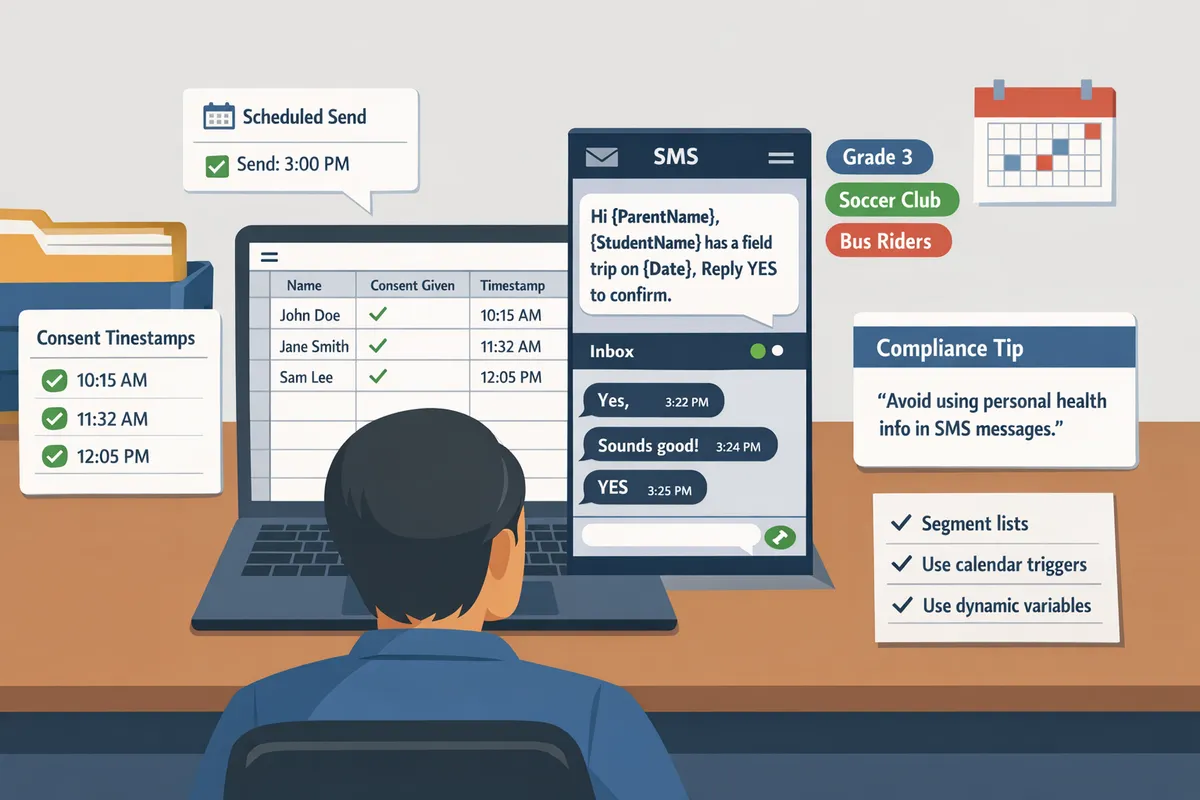
Segmented lists, calendar triggers, and dynamic variables improve relevance and response. What proven strategies and techniques drive reliable engagement for school SMS programs?
Targeted segments, calendar-driven sends, and variable-backed templates increase message relevance and raise response rates for K-12 SMS programs. Sheet Gurus SMS lets schools build those segments inside Google Sheets, schedule sends from the sidebar, and insert per-recipient variables so staff spend less time on manual lists and more time on school priorities. Below are concrete tactics you can apply today.
🧩 How do you build useful segments for events, grade-level alerts, and volunteers?
Build segments by grouping recipients on the attributes that determine whether they need the message. Examples include grade_8_parents, bus_route_12, and volunteer_cohort. These segments let you send only the messages that matter and reduce opt-outs and staff follow-up time.
Segment-building checklist.
- Identify the purpose (event, route, classroom, volunteer role).
- Limit columns to delivery fields plus 2–3 personalization fields (e.g., first_name, student_name, event_date).
- Tag opt-in status and last_contacted date to avoid duplicate sends.
How to filter in Sheets (no code). Describe the filter as: create a view that shows only rows where the segment tag matches and opt-in is YES, then save that view as your send list. Use the saved view when you open Sheet Gurus SMS in the sidebar to send or schedule a message.
Sample message with variables:
Hi {first_name}, reminder: Fall Concert for {student_name} on {event_date}. Reply YES to confirm.
Sheet Gurus SMS sends from the sidebar and applies automatic message filtering so staff do not need to manually screen for compliance. See our detailed walkthrough in the sending SMS guide for step-by-step data setup.
💡 Tip: Keep segment names consistent and human-readable (e.g., grade_08_parents, not g8_p). Consistent tags cut lookup time when staff need to run an urgent send.
📅 How do you schedule school event text reminders delivered from Sheets using calendar data?
Scheduling sends relative to an event_date removes manual timing and prevents late notifications. Add an event_date column in your sheet, open Sheet Gurus SMS in the sidebar, and set the delivery to occur X days/hours before event_date so messages go out automatically. This approach reduces last-minute work and missed reminders.
No-code scheduling steps.
- Add an event_date column and populate dates from your event calendar or export.
- Create a segment view for the event attendees or parents.
- In Sheet Gurus SMS sidebar choose \“Schedule relative to column\” and select event_date.
- Test with a pilot list of 10–25 parents before scheduling the full cohort.
Tie your sheet to
Google Calendar for cross-checks: export a calendar CSV or copy event IDs into a reference column so admins can validate sends against the school calendar. Our text appointment reminders use case shows how recurring event reminders and appointment confirmations work when scheduled from Sheets.✂️ How should you design message templates and fallback values?
Design templates with curly-brace variables for the fields you have reliably, and define clear fallback values for any missing data. For example, specify a fallback like \“Parent\” so \“Hi {first_name}\” becomes \“Hi Parent\” when first_name is blank. This avoids awkward blanks and reduces manual corrections.
Template best practices.
- Prefer three personalization tokens maximum for short alerts (first_name, student_name, event_date).
- Place critical info (what, when, action) in the first 160 characters.
- Preview 10 rows inside Sheet Gurus SMS to validate variable population before a full send.
Sample fallback-aware message:
Hi {first_name|Parent}, reminder: {event_name} at {event_location} on {event_date}. Reply YES to confirm.
Run a small test plan: preview, send to staff, and check the real-time delivery status in the sidebar. Avoid including health or special-education specifics in SMS; use the least sensitive fields required for the message.
⚠️ Warning: Do not include personal health information or special education details in bulk SMS. Use secure portals or phone calls for sensitive student matters.
🔁 How do schools use two-way texting for RSVP, attendance, and volunteer coordination?
Two-way texting converts messages into confirmations and task assignments by routing replies into a staff inbox and updating your sheet status column. Use short keyword replies and route incoming messages to a monitored staff inbox in Sheet Gurus SMS for real-time handling. This reduces phone tag and manual data entry.
Common two-way flows and steps.
- Send an RSVP prompt: \“Reply YES to confirm attendance for {event_name} on {event_date}.\”
- Route replies to the real-time inbox so office staff or volunteers can triage responses.
- Update the sheet status column for each respondent (Confirmed, Declined, Needs Follow-up).
Volunteer coordination example prompt:
Reply VOL to volunteer for {event_name} on {event_date}. Include role preference.
Sheet Gurus SMS collects replies in the sidebar inbox and applies automatic filtering to reduce spam and maintain compliance. For emergency flows and runbook examples, consult our emergency alerts playbook and the two-way sending guide to map inbox rules to staff assignments.
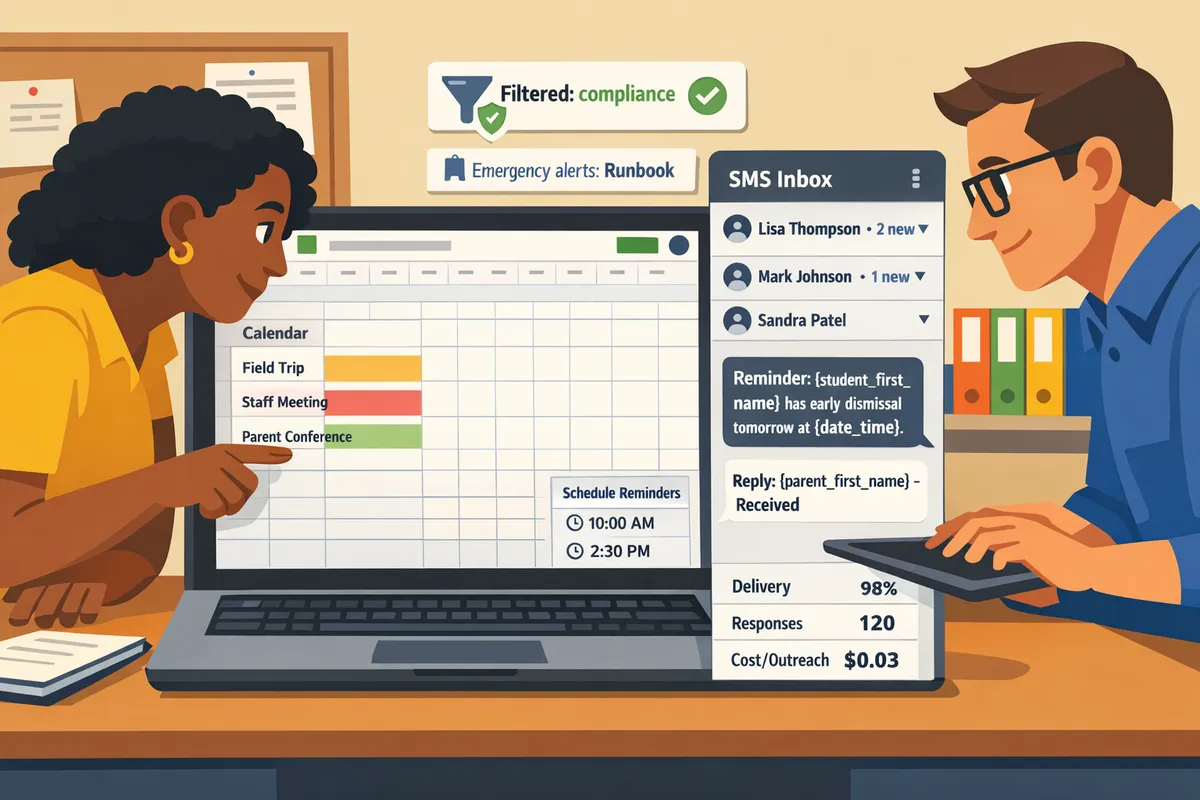
Measure delivery, engagement, and cost per outreach to improve program ROI. How should schools implement, monitor, and troubleshoot a Sheets-based SMS program?
Measure delivery and response so you know which messages reach parents, which prompt action, and what each outreach costs. Set up a single dashboard tab in Sheets that pulls in messages_sent, delivered_count, bounce_count, reply_count, opt_out_count, and time_to_first_reply so staff can run a weekly health review and catch problems before they escalate.
Which KPIs should districts track in Sheets? 📊
Track messages_sent, delivered_rate, bounce_count, reply_rate, opt_out_rate, and time_to_first_reply as the core program KPIs. These metrics show reach (delivered_rate = delivered_count ÷ messages_sent), engagement (reply_rate = reply_count ÷ delivered_count), and friction (opt_out_rate and time_to_first_reply). Create a Dashboard tab with one row per send and these columns: SendDate, Segment, TemplateName, messages_sent, delivered_count, bounce_count, reply_count, opt_out_count, avg_time_to_first_reply. Add two chart tiles: weekly delivered_rate trend and reply_rate by segment.
Sheet Gurus SMS populates delivery status and inbox activity in real time in the sidebar so your Dashboard can import those fields without manual copy-paste. For example, record a pilot send row labelled \“Volunteer Signup A\” and then use the add-on’s delivery field to backfill delivered_count automatically. Set a weekly review cadence: operations lead scans the Dashboard every Monday and flags any delivered_rate drop >5 percentage points from the prior week.
💡 Tip: Use the {ParentName} and {School} variables in templates (for example: \“Hello {ParentName}, school closed today due to {Reason}. Reply YES for updates\”) so you can compare personalized vs generic performance by TemplateName.
How do you estimate costs and compare DIY scripts vs using Sheet Gurus SMS? 💵
Estimate cost per outreach as the sum of per-message fees, staff hours for setup and maintenance, and the expected cost of error handling (missed sends, compliance corrections). For budgeting, model three lines: (1) direct message spend, (2) monthly staff time cost (hours × hourly rate), and (3) contingency for troubleshooting and parent calls.
| Option | Typical time to setup | Maintenance hours / month (example) | Compliance features | Inbox handling |
|---|---|---|---|---|
| DIY script (Apps Script + Twilio) | 2–6 weeks (tech work) | 4–12 hrs (list cleanup, script fixes) | Manual consent checks, no automatic filters | External inboxs or SMS provider dashboard; no Sheets-integrated thread view |
| Competing SMS platforms | 1–3 days | 2–6 hrs | Varies by vendor; some filters provided | Platform inbox; may require separate integration into Sheets |
| Sheet Gurus SMS | 1–2 hours for admin setup | 1–4 hrs (list hygiene, reviews) | Automatic message filtering and compliance rules built into the add-on | Real-time sidebar inbox inside Sheets with threaded replies |
Use a simple example calc: at $0.03 per message, 10,000 monthly messages = $300 message spend. Add staff cost: 5 hrs/month at $35/hr = $175. DIY scripts add higher maintenance risk that can double staff hours during incidents. Sheet Gurus SMS reduces hours by providing inbox threading and automated filtering, which lowers the contingency line in your budget.
See our comparison of add-ons and scripts for a deeper breakdown in the Add-On vs Apps Script guide.
What troubleshooting steps reduce bounces and improve response? 🛠️
Verify phone numbers use E.164 formatting, confirm consent is recorded, watch for carrier-level blocks, and test small batches to isolate issues. Start with a ranked checklist: 1) Validate format and remove duplicates; 2) Confirm consent column matches recipients and opt-outs are scrubbed; 3) Inspect bounce codes and carrier notes in the delivery feed; 4) Pause large sends from addresses that show repeated carrier failures; 5) Re-send to corrected numbers in 50-message batches to confirm fixes.
Sheet Gurus SMS shows delivery status and filters problem messages automatically in the sidebar, which speeds diagnosis. If a carrier blocks messages from your long code, try time-of-day adjustments and shorter send windows for high-volume alerts. When replies look low, check template wording and segment timing; run a 200-recipient test to compare response by template and send hour.
⚠️ Warning: Do not send FERPA-protected student data in text bodies. Keep Sheets to delivery fields and limited personalization variables only.
What pilot design yields fast learning and low risk? 🚦
Run a focused four-week pilot with three recipient segments, an A/B template test, and weekly feedback loops captured in the same Sheets workbook. Week 0: prepare consent lists, create Dashboard tab, and load three segments (emergency contacts, after-school families, volunteer coordinators). Week 1: send low-risk reminders to each segment (50–200 recipients) using Template A and Template B; track delivered_rate and reply_rate. Week 2: expand volume if delivery holds and adjust templates based on open feedback. Week 3: collect staff and parent feedback using a short reply survey and measure time_to_first_reply. Week 4: finalize the rollout playbook in Sheets with annotated rows showing decisions, error cases, and SOPs for opt-outs and escalation.
During the pilot, use Sheet Gurus SMS sidebar sending and the real-time inbox to triage two-way replies without leaving Sheets. Document every change in a Rollout sheet: TemplateName, WhyChanged, WhoApproved, Date. That playbook becomes your operational runbook when you scale.
Internal links: For templates and opt-in wording, see our two-way emergency and event texting guide and the add-on vs Apps Script comparison for decision help.
Frequently Asked Questions
This FAQ answers the operational, legal, and technical questions schools have about running two-way SMS from Google Sheets. It gives step-by-step actions you can take in your sheet and shows how Sheet Gurus SMS handles consent, number validation, inbox routing, and localization.
How do I collect parent consent for K-12 SMS alerts in a way that works with Sheets? 📝
Use a double opt-in process and store consent status and timestamps in dedicated columns in your sheet. Double opt-in is a consent process that requires parents to both submit their number and confirm it by replying or clicking a confirmation link. Practical steps: 1) Capture initial consent at enrollment or via a short web form and mark the row as pending. 2) Send an automated confirmation message from the Sheet Gurus SMS sidebar that includes variables, for example: \“Hi {first_name}, {school_name} would like to send emergency and event texts. Reply YES to confirm.\” 3) When the parent replies YES, Sheet Gurus SMS updates the consent column and records a consent_timestamp for audit. Keep a source column (paper, online, phone) and export consent logs for legal review.
💡 Tip: Always use double opt-in for SMS signups.
Reference our two-way emergency guide for opt-in examples and runbook templates: K-12 School SMS Alerts with Google Sheets: The 2026 Complete Guide to Two-Way Emergency and Event Texting.
What phone number format should my spreadsheet use to avoid delivery failures? 📞
Use E.164 formatting for every phone number in your sheet, for example +12223334444. Common errors that cause failures include missing the country code, leading zeros from local formats, and numbers stored with unsupported characters. Put a dedicated Phone_E164 column and populate it before sends. Sheet Gurus SMS validates numbers in the sidebar and flags invalid or non-routable entries so you can fix them before sending. If you need bulk cleanup, use the add-on’s import checks or the data-cleaning tips in our send-from-sheets guide.
See practical setup and validation tips in the step-by-step guide: Sending SMS from Google Sheets with Sheet Gurus SMS (Updated 2025).
How do I handle replies outside school hours and ensure staff safety? ⏰
Use business-hours auto-responses, urgent-keyword routing, and on-call assignments in the real-time inbox to protect staff and parents. Configured auto-replies let parents know when staff will respond and how to escalate; for example: \“Hi {first_name}, our office is open M–F 8:00–17:00. For emergencies, reply HELP or call 911. We will reply during business hours. Reply STOP to opt out.\“. Route messages that contain urgent keywords such as \“emergency,\” \“injury,\” or \“locked\” to on-call staff and mark them for immediate assignment inside Sheet Gurus SMS. Do not forward replies to personal cell numbers; use the platform inbox to preserve audit trails and timestamps.
⚠️ Warning: Avoid using personal staff phone numbers for outbound or reply handling; route all messages through the platform for records and staff safety.
What FERPA and COPPA considerations apply to school SMS and student data in Sheets? 🔒
Limit student PII in spreadsheets, record parental consent, and apply automatic filtering to block protected data fields. Practical rules: only keep columns needed for delivery and personalization (parent name, phone E164, relationship, consent_status, consent_timestamp, language). Avoid storing student health or special-education details in the same sheet as contact data. Sheet Gurus SMS applies automatic message filters to catch sensitive keywords before send and provides retention controls and audit logs for compliance reviews. Always consult district counsel to map message content and retention policies to your district rules and state law.
For playbook-level best practices and runbook examples, see our emergency alert playbook: School Emergency Alerts and Parent Notifications from Google Sheets: A Two‑Way SMS Best‑Practices Playbook.
How many recipients should I test with before a full rollout? 🧪
Pilot between 200 and 1,000 recipients, segmented into at least three lists, and run an A/B copy test to monitor deliverability and reply handling. Smaller districts can test near 200 parents; mid-size or large districts should scale the pilot toward 1,000 to sample diversity in carriers and device types. Follow these sequential pilot steps:
- Select three segments (e.g., grade band, building, language).
- Create two message variants for A/B testing and schedule sends via Sheet Gurus SMS.
- Monitor delivery rates, bounce reasons, and reply volume in the real-time inbox for 48 hours.
- Adjust templates and consent copy based on undelivered messages and common replies.
- Expand to a staged rollout by hour blocks or by building.
Track cost per outreach and average reply handling time to budget staff coverage during the full launch.
How do I support parents who prefer non-English messages or need accessibility accommodations? 🌐
Add a language column in your sheet, prepare translated templates that use per-recipient variables, and offer alternative contact methods for parents who opt out of SMS. Workflow example: tag each row with a Language column, then send language-specific templates from the Sheet Gurus SMS sidebar using variables like {first_name} and {language}. Example multilingual template: \“{language} - Hi {first_name}. {school_name} reminder: Parent night is {event_date}. Reply YES to confirm or call the office for assistance.\“. For accessibility, provide alternate channels such as email, voice calls, or TTY, and keep messages concise to work with screen readers. Batch-send by language segment to ensure parents receive messages in their preferred language and to keep response routing efficient.
See our templates and event reminder examples for localization workflows: How to Send School Event Reminders via Text (Templates Included).
Next step: deploy two-way SMS from Google Sheets for your school.
Runbook-style testing, short templates, and a calendar-first rollout cut staff time and reduce missed messages. Start with event reminders and a small opt-in list so you can validate reply handling and inbox filters before scaling to all families. See the School SMS Alerts collection for templates and consent wording.
💡 Tip: Begin by scheduling calendar reminders for high-impact events (closures, conferences). Test replies in the sidebar inbox using a small pilot list.
Sheet Gurus SMS is a Google Sheets add-on for sending bulk SMS from a sidebar rather than spreadsheet formulas. Personalize each message with curly-brace variables such as {FirstName}, handle replies in a real-time two-way inbox, and rely on automatic message filtering to help keep your sends compliant.
Download the getting-started checklist and templates from our Sending SMS from Google Sheets guide to begin. For checklists and two-way best practices, see our K-12 School SMS Alerts guide and the automated text messaging use case.