




K-12 School SMS Alerts with Google Sheets: The 2026 Complete Guide to Two-Way Emergency and Event Texting
A single missed school closure text can leave 150 families uninformed and trigger hours of phone triage. Mass texting for school announcements via Google Sheets is a method that uses a Google Sheets add-on to send bulk SMS and collect two-way replies inside a sidebar. Sheet Gurus SMS is a Google Sheets add-on that helps our users save time and money by sending messages from a sidebar, using {ParentName} variables, a real-time inbox, and automatic compliance filters. This guide gives K-12 admins step-by-step checklists, opt-in templates, and drop-in examples like “Hello {ParentName}, school closed today due to {Reason}. Reply YES for updates” (see our
automated text messaging use case and mass texting use case). Which opt-in wording, variable workflows, and inbox filters most reduce TCPA risk while cutting staff workload?How should schools build a compliant, auditable workflow for mass texting for school announcements via Google Sheets?
A compliant, auditable workflow requires explicit consent, a minimal canonical contact schema, role-based access, and send logs tied to every message. These controls reduce TCPA and FERPA exposure and make post-incident audits fast and defensible. Below are concrete fields, policy steps, and governance actions K-12 IT directors can implement immediately using Sheet Gurus SMS.
What minimal sheet fields and naming conventions prevent errors 📋
Keep a single canonical contact sheet with a minimal, consistent schema to prevent duplicate sends and personalization mistakes. Use concise column names like
phone_e164, recipient_type, first_name, student_id, opt_in_yyyy_mm_dd, language, and last_sent_timestamp. Example row: +12223334444, parent, {first_name}, S-12345, 2026_03_14, en, 2026-03-20T14:22:00Z.Choose a unique key to avoid duplicates (for example student_id + phone_e164). Use Sheet Gurus SMS variables such as {first_name} and {event_date} in message templates rather than building messages in-sheet. Keep derived or temporary columns (attendance flags, segmentation tags) on separate tabs labeled staging_ or test_ so production contacts remain the single source of truth.
How should schools manage consent and opt-outs to meet FERPA and TCPA needs ✅
Record explicit opt-in date and source and honor opt-outs immediately by writing timestamped opt_out fields. Add opt_in_yyyy_mm_dd and opt_out_timestamp columns, plus consent_form_link that points to the stored registration language. Capture the signup source (registration form, phone, manual entry) in opt_in_source so auditors can verify how consent was collected.
Use double opt-in to validate numbers and strengthen records, and configure Sheet Gurus SMS automatic message filtering to block sends to rows where opt_in is absent or opt_out_timestamp is set. Maintain a copy of the consent text (PDF or archived form) and link it in the sheet for every contact.
💡
Tip: Always use double opt-in for SMS signups.
⚠️ Warning: Avoid including student education records or medical details in SMS content; store such records in FERPA-compliant systems and reference them by ID only.
For a deeper playbook on consent language and runbooks, see School Emergency Alerts and Parent Notifications from Google Sheets: A Two‑Way SMS Best‑Practices Playbook.
What access controls and data handling rules reduce privacy risk 🛡️
Limit edit rights to named staff, keep production contact data in one access-controlled sheet, and retain full change logs for audit. Use Google Sheets permissions to give edit access only to the communications team and set others to view-only. Require named account access rather than shared generic logins.
Export send logs from Sheet Gurus SMS after each campaign and store them with the matching sheet snapshot. Use Google Sheets version history and the exported send logs together to recreate what message was sent, to whom, and when. Remove personal data from intermediate or reporting sheets; for analytics use hashed or aggregated exports. Schedule quarterly access reviews and monthly data purges of contacts that have opt_out_timestamp older than your retention policy.
For FERPA-safe handling and examples of governance, review our guidance in Real-Time Safety Alerts: How Schools Can Use SMS to Keep Students Safe in Emergencies.
How does two-way messaging and inbox tracking work with Sheet Gurus SMS ✉️
Sheet Gurus SMS provides a real-time inbox that links replies to the original send and logs threads back to your sheet for follow-up and audit. Each incoming reply appears with the original message variables so staff see context (for example, which {event_date} or {student_id} the reply references). Replies can write back to columns such as last_reply, last_reply_timestamp, and reply_tag for automated processing.
Define routing rules in Sheet Gurus SMS to assign replies to roles: route messages tagged emergency to safety staff, attendance to the attendance clerk, and event to the activities coordinator. Use reply tags and short canned responses stored in the sidebar to speed triage and maintain an auditable trail of every interaction. For a comparison of add-on versus script-based inbox approaches and why the sidebar model reduces maintenance and compliance risk, see Add-On vs Apps Script vs Email-to-SMS vs Zapier: The Best Way to Send Two-Way School Emergency Alerts from Google Sheets.
For ready templates and event-specific examples using variables like {first_name} and {event_date}, see How to Send School Event Reminders via Text (Templates Included) and How Schools Can Automate Attendance Alerts with Google Sheets and SMS.
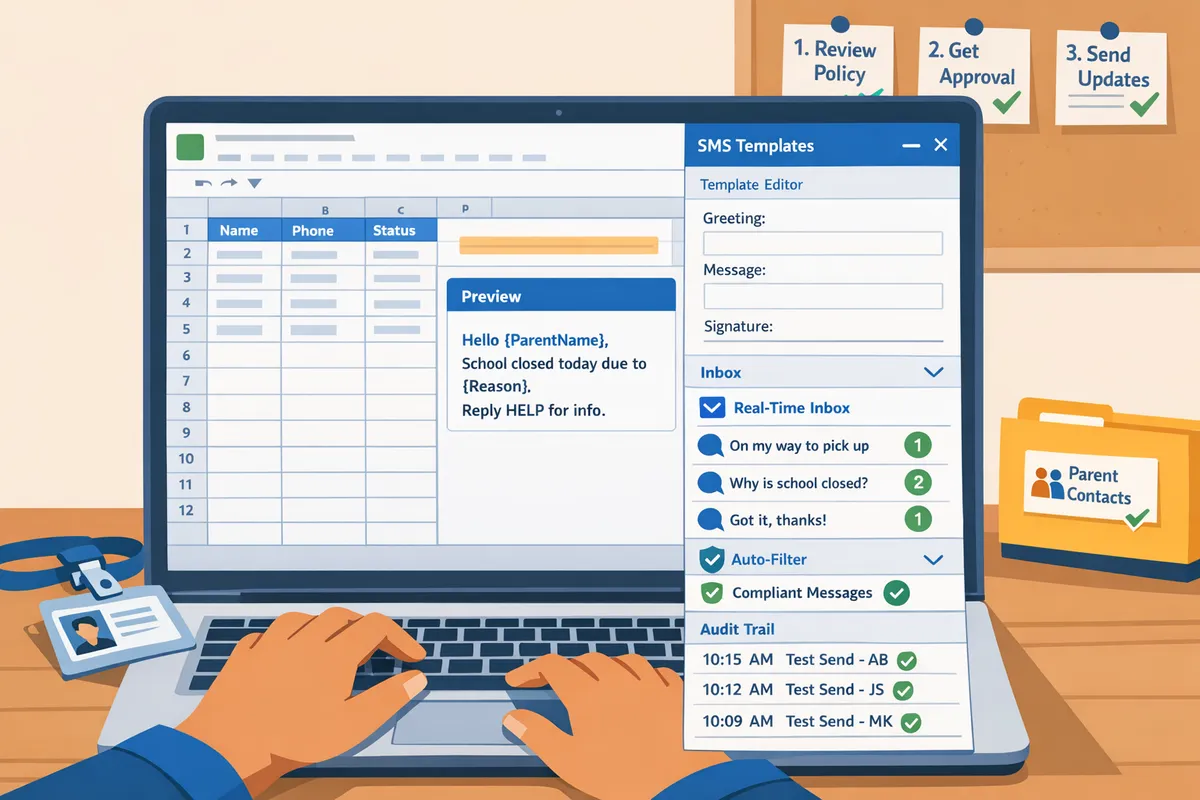
What proven sending strategies and templates ensure reliable delivery and clear two-way workflows for school SMS from Sheets?
Short, intent-driven templates plus scheduled, batched sending and clear reply routing produce reliable delivery and usable two-way workflows. Schools that pair tested templates with a priority queue for emergencies reduce missed alerts and accidental sends. Sheet Gurus SMS provides curly-bracket variables, scheduled sends, automatic filtering, and a real-time inbox to implement these patterns directly from Google Sheets.
⚠️ Warning: Test every template with small, controlled lists and a staff-only test group before sending to parents to avoid accidental wide distribution.
Template examples with curly-bracket variables and message intents ✍️
Short, intent-tagged templates that use variables keep messages personal and limit follow-up confusion. Use {first_name}, {student_name}, {school_name}, {event_date}, and {event_time} so staff can draft one template that personalizes at send time. Example emergency template: “{campus} Alert: {student_name} needs pickup at {pickup_time}. Reply YES to confirm.” Example event reminder: “{first_name}, reminder: {event_name} on {event_date} at {event_time}. Reply YES to RSVP.” Example attendance alert: “{first_name}, {student_name} marked absent on {absence_date}. Reply CALL to request a call from attendance.” These show how Sheet Gurus SMS variable substitution works inside the add-on sidebar and reduce manual copy/paste errors.
Refer to our event reminder patterns for more templates and timing suggestions in How to Send School Event Reminders via Text (Templates Included).
How to schedule, batch, and prioritize sends for emergencies vs routine notices ⏱️
Schedule routine messages for off-peak windows and reserve immediate priority sends for templates flagged as emergencies. Batched sending is a scheduling method that groups messages into time windows to match carrier rate limits and reduce dropped messages. For routine reminders (permission slips, event reminders), schedule sends early morning or late afternoon and split lists into batches to keep steady throughput. For emergency templates, use an emergency tag that moves those rows into a priority queue and bypasses normal batching so staff can reach parents immediately. Sheet Gurus SMS supports scheduled sends and emergency escalation so districts can automate routine flows while still enabling immediate alerts when necessary. Test batch sizes and delivery windows in a staged rollout to find the sweet spot for your carrier and district.
What two-way triage and staffing patterns reduce missed replies 🔁
Assign reply queues by campus and message type, with SLAs and a real-time inbox, to prevent replies from getting lost across staff devices. Two-way triage is an operational pattern that routes incoming SMS into categorized queues so teams handle replies based on urgency and location. Practical staffing pattern: 1) Route replies from emergency templates to an on-duty safety officer; 2) Route attendance replies to attendance clerks with a 30-minute SLA during school hours; 3) Route event RSVPs to the activities coordinator for next-day follow-up. Use Sheet Gurus SMS’s real-time inbox to tag, escalate, and export response logs to Google Sheets for performance tracking and audits. Exported logs let administrators measure missed-reply rates and adjust staffing for high-volume periods.
How do the common implementation options compare (add-on vs custom Twilio vs Zapier)? 📊
Sheet Gurus SMS generally requires less maintenance and adds built-in inbox and filtering compared with Twilio+Apps Script or Zapier integrations. For a deeper technical and compliance comparison, see Add-On vs Apps Script vs Email-to-SMS vs Zapier: The Best Way to Send Two-Way School Emergency Alerts from Google Sheets.
| Solution | Setup time | Maintenance burden | Compliance & filtering | Two-way support | Cost profile |
|---|---|---|---|---|---|
| Sheet Gurus SMS | Low (add-on install, sidebar) | Low (managed updates, built-in features) | Built-in automatic filtering and consent handling | Real-time inbox with queues and exports | Predictable per-seat or per-message pricing (operationally simple) |
| Twilio + Apps Script | Medium to high (developer required) | High (scripts break with API or Sheet changes) | Custom implementation required; higher risk of gaps | Two-way possible but requires custom inbox and webhook handling | Low to medium platform cost but higher development overhead |
| Zapier (Sheets -> SMS) | Low (no-code) | Medium (Zap maintenance, multi-step limits) | Limited filtering; depends on connected apps | Limited two-way (often one-way or manual reply handling) | Variable; can be costly at scale due to task-based billing |
Use the comparison above to balance reliability, compliance, and staff workload. For practical runbooks and governance steps that pair with these technical choices, consult our School Emergency Alerts and Parent Notifications playbook and the Real-Time Safety Alerts guide.
How do schools implement, monitor, and measure mass texting from Google Sheets so programs stay reliable and auditable?
Set up with a mapped data model, staged tests, and clear ownership so every send is traceable. Sheet Gurus SMS installs as a Google Sheets add-on, sends from a sidebar, and provides delivery analytics plus exportable logs to support audits and reporting.
Step-by-step implementation checklist for quick deployment ✅
Run this checklist in order to deploy Sheet Gurus SMS safely and with audit trails.
- Install Sheet Gurus SMS from the G Suite Marketplace and grant the minimum admin permissions required. If installs are unmanaged, require G Suite admin approval to avoid rogue access.
- Create a canonical contacts sheet with required columns:
phone_e164,opt_in,language,recipient_role,campus_id, andconsent_reference. Use column headers exactly to simplify mapping. - Open the Sheet Gurus SMS sidebar and map sheet columns to the add-on fields (
phone_e164→phone,opt_in→consent). Mapping ensures each send links to a contact row for logging. - Build message templates with curly-bracket variables such as
{student_name},{campus}, and{event_time}. Example emergency template: “{campus} Alert: {student_name} needs pickup at {pickup_time}. Reply YES to confirm.” - Create a staged test plan: internal staff list, one campus pilot, then district-wide. Use the Sheet Gurus SMS test phone list and the real-time inbox to confirm replies flow to the right staff.
- Train staff on the send runbook, inbox triage, and how to pause or cancel sends from the sidebar. Document who can pause sends and who has permission to revoke add-on access via the G Suite admin console.
💡 Tip: Keep parallel templates for each language in the sheet and use a language column to route the correct template using variables like
{language_template}.
How to validate phone formats, opt-outs, and fallback messaging 🧾
Validate phone numbers to E.164, enforce opt_in flags before sending, and set a fallback channel for failed SMS.
- Phone format. Require E.164 (example: +12223334444). Use a validation column that flags rows where the phone does not match the format and exclude those rows from sends.
- Opt-in checks. Only send to rows where opt_in = TRUE or the district-mandated consent value. Sheet Gurus SMS filters messages automatically and will block rows without consent if configured.
- Invalid numbers and delivery failures. Use the Sheet Gurus SMS delivery log to find invalid or carrier-rejected numbers. The add-on flags invalid numbers and records failure reasons so staff can update records and retry.
- Fallback messaging. For high-priority alerts, include a fallback channel column (email or phone call) and an automated note in the log when SMS fails. Example fallback rule: if undelivered_count > 0, send email_template_fallback to parent_email.
⚠️ Warning: Avoid sending student health, disciplinary, or other sensitive details via SMS; keep messages minimal and move sensitive follow-up to secure portals or direct calls.
Which KPIs and reports show a program is working (deliveries, replies, opt-outs) 📊
Track delivered rate, undelivered count, reply volume, opt-out rate, and average response time weekly to verify program health. Key metrics to export each reporting period:
- Delivered rate (delivered / attempted). Aim for a high rate; investigate persistent carrier failures.
- Undelivered count and failure reasons. Prioritize fixes for permanent failures (invalid number) over transient carrier issues.
- Reply volume and average response time. Use the Sheet Gurus SMS real-time inbox to measure staff load and routing needs.
- Opt-out rate and opt-out timestamps. High opt-out spikes after a message indicate content or consent problems.
- Message-type reach by campus. Export logs grouped by campus_id and message_type to analyze which campuses receive fewer successful deliveries.
Use monthly exported logs from Sheet Gurus SMS to run audits by campus and message type, and to produce a one-page report for superintendents showing reach and staff response burden. Sample thresholds to trigger investigation: delivered rate below 90% for a campus, opt-out rate increase of 0.5% month-over-month, or average response time over 2 hours for emergency triage.
Governance and retention: who owns the data and for how long 🗂️
Assign a named data steward, document access roles, and set retention windows for contact data and message logs to meet audit and FERPA needs.
- Ownership. Appoint a district data steward who approves templates, manages consent records, and signs off on access for school staff.
- Access controls. Limit Sheet Gurus SMS send permissions to a small roster of trained staff. Record who ran each send in the exportable logs for audit trails.
- Retention policy. Define retention windows for contact lists and message logs (for example, retain consent records and message logs per district policy; purge or anonymize per legal guidance). Tie each row to a consent_reference that points to the original signed consent form.
- Incident response. Document steps: pause sends, export affected logs, notify legal/compliance, and revoke add-on access if breach risk is confirmed. Keep a runbook with contact names and timelines.
For FERPA-safe handling and detailed runbooks, see our School Emergency Alerts and Parent Notifications playbook for templates and consent examples. For guidance on emergency-specific routing and two-way handling, reference our Real-Time Safety Alerts guide and the comparison article Add-On vs Apps Script vs Email-to-SMS vs Zapier to justify choosing a managed add-on approach over fragile scripts.
Frequently Asked Questions
This FAQ answers practical operational and compliance questions K-12 teams have about running mass texting for school announcements via Google Sheets. Each answer highlights how Sheet Gurus SMS handles the operational steps schools ask about and points to deeper resources.
Can I send emergency alerts from Google Sheets using Sheet Gurus SMS?
Yes. You can send immediate emergency alerts from Google Sheets using Sheet Gurus SMS’s immediate-send and emergency-template features. Sheet Gurus SMS runs from a sidebar so staff do not rely on spreadsheet formulas during a critical send. The add-on supports priority queues, message filtering for opt-outs, and scheduled fallbacks if a first attempt hits carrier throttling. For a step-by-step emergency playbook and runbook examples, see our School Emergency Alerts and Parent Notifications playbook and the Real-Time Safety Alerts guide.
How do I include student or parent names automatically in messages 📇
Use curly-bracket variables in templates and map them to the sheet columns; Sheet Gurus SMS substitutes values like {first_name}, {student_name}, and {event_date} at send time. For example: “Hello {first_name}, school is closed on {event_date} due to weather.” Map the sheet headers to those variables in the sidebar, preview a sample send, and run a small test batch before a full send. The preview step catches missing columns and shows the exact outgoing text so you avoid embarrassing or noncompliant personalization errors. For template ideas and event reminder examples, see How to Send School Event Reminders via Text.
What consent and opt-in records should schools keep for SMS programs?
Keep a contact row with opt_in_date, opt_in_source, consent_text, and opt_out_timestamp for every recipient. Retain the original consent language used at collection, record whether consent came from a web form, phone, or paper sign-up, and store opt-out timestamps so you can demonstrate compliance during audits. Use a retention period that matches district policy and legal guidance and export logs when legal counsel requests them.
💡 Tip: Always use double opt-in for SMS signups.
Sheet Gurus SMS automatically applies opt-out filtering at send time, and you can append opt_out_timestamp to your contact sheet for auditability. See the School Emergency Alerts playbook for recommended consent language and runbook examples.
How does two-way texting work and who sees replies in a district?
Replies appear in Sheet Gurus SMS’s real-time inbox where staff can assign, tag, and escalate messages. The inbox shows message history, sender number, and any tags or assignment notes so a front office staffer or safety officer can own follow-up. Districts can set shared inbox rules, route replies to specific teams, and export reply logs to Google Sheets for auditing or case management. For routing considerations and shared-responsibility workflows, review the Add-On vs Apps Script vs Zapier comparison.
How do I handle delivery failures and invalid phone numbers?
Flag invalid numbers before sending, retry transient failures, and record permanent failures in a remediation sheet for follow-up. Best practice workflow: (1) Run a pre-send validation on phone-format and country code. (2) Filter invalid or duplicate numbers. (3) Send small test batches to check carrier responses. (4) Export failed deliveries from Sheet Gurus SMS with failure reasons and move them to a remediation sheet that includes a follow-up action column. Sheet Gurus SMS marks delivery failures and provides exportable failure reasons to speed outreach.
How should districts compare cost and maintenance across options?
Compare total cost of ownership by adding setup hours, ongoing staff time, compliance features, and two-way support instead of focusing only on per-message fees. The table below contrasts common approaches and highlights where built-in inboxes and filtering reduce ongoing staff hours.
| Option | Typical setup time | Ongoing maintenance | Compliance & opt-out handling | Two-way support |
|---|---|---|---|---|
| Sheet Gurus SMS add-on | Low to medium (sidebar setup, mapping templates) | Low (manage contacts, templates, inbox) | Built-in filtering and send logs | Native real-time inbox, assignment, exports |
| DIY Apps Script | Medium to high (script writing, testing) | High (breaks with API changes, requires code upkeep) | Developer must build opt-out handling and logs | Possible but requires custom code and monitoring |
| Zapier / Email-to-SMS | Low setup (drag-and-drop) | Medium (Zap maintenance, rate limits) | Varies by connector, often limited logging | Two-way possible but usually limited and fragmented |
For a deeper evaluation of these trade-offs, see Add-On vs Apps Script vs Email-to-SMS vs Zapier.
Is it safe to keep student contact data in Google Sheets with SMS automation?
Keeping student contact data in Google Sheets can be safe if you enforce least-privilege sharing, audit logging, retention policies, and use an add-on that minimizes data copying. Use role-based access to limit who can open the sheet, enable Google Workspace audit logs, and set an automated retention rule that archives or deletes outdated contacts. Sheet Gurus SMS reduces manual data exports by sending from the sidebar and logging sends back into the sheet, which lowers the risk surface compared with copying contact lists across systems.
⚠️ Warning: Consult district counsel before storing any protected student education records in third-party add-ons or shared drives; FERPA requirements differ by state and district.
For FERPA-safe handling examples and governance steps, see School Emergency Alerts and Parent Notifications and our Real-Time Safety Alerts guide.
Final checklist to deploy compliant two-way SMS from Google Sheets.
Follow a short, repeatable checklist so school admins can send timely, auditable alerts and reduce manual work. mass texting for school announcements via google sheets works best when you standardize consent, use templates with variables, test templates, and monitor a real-time inbox for replies.
Sheet Gurus SMS is a platform that helps users save time and money by enabling them to send bulk SMS to their recipients easily from within Google Sheets. The product is a Google Sheets add-on and messages are sent via a sidebar not via spreadsheet formulas. The product has the following features:
- Text messages can be sent with curly brackets as variables to allow for dynamic content.
- A real time inbox to allow for two way communication with recipients.
- Automatic message filtering to keep users compliant with regulations.
For runbooks and compliance steps, see the two-way SMS playbook for schools and our comparison of add-on vs Apps Script for two-way alerts to weigh reliability and compliance. For event reminders, check the templates for school event text reminders delivered from sheets.
Create your first campaign with Sheet Gurus SMS using the Automated Text Messaging getting-started material. Subscribe to our newsletter for implementation tips and updates.