




How to Send Property Showing and Open House SMS Reminders from Google Sheets (Two-Way, Templates Included)
A single missed open house follow-up can cost an agent thousands in lost commission. open house sms reminders google sheets is a workflow that sends scheduled, personalized text reminders directly from Google Sheets using the Sheet Gurus SMS sidebar. On our website, Sheet Gurus SMS is a platform that helps users save time and money by sending bulk SMS from inside Google Sheets without spreadsheet formulas. The add-on supports curly-bracket variables for dynamic content, a real-time inbox for two-way replies, and automatic message filtering to support compliance. Example: “Hi {FirstName}, reminder: open house at {Address} on {Date} at {Time}.” This how-to guide includes step-by-step sidebar setup, scheduling, and a reusable template that shows what you can automate, plus related use cases like our
Text Appointment Reminders and Automated Text Messaging for real estate text messaging — and a template that makes the sending process obvious.How to prepare your Google Sheet for sending open house SMS reminders
Prepare a single Google Sheet with defined columns and consistent formatting so Sheet Gurus SMS can send scheduled, personalized messages from the sidebar. Good structure prevents duplicate sends, avoids delivery failures, and keeps your team compliant with opt-in rules.
💡
Tip: Always use double opt-in for SMS signups when possible to reduce opt-out rates and compliance risk.
Step 1: Build the guest list and RSVP columns 🧾
Include one row per visitor or household with columns that supply every template variable. Use a single spreadsheet tab for each event or a master sheet with a PropertyID column so you can filter by listing without duplicating messages.
Required columns (minimum). The table below shows the column name, purpose, and an example value.
| Column | Purpose | Example |
|---|---|---|
| PropertyID | Unique listing identifier to prevent duplicate sends | P-2026-045 |
| FirstName | Personalization variable {FirstName} | Maria |
| LastName | Optional personalization or sorting | Lopez |
| Phone | E.164 phone number for sendability | +12223334444 |
| PropertyAddress | Template variable {PropertyAddress} used in messages | 123 Pine St, Unit 4 |
| EventDateTime | Exact event date/time for scheduling | 2026-05-12 14:00 |
| TimeZone | Time zone for correct local send times | America/New_York |
| RSVP | Current RSVP status (Yes/No/Maybe) | YES |
| Language | Message language to select localized template | EN |
| AgentName | Template variable {AgentName} used in messages | Tom Nguyen |
Example template variables to include in templates: {FirstName}, {AgentName}, {PropertyAddress}, {EventDateTime}. Example message using those variables:
“Hi {FirstName}, this is {AgentName}. Open house at {PropertyAddress} on {EventDateTime}. Reply YES to confirm or NO to cancel.”
Expected outcome. After you populate these columns every row will contain the data Sheet Gurus SMS needs to build a personalized message, schedule it in local time, and show a preview in the add-on sidebar. Use the Sheet Gurus SMS for Real Estate guide to map common real-estate fields to your templates.
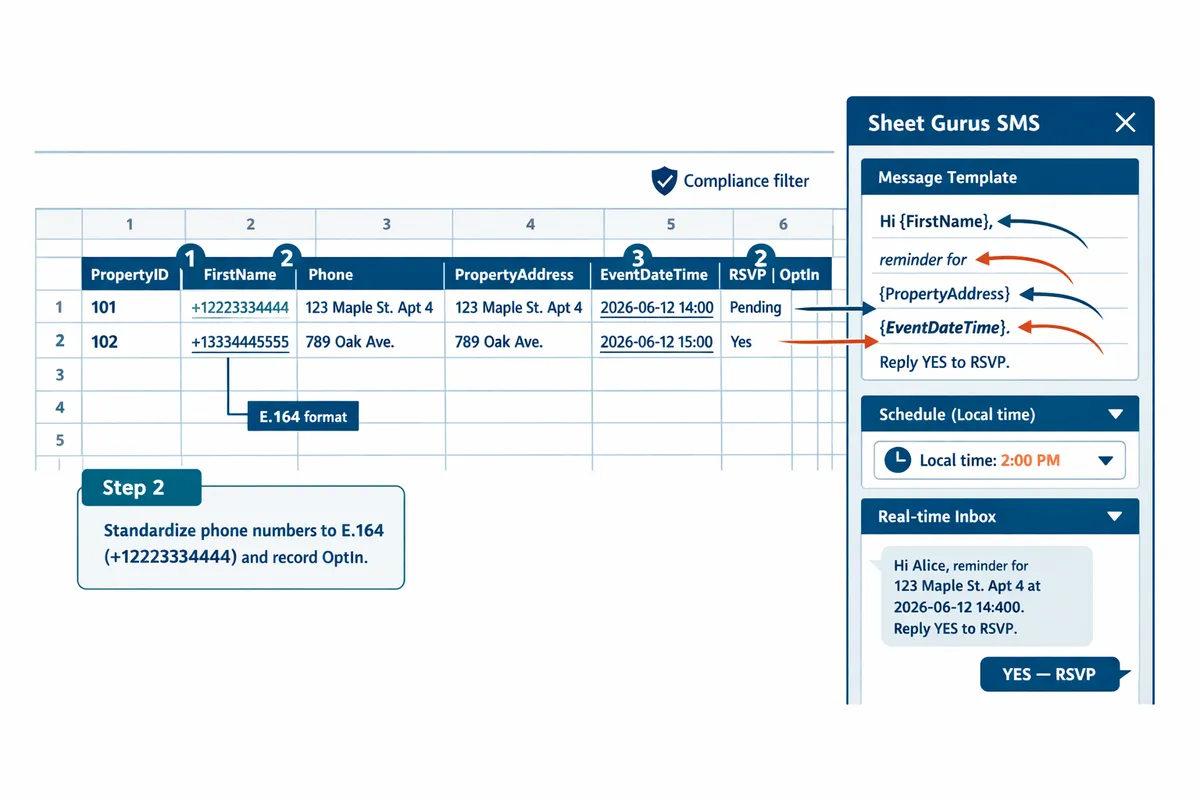
Step 2: Standardize phone numbers and consent columns 📞
Format every phone number in E.164 and record how the contact opted in to protect deliverability and reduce compliance risk. For example, use +12223334444 rather than local or formatted variants to prevent carrier rejections.
What to store in Consent and OptOut columns.
- Consent: record the exact opt-in source and date (examples: “WebsiteForm - 2026-03-05”, “Printed sign-in - 2026-04-12”, “In-person conversation - 2026-04-20”).
- OptOut: use a clear flag such as TRUE/FALSE or OPTED_OUT/ACTIVE so the add-on filters recipients automatically.
What can go wrong and how to recover.
- Incorrect phone format causes delivery failures. Run a quick filter for non-plus-prefixed numbers before scheduling and correct them.
- Missing consent entries increase TCPA risk. Backfill consent where possible (email confirmation, signed form) or exclude the contact.
How Sheet Gurus SMS helps. The add-on checks phone format before send and applies automatic message filtering to respect STOP replies and opt-out flags. See our Text Appointment Reminders guidance for best practices on storing client data and consent records.
Step 3: Create message templates using curly brackets ✍️
Prepare at least three templates—confirmation, 24-hour reminder, and 2-hour last-minute—that use curly-brace variables for personalization. Using distinct templates for each stage reduces manual edits and keeps messaging consistent across your team.
Suggested templates (copy-paste-ready):
- Confirmation (on RSVP): “Confirm: Hi {FirstName}, are you coming to the open house at {PropertyAddress} on {EventDateTime}? Reply YES to confirm.”
- 24-hour reminder: “Reminder: Hi {FirstName}, open house at {PropertyAddress} tomorrow at {EventDateTime}. Reply HELP for info.”
- 2-hour last-minute: “Today: Hi {FirstName}, open house at {PropertyAddress} in 2 hours ({EventDateTime}). Reply NO to cancel.”
Testing and validation steps.
- Use Sheet Gurus SMS’s template preview to validate variables row-by-row and catch missing fields. Expected outcome: preview shows substituted text for every variable in the selected row.
- Send a small test batch to internal numbers to confirm TimeZone handling and reply flow. Expected outcome: messages arrive at local times and replies appear in the add-on inbox.
Two-way replies and RSVP updates. Configure your team process so incoming YES/NO replies in the real-time inbox update the RSVP column manually or via your chosen workflow. That keeps the master sheet accurate for follow-ups and reduces duplicate outreach.
For broader setup options and integration paths, consult our comparison guide: Send Messages from Google Sheets: 2026 Ultimate Guide — Add-on vs Apps Script vs Zapier vs AppSheet.
How to automate scheduled, two-way SMS reminders from Google Sheets
You can schedule personalized, two-way SMS reminders directly from Google Sheets using our Sheet Gurus SMS add-on. This section shows installation, column mapping for curly-brace variables, scheduler rules with time-zone handling, and a compact comparison to no-code connectors so you pick the lowest-risk path. Follow the numbered steps below to set up automated open house and property showing text reminders without writing spreadsheet formulas.
Step 1: Install and authorize Sheet Gurus SMS in Google Sheets ⚙️
Install our Sheet Gurus SMS add-on from the Google Workspace Add-ons store and grant only the scopes the add-on requests so the sidebar can read rows and send messages. 1) Open Google Sheets, choose Add-ons > Get add-ons, search for Sheet Gurus SMS, and install. 2) Review requested scopes in the consent screen and approve only what the add-on needs. 3) Open the Sheet Gurus SMS sidebar from Add-ons > Sheet Gurus SMS > Open. Expected outcome: the sidebar appears and can read the active sheet for mapping. If you change the spreadsheet owner or share settings later, reauthorize the add-on to restore sending.
See our Sheet Gurus SMS for Real Estate page for real-estate-focused setup tips and example templates.
Step 2: Map sheet columns to message variables and preview messages 🔗
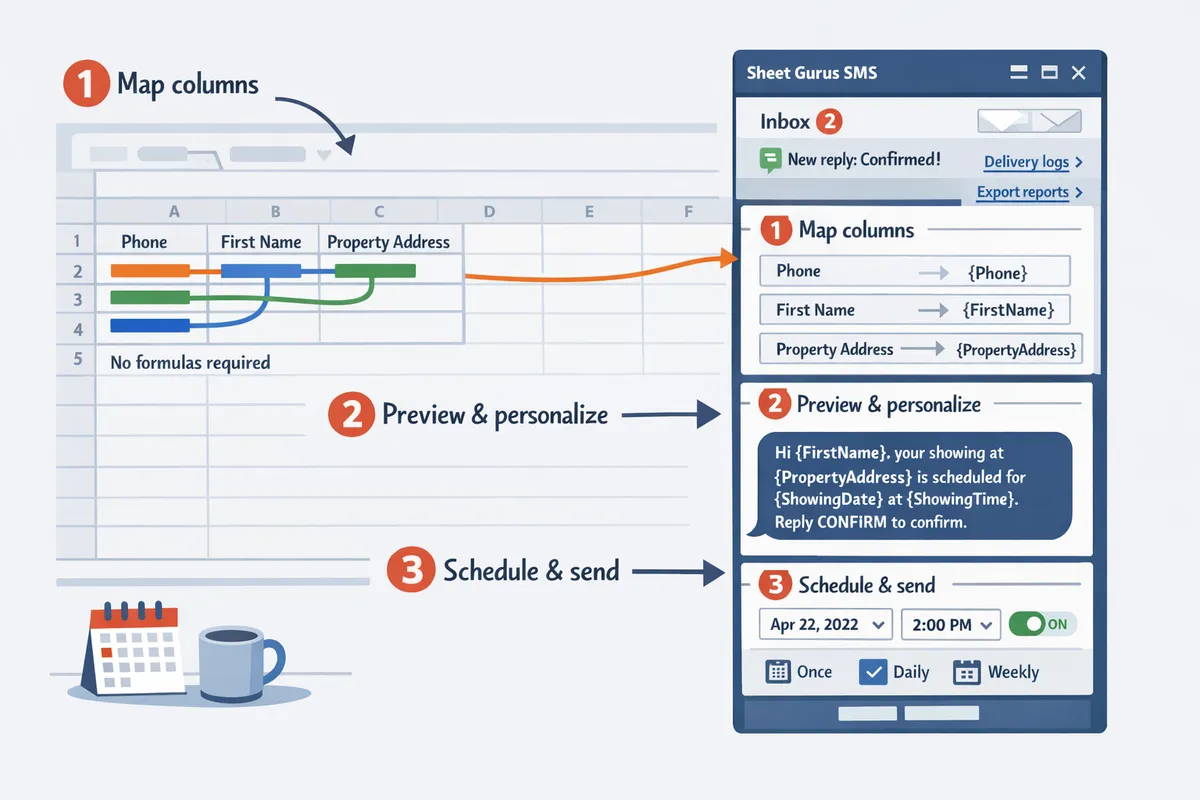
Map each sheet column to curly-brace variables like {FirstName}, {Phone}, {PropertyAddress}, and {EventDateTime} inside the Sheet Gurus SMS sidebar and run a preview across sample rows to confirm formatting. 1) In the sidebar choose the Phone column (use E.164 format where possible, e.g., +12223334444), the name column, and the event datetime column. 2) Map an explicit TimeZone column if you have attendees across zones. 3) Click Preview and review 5–10 sample messages to catch missing values, time-zone mismatches, and variable rendering. Example preview message: “Hi {FirstName}, reminder: {PropertyAddress} open house on {EventDateTime}. Reply YES to confirm.” Expected outcome: previews show correctly rendered messages for each sample row; fix rows flagged as missing before scheduling.
Step 3: Schedule delivery, set time-zone rules, and enable recurring reminders ⏰
Use the Sheet Gurus SMS sidebar scheduler to set sends relative to EventDateTime, map local time zones, and enable recurrence so reminders repeat without formulas. 1) Choose relative send offsets, for example 24 hours and 2 hours before EventDateTime. 2) Map your TimeZone column so each recipient receives the message at a local time. 3) Enable recurrence for weekly open houses and set a send window (for example 09:00 to 19:00 local time) to avoid after-hours texts. 4) Run a dry run to a test number before the first live send to validate DST handling and local delivery. Expected outcome: scheduled batches respect local times and repeat according to your cadence.
💡 Tip: Always use double opt-in for SMS signups to reduce complaints and stay aligned with consent best practices.
Sheet Gurus SMS applies automatic message filtering and a real-time inbox so two-way replies arrive back in the sidebar rather than scattered across apps. For broader automation patterns, see our Automated Text Messaging use case.
Step 4: Compare automation routes: Sheet Gurus SMS vs no-code connectors 🧰
Choose our Sheet Gurus SMS add-on when you need built-in two-way inboxes, in-sheet scheduling, and compliance filters; choose external connectors when you need cross-app triggers beyond Sheets. The table below summarizes setup and capability differences to help you decide quickly.
| Tool | Typical setup time | Cost profile | Two-way replies | Scheduler in-sheet | Data residency / storage | Compliance support |
|---|---|---|---|---|---|---|
| Sheet Gurus SMS (our add-on) | 10–30 minutes | Pay-per-message or subscription | Yes, real-time inbox in sidebar | Yes, relative to EventDateTime | Keeps data inside your Google Sheet and platform | Built-in filtering and opt-out handling |
| Zapier (no-code connector) | 30–90 minutes | Monthly subscription + per-action costs | Usually no, unless paired with a third-party SMS app | No, scheduler lives in Zapier or calendar | Copies data to Zapier platform | Depends on connected SMS provider |
| Apps Script (custom) | Hours to days | Free but maintenance cost | Possible with custom endpoints | Custom scripts require formulas or triggers | Your project controls storage | Must implement opt-out and filters yourself |
| AppSheet / Low-code | Hours | Platform subscription | Varies by provider | App-level scheduling available | Hosted by the platform | Varies; may include audit logs |
If your priority is low setup risk, two-way replies in one place, and sending directly from your sheet without moving data, our Sheet Gurus SMS add-on is the fastest path. For cross-app workflows that must trigger from CRMs or forms, consider Zapier or AppSheet and weigh the extra maintenance and data copies. See our Ultimate Guide to sending messages from Google Sheets for a deeper breakdown.
How to manage reminders, track replies, and troubleshoot common issues
Use Sheet Gurus SMS inbox, delivery logs, and exportable reports to monitor sends, handle replies, and fix failures in real time. This reduces missed confirmations and keeps your open-house lists accurate. The steps below show how to track delivery and response metrics, correct undelivered items, stay compliant, and deploy ready-made templates from a copyable ‘Open House RSVP’ sheet.
Monitor delivery, response rates, and guest status dashboards 📊
Open the Sheet Gurus SMS inbox and delivery log daily to check delivery status, reply timestamps, and RSVP updates. 1. Open the add-on sidebar and click Inbox. Review the last 24–72 hours of replies and the Delivery Log for statuses labeled Sent, Delivered, or Undelivered. 2. Export Undelivered rows to a validation sheet for quick fixes (filter by status = “Undelivered”). 3. Track three KPIs weekly: delivery rate (percent delivered of messages sent), opt-in rate (contacts with consent), and response rate (replies per invite). Use a simple pivot table in Google Sheets to show trends by agent and property.
💡 Tip: Schedule a weekly export of the delivery log to capture spikes in undelivered messages after large blasts.
See our Send Messages from Google Sheets guide for pros and trade-offs when you compare add-on workflows to Apps Script or Zapier.
Troubleshoot undelivered messages and carrier blocks 🛠️
Inspect the failure reason in the Sheet Gurus SMS delivery log, then validate the phone format and consent before resending. 1. Open the delivery row and read the carrier error: common reasons are invalid number, carrier filtering, or consent missing. 2. Confirm E.164 formatting (example: +12223334444) in your Phone column and update bad numbers in the validation sheet. 3. If consent is missing, update the ConsentFlag and OptInDate columns before resending. 4. When carriers report filtering, remove promotional phrasing and long or tracking-heavy URLs; shorten link use to a single clean property landing page.
Example copy issue and fix:
- Problem: “Special offer: 10% off closing costs! See {PropertyLink}”
- Fix: “Reminder: Open house at {PropertyAddress} on {Date} at {Time}. Reply YES to confirm.”
Resend corrected rows from the Sheet Gurus SMS sidebar rather than copying messages manually.
Compliance and message filtering to avoid penalties ⚖️
Record explicit opt-ins, honor STOP replies immediately, and rely on Sheet Gurus SMS automatic filtering to block risky messages. 1. Add and maintain these columns in your sheet: OptInFlag (Yes/No), OptInDate (timestamp), OptInSource (e.g., signup form, text JOIN), and ConsentText (optional capture). 2. When the inbox receives a STOP reply, mark OptInFlag = No and move the contact to an exclusion group; do not message them again. 3. Export an opt-in report (Phone, OptInDate, OptInSource) to demonstrate consent if required.
⚠️ Warning: Do not send promotional blasts to contacts without explicit consent; record opt-in source and date to reduce legal risk.
For real-estate specific consent language and examples, see Sheet Gurus SMS for Real Estate and our Automated Text Messaging use case.
Templates, examples, and a ready-to-duplicate Sheet template 📁
Use the ‘Open House RSVP’ template with sample rows and three ready-to-use SMS templates that use curly-brace variables for personalization. 1. Copy a sheet named Open House RSVP and include these required columns: ID, FirstName, LastName, Phone (E.164), AgentName, PropertyAddress, Date, Time, ParkingNotes, ConsentFlag, OptInDate, RSVPStatus, LastReply, Notes. 2. Use date-parsing formulas for consistency; for example, convert input text to date with DATEVALUE where needed so scheduling rules trigger correctly. 3. Map curly-brace variables in the Sheet Gurus SMS sidebar (e.g., {FirstName}, {AgentName}, {PropertyAddress}, {Date}, {Time}).
Three ready-to-use templates (drop into the add-on):
- Pre-showing reminder (24 hours): “Hi {FirstName}, {AgentName} here — reminder: open house at {PropertyAddress} on {Date} at {Time}. Reply YES to confirm or NO to opt out.”
- Same-day reminder (2 hours): “Hi {FirstName}, quick reminder: showing at {PropertyAddress} today at {Time}. Parking: {ParkingNotes}. Reply ARRIVE to confirm.”
- Post-visit follow-up: “Hi {FirstName}, thanks for visiting {PropertyAddress}. Want more details or a private tour? Reply MORE to connect with {AgentName}.”
Expected outcome when you use the template plus inbox workflow: faster confirmation tracking, fewer missed confirmations, and a single place to validate undelivered rows before resending. For a comparison of add-on vs Apps Script and no-code tools, review our Ultimate Guide to sending messages from Google Sheets.
Frequently Asked Questions
This FAQ answers operational, setup, and compliance questions about sending open house SMS reminders google sheets using Sheet Gurus SMS. Sheet Gurus SMS is a Google Sheets add-on that sends SMS from a sidebar and provides a real-time inbox plus automatic message filtering. Use these answers to run scheduled, personalized reminders and track replies without leaving your spreadsheet.
Can I send two-way SMS directly from Google Sheets? 💬
Yes — Sheet Gurus SMS supports two-way SMS inside Google Sheets via a real-time inbox in the add-on sidebar. The inbox shows threaded replies and lets you respond from the sheet so you can confirm RSVPs, answer questions, and update an RSVP column in one workflow. Messages are sent from the sidebar (not from formulas), so you see delivery status and reply history next to the contact row. For a broader comparison of add-on vs no-code approaches, see our Send Messages from Google Sheets: 2026 Ultimate Guide.
How do I keep messages time-zone aware? 🌍
Include a TimeZone column and map it in the Sheet Gurus SMS sidebar so scheduled sends use each recipient’s local time. Use IANA-style names like America/Los_Angeles or a clear offset when you import contacts. If a row has no timezone, set a default (property timezone or agent office timezone) to avoid reminders hitting at night. Test with a small batch first and check the delivery timestamps in the add-on logs to confirm correct behavior.
Are there real estate texting templates for Google Sheets I can copy? 📝
Yes — the guide includes copyable real estate texting templates that use curly-brace variables such as {FirstName}, {PropertyAddress}, and {EventDateTime}. Examples you can paste into a Message column:
- “Hi {FirstName}, reminder: Open house at {PropertyAddress} on {EventDateTime}. Reply YES to confirm or CALL to reschedule.”
- “Thanks for visiting {PropertyAddress}, {FirstName}. Reply SHOWING to book a private tour or INFO for more details.”
- “Quick reminder: {EventDateTime} showing for {PropertyAddress}. Please reply 1 to confirm, 2 to cancel.”
Map the curly-brace variables to your sheet columns in the sidebar so messages personalize automatically. See Sheet Gurus SMS for Real Estate for more drop-in templates and sample workflows.
What compliance steps are required for property showing text reminders? ⚖️
You must collect explicit opt-in, record consent details in a consent column, honor STOP replies immediately, and enable Sheet Gurus SMS automatic filtering to reduce compliance risk. Store opt-in date, opt-in source (website, sign-in sheet), and the exact opt-in language used so you can produce records if asked. Configure the add-on to auto-block STOP/UNSUBSCRIBE keywords and to log any filtered sends for audit.
💡 Tip: Always use double opt-in for SMS signups.
⚠️ Warning: Avoid including personal health information or other sensitive data in SMS messages.
For real-estate-specific consent language and examples, adapt the templates in our Automated Text Messaging use case and keep a consent column in your guest list.
How do I handle bounced or invalid numbers? 🚫
Mark bounced rows using the Sheet Gurus SMS delivery logs, correct formatting and country codes, then resend from the sidebar after verification. Common causes include missing +country codes, landlines, or carrier blocks; use the delivery logs to see carrier error messages and identify patterns. For bulk corrections, add a Validated column and run a verification step before the next send to avoid repeated bounces. If multiple bounces come from the same carrier or region, pause that segment and investigate before resending.
Can I schedule recurring open house reminders for multiple properties? 🔁
Yes — use the recurrence setting in the Sheet Gurus SMS sidebar and include a PropertyID or PropertyAddress column so messages send per property without duplication. Scope recurrence by PropertyID and use an RSVP or LastSentTimestamp column to prevent the same contact receiving duplicate reminders for different events. Example workflow: set a weekly Saturday recurrence for PropertyID 12345 and the add-on will match contacts scoped to that property while respecting each contact’s timezone and opt-out status. For setup patterns and a comparison of add-on versus script or Zapier approaches, see Send Messages from Google Sheets: 2026 Ultimate Guide.
Start sending open house SMS reminders from Google Sheets with a repeatable workflow.
You now have a step-by-step process to schedule personalized open house and property showing messages and collect two-way replies from a single Google Sheet. Following the guide should leave you with reusable templates, dynamic variables, and a live inbox so agents can confirm attendees without copy-paste. open house sms reminders google sheets are now practical to run from a single spreadsheet.
Sheet Gurus SMS is a Google Sheets add-on for sending bulk SMS from a sidebar rather than spreadsheet formulas. Personalize each message with curly-brace variables such as {FirstName}, handle replies in a real-time two-way inbox, and rely on automatic message filtering to help keep your sends compliant.
💡 Tip: Always use double opt-in for SMS signups.
Start a free trial of Sheet Gurus SMS to put these templates into practice and test two-way reminders from your sheet. For real estate-specific examples see Sheet Gurus SMS for Real Estate and compare add-on approaches in our Send Messages from Google Sheets guide.