




How to Send Bulk Text Messages from Google Sheets Using a Sidebar (Not Formulas)
Small businesses often spend 6–12 hours each week sending and fixing mass texts from spreadsheets. To
send bulk text messages from Google Sheets using a sidebar you need a clear, repeatable workflow that keeps personalization, scheduling, and compliance in one place. A sidebar-based bulk SMS workflow is an add-on interface that lets you compose messages, insert curly-bracket variables, schedule deliveries, and handle two-way replies without spreadsheet formulas. Sheet Gurus SMS is a Google Sheets add-on that helps users save time and money by sending personalized bulk SMS from a sidebar, with curly-bracket variables, a real-time inbox, and automatic compliance filtering. Follow our Sending SMS from Google Sheets guide and mass-texting use cases to pick the right sidebar setup. Which sidebar steps prevent costly mistakes and missed replies?Which workflow should I use to send bulk text messages from Google Sheets using a sidebar?
Pick the path that matches your list size, send frequency, and technical resources: no-code add-on sidebar for most small businesses, a custom Apps Script sidebar when you need a unique UI and developer time, or an automation platform when sends must orchestrate multiple apps. Sheet Gurus SMS is a Google Sheets add-on that sends messages via a sidebar and supports curly-brace variables, a real-time inbox, and automatic message filtering. Use the short decision tree below to match your needs to the fastest, lowest-risk option.
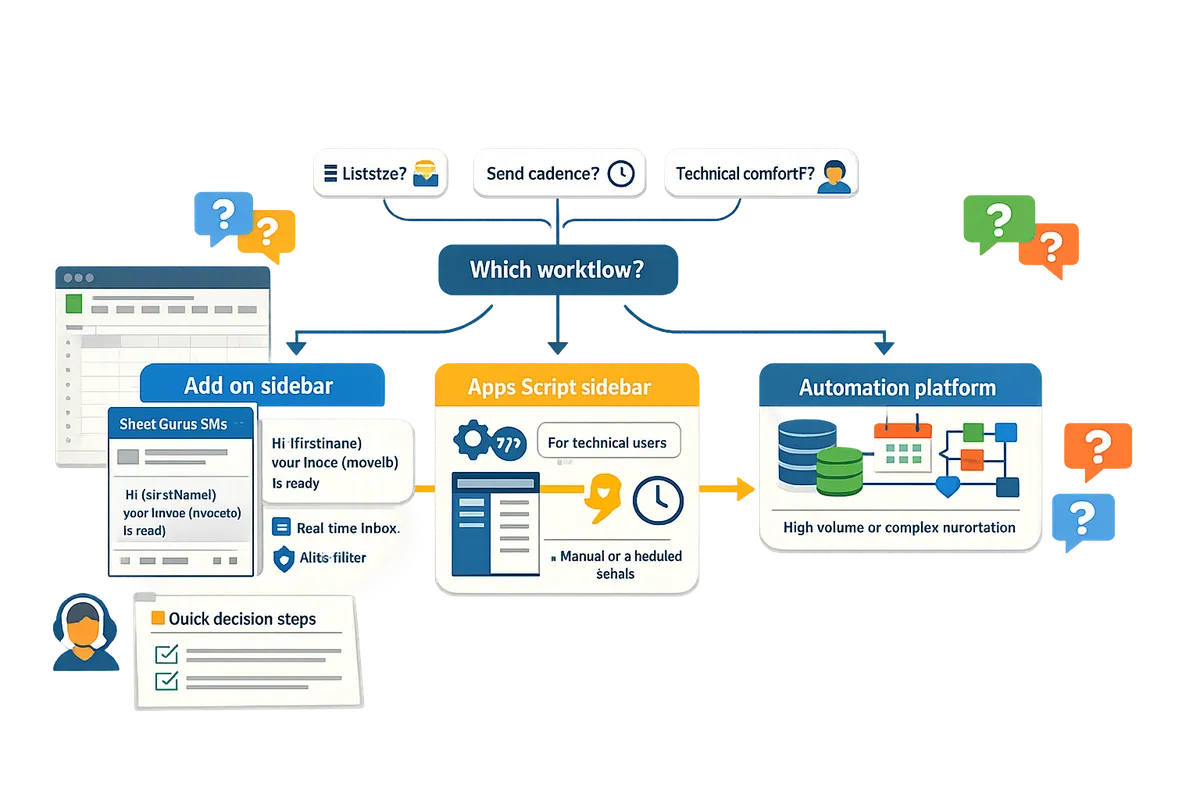
What quick decision steps tell me which path to pick? 🧭
Match your list size, send cadence, and technical comfort to one of three workflows: add-on sidebar, Apps Script sidebar, or automation platform.
- Volume and frequency. If you send under ~2,000 messages per month and sends are routine (daily or weekly), choose an add-on sidebar. If you send very low volume occasionally, an add-on saves setup time. If you send massive batches nightly and need custom batching, consider Apps Script or an automation platform.
- Feature needs. If you need two-way replies, dynamic variables like “Hi {FirstName}, your appointment at {Location} is at {Time}”, and built-in compliance filters, choose a ready add-on such as Sheet Gurus SMS. If you need an unusual UI or bespoke routing, pick Apps Script.
- Integrations. If an SMS send must create invoices, update CRM records, or open helpdesk tickets automatically, use an automation platform for orchestrating those steps and handling retries and logs.
See the full comparison and use cases in our 2026 Ultimate Guide — Add-on vs Apps Script vs Zapier vs AppSheet.
When should I use Sheet Gurus SMS instead of a DIY sidebar? ✅
Use Sheet Gurus SMS when you want a ready sidebar that supports curly-brace variables, a real-time inbox, and automatic message filtering with minimal setup. Sheet Gurus SMS removes hours of build and testing by providing:
- Curly-brace personalization (example: “Hello {FirstName}, your invoice {InvoiceID} is due {DueDate}”).
- A live inbox for two-way replies so teams can respond without switching tools.
- Automatic filtering to reduce opt-out and compliance risk when sending lists that include unsubscribed numbers.
Business impact example: a small clinic replacing manual copy-paste saves 3–5 hours weekly on list cleaning and message sends. Follow our step-by-step product guide for setup and scheduling in the Sheet Gurus SMS Guide.
💡 Tip: Always use double opt-in for SMS signups to reduce complaints and carrier filtering.
When is a custom Apps Script sidebar appropriate? 🛠️
Choose a custom Apps Script sidebar when you require a highly specific UI or routing logic that off-the-shelf add-ons cannot provide and you can commit developer time to build and maintain it.
Use cases that justify the build: custom scheduling rules tied to business hours, complex recipient segmentation driven by sheet formulas, or an internal-only UI that enforces special approval workflows. Expect developer time for initial build, unit testing, and ongoing upkeep when Google or the SMS provider changes APIs.
Business consequences of DIY: plan for lost hours if the script breaks during a campaign, and expect extra work to handle provider rate limits and failed sends. If you want a blueprint before building, our Ultimate Guide contrasts typical build times and maintenance effort for Apps Script versus add-ons.
When should I use an automation platform with Sheets and a sidebar? 🔁
Use an automation platform when your SMS send must trigger or update other systems like CRM, billing, or helpdesk and you want built-in retries, logs, and multi-step orchestration without coding.
Automation platforms excel when a single spreadsheet update needs to: create a ticket, send an SMS, log delivery status back into the sheet, and push a record to an accounting system. They reduce integration work but add monthly cost and occasional rate-limit planning.
Practical example: on payment failure, an automation workflow can update the invoice in your accounting app, send a personalized reminder SMS from the sidebar, and create a follow-up task in your helpdesk. Review orchestration examples in our post on how to automate SMS from Google Sheets without coding.
For a deeper comparison of paths and sample sidebars, see our Send Messages from Google Sheets: 2026 Ultimate Guide.
How do I send bulk text messages from Google Sheets using a sidebar step by step?
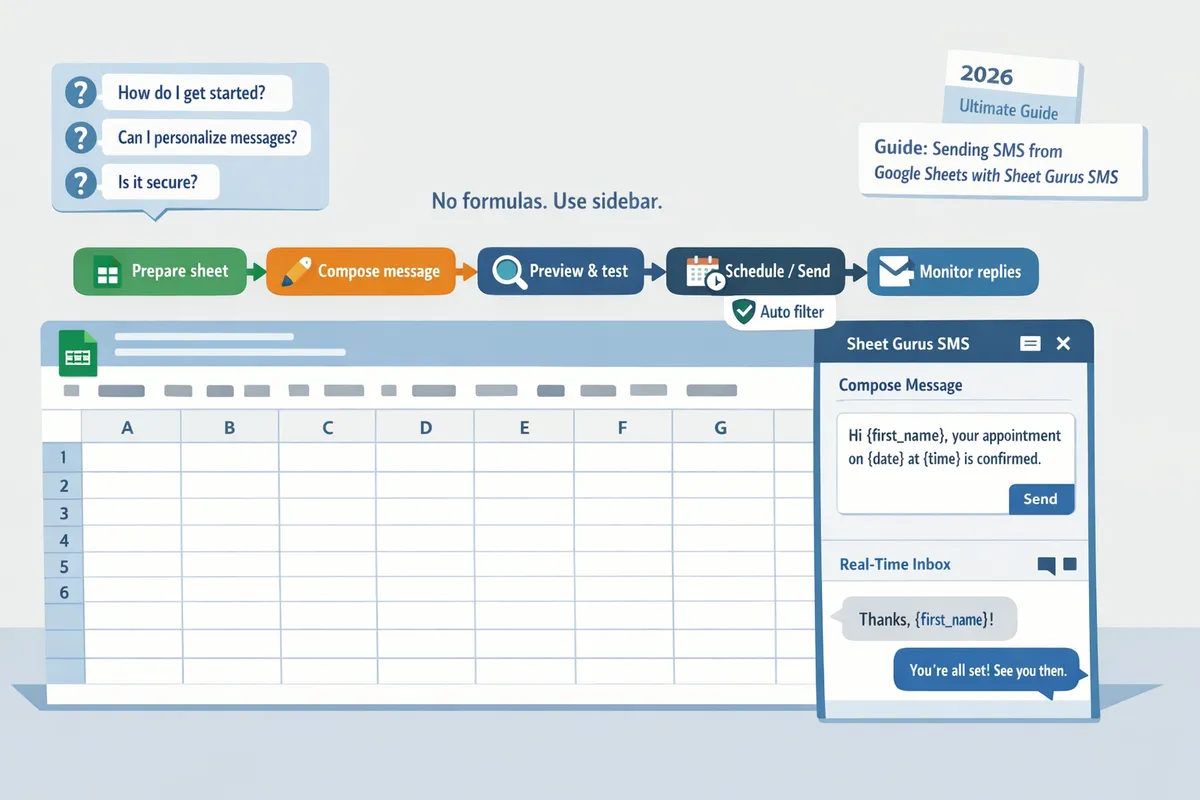
Follow a five-step sidebar workflow: prepare your Sheet, write messages with curly-brace variables, preview and test, schedule or send, then monitor replies in the sidebar. This workflow maps to the Sheet Gurus SMS sidebar UX and to similar Apps Script sidebars you may build. Each subsection below shows the exact actions you will take inside the sidebar and the common checks to avoid wasted sends.
How should I structure my Google Sheet columns before sending? 🧭
Use clear column names (phone, first_name, last_name, country, opt_in_status) so the sidebar can validate numbers and replace variables at send time. For example: phone, first_name, last_name, appointment_date, opt_in (yes/no). Sheet Gurus SMS reads headers verbatim for variable substitution and uses opt_in fields to filter recipients automatically.
Include a single canonical phone column in E.164 format where possible (for example +12223334444). Keep one row per recipient and avoid merged cells or extra header rows; the sidebar detects the header row and locks it for mapping. Use the opt_in column to store explicit consent values the sidebar will use to exclude non-consenting contacts.
💡 Tip: Use a dedicated “opt_in” column with values like yes / no or subscribed / unsubscribed. That enables quick filters in the sidebar and reduces accidental sends.
How do I compose personalized messages with curly bracket variables? ✍️
Write the message body with curly-brace placeholders that match your header names so the sidebar replaces them per recipient at send time. Example: “Hello {first_name}, your appointment on {appointment_date} is confirmed. Reply STOP to opt out.” Sheet Gurus SMS supports curly-brace variables and shows a per-row preview so you can catch missing fields before you send.
Keep messages short and explicit about replies. The sidebar will display the character count and warn if a message will split into multiple segments or include MMS. For complex messages, preview five to ten rows to confirm that every placeholder returns meaningful data and that opt-in text appears where required.
How does the sidebar preview, test, and schedule sends? ⏱️
Use the sidebar preview to sample 5–10 rows, run validations, then pick a delivery window or send immediately. Typical steps inside the sidebar:
- Map header columns to sidebar fields (phone, first_name, opt_in).
- Apply filters (opt_in = yes, country = US) to reduce the list.
- Run a test send or preview on 5–10 rows to verify formatting and placeholders.
- Choose immediate send or schedule a delivery window and confirm cost/segment warnings.
Sheet Gurus SMS validates phone formats, counts final messages after filters, and flags rows with missing data. That saves hours spent fixing failed sends and avoids billing for invalid numbers.
⚠️ Warning: Always preview a small sample before running a full send. A single bad placeholder or wrong filter can cause many mis-sent messages.
What does monitoring and two-way messaging look like inside the sidebar? 💬
The sidebar displays delivery status, lists failed numbers, and provides a real-time inbox for incoming replies so you stay inside Sheets while managing conversations. The inbox groups replies by phone number, shows delivery receipts (delivered, failed), and lets you tag or assign threads for follow up.
Sheet Gurus SMS applies automatic message filtering before send and flags messages that might violate consent rules or include restricted content. Use the sidebar inbox to export reply threads, mark opt-outs, and rerun sends to unresolved failures without leaving the spreadsheet.
How do the options compare: Sheet Gurus SMS, DIY Apps Script, and marketplace add-ons? 🧾
Compare setup time, maintenance, two-way messaging, compliance filters, and per-message cost in the table below to pick the right path for your volume and skills.
| Option | Setup time | Maintenance | Two-way messaging | Compliance filters | Per-message cost |
|---|---|---|---|---|---|
| Sheet Gurus SMS | Minutes to install and map columns | Low. Updates managed in the add-on | Built-in real-time inbox inside the sidebar | Built-in automatic filtering and opt-out handling | Pay-per-message (sidebar shows estimated counts) |
| DIY Apps Script sidebar | Several hours to build and connect a provider | High. You maintain scripts and auth | Possible but requires extra coding and storage | You must implement validation and opt-out logic yourself | Depends on provider; can be cheaper but higher maintenance |
| Marketplace add-ons (varied) | Minutes to install but may need configuration | Medium. Varies by vendor | Varies. Some offer replies, some are one-way | Varies widely; many lack built-in compliance scanning | Varies; some include platform fees |
If you want a detailed comparison of add-on vs Apps Script vs automation platforms, see our 2026 Ultimate Guide for send messages from Google Sheets and the official Guide: Sending SMS from Google Sheets with Sheet Gurus SMS.
How do costs, compliance, deliverability, and scaling affect a sidebar-based bulk SMS workflow?
Costs, compliance, deliverability, and scaling determine the provider, sidebar settings, and operational controls you need to send bulk text messages from Google Sheets using a sidebar. Plan budget by combining per-message fees, monthly platform or number costs, and the time your team spends fixing failed sends. Use the sidebar to surface those costs and rules so you can choose whether to send immediately or schedule throttled batches.
What pricing guidance should I use for low, medium, and high volume sends? 🧾
Estimate total program cost by combining per-message fees, monthly platform fees, and any per-number or short-code charges. For example, a small clinic sending appointment reminders once per month (about 500 messages) should model per-message cost multiplied by volume plus any monthly number fee. A retailer sending daily promos (20,000 messages/month) must factor in bulk discounts, short-code rental, and higher throughput fees.
Use this quick tier checklist as an example calculation (example pricing only):
- Low volume (<= 1,000 messages/month): per-message fee x volume + single-number fee. Example: 500 messages at $0.02 each = $10; add platform or number fee.
- Medium volume (1,000–25,000/month): probe for per-message discounts and per-number throughput caps. Schedule sends during off-peak minutes to reduce congestion.
- High volume (25,000+/month): consider leased short codes or dedicated sender IDs and higher monthly fees for throughput. Expect setup and provisioning time.
Sheet Gurus SMS helps by sending from the add-on sidebar and showing which provider account is used for each send, so you can map costs to specific campaigns before you “send sms through sheets” or schedule throttled batches. For broader buying guidance, see our 2026 Ultimate Guide comparing add-ons, Apps Script, and automation platforms.
What compliance steps must the sidebar enforce before sending? 🔒
The sidebar must verify explicit opt-in, append clear opt-out language, and record consent metadata before any send. Required fields to capture include consent timestamp, opt-in source (web form, in-store), and the exact opt-in text the customer agreed to.
Use this compliance checklist in the sidebar before you “send sms from google sheets sidebar instead of formulas”:
- Verify opt-in flag for each row and block rows without consent.
- Auto-append opt-out language like: “Reply STOP to opt out.” Example message: “Hi {FirstName}, your appointment at {Location} is at {Time}. Reply STOP to opt out.”
- Store consent records (timestamp, IP or channel, campaign ID) in an audit sheet or CRM.
- Filter or block messages containing restricted content categories automatically.
Tip: Use double opt-in for high-risk campaigns and store the confirmation timestamp to reduce complaints and carrier rejections.
Sheet Gurus SMS applies automatic message filtering and keeps a real-time inbox to help enforce opt-out requests and consent records from inside the sidebar.
How do deliverability, rate limits, and retries work for bulk sends? 🚦
Deliverability depends on sender reputation, correct number formatting, and respecting carrier rate limits; a sidebar should show rate limits and retry behavior before you send. Carriers throttle traffic that looks like spam or that violates local sending windows, so visibility into per-minute caps is critical.
Practical controls to surface in the sidebar:
- Per-minute and per-hour caps with an estimated completion time for the batch.
- Local send windows (for example, 9:00–20:00 local time) to avoid night-time rejections.
- Automatic retry attempts for transient failures and clear error codes for hard failures.
Example setting: set a 30 messages/min cap for long-code sends and schedule heavier campaigns overnight in recipient local time to avoid daytime congestion. Sheet Gurus SMS displays delivery status and failure reasons in the sidebar and can pause a campaign when carrier errors exceed a threshold.
Which region-specific provider considerations matter? 🌍
Key region checks to expose in the sidebar:
- Number types supported per country (long code, short code, toll-free, alphanumeric sender ID).
- Template or pre-registration requirements for promotional content.
- MMS and unicode handling differences, which affect message segmentation and cost.
Sheet Gurus SMS surfaces provider capabilities by country inside the sidebar so you can see limits and supported features before you schedule a multi-country campaign. For regional setup examples and automation options, review our guide to automate SMS from Google Sheets without coding.
What are the common troubleshooting steps for failed sends? 🛠️
Diagnose failed sends by checking phone format, opt-in status, provider error codes, and account credit balance. Use structured failure reporting so you can correct and retry only the problematic rows.
Step-by-step troubleshooting workflow to implement in the sidebar:
- Export failed rows to CSV with the error code and campaign ID.
- Verify numbers use E.164 format (for example, +12223334444) and fix missing country codes.
- Confirm opt-in flag and remove rows blocked by consent or content filters.
- Check provider error codes for hard rejections versus transient errors and add retries for transient cases.
- Confirm account credit or daily quota and top up if needed.
Sheet Gurus SMS includes failure reason visibility and CSV export from the sidebar so you can correct rows in Sheets and retry only the failed messages.
Related reading: our Send Messages from Google Sheets: 2026 Ultimate Guide compares the sidebar add-on approach to Apps Script and Zapier for two-way SMS and scaling decisions. You can also see the detailed sending guide in our main product guide for step-by-step setup and best practices.
Frequently Asked Questions
This FAQ answers the most common operational and compliance questions about how to send bulk text messages from Google Sheets using a sidebar. Each answer shows the specific sidebar capability, a practical example, and a next step you can take in Sheets.
Can I send SMS from Google Sheets without writing formulas or scripts? 📩
Yes. Our Sheet Gurus SMS add-on sends messages from a sidebar so you never need spreadsheet formulas or custom Apps Script. The sidebar reads your rows, validates phone numbers, performs variable substitution, and controls rate limits before sending. For a step-by-step setup and screenshots, see our Guide: Sending SMS from Google Sheets with Sheet Gurus SMS (Updated 2025). Example message in the composer: “Hi {FirstName}, your order {OrderID} is ready for pickup at {Location}.”
How do curly bracket variables work inside sidebar messages? ✏️
Curly bracket variables map directly to your sheet column headers and the sidebar replaces each token per row before sending. For example, if your sheet has columns FirstName, AppointmentDate, and Time, the message “Hi {FirstName}, your appointment is {AppointmentDate} at {Time}.” becomes a unique SMS for each recipient. Our Sheet Gurus SMS sidebar also highlights missing values before you send and shows a one-row preview so you can catch formatting issues early.
Is two-way messaging possible from the sidebar? 🔁
Yes. Our Sheet Gurus SMS sidebar includes a real time inbox that receives replies and lets you respond without leaving Google Sheets. You can filter the inbox by contact, search message history for a phone number, and click a row to open a draft reply with variables like “Thanks {FirstName}, we confirmed your {Service}.” This keeps booking confirmations, surveys, and simple support flows inside Sheets.
How does the sidebar help with compliance and opt-out management? ⚖️
A compliance-aware sidebar enforces opt-in checks, appends required opt-out language, and logs consent records for audit trails. Our Sheet Gurus SMS automatic filtering flags messages that match carrier policy risks and prevents send attempts where opt-in is missing. 💡 Tip: Use double opt-in for lists gathered from web forms to reduce complaint rates and maintain a clean consent log.
What should I do if many messages fail to deliver? 🛠️
Export the failed rows, confirm phone format and opt-in status, then correct and retry from the sidebar. The Sheet Gurus SMS error pane shows carrier error codes and common causes (invalid number format, blocked sender, or missing consent). If failures point to rate limiting or carrier restrictions, reduce the send rate in the sidebar or switch sender type as advised in the error details.
Can I schedule repeated campaigns from the sidebar? ⏰
Yes. Our sidebar supports one-off sends, scheduled deliveries, and recurring campaigns so you can automate appointment reminders or weekly promotions straight from Sheets. Set the cadence, choose the target rows, and the sidebar stores the schedule; you do not need external cron jobs. For automation examples and best practices, see our Automated Text Messaging Services use case.
Which is faster to set up for non-technical teams: Sheet Gurus SMS or a custom Apps Script? ⚡
Sheet Gurus SMS is faster for non-technical teams because it installs as an add-on and provides a ready-made sidebar UI with validation, variable substitution, inbox, and compliance controls out of the box. Building a custom Apps Script sidebar requires development time, ongoing maintenance, and manual handling of rate limits and opt-out logging, which increases operational risk. For a full comparison of add-on versus DIY options, consult our 2026 Ultimate Guide — Add-on vs Apps Script vs Zapier vs AppSheet.
Take the next step: set up a sidebar workflow and start a free trial.
A sidebar-based workflow cuts manual copy-paste, reduces mistakes, and frees up hours you would otherwise spend prepping lists. For example, small business operators often spend 3–5 hours each week cleaning contact lists before they can send messages; choosing a sidebar add-on streamlines that work and keeps personalization inside the sheet. This article shows how to send bulk text messages from Google Sheets using a sidebar without relying on formulas.
Sheet Gurus SMS is a Google Sheets add-on for sending bulk SMS from a sidebar rather than spreadsheet formulas. Personalize each message with curly-brace variables such as {FirstName}, handle replies in a real-time two-way inbox, and rely on automatic message filtering to help keep your sends compliant.
💡 Tip: Send a small test list first and include variables like “Hi {FirstName}, your appointment at {Location} is at {Time}” to verify personalization.
Start a free trial and follow the getting-started guide to set up your first sidebar campaign. For deeper comparisons, see our 2026 Ultimate Guide and the mass-texting use case on Sheets SMS Automation.