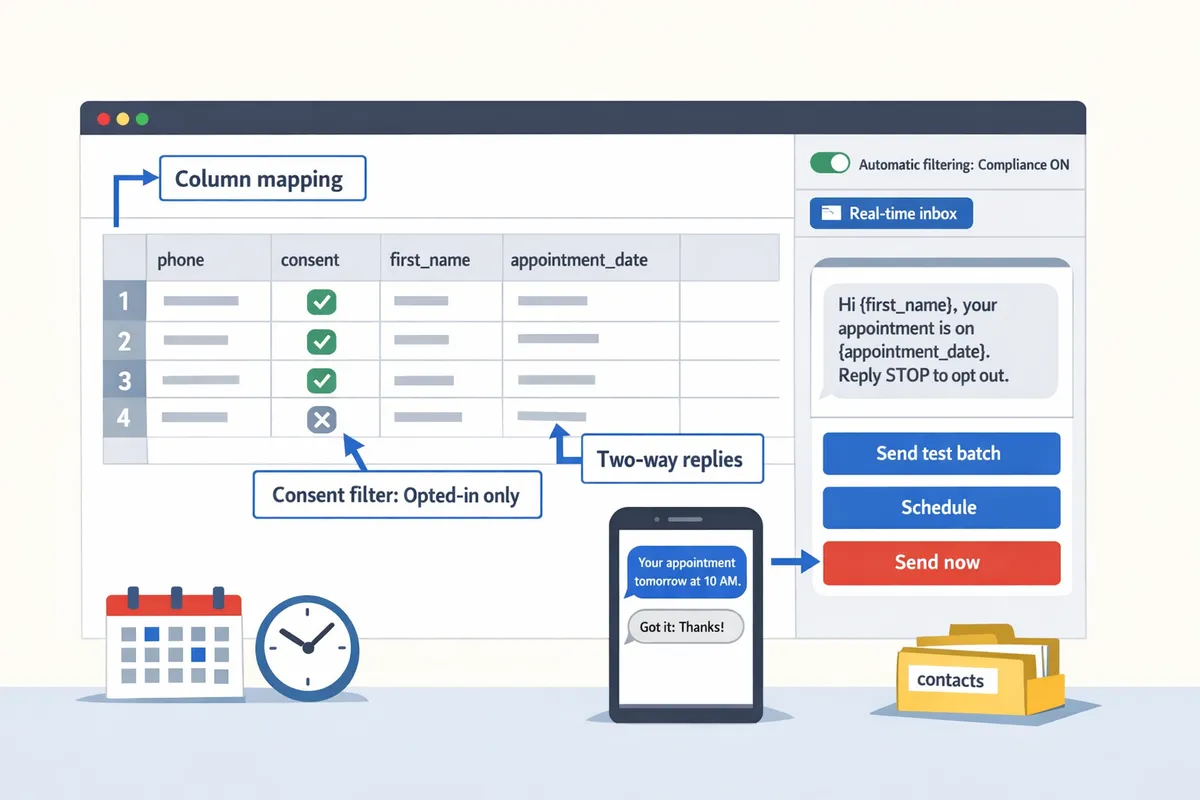
A missed SMS reminder can cost a small business an appointment and hundreds in lost revenue. \“how to send bulk sms from google sheets sidebar\” is a how-to process that uses a Google Sheets sidebar add-on to send personalized bulk SMS directly from Sheets without spreadsheet formulas. Our website’s Sheet Gurus SMS is a Google Sheets add-on that sends messages via a sidebar, supports curly-bracket variables for per-recipient content (for example, {first_name}), provides a real-time inbox for two-way replies, and applies automatic message filtering to help keep you compliant. This beginner’s guide compares sidebar sending versus other methods, includes starter templates and compliance tips, and links to our Sending SMS from Google Sheets with Sheet Gurus SMS guide to show which approach saves time and reduces missed communications.
Sidebar SMS sending is an add-on workflow that composes and sends SMS messages from a Google Sheets sidebar rather than with spreadsheet formulas. This approach moves message composition, personalization, scheduling, and reply handling into a single sidebar interface so teams avoid copying and pasting rows into another tool. For small businesses, that cuts repetitive work and reduces the risk of sending incorrect or noncompliant messages.
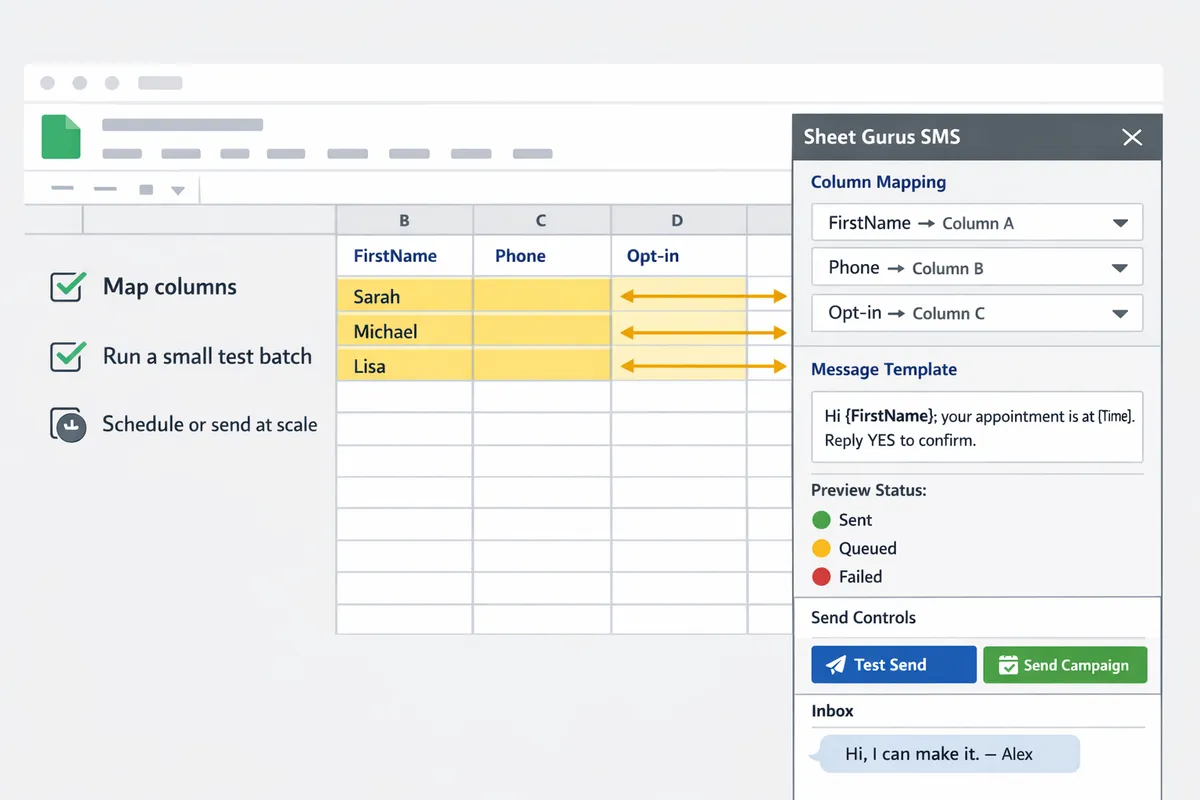
Sheet Gurus SMS is a Google Sheets add-on that sends messages from a sidebar, supports curly-brace variables, and provides a real-time inbox with automatic compliance filtering. The typical flow is: install the add-on, open the Sheet Gurus SMS sidebar, map spreadsheet columns to contact fields, write a template using curly braces (for example: \“Hi {first_name}, your appointment on {appointment_date} at {location} is confirmed.\”), preview personalized rows, then send or schedule the batch. Our website’s step-by-step guide covers each click and the permissions requested during install.
Install the Sheet Gurus SMS add-on and grant the requested permissions.
Open the sidebar and select the sheet and phone column.
Map placeholders to column headers and insert variables into the message template.
Preview a small sample and send or schedule the full batch.
💡
Tip: Always send a test to yourself or a small internal group before a full send to verify variable formatting and time zone handling.
See our detailed Sending SMS from Google Sheets guide for a walkthrough of the sidebar screens and sample templates.
A capable sidebar add-on provides contact mapping, variable substitution, scheduling, batching, a delivery dashboard, and reply handling inside the sidebar. Expect these specific capabilities when evaluating options:
Contact mapping. Match any column header (for example: first_name, appointment_date) to template variables without changing your sheet layout.
Variable substitution. Use curly-brace variables like {first_name} and preview per-row results before sending.
Scheduling and batching. Set local send times and split large lists into controlled batches to avoid carrier throttling.
Delivery dashboard. See sent/failed counts and per-number delivery status inside the sidebar.
Two-way inbox. Read and reply to inbound SMS directly from the sidebar, with thread history tied to the original row.
Compliance filters. Automatic opt-out detection and content filters to reduce regulatory risk.
Sheet Gurus SMS includes each of these features; compare them against other approaches in our 2026 ultimate guide to sending messages from Google Sheets.
A working sheet requires a dedicated phone column with E.164 numbers, an opt-in or consent column, and separate columns for every curly-brace variable used in the template. Use these concrete rules when preparing your sheet:
Column header
Example cell value
Notes
phone
+12223334444
Must use E.164 format for international routing and consistent validation.
consent
yes
Use a boolean or timestamp to show opt-in; Sheet Gurus SMS can filter out rows without consent.
first_name
Maria
Header should match the variable name exactly (e.g., {first_name}).
appointment_date
2026-08-03 10:30
Use a consistent date/time format; convert display-only fields to ISO-like values for reliable substitution.
Steps to prepare data:
Normalize phone numbers to E.164 and remove duplicates.
Add a consent column and mark only opted-in recipients.
Create one column per variable used in the message template.
Run a small preview to check Unicode characters, message length, and placeholder matches.
⚠️ Warning: Do not send messages to numbers without documented consent. Sheet Gurus SMS applies automatic filtering, but you remain responsible for compliance.
For starter templates, two-way workflows, and best practices on automating sends without formulas, see our beginner’s guide to SMS from Google Sheets and the sidebar-specific how-to article.
Install Sheet Gurus SMS, map your sheet columns, compose a curly-brace template, run a small test batch, then schedule or send at scale from the sidebar. This checklist-focused workflow reduces manual copy-paste, keeps personalization inside the sidebar, and redirects two-way replies into the built-in inbox.
Install Sheet Gurus SMS, grant the requested permissions, open the sidebar, and map the phone and opt-in columns. Follow these steps in order so you avoid common mistakes that cost time and deliverability.
Install and open the add-on. Open the Sheet Gurus SMS add-on from the Google Workspace Marketplace and allow the requested permissions. Our guide explains each permission and why it’s needed.
Select the sheet and header row. Confirm the header row, then pick the column that contains numbers and the column that contains opt-in status.
Map personalization columns. Choose which columns will feed variables like {first_name}, {appointment_date}, or {location}. Curly-brace variable is a placeholder format that inserts sheet column values into each message.
Check phone formatting. Use E.164-like formatting (for example +12223334444) to reduce carrier rejections.
Open the sidebar inbox and settings. Configure reply routing and automatic message filtering in the sidebar so inbound replies and blocked words are handled consistently.
For step-by-step screenshots and a checklist, see the Sending SMS from Google Sheets guide and our article about how to send bulk text messages from Google Sheets using a sidebar (not formulas). Sheet Gurus SMS appears throughout the process as the interface that maps fields, sends messages, and displays replies.
Use short templates with curly-brace variables to keep messages personal and concise. Example: \“Hi {first_name}, your appointment on {appointment_date} at {location} is confirmed. Reply STOP to opt out.\”
Appointment confirmation (transactional): \“Hi {first_name}, your appointment on {appointment_date} at {location} is confirmed. Reply STOP to opt out.\”
Reminder with prep instructions: \“Reminder: {first_name}, your appointment at {location} is on {appointment_date} at {time}. Please bring ID. Reply RESCHED to reschedule.\”
Promotion with limited-time CTA: \“{first_name}, 20% off this week at {location}. Show code {promo_code} in-store by {expiry_date}. Reply STOP to opt out.\”
Curly-brace variable is a placeholder format that inserts sheet column values into each message. Our website recommends keeping templates under 160 GSM characters for single-segment sends, and testing Unicode characters if you expect emojis or non-Latin scripts. Sheet Gurus SMS lets you preview a sampled personalization row before sending so you can confirm substitution and length.
Start with a 5–10 recipient test batch to verify phone formatting, variable substitution, and reply routing before scheduling a full send. That small test catches common errors without exposing your full list to delivery failures or compliance issues.
Send the test batch from the sidebar preview. Confirm each message shows correct values for variables and that the sidebar reports a queued status.
Inspect delivery statuses and failures. The sidebar lists \“delivered,\” \“failed,\” and \“queued.\” Click a failed row to see the error reason and retry or correct the phone number in your sheet.
Schedule your campaign. Pick a send window in the sidebar and use rate controls if you need to pace messages during busy hours.
Monitor inbound replies in the real-time inbox. Sheet Gurus SMS collects replies and applies automatic filtering so opt-out requests route to the sidebar and flagged content is quarantined.
💡 Tip: Always use double opt-in for SMS signups.
For deeper automation and two-way workflows, review our beginner’s guide to automating SMS from Google Sheets without coding and the ultimate add-on vs Apps Script comparison to pick the right scale path. The sidebar workflow described here is the fastest way to send sms from google sheets sidebar instead of formulas and maintain control over personalization, scheduling, and replies.
Choose the method that balances control, cost, and compliance based on your send volume, team skillset, and regulatory footprint. This section gives a decision matrix, a compliance checklist you can copy into your sheet, and clear next steps for scaling with Sheet Gurus SMS or moving to a custom or automation-based approach.
A side-by-side table shows trade-offs between add-on sidebars, Apps Script, and automation platforms for setup time, cost, two-way messaging, compliance, maintenance, and skill needs.
Criterion
Add-on Sidebar (Sheet Gurus SMS)
Apps Script (Custom script)
Automation Platforms (Zapier/Make)
What it is
An add-on that sends messages from a sidebar and handles templates, scheduling, and replies.
A custom script that calls an SMS API from your sheet.
A third-party automation that connects Sheets to an SMS provider without coding.
Setup time
Short (install, map columns, test).
Long (development, testing, error handling).
Medium (configure triggers and mappings).
Ongoing cost
Subscription-based; often predictable for SMBs.
Mostly developer hours plus API fees.
Per-action pricing plus platform fees.
Two-way messaging
Built-in real-time inbox and threading.
Possible, requires custom routing and storage.
Varies by connector; often limited inbox features.
Compliance features
Automatic message filtering and opt-out handling.
Depends on implementation; higher risk if not built correctly.
Maintenance burden
Low. Product updates handled by Sheet Gurus SMS.
High. You must fix breakages and API changes.
Medium. Platform updates can change flows.
Required skill
Non-technical to basic admin.
Developer-level skills.
Low to medium technical comfort.
Best fit examples
Local retailers, small accounting firms, clinics needing two-way replies quickly.
Enterprises with unique routing, very high volume, or legacy systems.
Teams wanting low-code integrations across multiple apps.
For quick wins, our website recommends starting with the Sheet Gurus SMS sidebar; see our Sending SMS from Google Sheets guide for a step-by-step setup and sample templates. For those who need custom routing or very large daily throughput, compare the trade-offs in our 2026 ultimate guide before hiring development resources.
Follow opt-in and opt-out rules, keep consent records in the sheet, mask access to personal data, and validate international numbers in E.164 format before sending.
Store a consent column (ConsentDate and ConsentSource) next to each phone number so you can prove permission during audits.
Validate numbers to E.164 format (example: +12223334444) to avoid carrier rejections. Our website’s Guide: Sending SMS from Google Sheets with Sheet Gurus SMS shows how to prepare numbers before a send.
Limit who can open the sheet and grant edit-only access to message drafts. Mask sensitive columns when giving contractors access.
⚠️ Warning: Keep a visible STOP keyword example in your message template. For example: \“Hi {FirstName}, your appointment at {Location} is at {Time}. Reply STOP to opt out.\” Not including a clear opt-out increases regulatory risk.
Sheet Gurus SMS reduces compliance work by automatically filtering common disallowed patterns and logging opt-outs in real time. If you send internationally, check country-specific rules (for example, double opt-in is common in some EU markets) and record the geographic consent source in your sheet.
To scale effectively, use batching, scheduled sends, the add-on’s analytics, and the two-way inbox to monitor replies while preserving opt-in records.
Start with batches of 200–500 when scaling from manual sends; for example, a clinic sending 1,200 weekly reminders can schedule three hourly batches to reduce carrier throttling and make reply handling manageable. Use Sheet Gurus SMS scheduling to automate those batches.
Use built-in analytics to monitor delivery rates and reply volume. Track columns such as SentAt, DeliveredAt, and ReplyCount in your sheet to measure campaign health and triage failed deliveries.
If you need programmatic routing, advanced delivery SLAs, or deep CRM integration, plan a migration path: proof-of-concept with Sheet Gurus SMS for 30 days, collect metrics, then decide whether to invest in a programmable API or a dedicated integration. Our guide on automating SMS without coding explains how to automate common flows before you build custom tooling.
Start with the Sheet Gurus SMS sidebar for fastest value and predictable compliance controls, then escalate to a custom or automation solution only after you can quantify the gaps in throughput, routing, or integration.
This FAQ answers the most common operational, formatting, and compliance questions teams hit when they send bulk SMS from Google Sheets via a sidebar add-on. It focuses on practical steps you can take in the sheet and the sidebar to keep campaigns accurate, compliant, and easy to repeat. Each answer points to relevant guides on our website for hands-on workflows.
Yes. A sidebar add-on handles message composition, variable substitution, scheduling, and delivery so you do not need spreadsheet formulas. Sheet Gurus SMS runs inside Google Sheets as a sidebar interface that maps your columns to message variables, runs a test batch, and sends or schedules messages without embedding send logic in cells. Use our walkthrough on how to send bulk text messages from Google Sheets using a sidebar for the step-by-step checklist and an example workflow that prevents broken formulas and repeated copy-paste. Example send template: \“Hi {FirstName}, your appointment at {Location} is at {Time}. Reply YES to confirm.\”
Curly-brace variables map column headers to placeholders so each recipient receives personalized text drawn from their sheet row. In Sheet Gurus SMS you type a template in the sidebar with placeholders that exactly match your header names; the add-on substitutes the row value at send time. Example: if your headers are FirstName, Time, Location then the template \“Hi {FirstName}, your appointment at {Location} is at {Time}.\” becomes \“Hi Maria, your appointment at Clinic A is at 10:00 AM.\” Always run a 10-row test to confirm header spelling and handle blanks by pre-filling default values or adding a fallback column.
Replies appear in the sidebar inbox where you can read, tag, and export them back to the sheet or to external systems. Sheet Gurus SMS surfaces inbound messages with the original contact row context so agents can see the recipient’s phone, last sent message, and any tags. Typical workflows send reply exports to a status column in the sheet, trigger a notification to staff, or push data into a CRM via our guide on sending SMS from Google Sheets. Test routing a few replies during setup so your team knows where confirmations and questions will land.
Keep a timestamped opt-in column and a recorded consent method, and log opt-out requests immediately to prevent further sends. At minimum maintain these columns: phone_e164, opt_in_timestamp, consent_method, opt_out_timestamp, opt_out_reason, and source. Sheet Gurus SMS supports automatic filtering so the add-on excludes opted-out rows before a send. Use a simple filter step in your pre-send checklist to verify no opt-out rows remain.
⚠️ Warning: Honor opt-out requests the moment they arrive and keep an auditable record (timestamp plus source). Failure to do so raises compliance risk and potential fines.
Format phone numbers in E.164 (for example +12223334444) and test any Unicode characters before a full campaign. Sheet Gurus SMS accepts E.164 formatting and validates numbers at import. Unicode characters, including emoji and many non-Latin scripts, can increase message length and may split a message into multiple billable segments or be altered by some carriers. Recommended steps: normalize numbers to E.164, send test messages to representative countries, and review delivered text for character replacement. Use short, plain-text templates when you need reliable deliverability across many carriers.
Building your own script can cut subscription fees but adds setup time, ongoing maintenance, and compliance overhead; an add-on like Sheet Gurus SMS reduces time-to-value and handles inbox, validation, and filtering for you. According to our guide, small businesses often spend 6–12 hours per week fixing manual mass texts; those hours translate into ongoing labor costs if you build and maintain a custom solution. When deciding, compare developer hours, monitoring and delivery effort, and the cost of mistakes (missed opt-outs, failed personalizations) against the add-on subscription and support. Our Send Messages from Google Sheets: 2026 Ultimate Guide compares the total cost of ownership across add-ons, Apps Script, and automation platforms to help you choose.
You now know the practical steps that make sidebar-based sending faster and safer, including preparing contact columns, inserting dynamic variables, previewing messages, and monitoring replies. If you want a short walkthrough of the same sidebar workflow without formulas, see our guide on
Sheet Gurus SMS is a Google Sheets add-on for sending bulk SMS from a sidebar rather than spreadsheet formulas. Personalize each message with curly-brace variables such as {FirstName}, handle replies in a real-time two-way inbox, and rely on automatic message filtering to help keep your sends compliant.
Start by following our step-by-step guide to sending SMS from Google Sheets to create your first sidebar send. Subscribe to our newsletter for implementation tips and updates. Sheet Gurus SMS will help you move from manual copy-paste to a repeatable Sheets SMS Automation workflow.