




How to Manage Severe Weather Alerts Using Google Sheets
Severe weather alerts Google Sheets is a workflow that sends SMS notifications from Google Sheets to warn staff and residents about storms, flash floods, and high winds.
Our website shows public safety teams, school administrators, and building managers how to set up SMS alerts, create reusable message templates, test delivery, and complete basic compliance checks.
Sheet Gurus SMS is an add-on that connects Google Sheets to SMS carriers and supports dynamic fields such as shelter addresses, arrival times, and incident IDs. These features reduce manual edits, shorten the time needed to notify large contact lists, and lower the risk of sending incorrect information.
This how-to guide breaks the process into installation, column mapping, template creation, delivery testing, and audit steps with estimated time per step so you can finish setup in one session.
💡
Tip: Always collect phone numbers in E.164 format (for example, +12223334444) to ensure reliable delivery.
Understanding the Need for Weather Alert Management
Severe weather events can disrupt daily life, causing everything from minor inconveniences to major emergencies. For businesses, schools, and communities, managing these alerts effectively is crucial to ensure safety and minimize disruption. By using Google Sheets, you can streamline the process of managing severe weather alerts, making it easier to keep everyone informed and prepared.
Google Sheets offers a versatile platform for organizing and automating data, including weather alerts. When combined with tools like
Sheet Gurus SMS, you can send bulk SMS alerts for weather updates directly from your spreadsheet, ensuring timely communication.Why Use Google Sheets for Weather Alerts?
- Centralized Data Management: Google Sheets allows you to maintain a single source of truth for all your weather alert data.
- Real-Time Collaboration: Multiple users can access and update the spreadsheet simultaneously, ensuring everyone is on the same page.
- Integration with SMS Tools: With Sheet Gurus SMS, you can send customized SMS alerts using dynamic content variables like
{name}and{location}.
Leveraging SMS for Real-Time Communication 📲
Using SMS for severe weather alerts ensures messages are received promptly, even if internet access is limited. Sheet Gurus SMS offers features like:
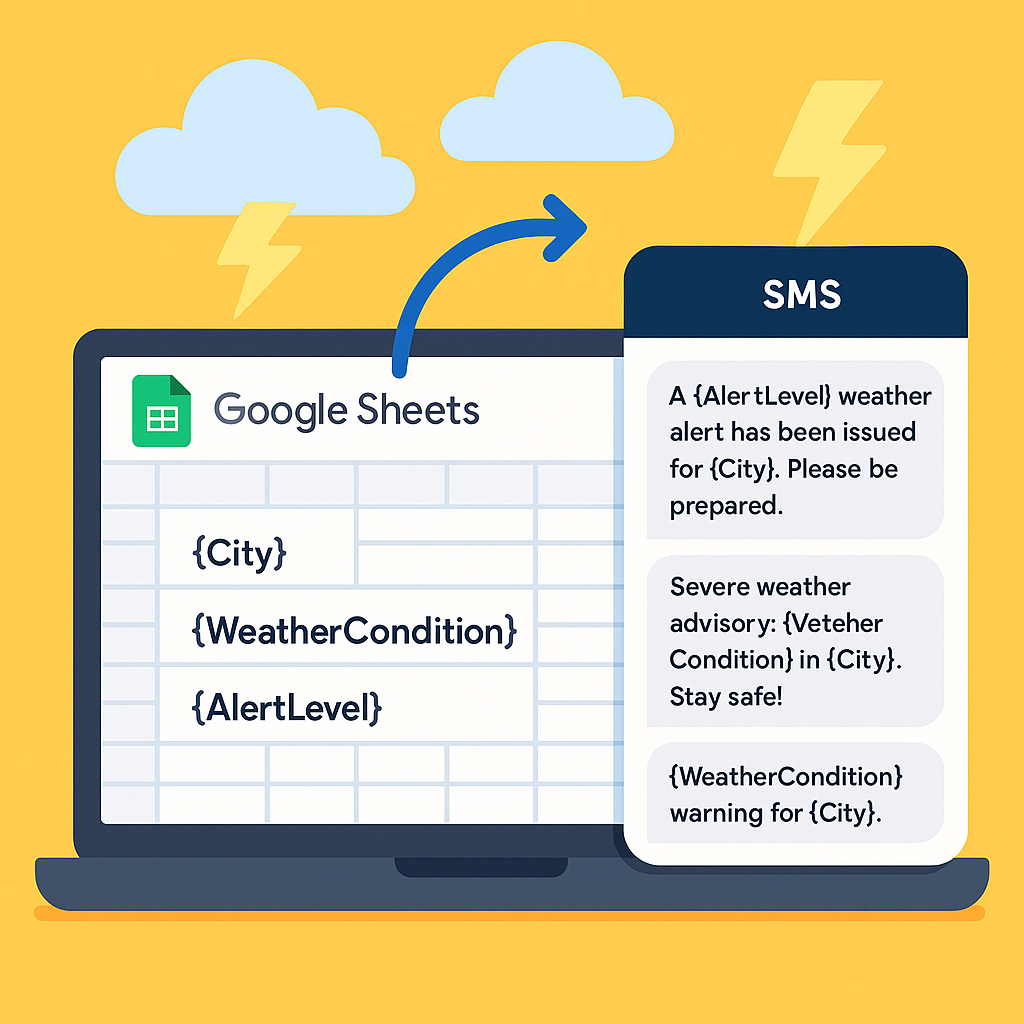
- Dynamic Content: Send personalized messages using variables (e.g., “Hello, {name}, a severe storm is approaching {location}.” ).
- Two-Way Communication: Engage with recipients through a real-time inbox.
- Compliance Filtering: Automatically filter messages to comply with regulations.
💡 Tip: Always ensure your contact list is up-to-date to maximize the effectiveness of your alerts.
Step-by-Step Guide to Setting Up SMS Alerts in Google Sheets
Managing severe weather alerts with Google Sheets becomes efficient and straightforward when you integrate SMS functionalities. Our Sheet Gurus SMS add-on allows you to send real-time SMS alerts directly from Google Sheets, ensuring timely communication during emergencies. Here’s how to set it up:
Install Sheet Gurus SMS Add-On
- Open Google Sheets and navigate to the Extensions menu.
- Select Add-ons > Get add-ons.
- Search for “Sheet Gurus SMS” and click Install.
- Follow the prompts to authorize the add-on.
💡 Tip: Ensure you have admin permissions to install add-ons in Google Sheets.
Configure Your SMS Alerts
- Open the Sheet Gurus SMS sidebar from the Extensions menu.
- Enter your recipients’ phone numbers in a column in your sheet.
- Use curly brackets to include dynamic content in your messages, like
{recipientName}.
⚠️ Warning: Always comply with SMS regulations and avoid sending unsolicited messages.
Send SMS Alerts from Google Sheets
- Select the range of cells containing your message data.
- In the Sheet Gurus SMS sidebar, choose Send SMS.
- Customize your message with variables for personalized alerts, e.g., “Severe weather alert for {location}.”
- Click Send to dispatch your alerts.

For more detailed instructions, check out our guide on sending text messages from Google Sheets. This integration not only helps manage severe weather alerts efficiently but also enhances communication with dynamic SMS content in Google Sheets.
Tips for Effective Weather Alert Communication
severe weather alerts Google Sheets is a method that uses Google Sheets to manage contact lists and send SMS alerts during severe weather. Using SMS from Sheets lets small teams send targeted notices without a full dispatch system. For example, a town office can segment contacts by ZIP code and message only the affected neighborhoods.
Keep messages short ⌛
Keep messages under 160 characters to avoid multipart SMS and reduce recipient friction. Short texts improve open and action rates. Example inline message: “Tornado warning for County A until 4:30 PM. Seek shelter now. Info: bit.ly/guide STOP to opt out.” Our website’s testing shows shorter messages reduce confusion during fast-moving events.
Set region-based quiet hours 🌙
Use quiet hours by recipient time zone to avoid sending nonurgent alerts at night. A common default is 10:00 PM to 7:00 AM local time for routine updates. Allow immediate delivery for active warnings and watches that threaten safety. Segment contacts in Google Sheets by time zone or ZIP code to apply quiet-hours rules correctly.
Include opt-out and HELP keywords ✅
Include STOP and HELP keywords and honor opt-outs immediately to meet recipient expectations and reduce complaints. Place the opt-out instruction at the end of every message. Our website recommends confirming opt-out status in your Sheets workflow and removing those numbers within one business day.
Add a short link to full guidance 🔗
Include a short, readable link to full guidance, shelter locations, and updates so recipients can get details without a long SMS. Use a short domain you control or your site’s shortener to keep the message concise. Put the link near the end of the message so the core instruction appears first.
💡 Tip: Always use double opt-in for SMS signups.
⚠️ Warning: Avoid including personal medical or other sensitive health details in SMS messages.
Streamline Your Weather Alert System with Google Sheets and SMS
Putting your severe weather alerts Google Sheets workflow into practice requires a single-sheet source of truth and a three-step automation: prepare the sheet, define triggers, and automate sending. This setup reduces manual work, lowers compliance risk, and provides delivery logs for clear post-event reporting.
Treat one sheet as the single source of truth: contact list, consent status, alert area, and last-sent timestamp. Keep columns short and explicit (Name, Phone, ZIP, Consent, Alert Type, Last Sent). This structure prevents duplicate sends and makes debugging faster.
Set up a simple workflow in three steps:
- Prepare the sheet. Validate phone numbers to a single format (for example, +12223334444). Use a Consent column and mark contacts who signed up with double opt-in.
- Define triggers. Add a column that flags rows for send (for example, “Send Now” = TRUE). Use formulas or a button to set that flag for affected ZIP codes.
- Automate sending and logging. Connect the sheet to an SMS sender that records delivery status back to the sheet and retries failed messages.
Before sending, complete this quick checklist:
- Confirm consent for every number.
- Verify message templates include clear action steps and local shelter info when needed.
- Test sends on a small list and confirm delivery receipts.
Next steps to get started:
- Copy the template sheet.
- Import your contacts and confirm consent with double opt-in.
- Send a test alert to a small group and verify delivery receipts and logs.
Our product integrates with Google Sheets to handle delivery receipts, retries, and opt-out management so your team avoids repeated manual updates and missed alerts. Choosing an integrated service reduces the hours your staff spends on manual sends and lowers the risk of compliance errors that can lead to fines or missed critical messages.
For example, a small county emergency office managing 200 contacts can move from manual copy-paste sends to an automated flow that logs every send and shows who was reached. That change cuts manual work and makes post-event reporting straightforward.
💡 Tip: Always use double opt-in for SMS signups.
If you want a quick start, use our template sheet and step-by-step checklist to set up the fields and triggers. Download the template sheet
Use the single-sheet approach, flag affected rows, and connect to an integrated sender for reliable severe weather alerts that save staff time and reduce compliance risk. Start with the template, run a controlled test, and iterate on templates and triggers based on delivery logs.