





How to Leverage Google Sheets to Manage Employee Shift Schedules
Google Sheets employee shift schedules often cost small businesses 4 to 8 hours per week in manual rostering, creating overtime errors, coverage gaps, and delayed staff messages. This guide focuses on reducing those hours and avoiding payroll or compliance headaches using Sheets as the single source of truth.
This how-to guide gives practical, ready-to-implement steps you can follow today:
- A step-by-step Google Sheets template for shift rostering with formulas and conditional formatting to flag coverage gaps.
- SMS setup steps that show how to send bulk shift notices from a sheet using Sheet Gurus SMS, including permission and contact-field mapping.
- Three sample SMS message copies for common scenarios: shift reminders, open-shift offers, and last-minute swaps.
- Time-saving guidance and where manual scheduling creates the biggest business risk (overtime costs, missed shifts, late communication).
Sheet Gurus SMS is a Google Sheets add-on that sends bulk SMS directly from your roster. For example, what takes hours to notify manually often becomes a few minutes with an add-on that reads contact fields and schedules sends. On our website we walk through the exact setup steps, troubleshooting tips, and offer downloadable templates so you avoid costly manual mistakes.
Understanding the Basics: Setting Up Your Google Sheets for Employee Shift Scheduling
Getting started with Google Sheets for employee shift schedules is a straightforward process that can save you time and enhance productivity. Begin by creating a new spreadsheet and setting up columns for essential data such as employee names, shift times, and roles. Ensure your sheet is organized for easy navigation and data entry.
Create a Template
Design a simple template to streamline the scheduling process. Include headers like:
- Employee Name
- Shift Start Time
- Shift End Time
- Role
- Notes
This layout allows for quick updates and clear visibility of shifts.
Use Conditional Formatting
Enhance your sheet’s functionality by applying conditional formatting. For example, highlight shifts that overlap or exceed a certain number of hours. This visual cue helps prevent scheduling conflicts and ensures compliance with labor laws.
💡 Tip: Use color coding to differentiate between day and night shifts.
Integrate with Sheet Gurus SMS
To further streamline communication, integrate your Google Sheets with
Sheet Gurus SMS. This add-on allows you to send bulk SMS directly from your spreadsheet, ensuring all employees receive timely shift notifications. Use dynamic content variables like{{Employee Name}} to personalize messages.- Example Message: “Hello {{Employee Name}}, your shift starts at {{Shift Start Time}}.”
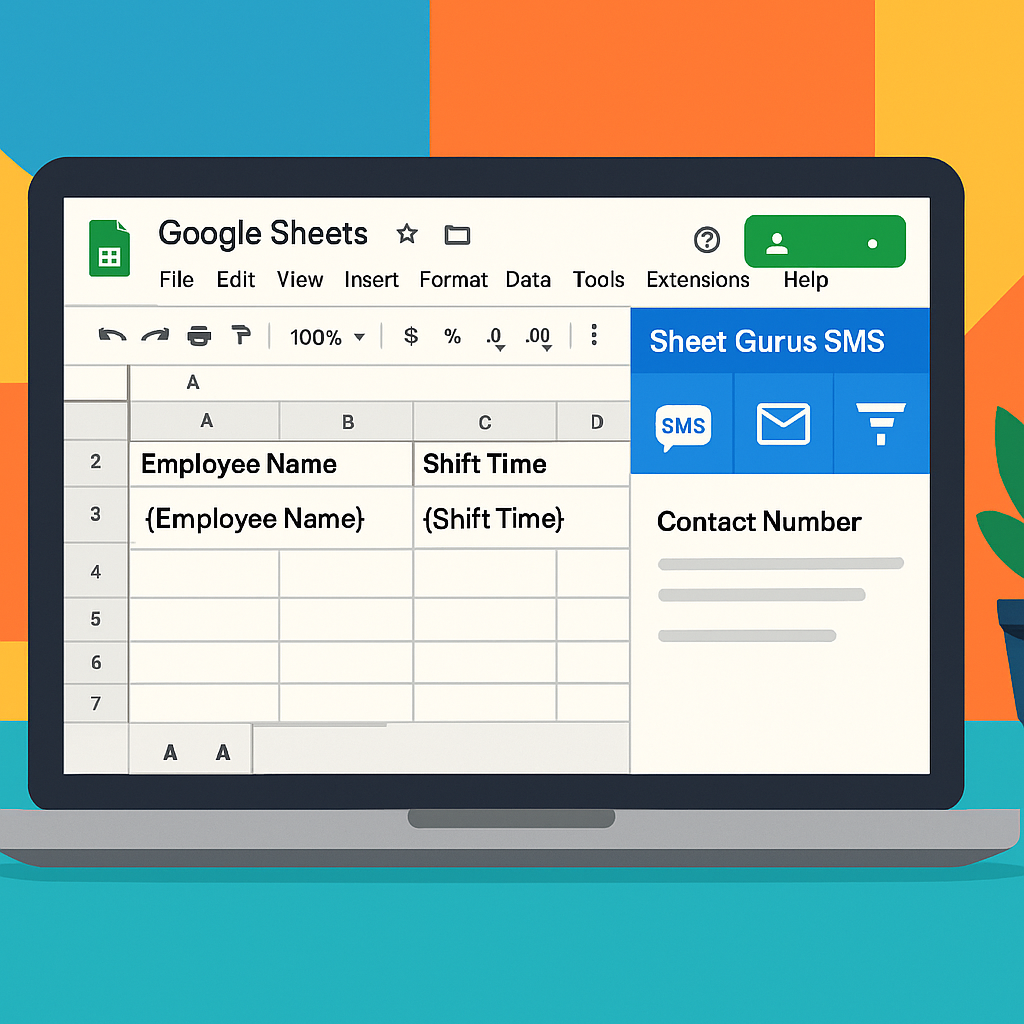
For more detailed steps on sending messages from Google Sheets, explore our guide on how to send text messages from a spreadsheet.
Step-by-Step Guide: Automating Shift Schedules with Google Sheets and Sheet Gurus SMS
These steps create automated Google Sheets employee shift schedules that send SMS alerts, capture confirmations, and handle simple reschedules.
Sheet Gurus SMS is an SMS notification tool that connects with Google Sheets to send schedule messages and receive structured replies. According to Sheet Gurus, the integration reduces manual follow-ups and centralizes confirmations in the sheet.
Before you start, confirm these essentials. Keep a single roster sheet with columns: Employee name, Phone (E.164), Role, Shift date, Start, End, Status. Expect initial setup time of about 20–45 minutes for a 20-person roster. For example, a 20-seat café cut daily confirmation calls from 30 minutes to under 5 minutes after automating messages.
Quick setup steps 🛠️
- Prepare the Google Sheet. Create the columns above and add a Status column with default “Unconfirmed.” This prevents duplicate sends.
- Add phone numbers in E.164 format (for example, +12223334444). Correct formatting avoids delivery errors.
- Install and connect Sheet Gurus SMS. Follow the product’s authorization prompts to grant sheet access. This step typically takes 5–10 minutes.
- Map columns in Sheet Gurus SMS to your sheet fields (name, phone, date, start, end, status). Mapping reduces misaddressed messages.
- Create a send rule. Define when messages go out (e.g., 48 hours before shift) and set the message template.
Each numbered step above is deliberately short to avoid repeating the Basics section. If you already completed sheet structure, start at step 3 and finish the whole integration in under 15 minutes.
Two-way confirmations and reschedules ✅
Two-way SMS lets staff confirm attendance or request a swap using short, structured replies. This reduces phone tag and creates a clear audit trail in your sheet.
- Message template. Use a short clear prompt: “Shift on {{date}} at {{start}}. Reply YES to confirm, NO to decline, or SWAP to request a swap.” Short commands lower parsing errors.
- Automated parsing. Configure Sheet Gurus SMS to write replies back to the Status column (YES → Confirmed, NO → Declined, SWAP → Swap requested). Writing replies to the sheet creates a single source of truth.
- Handle SWAP requests. When Status = “Swap requested,” notify managers via a second internal SMS or an in-sheet flag. Managers then assign a replacement and update the sheet. This keeps accountability and timestamps who approved changes.
- Confirmation flow example. Employee replies YES. Sheet Gurus SMS updates Status to Confirmed and stamps confirmation time. Manager sees Confirmed next to the shift without extra calls.
Use these short reply examples as templates. They work across carrier restrictions and reduce parsing errors:
- Confirmation: “YES”
- Decline: “NO”
- Swap request: “SWAP” followed by optional note (e.g., “SWAP busy at 5pm”)
💡 Tip: Always use double opt-in for SMS signups to confirm phone ownership and reduce consent and deliverability issues.
⚠️ Warning: Avoid including personal health information or sensitive details in SMS messages to stay compliant.
Why use Sheet Gurus SMS instead of a manual approach. Manual scheduling costs hours each week and increases the risk of missed shifts and unexpected overtime. Using Sheet Gurus SMS moves confirmations into one controlled place and frees managers to handle exceptions instead of routine follow-ups.
If you need a compact checklist to hand off to a colleague, export a copy of your roster template and share the mapping steps used in the product configuration. That preserves the setup time investment for future rosters.
Tips and Troubleshooting: Maximizing Efficiency and Avoiding Common Mistakes
Effectively managing employee shift schedules in Google Sheets can be a game-changer for your business. However, maximizing efficiency and avoiding common pitfalls requires some strategic insights.
Optimize Your Sheet Layout
A well-organized sheet layout is crucial for clarity and efficiency. Use separate columns for each key piece of information, such as employee names, shift times, and roles. Consider color-coding shifts for quick visual reference.
💡 Tip: Freeze the top row to keep headers visible while scrolling through your schedule.
Utilize Conditional Formatting
Conditional formatting can highlight scheduling conflicts or unassigned shifts. Set rules to automatically color-code cells based on criteria, such as overlapping shifts or missing assignments.
Leverage Sheet Gurus SMS for Dynamic Communication
Integrate Sheet Gurus SMS to streamline communication. Send bulk SMS directly from your Google Sheets to notify employees of their shifts. Use dynamic content variables for personalized messages, such as:
Hello {Name}, your shift on {Date} starts at {Time}. Please confirm.
⚠️ Warning: Ensure compliance with SMS regulations by using automatic message filtering.
Troubleshoot Common Issues
- Formula Errors: Double-check cell references and formula syntax.
- Access Problems: Verify sharing permissions to ensure all team members can view and edit the schedule.
- SMS Delivery Issues: Consult our guide on SMS troubleshooting for solutions to common problems.
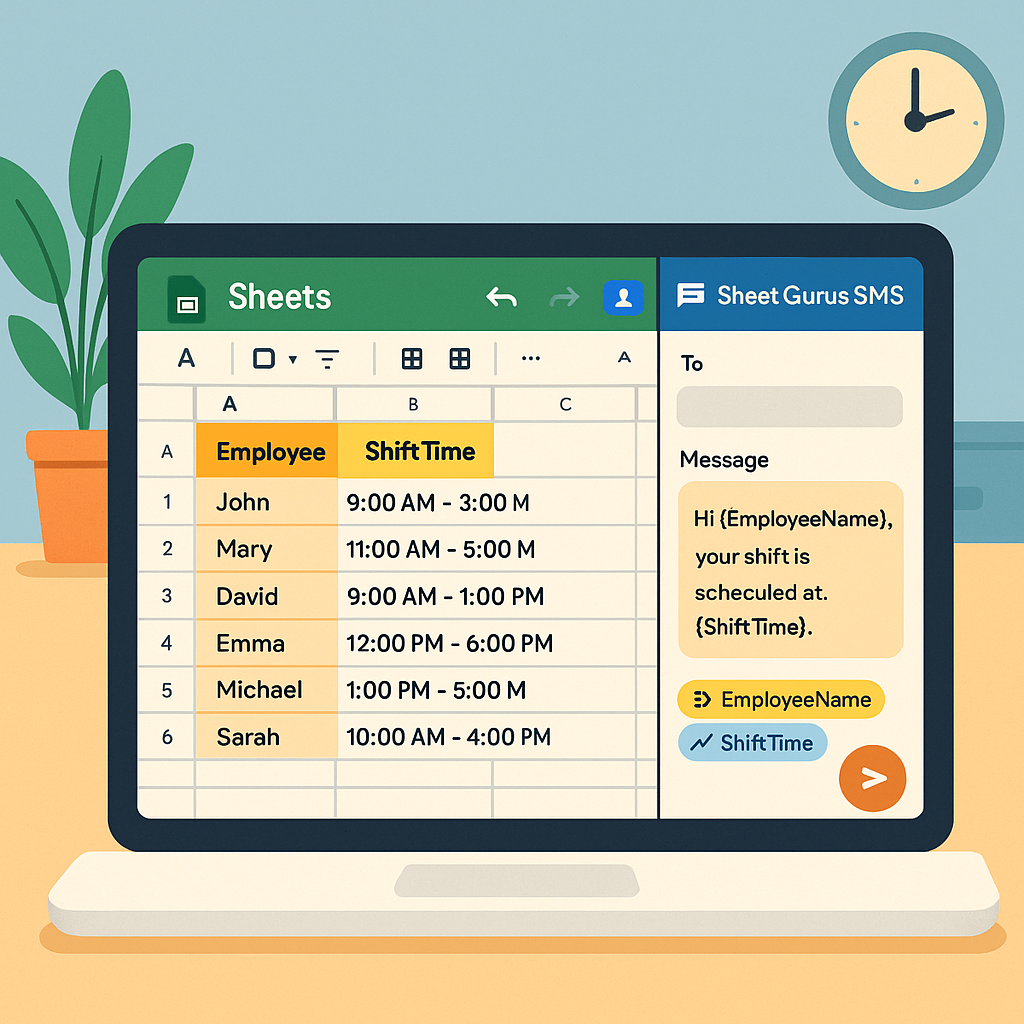
Incorporating these tips will help you harness the full potential of Google Sheets for dynamic shift scheduling with Sheet Gurus SMS.
Mastering Shift Scheduling with Google Sheets
Our recommendation is to pair Google Sheets employee shift schedules with Sheet Gurus SMS to automate confirmations, surface conflicts, and cut manager follow-up time. For example, a 25-employee retail store that handles about 180 shifts per month might reduce manual confirmation time by roughly 12 hours monthly after adding conflict-detection formulas and two-way SMS confirmations. This example shows how structured Sheets plus automated messaging reduces admin hours and lowers the risk of missed shifts.
Follow this short checklist to put the system in place this week.
- Import the shift template and map columns for employee name, role, and phone number. Download our Google Sheets shift template
- Add conflict-detection formulas and conditional formatting to flag double-bookings and overtime before payroll.
- Connect Sheet Gurus SMS and enable two-way messaging with double opt-in for staff confirmations.
- Create two automations: one that requests confirmation 24 hours before a shift and one that alerts managers to unanswered confirmations.
💡 Tip: Always use double opt-in for SMS signups to avoid compliance issues and reduce opt-out rates.
A common pitfall is relying on email or manual calls for confirmations, which creates missed replies and hidden overtime costs. Sheet Gurus SMS resolves that by sending confirmation requests by text and logging replies directly on the schedule. For example, automatic two-way SMS cuts back-and-forth messaging and records confirmations so managers stop chasing responses.
Choose one next action based on how much time you can commit today. Start a free trial to test automated confirmations with your roster. Start a free trial of our scheduling tool Or import the template to run a controlled test with one store or team. If you prefer guided setup, watch our 2-minute setup video or book a demo with our onboarding team to finish setup for you.
One quick metric to watch after launch: track unanswered confirmations in the first 30 days. If unanswered confirmations exceed 5 percent, tighten your confirmation window or require confirmations earlier. Taking that step prevents missed shifts and keeps your Google Sheets employee shift schedules accurate.