




How to Deliver School Event Text Reminders from Google Sheets: Calendar-to-SMS Workflow with Two-Way Replies (2026)
K-12 admins spend 3–5 hours each week manually sending event reminders, and that time often means missed RSVPs and extra staff follow-up. School event text reminders delivered from Sheets is a Google Sheets-based workflow that schedules SMS from a sidebar, links Calendar events, and captures two-way replies. Sheet Gurus SMS is a Google Sheets add-on that sends these messages from a sidebar rather than spreadsheet formulas, with curly-brace variables for personalization, a real-time two-way inbox for replies, and automatic message filtering for compliance. This integration guide walks through mapping Calendar events to {EventDate} and {Location}, scheduling reminders, and managing replies; see
the complete 2026 K-12 guide to Google Sheets SMS alerts and two-way calendar reminders for broader K-12 SMS best practices. Want to see a Calendar-triggered {EventName} reminder replace hours of manual work?What do you need to send School event text reminders from Google Sheets?
You need a Google account, a Google Calendar, a Google Sheet with event rows, and the Sheet Gurus SMS add-on and account to send and receive messages. Our guide assumes the calendar contains the event master and the sheet is the source of truth that drives scheduled texts and two-way replies. The remainder of this section lists required accounts, the minimum sheet fields, consent and opt-in rules (FERPA/COPPA), and recommended phone formatting for reliable delivery.
What is Sheet Gurus SMS and which accounts do I need? 📥
Sheet Gurus SMS is a Google Sheets add-on that sends bulk SMS from a sidebar, provides a real-time inbox for two-way replies, and applies automatic message filtering to support compliance. You need a Google Workspace or free Google account with permission to install add-ons, plus a Sheet Gurus SMS account to send and receive messages. Grant add-on install and sending rights only to specific staff roles to reduce accidental sends; our admin console supports account-level controls and role restrictions. For full setup and decision criteria versus Apps Script or Zapier, see our comparison post on add-on options and the complete two-way playbook for K-12 admins.
Which data fields must my sheet include? 📋
Your sheet must include at minimum a phone column, event date/time, recipient name, and a unique ID for logging. Use curly-brace variables like {ParentName}, {EventDate}, {EventTime}, and {EventLocation} so templates populate automatically when you send from the Sheet Gurus SMS sidebar. Add these recommended columns: OptInStatus, Language, CalendarEventID, LastSentTimestamp, and Segment (e.g., Grade, Homeroom). Example message template for parent-teacher reminders: “Reminder: {ParentName}, {StudentName} has parent-teacher conferences on {EventDate} at {EventTime}. Reply CONFIRM to acknowledge.” See our templates and examples in How to Send School Event Reminders via Text (Templates Included).
What privacy and consent checks are required? 🔒
You must obtain and document parental opt-in before texting students or guardians, and follow FERPA and COPPA guidance where those laws apply. Record consent in the sheet (OptInStatus) and keep the spreadsheet limited to only the fields needed to send the message; this reduces exposure if access controls fail. Our Sheet Gurus SMS automatic message filtering flags high-risk content and helps prevent sending protected data via SMS. For language on valid opt-in wording and sample consent flows that reduce TCPA risk, consult our K-12 SMS Alerts two-way playbook and the Automated Text Messaging use case.
⚠️
Warning: Avoid texting student grades, medical details, or other sensitive education records. Those items trigger FERPA protections and increase legal risk.
How should I format phone numbers and permissions? 📞
Format all phone numbers in E.164 (for example +12223334444) and validate them before sending to reduce delivery failures. Store opt-in status in a dedicated column and use consistent country codes for international families. Assign Sheet Gurus SMS permissions only to staff who need sending or inbox access; enforce two-person approval for district-wide blasts when possible. Before full rollout, test with a small segment of 20–50 numbers and verify replies appear in the Sheet Gurus SMS real-time inbox and that automatic filters correctly tag messages.
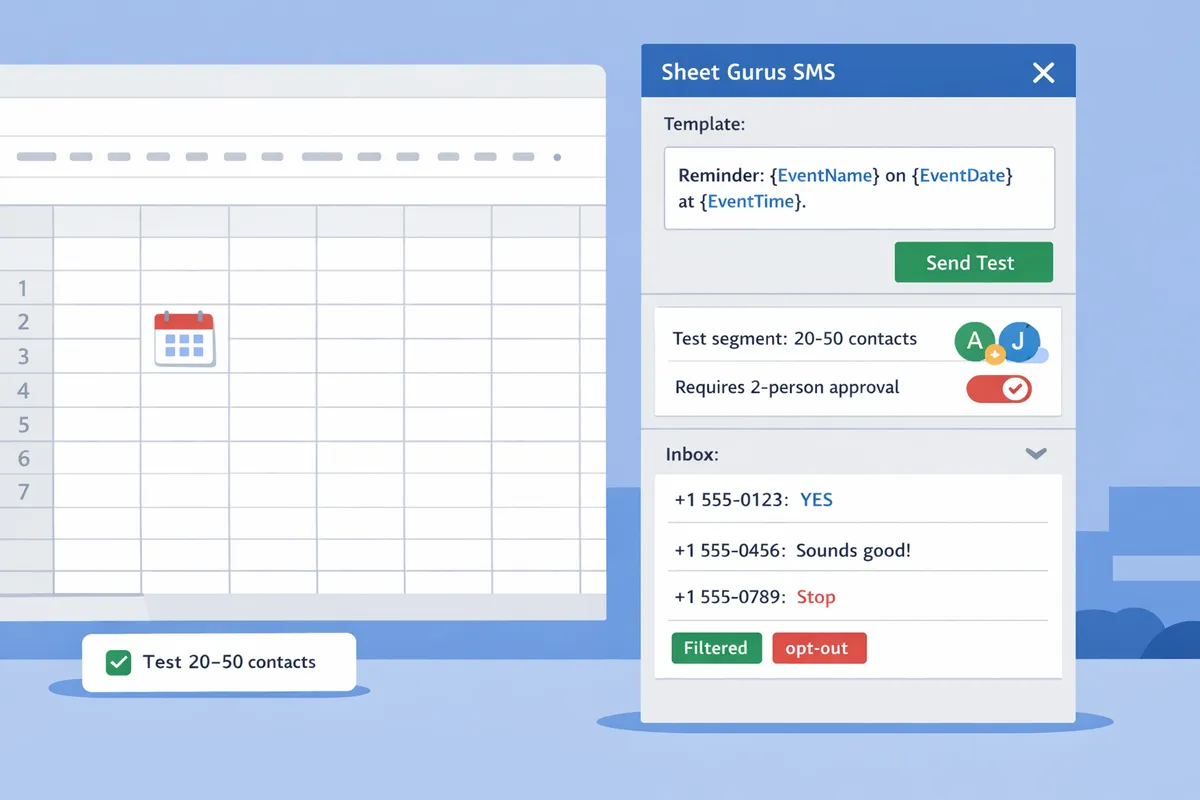
Related resources: see our Complete 2026 K-12 Guide to Google Sheets SMS Alerts and Two-Way Calendar Reminders for full setup steps and the Automated Text Messaging use case for scheduling and analytics guidance.
How to set up the Calendar-to-SMS workflow in Google Sheets using Sheet Gurus SMS?
Set up the workflow in five clear steps: install and authorize Sheet Gurus SMS, import calendar events into a sheet, create curly-brace templates, schedule sends with two-way replies, and enable automated triggers. This approach keeps the source of truth in Google Calendar and Google Sheets while using the Sheet Gurus SMS sidebar to send messages and collect replies.
Step 1 — Install, authorize, and configure the Sheet Gurus SMS add-on 🔌
Install the Sheet Gurus SMS add-on from the Google Workspace Marketplace and finish the sidebar setup wizard to link your sending account. Open the Google Sheet where you want to manage reminders, choose Extensions > Add-ons > Get add-ons, install Sheet Gurus SMS, then open its sidebar. In the sidebar, follow the setup wizard to grant only the minimum permissions required to read that sheet and send messages from your linked account.
Specific checklist:
- Install add-on and open the Sheet Gurus SMS sidebar.
- Use the sidebar wizard to authenticate the sending account (school number or short code) and confirm sender ID.
- Select the sheet tab that will contain calendar rows; the sidebar will remember this setting for scheduled runs.
Why use the add-on instead of scripts: the sidebar removes fragile script triggers and reduces maintenance time for admins who are not developers. The sidebar also exposes inbox routing and compliance filters without custom code.
Step 2 — Import calendar events into your sheet 📥
Each calendar event must map to one sheet row that includes event ID, title, date, time, location, and contact columns so Sheet Gurus SMS can populate variables and log sends. Use Google Calendar’s export or a light sync add-on to bring events into a sheet; make sure the event ID column is present to avoid duplicate sends when you resync.
Practical setup steps:
- Create columns: EventID, EventTitle, EventDate, EventTime, Location, ParentName, Phone, OptInStatus, SendStatus, LastSent.
- Run a one-time import or configure a daily sync so new events appear in the sheet before scheduled sends.
- Use the EventID to match rows when updating or cancelling an event; Sheet Gurus SMS uses that ID to prevent duplicate messages.
Privacy and compliance note:
⚠️ Warning: Do not store student health or education records in the sheet unless your district has an approved FERPA-compliant process. Keep phone numbers and parental consent fields separate and encrypted where required.
Link: For a full checklists and use-case examples, see our Complete 2026 K-12 Guide to Google Sheets SMS Alerts and Two-Way Calendar Reminders.
Step 3 — Create message templates with dynamic variables ✍️
Write message templates using curly-brace variables so Sheet Gurus SMS populates personalized content from each row. Example templates for parent-teacher conferences and general events:
- Parent-teacher conference: “Reminder: {ParentName}, {StudentName} has a parent-teacher conference on {EventDate} at {EventTime}. Reply YES to confirm or NO to reschedule.”
- General event reminder: “Hello {ParentName}, {EventTitle} is on {EventDate} at {EventTime} at {Location}. Reply INFO for details or CANCEL to opt out.”
Template tips:
- Keep messages under 160 characters for single-segment sends or accept MMS/long message billing if necessary.
- Include a clear call to action and one-step reply keyword (YES, NO, INFO) so the real-time inbox can route replies automatically.
- Use the sheet columns exactly as variable names (case-sensitive) so Sheet Gurus SMS resolves them correctly.
See our appointment and automated texting use cases for examples of how fields map to templates in practice.
Step 4 — Schedule sends and enable two-way replies 📤↩️
Schedule one-off or recurring sends from the Sheet Gurus SMS sidebar and enable the real-time inbox to capture replies and route them to staff. In the sidebar pick the send type (one-time, daily, or recurring), map the sheet columns to template variables, then toggle the inbox setting to accept replies for that campaign.
Routing and auto-replies:
- Set inbox rules in the sidebar to auto-acknowledge common replies (e.g., reply YES → send confirmation message and set SendStatus = Confirmed).
- Assign replies to staff inboxes by role (attendance clerk, teacher, front office) so follow-ups happen in your existing workflow.
- Enable automatic message filtering in the sidebar to remove prohibited content and reduce compliance risk.
💡 Tip: Always use double opt-in for SMS signups and record OptInStatus in the sheet before sending messages.
For emergency and mass-alert best practices, compare our two-way emergency guide to decide inbox routing and escalation policies.
Step 5 — Automate with triggers and scheduled runs ⏰
Use Sheet Gurus SMS built-in scheduler to run daily or hourly syncs and sends so reminders stay current without custom scripts. Configure the scheduler in the sidebar to run the calendar sync and send job at times that match your engagement goals, such as 48 hours and 2 hours before an event.
Automation steps:
- In the sidebar, set a sync schedule (e.g., nightly at 2:00 AM) to pull new Calendar events into the sheet.
- Add a send schedule tied to the EventDate columns (e.g., send reminders 2 days and 2 hours prior).
- Enable logging to the SendStatus and LastSent columns so admins can audit deliveries and handle retries manually if needed.
Why use the built-in scheduler: it reduces maintenance overhead, avoids flaky trigger limits, and keeps delivery predictable for school staff who cannot maintain scripts.
How to test, verify delivery, and manage two-way replies for school SMS sent from Sheets?
Testing messages and verifying delivery before a full rollout prevents missed RSVPs and compliance gaps. Sheet Gurus SMS provides a real-time inbox and delivery logs you can use to run a controlled pilot, confirm personalization, and validate opt-in handling. Follow the checklist below to move from a small staff pilot to schoolwide sends.
How to run a safe test send and what to check
Run a small-group pilot that includes at least two administrators, one teacher, and two parent/test phones. Start by duplicating your event sheet to a test tab and marking a TestGroup column with TRUE for those rows. Use Sheet Gurus SMS’s sidebar to send from that tab so sends do not affect production contacts.
- Prepare test rows with realistic data: {ParentName}, {StudentName}, {Date}, {Time}, {EventLocation}.
- Create a template such as: “Reminder: {StudentName}‘s parent-teacher conference on {Date} at {Time}. Reply YES to confirm, NO to cancel.” Use curly brackets for variables so you validate rendering.
- Send only to staff and consenting parent testers first. Confirm that each message shows a Sent timestamp in the sheet and appears immediately in the Sheet Gurus SMS real-time inbox.
- Verify personalization, time-zone correctness, and that URLs or emojis display as expected on multiple phone models.
- Check reply routing by replying from a test phone and confirming the reply appears linked to the original row.
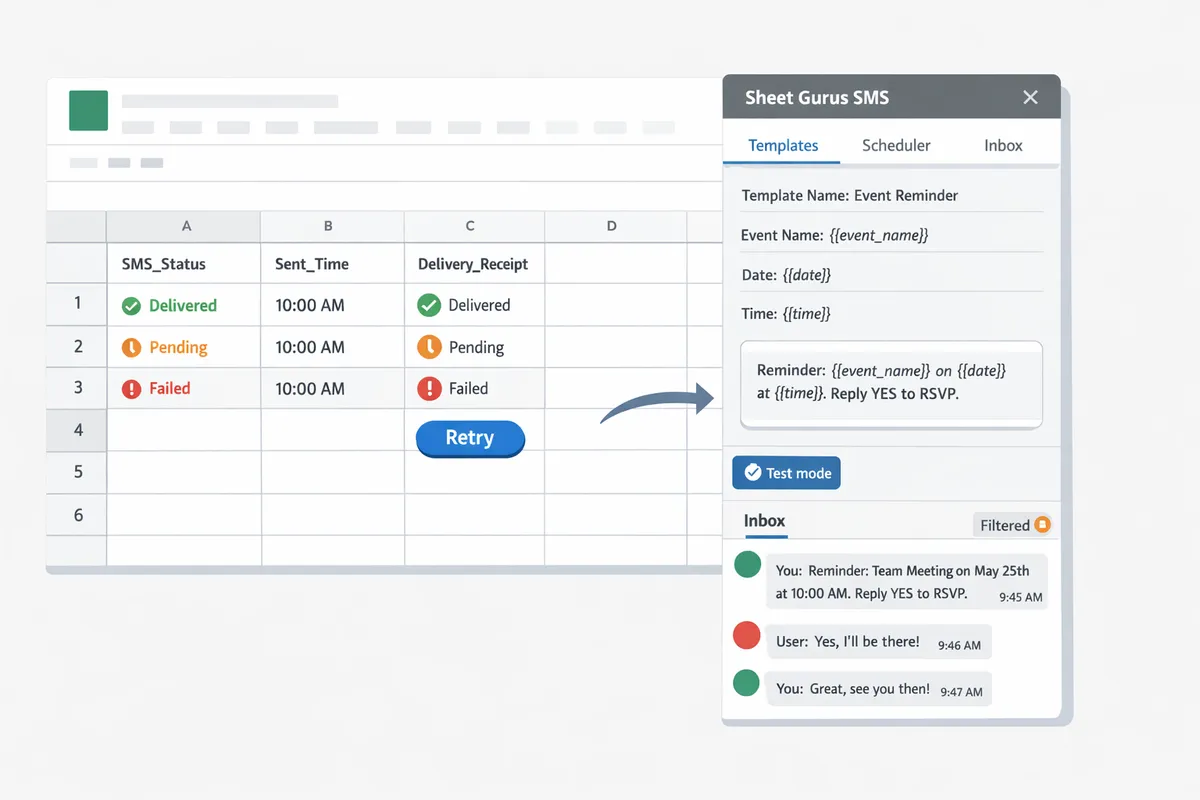
Expect outputs: a Sent timestamp, a delivery status (pending/delivered/failed), and an inbox thread attached to the sheet row.
Refer to our template collection in How to Send School Event Reminders via Text (Templates Included) for ready-made messages.
How does two-way messaging work? 💬
Two-way messaging is a messaging feature that returns recipient replies into Sheet Gurus SMS’s real-time inbox and threads those replies next to the originating Google Sheet row. Sheet Gurus SMS records message threads, timestamps, and the sender number so staff can confirm responses without leaving Sheets.
How you use it in practice:
- An example flow: send “Hi {ParentName}, conference for {StudentName} on {Date}. Reply YES to confirm.” A parent replies YES. The reply appears in the inbox and Sheet Gurus SMS updates the row’s Status column to Confirmed if you enable automatic keyword rules.
- Use the inbox to triage ambiguous replies. Staff can add notes back into the sheet or trigger calendar updates from the inbox.
- For high-volume events, create keyword rules for YES, NO, CANCEL, and HELP to auto-update Status, increment ConfirmedCount, or flag rows for manual follow-up.
See our Complete 2026 K-12 Guide to Google Sheets SMS Alerts and Two-Way Calendar Reminders for playbook-level routing patterns.
How to monitor delivery status and error codes
Monitor delivery using dedicated columns such as SentTimestamp, DeliveryStatus, ProviderMessage, and RetryCount in your sheet. Sheet Gurus SMS writes those fields after each send so you can filter rows by status and diagnose problems quickly.
What each status means and actions to take:
- Sent. The message left Sheet Gurus SMS and awaits carrier confirmation. Wait 5–20 minutes for final status for typical carriers.
- Delivered. Carrier reported successful delivery. Mark attendance confirmations or RSVP counts from these rows.
- Failed. The ProviderMessage column contains an error reason such as invalid number, carrier block, or consent missing. Common causes include wrong number format (use +12223334444), carrier filtering, or previously opted-out recipients.
Suggested triage steps:
- For invalid-number errors, validate formatting and country code, then retry one manual attempt.
- For carrier blocks, export the failed rows and escalate to your Sheet Gurus SMS support contact or IT for deeper carrier diagnostics.
- Implement an automated retry rule in Sheet Gurus SMS: 1 retry 30 minutes after failure, then escalate if still failing.
Track persistent failures by filtering RetryCount > 1 and escalate those rows to IT for contact verification.
How to validate opt-in, handle opt-outs, and log consent
Validate opt-in during the pilot and record consent with timestamped columns such as OptInStatus, OptInSource, and OptInTimestamp in the sheet. Sheet Gurus SMS supports automatic filtering and keyword opt-out handling to keep records up to date.
Pilot steps for opt-in and consent logging:
- Collect initial opt-ins via a secure form or permission slip, then import results to a Consent tab with {ParentName}, Phone, OptInSource, and OptInTimestamp.
- Use double opt-in for phone numbers: send a confirmation message that requires an affirmative reply such as “Reply YES to confirm you want school SMS for {StudentName}.” Only mark OptInStatus = Confirmed after the reply appears in the Sheet Gurus SMS inbox.
- During sends, enable automatic opt-out filters so standard keywords (STOP, UNSUBSCRIBE) set OptOut = TRUE and write OptOutTimestamp and OptOutReason to the row.
- Maintain an audit log sheet that appends each opt-in and opt-out event with user, timestamp, and message ID for compliance reviews.
⚠️ Warning: Protect student data stringently. FERPA and COPPA place limits on storing and sending student information via SMS; document parental consent and avoid including grades or sensitive health information in messages.
For policy templates and recommended wording for parental opt-in and opt-out, see K-12 School SMS Alerts with Google Sheets: The 2026 Complete Two-Way Playbook.
How to optimize, scale, and troubleshoot school SMS workflows from Google Sheets?
Standardize templates, pick the right send method, and run a phased rollout so messages stay reliable as volume grows. This reduces staff hours, lowers delivery failures, and makes two-way replies manageable. The rest of this section compares implementation options, gives cost and scale plans, lists multilingual and accessibility practices, and provides a role-based rollout playbook.
Compare Apps Script, marketplace add-ons, and Sheet Gurus SMS 📊
Apps Script, marketplace add-ons, and Sheet Gurus SMS each trade off maintenance, reliability, two-way support, and security. Use the table below to match the option to your school or district constraints. The table highlights that Sheet Gurus SMS sends from a sidebar, includes a real-time inbox, and applies automatic filtering to reduce compliance risk.
| Option | Maintenance effort | Delivery reliability | Two-way support | Security & compliance |
|---|---|---|---|---|
| Apps Script (custom) | High. Requires a developer to update scopes, maintain triggers, and fix breaks after Google changes. | Variable. Scripts can hit quotas or fail silently; expect occasional outages. | Possible, but requires building and storing replies separately. | Depends on your hosting and storage. Requires careful management of OAuth and data retention. |
| Marketplace add-on (generic) | Medium. Uses third-party features but may lack advanced inboxes or filters. | Medium. Reliability varies by vendor SLA and how they manage rate limits. | Some add-ons offer replies, often limited or routed to email. | Varies. Check vendor data policies and where messages are logged. |
| Sheet Gurus SMS | Low. Sidebar interface removes spreadsheet formula send logic and reduces fragile scripts. | High. Sidebar-based sends and built-in delivery logs help detect failures quickly. | Built-in real-time inbox supports two-way replies and automatic filtering. | Built-in automatic filtering and scoped API connections reduce compliance risk. |
For a technical comparison of add-ons versus Apps Script for emergency alerts, see our Add-On vs Apps Script comparison guide. Sheet Gurus SMS’s sidebar and inbox reduce the day-to-day maintenance work for school admins compared with custom scripts.
How to plan costs and scale for different school sizes
Plan costs by multiplying recipients, sends per recipient, and per-message price, then allocate staff hours for inbox handling. Example budgets below use conservative send counts and a per-message cost range of $0.01 to $0.03 as a planning baseline.
- Small school example (single elementary school)
- Assumptions: 300 families, 4 event reminders per month, 1 confirmation or reply per 10 messages.
- Monthly sends: 300 * 4 = 1,200 messages. Cost estimate: $12 to $36. Replies to manage: ~120. Staffing: 2 to 4 hours per week to triage replies and update Sheets. Use Sheet Gurus SMS to route replies into the inbox and apply auto-filters to reduce manual work.
- Mid-size district example
- Assumptions: 5,000 families, weekly calendar reminders for activities and weekly district newsletter (total 8 sends/month).
- Monthly sends: 5,000 * 8 = 40,000 messages. Cost estimate: $400 to $1,200. Staffing: 0.5 to 1.0 FTE for message governance and inbox handling, or distributed across site admins. Segment lists in Sheets to avoid unnecessary sends. Schedule sends during off-peak Windows to reduce throttling.
- Large rollout example (district-wide with segmented lists)
- Assumptions: 50,000 families, targeted sends to specific grades and programs averaging 6 messages per household per month.
- Monthly sends: 50,000 * 6 = 300,000 messages. Cost estimate: $3,000 to $9,000. Staff: dedicated messaging coordinator plus shared admin roles. Use Sheet Gurus SMS sidebar to batch sends and monitor delivery logs; rely on automatic filtering and inbox workflows to keep reply handling efficient.
Operational tips:
- Estimate peak send windows and set batch sizes to avoid rate limits. For example, split a 40,000-message send into hourly batches by grade or building.
- Track delivery status inside Sheet Gurus SMS and export delivery logs weekly for reporting. See our Complete 2026 K-12 Guide for calendar-to-SMS scheduling patterns.
Multilingual, accessibility, and inclusive messaging best practices
Choose language per recipient using a column in your sheet and test Unicode variants to avoid unexpected message segmentation. Use a Language column (e.g., “lang”) with ISO codes and map templates on a translations tab so the send process picks the correct text automatically.
- Template pattern: create a master template column and a translations tab with language keys. Example English template: “Reminder: {StudentName}‘s {EventName} on {Date} at {Time}. Reply YES to confirm.” Put Spanish and other translations on the tab and call the {Language} column to select which template to send.
- Unicode testing: non-Latin scripts use Unicode and may reduce per-message character limits, increasing cost. Test each language with real sample names and diacritics.
- Accessibility: write plain-language messages, avoid relying on emoji for critical info, and include a simple contact number for alternate formats. Keep messages under 160 GSM characters when possible for cost efficiency, and offer an alternate channel such as email for detailed notices.
- Translator workflow: include a “Translator” sheet tab and a review column where a staff member or vendor confirms copy. Automate locale selection in the send sidebar so each row picks the correct translated template.
💡 Tip: Always use double opt-in for SMS signups and record consent in a dedicated column in your sheet. This makes opt-out handling and audits easier.
For opt-in and parental consent details, map opt-in status to message sends so excluded contacts never receive messages. See our K-12 SMS Alerts two-way playbook for sample opt-in wording and opt-out processes.
Common problems and step-by-step troubleshooting 🛠️
Authorization errors, phone-format issues, and rate limits are the most frequent causes of failed sends; each has a clear remediation path. Below are common issue descriptions and exact steps to fix them.
- Authorization or permission error
- Open the Sheet Gurus SMS sidebar. 2. Click Settings and select Reauthorize account. 3. Confirm the Google account used matches the Sheet ownership. 4. Run a single test message to a control number and verify delivery logs.
- Incorrect phone formatting
- Standardize phone numbers to E.164 in a Phone column (example: +12223334444). 2. Add a validation rule in Sheets to flag non-E.164 entries. 3. Use a helper column that normalizes common local formats before sending.
- Rate limits or throttling
- Break large sends into smaller batches by grade, building, or time window. 2. Schedule hourly sends rather than one large job. 3. Monitor delivery logs and requeue failed batches. Sheet Gurus SMS sidebar shows delivery logs you can export for reattempt planning.
- Two-way replies not appearing in inbox
- Verify the send used a monitored outbound number. 2. Check the Sheet Gurus SMS inbox filter rules to ensure automated filters did not archive replies. 3. If missing, search delivery logs for inbound message receipts and reconcile with the sheet.
- Content blocked for restricted keywords or student data
- Remove sensitive personal data like grades or detailed health information. 2. Use the inbox filters to flag potentially restricted content. 3. Train senders on allowed language; enforce via a template approval column.
⚠️ Warning: Do not include protected student health information or grades in outbound SMS content. These categories can trigger privacy violations under FERPA and other local policies.
If an issue persists after the steps above, run a controlled pilot with 20 internal numbers, document the failure mode, and open a support ticket with Sheet Gurus SMS including delivery log exports.
Role-based rollout playbook for admins, teachers, and volunteers
Run a three-phase rollout: pilot with admins, expand to teachers with segmentation, then open controlled volunteer access. This approach reduces mistakes and spreads training burdens.
Phase 1 — Admin pilot (2 weeks)
- Goals: validate templates, delivery logs, inbox routing, and opt-in columns.
- Checklist: create test templates with {StudentName} and {EventName}, confirm delivery to a test list of 20 numbers, document opt-in statuses, and verify reauthorization steps. Phase 2 — Teacher rollout (4 weeks)
- Goals: enable teachers to send class-level reminders and handle class replies.
- Permission model: teachers get send access limited to their class rows; admins retain full access.
- Training items: 45-minute hands-on session, quick reference sheet for template variables, and a 5-step reply triage flow. Phase 3 — Volunteer expansion (ongoing)
- Goals: allow vetted volunteers to send limited messages for events with strict governance.
- Governance rules: pre-approved templates only, maximum sends per volunteer per day, mandatory opt-in checks before sending.
Sample governance rules to reduce errors and wasted hours:
- All templates require admin approval before use.
- No student health or grade details in SMS.
- Limit class-level sends to 2 per week outside emergencies.
- Maintain an “OptOut” column and block any send attempts when OptOut = TRUE.
Measurement and iteration:
- Track: delivery rate, acknowledgment rate (reply YES), opt-out rate, and staff hours spent on replies.
- Example target for a pilot: increase RSVP or acknowledgment rate by 5 to 15 percentage points and reduce manual phone follow-ups by at least 50 percent. Use these metrics to justify scaling and staffing.
For detailed setup steps, templates, and sample opt-in wording, see How to Send School Event Reminders via Text (Templates Included) and the Complete 2026 K-12 Guide to Google Sheets SMS Alerts and Two-Way Calendar Reminders.
Frequently Asked Questions
This FAQ answers practical questions about sending school event text reminders delivered from sheets, two-way replies, and compliance. Sheet Gurus SMS is a Google Sheets add-on that sends messages from a sidebar and includes curly-brace variables, a real-time inbox, and automatic filtering for compliance. Use these short, actionable answers to validate workflows, set policies, and run a safe pilot.
Can I send texts directly from a Google Calendar event?
No. You cannot send SMS from the Google Calendar UI; export or sync events into a Google Sheet and send from that sheet using Sheet Gurus SMS. The add-on sends from the sidebar rather than calendar event pages, so import calendar fields (title, start/end, description) into columns, map them to template variables, and trigger sends from the sheet. For a step-by-step Calendar-to-Sheet workflow, see our Complete 2026 K-12 Guide to Google Sheets SMS Alerts and Two-Way Calendar Reminders.
How do I include dynamic fields like student name and room number?
Curly-brace variables are template placeholders that Sheet Gurus SMS replaces with corresponding sheet column values at send time. Create columns named exactly to match your placeholders (for example, StudentName, RoomNumber, and Time) and use a message like: “Reminder: {StudentName}‘s conference in {RoomNumber} at {Time}. Reply YES to confirm.” Always run a sample send to 5 test numbers to confirm missing values render as expected and that spacing/punctuation reads correctly.
Does Sheet Gurus SMS support two-way replies and confirmations?
Yes. Sheet Gurus SMS provides a real-time inbox that captures replies, lets staff respond, and can update sheet status columns for confirmations or cancellations. Configure keyword rules (for example, YES, NO, CANCEL) to change a “Status” column automatically; staff can also handle complex replies inside the inbox and push manual status edits back to the sheet. For inbox workflows and segmentation advice, review our two-way playbook for K-12 SMS alerts.
How do I stay FERPA-compliant when texting parents?
Stay FERPA-compliant by obtaining documented parent consent, limiting messages to directory-level event details, and storing consent records in the sheet. Record consent with timestamp and source (web form, paper, phone log), avoid including grades, medical details, or disciplinary notes in SMS, and enable Sheet Gurus SMS automatic filtering to block prohibited phrases.
⚠️ Warning: Do not send personal health, grade, or disciplinary information by SMS. Keep sensitive details in secure channels only.
Documented consent, a clear opt-in message, and an audit trail inside your sheet reduce compliance risk and simplify audits.
What happens when a parent opts out?
When a parent opts out, mark the opt-out column in the sheet and stop sending to that number; Sheet Gurus SMS can auto-process common opt-out keywords and flag the row automatically. Configure the add-on to respect standard opt-outs (STOP, STOPALL, UNSUBSCRIBE) and keep an immutable opt-out log column with timestamp and keyword to prove suppression during audits. If a parent later re-consents, create a verified re-opt-in workflow and log the new consent record.
Can I schedule recurring event reminders for the same event?
Yes. You can schedule recurring sends from the add-on sidebar for the same event row or run a scheduler that targets upcoming events by date filters. Options include per-row schedules (send 72 hours and 24 hours before) or a daily scheduler that queries events where EventDate is within X days and SentFlag is false. Prevent duplicate sends by maintaining a “NextSend” or “Sent” column and updating it after each scheduled run. See our Automated Text Messaging use case for scheduler examples.
How do I test message delivery without contacting parents?
Test delivery using a small staff test group that mirrors parent devices and languages, verify variable rendering, delivery receipts, and replies in the real-time inbox before wider rollout. Create a separate test sheet with representative rows and phone numbers, run sends during low-traffic hours, and confirm that opt-out handling, keyword parsing, and status updates work as expected. Use the templates from our school reminders article to validate messaging tone and translations before contacting families.
Next steps to get Calendar events sending as texts
Connect your Calendar, prepare attendee columns, and enable the Sheet Gurus SMS sidebar to send and receive two-way messages.
Automating the Calendar-to-SMS workflow reduces manual follow-ups and centralizes replies so staff spend less time calling families and more time managing the event. This setup makes school event text reminders delivered from sheets reliable, auditable, and easier to scale for recurring events like assemblies and conferences.
Sheet Gurus SMS is a Google Sheets add-on for sending bulk SMS from a sidebar rather than spreadsheet formulas. Personalize each message with curly-brace variables such as {FirstName}, handle replies in a real-time two-way inbox, and rely on automatic message filtering to help keep your sends compliant.
💡 Tip: Require double opt-in for parent lists to reduce compliance risk and improve deliverability.
Start a free trial of Sheet Gurus SMS to create your first Calendar-to-SMS workflow and test two-way replies. For longer checklists and templates, see our 2026 K-12 guide on two-way reminders and the school event reminder templates article.