



How to Build a Google Sheets CRM (2026) with SMS Follow-Ups and a Two-Way Inbox — No-Code
Small-business owners often spend 6+ hours each week reconciling contacts and chasing missed follow-ups, which shrinks bookings and repeat revenue. How to build a Google Sheets CRM is a step-by-step how-to guide that shows owners how to add texting, schedule SMS follow-ups, and manage two-way replies using Sheet Gurus SMS. Our guide to sending SMS from Google Sheets explains that Sheet Gurus SMS sends messages from a sidebar (not formulas), supports curly-brace variables like {FirstName} and {AppointmentTime}, offers a real-time inbox for replies, and applies automatic message filtering to help with compliance. Follow the clear sheet layout, message templates, and scheduling steps to replace juggling tools with one no-code workflow — what setup choices actually make that possible?
What do you need to prepare before you build a Google Sheets CRM with texting?
You must define a compact data model, capture timestamped SMS consent, and install our Sheet Gurus SMS add-on before sending any messages. Doing this prevents accidental sends, keeps records auditable, and ensures the sidebar can access the fields it needs to send bulk messages and surface replies.
Step 1: Define the data model and key tables 🗂️
Start with three core tables: Contacts, Activities (messages), and Deals. Contacts is a table that holds one row per person with contact fields the add-on uses for bulk sends and personalization. Activities is a table that records every outbound SMS and inbound reply so you have an auditable message history. Deals is a table that tracks pipeline stage, value, and next follow-up dates so you can trigger targeted follow-ups.
Required Contact columns (exact names help the add-on map variables):
- contact_id (unique ID you generate, e.g., C0001)
- first_name, last_name
- phone_number (E.164 format recommended, e.g., +12223334444)
- sms_consent (Yes/No)
- consent_source (e.g., web form, in-person, purchase)
- consent_timestamp (ISO datetime)
- sms_status (active, unsubscribed)
- tags (comma-separated)
- source
Required Activity columns for replies and sends:
- activity_id
- contact_id
- direction (outbound/inbound)
- message_body
- sent_timestamp
- delivery_status
Required Deal columns for follow-ups:
- deal_id
- contact_id
- stage
- amount
- next_action_date
Sample minimal schema table
| Table | Key columns | Short purpose |
|---|---|---|
| Contacts | contact_id, phone_number, sms_consent, consent_timestamp, tags | Master contact list used for sends |
| Activities | activity_id, contact_id, direction, message_body, sent_timestamp | Message audit trail and reply storage |
| Deals | deal_id, contact_id, stage, next_action_date | Sales pipeline and scheduled follow-ups |
Example dynamic message using Sheet Gurus SMS variables: “Hi {FirstName}, your appointment at {Location} is at {Time}. Reply 1 to confirm.” This shows curly-brace variables and the kind of personalization our add-on supports.
Step 2: Map workflows, consent, and regulatory controls ✅
Capture the opt-in source and timestamp for every contact, and set an sms_status column that Sheet Gurus SMS reads to block sends for unsubscribed contacts. Record the flow: where the contact originates (web form, import, manual entry), how you confirm consent, and which columns the add-on should check before sending.
Concrete rules to enforce before any send:
- Only send to rows where sms_consent = “Yes” and sms_status = “active”.
- Store consent_source and consent_timestamp for audits and audits of opt-in provenance.
- When a contact replies “STOP” or indicates unsubscribed, set sms_status = “unsubscribed” and move their row to a suppression view.
⚠️
Warning: Do not send SMS to rows without a timestamped consent record. Failure to record source and timestamp increases compliance risk.
Practical example: route Google Form responses into a raw_imports tab, run dedupe and consent checks, then move validated rows to Contacts. Our Sheet Gurus SMS guide explains common import and filtering patterns for form data and CSV imports.
Step 3: Prepare a starter template and sample data 🧪
Create a sandbox sheet with headers, data validation, and 10–20 realistic test rows so you can test sends and replies without touching live data. A sandbox lets you verify variable substitution, scheduling, and two-way inbox behavior before you send to customers.
What to include in the starter template:
- Header row that matches the schema above.
- Data validation for sms_consent (Yes/No) and sms_status (active/unsubscribed).
- A protected backup tab named raw_imports that contains untouched original imports.
- 10–20 rows using real-looking phone numbers you control and variety of consent_source values.
Expected outcomes when testing: the add-on replaces {FirstName} and {Location} correctly; the Activities table records the outbound; replies show up in the real-time inbox. For step-by-step testing and sample sheet layouts, review our ultimate guide comparing add-on approaches.
Step 4: Install Sheet Gurus SMS and grant required permissions ⚙️
Install our Sheet Gurus SMS add-on from the G Suite Marketplace and grant the sidebar permission to read and send from the sheet so it can queue messages and monitor replies. After installation, open the Sheet Gurus SMS sidebar and run a single-row test send to verify the sidebar can read your contact columns and record Activities.
Which permissions to confirm during install:
- Allow the add-on to read and edit the current spreadsheet so it can substitute variables and write Activity rows.
- Allow the add-on to open a sidebar so you can schedule and monitor sends.
💡 Tip: Test with one phone number you control and a sandbox row before sending to lists. Use the add-on’s scheduling option to send immediately and watch the Activities row populate.
Read our updated Getting Started guide for step-by-step screenshots and troubleshooting tips on sidebar permissions.
Step 5: Plan team roles, sharing, and data security 🔐
Assign clear roles for who edits contacts, who queues sends in Sheet Gurus SMS, and who reviews inbound replies to prevent accidental sends and data exposure. Role clarity reduces the chance of someone sending a message to unsubscribed contacts or overwriting consent records.
Practical permission setup:
- Owners: full access to structure and sharing settings.
- Editors (limited): can update contact rows but not change sms_status or protected columns.
- Senders: can access the Sheet Gurus SMS sidebar and a “Send Queue” column but cannot edit raw_imports.
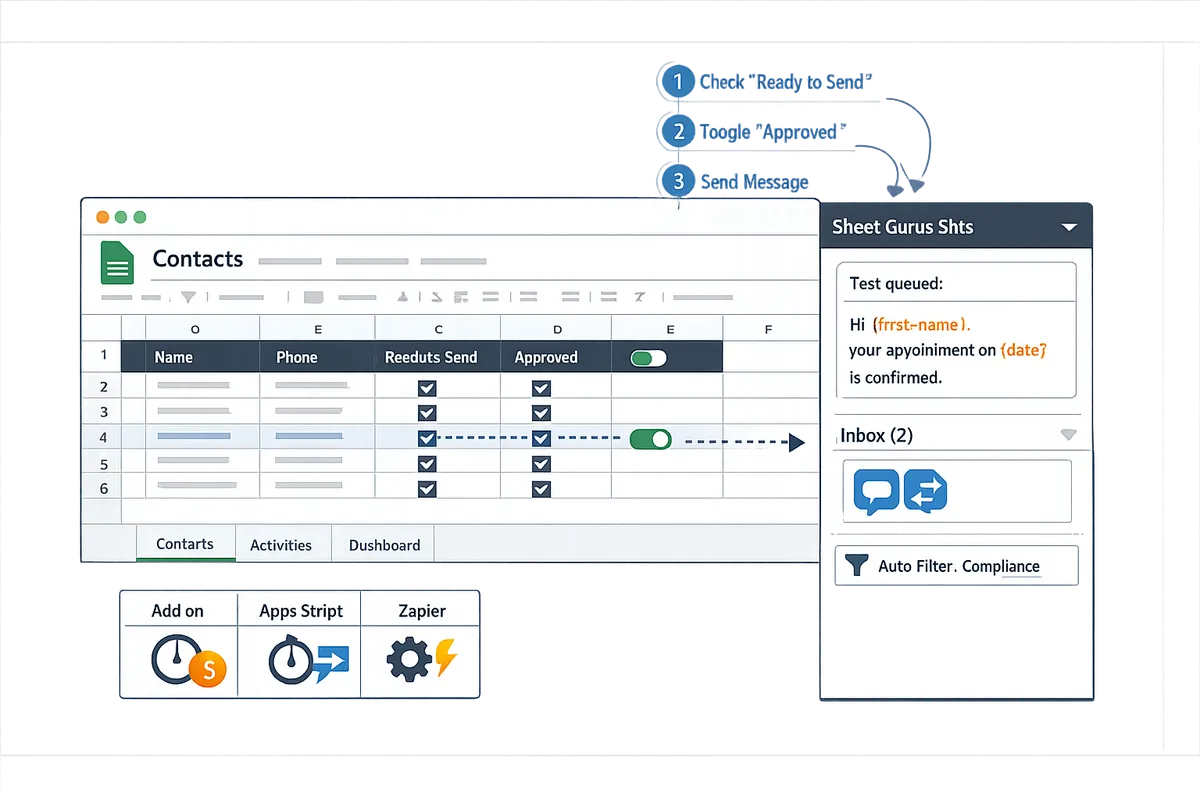
Protect phone_number, sms_consent, and sms_status columns with protected ranges so only Owners can change those fields. Create a simple approval workflow: add a “Ready to Send” checkbox that Senders check, then an Approver toggles “Approved” before the sidebar send. For a deeper comparison of add-on vs Apps Script or Zapier approaches and total cost considerations, see our buyer’s guide.
How do you build the Google Sheets CRM and connect Sheet Gurus SMS (step-by-step)?
Follow these seven practical steps to create linked Contacts, Deals, and Activities sheets, add validation and a compact dashboard, compose curly-brace SMS templates, and connect Sheet Gurus SMS for two-way texting. This section gives exact column layouts, example formulas, the sidebar mapping flow, and a controlled test plan so you can launch without guessing. If you want a broader comparison of integration methods, see our
2026 Ultimate Guide to sending messages from Google Sheets.Step 1: Create Contacts, Deals, and Activities sheets 🗂️
Create three linked sheets using a stable unique ID to join rows across Contacts, Deals, and Activities. Use a short, predictable ID format (C-0001, D-0001, A-0001) so non-technical team members can read and reference records easily. Example column sets:
- Contacts: contact_id, first_name, last_name, phone_e164, email, source, sms_consent_ts, opted_out
- Deals: deal_id, contact_id, title, amount, stage, owner, expected_close
- Activities: activity_id, linked_id (contact_id or deal_id), activity_type (outbound/inbound), channel (sms/email), body, sent_ts, delivery_status
Short formula examples to copy: use a lookup to show contact name on Deals (e.g., a simple VLOOKUP or INDEX/MATCH referencing Contacts), and a COUNTIFS to show open deals by owner. For example, a status count could be: COUNTIFS(Deals!E:E,“Proposal”,Deals!F:F,“Alice”). Keep the Activities sheet as the single source of truth for messaging history so Sheet Gurus SMS can update delivery and reply rows reliably.
Step 2: Add validation, dropdowns, and protective rules ✅
Add phone-format validation, picklists for stages, and protected ranges to reduce errors and preserve consent records. Create data validation rules that require phone numbers in E.164 format (for example, +12223334444). Use dropdowns for common values so teams choose consistent labels. Suggested dropdown values:
- Sales stages: Prospect, Qualification, Proposal, Negotiation, Closed Won, Closed Lost
- Contact sources: Website, Referral, Event, Cold Outreach
Protect columns that record consent and opt-outs to avoid accidental edits. Use sheet protection to restrict who can change contact_id, sms_consent_ts, and opted_out.
⚠️ Warning: Treat the consent column as an audit field. Do not allow bulk edits or imports to overwrite sms_consent_ts without a verified source.
Step 3: Build a compact sales dashboard and key metrics 📊
Create a one-screen dashboard that surfaces open deals, next follow-ups, and SMS reply rate so a small team sees priorities at a glance. Use these five formulas and one chart to run daily ops:
- Open deals: COUNTIFS(Deals!E:E,”<>Closed Won”,Deals!E:E,”<>Closed Lost”)
- Pipeline value: SUMIFS(Deals!D:D,Deals!E:E,”<>Closed Lost”)
- Next follow-ups: FILTER(Deals!A:G,Activities!sent_ts>=TODAY-7,Activities!delivery_status=“pending”) to show recent outreach needing action
- SMS reply rate: COUNTIFS(Activities!C:C,“inbound”) / MAX(1,COUNTIFS(Activities!C:C,“outbound”,Activities!F:F,”>=“&TODAY-30))
- Average reply time: AVERAGEIFS(Activities!response_time,Activities!C:C,“inbound”)
One useful chart: a stacked bar showing deals by stage per owner. Embed the dashboard on a dedicated sheet and freeze the top rows so the team always sees KPIs when opening the file. For automation ideas that trigger alerts from these metrics, see our Automate SMS in Google Sheets (No Code).
Step 4: Compose templated SMS using curly bracket variables ✉️
Templated SMS is a message template that inserts per-row values using curly brackets so every recipient receives a personalized message. Sheet Gurus SMS substitutes curly-brace variables like {first_name} and {appointment_date} at send time. Keep templates short and place variables where they read naturally.
Three example templates:
- Appointment reminder: “Hi {first_name}, this is a reminder for your appointment at {location} on {appointment_date}. Reply 1 to confirm.”
- Payment reminder: “{first_name}, your invoice #{invoice_id} for ${amount} is due on {due_date}. Pay here: {payment_link}”
- Re-engagement: “Hey {first_name}, we miss you at {business_name}. Use code {promo_code} for 15% off this week. Reply STOP to opt out.”
Avoid placing multiple variables at the start of the message; that increases the chance of awkward grammar when fields are empty. Test templates on real rows to confirm substitution and character count. For best practices on scheduling and compliance, read our Guide: Sending SMS from Google Sheets with Sheet Gurus SMS.
Step 5: Connect the sheet to Sheet Gurus SMS and authorize the send sidebar 🔌
Open the Sheet Gurus SMS add-on sidebar, map your phone and consent columns, and sign in to authorize sends from your account. The sidebar uses two mapping screens: first map the phone, name, and any custom fields (the columns used in curly-brace templates), then map the consent and opt-out columns so the add-on enforces permissions.
After mapping, click the account authorization button to sign in and grant the add-on permission to operate on the active sheet. A successful authorization shows your account name and a green connection indicator in the sidebar. Use the sidebar preview to verify a sample row’s variables before sending.
Step 6: Run a controlled test send and verify delivery status ✅
Send a small test batch (5–10 internal numbers) and confirm variable replacement, opt-out handling, and delivery updates appear in Activities and the Sheet Gurus SMS inbox. Check these exact items after the test send:
- Variables replaced correctly in each outgoing message preview.
- Any rows marked opted_out do not receive messages.
- Delivery statuses (delivered, failed, queued) appear as new rows or updated values in Activities within minutes.
- Replies show up in the Sheet Gurus SMS real-time inbox and link back to the correct contact or deal.
💡 Tip: Always use double opt-in for SMS signups to reduce compliance risk and lower opt-out rates.
If a message fails, open the Activity row to see the error note from the sidebar; common causes are malformed phone numbers or carrier blocks. Fix the row, then resend the single message from the sidebar.
Step 7: Decision table — keep Sheets or move to a CRM? 📋
Use this table to decide when to continue with a Google Sheets CRM and when migrating to a traditional CRM makes sense.
| Decision factor | When Google Sheets CRM is appropriate | When to migrate to a traditional CRM |
|---|---|---|
| Number of users | 1–5 active users who share a single file and can coordinate edits | More than 5 users with concurrent access needs and complex permission layers |
| Data volume | Under ~100k rows of combined contacts and activities where performance remains acceptable | Large datasets, slow loads, or frequent import/export tasks that slow daily work |
| Governance & permissions | Basic protection and manual auditing suffice; Sheet Gurus SMS updates Activities for messaging audit | Need role-based access, field-level permissions, and audit trails enforced by platform |
| Automation needs | Simple triggers, scheduled sends, and sidebar workflows via Sheet Gurus SMS meet requirements | Complex multi-step workflows, cross-system orchestration, or enterprise automation needs |
| Reporting & integrations | One-screen dashboards and CSV exports support daily ops | Must connect many external systems, advanced reporting, or BI integrations at scale |
For a full total-cost comparison and migration checklist, see our buyer’s guide on integrating Google Sheets with SMS and CRM options: How to Integrate Google Sheets with SMS: Add-on vs Apps Script vs Zapier/Make (Buyer’s Guide).
How do you run SMS follow-ups, manage a two-way SMS inbox inside the Google Sheets add-on, and avoid common mistakes?
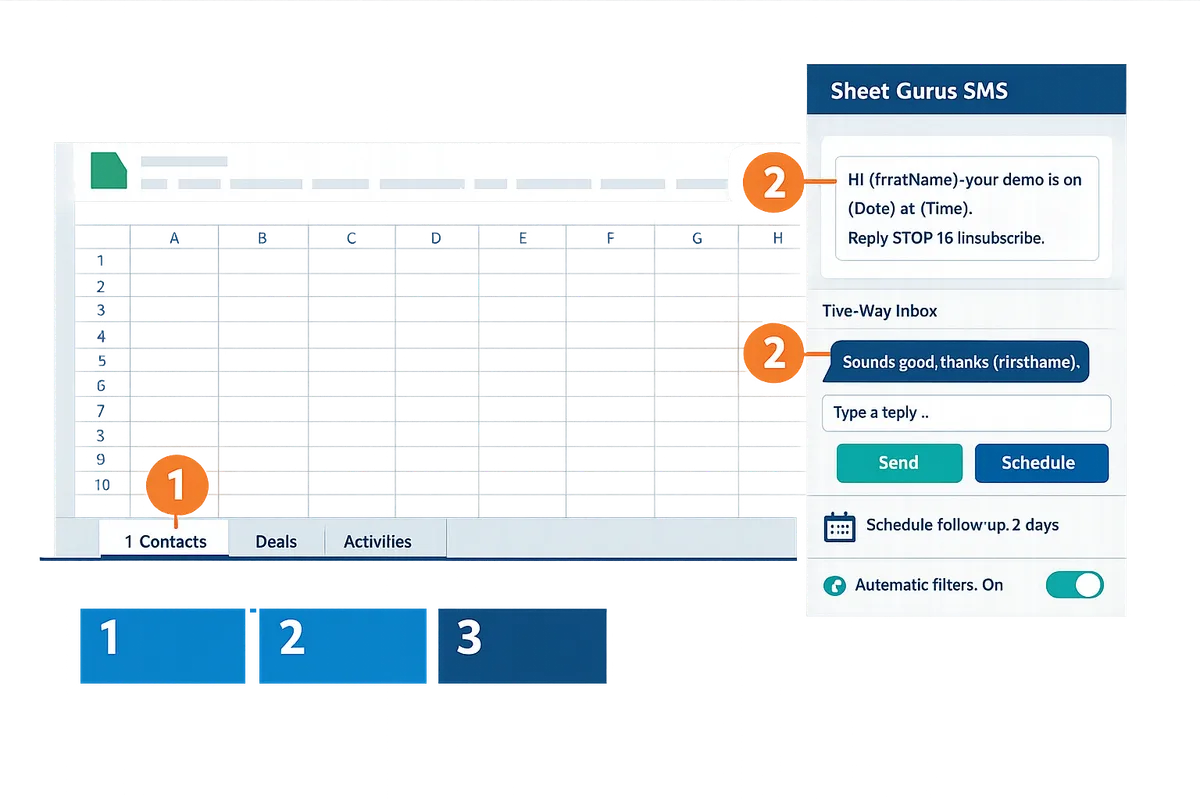
Use our Sheet Gurus SMS scheduling, inbox, and automatic filters to run timed follow-ups and manage replies without leaving Google Sheets. This keeps follow-up cadence, consent records, and reply triage all inside the spreadsheet so you can act quickly and keep audit trails.
Step 1: Create follow-up cadences and schedule messages 📅
Create 2–4 cadences (immediate, 3-day, 7-day, final) and schedule sends per row from the Sheet Gurus SMS sidebar. Define a cadence column in your Deals or Activities sheet that holds the next send date and a cadence stage (e.g., 0, 3, 7, final). Use a templates sheet with curly-brace variables and name each template so you can reuse sequences without editing every row.
Example template: “Hi {FirstName}, this is {Rep}. Quick reminder: your appointment at {Location} is at {Time}. Reply 1 to confirm.” Put {NextSendDate} in the send-date column and queue sends from the sidebar. Expect to queue hundreds of rows as a batch; if variables mismatch the message will show a preview error in the sidebar.
For step-by-step scheduling patterns, see our sending SMS from Google Sheets guide for timing and template examples.
Step 2: 📥 Triage replies in the two-way inbox and tag conversations
Use our Sheet Gurus SMS real-time inbox to read replies, apply tags, and move contacts back into active pipelines. Open the add-on inbox to see incoming messages with the matching row ID; apply a tag like needs-follow-up, closed, or spam directly in the inbox.
Map each tag to a column on your Activities sheet so tags update rows automatically. Example flow: reply “Yes” → tag needs-follow-up → set {NextSendDate} to today + 2 days. For closed deals, tag closed and add a close reason. Tagging keeps the sheet-driven workflow intact and prevents missed replies when reps change shifts.
See our automate SMS in Google Sheets guide for examples of inbox-driven triggers and mapping patterns.
Step 3: Automate filtering and compliance checks before sending ⚠️
Enable our Sheet Gurus SMS automatic filters to block sends to unsubscribed numbers and content that matches your blocklist before the send flow begins. Turn on checks for consent timestamp, Unsubscribed flag, and a content blocklist in the sidebar settings so the add-on stops rows that fail checks and logs the reason in the Activities sheet.
Recommended filters to enable:
- ConsentTimestamp present and within your retention policy.
- Unsubscribed = TRUE blocks sends automatically.
- Phone format check (+countrycode) to catch missing prefixes.
- Content blocklist for regulated keywords or disallowed claims.
💡 Tip: Always use double opt-in for SMS signups.
The filters run during queueing so you catch issues before any message leaves the account and keep compliance evidence in the spreadsheet.
Step 4: Monitor delivery and reply metrics and interpret statuses 📊
Track delivery and reply metrics in your Activities sheet so you can measure campaign health and decide when to pause or adjust a cadence. Add columns for Status (Queued, Sent, Delivered, Failed, Bounced), DeliveryTimestamp, and ReplyReceived (TRUE/FALSE). Calculate reply rate as Replies divided by Delivered messages.
Statuses to watch and actions:
- Failed or Bounced: normalize numbers, re-run a test send, or remove from campaign.
- Delivered but no reply after final cadence: mark as dormant and schedule nurture.
- High Failed rate for a carrier or area code: pause and investigate carrier filtering.
If failure rates exceed an expected threshold for your campaign (for example, noticeably above prior campaigns) stop the next batch and review phone normalization and blocklists. Link to our guide on sending SMS from Google Sheets for diagnostic steps.
Step 5: Troubleshoot common mistakes and recovery steps 🔧
Follow an ordered checklist to recover without losing data: verify template variable names, normalize phone formats, run test sends, and restore activity flags if needed. Start by previewing one row in the Sheet Gurus SMS sidebar to catch missing or misspelled variables like {First} vs {FirstName}.
Troubleshooting checklist:
- Preview a sample row in the sidebar to catch template errors.
- Run the add-on test send mode to a known number before full send.
- Use search-and-replace to fix variable name mismatches across templates.
- Normalize numbers with a helper column (+countrycode) and re-queue.
- If an unauthorized send occurs, mark affected rows as DoNotContact and export activity logs immediately.
⚠️ Warning: If you discover unauthorized sends, stop the next queue, export Activities, and mark affected contacts DoNotContact before resuming any campaign.
Refer to our ultimate guide comparing add-on and automation options for recovery workflows and prevention patterns.
Step 6: Plan the upgrade path and export strategy before scale-up 🚀
Export schema and activity logs regularly and monitor three growth signals—number of active users, monthly message volume, and governance needs—to decide when to migrate off Sheets. Export these fields weekly: ContactID, Phone, ConsentTimestamp, Unsubscribed, TemplateName, ActivityID, Status, DeliveryTimestamp, and Tags.
Suggested export cadence and triggers:
- Export Contacts and Templates weekly.
- Export Activities and delivery logs daily if you run daily campaigns.
- Consider migration when you exceed roughly 10 active senders, 5,000 messages per month, or when approval/workflow rules outgrow simple sheet permissions.
When preparing to move, include the schema export in CSV and a sample of mapped tags so the next CRM imports both contacts and conversation history. See our buyer’s guide to compare migration costs and options.
Frequently Asked Questions
This FAQ answers common operational and technical questions about building a Google Sheets CRM with texting and using Sheet Gurus SMS. The answers are short, actionable, and include examples you can apply immediately. Use the links to our step-by-step guides for deeper procedures and templates.
How do I format phone numbers so Sheet Gurus SMS can send messages? 📞
Phone numbers must use a single, consistent international format (for example, +12223334444) in one dedicated column so Sheet Gurus SMS can route sends correctly. Create a single Phone_E164 column and move all destination numbers there. Normalize common variations by removing spaces and punctuation, ensuring a leading plus and country code, and correcting local numbers that lack a country code. If you need a quick fix, export problem rows, add the missing country code, then paste values back into the Phone_E164 column. For a full walkthrough on data setup and validation, see our Guide: Sending SMS from Google Sheets with Sheet Gurus SMS.
Can I personalize messages for each contact from Google Sheets? ✉️
Yes. Use curly-brace variables that match column headers (for example {first_name}, {appointment_date}) and Sheet Gurus SMS will replace them per row at send time. Compose templates in the add-on using the same column names as your sheet, then preview a few rows to confirm substitutions. Example reminder: “Hi {first_name}, this is a reminder for your {appointment_type} on {appointment_date} at {appointment_time}. Reply if you need to reschedule.” Always run a test batch to 5–10 known numbers to check spelling, spacing, and date formats before sending to customers.
How does the two-way SMS inbox inside the Google Sheets add-on work? 📥
The two-way SMS inbox displays replies in near real time and links each conversation to the contact row so you can triage without switching apps. Replies appear in your Activities sheet with a timestamp and conversation ID, and you can add tags or reassign a thread to a team member from the same sidebar. Use automatic filters in Sheet Gurus SMS to flag keywords like “STOP” for opt-outs and to surface high-priority replies. For automation patterns and inbox workflows, review our Automate SMS in Google Sheets (No Code) guide.
What compliance steps should I take before sending bulk SMS? ⚖️
You must capture explicit opt-in, record the opt-in source and timestamp, and honor opt-out requests immediately to reduce legal risk. Add columns for opt_in (yes/no), opt_in_timestamp, opt_in_source, and unsubscribed or blocker_flag that your team and Sheet Gurus SMS respect before sending. Use the blocker flag to prevent accidental sends and log every outbound batch with an audit column for who approved the send. > 💡 Tip: Always use double opt-in for SMS signups.
How many contacts can I manage in a Google Sheets CRM before I should migrate? 📈
You can manage a few thousand rows comfortably, but governance and performance issues rise as you approach larger volumes. Expect to consider migration when you see slow load or sync times, repeated edit conflicts from multiple users, message quotas or rate limits interfering with campaigns, or the need for advanced campaign reporting. As objective triggers, watch for more than 2,000–5,000 active contacts, frequent collaborator lock conflicts, or monthly message volumes that require programmatic throttling. Our buyer’s guide, How to Integrate Google Sheets with SMS, compares when a dedicated CRM or database becomes more cost-effective.
What are the quickest tests to run before a live campaign? ✅
Run a small test batch to 5–10 internal numbers and check four things: accurate variable replacement, delivery status confirmations, receipt of replies in the inbox, and correct opt-out handling. Verify that templates pull the right columns, delivery statuses update in the sheet, replies populate Activities, and rows flagged with unsubscribed or blocker_flag never send. Use those checks to catch the top causes of failed campaigns: bad data, misnamed variables, or missing opt-in records. See the Send Messages from Google Sheets: 2026 Ultimate Guide for sample test scripts and checklist items.
Can multiple team members send messages and use the inbox safely? 👥
Yes, if you enforce protected ranges, role-based sharing, and a clear send-approval workflow to prevent accidental sends. Set template creation to a draft sheet, require an approver column that must be set to “Approved” before the add-on will send, and protect columns that hold opt-in and phone data. Assign operators to monitor the two-way inbox and use version history and activity logs to trace who sent what. For small-business patterns that scale, see Sheet Gurus SMS for Small Businesses which outlines recommended team roles and shared workflows.
Put your Google Sheets CRM into action and start two-way SMS.
If you followed this how-to guide on how to build a Google Sheets CRM, you should now have a sheet that schedules SMS follow-ups, sends bulk texts from a sidebar, and captures replies in a two-way inbox. That setup turns a contact list into a working outreach system without writing code.
Sheet Gurus SMS is a Google Sheets add-on for sending bulk SMS from a sidebar rather than spreadsheet formulas. Personalize each message with curly-brace variables such as {FirstName}, handle replies in a real-time two-way inbox, and rely on automatic message filtering to help keep your sends compliant.
💡 Tip: Always use double opt-in for SMS signups and record consent in a dedicated column before sending scheduled messages.
Start a free trial of Sheet Gurus SMS and follow our getting-started guide to connect your sheet, set variable templates, and activate the inbox. For additional setup options and comparisons, see the 2026 Ultimate Guide to sending messages from Google Sheets — it explains add-on vs Apps Script vs Zapier approaches and links to automation patterns you can reuse.