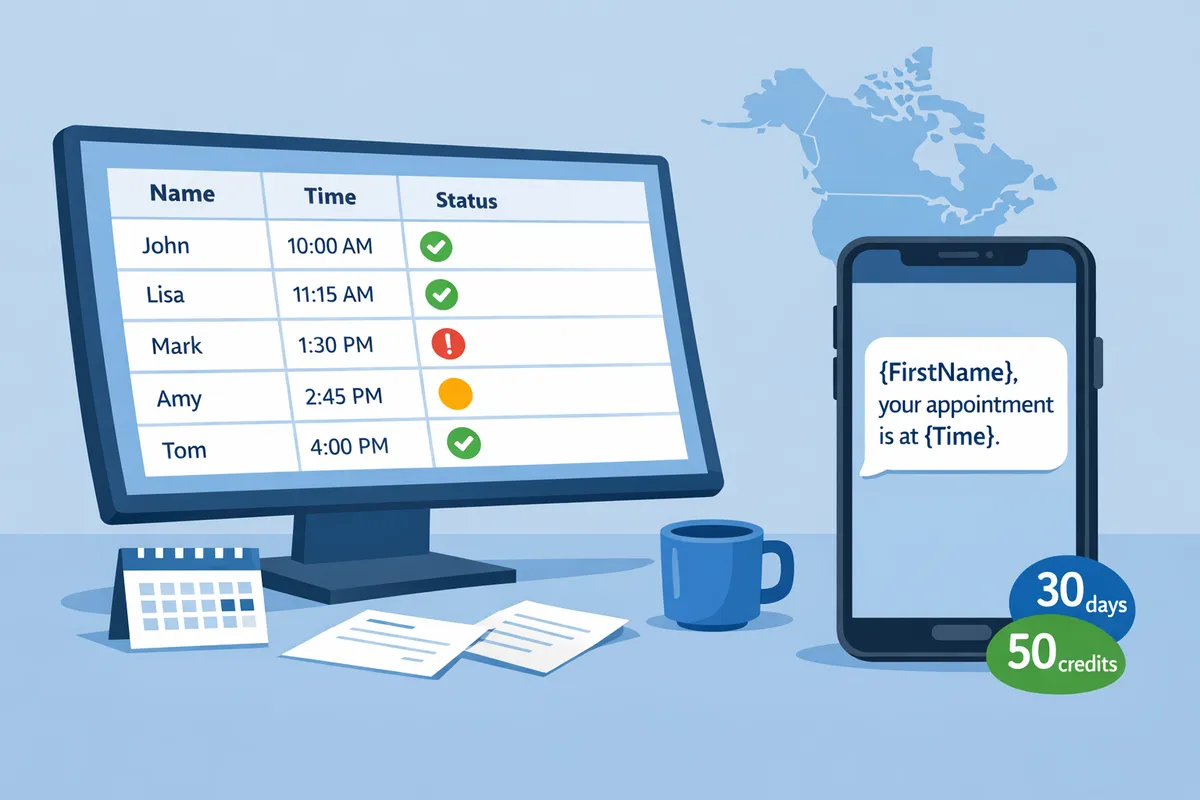
A Google Sheets SMS integration lets you text the people in your spreadsheet without copying numbers into another tool. There are three ways to build one: a sidebar add-on, an automation service such as Zapier or Make connected to an SMS provider, or a script you write yourself. This guide explains how each works, what Sheet Gurus SMS can and cannot do, what bulk sending costs at 500, 3,000 and 10,000 messages, and how to keep it compliant.
A Google Sheets SMS integration connects the rows in a sheet to an SMS provider so each row can become a text message. The sheet holds the data (names, phone numbers, appointment dates), and the integration handles composing, sending and, in some cases, receiving replies.
Search results show the main patterns. Providers such as
GatewayAPI and TextMagic describe connecting Sheets through Zapier or Make so a new row triggers a text. Others, such as ClickSend, publish their own Sheets add-on. Most need an account with the SMS provider as well.
Use a sidebar add-on when you send in batches and want to review messages first, an automation service when texts must fire the moment a row changes, and a script only if you have someone to maintain it.
Sidebar add-on
Automation service (Zapier, Make)
Custom script
Starts a send
Usually you, from the sidebar, though some add-ons add triggers
A trigger such as a new row
Your code, on a schedule or button
Setup effort
Install and pick a tab
Build and test a workflow per use case
Write, host and debug code
Review before sending
Depends on the add-on
Usually none
Whatever you build
Replies
Depends on the add-on
Depends on the provider
You build it
Best for
Promotions, reminders, announcements
“Text me when a form arrives”
Teams with a developer
The trade-off is control against automation. A typical add-on keeps a person in the loop, which suits campaigns where a wrong message reaches hundreds of people. A trigger-based workflow removes the manual step but also removes the chance to catch a bad row.
You send bulk SMS from Google Sheets by putting one recipient per row, installing an add-on, and sending from its sidebar to the tab you have open.
Here is a worked example for a small cleaning company with 400 clients. The business keeps a tab called Clients with these columns:
FirstName
Phone
Date
Time
Status
Maria
(phone number)
Thu, Oct 29
9:00 AM
Pending
Only clients still marked Pending should get a reminder, so add a second tab named Pending. Type the headers
FirstName, Phone, Date, Time and Status in row 1, then put this in cell A2 (Google Sheets syntax):
=FILTER(Clients!A2:E, Clients!E2:E="Pending")
The headers sit above the formula because Sheet Gurus SMS reads variable names from the first row of the tab you send from, and it sends to the rows of whichever tab is open. Open the Pending tab, write the message, and check the preview before sending.
Sheet Gurus SMS works as a sidebar add-on for Google Sheets, and an Excel version (a separate Office add-in that mirrors the Sheets workflow) covers Microsoft Excel, so a team split across both can use the same workflow. After a send, the sidebar reports the delivery status of each message (for example delivered or failed), so you can see which rows to retry or clean up. It covers the US and Canada only. The free trial lasts 30 days and includes 50 credits, which is enough to test this exact setup on a few rows.
You add dynamic content by writing column names in curly braces, so a message like Hi {FirstName}, your clean is booked for {Date} at {Time}. Reply with questions anytime. becomes a different text for every row.
Three behaviours matter in practice:
A variable matches the column header in row 1 of the tab you send from, so {FirstName} reads the column headed FirstName.
A variable inserts what the cell displays. A date cell formatted as “Thu, Oct 29” arrives as “Thu, Oct 29”.
There is no fallback value. If a client’s FirstName cell is empty, the text reads “Hi , your clean…” so fill or filter blank cells before sending.
The sidebar previews each recipient’s finished message before you send, which is the quickest way to catch a blank name or a badly formatted date. For more variable patterns, see the guide to dynamic SMS personalization in Google Sheets.
Yes, if the tool you choose includes an inbox, because Sheets itself cannot receive texts.
In Sheet Gurus SMS the two-way inbox lives in the same sidebar. Conversations can be tagged, filtered by unread, searched by phone number and assigned to team members, and each reply stays linked to the sender’s row in your sheet. Inbound messages are billed at your plan’s per-segment rate on Starter and Growth, and are free on Pro, so budget for replies if you expect many.
Before you pick any add-on, check whether it receives replies at all. Some add-on listings describe sending only, so confirm reply handling on the vendor’s own page.
Sending with Sheet Gurus SMS costs a monthly plan fee plus a per-segment rate, so Starter is cheapest for small volumes and Pro is cheapest once you send more than about 5,000 texts a month.
Plans are Starter at $9 a month with $0.04 per segment, Growth at $49 with $0.03, and Pro at $99 with $0.02. A segment is up to 160 characters. The table assumes one outbound segment per message, one user, monthly billing and no replies. Prices are those published for Sheet Gurus SMS as of October 2026.
Messages a month
Starter
Growth
Pro
500
$29
$64
$109
3,000
$129
$139
$159
10,000
$409
$349
$299
Growth becomes cheaper than Starter above 4,000 messages, and Pro becomes cheaper than Growth above 5,000. Longer messages use more than one segment and cost proportionally more. Delivery status for every message is included on all three plans, and scheduled sends are available on Growth and Pro. Extra users cost $9 a month each on Starter and $5 on Growth, while Pro includes unlimited seats.
For comparison, other services price differently (per credit, per message or per workflow run), so check each vendor’s own pricing page against your volume instead of comparing headline monthly fees.
You stay compliant by texting only people who agreed to hear from you, honouring every opt-out, and registering your sending number where carriers require it.
A tool can help but cannot grant consent. Keep a consent column in your sheet with the date and source of each opt-in, and remove anyone who replies STOP. Sheet Gurus SMS applies automatic message filtering to help keep sends compliant and includes automated opt-out on every plan, but you remain responsible for who is on your list and what you send.
Sheet Gurus SMS cannot send on its own, because every send is started or scheduled by a person from the sidebar.
The main limits:
There are no triggers. Nothing sends when a row is added, a form is submitted or a cell changes. Triggers are on the roadmap with no release date.
A scheduled send goes out at one time for the whole batch, and rows cannot have their own send times.
Schedules do not repeat. Each batch is scheduled separately, and a scheduled send reads your tab when you schedule it, so rows added later are not included. You can cancel or edit it before it goes out.
Messages are not saved as templates in the add-on, so keep reusable wording in a tab of your sheet.
If you need a text the second a form arrives, an automation service is the better fit today. If you send reminders, promotions or announcements to a list you can review first, the sidebar approach is simpler.
Yes. Sheet Gurus SMS composes and sends from a sidebar instead of spreadsheet formulas. The only formula in the example above is an optional FILTER to build a subset tab.
Yes. An Excel version of the add-on works in Microsoft 365 Excel on Windows, macOS and the web. It is a separate Office add-in that mirrors the Sheets sidebar workflow.