




Google Sheets SMS Add-On iPhone
School admins and small-business managers often open a Google Sheet on their phone and find the SMS workflow that worked on desktop fails on mobile, leaving time-sensitive alerts unsent. Google Sheets SMS add-on iPhone is a search phrase asking whether a spreadsheet SMS extension runs natively on iPhone and Android and what limitations to expect. Our Sheet Gurus SMS add-on composes and sends texts from a sidebar in Google Sheets and Microsoft 365 Excel, using {FirstName} variables, delivery status, scheduled sends and a real-time two-way inbox. This article tests which mobile environments support the add-on, compares workarounds such as scheduling or using Excel for the web, and links to our
step-by-step guide and the automated SMS playbook. You may be surprised which method preserves delivery and two-way replies.Does the Google Sheets or Excel SMS add-on work on iPhone and Android?
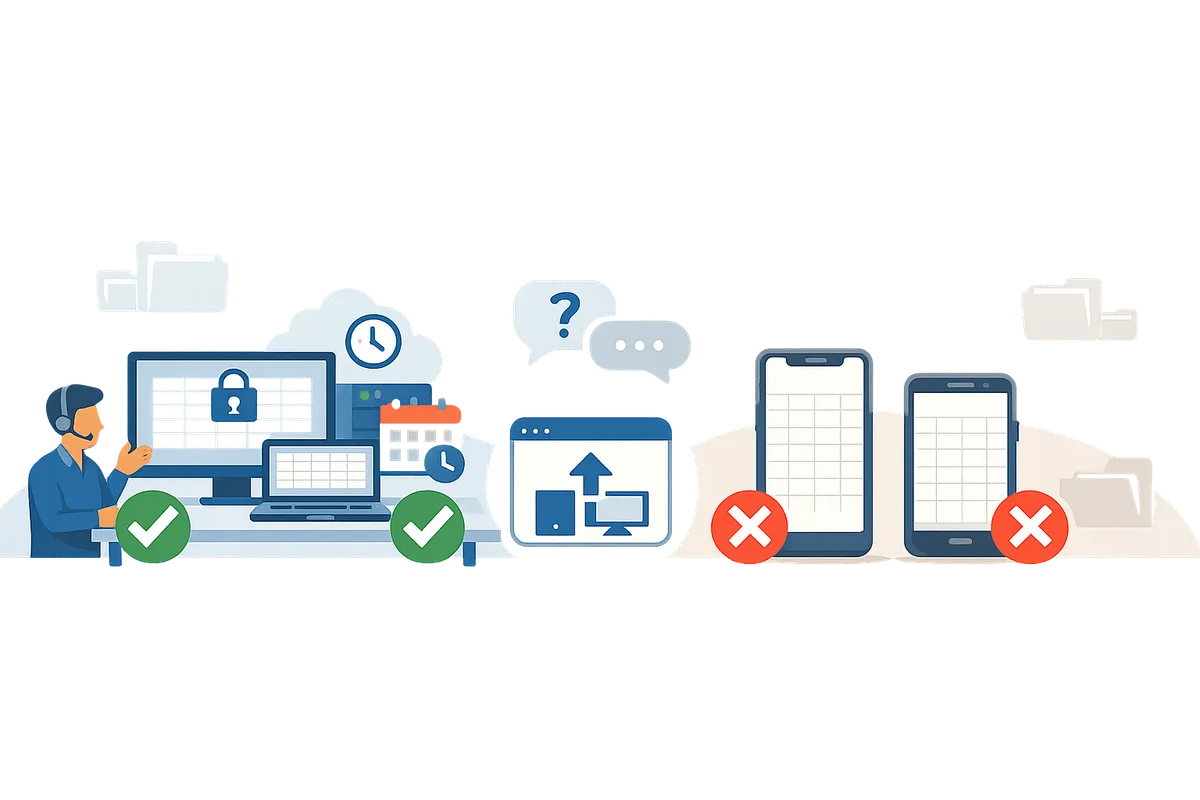
No. The Google Sheets and Excel sidebar SMS add-ons require a desktop-like UI and do not appear inside the native iPhone or Android apps. Sheet Gurus SMS uses a sidebar interface for composing, previewing, sending and the two-way inbox, so the add-on’s UI must run in a desktop browser or the web version of Excel. Mobile users must use alternate workflows such as scheduling from desktop or trying a mobile browser in desktop mode.
How does a sidebar add-on affect mobile support? 📱
A sidebar add-on requires the desktop UI region that mobile Sheets and Excel apps hide. Google Sheets and Microsoft 365 add-ins depend on a persistent sidebar panel for message composition, per-recipient previews, and the real-time inbox. Sheet Gurus SMS displays curly-brace variables, delivery status, and the two-way inbox inside that sidebar, so those features simply do not load inside the native mobile apps. Some mobile browsers can surface the web version of Sheets or Excel when you switch to desktop site mode, but this is inconsistent across browsers and operating systems and the sidebar may be cramped or unstable.
Refer to our guide for step-by-step desktop workflows and mobile workarounds in the 2026 Beginner’s Guide to sending SMS from Sheets: SMS from Google Sheets: The 2026 Beginner’s Guide to Sending, Automating, and Two‑Way Replies (No Formulas).
Does Sheet Gurus SMS work in the Google Sheets iPhone app? 📲
No. Sheet Gurus SMS does not appear in the native Google Sheets iPhone app because the app does not expose the sidebar. You can compose and schedule messages from Sheet Gurus SMS on a desktop or in a desktop-mode browser and those scheduled sends will run even if you later use only your phone to monitor replies. The two-way inbox and per-recipient preview are available only in the sidebar, so reading replies or tagging conversations requires a desktop or the web UI with sidebar support.
💡
Tip: If you must manage sends from a phone, schedule the batch from a desktop before you leave and use the mobile carrier to receive replies. Then open the sidebar on desktop to review delivery status and assign conversations.
For step-by-step alternatives and Excel compatibility tips, see Send Messages from Google Sheets: 2026 Ultimate Guide — Add-on vs Apps Script vs Zapier vs AppSheet: Send Messages from Google Sheets: 2026 Ultimate Guide — Add-on vs Apps Script vs Zapier vs AppSheet, with Two-Way SMS.
Can I use the add-on on Android phones? 🤔
No. The Google Sheets Android app also hides the sidebar used by add-ons, so the add-on will not run in the native Android Sheets app. The same limitation applies to Excel’s mobile apps. A possible workaround is opening Sheets or Excel in Chrome or another mobile browser and requesting the desktop site, which sometimes surfaces the web add-in and sidebar, but behavior varies and the interface can be slow or impractical for heavy use. For reliable two-way handling, schedule or send from a desktop and use the sidebar there to manage replies, filters and delivery reporting.
Which platforms support the add-on and what limits apply? ✅
Sheet Gurus SMS works on desktop Google Sheets and Microsoft 365 Excel (Windows, macOS and Excel for the web); mobile apps do not support the sidebar. Below is a quick matrix of where the sidebar and core Sheet Gurus SMS features are available.
| Platform | Sidebar available | Sheet Gurus SMS behavior |
|---|---|---|
| Google Sheets (desktop browser) | Yes | Full UI: compose, preview per recipient, two-way inbox, scheduling |
| Google Sheets (iPhone/Android app) | No | Add-on UI unavailable; cannot compose or view inbox in-app |
| Google Sheets (mobile browser, desktop mode) | Sometimes | May surface sidebar; experience varies by browser and OS |
| Excel (Microsoft 365 on Windows/macOS) | Yes | Full Office add-in UI mirrors Sheets sidebar workflow |
| Excel (Excel for the web on mobile) | Sometimes | Desktop mode may show add-in; limited usability |
Scheduled sends created in the sidebar read the tab at scheduling time, so creating the schedule from desktop ensures the intended recipient rows are locked into that batch. Sheet Gurus SMS’s automatic filtering and delivery reporting work only when the add-on UI runs or when a scheduled send executes from the server side after a desktop schedule.
How can I send bulk SMS from a spreadsheet on iPhone or Android? Practical workarounds
You can send bulk SMS from a spreadsheet on an iPhone or Android by using three practical workarounds: request the desktop site in your mobile browser, schedule sends from a desktop and monitor on mobile, or delegate inbox handling to teammates. Each option reduces desktop dependence in different ways and keeps your contact data inside the sheet that your team already uses. Sheet Gurus SMS supports scheduling, per-recipient previews, and a two-way inbox in the sidebar, which makes the desktop-to-mobile handoff easier when you cannot fully work from a phone. See the 2026 Beginner’s Guide to Sending, Automating, and Two‑Way Replies for step-by-step setups.
Can I open the add-on sidebar in my mobile browser? 📱
Yes. Switching your mobile browser to request the desktop site can surface the add-on sidebar in some cases. 1) Open the sheet URL in Safari or Chrome on your phone. 2) In Safari tap the aA icon and choose ‘Request Desktop Website’; in Chrome tap the three-dot menu and enable ‘Request desktop site.’ 3) Reload the sheet and open the Sheet Gurus SMS sidebar from the Add-ons menu or the extensions icon. 4) Confirm the sidebar shows per-row previews such as {FirstName} rendered to each recipient before sending. 5) Send a small test batch (10 rows) to verify delivery and preview rendering.
This approach works intermittently because mobile browsers emulate a desktop UI but do not match all desktop behaviors. If the sidebar does not appear, fall back to scheduling from a desktop or assign reply handling to a teammate with desktop access.
⚠️ Warning: The native Google Sheets mobile app does not load sidebar add-ons. Always use a browser’s desktop site, not the Sheets native app, when you need the sidebar.
How do I schedule sends on desktop and monitor them from my phone? 📆
Schedule the batch from a desktop and then use your phone to monitor delivery status and replies. Prepare the tab you want to send from and compose the message in the Sheet Gurus SMS sidebar on your laptop; schedule the send for a future time because scheduled sends read the tab when you set the schedule and can be canceled or edited before they go out. After scheduling, use your phone to check delivery status (delivered, failed) and to view reply notifications where supported, or open the sheet in a mobile browser desktop site to access the sidebar if needed.
Example: a clinic finalizes a reminder list at 9:30 a.m. on a laptop, schedules the 10:00 a.m. send, then confirms delivery and any undeliverable numbers from a phone while the receptionist handles confirmations.
Can I delegate two-way reply handling to teammates? 👥
Yes. Assign inbox conversations inside the Sheet Gurus SMS sidebar to teammates who have desktop access so they can manage replies, tag conversations, and keep replies linked to the sender’s row. The sidebar supports assignment, unread filters, tagging, and search by phone number, which prevents the owner of the sheet from needing full desktop access for every campaign. For example, a one-person manager can schedule sends and a receptionist with desktop access can triage replies and mark rows as Confirmed or No-Show.
Delegation reduces mobile friction and keeps reply context tied to the spreadsheet without copy-paste errors or lost responses.
Which option compares best for phone reliability, coding needs, compliance controls, and reply handling? 🔍
A side-by-side comparison shows Sheet Gurus SMS is the simplest no-code path with consistent inbox features, Twilio plus Google Apps Script requires coding but offers full control, and marketplace add-ons vary by vendor in mobile behavior and compliance. Below is a compact comparison to help you pick the fastest path for your team.
| Approach | Send from phone reliably? | Requires coding? | Compliance controls | Reply handling | Likely time to run (setup → first send) |
|---|---|---|---|---|---|
| Sheet Gurus SMS add-on | Partial (browser desktop mode or schedule from desktop; sidebar inbox for replies) | No | Built-in automated filtering and opt-out handling | Real-time, two-way inbox, assignable to teammates | Minutes to 1 hour (install, authorize, test) |
| Twilio + Google Apps Script DIY | No (requires custom UI or redirects) | Yes | Depends on developer implementation; risk of mistakes | Requires building a reply webhook and spreadsheet storage | Several hours to days (development, testing) |
| Marketplace add-ons (various vendors) | Varies by vendor; many lack reliable mobile sidebar | Usually No, but varies | Varies; some include opt-out, others leave it to you | Varies; some provide inboxes, some only outbound | Minutes to a few hours if vendor provides a ready-made add-on |
See the 2026 Ultimate Guide — Add-on vs Apps Script vs Zapier vs AppSheet for a deeper comparison of trade-offs between coding and no-code paths.
What should I test before sending a large batch? ✅
Always run a 10-recipient test that includes blank variables and invalid numbers to verify personalization, opt-out handling, and delivery reporting. Checklist:
- Use a test tab with 10 rows that include: a) one blank {FirstName}, b) one invalid phone, c) one long message that splits into multiple segments.
- Confirm the sidebar preview shows each recipient’s final message and that empty variables remain blank where cells are empty.
- Verify opt-out behavior by sending a test SMS and replying STOP from a test number to ensure automated opt-out is applied.
- Check delivery status for every test row and note how undeliverable numbers appear in the sheet.
- If scheduling, confirm the send reads the tab at schedule time by adding a new test row after scheduling to ensure it is excluded.
💡 Tip: Always use double opt-in for SMS signups to reduce complaints and improve list hygiene.

Which add-ons and DIY options work best for mobile workflows and compliance?
Sheet Gurus SMS is the lowest-friction add-on for mobile-heavy teams because it provides per-recipient previews, a two-way inbox, and built-in compliance filtering. DIY Apps Script builds or many marketplace add-ons often require manual checks, more maintenance, and can expose credentials or message logs unless you harden them carefully. See our 2026 Beginner’s Guide to sending and managing two-way replies and the Ultimate Guide comparing add-on vs Apps Script for setup trade-offs.
How do the main options compare for mobile support, inbox handling, and compliance?
Sheet Gurus SMS typically requires the least ongoing effort and offers the most mobile-friendly inbox experience. Below is a side-by-side matrix that shows the practical trade-offs small teams face when choosing between Sheet Gurus SMS, a Twilio-based Apps Script DIY, and common marketplace add-ons.
| Feature / Option | Sheet Gurus SMS | Twilio-based Apps Script (DIY) | Typical Marketplace Add-on |
|---|---|---|---|
| Mobile support (iPhone/Android) | Sidebar UI works on web; mobile users can compose and read the sidebar inbox via browser desktop mode or use scheduled sends and monitor replies on mobile. | Works server-side; mobile UI depends on your script and UI; often no built-in sidebar experience. | Varies widely; most rely on web-only sidebars and may not render in the native Sheets mobile app. |
| Inbox / reply handling | Real-time two-way inbox in the sidebar with tags, assignment, and replies linked to rows. | You must build reply webhook handling and a UI to link replies to rows. | Some offer inbound messages, but inbox features and row-linking are often limited or require extra apps. |
| Compliance controls (opt-outs, filtering) | Automatic message filtering and basic automated opt-out handling in the sidebar. | Compliance is manual unless you build filters and opt-out lists into your script. | Some include opt-out; many require manual checks or separate tools for filtering. |
| Setup time (non-developer) | Short. Install add-on and authorize (minutes to an hour). | Long. Writing webhooks, credential storage, and testing takes hours to days. | Medium. Installation may be quick but configuring webhooks or external accounts adds time. |
| Maintenance burden | Low. Updates handled by our website, inbox and filtering in the add-on. | High. You maintain credentials, error handling, and webhook endpoints. | Medium to high. Marketplace apps may break with API changes or need separate credential rotation. |
What compliance and data flow checks should I run before sending from a phone?
Confirming how contact data moves and where replies are stored prevents privacy incidents and compliance violations. First, verify which systems receive the spreadsheet data (for example, Sheet Gurus SMS uses Twilio as the SMS provider and shows delivery status and reply filtering in the sidebar). Next, check whether credentials or message bodies are logged outside your control (DIY scripts commonly log to third-party consoles unless configured not to). Finally, document opt-out handling and retention rules so you can answer audits.
⚠️ Warning: Always include a clear unsubscribe method and confirm how opt-outs are recorded before any bulk send. Failure to honor opt-outs exposes your business to regulatory fines and carrier filtering.
Checklist (practical steps):
- Confirm outbound path: sheet → add-on → SMS provider (name the provider). For Sheet Gurus SMS that provider is Twilio.
- Verify reply storage: are replies kept in the add-on inbox, a third-party dashboard, or your own Google Sheet?
- Check access: who can read messages and replies? Restrict access to necessary staff only.
- Audit logs: ensure you can export delivery reports and opt-out records for 6–12 months depending on your industry.
- Test opt-outs: run a small send, reply STOP, and confirm the system blocks future sends to that number.
Link to our step-by-step sending guide if you need a walkthrough of these checks: Sending SMS from Google Sheets with Sheet Gurus SMS.
Why does the add-on UI sometimes fail on iPhone and how do I fix it? 📱
The native Google Sheets iPhone app and mobile browsers often block sidebar interfaces, so the add-on sidebar may not appear without a workaround. If the sidebar fails to load in the Sheets app, open the sheet in Safari and request the desktop site to access the sidebar; if that still fails, schedule the send from a desktop and use your phone only to monitor replies. You can also assign inbox duties to another team member who uses desktop, while your iPhone handles monitoring.
Troubleshooting steps for iPhone users:
- Open the sheet in Safari.
- Tap the Share icon and choose Request Desktop Site.
- Reopen the add-on sidebar from the Extensions/Add-ons menu.
- If the sidebar still does not load, use desktop to schedule sends and rely on the real-time inbox in the add-on for reply handling when you return to desktop.
If you need an iPhone-specific workflow, see our Beginner’s Guide for mobile-friendly sending patterns and alternatives: SMS from Google Sheets: The 2026 Beginner’s Guide to Sending, Automating, and Two‑Way Replies (No Formulas).
For a small clinic or team, how much time does a tool like Sheet Gurus SMS save and what breaks most often with DIY approaches?
Using Sheet Gurus SMS typically cuts repetitive preparation and reply routing hours by centralizing sends, previews, and a two-way inbox in one sidebar. For example, a clinic preparing 500 appointment reminders can preview each recipient’s message with {FirstName} filled, schedule the batch, and have replies automatically linked to rows—avoiding manual copy-paste, missed variables, and untracked opt-outs. DIY setups most often fail on variable mismatches, blank fallback handling, missing opt-out enforcement, and webhook misconfigurations that leave replies unlinked.
Practical ROI scenario:
- Manual process: 3 staff hours to personalize, send, and reconcile replies for 500 messages.
- Add-on workflow (Sheet Gurus SMS): 30–60 minutes to set up and send the same batch, with replies routed to rows for quick follow-up.
Common DIY failure modes and mitigation:
- Mismatched variables (e.g., {FirstName} spelled differently in the sheet). Mitigate by standardizing headers and testing previews.
- Blank cells producing awkward messages. Mitigate by adding a validation column or conditional FILTER tabs and testing small batches.
- Opt-outs not recorded. Mitigate by building an explicit opt-out list and blocking numbers before each send.
Frequently Asked Questions
This FAQ answers the most common questions about using Google Sheets or Excel SMS add-ons on an iPhone. It focuses on supported mobile workflows, practical workarounds, and compliance risks. Where relevant we reference Sheet Gurus SMS and link to detailed setup guides.
Can I install Google Sheets add-ons on the iPhone Google Sheets app? 📱
No. The Google Sheets iPhone app does not support the sidebar UI that add-ons require, so you cannot install or run sidebar add-ons inside the native app. Sheet Gurus SMS runs from a sidebar and requires a desktop-like interface (desktop browser or the desktop app) to compose, preview, and send messages. If you need step-by-step setup on desktop, see the Guide: Sending SMS from Google Sheets with Sheet Gurus SMS.
Can I send bulk SMS from a spreadsheet on my iPhone? 📤
Yes, but usually only via mobile workarounds rather than the native Sheets app. Common approaches are requesting the desktop site in your mobile browser so the sidebar loads, scheduling sends from a desktop and monitoring results on your phone, or using Excel for the web when its add-in supports a mobile browser. Always test a small batch first. Our 2026 Beginner’s Guide to Sending, Automating, and Two‑Way Replies explains these workarounds and shows when scheduling from desktop is the lowest-risk option.
Will replies show up on my phone if the add-on runs on desktop? ↩️
Replies are linked to recipient rows, but the add-on’s two-way inbox lives in the sidebar which is designed for desktop or desktop-mode browsers. To view replies on mobile, open the sheet in a browser using desktop mode or assign conversations to teammates who can access the sidebar on desktop; Sheet Gurus SMS keeps replies tied to the row and supports search, tags, and assignment so teammates can handle mobile monitoring without extra spreadsheets.
Are there compliance risks when sending from a phone? ⚠️
Yes. Sending from mobile without automated opt-out handling, accurate sender records, and message filtering increases legal and carrier risk. Risks include failing to honor opt-out requests, sending to blocked or undeliverable numbers, and losing an audit trail that shows who sent what and when. Use an add-on that enforces opt-out and filters undeliverable numbers; Sheet Gurus SMS applies automatic message filtering and supports automated opt-out handling to reduce those risks.
💡 Tip: Always use double opt-in for SMS signups. ⚠️ Warning: Avoid sending protected health information over SMS unless you have a documented, compliant process.
Does Sheet Gurus SMS support international sends from a phone? 🌍
No. Sheet Gurus SMS supports sending and replies only in the US and Canada and does not offer international sending out of the box. The add-on provides toll-free numbers and custom local area code options for supported countries, so confirm geographic coverage before planning campaigns.
What is the easiest way for non-developers to send from a phone? ✅
Create and schedule sends from a desktop using a managed add-on like Sheet Gurus SMS, then monitor or handle replies on mobile. This avoids scripting, reduces setup time and compliance risk, and uses the add-on’s per-recipient preview and delivery reporting so you do not need developer workarounds; see our 2026 Beginner’s Guide to Sending SMS from Google Sheets.
How do I handle blank variables like {FirstName} on mobile sends? 🔤
Blank cells leave the variable empty in the outgoing message because Sheet Gurus SMS does not provide fallback values. Either populate fallback text in the sheet (for example a column that uses a manual fallback value) or accept blank fields in the personalized message and preview each recipient in the sidebar before sending; remember a scheduled send reads the tab at schedule time, so fill values before scheduling.
Quick takeaway: the Google Sheets and Excel add-ons run from the spreadsheet sidebar on web and desktop, and mobile workflows require a desktop or web workaround.
The core point is practical: Sheet Gurus SMS sends messages from a sidebar, so full send-and-preview workflows work best in Google Sheets on the web or in Excel via the Office add-in. If you searched for google sheets sms add on iphone, expect limited native sidebar support on some mobile apps; plan sends and previews on a laptop or use the web interface when possible. This keeps personalization, delivery status, and two-way replies tied to the sheet where your data lives.
💡 Tip: If the sidebar does not appear on your phone, schedule sends from a desktop and use the two-way inbox in the web sidebar to handle replies on mobile.
Try Sheet Gurus SMS for your next campaign: start a free trial and follow the sending SMS with Sheet Gurus SMS guide to set up personalized, scheduled sends from your spreadsheet. For deeper setup options and comparisons, see our 2026 Beginner’s Guide to Sending SMS from Google Sheets.