




Free Volunteer Template Pack for Google Sheets (.xlsx Included): Sign-Up, Roster, Schedule, and Hours Tracker with SMS Confirmations
A single missed volunteer shift can force coordinators to spend two extra hours chasing replacements and reconciling schedules. The volunteer hours tracker google sheets template in our Free Volunteer Template Pack combines sign-up, roster, schedule, and hours tracking with SMS confirmations. Our Sheet Gurus SMS add-on is a Google Sheets add-on that sends bulk SMS from a sidebar, supports curly-bracket variables for dynamic messages, offers a real-time inbox for two-way replies, and applies automatic message filtering for compliance. This templates-downloads article includes .xlsx files and step-by-step instructions for enabling SMS confirmations with Sheet Gurus SMS and for
sending SMS from Google Sheets. Use the scheduled SMS reminders playbook to automate shift confirmations. Example: “Hi {first_name}, confirm your {role} shift on {date} at {start_time}. Reply YES to confirm.” What confirmation rate will your team hit after adding two-way SMS?What does the template pack include and who should use the volunteer hours tracker Google Sheets template?
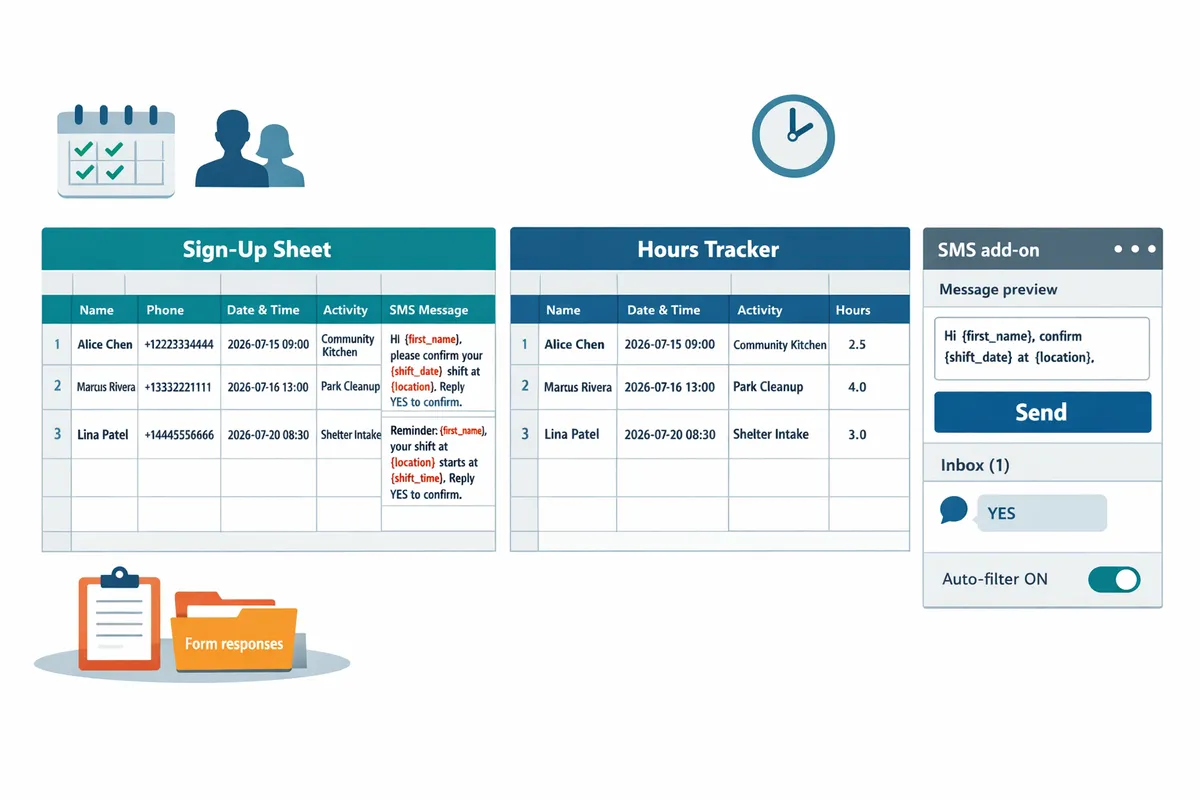
The template pack contains four Google Sheets files: a public sign-up sheet, a contact roster, a rolling schedule, and a tracked-hours workbook formatted for immediate SMS confirmations. These files work together so coordinators can collect sign-ups, assign shifts, confirm attendance, and produce hours reports without copying data between systems.
What is a volunteer hours tracker? 🧾
A volunteer hours tracker is a spreadsheet that records each shift, the role worked, and cumulative hours per person. The template expects columns for name, phone, email, role, date, start_time, end_time, hours, and consent. Including phone and consent fields lets Sheet Gurus SMS send personalized confirmations and collect replies using variables like {first_name} and {shift_time}. For example, a row might read: Maria Gomez | +14155551234 | maria@example.org | Check-in | 2026-05-14 | 09:00 | 12:00 | 3.00 | YES. The hours column uses a simple end_time minus start_time calculation so coordinators can run monthly totals without manual math.
💡
Tip: Always use double opt-in for SMS signups to ensure consent records are auditable.
Included files and why each exists 🗂️
The pack includes four purpose-built files so you can start with the sheet that matches your workflow. Files and primary uses:
- Sign-up sheet (public-facing). Collects volunteer interest via a shared Google Form or sheet, captures phone and consent for SMS. Use this as the intake source for Sheet Gurus SMS outreach.
- Roster (contact and emergency info). Stores phone numbers, alternate contacts, medical notes, and access levels for coordinators. See a practical example in our Sample roster.
- Rolling schedule (shift planning). Weekly/monthly views that auto-populate from sign-ups and let you assign leads, backups, and locations.
- Hours tracker (reporting and compliance). Aggregates shifts into per-volunteer monthly totals and export-ready CSVs for grants or liability reporting.
Each hours-ready file includes SMS-ready fields and a suggested message column prefilled with variables such as: “Hi {first_name}, you are scheduled as {role} on {date} at {shift_time}. Reply YES to confirm.” Use Download the template pack to get the full set and follow the Sheet Gurus SMS guide for sending messages from the sidebar.
Use cases by organization size 🏫
Small clubs, mid-size nonprofits, and school PTAs apply the pack differently depending on scale and reporting needs. Examples:
- Small volunteer-run club. Use the sign-up sheet and roster only. Club leaders save time by sending one-off confirmations with Sheet Gurus SMS instead of manual calls; a single coordinator can confirm 40 volunteers in under 20 minutes using variables like {first_name}.
- Mid-size nonprofit (50–300 volunteers). Use the rolling schedule plus the hours tracker to manage recurring shifts and generate weekly reminder texts. Scheduled reminders via Sheet Gurus SMS reduce late no-shows; missed confirmations otherwise force staff to reassign shifts and add overtime.
- School PTA or district program. Use the full pack and export monthly totals for compliance reporting. The hours tracker formats exports for payroll or verification and pairs with Sheet Gurus SMS two-way inbox so parents can reply YES or request changes.
DIY email threads or manual texting often cost coordinators hours each week and increase the risk of missed confirmations. Sheet Gurus SMS sends blasts and scheduled reminders from a sidebar, supports dynamic variables, and provides a real-time inbox so you spend less time reconciling no-shows and more time on program delivery. See our Google Sheets SMS blasting guide and automated SMS messaging use case for setup tips.
How do I set up and use the volunteer schedule template Google Sheets download and hours tracker with SMS confirmations?
Set up in three steps: copy the templates, link a Google Form for live sign-ups, and install Sheet Gurus SMS to map phone and consent columns and send messages. This section gives exact, testable steps for getting the sign-up sheet feeding the schedule and the hours tracker, plus rules for scheduling confirmations and quick fixes for common errors.
Step-by-step setup 📋
Copy the Google Sheets templates, connect or create a Google Form to feed the sign-up sheet, then install Sheet Gurus SMS from the Add-ons menu.
- Make a copy and get an offline .xlsx. Open the template pack, choose File > Make a copy, and rename it for your organization (example: “CityShelter Volunteer Tracker”). If you need an offline backup, download File > Download > Microsoft Excel (.xlsx). Keep one master copy in Drive and one working copy for current events.
- Create or link a Google Form to the sign-up sheet. In the Form settings choose Responses > Select response destination and point responses to the sign-up tab in your copy. Add these fields: First name, Last name, Phone (E.164 format), Role, Date, Start_time, and a consent checkbox. Example row after a form entry: John | Doe | +12223334444 | Greeter | 2026-07-10 | 09:00 | I consent to SMS.
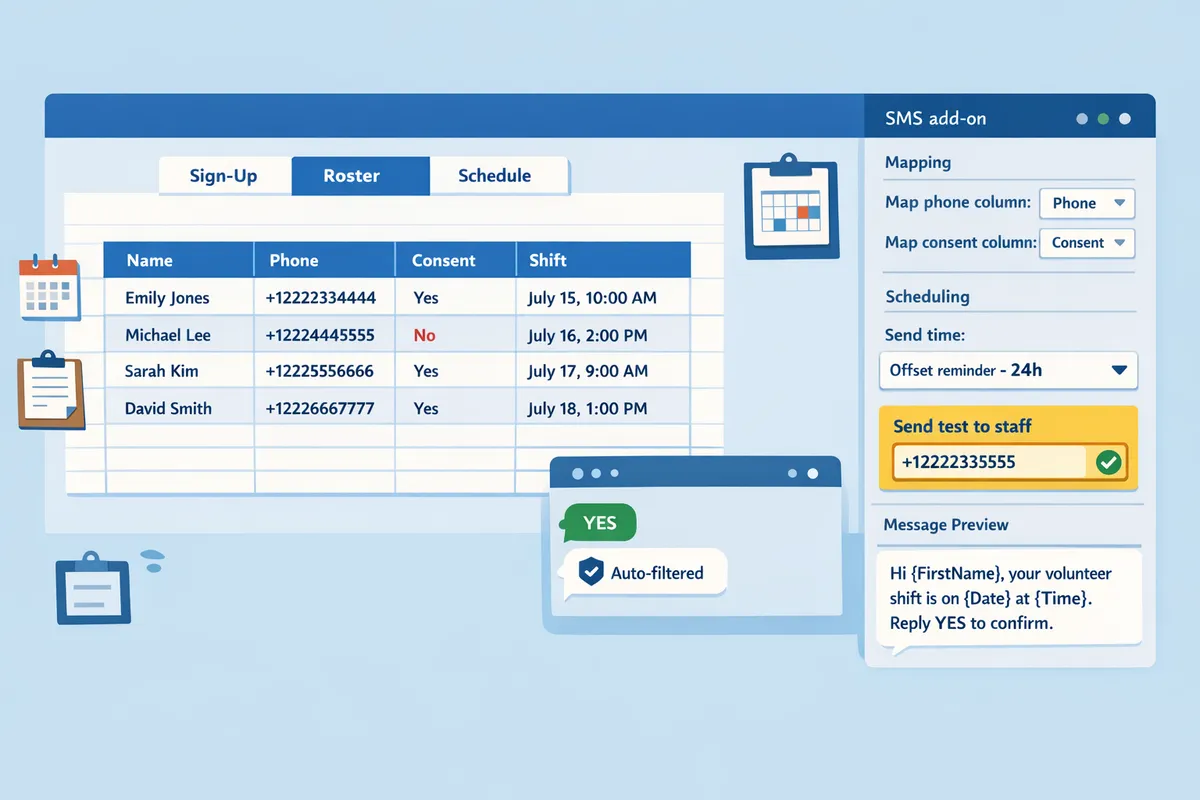
- Install and open Sheet Gurus SMS. From Extensions > Add-ons install Sheet Gurus SMS, then open the Sheet Gurus SMS sidebar. Map the phone column and the consent column in the sidebar. Run a single test send to a staff number before scheduling blasts. See the Sheet Gurus SMS guide for detailed sending steps.
Scheduling confirmations and reminders with Sheet Gurus SMS ⏰
Use the Sheet Gurus SMS sidebar to schedule confirmations and offset reminders using per-recipient variables and the real-time inbox for replies.
- Choose a send time or an offset. For confirmations send immediately on sign-up; for reminders choose an offset such as 24 hours before shift or 2 hours before shift.
- Select the phone and consent columns and pick the date/time columns you want to reference. Sheet Gurus SMS uses curly-brace variables so each message personalizes automatically. Example dynamic message: “Hi {first_name}, thanks for signing up for {role} on {date} at {start_time}. Reply YES to confirm.”
- Set reply handling to the real-time inbox so volunteers can confirm or ask questions and you can see replies in one place. Remember messages send from the sidebar, not from spreadsheet formulas, and Sheet Gurus SMS applies automatic message filtering to help with compliance. For scheduling templates and sample timing windows, see Text Appointment Reminders and the Google Sheets SMS blasting best practices in our sending guides.
⚠️ Warning: Always confirm recipient consent before sending SMS. Add a consent question on the sign-up form and record the timestamp in the responses sheet to document opt-in.
Troubleshooting common setup issues 🔧
Most send failures stem from wrong phone formats, missing consent, or duplicate rows; validate those first to avoid bounces or compliance flags.
- Validate phone formats. Use international E.164 format examples such as +12223334444. Invalid formats cause immediate send failures.
- Ensure consent is recorded. Add a checkbox question on the form and map that column in Sheet Gurus SMS. Missing consent will block sends or increase compliance risk.
- Remove duplicates and blank rows. Duplicate rows cause volunteers to get multiple messages and inflate your send counts. Use Google Sheets tools to dedupe before scheduling a blast.
- Map headers exactly. If the sidebar cannot find the phone or date column, rename the header to match the mapped field and re-open the sidebar.
- Run small tests. Before a full send do a 2-message test on a short internal list and verify replies hit the real-time inbox. If you need step-by-step help for composing messages, scheduling offsets, and monitoring delivery, consult the Sheet Gurus SMS guide and our Text Appointment Reminders use case for examples and timing recommendations.
How can I customize the volunteer hours tracker Google Sheets template and build dashboards, reports, and privacy controls?
You customize the template by adding role, location, and consent columns, mapping those column names to Sheet Gurus SMS variables, then building pivot-based dashboards and applying access controls. These steps let you send personalized confirmations and reminders, view hours by volunteer and month, and keep personally identifiable information protected as your volunteer base grows. Below are exact column names, message examples, a minimal dashboard layout you can copy, a Google Sheets vs Excel vs Word comparison, and privacy procedures for long-term use.
Custom fields and SMS variables ✍️
Add named columns like first_name, role, location, start_time, and consent so Sheet Gurus SMS can insert them into messages using curly-brace variables. Custom field is a column that holds an attribute for each volunteer so Sheet Gurus SMS can use that attribute as a message variable. Name headers exactly (for example: first_name, role, location, start_time, consent) so you can write messages with {first_name}, {role}, {location}, {start_time}, and {consent}.
Mapping checklist:
- Create a column header spelled exactly as the variable (example: “role”).
- Keep date/time fields in a consistent format (e.g., 2026-07-02 14:00) so dashboards group correctly.
- Add a consent column with values like YES/NO and filter messages to only send to YES entries.
Example messages (use curly braces for variables):
- Confirmation: “Hi {first_name}, thanks for signing up as {role} on {start_time} at {location}. Reply YES to confirm.”
- Reminder: “Reminder: {first_name}, your {role} shift starts {start_time} at {location}. Reply CHANGE to update.”
- Last-minute change: “Shift update: {first_name}, {role} at {location} now starts at {start_time}. Reply HELP for options.”
Sheet Gurus SMS sends from a sidebar in Google Sheets and reads variables directly from your column headers. See the Sheet Gurus guide to sending SMS from Google Sheets for step-by-step mapping and scheduling details.
Building dashboards and sample reports 📊
Create a minimal dashboard with a pivot table for hours by volunteer, a bar chart for monthly totals, and a table of upcoming scheduled shifts to monitor capacity and attendance. Pivot table is a summarization tool that aggregates rows (for example, sum of hours per volunteer) so you can spot high contributors and training needs quickly.
Follow these steps to build the dashboard:
- Pivot: Rows = volunteer name, Values = SUM(hours), Filter = date range. This gives total hours per volunteer for any period.
- Monthly bar chart: Group entries by month and plot SUM(hours) to compare months. Use the sample data in the template to replicate the chart quickly.
- Upcoming shifts table: Filter the schedule workbook for future dates and show columns first_name, role, start_time, and phone for shift coordination.
Place the pivot in the top-left of a dashboard sheet, the monthly bar chart top-right, and the upcoming shifts table below both. The template includes sample data and an .xlsx version for offline reporting or when your board requires Excel exports. Use the real-time inbox in Sheet Gurus SMS to reflect confirmations and cancellations directly in your dashboard.
For a game-day example of the same layout and messaging flows, see our Free Google Sheets Volunteer Management Template (SMS-Ready) for Game Day: Roles, Shifts, and Two-Way Confirmations and our Google Sheets SMS blasting guide for tips on sending scheduled campaigns.
Google Sheets vs Excel vs Word templates 📑
Google Sheets supports live sign-ups and native SMS from the sidebar, Excel adds native SMS through the Sheet Gurus SMS Office add-in alongside strong offline reporting, and Word serves as a printable roster or static sign-up form. Below is a compact comparison to help you choose which format from the template pack to use.
| Feature | Google Sheets (recommended for active scheduling) | Excel (.xlsx) | Word (printable) |
|---|---|---|---|
| Live sign-up support | Yes. Use Google Forms linked to Sheets for instant entries. | No. Requires manual import or email uploads. | No. Static; best for in-person sign-ups. |
| SMS integration with Sheet Gurus SMS | Yes. Sidebar sends personalized messages using {variables}. | Yes. Native Sheet Gurus SMS Office add-in sends personalized messages using {variables} from the Excel sidebar. | No. Not supported. |
| Ease of sharing | Easy. Shareable links with Viewer/Editor controls. | Moderate. Share files via email or shared drive. | Simple. Print or email documents. |
| Offline editing | Requires sync; works with Google Drive offline mode. | Native offline support. | Native offline support. |
| Which template in the pack fits this use | Google Sheets schedule + SMS-ready sign-up | .xlsx hours workbook for audits and board reports | Printable roster and paper sign-up |
Choose Google Sheets or Excel for active scheduling with SMS confirmations — both send natively via the Sheet Gurus SMS add-in; the .xlsx file also covers secure board reports and auditor-required Excel exports.
Privacy, access control, and long-term maintenance 🔒
Limit sheet access, separate PII into admin-only sheets, and audit consent columns quarterly to keep volunteer data secure and compliant. Access control is a permissions setup that defines who can view or edit specific sheets and helps reduce accidental data exposure.
Actionable steps:
- Set Viewer vs Editor roles on shared folders. Only give Editor rights to active schedulers.
- Move personal data (phone, email, DOB) to a protected admin sheet and reference non-PII IDs in public sheets.
- Keep a consent column and filter sends to those with explicit YES values. Schedule quarterly audits of the consent column and remove unresponsive contacts.
- Rotate editors when staff change. Log who changed permissions and when.
- Export completed cycles to a secure archive and purge old PII from live sheets after agreed retention periods.
Sheet Gurus SMS offers automatic message filtering and a real-time inbox to help avoid sending restricted content and to track replies that request removal or changes. Use those features to reduce compliance risk during large blasts.
💡 Tip: Use double opt-in for SMS signups to confirm consent before sending scheduled messages.
⚠️ Warning: Avoid sending personal health information via SMS and keep sensitive fields out of mass messages.
For implementation patterns tailored to churches, schools, or game-day operations, see our Real-Time Volunteer Updates: How Churches Can Use SMS & Google Sheets and The Complete 2026 K-12 Guide to Google Sheets SMS Alerts and Two-Way Calendar Reminders for workflows that match those settings.
Get the templates and start sending SMS confirmations from Google Sheets.
This template pack gives you a ready system for tracking hours, scheduling shifts, and sending confirmations so you stop losing time to manual calls. Use the volunteer hours tracker google sheets template to log time quickly and trigger SMS confirmations that reduce no-shows. For game-day setups, the free volunteer template pairs with Sheet Gurus SMS for two-way confirmations—see the free volunteer management template for game day for a ready example.
Sheet Gurus SMS is a Google Sheets add-on for sending bulk SMS from a sidebar rather than spreadsheet formulas. Personalize each message with curly-brace variables such as {FirstName}, handle replies in a real-time two-way inbox, and rely on automatic message filtering to help keep your sends compliant.
Example message: “Hi {first_name}, you are assigned {role} at {shift_time}. Reply YES to confirm.”
💡 Tip: Collect explicit consent and store phone numbers in +12223334444 format before sending bulk SMS.
Download the free volunteer template pack now and follow the getting-started guide to install Sheet Gurus SMS and enable Scheduling SMS for your team. For program-specific setups, see our volunteer coordination for game days and K-12 SMS guide for tailored workflows.