




Free Google Sheets Volunteer Management Template (SMS-Ready) for Game Day: Roles, Shifts, and Two-Way Confirmations
A single volunteer no-show can delay a game-day shift by 30 minutes. A Google Sheets volunteer management template is a spreadsheet that tracks role assignments, shift times, and SMS confirmations. This free template pairs with our Sheet Gurus SMS add-on, which sends texts from a sidebar (not via formulas), supports variables like {first_name}, provides a real-time inbox, and applies automatic filtering for compliance to help you save time and reduce overtime. Use the sheet to assign roles, schedule shifts, and send confirmations such as: ‘Hi {first_name}, you\‘re assigned {role} at {shift_time}. Reply YES to confirm.’ See our
Google Sheets SMS blasting and automated SMS messaging guides for setup tips. Curious how one sheet plus SMS confirmations keeps lines moving on game day?How to use the template to collect sign-ups, assign roles, schedule shifts, and send two-way SMS confirmations from Google Sheets.
Use the template to capture volunteer sign-ups, build a single clean roster, schedule shifts, and trigger two-way SMS confirmations from Google Sheets using Sheet Gurus SMS. This section walks through each tab, shows how two-way confirmations flow back into the sheet, and gives concrete game-day use cases so you can decide whether the template matches your needs.
What the template file includes and how each tab is used 📁
The template contains four main tabs: Sign-ups, Master Roster, Shifts, and SMS Queue, each mapped to a specific workflow step. The tab layout reduces duplicate records and supports easy filtering for game-day assignments. Example fields and sample values show how to customize without breaking formulas or the SMS variable mapping.
- Sign-ups. Captures raw responses from public sign-up forms or manual entry. Fields: first_name (e.g., “Jordan”), last_name (“Lee”), phone (“+15551234567”), role_preference (“Concessions”), availability_notes (“Fri evening”), consent (“YES”). Use this tab to centralize initial intake before cleaning.
- Master Roster. Holds validated contacts and consent flags used for messaging. Fields: contact_id, first_name, last_name, phone, opt_in_status, last_contacted. Use filters to remove duplicates and mark volunteers who opted out.
- Shifts. The schedule grid where coordinators assign roles and capacities. Fields: shift_id, shift_date (2026-09-12), start_time (17:30), end_time (20:00), role (“Gate”), capacity (6), assigned_ids. Assign volunteers by pasting contact_ids from Master Roster.
- SMS Queue. Stores outgoing messages, scheduled send time, message_text with curly-brace variables (e.g., “Hi {first_name}, can you confirm the {role} shift on {shift_date} at {start_time}? Reply YES to accept.”), status, and response_handling rules.
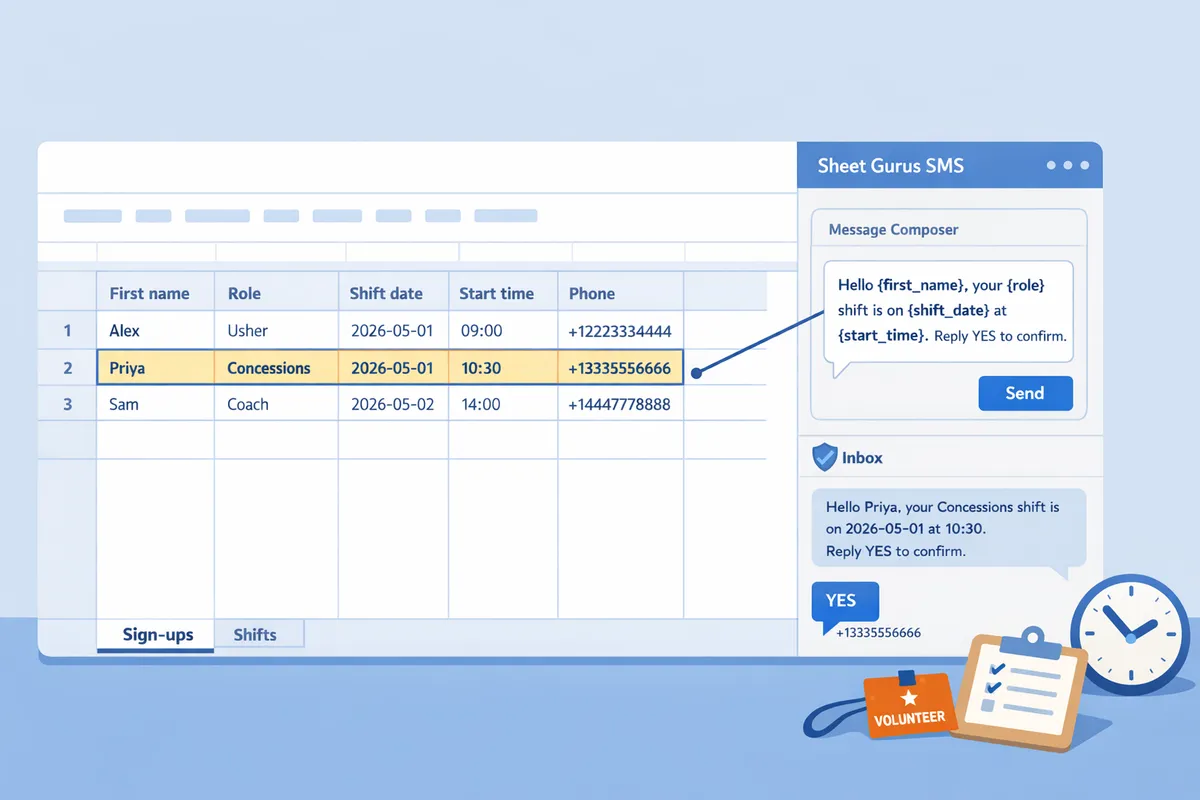
The template maps {first_name}, {role}, {shift_date}, and {start_time} directly to Sheet Gurus SMS variables so messages send from the add-on sidebar rather than sheet formulas. This setup avoids copy-paste between lists and messaging tools.
What is two-way SMS shift confirmations and how it works 📲
Two-way SMS shift confirmations is a workflow that offers shifts via text and records replies in real time so coordinators confirm coverage without manual dialing. Sheet Gurus SMS sends the templated offer from the SMS Queue and delivers replies to its live inbox inside the add-on for immediate action.
- Prepare offers. Filter Shifts for open slots, then push matched contact rows into the SMS Queue. The template inserts variables ({first_name}, {role}, {shift_date}, {start_time}).
- Send from the sidebar. Open the Sheet Gurus SMS sidebar and schedule or send the queued messages. Messages send with the curly-brace variables replaced from Master Roster values.
- Volunteers reply. Replies arrive in the Sheet Gurus SMS real-time inbox on our website, tagged to the original message and contact_id.
- Triage and assign. Use the inbox to mark YES replies as confirmed and move the contact_id into the Shifts.assigned_ids cell; the sheet updates availability automatically.
- Handle declines and no-replies. The SMS Queue status updates so you can trigger a second wave or reach backups.
Example message in the template:
“Hi {first_name}, can you confirm the {role} shift on {shift_date} at {start_time}? Reply YES to accept.”
💡
Tip: Always use double opt-in for SMS signups.
For consent language, scheduling cadence, and filtering best practices see our guide to K-12 two-way texting and automated messaging for rules that reduce risk and improve response rates. Integrate those recommendations into the Master Roster opt_in_status workflow.
How to customize the template and expand it for scalable volunteer programs while avoiding common pitfalls.
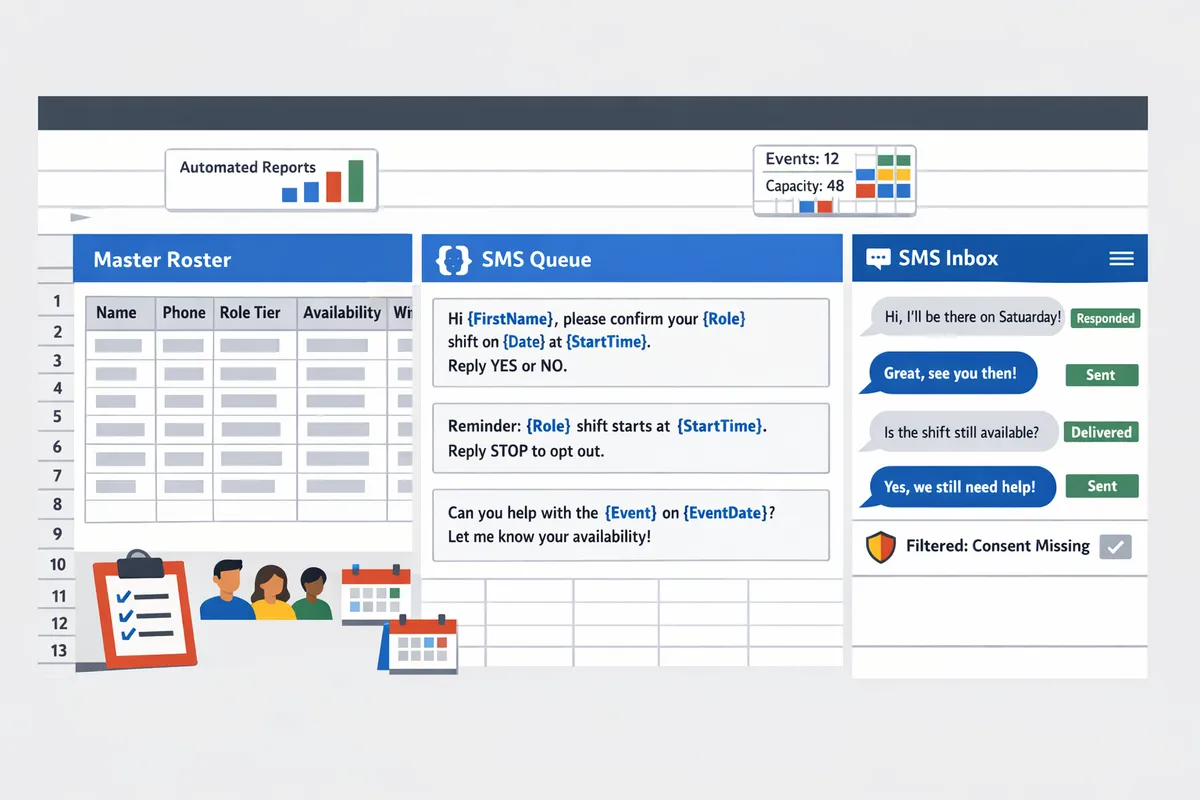
Customize the template by adding role tiers, availability windows, capacity counts, multi-event aggregation, automated reports, and a retention policy so the sheet scales from small crews to large programs. These structural additions keep the Shifts tab accurate, reduce manual reconciliation, and let Sheet Gurus SMS handle messaging and replies from the sidebar instead of fragile cell formulas. For a full game-day messaging workflow, see Volunteer Coordination for Game Days: How to Use Google Sheets and SMS to Keep Events Running Smoothly.
Add role tiers, availability windows, and automatic capacity counts 🔢
Add role_level, max_per_shift, and availability_windows columns and use simple counting formulas to surface open slots automatically. Numbered steps:
- Add columns on the Volunteers tab: role_level (e.g., Lead, Support), max_per_shift (number), and availability_windows (e.g., “2026-09-12 08:00–12:00”).
- On the Shifts tab include event_id, role, start_time, end_time, and a cell that counts assigned volunteers for that role and shift. Use a COUNTIF-style count that matches role and event_id so open slots update when coordinators assign people.
- Flag rows where assigned_count >= max_per_shift to prevent overallocation during manual edits.
Example: a concession stand shift (event_id 2026-09-12-A) with max_per_shift 4 and two assigned volunteers shows “2 open slots” without extra work. Sheet Gurus SMS integrates by letting coordinators send shift offers from a sidebar and view replies in a real-time inbox, so you can assign volunteers without copying phone numbers between sheets.
💡 Tip: Make a copy of the master template before you edit fields or rename tabs so you can restore the canonical layout if formulas break.
DIY Google Sheets workflows vs using Sheet Gurus SMS 🧾
Using Sheet Gurus SMS moves messaging out of fragile formulas and manual texting into a sidebar workflow with a real-time inbox and automatic filtering. This reduces manual steps and makes reply handling auditable. Below is a quick comparison.
| Area compared | DIY Google Sheets workflow | Sheet Gurus SMS from Google Sheets |
|---|---|---|
| Time to send | Copying numbers and pasting into a phone or SMS tool. | Send templated blasts directly from the add-on sidebar in minutes. |
| Error risk | High: broken formulas, duplicate sends, wrong numbers. | Lower: messages use column headers as variables and the add-on prevents duplicate sends. |
| Reply handling | Replies come back to phones or separate inboxes; manual reconciliation required. | Real-time inbox inside the sidebar captures replies and lets staff triage. |
| Compliance features | Hard to filter opt-outs and retention; audits become time consuming. | Built-in filtering rules and opt-out handling reduce compliance work. |
| Maintenance effort | High: formulas across tabs break as sheets grow. | Lower: messaging lives in the sidebar so sheet structure changes less often. |
For more on scheduled and automated messaging use cases see our Automated Text Messaging guide.
Data governance, retention, and privacy settings for volunteer lists 🔒
Limit PII columns, add a retention_date field, and use Sheet Gurus SMS filters to exclude numbers flagged for deletion to reduce compliance risk. Practical steps:
- Keep the messaging roster minimal: first_name, last_initial, phone, opt_in_date, retention_date, and event_id. Avoid adding home addresses or payment details.
- Add a retention_date column and create a filter view that surfaces rows where retention_date is older than today so staff can review and purge records monthly.
- Use Sheet Gurus SMS filtering rules to exclude numbers marked for deletion or opt-out so you do not send to ineligible contacts.
⚠️ Warning: Avoid storing sensitive health or financial information in the volunteer sheet.
Example governance workflow: run a monthly retention report, archive old rows to a protected sheet, and remove archived numbers from the active SMS filter. For nonprofit audits, export the retention report and link it to your event logs; this makes compliance reviews faster and shows the deletion workflow.
Example message templates with curly-bracket variables to copy and adapt ✉️
Use curly-bracket variables such as {first_name}, {role}, {shift_date}, and {start_time} to send dynamic shift offers, reminders, and cancellations from Sheet Gurus SMS. Map those variables to column headers in the sidebar so each message personalizes automatically. Examples:
- Offer: “Hi {first_name}, can you cover {role} on {shift_date} at {shift_time}? Reply YES to accept.”
- Reminder: “Reminder: {role} shift on {shift_date} at {shift_time}. Reply CONFIRM if you will attend.”
- Cancellation: “Shift update: your {role} shift on {shift_date} has been canceled. We\‘ll follow up with reschedule info.”
Practical handling notes: set the sidebar to tag incoming \“YES\” or \“CONFIRM\” replies and use that tag to mark volunteers as assigned in the Shifts tab. If you need examples for event planner workflows, review our Sheet Gurus SMS for Event Planners article for sample templates and inbox rules.
Next steps to launch your SMS-ready volunteer shifts
Use the free template to assign roles, schedule shifts, and confirm volunteers with two-way SMS. Download the free Google Sheets volunteer management template and pair it with Sheet Gurus SMS to send shift reminders and collect replies from the sidebar. Sheet Gurus SMS is a Google Sheets add-on for sending bulk SMS from a sidebar rather than spreadsheet formulas. Personalize each message with curly-brace variables such as {FirstName}, handle replies in a real-time two-way inbox, and rely on automatic message filtering to help keep your sends compliant.
Follow the Volunteer Coordination for Game Days guide for setup and opt-in examples, or consult Automated Text Messaging for scheduling and compliance best practices. Dispatch teams can adapt the same workflow; see How to Manage Driver Schedules & Route Assignments with SMS & Google Sheets for a ready-to-copy sheet and SMS template.
💡 Tip: Make a copy of the master sheet before editing so you can restore schedules after the event.
Download the template now to get the sheet and start sending two-way shift confirmations with Sheet Gurus SMS.