A single misplaced variable in a 1,200-recipient SMS campaign can trigger mass opt-outs and hours of damage control. Dynamic content texting with curly bracket variables in Google Sheets is a technique that inserts per-recipient fields (for example, {first_name}) so messages arrive personalized. Sheet Gurus SMS is a Google Sheets add-on that sends bulk SMS from a sidebar, saving teams time and money and avoiding spreadsheet formula errors. It supports curly bracket variables, a real-time two-way inbox, and automatic message filtering to keep campaigns compliant. Example: Hi {first_name}, your delivery for order {order_id} arrives at {time}. Follow our
Dynamic variable content in SMS messages in Google Sheets is a templating method that inserts per-recipient fields with curly brackets to replace manual personalization and reduce errors. This approach eliminates repetitive copy-paste work and keeps the spreadsheet as the single source of truth for names, order IDs, appointment times, and opt-out flags. For teams that send hundreds of messages, dynamic content texting with curly bracket variables in Google Sheets cuts preparation time and reduces costly human mistakes.
Manual SMS workflows waste hours because staff copy, paste, and manually edit each message for every recipient, which creates repetitive work and frequent errors. For example, a small retailer preparing appointment reminders for 300 customers may spend 4–6 hours assembling messages and still deliver incorrect times or miss opt-outs. Common failure points include typos in names, inconsistent message phrasing, missed regulatory flags, and lost records when multiple people edit the same sheet. These mistakes translate to cancelled bookings, refund requests, and extra support time—real revenue losses for a small team.
Compare the manual approach with alternatives in our send-from-sheets comparison to see where time and error risk add up. For many businesses the operational cost of manual personalization outweighs the time to adopt a streamlined tool.
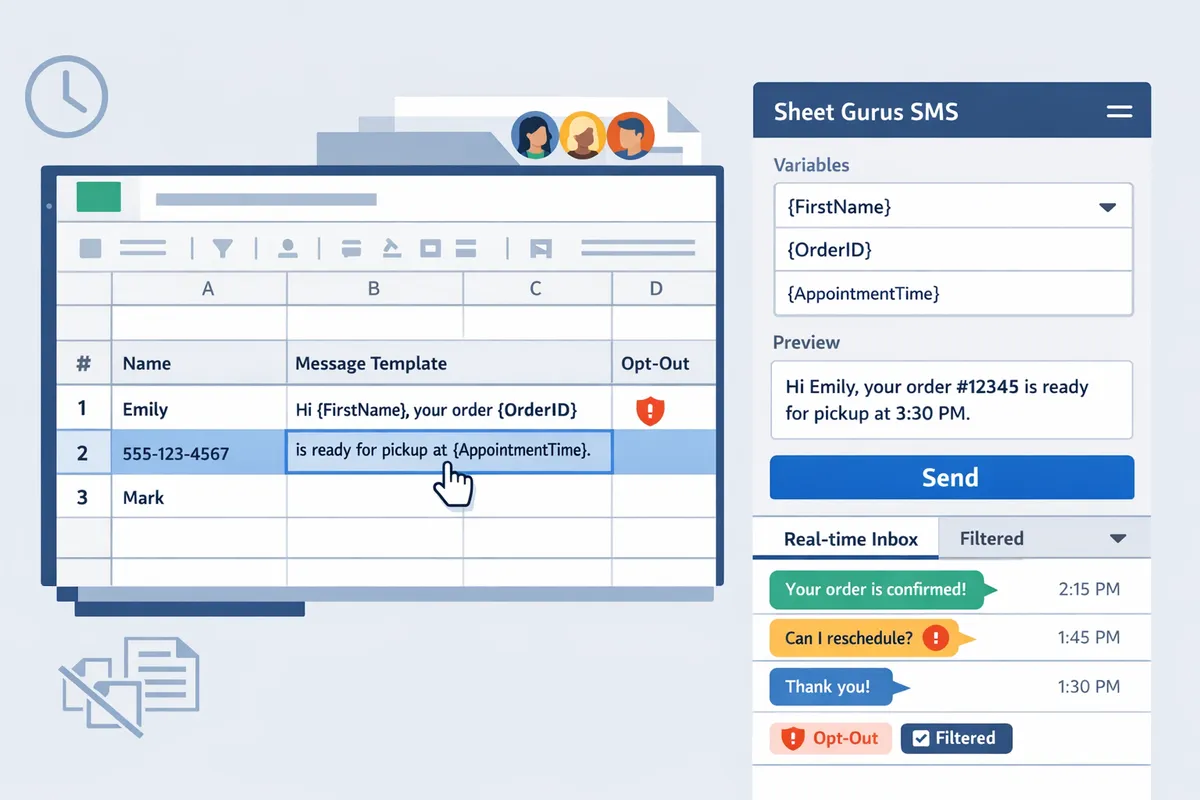
Sheet Gurus SMS replaces manual edits by sending bulk messages from a Google Sheets sidebar using curly bracket variables for per-recipient content. Instead of building complex formulas or maintaining multiple draft columns, you write one template like: “Hi {FirstName}, your appointment at {Location} is at {AppointmentTime}. Reply YES to confirm.” Sheet Gurus SMS pulls each row’s values into that template, sends messages from the sidebar (not from sheet formulas), and logs delivery status next to the row.
Sheet Gurus SMS also provides a real-time inbox for two-way replies and automatic message filtering to help stay compliant. That keeps your spreadsheet as the single source of truth and reduces the time spent reconciling replies or chasing delivery issues. For setup and step-by-step instructions, follow our guide on Sending SMS from Google Sheets with Sheet Gurus SMS.
💡
Tip: Always use double opt-in for SMS signups to reduce unwanted messages and protect deliverability.
See the beginner’s guide to sending SMS from Google Sheets for examples of templates, scheduling, and two-way workflows that scale without the manual copy-paste burden.
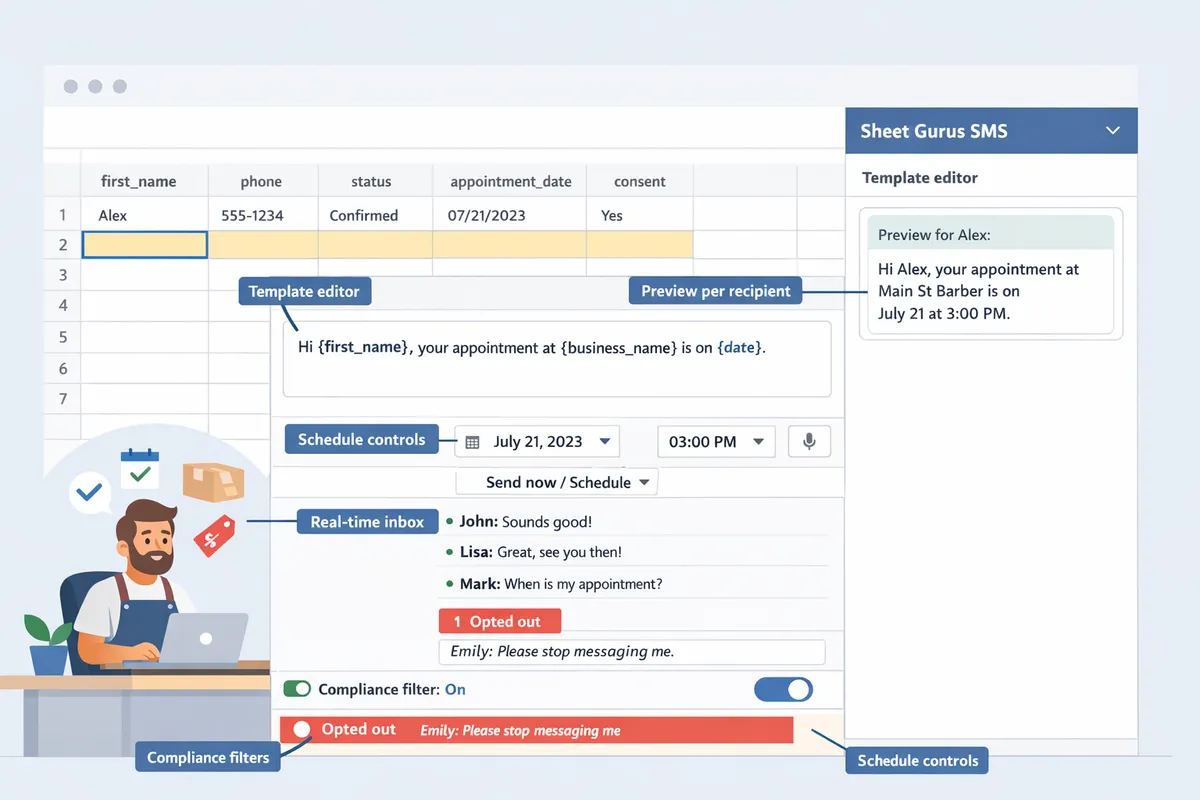
Sheet Gurus SMS reads column headers as variable keys and replaces curly bracket placeholders with the matching cell value from each row at send time. This happens inside the add-on sidebar, so you compose, preview, schedule, and queue messages without adding formulas to your sheet. The sidebar shows delivery status and replies in a real-time inbox, while automatic filters catch common compliance issues before messages go out.
Curly bracket syntax maps {variable} directly to a column header name and pulls the value from the same row. For example, a column titled First Name or first_name maps to {first_name} or {FirstName} and the add-on uses the displayed cell value when merging. Sheet Gurus SMS normalizes header names by removing extra spaces and converting common punctuation to underscores, so small header variations still match predictable placeholders.
Sheet column header
Placeholder example
Example merged message
First Name
{first_name}
Hi Maria, your pickup is at 2:00 PM
Order ID
{order_id}
Your order #A123 is out for delivery
Appointment Time
{appointment_time}
Reminder: {first_name}, appointment at 14:00
Formatting detail: Sheet Gurus SMS uses the cell’s display value (the same text you see in the sheet) so date and phone formatting you apply in Sheets appear the same in messages. See the step-by-step setup in the Sending SMS from Google Sheets guide for common header layouts.
Messages compose and queue from the Sheet Gurus SMS sidebar so you do not need in-sheet formulas to generate personalized texts. Messages in the sidebar accept any valid {placeholder} tied to your sheet headers; you can preview per-row merges before scheduling. The sidebar supports bulk sends, scheduled deliveries, and per-row selection (send only to rows that match a filter). Delivery status updates and per-recipient send logs appear in the sidebar and in the message history that lives inside the add-on.
Example template you can copy into your sheet or compose in the sidebar: “Hi {first_name}, your package {order_id} will arrive between {window_start} and {window_end}. Reply YES to confirm.” Use the preview action to check merges for a sample row, then schedule the campaign. Sheet Gurus SMS does not support triggers; start or schedule sends from the sidebar—see Automate SMS in Google Sheets (No Code) for recommended scheduling and batching flows.
The real-time inbox flags incoming replies and Sheet Gurus SMS applies automatic filters that block or flag messages tied to opt-outs and other regulatory signals before they send. The system checks the imported list against a suppression layer (recent opt-outs, user blocks) and scans scheduled sends for STOP/UNSUBSCRIBE phrases in recent replies. Messages that hit a filter move to a review queue rather than sending immediately, so you can resolve consent or data issues without mass mistakes.
Filtering specifics include checks for invalid phone formats, duplicate sends within a campaign, and recent opt-out keywords on a per-recipient basis. The inbox stores two-way threads so agents can resolve disputes or confirm consent directly in the add-on. For practical opt-out handling examples and small-business workflows, see Sheet Gurus SMS for Small Businesses.
⚠️ Warning: Confirm explicit consent before importing lists. Using suppressed contacts risks regulatory fines and high opt-out rates.
This walkthrough shows how to prepare your spreadsheet, write curly-bracket templates in the Sheet Gurus SMS sidebar, preview per-recipient renders, and send or schedule a live batch. Follow each step with the provided templates so you can copy them straight into your sheet and test before sending.
Prepare your sheet by using exact column headers that match your placeholders and formatting phone numbers with a leading plus and country code (for example +12223334444). Sheet Gurus SMS reads column headers as variable keys, so keep header names predictable and consistent to avoid blank placeholders. Required columns.
phone (formatted as +12223334444).
first_name or full_name (match the name used in templates).
Remove trailing spaces from headers and cells using Find & Replace.
Set the phone column to Plain text so the plus sign and leading zeros remain.
Scan for cells that show errors or formulas instead of final values.
Use consistent casing and avoid punctuation in header names (use order_id not Order #).
For a broader setup and examples for small-business workflows, see our Guide: Sending SMS from Google Sheets with Sheet Gurus SMS. This reduces failed sends and makes placeholders predictable.
Write message templates in the Sheet Gurus SMS sidebar using curly brackets to reference column headers, then preview how a sample row renders before sending. The sidebar preview shows the exact rendered text for a chosen row and highlights any blank placeholders so you can fix data before a batch send.
Six ready-to-use templates you can copy into the sidebar or a sheet cell:
Appointment reminder: “Hi {first_name}, this is a reminder for your appointment at {location} on {appointment_time}. Reply 1 to confirm. Reply STOP to opt out.”
Delivery alert: “Good news, {first_name}. Your order {order_id} ships today. Track: {tracking_url}. Questions? Reply here.”
Pickup ready: “{first_name}, your pickup for order {order_id} is ready at {location}. Please bring ID. Reply STOP to opt out.”
Promotional offer: “{FirstName}, get 20% off your next visit with code {promo_code}. Expires {expiry_date}. Reply STOP to unsubscribe.”
Urgent service alert: “Alert for {first_name}: Service window at {appointment_time} changed to {new_time}. Reply RESCHEDULE to change.”
Low-stock alert to customer: “{first_name}, the item {item_name} is back in stock. Buy now: {product_url}. Reply STOP to opt out.”
Always preview at least three sample rows that represent typical, edge-case, and sparse data. If a placeholder renders blank in preview, fix the header or the cell for that row before sending. Sheet Gurus SMS does not support triggers or event-driven sends; our Automate SMS in Google Sheets guide shows how templates fit into scheduled, sidebar-initiated sends.
Send immediately or schedule a future batch from the Sheet Gurus SMS sidebar, then monitor delivery status and replies in the add-on’s real-time inbox. Select rows, choose Send Now or Schedule, and confirm the rendered sample before you commit to the full audience.
How to monitor and respond.
After sending, open the real-time inbox in the sidebar to read replies and flagged messages.
Use the delivery report table to spot failed sends, then retry selected rows or export failures for cleanup.
Pause or cancel a scheduled campaign from the sidebar if you detect an unusual spike in opt-outs or delivery failures.
When to pause a campaign. Watch for a sudden rise in opt-outs or a sharp increase in failed deliveries compared with your recent sends. Pausing early prevents wasted spend and protects sender reputation. Our Sheet Gurus SMS automatic message filtering will flag probable compliance issues so you can take action without leaving Sheets.
💡 Tip: Always use double opt-in for SMS signups.
For scheduling examples and two-way reply handling inside a spreadsheet CRM, see Send Messages from Google Sheets: 2026 Ultimate Guide.
Missing or misspelled column names produce blank placeholders, and Sheet Gurus SMS requires escaping literal braces by doubling them (for example write {{promo_code}} to send the literal text {promo_code}). Start by checking header spelling, then inspect the cell values for the rows that failed to render correctly.
Common errors and fixes.
Blank placeholder. Fix: Confirm the header exactly matches the name inside the braces and remove trailing spaces from the header.
Phone send failures. Fix: Ensure the phone column uses +countrycode format and Plain text cell type.
Trimmed leading zeros or removed plus. Fix: Reformat the column as Plain text and re-enter one sample number.
Literal braces required in the message. Fix: Double the braces. Example: To send an offer that displays {limited}, write \“Hurry, offer: {{limited}}\” in the template so recipients see a single pair of braces.
If you still see unexpected blanks, preview the same template against several rows. Reproducible errors usually point to data issues rather than template logic. For advanced workflows that use templates with scheduled sends (no triggers), review our Automate SMS in Google Sheets (No Code) guide to see common data patterns that break templating and how to avoid them.
Choosing the right templating approach, batching strategy, and consent workflow prevents delivery errors, compliance violations, and hours of rework at scale. This section compares sidebar curly-brace templates, in-sheet formulas, and Apps Script options, then gives operational tips for high-volume sends and compliance controls using Sheet Gurus SMS.
Curly bracket sidebar templates is a templating approach where you compose message text in the Sheet Gurus SMS sidebar and placeholders are replaced with each recipient’s row values at send time. This keeps message copy separate from spreadsheet logic and reduces accidental overwrites during sorting or imports.
Strategy
Setup time
Error rate risk
Visibility
Maintenance effort
Best for
Curly bracket templates (Sheet Gurus SMS sidebar)
Low to medium
Low
High (preview per recipient in the sidebar)
Low
Regular marketing sends and scheduling where non-technical staff edit templates
Formula-based in-sheet templates
Low
Medium to high
Medium (templates live in cells, mixed with data)
Medium
Small ad-hoc campaigns or teams that prefer everything visible in the sheet
Apps Script solutions
High
Low (if well-tested)
Low to medium (needs documentation)
High
Complex branching, integrations, or multi-step personalization that requires code
Practical example. Teams that moved templates into the Sheet Gurus SMS sidebar stopped losing message text when a contact list was sorted. Formula-based templates work when you want to build messages directly from computed columns. Choose Apps Script when you need external lookups, language selection, or conditional branching that is hard to express via helper columns.
See our step-by-step guide to sending SMS from Google Sheets for examples and templates in the sidebar. For a comparison with other automation tools, read our send messages comparison guide.
Split large recipient lists into scheduled chunks to avoid carrier throttling and keep delivery stable. Start by testing a small batch and increase gradually while watching delivery rates.
Prepare data: remove duplicates, normalize phone numbers (e.g., +12223334444), and keep a consent column.
Chunk sends: schedule batches in the Sheet Gurus SMS sidebar (for example, start with 500 recipients per hour and tune by monitoring delivery latency). Adjust batch sizes based on your carrier performance and past delivery success.
Monitor in real time: use the Sheet Gurus SMS delivery dashboard and inbox to track failures, carrier errors, and replies.
Retry logic: flag permanent failures for cleanup and schedule retries for transient failures after 30–60 minutes.
Sheet Gurus SMS handles queuing and scheduling inside the add-on so teams avoid building separate sending infrastructure. Sheet Gurus SMS does not send automatically on new rows or form submissions; review our automation guide for tips on routing messages into scheduled queues from the sidebar.
Always obtain explicit consent and keep a timestamped consent record before sending marketing SMS. This reduces regulatory risk and simplifies opt-out handling.
Store a consent column with: consent source, consent timestamp, and consent type (marketing vs transactional).
Use double opt-in for high-risk lists or sensitive segments. Our website recommends double opt-in where local rules require it.
Include a plain-language opt-out command in every message, for example: \“Reply STOP to unsubscribe.\”
Keep a suppression list column and run automatic filtering before each send. Sheet Gurus SMS applies automatic message filtering to detect and block numbers flagged as opted-out.
Log message copies and delivery receipts for at least the retention period required in your jurisdiction.
⚠️ Warning: Store consent timestamps in the sheet and run Sheet Gurus SMS automatic opt-out filters before every campaign to avoid accidental sends to unsubscribed numbers.
Refer to our beginner’s guide to sending SMS from Google Sheets for recommended sheet columns and retention practices.
Yes, the Sheet Gurus SMS sidebar provides a per-row preview and a test-send feature so you can validate rendered messages before queuing a full batch. Use the sidebar preview to inspect individual renders, then export the preview to CSV for stakeholder approval or run a small live test batch (we recommend 5–10 recipients) to verify delivery format and opt-out handling. Quick preview steps:
Compose your template in the Sheet Gurus SMS sidebar.
Click Preview and scroll individual rows to review rendered text.
Export the preview for compliance or marketing approval if needed.
Run a 10-recipient test batch and confirm two-way replies in the real-time inbox.
Exporting previews and running a controlled test batch catches formatting, fallback, and compliance issues before a large send.
Our website shows how dynamic content texting with curly bracket variables in Google Sheets keeps messages consistent, reduces manual copying, and preserves reply context in a single workflow. Manually editing thousands of messages costs time and risks filtering mistakes; using a sheet-based add-on lets teams schedule sends, track replies, and stop errors before they happen.
Sheet Gurus SMS is a Google Sheets add-on for sending bulk SMS from a sidebar rather than spreadsheet formulas. Personalize each message with curly-brace variables such as {FirstName}, handle replies in a real-time two-way inbox, and rely on automatic message filtering to help keep your sends compliant.
💡 Tip: Always use double opt-in for SMS signups.
Download the step-by-step guide to get started with Sheet Gurus SMS and follow practical setup examples in our Sending SMS from Google Sheets guide. For automation patterns and inbox workflows, see the beginner’s guide to SMS from Google Sheets and our Automate SMS in Google Sheets (No Code) article to connect templates, scheduling, and two-way replies.