




Does Sheet Gurus SMS Work with Microsoft Excel?
Short answer: yes. Sheet Gurus SMS now works natively with Microsoft Excel through an Office add-in that mirrors the Google Sheets sidebar you may already know. Sheet Gurus SMS is a platform that helps users save time and money by sending bulk SMS directly from a spreadsheet, and that same sidebar workflow now runs inside Excel — no exporting or copying to Google Sheets first. You compose messages from a sidebar rather than sheet formulas, personalize with curly-bracket variables like ‘Hi {FirstName}, your appointment at {Time} is confirmed.’, and manage replies in a
real-time inbox for two-way replies with automatic message filtering for compliance. Prefer Google Sheets? That still works too. For step-by-step setup on either platform, see our Sending SMS from Google Sheets with Sheet Gurus SMS guide. So what exactly works inside Excel, and how do you get started?Does Sheet Gurus SMS natively support Microsoft Excel?
Yes. Sheet Gurus SMS runs natively inside Microsoft Excel as an Office add-in that mirrors the Google Sheets sidebar workflow. You install the add-in, sign in with your existing Sheet Gurus SMS account, select the rows you want to text, and send personalized bulk SMS from the sidebar — all without leaving Excel. There is no need to export a CSV or sync your contacts into Google Sheets first; Excel is a first-class platform alongside Sheets.
What does the native Excel add-in give my team?
It means you can open your Microsoft Excel workbook and run Sheet Gurus SMS inside that application, using the same sidebar, variables, and inbox you would find in Google Sheets. Teams that keep their canonical contact list in Excel no longer pay the export/sync tax that used to cost several hours a week and introduced data-drift risk.
Practical benefits for operations:
- Fewer steps before sending. Select your recipient range in Excel, open the Sheet Gurus SMS sidebar, and send.
- Lower error rate. No copy-paste or CSV round-trips that break phone formatting or duplicate rows.
- Faster iteration. Edit and re-send a campaign directly from the workbook that already holds your data.
Example dynamic message you compose right in Excel: “Hi {FirstName}, your appointment at {Location} is at {Time}. Reply YES to confirm.” This shows how Sheet Gurus SMS uses curly-brace variables to personalize sends per row.
💡
Tip: Keep one canonical workbook as your source of truth and audit phone formats before sending — a single clean list beats juggling copies across tools.
Which Excel platforms and versions are supported? 🖥️
Sheet Gurus SMS supports Excel for Microsoft 365 on Windows, macOS, and Excel for the web, with small differences in capability across clients. Desktop Excel for Windows and macOS supports the full sidebar experience, including scheduling and the real-time inbox. Excel for the web supports composing, sending, and delivery status, though background tasks that run while the workbook is closed can be more limited than on desktop.
The add-in requires a modern Microsoft 365 subscription that supports Office Add-ins. Older perpetual-license builds of Excel that do not support Office Add-ins will not load the extension. You can install it per user from the Microsoft/Office Store, or an administrator can deploy it organization-wide from the Microsoft 365 admin center to pre-provision access for larger teams.
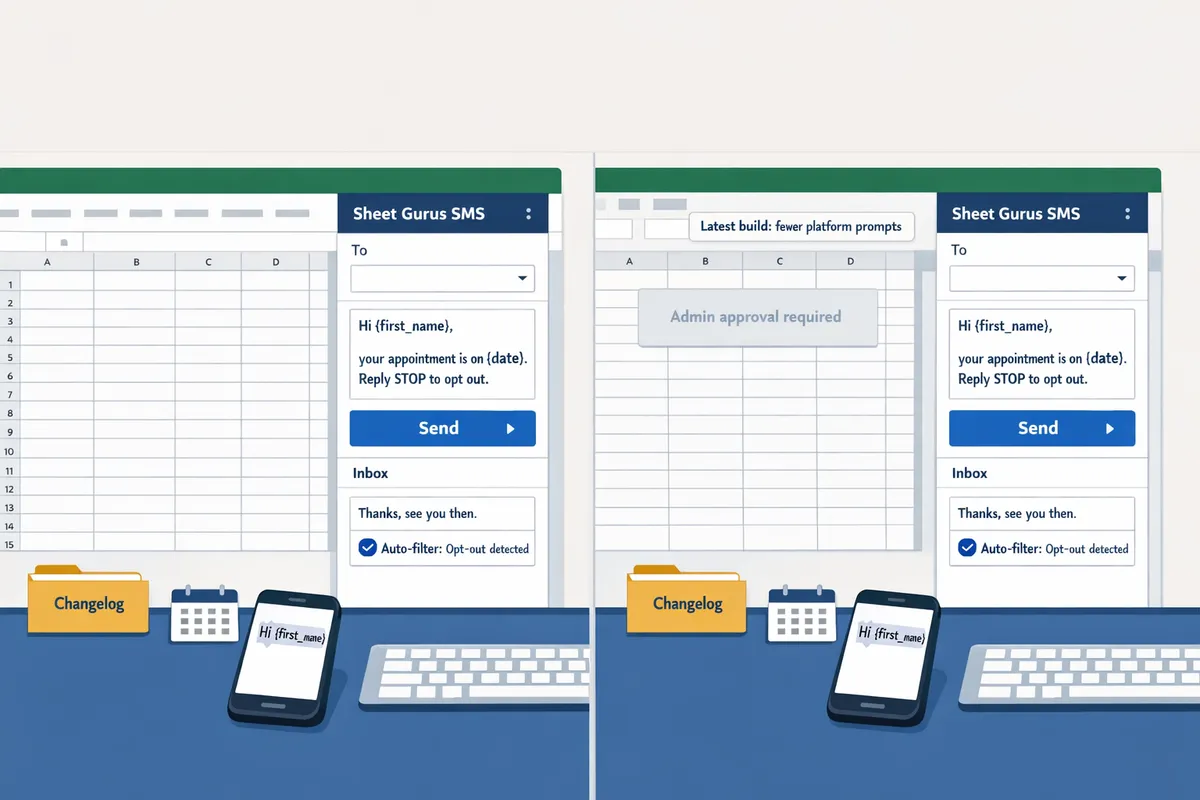
⚠️ Warning: If your tenant blocks third-party add-ins by default, ask your admin to approve the Sheet Gurus SMS add-in first — a blocked install is the most common reason the sidebar fails to appear.
How do I send SMS from Microsoft Excel using Sheet Gurus SMS?
You send SMS from Microsoft Excel by installing the Sheet Gurus SMS add-in, signing in, selecting your recipient rows, composing a message with curly-brace variables, and running a small test before scheduling the full campaign. The flow below gets most small teams and operations managers sending from Excel the same day, and it maps one-to-one to the Google Sheets workflow if you ever switch between the two.
Install the add-in and sign in 🔌
Open the Office Store inside Excel and install the Sheet Gurus SMS add-in to add the messaging sidebar. After installation, click the Sheet Gurus SMS icon in the ribbon, sign in with your existing account, and grant the sidebar permission to read the selected worksheet range. Because the Excel add-in mirrors the Google Sheets sidebar, your curly-brace variables and inbox appear exactly where you expect. If you want setup screenshots, our Sending SMS from Google Sheets guide shows the equivalent data-prep and field-naming steps.
Compose and personalize with curly-brace variables {FirstName} 🧾
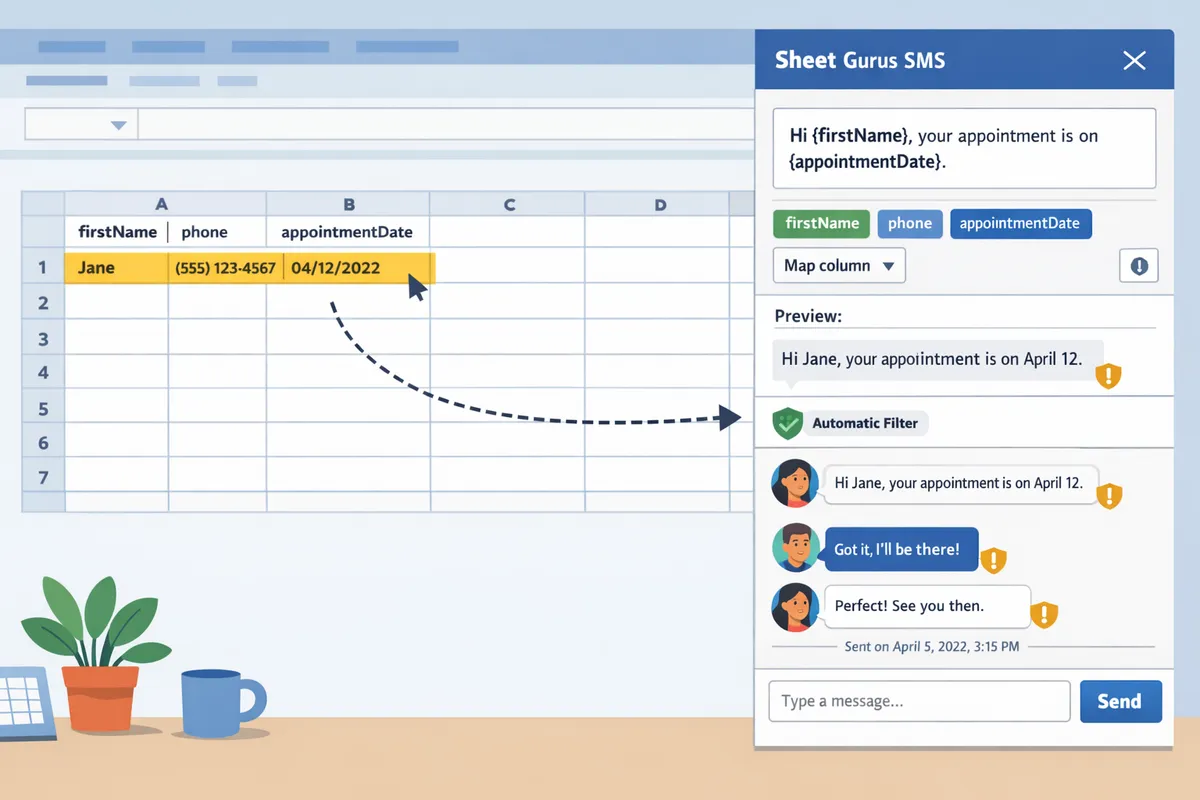
You can use curly-brace variables like {FirstName} and {AppointmentDate} directly in Excel messages. Follow these minimal steps to map columns and preview a message before sending:
- Prepare a header row in Excel (for example: FirstName, Phone, AppointmentDate).
- Select the recipient range (for example A2:C201) and open the Sheet Gurus SMS sidebar. Your Excel cell range becomes the recipient list automatically.
- Compose a message with curly braces. Example: “Hi {FirstName}, your appointment on {AppointmentDate} is confirmed.”
- Map each variable to a column if the add-in does not auto-detect it (click the variable, then pick the column).
- Preview one personalized message for row 2 before scheduling or sending.
Example scenario: a clinic with 250 reminders selects A2:C251, types “Hi {FirstName}, your appointment on {AppointmentDate} is confirmed.”, previews a sample row, then schedules delivery for the next morning.
💡 Tip: Always use double opt-in for SMS signups to keep your contact list clean and reduce opt-out disputes.
Send a test batch, then schedule ✅
Send a scheduled test to a small list to confirm personalization and delivery before any large send:
- Open the Sheet Gurus SMS sidebar in Excel after signing in.
- Select an 8–12 row range containing name, phone, and any variable columns.
- Insert variables into the message body (example: “Hi {FirstName}, your appointment on {AppointmentDate} at {Location} is confirmed.”).
- Choose a scheduled send time and send the test to your small list.
- Confirm delivery status and any two-way replies in the sidebar inbox, and fix any variable mismatches.
Every step checks a common failure point: column mismatch, phone formatting, and time-zone scheduling. If the sidebar flags a validation error, correct the highlighted column and retry.
⚠️ Warning: Do not send to your full list until the test send shows correct variable substitution and delivery status; accidental full sends are time-consuming and costly.
Manage two-way replies in the Excel sidebar 📬
Incoming replies surface in the Sheet Gurus SMS sidebar inbox inside Excel and link back to the originating row, so your team keeps the context of each conversation. Assign or tag threads, add a note tied to the row, or mark a thread resolved — for example, open a patient’s thread, change their status cell to “confirmed,” and assign follow-up to a staff member. Keeping messaging activity and spreadsheet data in one place removes the context switching that manual, out-of-tool sending forces on you.
What Sheet Gurus SMS features are available in Excel?
Sheet Gurus SMS for Excel preserves the core capabilities of the Google Sheets add-on: dynamic variables, a two-way inbox, automatic message filtering, scheduling, and delivery tracking. Teams migrating an existing Google Sheets flow will find the same sidebar workflow and message templates inside Excel.
| Feature | Excel add-in | Google Sheets add-on | Notes |
|---|---|---|---|
| Curly-brace dynamic variables (e.g., {FirstName}) | Yes | Yes | Same variable syntax and per-row substitution. |
| Two-way inbox in the sidebar | Yes | Yes | Real-time replies appear in the add-in sidebar on both platforms. |
| Automatic message filtering (compliance) | Yes | Yes | Filters run before send to reduce compliance risk. |
| Scheduling | Yes | Yes | Desktop supports full scheduled queues; web scheduling may require the workbook to stay open in some edge cases. |
| Delivery status tracking | Yes | Yes | Status and timestamps show in the sidebar and can be written back to the sheet. |
Because the feature set matches, you can standardize on whichever spreadsheet your team already lives in — or move between Excel and Google Sheets without rebuilding your messaging workflow.
Do I still need Google Sheets to use Sheet Gurus SMS?
No — Google Sheets is optional now that Excel is natively supported. Both are first-class platforms with the same sidebar experience, so pick whichever holds your data. Google Sheets remains a great fit for teams that want a live, collaborative sheet in Google Drive; Excel is the natural choice for teams whose canonical list already lives in Microsoft 365.
Which should I choose, Excel or Google Sheets? 📊
Choose the platform where your contacts already live. The comparison below is tactical rather than theoretical:
| Approach | Native support with Sheet Gurus SMS | Average setup time | Personalization | Recommended use case |
|---|---|---|---|---|
| Microsoft Excel (Office add-in) | Yes. Installs from the Office Store and sends from the sidebar. | 10–30 minutes to install and test. | Full curly-brace variables like {FirstName}, {OrderID}. | Teams whose canonical contact list lives in Excel / Microsoft 365. |
| Google Sheets (add-on) | Yes. Installs as an add-on and sends from the sidebar. | 10–30 minutes to install and test. | Same curly-brace variables. | Teams that prefer a live, collaborative sheet in Google Drive. |
| DIY VBA or manual copy-paste | No native support. Custom macros push to a gateway or require manual export. | Hours to days depending on expertise. | Limited by custom code; templates add fragility. | Rarely recommended — high maintenance and compliance risk. |
If you keep a list in Excel but occasionally want it in Sheets (or vice versa), a one-time CSV export/import still works — but with native Excel support it is no longer a prerequisite for sending.
What savings can a small business expect? 💸
A small business sending 2,000 messages can often cut campaign prep from hours to minutes by sending directly from the spreadsheet it already maintains, rather than reworking lists across tools. Removing the export/sync step alone can save several staff hours per campaign; for a $20/hour staff cost, saving five hours per monthly campaign is roughly $1,200 in annual time savings. These figures are illustrative — your actual savings depend on list cleanup needs, message complexity, and campaign volume.
Example message with dynamic variables: “Hi {FirstName}, your order #{OrderID} is ready for pickup at {Location} today between {StartTime} and {EndTime}. Reply STOP to opt out.” Use a template like this when testing to confirm variable mapping and opt-out handling before larger sends.
What security, compliance, and message best practices should I follow? 🔒
Keep clear opt-in records, include an easy opt-out, maintain an auditable contact list, and let Sheet Gurus SMS automatic filtering catch compliance issues before send. Store phone numbers in E.164 format (for example, +12223334444) so carriers process them consistently, whether your list lives in Excel or Google Sheets.
Checklist:
- Collect explicit opt-in and record the date and source alongside the contact row.
- Include opt-out language on every campaign and confirm replies update your lists.
- Use automatic message filtering to catch disallowed content before send.
- Test templates with a small group so variables render correctly and required consent text appears.
- Limit sending cadence to avoid carrier flags and monitor delivery status in the sidebar inbox.
⚠️ Warning: Do not send messages to numbers without documented consent; carrier blocks and regulatory fines are common when consent records are missing.
Frequently Asked Questions
This FAQ explains how Sheet Gurus SMS works with Microsoft Excel, how to get started, and the practical steps to send a compliant campaign directly from your workbook.
Does Sheet Gurus SMS work with Microsoft Excel? 🤔
Yes. Sheet Gurus SMS runs as a native Office add-in for Microsoft Excel that mirrors the Google Sheets sidebar. Install the add-in, sign in, select your rows, compose with curly-brace variables, and send — no exporting or syncing to Google Sheets required. Google Sheets is still fully supported if you prefer it.
Which versions of Excel are supported? 🖥️
Sheet Gurus SMS supports Excel for Microsoft 365 on Windows, macOS, and Excel for the web. Desktop clients get the full sidebar, including scheduling and the real-time inbox; Excel for the web supports composing, sending, and delivery status. Older perpetual-license builds that don’t support Office Add-ins can’t load the extension.
How do I format phone numbers in Excel so Sheet Gurus SMS reads them correctly? 📲
Use international (E.164) format, for example +12223334444. Clean the phone column by removing spaces, parentheses, and local formatting, and store values as text so Excel doesn’t convert them to scientific notation. Run a small test batch to catch formatting issues before a full send.
💡 Tip: Store phone numbers as text with a leading plus and country code, then verify a sample of 50 numbers after import to catch common formatting errors.
Are there limitations to personalization when using Excel data? ✉️
Personalization works when your Excel column headers match the variables in your message. Sheet Gurus SMS uses curly-brace variables such as {FirstName} and {OrderID}; if a header differs, the add-in can’t substitute it. Use the sidebar preview to confirm substitutions for the first 10 rows before sending the full campaign.
Example message using variables: “Hi {FirstName}, your order {OrderID} ships today.” Verify that your Excel headers exactly match FirstName and OrderID to populate those fields.
Do I need an admin to install the add-in? 🔧
Individuals can install the add-in themselves from the Office Store. For organization-wide rollout, an administrator can deploy it from the Microsoft 365 admin center and pre-approve access. If your tenant blocks third-party add-ins by default, admin approval is required before the sidebar will load.
What compliance steps should I take when sending bulk SMS from a spreadsheet? ⚖️
Keep documented opt-ins, include clear opt-out language in every message, and log consent timestamps alongside each contact. Use an explicit opt-out column and let automatic filtering exclude previously opted-out numbers. Retain an audit trail (consent timestamp, source, and message content) to respond to audits or disputes.
⚠️ Warning: Do not send messages to numbers without documented consent; carrier blocks and regulatory fines are common when consent records are missing.
Where can I find step-by-step instructions to send SMS from a spreadsheet? 🔧
Follow our Sending SMS from Google Sheets guide for a complete walkthrough of data setup, composing with variables, scheduling, and handling replies — the same steps map to the Excel sidebar. For a side-by-side look at add-on versus automation tools, see our Send Messages from Google Sheets: 2026 Ultimate Guide.
Sheet Gurus SMS works natively with Microsoft Excel — send bulk SMS straight from your workbook.
If you searched “does sheet gurus sms work with microsoft excel,” the answer is yes: install the Office add-in, select your rows, compose with curly-brace variables, and send personalized bulk SMS from the Excel sidebar — no export or sync to Google Sheets needed. Google Sheets remains fully supported, so your team can standardize on whichever spreadsheet it already uses.
Sheet Gurus SMS is a platform that helps users save time and money by enabling them to send bulk SMS to their recipients easily from a spreadsheet, on both Microsoft Excel and Google Sheets. Messages are sent from a sidebar, not from spreadsheet formulas, and the product includes:
- Curly-bracket variables for dynamic, per-recipient content.
- A real-time inbox for two-way communication with recipients.
- Automatic message filtering to help keep you compliant with regulations.
💡 Tip: Whichever spreadsheet you use, run a 10-recipient test with variables like {FirstName} and {AppointmentDate} to confirm personalization and delivery before scaling.
Send your first campaign with our getting-started guide. For comparisons and advanced workflows, see our 2026 Ultimate Guide. Subscribe to our newsletter for implementation tips and updates.