




Do Google Calendar SMS Reminders Still Work in 2026? School‑Safe Alternatives and a 10‑Minute Google Sheets Replacement
A mid-size district with 3,200 students lost same-day SMS alerts after Google removed native Calendar SMS, forcing office staff to spend hours calling families. The question ‘do google calendar sms reminders still work’ is simple: Google phased out native SMS alerts for Calendar, so they are not a dependable K-12 notification channel in 2026. Google Calendar SMS reminders are a deprecated notification option that many schools cannot rely on. Sheet Gurus SMS is a Google Sheets add-on that sends bulk SMS from a sidebar, supports dynamic curly-bracket variables like {student_name}, includes a real-time inbox for two-way replies, and applies automatic message filtering. See our SMS for school communications and
automated SMS messaging guides for quick setups. Which 10-minute Google Sheets replacement keeps your school two-way and compliant?Do Google Calendar SMS reminders still work in 2026?
No. Most Google Calendar accounts no longer support sending SMS reminders directly in 2026. Google now prioritizes push notifications and email for Calendar alerts, which means schools that relied on native text messages face gaps in delivery and reply handling. Our recommendation is to test your domain, update policies, and move time-sensitive parent and staff SMS to a dedicated platform like Sheet Gurus SMS.
Are SMS reminders available in Google Calendar now?
No. Most Google Calendar accounts no longer support sending SMS reminders directly. Google removed broad consumer SMS support years ago and has been narrowing support for Workspace domains to limit carrier costs and abuse. As a result, many school accounts see only email and push options in Calendar settings, not text messaging. If you still see an SMS toggle in a single admin console, run district-level tests before relying on it for emergency or attendance alerts. For a tested alternative that ties into Google Sheets and offers two-way replies, see our Complete 2026 K-12 Guide to Google Sheets SMS Alerts and Two-Way Calendar Reminders (https://sheetgurus.com/blog/the-complete-2026-k-12-guide-to-google-sheets-sms-alerts-and-two-way-calendar-reminders/).
Why did Google remove native SMS and what does that mean for schools?
Google removed broad SMS support because carrier fees, abuse vectors, and a product focus on push and email made native texting unsustainable at scale. For schools this means four practical problems: messages may be undelivered or delayed, replies are not captured, district-wide opt-in and consent tracking is limited, and staff end up spending hours calling families to confirm receipt. Our Sheet Gurus SMS platform addresses each gap by sending scheduled texts from a Google Sheets sidebar, supporting dynamic variables like {StudentName} and {Date}, providing a real-time inbox for replies, and applying automatic filters for compliance. That reduces staff time spent on manual follow-ups and cuts the compliance risk that comes from ad-hoc text work.
When might SMS still appear in Google Calendar for some accounts?
SMS options can still appear for a small number of legacy or enterprise Google Workspace domains, but they are sporadic and not reliable for district-wide communication. Legacy accounts tied to older carrier agreements or specific country setups sometimes retain an SMS toggle. Those options often fail under load, lack delivery receipts, and provide no built-in two-way threading, so a single successful test does not guarantee consistent delivery for hundreds of parents. If your domain shows the option, conduct staged tests across carriers and school networks, then compare results to a Sheets-based solution like Sheet Gurus SMS before updating your parent notification policy. Our two-way playbook explains how to map Calendar events to {EventDate} and capture replies without extra calls (https://sheetgurus.com/blog/k-12-sms-alerts-with-google-sheets-in-2026-the-complete-two-way-playbook-segments-calendar-reminders-and-sidebar-sending/).
What should schools tell staff and parents right now?
Tell staff that Calendar may not send texts and instruct them to use an approved SMS platform for time-sensitive alerts. Update staff guidance with a short policy script schools can copy into handbooks and training materials. Example policy language for staff: “Do not rely on Google Calendar for SMS alerts. Use Sheet Gurus SMS for attendance, emergencies, and scheduled reminders. Messages must use approved templates and the two-way inbox to confirm receipt.” Example parent notification to send by email or school portal:
“Important: Google Calendar will no longer send text reminders reliably. We will send time-sensitive alerts by text using our secure system. Example: ‘Reminder: {StudentName} has parent-teacher conference on {Date} at {Time}. Reply YES to confirm.‘”
If you need a fast replacement, this 10-minute Google Sheets setup gets a school running:
- Install the Sheet Gurus SMS add-on in Google Sheets and sign in.
- Paste your contact list and map columns for {ParentName}, {Phone}, and {EventDate}.
- Open the Sheet Gurus SMS sidebar, choose a template with variables, schedule the send, and monitor replies in the inbox.
💡
Tip: Always use double opt-in for SMS signups and store consent records in your Sheet before sending.
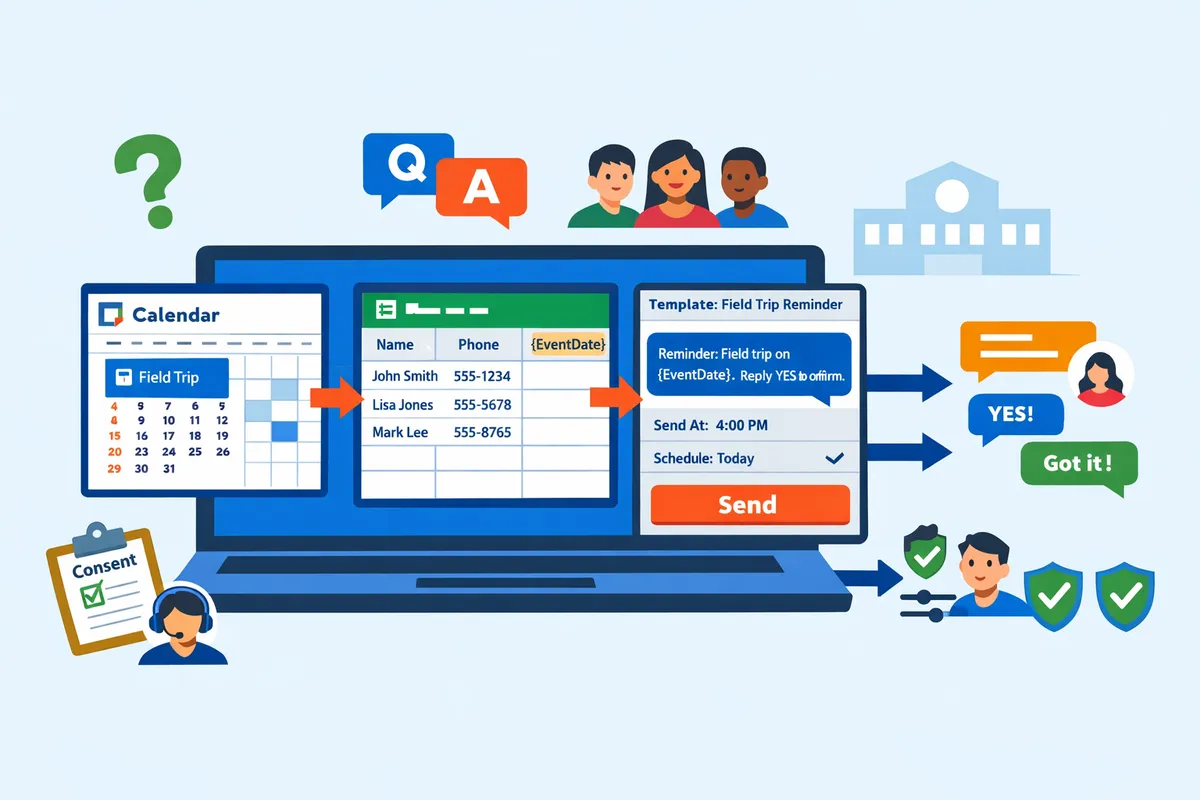
What school-safe alternatives replace Google Calendar SMS reminders?
Dedicated SMS platforms and Google Sheets add-ons like Sheet Gurus SMS replace Google Calendar SMS reminders for schools. These solutions offer scheduled delivery, two-way replies, and compliance controls that Google Calendar no longer provides. Schools should choose a solution that logs consent, handles inbound replies, and reduces the staff hours spent on manual reminders.
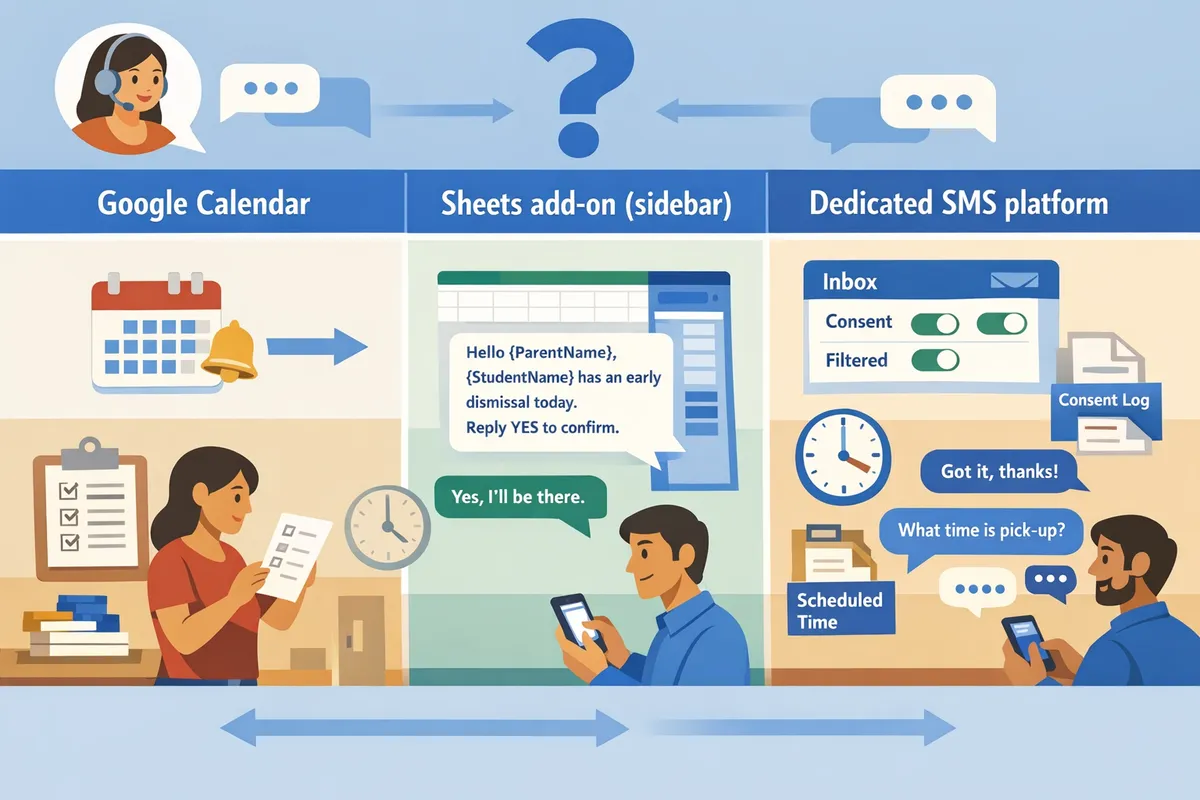
How do DIY Google Calendar workflows compare to managed SMS services? 🧾
Managed SMS services and Google Sheets add-ons provide higher reliability, clearer consent logging, and two-way replies compared with DIY Google Calendar workflows. DIY Calendar setups typically rely on email-to-SMS gateways or manual copy-paste, which creates delivery gaps, no inbound message handling, and little auditability. Our table below shows the practical trade-offs administrators see when choosing a path.
| Option | Reliability | Two-way messaging | Consent handling | Scheduling ease | Admin time | Compliance risk | Cost predictability |
|---|---|---|---|---|---|---|---|
| DIY Google Calendar | Low. Google no longer supports native SMS for most accounts. | None or unreliable via email gateways. | Manual; hard to audit. | Low. Requires manual exports or reminders. | High. Staff spends hours each week. | High. Missing logs increase TCPA risk. | Low upfront, high hidden cost in staff time. |
| Sheet Gurus SMS (our add-on) | High. Sends from a sidebar with scheduled delivery. | Yes. Real-time inbox for replies. | Built-in filtering and logging in Sheets. | High. Schedule from sidebar; supports variables. | Low. Automation cuts repetitive tasks. | Low. Automatic filters and consent logs reduce risk. | Predictable per-message fees and fewer staff hours. |
| Third-party SMS apps | Varies by vendor; generally reliable. | Many support two-way but inbox may live outside Sheets. | Often supported but may require extra steps. | Medium. Some have calendar integrations. | Medium. Admins juggle multiple tools. | Medium. Depends on vendor audit features. | Varies; can add platform fees. |
How does Sheet Gurus SMS fit K-12 school needs? 📚
Sheet Gurus SMS is a Google Sheets add-on that sends bulk SMS from a sidebar with curly-bracket variables, a real-time inbox, and automatic compliance filters. Our add-on avoids spreadsheet formulas for sending; you draft a message like “Reminder: {StudentName}‘s conference on {Date} at {Time}. Reply YES to confirm.” The real-time inbox captures replies inside the sidebar so staff do not need to monitor separate apps. For setup steps and templates, see our Automated Text Messaging use case and the Sheet Gurus SMS for Education page. Our approach reduces the common pain points schools report: manual copying, missed replies, and missing consent records.
What consent, privacy, and compliance steps do schools need for SMS? ⚖️
Schools must collect explicit opt-in consent, store minimal contact fields, and keep message logs to meet carrier rules and district privacy expectations. Required fields to collect in your sheet should include: ContactName, PhoneNumber (format +12223334444), OptInStatus (Yes/No), ConsentTimestamp, and Purpose (attendance, events, emergency). Use clear consent language such as: “I consent to receive school texts about {Purpose}. Msgs may include time-sensitive updates. Reply STOP to opt out.” Log consent entries in the same Google Sheet row as the contact and keep a separate message-history tab for audit records.
⚠️ Warning: Avoid sending sensitive student data (grades, medical details) over SMS. Use SMS only for transactional alerts and link to secure portals for private records.
See our K-12 playbook for two-way workflows and opt-in templates in the Complete 2026 K-12 Guide to Google Sheets SMS Alerts and Two-Way Calendar Reminders.
How do I model cost and ROI for SMS reminders? 💰
Model ROI by adding per-message fees and the staff-hours cost of manual sending, then compare that to estimated reductions in no-shows or time saved. Example calculation: if manual reminders take 8 staff hours per week at $25/hour, monthly staff cost = 8 4 $25 = $800. If per-message cost is $0.03 and you send 500 reminders per month, message cost = 500 $0.03 = $15. Combined monthly cost (manual) = $815. If automation via Sheet Gurus SMS reduces staff time to 2 hours/week, new monthly staff cost = 2 4 $25 = $200, plus message fees $15 = $215. Break-even and ROI then come from reduced labor plus fewer no-shows; for example, avoided substitute teacher fees or fewer late pickups. Use this formula: (Hours saved per month staff hourly wage) - (monthly platform/message fees) = monthly net savings.
For step-by-step onboarding that maps a Google Calendar event to {EventDate} and schedules reminders from Sheets, follow our calendar-to-SMS workflow guide in the K-12 two-way playbook.
How can a school replace Google Calendar SMS reminders with Sheet Gurus SMS in 10 minutes?
A school can replace Google Calendar SMS reminders by installing our Sheet Gurus SMS add-on, mapping a prepared Google Sheet to message variables, and sending a scheduled test batch from the sidebar. This flow sends dynamic, two-way reminders from a spreadsheet in about 10 minutes and removes the need for manual calls. The steps below show the exact sheet layout, a minute-by-minute setup, example messages with curly-bracket variables, and fast troubleshooting checks.
What should my Google Sheet contain before I start? 📋
Your sheet must include phone_number, first_name, event, date, time, consent, and opt_in_timestamp columns. These columns let Sheet Gurus SMS replace Calendar alerts with personalized texts and provide an auditable consent record for compliance. Format phone numbers in E.164 (for example +12223334444) so carrier delivery works across regions. Use a single header row named exactly as above to make mapping in the sidebar fast.
Include additional columns you need for messaging, for example student_id, location, or teacher_contact. Map those to variables like {student_id} or {location} during setup. If you plan segmented sends (grade-level or bus route), add a segment column and filter the sheet before sending.
💡 Tip: Always use double opt-in for SMS signups. Record the opt-in timestamp in opt_in_timestamp to prove consent.
See our K-12 onboarding templates in the Complete 2026 K-12 Guide to Google Sheets SMS Alerts and Two-Way Calendar Reminders for drop-in header examples and opt-in wording.
How do I set up Sheet Gurus SMS and send a reminder in under 10 minutes? ⏱️
Install our Sheet Gurus SMS add-on, open the sidebar, map your sheet columns to variables, craft a test message, and send a small batch — this whole flow typically takes about 10 minutes. Follow these minute-by-minute steps to move from zero to a verified scheduled reminder.
- Install Sheet Gurus SMS from the G Suite Marketplace and authorize the add-on for your account (2 minutes).
- Open the add-on and select the active sheet you prepared (1 minute).
- In the sidebar, map columns to variables: phone_number → {phone_number}, first_name → {first_name}, date → {date}, time → {time} (2 minutes).
- Paste an example message into the composer and include an opt-out line. Example: “Hello {first_name}, reminder: {event} is on {date} at {time}. Reply STOP to unsubscribe.” (1 minute).
- Send a test batch to 3–5 internal numbers to confirm delivery and the inbox view (2 minutes).
- Schedule the main send or link to a Calendar export if you want event-triggered reminders (optional).
Our add-on sends messages from the sidebar rather than spreadsheet formulas, which avoids accidental mass sends and keeps your sheet immutable.
For longer workflows and calendar-triggered reminders, follow the step-by-step Sending SMS from Google Sheets guide in our K-12 SMS Alerts playbook.
What is two-way SMS and how does it work for schools? 💬
Two-way SMS is messaging that accepts replies and routes them into a real-time inbox where staff can respond. Our Sheet Gurus SMS inbox collects replies, labels or filters them by keywords (for example YES, NO, STOP), and shows the originating row so staff can see the context without reopening the sheet. Automatic filtering removes sensitive fields from message bodies before they reach staff, reducing accidental exposure of student data.
Use two-way SMS for quick confirmations (“Reply YES to confirm pickup”), attendance follow-ups, and short Q&A with parents. Assign inbox access to specific staff members so attendance clerks handle confirmations and the front office handles logistical questions. See the K-12 two-way playbook for inbox workflows and triage examples that reduce follow-up calls.
How do scheduling, retries, and delivery confirmations work? 📆
You can schedule texts from the Sheet Gurus SMS sidebar, automatic retries occur for transient carrier failures, and delivery status is written back to your sheet for auditing. When you schedule a campaign, pick a send window and the sidebar shows estimated queue times and recipient count. The system retries temporary failures and records results in delivery_status and last_attempt columns so you can filter for undelivered numbers.
For audits, add these columns: delivery_status, provider_message_id, last_attempt, and error_code. Export those rows for compliance reviews or to reconcile missed messages against school attendance logs. Scheduling also supports recurring reminders if you map Calendar exports or use a segmentation column to drive repeat sends. Our Automated Text Messaging use case explains scheduling best practices for emergency and routine alerts.
What should I check if messages fail or bounce? ⚠️
If messages fail, check phone number formatting, consent flags, and whether carriers are blocking the shortcode or message content. Start with these checks in order: phone numbers are E.164 formatted, consent column is TRUE with opt_in_timestamp filled, delivery_status contains the provider error code, and your message does not include disallowed content such as personal health details.
Other common causes include local carrier blocking, high send rates triggering throttling, and recipients who have previously unsubscribed. Send a small test batch and inspect provider_message_id for clues. If you still see failures, our support team can review provider logs while you continue sending to unaffected segments.
⚠️ Warning: Avoid including protected health information or full student records in SMS message bodies. Use inbox context columns instead to protect privacy.
For calendar-triggered issues and event mapping, see our Calendar-to-SMS workflow guide which covers common mapping errors and auto-retry behavior.
Frequently Asked Questions
This FAQ answers the most common questions about whether Google Calendar still sends SMS reminders, school compliance risks, and replacing Calendar SMS with Sheet Gurus SMS. Read the quick answers first; each response includes actionable next steps and links to our deeper guides.
Do Google Calendar SMS reminders still work for school accounts? 📵
No. Most school Google Calendar accounts no longer support native SMS reminders in 2026. Test a sample event from your domain to confirm, but plan a migration because native Calendar alerts now favor push and email and do not provide two-way replying or delivery guarantees for school messaging. Migrating to a managed SMS tool removes manual follow-up tasks and gives staff an inbox for replies. See our K-12 playbook on two-way calendar reminders for step-by-step migration options and the Google Sheets to SMS workflow with Sheet Gurus SMS.
Are there free Google Calendar text reminders in 2026? 💸
No. Free native Google Calendar SMS is not a dependable option in 2026. Workarounds like email-to-SMS gateways or IFTTT create higher failure rates, carrier filtering, and compliance headaches that often cost more staff time than a paid workflow. If budget is a concern, compare the hours spent on manual sends and follow-up calls versus a low-effort Sheet Gurus SMS setup from Google Sheets; our automated text messaging use case explains typical trade-offs and scheduling features.
Can parents reply to messages sent from Sheet Gurus SMS? 💬
Yes. Parents can reply, and replies appear in a real-time inbox inside Sheet Gurus SMS. The inbox shows message history, supports staff assignment, and applies automatic filters to flag sensitive or off-policy content. Example message using variables: “Hi {ParentName}, reminder: {StudentName}‘s conference on {Date} at {Time}. Reply YES to confirm.” For full two-way workflows and inbox routing best practices, see our two-way playbook.
What consent language should schools use for SMS? ✅
Use concise consent that states purpose, frequency, and an easy opt-out instruction. Example template: “I consent to receive reminders about school events. Msg freq: 2/month. Reply STOP to opt out.” Keep a timestamped record of opt-ins in your Sheets and link consent fields to Sheet Gurus SMS before sending. Consult district counsel for local requirements and review our K-12 SMS hub for sample opt-in forms and tracking examples.
How much administrative time does a Sheet Gurus SMS workflow save? ⏱️
Automating bulk reminders from Google Sheets typically cuts weekly staff time by eliminating repetitive copy-paste and manual dialing. Example: a school sending 200 reminder texts manually at 1.5 minutes per contact spends 300 minutes; using Sheet Gurus SMS you might spend 15 minutes preparing a scheduled send plus 20 minutes handling replies, saving ~265 minutes in that campaign. Use the ROI model in our Complete 2026 K-12 Guide to plug in your contact counts and frequency for a district-specific savings estimate.
Is two-way messaging compliant with student privacy laws? ⚖️
Two-way SMS can comply when schools limit stored personal data, maintain opt-in records, and use automatic content filters. Required steps include restricting PII in message bodies, enabling consent tracking in your Sheets, applying Sheet Gurus SMS message filters, and setting retention and access policies. Always run the checklist in our education guide and confirm policies with district counsel before sending student-related messages.
⚠️ Warning: Avoid sending health, special education, or other sensitive student data via SMS unless you have explicit policy approval and documented safeguards.
Related reading: See our Complete 2026 K-12 Guide to Google Sheets SMS Alerts and Two-Way Calendar Reminders for templates and the Calendar-to-SMS workflow, and the two-way playbook for segmentation and inbox routing.
Google Calendar no longer reliably sends SMS alerts nationwide, so schools should adopt K-12-safe alternatives.
If you searched do google calendar sms reminders still work, the short answer is: not consistently, and relying on Calendar SMS for school notifications creates missed alerts and extra staff follow-up. Schools should move to a tested, two-way SMS workflow to avoid gaps and reduce manual hours.
Sheet Gurus SMS is a Google Sheets add-on for sending bulk SMS from a sidebar rather than spreadsheet formulas. Personalize each message with curly-brace variables such as {FirstName}, handle replies in a real-time two-way inbox, and rely on automatic message filtering to help keep your sends compliant.
Try the 10-minute Google Sheets replacement by installing Sheet Gurus SMS and following our getting-started steps in the Complete 2026 K-12 guide. For a fast, event-driven setup see the Calendar-to-SMS workflow guide for schools.
💡 Tip: Test two-way replies and keep opt-in records before sending mass alerts.
Subscribe to our newsletter for implementation tips and updates.