



Automotive SMS Google Sheets in 2026
A missed service appointment can cost a dealership up to $200. automotive sms google sheets is a method that runs SMS campaigns directly from Google Sheets using DIY scripts, add-ons, or integrations. Our Sheet Gurus SMS is a Google Sheets add-on that sends messages from a sidebar, not spreadsheet formulas, and helps teams save time and money by sending
bulk SMS with curly-bracket variables, a real-time inbox for two-way replies, and automatic message filtering for compliance. If you feel overwhelmed, this beginner’s guide starts at zero and compares DIY, add-on, and platform options so you can decide if Sheet Gurus SMS fits your dealership. Example: Hi {first_name}, your {vehicle_model} service is on {appointment_date}. Which option will cost you the least time and risk?What are the fundamentals of automotive SMS with Google Sheets?
The fundamentals are a clean spreadsheet data model, reusable message templates with variables, recorded consent, and a sending channel such as Sheet Gurus SMS. These four elements let dealerships send personalized appointment reminders, recall notices, and service updates reliably from a single Sheet. A good setup reduces manual copy‑paste errors, shortens staff time on outreach, and creates an auditable consent trail for compliance.
What is Sheet Gurus SMS? 🧰
Sheet Gurus SMS is a Google Sheets add-on that sends bulk SMS from a sidebar, supports curly-brace variables, provides a real-time inbox, and applies automatic message filtering. Our website recommends Sheet Gurus SMS because it avoids fragile formula-based sending and keeps message composition and delivery in a single sidebar workflow. Key capabilities:
- Sidebar sending instead of spreadsheet formulas to reduce accidental triggers.
- Curly-brace variables like {FirstName} and {ApptTime} for personalized templates.
- Real-time inbox for two-way replies, so service advisors can respond without leaving Sheets.
- Automatic message filtering to flag likely opt-out attempts or suspected spam language.
For appointment-specific workflows, see our Text Appointment Reminders guide and the Automated Text Messaging Services overview for examples of scheduling, personalization, and inbox handling.
Which auto-specific data fields matter for dealership SMS? 🚗
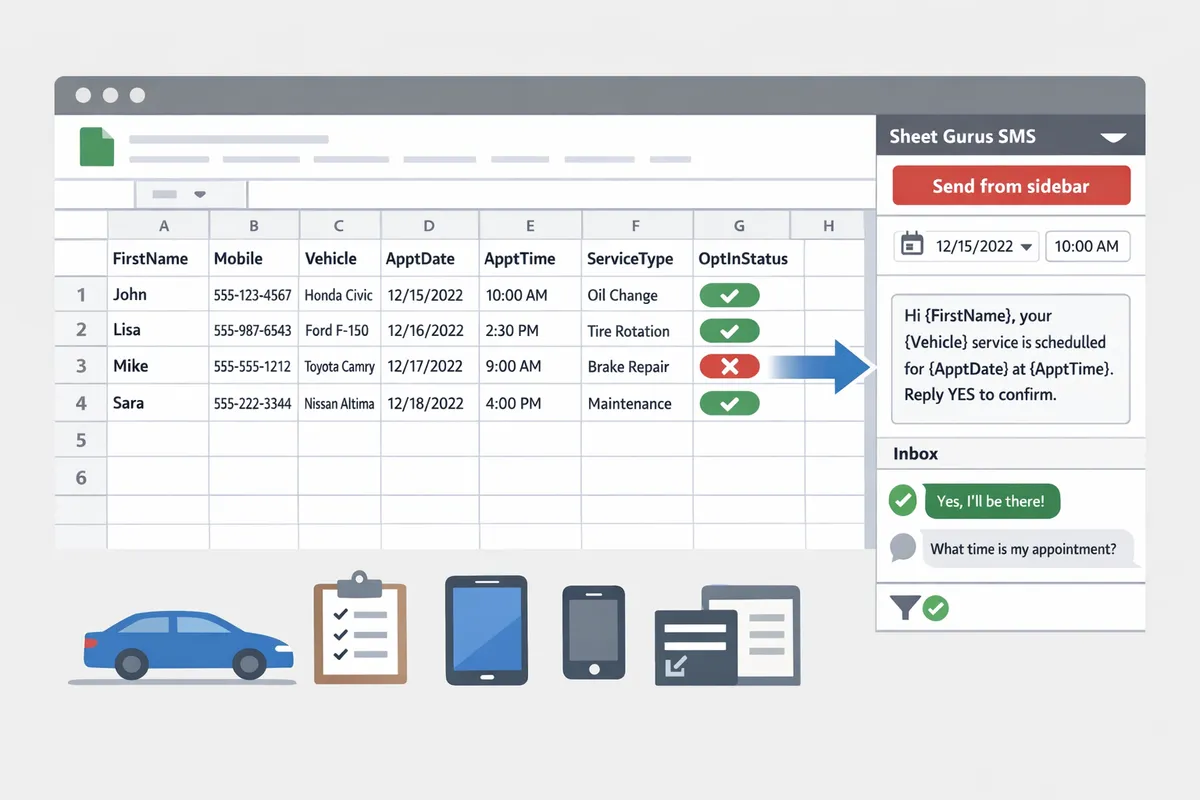
The essential dealership fields are FirstName, Mobile (E.164 format), Vehicle, VIN (optional), ApptDate, ApptTime, ServiceType, and OptInStatus. Use a consistent column layout so Sheet Gurus SMS maps each column to a curly-brace variable without manual copying. Recommended columns and variable mapping:
- FirstName → {FirstName}
- LastName → {LastName}
- Mobile (E.164, e.g., +12223334444) → {Mobile}
- Vehicle (year make model) → {Vehicle}
- VIN (optional) → {VIN}
- ApptDate (YYYY-MM-DD) → {ApptDate}
- ApptTime (HH:MM) → {ApptTime}
- ServiceType (oil, inspection, recall) → {ServiceType}
- OptInStatus (Yes/No, timestamp) → {OptInStatus}
Example message template using variables: “Hi {FirstName}, your {Vehicle} service is scheduled for {ApptDate} at {ApptTime}. Reply CONFIRM to keep this appointment.” Follow the layout in our How to Run Your Dealership’s Service Department With Google Sheets article to integrate these fields into service workflows and reporting.
What are the compliance and opt-in rules I must follow? ⚠️
You must record explicit consent, honor opt-out keywords immediately, and retain opt-in records to avoid carrier blocks and regulatory fines. Minimum practical steps include capturing the consent phrase, timestamp, and source (web form, in-person, phone) and storing that data in your Sheet. Required opt-out keywords to monitor and act on immediately typically include STOP, UNSUBSCRIBE, and CANCEL. Retain consent records for at least the retention period advised by your legal counsel or carriers.
Automatic message filtering in Sheet Gurus SMS reduces compliance risk by flagging outbound messages that contain prohibited language or by detecting likely opt-out replies in real time. Pair that filtering with scheduled sends constrained to local business hours (for example 9:00 to 18:00 local time) to reduce complaints.
💡
Tip: Always use double opt-in for SMS signups.
For playbooks and templates that show how to capture consent and schedule compliant reminders, see our Automated SMS Reminders with Google Sheets best-practices playbook and the beginner’s guide to sending SMS from Google Sheets.
How do I set up automotive SMS from Google Sheets?
Set up automotive SMS by installing the Sheet Gurus SMS add-on, preparing a two-tab spreadsheet (Contacts and Sends), mapping columns to curly-brace variables, and scheduling sends from the add-on sidebar. This sequence gets appointment reminders, confirmations, and two-way replies running without manual copy-and-paste. Follow the steps and templates below for a dealership-ready workflow that reduces no-shows and saves staff hours.
What data template and field mapping should I use? 📋
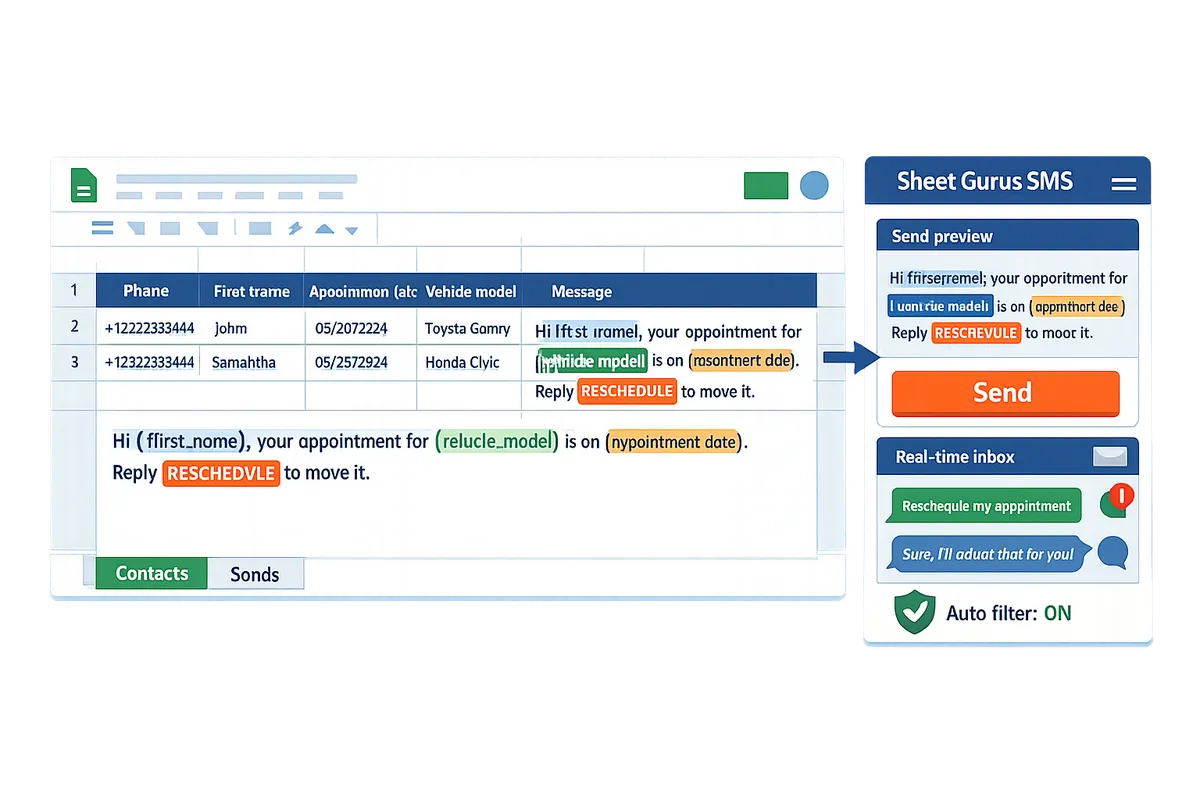
Use a two-tab template: a Contacts tab for customer records and a Sends tab for scheduled messages mapped to variables like {FirstName} and {ApptDate}. The Contacts tab is the source of truth for phone numbers and opt-in status; the Sends tab holds each outbound message and its scheduled send time. Sheet Gurus SMS reads these tabs directly from the sidebar and replaces curly-brace variables with the row values at send time.
Contacts (recommended columns):
| Column | Purpose |
|---|---|
| ContactID | Unique numeric or text ID (used in Sends.ContactID) |
| FirstName | Short name for personalization (used with {FirstName}) |
| LastName | Optional last name |
| Mobile | E.164 format recommended (e.g., +12223334444) |
| Vehicle | Make/model for message context (e.g., Toyota Camry) |
| VIN | Optional for service lookup |
| OptIn | yes/no or timestamp for consent tracking |
Sends (recommended columns):
| Column | Purpose |
|---|---|
| SendID | Unique ID for each scheduled send |
| ContactID | Matches Contacts.ContactID |
| ApptDate | Date of appointment (yyyy-mm-dd) |
| ApptTime | Local time (HH:MM) |
| MessageTemplate | Message using variables (see examples) |
| SendAt | Exact datetime to send (ApptDate minus offset) |
Sample message templates (use Sheet Gurus SMS curly braces):
- “Hello {FirstName}, your {Vehicle} is due for service on {ApptDate} at {ApptTime}. Reply YES to confirm.”
- “Reminder: {FirstName}, your {Vehicle} service is tomorrow at {ApptTime}. Reply RESCHEDULE to move it.”
The layout above is ready to copy into a new Google Sheet. For a broader template pack and automation examples, see our Automated SMS Reminders playbook and the step-by-step guide to sending SMS from Google Sheets.
What are the exact setup steps I should follow? 🔧
Install Sheet Gurus SMS from the Google Workspace Marketplace, then open the add-on sidebar and grant it access to the active sheet. After installation follow this numbered checklist to avoid common setup pitfalls.
- Install Sheet Gurus SMS and open the sidebar in your spreadsheet.
- Create the two tabs (Contacts, Sends) using the column layout above.
- Import contacts (CSV or paste) into Contacts. Validate phone numbers are in E.164 when possible.
- In the sidebar, map each spreadsheet column to curly-brace variables (for example map FirstName → {FirstName}).
- Compose a test MessageTemplate in Sends and send a single test message to an internal number.
- Confirm delivery and test two-way replies in the Sheet Gurus SMS inbox.
- Schedule a bulk run from the sidebar after checking OptIn values and time zones.
Common setup pitfalls to avoid:
- Missing or inconsistent ContactID values will break mapping between tabs.
- Using local-only phone formats (no country code) increases failed deliveries.
- Forgetting to record opt-in status exposes your dealership to compliance risk.
Our website’s beginner guide to SMS from Google Sheets explains these steps with screenshots and alternative import options. For CRM-style workflows, see how to build a Google Sheets CRM with SMS follow-ups and a two-way inbox.
How do I schedule automated service appointment reminders? 📆
Schedule appointment reminders by creating Sends rows with a SendAt datetime that equals the appointment datetime minus your chosen offset, and enable scheduled sends in the Sheet Gurus SMS sidebar. That approach lets you define multiple reminders per appointment (for example 7 days, 48 hours, and 2 hours before) using simple date math in the sheet.
Recommended reminder cadences for dealerships (example offsets):
- 7 days before. Useful for parts-heavy repairs or pre-approvals.
- 48 hours before. Standard reminder that captures last-minute confirmations.
- 2 hours before. Good for same-day checks and arrival prep.
Practical scheduling example: for an appointment on 2026-07-15 at 10:00, create three Sends rows with SendAt set to 2026-07-08 10:00, 2026-07-13 10:00, and 2026-07-15 08:00 respectively. Sheet Gurus SMS will replace variables when the message sends. Use the add-on sidebar to enable scheduled sends and monitor a real-time inbox for replies.
For step-by-step automation workflows and field-mapping examples specific to appointment reminders, see our Text Appointment Reminders guide and the Automated SMS Reminders playbook. If you use a dealer management system, map VIN or service order IDs into Sends.ContactID so replies and delivery reports tie back to the right job.
⚠️ Warning: Avoid sending messages outside recommended local hours; respect customer time zones to reduce complaints.
What are the next steps and advanced resources for dealership SMS?
These next steps provide advanced comparisons, a TCO checklist, integration patterns for inbound messages, and monitoring practices tailored to dealership SMS workflows. Follow these resources to decide between a DIY script, the Sheet Gurus SMS add-on, or a full enterprise platform and to build reliable reporting and DMS sync for your service team.
How do DIY, add-on, and full platforms compare for auto SMS? 📊
A DIY approach costs less up front but requires ongoing technical work and carries higher compliance risk; Sheet Gurus SMS balances fast setup with reliable delivery and built-in compliance filters; enterprise platforms scale best but at higher cost and longer onboarding.
DIY approach is a setup that uses scripts plus a carrier and often requires developer time to maintain. Sheet Gurus SMS is a Google Sheets add-on that sends from a sidebar, uses {variables} for personalization, and includes a real-time inbox and automatic filtering. Enterprise platforms are vendor-hosted solutions with advanced reporting and SLAs.
| Option | Typical up-front cost | Setup time | Reliability | Compliance support | Ongoing maintenance |
|---|---|---|---|---|---|
| DIY scripts + carrier | Low | Days to weeks | Variable; higher failure risk | Manual; higher audit burden | High (developer hours) |
| Sheet Gurus SMS add-on | Low to moderate | Hours | High; built-in delivery reports | Automatic message filtering and inbox | Low (product updates handled) |
| Enterprise platform | High | Weeks to months | Very high; SLA-backed | Enterprise compliance features | Moderate (vendor ops) |
Business consequences of a DIY choice often appear as wasted staff hours fixing failed sends, compliance gaps that risk fines, and slower revenue recovery from missed appointments. Our website’s SMS from Google Sheets beginner guide explains why add-on workflows reduce manual errors and free service advisors for revenue-generating work.
How should I calculate ROI and total cost of ownership for SMS?
ROI equals recovered service revenue from fewer no-shows plus staff time saved minus message and subscription costs.
Start with these input fields for a TCO model: number of appointments per month, average revenue per appointment, baseline no-show rate, expected no-show reduction from reminders, messages sent per appointment, per-message cost, monthly subscription fee, staff hourly rate, hours saved per month.
Illustrative example (for modeling only). A mid-size dealership with 1,000 scheduled service appointments per month, $180 average revenue per appointment, and an 8% no-show rate that drops to 3% after reminders recovers (1,000 (0.08 - 0.03) $180) = $9,000 monthly recovered revenue. Subtract messaging costs (messages per appointment per-message cost 1,000) and the add-on fee to get net benefit. Add staff time savings: if front-desk staff save 10 hours/week at $25/hour, that is $1,000/month.
Use this step-by-step to build the spreadsheet model: 1) populate the input fields, 2) calculate baseline lost revenue, 3) estimate recovered revenue with expected reduction, 4) compute recurring costs, 5) derive monthly and annual ROI. Our Automated SMS Reminders playbook and templates includes sample templates you can drop into the model to test timing and copy impact on no-show reduction.
How do I integrate inbound messages and sync with my DMS/CRM? 🤝
You should log inbound SMS in real time and push key events (reply, opt-out, failed delivery) into your DMS or CRM using exports or integrations.
Sheet Gurus SMS provides a real-time inbox that records incoming threads and applies automatic filters so your service team sees only relevant replies. Choose between two integration patterns: periodic CSV export and direct integration. CSV export is simple: schedule daily exports of message threads and import them into your DMS. Direct integration uses built-in connectors or a middleware tool to push events as they happen.
Recommended field mappings for DMS sync: CustomerID, PhoneNumber, MessageTimestamp, Direction (inbound/outbound), MessageText, ThreadID, MessageStatus, OptOutFlag, AppointmentID. Map {FirstName}, {VehicleModel}, and {AppointmentDate} in outbound messages so replies reference the appointment context automatically.
Practical routing step: 1) enable the Sheet Gurus SMS inbox for the service queue, 2) tag replies with AppointmentID, 3) create a saved filter to show unanswered replies older than 30 minutes, 4) export or push new threads to the DMS so service advisors see replies in the customer record. Our guide on building a Google Sheets CRM with SMS follow-ups contains a step-by-step example you can adapt to popular dealer management systems.
What monitoring and troubleshooting should I plan? ⚙️
Monitor delivery rate, bounce rate, opt-out trends, inbox volume, and reply response times weekly and set alerts for delivery failures.
Key reporting fields to track each week: MessagesSent, Delivered, FailedDeliveries, BouncedNumbers, OptOuts, RepliesReceived, AvgResponseTime, MessagesPerAppointment. Add a column for CarrierRejectionReason to speed troubleshooting.
Troubleshooting checklist: 1) Confirm invalid numbers via bounce reports, 2) Check carrier rejection codes (blocked short codes, content filtering), 3) Review opt-out flows to ensure no one receives messages after unsubscribe, 4) Re-run failed sends after correcting numbers or content, 5) Escalate repeated carrier rejections to Sheet Gurus SMS support with thread IDs and sample message text.
💡 Tip: Always use double opt-in for SMS signups to reduce opt-outs and carrier complaints.
Use weekly dashboards to catch trends early. If failed deliveries spike above your threshold, pause the campaign, review recent copy for filtered keywords, and contact Sheet Gurus SMS support with delivery logs and sample thread IDs so the team can investigate carrier filtering.
Frequently Asked Questions
This FAQ answers common commercial questions about using Google Sheets to send automotive SMS and how to choose between DIY scripts, add-ons, and a platform like Sheet Gurus SMS. Below are concise, actionable answers that point to templates, scheduling, two-way messaging, compliance, and CRM/DMS integration for dealership workflows.
Can I send service appointment reminders via sms google sheets add-on? 📱
Yes. Sheet Gurus SMS supports scheduled service appointment reminders directly from the Google Sheets add-on sidebar. The add-on sends messages using curly-brace variables (for example {FirstName}, {Vehicle}, and {ApptDate}) so each reminder reads like a personal text. You can schedule reminders relative to an appointment (for example 48 hours and 2 hours before) and use the Sends tab to track delivery and failures. See our Text Appointment Reminders guide for a step-by-step appointment workflow and timing recommendations.
Are there car dealership sms templates google sheets I can copy? 🧾
Yes. Our guide includes ready-to-use dealership templates that use variables like {FirstName}, {Vehicle}, and {ApptDate} so teams can copy and test quickly. Sample messages you can paste into a Sheet Gurus SMS template:
- “Hello {FirstName}, this is {ServiceAdvisor} at {Dealership}. Your {Vehicle} is scheduled for service on {ApptDate} at {ApptTime}. Reply 1 to confirm or CALL to reschedule.”
- “{FirstName}, reminder: your vehicle at {Dealership} is ready for pickup. Reply READY for details or call {PhoneNumber}.”
Each example shows how variables map to contact columns. For a full set of timed reminder templates and a free template pack, see Automated SMS Reminders with Google Sheets: 2026 Best‑Practices Playbook + Free Templates.
What are the limits on bulk sending from Google Sheets? ⚖️
Bulk send capacity depends on carrier policies, the phone numbers you use, and your SMS account type; Sheet Gurus SMS manages batching and rate limiting to keep delivery reliable and avoid account blocks. Sheet Gurus SMS groups sends into batches and spaces them to respect carrier rate limits, and it pauses or queues remaining messages if a carrier returns throttling errors. For very large volumes (daily thousands of messages) choose a dedicated messaging plan and consult the Automated Text Messaging Services page to compare throughput and cost options versus a DIY script.
How does two-way messaging and the real-time inbox work? 💬
Two-way messaging records inbound replies in Sheet Gurus SMS’s real-time inbox and links each reply to the contact row for follow-up by service staff. Replies match on phone number and show the original outbound message, so staff can see context and update appointment status without switching tools. Example: a customer texts “Reschedule to 3pm,” the reply appears in the inbox, an agent marks the appointment rescheduled, and the Sends log records the interaction. For building that flow inside a spreadsheet-based CRM, see How to Build a Google Sheets CRM (2026) with SMS Follow-Ups and a Two-Way Inbox.
What compliance features come with Sheet Gurus SMS? ⚠️
Sheet Gurus SMS includes automatic message filtering, built-in opt-out handling, and tools to record consent so dealerships reduce compliance risk when sending appointment and marketing texts. The add-on maintains a suppression list, blocks messages that appear to lack appropriate consent, and timestamps opt-ins and opt-outs alongside each contact row for audit-ready records. Stored logs also help prove timing windows and consent if a carrier or regulator audits your sends.
💡 Tip: Always use double opt-in for SMS signups to reduce spam complaints and improve deliverability.
How do I connect SMS workflows to my dealership DMS or CRM? 🔗
You can sync Google Sheets SMS workflows to a DMS or CRM by exporting sends and contacts, using built-in integrations, or configuring Sheet Gurus SMS export/webhook options to push confirmations and replies. Practical steps: map key columns (CustomerName, Phone, Vehicle, ApptDate, MessageStatus), run the add-on export to produce a CSV or use the webhooks to send updates automatically, then import or map those fields in your DMS. Manual exports cost staff time and introduce errors; using the add-on’s integration features reduces reconciliation hours and keeps appointment statuses current. For mapping examples and recommended field layouts, see How to Run Your Dealership’s Service Department With Google Sheets.
Book a demo to compare DIY, add-on, and platform options for automotive SMS workflows.
Manual spreadsheets and copy-paste messaging create wasted hours and compliance risk. Our beginner’s guide shows how manual appointment reminders can cost a small clinic six hours per week in rework. For dealerships weighing whether to manage texts yourself or use a tool, automotive sms google sheets workflows make the differences clear: DIY wastes time, add-ons reduce errors, and a platform centralizes compliance and two-way replies.
Sheet Gurus SMS is a Google Sheets add-on for sending bulk SMS from a sidebar rather than spreadsheet formulas. Personalize each message with curly-brace variables such as {FirstName}, handle replies in a real-time two-way inbox, and rely on automatic message filtering to help keep your sends compliant.
💡 Tip: Use {FirstName} and {AppointmentTime} variables to cut personalization time and reduce mistakes.
See our step-by-step SMS from Google Sheets beginner’s guide and the Automated SMS Reminders playbook for examples. Book a demo with Sheet Gurus SMS to review sample workflows and decide whether a service appointment reminders via sms google sheets add-on fits your dealership.