


Automatic Compliance Filtering for Bulk Texting Campaigns: TCPA Checklist for Google Sheets Senders (2026)
A single noncompliant text can trigger carrier blocking and leave a school or clinic unable to reach thousands during an emergency. Automatic compliance filtering for bulk texting campaigns is a rules-driven system that checks opt-ins, opt-outs, content, and number reachability before messages dispatch. This best-practices guide compares platforms and lays out a TCPA checklist for Google Sheets senders, with examples from our
automated SMS messaging workflows. Our Sheet Gurus SMS add-on sends messages from a sidebar, supports {first_name} and {appointment_date} variables, provides a real-time inbox, and applies automatic message filtering to reduce compliance headaches. Sample message: ‘Hi {first_name}, your balance of ${balance} is due on {due_date}.’ Which filters matter most to prevent blocks while preserving delivery rates?What automatic compliance filtering for bulk texting campaigns does: it scans content, consent, and sending signals to block risky sends.
Automatic compliance filtering for bulk texting campaigns inspects message text, consent records, sender signals, and sending behavior before any message leaves your Google Sheet. This matters because a single noncompliant send can trigger carrier blocks or legal exposure; automated checks stop risky sends at the sheet level and in the sidebar used to send messages. Sheet Gurus SMS ties those checks to your consent ledger and real-time inbox so filters use live two-way data rather than stale spreadsheets.
What elements does compliance filtering check? 🔎
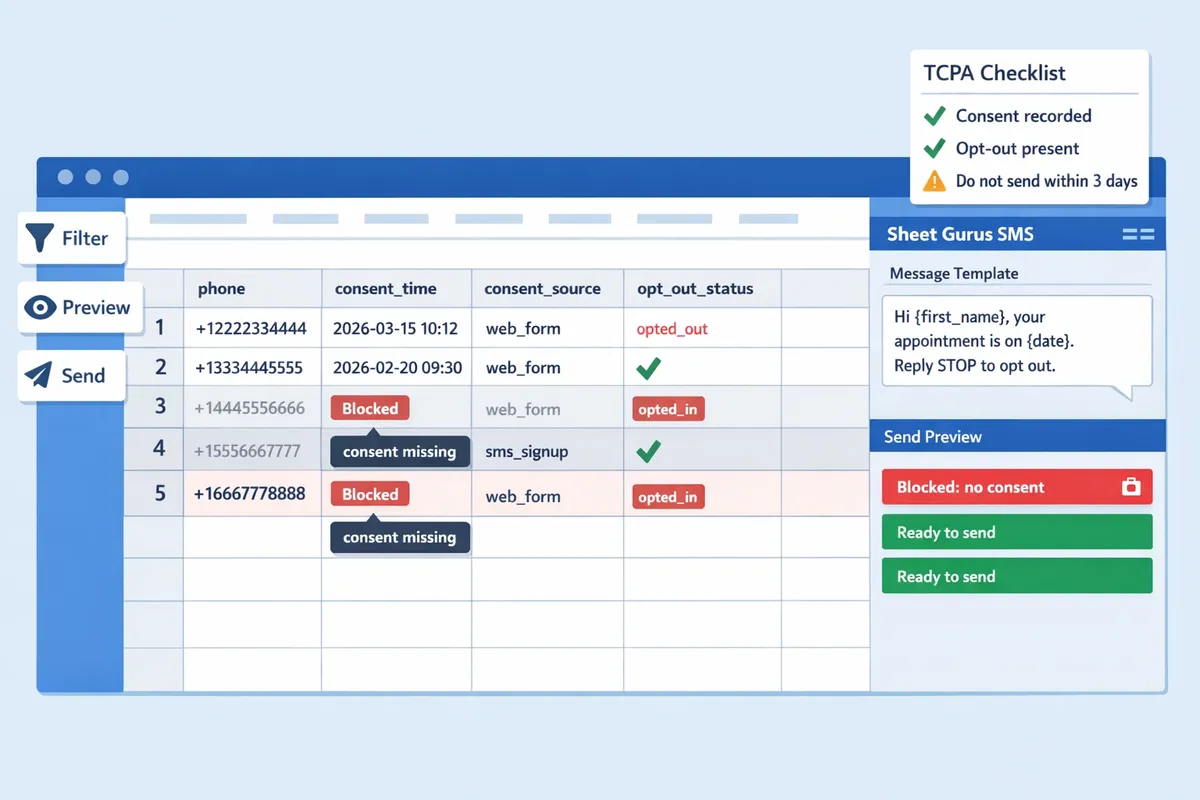
Filtering checks consent status, opt-out flags, risky keywords, sender ID legitimacy, message frequency, and sending velocity before allowing a send. Sheet Gurus SMS enforces each check inside the Google Sheets sidebar so your send preview shows blocked recipients before you confirm a blast. Practical examples:
- Consent status. The filter requires a consent timestamp and source for each phone number; if a row lacks a timestamp the sidebar flags it and prevents the send. This prevents accidental sends to numbers collected offline without documented opt-in.
- Opt-out flags. If a recipient previously replied STOP or similar, Sheet Gurus SMS marks the row and excludes it automatically from selection. Real-time inbox updates prevent race conditions where a recipient opts out minutes before a scheduled blast.
- Risky keywords. The filter scans message bodies for known opt-out keywords, spammy phrasing, and carrier triggers (for example, repeated ALL CAPS offers or words often associated with short-lived scams). Matching terms are highlighted in the send preview and can be set to block or require manual review.
- Sender ID legitimacy and routing. The system checks the sender phone or alphanumeric ID against carrier rules for the destination region and warns when a route will downgrade deliverability or violate A2P policies.
- Frequency and velocity. Filters stop large bursts to the same recipient group or rapid retries that carriers treat as suspicious.
For a detailed Google Sheets workflow showing where these checks run, see our guide on Harnessing the Power of Google Sheets for SMS Communication.
What a TCPA SMS compliance checklist contains. 📋
A TCPA SMS compliance checklist contains required consent language, capture timestamp, explicit opt-out instructions, message frequency disclosures, and retention metadata for each contact. Use these checklist items as columns in your sheet so filters can validate them before a blast:
- Consent text. Exact wording or a link to the consent capture screen (example: “I agree to receive automated messages from {org_name} at {phone}”).
- Capture timestamp. Date and time when consent occurred, stored in a dedicated column.
- Consent source. Where consent came from: web form, paper, in-person, or phone. Recording the source helps in audits and dispute resolution.
- Opt-out language. Clear instruction recorded with the consent and included in message templates (for example: “Reply STOP to opt out”).
- Frequency disclosure. The number or cadence of messages promised at signup (for example: “Up to 4 messages per month”).
- Retention policy. How long consent records will be kept and where they are archived for audits.
Example dynamic message that meets checklist items: “Hi {first_name}, your appointment with {facility} is at {appt_time}. Reply STOP to opt out. Msg freq: up to 2/month.” Sheet Gurus SMS uses those columns to run a tcpa sms compliance checklist automatically before sending; for templates and a free consent ledger, reference our SMS Compliance for Google Sheets: The Complete Guide with Opt‑In Templates and a Free Consent Ledger.
How consent and opt-out records must be stored and used. 🗂️
Consent and opt-out records must be tied to each phone number with a timestamp and source, and filters must block sends to numbers without valid consent while immediately marking numbers that reply with opt-out keywords. Follow this step-by-step workflow to make the storage and usage operational in a Google Sheets send workflow:
- Capture consent in a structured row. Record phone, consent_text, consent_time, and consent_source in separate columns when a user signs up. Example column names: phone, consent_text, consent_time, consent_source.
- Pre-send validation. Before any bulk send, Sheet Gurus SMS checks those columns and excludes rows lacking required fields. This prevents accidental sends to unconsented contacts and reduces audit risk.
- Real-time opt-out handling. When a recipient replies with an opt-out keyword such as STOP, STOPALL, or UNSUBSCRIBE, the real-time inbox logs the reply and the filter updates the sheet row to an opt-out status automatically so future blasts exclude that contact.
- Audit export and retention. Regularly export the consent ledger for legal hold and set a retention column so you can purge or archive records according to policy.
💡
Tip: Always use double opt-in for SMS signups. A confirmation reply reduces disputes and gives you a clear consent timestamp.
⚠️ Warning: Avoid including personal health information in SMS messages unless you have explicit, documented HIPAA-safe processes in place.
If you need a stepwise example of implementing these checks in a mass-sending workflow, see our overview of Automated Text Messaging Services which describes scheduling, personalization, and automated management from Google Sheets.
How to design filter rules and message templates that avoid carrier blocks and TCPA exposure.
Design filter rules and message templates that reduce carrier blocks and TCPA exposure by combining short, consent-checked templates, explicit opt-out handling, sender-ID segmentation, and layered filters. These practices cut the chance a single noncompliant send will trigger carrier-level blocking and reduce your legal risk. Follow the templates and routing steps below, test with control sends from Google Sheets, and use Sheet Gurus SMS to apply filters and variables at send time.
How to write safe, dynamic SMS templates ✍️
A dynamic SMS template is a message template that uses variables like {first_name} to personalize content while keeping language transactional and compliant. Use curly-bracket variables in the template sidebar so personalization happens at send time; Sheet Gurus SMS supports {first_name}, {appointment_date}, and similar tokens. Keep templates short (one or two sentences), include an explicit opt-out line, and avoid promotional phrases such as “limited time” or language that implies consent beyond what the recipient provided. Example templates:
- “Hi {first_name}, confirm your appointment on {appointment_date}. Reply YES to confirm or STOP to opt out.”
- “{first_name}, your invoice #{invoice_id} for {amount} is due {due_date}. Reply PAY or STOP to opt out.”
Step-by-step template checklist:
- Write a one-line core action (confirm, pay, update).
- Add one personalization token.
- Append a clear opt-out instruction.
- Run 5 control sends to different carriers and devices using Sheet Gurus SMS before a full blast.
You can store templates in the Sheet Gurus SMS sidebar and preview how variables render before sending. For more on consent templates and a free consent ledger, see the SMS Compliance complete guide.
What are SMS opt-out keywords requirements? 🚫
Carriers and industry guidelines require clear opt-out keywords such as STOP, STOPALL, and UNSUBSCRIBE and immediate logging of those replies. Filters must detect exact keywords plus common variants and local-language equivalents, then flag the contact as opted out in real time. Sheet Gurus SMS records opt-out replies in its real time inbox and updates consent status before any subsequent sends from your sheet. Implement these steps to comply:
- Match exact keywords (case-insensitive) and common misspellings.
- Log the timestamp and originating number instantly.
- Prevent any future sends to that contact ID across all sender IDs.
💡 Tip: Always use double opt-in for SMS signups where possible. Double opt-in reduces accidental consent claims and provides a verifiable consent record in your Google Sheet.
For more on opt-in language and keeping a consent ledger, reference our guide to SMS Compliance for Google Sheets.
How to separate traffic types and assign sender IDs 📡
Separate transactional and marketing traffic by assigning dedicated sender IDs and routing rules so transactional sends keep flowing even if marketing gets throttled. Use a transactional sender ID for confirmations, receipts, and critical alerts; use a marketing sender ID for newsletters and promotions and set lower throughput with stricter content filtering there. Practically, mark each row in Google Sheets with a traffic type column, select the appropriate sender ID in the Sheet Gurus SMS sidebar, and run test batches per sender ID. Example routing rules:
- Transactional: delivery window 7am–9pm, high priority, lenient throttling.
- Marketing: delivery window 9am–6pm, rate-limited, subject to stricter content filters.
- Emergency or high-importance: separate ID with override controls and audit logs.
⚠️ Warning: Mixing marketing and transactional messages on the same sender ID increases the risk that carriers will block all traffic from that ID after a policy complaint.
Use the real time inbox and analytics in Sheet Gurus SMS to monitor complaints per sender ID and adjust routing rules before issues scale. See our mass-texting use case for scheduling and sender management best practices.
Comparison of common filtering approaches
Hybrid filters balance accuracy and false-positive risk and work well for SMBs sending from Google Sheets. Below is a concise comparison of rule-based filters, ML-assisted filters, and hybrid filters across key criteria relevant to Google Sheets senders.
| Approach | Accuracy | False-positive risk | Ease of setup | Integration with Google Sheets |
|---|---|---|---|---|
| Rule-based filters | Predictable for known risks. | Higher if rules are broad. | Easy to configure for non-technical teams. | Simple: map sheet columns to rule conditions in the sidebar. See Effortless SMS Blasts for workflows. |
| ML-assisted filters | Learns subtle patterns over time. | Lower with good training data. | Requires curated training data and tuning. | Moderate: works with Sheet Gurus SMS if you export flagged examples to refine models. |
| Hybrid filters | Best trade-off between catching risky sends and preserving delivery. | Lower than pure rule sets due to contextual checks. | Moderate setup, then low maintenance. | Recommended: Sheet Gurus SMS applies hybrid rules and lets you review flagged sends in the sidebar before dispatch. |
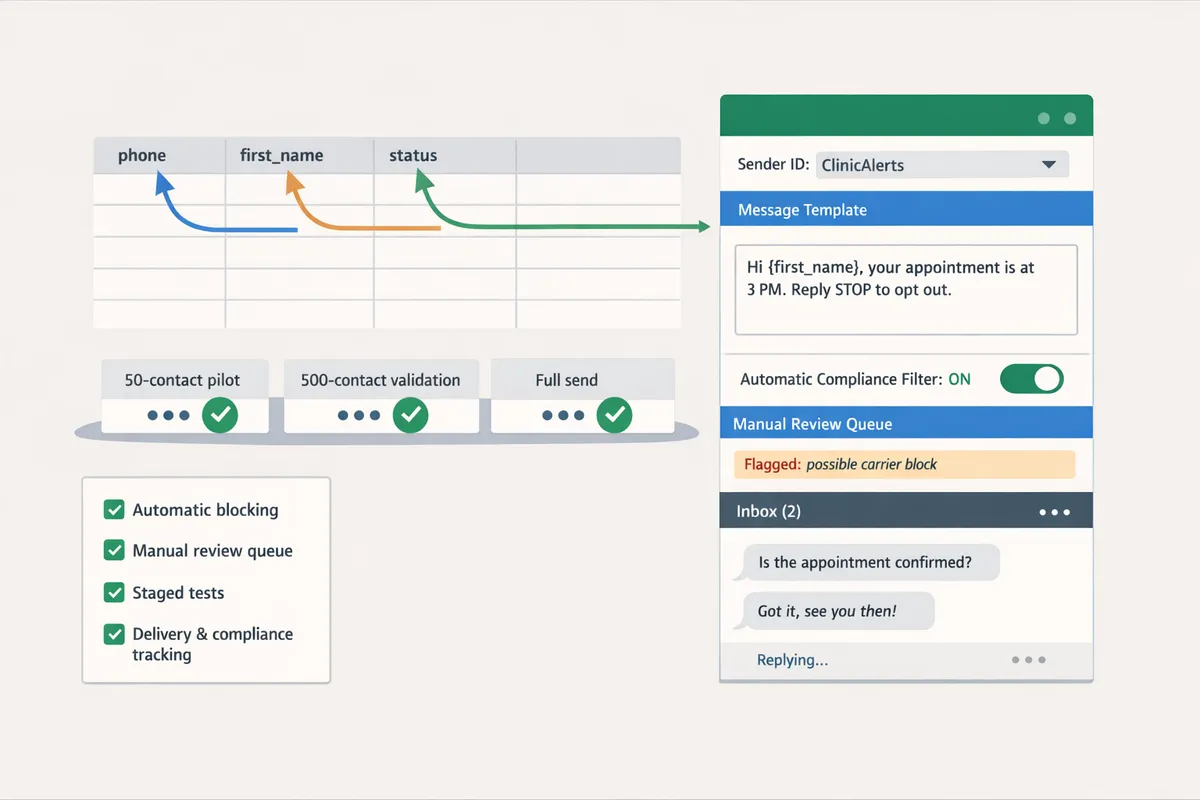
For most small and mid-size teams using Google Sheets, choose hybrid filters implemented in the Sheet Gurus SMS sidebar so you get automated blocking plus a manual review queue for ambiguous messages. Run staged control sends: 50-contact pilot, 500-contact validation, then full send after you confirm no carrier flags.
How to implement automatic compliance filtering in Google Sheets send workflows and measure its impact.
Use the Sheet Gurus SMS sidebar to map contacts, enable pre-send filters, run staged tests, and track delivery and compliance metrics. This section gives a step-by-step blueprint you can follow inside Google Sheets so teams avoid mass blocks and maintain an auditable consent trail. Follow the staged test, measurement, and remediation loop to catch over-blocking or missed consent flags before a full blast.
How to set up filters in Sheet Gurus SMS from a Google Sheet 🧰
Use the Sheet Gurus SMS sidebar to map contact columns, enable automatic message filtering, pick opt-out handling, and run a staged send to a test list.
- Open the Sheet Gurus SMS sidebar and map columns to fields: phone, {first_name}, {consent_status}, and sender ID. Mapping the consent column prevents sends to rows that lack an explicit opt-in. Link your consent ledger to the {consent_status} column; see the SMS Compliance for Google Sheets: The Complete Guide for sample consent templates and a free ledger.
- Enable automatic message filtering in the sidebar settings and choose opt-out behavior: block, flag for review, or soft-send (send with a higher-visibility footer). Soft-send is useful for small tests where you want logs without carrier exposure.
- Build a template with curly-brace variables to test personalization. Example message: “Hi {first_name}, your appointment on {date} is confirmed. Reply STOP to opt out.” This shows how dynamic fields and opt-out language coexist.
- Run a staged send to a control list of 50–200 validated contacts. Track filter logs and Sheet Gurus SMS inbox replies in real time before moving to larger lists.
💡 Tip: Use double opt-in for high-risk lists (e.g., healthcare or high-frequency alerts). A second confirmation cut false positives and reduces regulatory risk.
Reference: For design ideas on scheduling and personalization inside Sheets, review Harnessing the Power of Google Sheets for SMS Communication.
How to measure filter effectiveness and deliverability 📊
Measure filter effectiveness by tracking blocked-message rate, carrier rejections, delivery rate, opt-out rate, and reply patterns before and after filter changes. Quantify what changes mean for compliance and campaign ROI so stakeholders see the trade-offs between stricter filtering and engagement.
- Capture baseline metrics on a control send (same list, same template) and compare after each rule change. Use Sheet Gurus SMS analytics to export logs and pivot those in Google Sheets for visual trends.
| Metric | What it measures | Action if metric moves the wrong way |
|---|---|---|
| Blocked-message rate | Percent of messages stopped by filters | Review which rule flagged those messages and whether the consent column was read correctly |
| Carrier rejections | Carrier-level drops after handoff | Check sender ID mapping and message keywords; reduce high-risk phrases for the carrier region |
| Delivery rate | Final delivered to handset | Investigate routing, retry behavior, and filtered vs rejected counts |
| Opt-out rate | Recipient-initiated STOPs | Ensure opt-out language is explicit and not buried in variables |
Example: run a control group of 500 contacts and record carrier rejections, then tighten keyword rules and rerun; if rejections drop while delivery rate holds, the filter change improved compliance with minimal engagement loss. Use Sheet Gurus SMS inbox threads to track reply sentiment and to spot false positives quickly.
Reference: Automated Text Messaging Services explains analytics flows you can mirror for scheduled campaigns.
What troubleshooting steps fix common filter failures 🔁
Fix common filter failures by reviewing filter logs, testing control groups, and adjusting rules incrementally. Those three actions resolve most issues where legitimate messages get blocked or non-consented contacts slip through.
- Review filter logs first. Sheet Gurus SMS keeps a record of which rule flagged each message and why. Sort logs by rule name to find patterns (for example, a keyword rule that catches abbreviations).
- Validate consent flags. Export a sample of blocked rows and confirm that {consent_status} values match your consent ledger. Missing or malformed consent entries cause the majority of preventable blocks.
- Narrow broad keyword rules. If a term flags legitimate messages, change the rule to match whole words or context, then re-test on a control group. Avoid blanket phrase blocks that raise false positives.
- Verify sender ID mapping and regional settings. Mismatched sender IDs trigger carrier rejections; confirm the sender ID column maps to the correct campaign profile for the recipient country. For EU sends, ensure consent meets GDPR standards and keep a timestamped consent record.
- Use incremental testing. Apply one rule change at a time and run 100–500 message tests. Compare metrics in Sheets to isolate the effect of each change.
⚠️ Warning: Avoid sending personal health information by SMS unless you have explicit, auditable patient consent and a permitted process. SMS is not secure by default and increases regulatory exposure.
If you still see unexplained rejections, open a support ticket through Sheet Gurus SMS with a sample message ID and the filter log entry so the team can review carrier-level diagnostics.
Frequently Asked Questions
This FAQ answers the most common questions about automatic compliance filtering for bulk texting campaigns and Google Sheets send workflows. It focuses on practical steps you can apply directly in Sheet Gurus SMS and links to field guides for templates and testing.
How strict does TCPA consent need to be for SMS? 🔒
TCPA consent must be clear, documented, and tied to the recipient phone number. Keep a timestamp, the opt-in source (web form, paper form, verbal with notes), and the exact consent language used so you can produce it during an audit. Our Sheet Gurus SMS sidebar lets you attach consent flags and timestamps to each contact and export a consent ledger for audits. For reusable templates and a free consent ledger you can drop into your workflow, see our SMS compliance guide with opt-in templates.
💡 Tip: Always use double opt-in for SMS signups.
Can automated filters cause legitimate messages to be blocked? 🚫
Yes, overly broad rules or aggressive keyword filters can block legitimate messages. Over-filtering typically happens when broad keyword lists or global regex rules catch benign phrases like appointment reminders or transactional confirmations. Use staged tests, whitelist trusted sender IDs, and review filter logs regularly to identify false positives. Sheet Gurus SMS records blocked-message reasons and shows them in the sidebar so you can tune filters without risking the live list. See our piece on harnessing Google Sheets for SMS communication for staging workflows and whitelist strategies.
What are the minimum opt-out keywords I must support? 📩
You must support simple, standard opt-out keywords such as STOP, STOPALL, and UNSUBSCRIBE and log opt-outs immediately. Log the timestamp, the phone number, and the list or campaign the recipient left to prevent accidental resends and to meet carrier and legal expectations. Our Sheet Gurus SMS platform captures opt-outs in real time and updates consent flags in your sheet so you can stop messaging the contact automatically. Example message with dynamic content: “Hi {first_name}, your appointment is tomorrow at 2pm. Reply STOP to opt out.”
How do I test filters without risking my live list? 🧪
Create a dedicated test sheet with seeded contacts and consent flags, then run staged sends through the Sheet Gurus SMS sidebar. Follow these steps:
- Duplicate your production sheet and anonymize numbers or use known test numbers.
- Seed rows that represent real scenarios: valid consent, expired consent, foreign-number formats, and messages with high-risk keywords.
- Run small staged sends and review the blocked-message log, delivery reports, and inbox replies.
- Iterate filter rules and rerun until false positives drop to an acceptable level.
For send-blast best practices and scheduling options during testing, review our guide on effortless SMS blasts for effective communication.
Do carriers provide a list of blocked words or patterns? 🕵️
No, carriers do not publish a definitive blocked-word list for SMS filtering. Carriers and aggregators provide guidance via CTIA and A2P frameworks, but actual blocking uses proprietary signals and pattern recognition that change over time. Treat carrier guidance as a baseline and rely on rejection reasons and delivery logs to refine your rules. Sheet Gurus SMS surfaces rejection reasons and message-level feedback so you can adjust content filters and avoid repeating mistakes. For a deeper look at carrier-aware filtering, see our automated text messaging services overview.
How often should I review and update compliance filters? 🔁
Review compliance filters monthly or after any regulatory change, new campaign type, or unexplained spike in blocks or opt-outs. Monthly reviews catch drift in language patterns and new carrier heuristics; immediate reviews after a spike prevent prolonged deliverability loss. Use Sheet Gurus SMS analytics and blocked-message reports to spot trends, then update rule sets and re-run staged tests. If you need a checklist to align review steps with legal obligations, consult our tcpa sms compliance checklist and the compliance guide with opt-in templates.
Next steps that keep your bulk SMS programs TCPA-compliant.
The core takeaway is simple: enforce consent rules early and automate message screening before any large send. automatic compliance filtering for bulk texting campaigns stops high-risk messages and reduces exposure to fines and complaints. For a practical checklist, pair your internal consent ledger with a tcpa sms compliance checklist from our detailed guide on opt‑ins and templates.
Sheet Gurus SMS is a platform that helps users save time and money by enabling them to send bulk SMS to their recipients easily from within Google Sheets. The product is a Google Sheets add-on and messages are sent via a sidebar not via spreadsheet formulas. The product has the following features:
- Text messages can be sent with curly brackets as variables to allow for dynamic content.
- A real time inbox to allow for two way communication with recipients.
- Automatic message filtering to keep users compliant with regulations.
Example message: “Hi {FirstName}, your appointment at {Location} is confirmed for {Date}. Reply STOP to opt out.”
💡 Tip: Start filtering on a small segment and confirm opt-out keywords work before scaling.
Schedule a consultation with Sheet Gurus SMS to map your compliance rules to a Google Sheets workflow and test them end to end. For further reading on consent and best practices, see our guide on SMS Compliance for Google Sheets: The Complete Guide with Opt‑In Templates and a Free Consent Ledger and Harnessing the Power of Google Sheets for SMS Communication. Learn how automated workflows fit into larger mass texting strategies on our Automated Text Messaging Services page.