



Automated SMS Reminders with Google Sheets: 2026 Best‑Practices Playbook + Free Templates
One missed appointment can cost a small business hundreds in lost revenue and staff hours. Automated SMS reminders are a messaging workflow that sends scheduled, personalized texts from Google Sheets using Sheet Gurus SMS. Our practical best-practices guide shows coordinators and small business operators how to build reliable, compliant automated sms reminders with a Google Sheets add-on that sends from a sidebar rather than spreadsheet formulas. Sheet Gurus SMS supports curly-bracket variables for dynamic content, a real-time inbox for two-way replies, and automatic message filtering to help with compliance. We include step-by-step templates and sample messages using {variables}, plus links to appointment workflows like Text Appointment Reminders and broader use cases in Automated Text Messaging. Curious which timing, wording, and variable mix reduces no-shows while staying compliant?
How automated SMS reminders with Google Sheets reduce no-shows by sending scheduled, personalized texts tied to calendar data.
Automated SMS reminders cut no-shows by sending scheduled, personalized texts that match each calendar event and prompt confirmations. Sheet Gurus SMS runs from a Google Sheets sidebar so teams schedule messages from the same sheet that holds event details, reducing manual copy-paste and missed messages. The rest of this section covers the core setup principles you must apply before automating reminders: message templates, calendar-to-sheet sync, and the compliance controls that prevent fines and blocked numbers.
What are automated SMS reminders and how do they work with spreadsheets? 📅
Automated SMS reminders is a scheduled messaging workflow that sends personalized appointment and event texts from a spreadsheet using variable fields. In practice you keep one row per recipient/event in Google Sheets, then use curly-brace variables in the message template so each send replaces {first_name}, {event_name}, {date}, and {time} with that row’s values. For example: “Hi {first_name}, reminder: {event_name} on {date} at {time}. Reply YES to confirm.” Sheet Gurus SMS supports those curly-brace variables and sends messages from a sidebar rather than spreadsheet formulas, so you avoid fragile cell formulas and keep sending logic visible to coordinators.
Example workflow steps.
- Add attendee rows to the sheet with contact and event columns.
- Choose a template in the Sheet Gurus SMS sidebar that includes variables.
- Schedule a send based on the row’s reminder offset (24 hours, 2 hours, etc.).
Benefits for small teams include faster setup, fewer copy errors, and the ability to preview a personalized message before any batch send.
How do Google Calendar data and Google Sheets synchronize for reliable sends? 🔁
Google Sheets becomes the single source of truth by importing Calendar event rows that Sheet Gurus SMS reads from the sidebar for scheduled sends. Common sync patterns are one-way calendar exports into a sheet, scheduled CSV imports, or using the add-on’s calendar import so event timestamps and attendee info appear as rows. Always keep the sheet as the authoritative row for sending status (sent, confirmed, canceled) so retries and two-way replies map back to the correct event.
Recommended column mapping to avoid errors.
- id (unique event or attendee ID)
- name (first and last)
- phone (E.164 format, e.g., +12223334444)
- event_date (YYYY-MM-DD)
- event_time (HH:MM, local timezone)
- timezone (IANA zone, e.g., America/Los_Angeles)
- reminder_offset (e.g., 24h, 2h)
- send_status (queued, sent, delivered)
- consent_record (opt-in timestamp)
Time zone handling tip: store timestamps in UTC and include a timezone column for display and local-time reminders. For example, a clinic that books from patients across two states should use timezone on each row and schedule sends relative to that timezone to avoid late or early texts.
For calendar integration details and examples, see the Text Appointment Reminders guide which shows common import workflows and the mapping we recommend.
What compliance and privacy controls should I enforce before sending texts? ⚖️
Require documented opt-in, double opt-in where possible, clear opt-out keywords, and message filtering to avoid fines and carrier blocks. Keep a consent_record column with timestamp and source (web form, phone, in-person), record opt-outs immediately in the sheet, and enforce testing rules that block prohibited content such as medical advice or financial solicitations without proper consent. Failure to store opt-ins or honor opt-outs risks carrier blocking and regulatory fines under laws like TCPA and GDPR.
Practical controls to add before any automated send.
- Capture consent: consent_record and consent_channel columns.
- Double opt-in: send a confirmation code to validate number ownership.
- Opt-out handling: accept STOP, UNSUBSCRIBE, and update send_status on receipt.
- Message templates: restrict templates to preapproved language for regulated sectors.
- Retention policy: archive consent and message logs for required retention periods.
Sheet Gurus SMS helps enforce these controls with automatic message filtering and a real-time inbox to capture two-way replies, which reduces compliance risk for small clinics, schools, and nonprofits. For sector-specific guidance and security details, see our Automated Text Messaging use case.
💡
Tip: Always use double opt-in for high-risk lists (healthcare or financial services) and store the opt-in timestamp and source in the sheet.
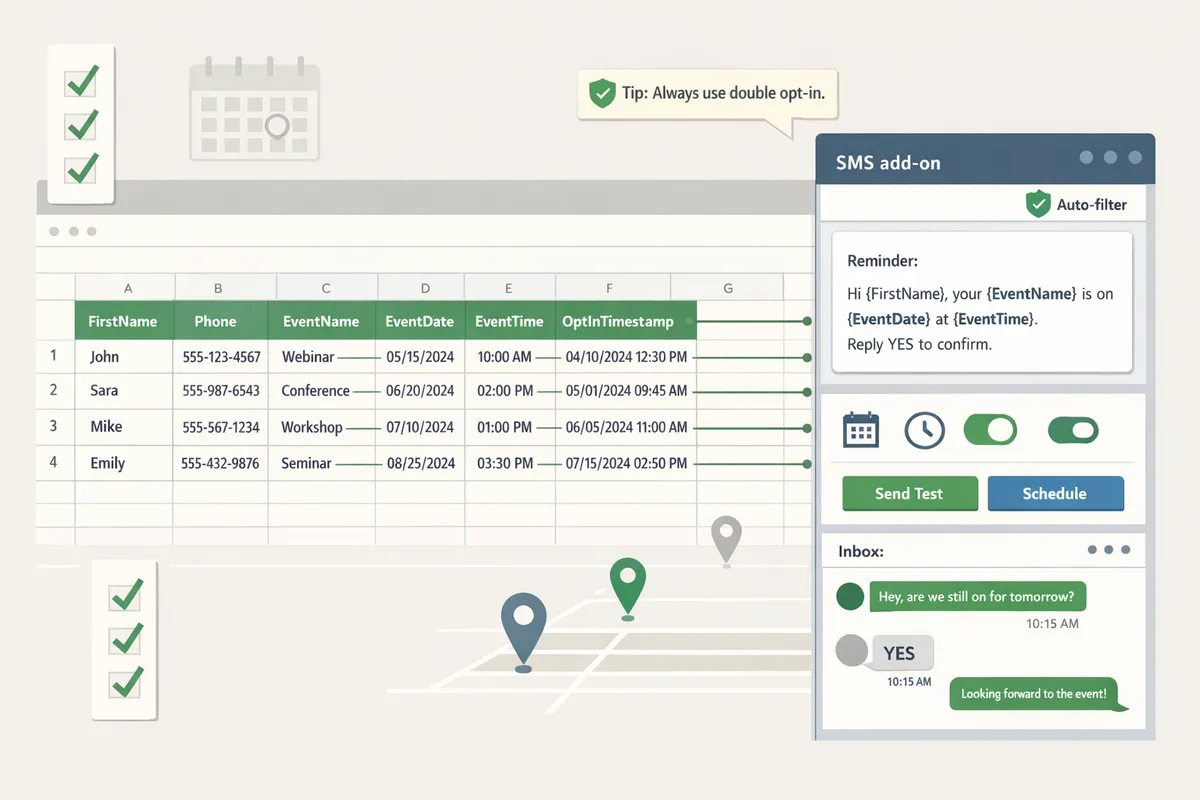
How to set up Google Sheets SMS reminders for events using Sheet Gurus SMS with reusable templates and two-way confirmations.
You set up Google Sheets SMS reminders by installing our Sheet Gurus SMS add-on, mapping sheet columns to curly-brace variables, creating reusable templates, scheduling sends from the sidebar, and enabling the real-time inbox for two-way confirmations. This section gives step-by-step actions, short checklists, and ready-to-use templates so you can test on a small list and scale without breaking consent or delivery rules. Follow the
school-specific workflow at the end if you run parent-teacher conferences.How do I install and configure the Sheet Gurus SMS add-on to schedule texts? ⚙️
Install our Sheet Gurus SMS add-on from the Google Workspace Marketplace, open the sidebar, grant the minimum permissions, and map spreadsheet columns to message variables to schedule sends.
- Open your Google Sheet.
- Install Sheet Gurus SMS from Add-ons > Get add-ons (or search the Google Workspace Marketplace).
- Open the Sheet Gurus SMS sidebar and sign in with your account.
- Grant the minimum permissions requested. Only allow access required for sending and reading the sheet range you use.
- In the sidebar map: phone number column, message column, send time column, and timezone.
- Toggle the real-time inbox to enable two-way replies and set a default inbox assignment (staff or shared mailbox).
Checklist: select message column, choose send time column, pick timezone, enable two-way inbox, set reply keywords.
💡 Tip: Test with a 5-person internal list first. Send one test round at each scheduled offset (72h, 24h, 1h) to confirm timing, variable expansion, and inbox rules.
For a broader comparison of sending methods from Sheets, see our Send Messages from Google Sheets guide for when an add-on makes more sense than Apps Script or Zapier.
How do I create dynamic reminder templates with curly-bracket variables? ✉️
Create templates using curly-brace variables that exactly match your sheet headers so Sheet Gurus SMS replaces fields row-by-row when sending.
- Use simple header names: first_name, last_name, date, time, location, parent_name, student_name.
- Avoid spaces and special characters in headers. Use lowercase and underscores for clarity (example: parent_phone, conference_slot).
Example templates you can paste directly into a Message column:
- Hi {first_name}, this is a reminder for your {service} on {date} at {time}. Reply CONFIRM to keep your spot or STOP to opt out.
- Hi {parent_name}, {student_name} has a parent-teacher conference on {date} at {time}. Reply YES to confirm or CALL to reschedule.
Sheet Gurus SMS previews each expanded message in the sidebar so you can validate personalization before sending. Use reply keywords in the template (CONFIRM, YES, CALL) and configure inbox rules to tag replies automatically. Automatic message filtering in Sheet Gurus SMS flags potential compliance issues so you don’t send nonconsensual messages.
⚠️ Warning: Always include a clear opt-out (for example, “Reply STOP to opt out”) to comply with consent rules.
How do I build SMS reminder workflows for parent-teacher conferences using Google Sheets? 🏫
Build a parent-teacher workflow by creating a roster sheet with student_name, parent_name, parent_phone, date, time, conference_slot, and status, then map those columns in the Sheet Gurus SMS sidebar and schedule staggered reminders.
Step-by-step playbook:
- Create the roster sheet with these headers: student_name, parent_name, parent_phone, date, time, conference_slot, status.
- Populate conference_slot (e.g., “2026-06-15 14:00”) or use separate date/time columns and a computed send_time column your team maintains.
- Map parent_phone to the phone field and message column to your template.
- Schedule offset reminders: create rows or columns for send_time entries at 72 hours, 24 hours, and 1 hour before the slot.
- Enable the real-time inbox and set automated inbox rules to change status to “Confirmed” when replies contain YES/CONFIRM, and to flag replies containing CALL for manual follow-up.
Practical template for conferences: Hi {parent_name}, your {student_name}‘s parent-teacher conference is {date} at {time}. Reply YES to confirm, CALL to reschedule, or STOP to opt out.
If replies are not routed, administrators spend hours calling families; using the inbox to update the status column reduces that workload and preserves a reply audit trail. For a full K-12 setup and scheduling examples, see our Complete 2026 K-12 Guide to Google Sheets SMS Alerts and the Two-Way Playbook for calendar-driven reminders.
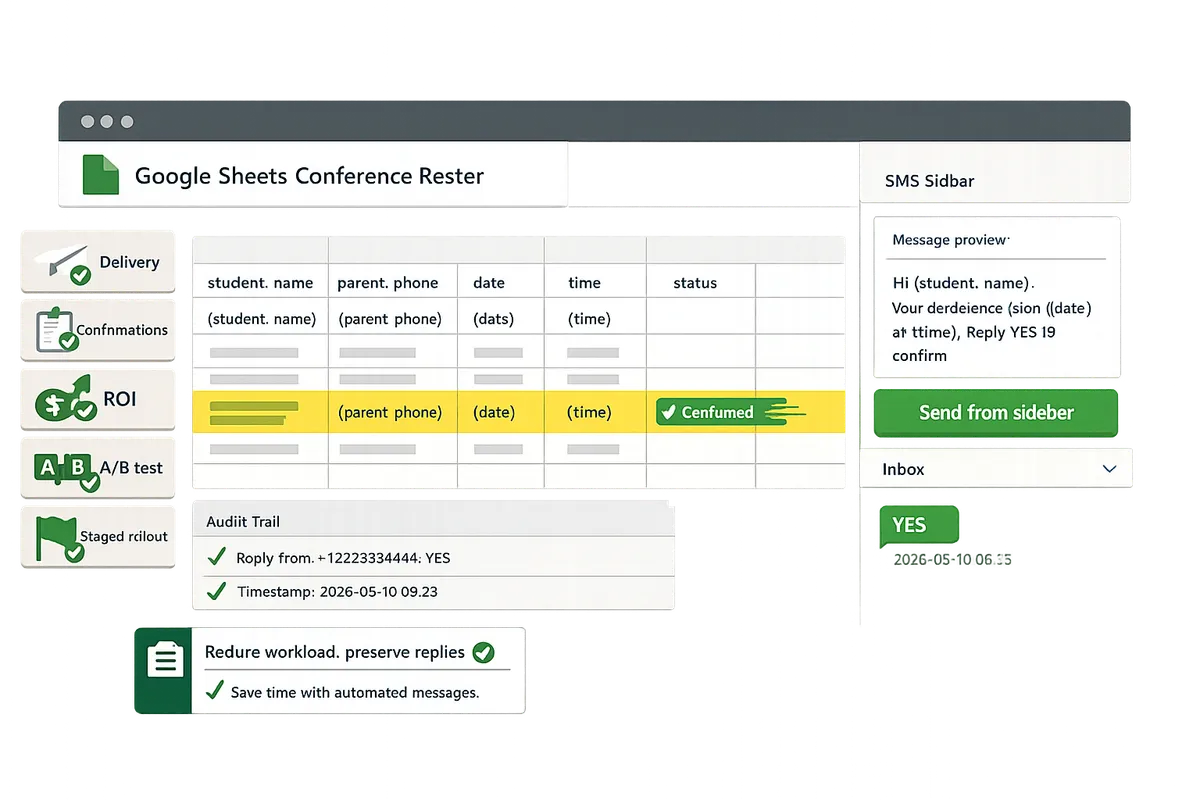
How to measure, troubleshoot, and optimize automated SMS reminders to improve confirmations and recover lost revenue.
Measure delivery, confirmations, and ROI with staged rollouts, delivery-status monitoring, A/B tests, and Sheet Gurus SMS analytics. This section shows a practical testing checklist, A/B ideas for timing and copy, deliverability fallbacks, and a side-by-side comparison of DIY macros, basic scripts, and Sheet Gurus SMS to help you decide which path saves time and reduces risk.
Run staged rollouts to validate sends and confirmations 🧪
Run a staged rollout: internal test list, a pilot cohort of 50–200 contacts, then a full send. Start with colleagues and known-good numbers to confirm messages appear as expected in recipients’ phones and that replies land in the Sheet Gurus SMS real-time inbox. A pilot of 50–200 people catches list edge cases (wrong country codes, carrier blocks) without risking your full audience.
Testing checklist:
- Confirm variable substitution in sample messages (example: “Hi {FirstName}, confirm your {Service} appointment on {Date} at {Time}. Reply YES to confirm.“)
- Verify replies update the status column and opt-out keywords trigger filtering
- Check delivery status for each pilot row in Sheet Gurus SMS analytics
- Run the same message from both desktop and mobile to see carrier differences
Sample test messages:
- Short confirm: “Hi {FirstName}, your {Service} on {Date} at {Time}. Reply YES to confirm.”
- Reminder with prep: “Reminder: {Service} on {Date} at {Time}. Please bring {Item}. Reply YES to confirm.”
- Payment prompt: “Hi {FirstName}, balance ${Balance} due before {Date}. Pay link: {PaymentLink}. Reply HELP for options.”
💡 Tip: Use double opt-in for high-risk lists (healthcare, financial) so consent records exist before sending.
Include a quick roll-back plan: pause scheduled sends in the sidebar and update status cells if the pilot shows systemic problems.
Compare DIY macros, third-party scripts, and Sheet Gurus SMS for time and risk 📊
Compare options across setup time, maintenance, compliance risk, two-way support, and cost using a simple table. This table highlights the practical trade-offs for small organizations deciding whether to do everything in-house or use Sheet Gurus SMS.
| Option | Setup time | Maintenance hours / month | Compliance risk | Two-way messaging support | Cost (typical) |
|---|---|---|---|---|---|
| DIY spreadsheet macros | High (days to weeks) | 8–20 hours | High (manual opt-in tracking) | Limited or none | Low tooling cost, high staff cost |
| Basic third-party scripts | Medium (days) | 4–12 hours | Medium (depends on provider) | Varies, often partial | Middleware + developer time |
| Sheet Gurus SMS | Low (minutes to hours) | 1–4 hours | Low (automatic filtering, opt-out handling) | Full real-time inbox and keyword handling | Predictable subscription and per-message fees |
Sheet Gurus SMS reduces calendar-to-text drift by sending from a sidebar instead of sheet formulas, offering built-in filtering and a real-time inbox that lowers ongoing maintenance compared with macros or one-off scripts. If you want a step-by-step comparison of add-ons and scripts, see our Send Messages from Google Sheets: 2026 Ultimate Guide.
Handle deliverability failures and use fallbacks for blocked messages 🔄
Track delivery status and provide email or voice fallbacks for critical notices while retrying transient failures automatically. Monitor each row’s delivery flag in Sheet Gurus SMS analytics and watch the real-time inbox for carrier error codes such as blocked, throttled, or invalid number.
What to do on failure:
- For transient failures (temporary carrier issues), retry automatically and log attempts in the sheet.
- For blocked sends (carrier filtering or opt-out), surface the message in Sheet Gurus SMS filtered queue for manual review.
- For critical communications (payments, cancellations), send a parallel email or an automated voice call if SMS fails.
Reduce blocked sends by cleaning message content and maintaining consent records. Use short templates, avoid all-caps or spammy language, and keep URLs to trusted domains. Sheet Gurus SMS automatic message filtering reduces regulatory exposure by catching common opt-out and abuse patterns before sending and by moving flagged messages into a reviewable queue.
⚠️ Warning: For regulated sectors such as healthcare, confirm patient consent and never send personal health details via SMS.
Use carrier feedback to refine your sender profile. If a carrier repeatedly blocks messages to a region, segment those numbers and switch to email or voice for that segment until issues resolve.
For K-12 and school event reminders, follow the staged rollout and two-way reply patterns in The Complete 2026 K-12 Guide to Google Sheets SMS Alerts and Two-Way Calendar Reminders to reduce staff hours and liability. See our Automated Text Messaging use case for examples across industries and the Text Appointment Reminders guide for templates that recover revenue from no-shows.
Frequently Asked Questions
This FAQ answers the six operational questions coordinators and small-business operators ask when building automated sms reminders from Google Sheets using Sheet Gurus SMS. Read each short Q&A for a concise, actionable next step and a pointer to templates or our setup guides.
How do I set up Google Sheets SMS reminders for events? 📅
Install the Sheet Gurus SMS add-on, map your sheet columns to curly-brace variables, build a reusable template, schedule sends from the sidebar, and run a small internal test list. Start with this checklist:
- Install the Sheet Gurus SMS add-on and grant sheet access. See our Send Messages from Google Sheets guide for the exact install steps.
- Prepare a roster with columns like FirstName, Phone, Date, Time, TimeZone, and Status.
- Map those columns in the sidebar to variables (for example {FirstName}, {Date}, {Time}).
- Create a template. Example: “Hi {FirstName}, this is a reminder for your appointment on {Date} at {Time}. Reply YES to confirm or CALL to reschedule.” Save as a reusable template.
- Schedule the sends in the sidebar and test with 10 internal numbers across different time zones to confirm timing and formatting.
Testing note: Verify the TimeZone column and send-preview shows localized times before you schedule a mass send.
What is the best message cadence to improve confirmations without annoying recipients? ⏱️
A three-message cadence—initial confirmation, a 24-hour reminder, and a 1-hour reminder for same-day events—usually balances higher confirmations with low recipient friction. Use the cadence below as a starting point and adjust with A/B tests.
- Initial confirmation: sent at booking or within 24 hours. Keeps the event on the recipient’s radar.
- 24-hour reminder: reduces forgetfulness for next-day events and gives time to reschedule.
- 1-hour reminder: prompts last-minute confirmations and reduces late arrivals.
For recurring subscriptions, reduce frequency to the 24-hour reminder only or send a monthly schedule update. Use Sheet Gurus SMS scheduling rules to create segments for one-off events versus recurring customers and run A/B tests on timing and wording to hit your confirmation target without increasing opt-outs.
Can I use templates for parent-teacher conference reminders in Google Sheets? 👪
Yes. Create a roster with parent contact fields and use templates that include {StudentName}, {ParentName}, {Date}, and {Time} to send personalized invites and confirmations. A simple template works well at scale:
“Hello {ParentName}, this is {SchoolName}. {StudentName}‘s conference is on {Date} at {Time}. Reply YES to confirm or RESCHEDULE to request a new time.”
Handle multiple guardians by including Guardian1Phone and Guardian2Phone columns and sending the same personalized message to both numbers. Add an OptOut flag column to prevent further messages after a stop. For K-12 best practices and ready-made templates, see our Complete 2026 K-12 Guide to Google Sheets SMS Alerts and Two-Way Calendar Reminders.
How does two-way messaging and the real-time inbox reduce admin time? ✉️
Sheet Gurus SMS captures replies in a real-time inbox, auto-tags common responses, and routes confirmations or reschedule requests to staff so coordinators avoid manual cross-checks and phone tag. Practical workflows include:
- Auto-tagging: “YES” replies set Status=Confirmed in your sheet and notify the assigned staff member.
- Reschedule flow: Replies with keywords like RESCHEDULE create a ticket row or send a prebuilt reschedule link to the recipient.
- Escalation: Unknown replies get flagged for manual follow-up with a single click from the inbox.
Example outcome: a receptionist spends 60–90% less time on manual confirmation calls because the inbox funnels confirmations and highlights only the exceptions that need human attention.
What compliance steps should I take before sending SMS reminders? ⚖️
Keep documented opt-ins, implement double opt-in for subscription flows, include an opt-out instruction in every message, and rely on Sheet Gurus SMS automatic message filtering to block prohibited content. Store a minimum compliance record set:
- Opt-in timestamp and source (web form, phone, in-person).
- Opt-in language or checkbox reference.
- Opt-out timestamp and flag in the roster.
- Message history for the recipient (templates sent and delivery status).
💡 Tip: Always use double opt-in for subscription-based reminders to reduce TCPA risk and improve list quality.
For regulatory specifics and filtering behavior, consult our Automated Text Messaging use case and the platform compliance documentation before large sends.
How do I measure the ROI of automated SMS reminders? 📈
Track confirmation rate, attendance rate change, admin hours saved, and recovered revenue from reduced no-shows to calculate ROI. Use this simple formula:
Net benefit = (Recovered revenue from avoided no-shows) + (Labor cost saved) - (messaging and service cost).
ROI = Net benefit / (messaging and service cost).
Example (illustrative): a clinic with 200 weekly appointments and a $75 average visit fee that reduces no-shows from 10% to 4% recovers approximately $900 per week in visit revenue. Add labor savings from one fewer staff hour per day to compute net benefit. Set targets like a 5–7 percentage-point drop in no-shows or a confirmation rate above 85% as practical benchmarks for many clinics, salons, and schools.
Next steps to launch reliable automated sms reminders.
The fastest way to cut staff hours and reduce missed appointments is to adopt a tested Google Sheets workflow that sends scheduled, personalized texts. Automated sms reminders work best when you start with clear templates, a consent and opt-out column, and a short testing plan; see our school playbook for K-12 examples and two-way calendar reminders. For event-driven workflows, the calendar-to-SMS playbook shows how to map {EventDate} and {Location} to schedule messages automatically.
Sheet Gurus SMS is a Google Sheets add-on for sending bulk SMS from a sidebar rather than spreadsheet formulas. Personalize each message with curly-brace variables such as {FirstName}, handle replies in a real-time two-way inbox, and rely on automatic message filtering to help keep your sends compliant.
Start a free trial of Sheet Gurus SMS and create your first campaign with our getting-started guide for sending messages from Google Sheets. Subscribe to our newsletter for implementation tips and downloadable templates. Send a test message like: “Reminder: {StudentName}‘s conference on {Date} at {Time}.”