




Automate SMS in Google Sheets (No Code): Triggers for New Rows, Form Submissions, and Updates with a Two‑Way Inbox
Sending appointment reminders or follow-ups from Google Sheets by hand often creates duplicate sends and missed replies that cost hours each week. automate sms google sheets is a no-code process that sends personalized SMS from a spreadsheet sidebar when new rows, form submissions, or updates occur. Our beginners-guide shows how to set up triggers for new rows,
compare no-code options, and sign up for Sheet Gurus SMS, a Google Sheets add-on that sends messages via a sidebar rather than spreadsheet formulas. Sheet Gurus SMS uses curly-bracket variables (for example: “Hi {FirstName}, your appointment is {Date} at {Time}”), offers a real-time inbox for two-way replies, and applies automatic message filtering for compliance. Which trigger will cut your manual work the most?What fundamentals and key concepts do you need to automate SMS from Google Sheets?
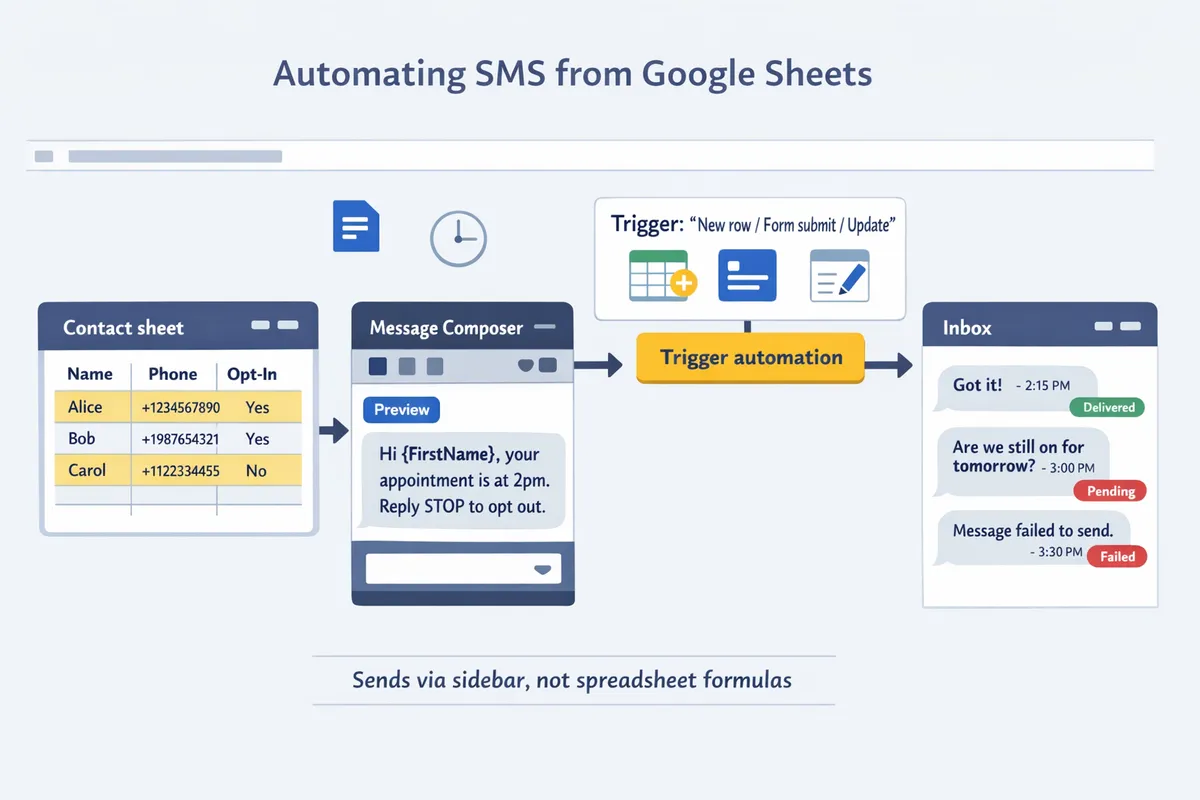
You need four building blocks to automate SMS from Google Sheets: a clean contact sheet, a message composer with per-recipient variables, a trigger method to start sends, and a delivery/inbox interface. These blocks let you map fields, test flows, and avoid accidental campaigns before you send to real customers. Planning each block up front saves hours of cleanup and reduces compliance risk when you scale.
What is Sheet Gurus SMS and how does it work? 🧭
Sheet Gurus SMS is a Google Sheets add-on that sends messages from a sidebar and provides a real-time two-way inbox. Two-way inbox is a feature that routes inbound replies into a threaded interface inside the sidebar so teams can track conversations without leaving Sheets. Sheet Gurus SMS keeps credentials and send logic out of cells by using a sidebar UI for composing, scheduling, and monitoring messages; according to Sheet Gurus SMS, this design reduces accidental mass sends and broken formulas. Example message template: “Hi {FirstName}, your appointment at {Location} is at {Time}. Reply RESCHED to reschedule.” See the step-by-step setup in the Guide: Sending SMS from Google Sheets with Sheet Gurus SMS.
What are the core technical terms you should know? 🧾
Triggers, variables, and delivery status are the core terms you should map before sending. Triggers is an event type that starts a send when a row is added, a Google Form is submitted, or a watched cell changes. Variables is a placeholder system that inserts per-row values like {FirstName} and {InvoiceAmount} into message templates. Delivery status is a per-message field that shows success, failure, or a queued retry and helps you reconcile bounced numbers. Before you run a campaign, map each spreadsheet column to a variable (for example: Column A = Phone, Column B = FirstName, Column C = SendStatus) and run a three-row test to confirm the mapping.
How does a sidebar-based send differ from formula-based sends? ⚖️
Sending SMS from a sidebar keeps send logic, credentials, and templates outside spreadsheet cells, which reduces broken formulas and accidental mass sends. Formula-based sends place logic inside cells, which can break when you add rows, copy/paste, or share the sheet with a colleague. Sidebar sends centralize templates, scheduling, and the inbox UI so non-technical team members can compose and approve blasts without editing sheet formulas. For small teams that want to send SMS from Google Sheets via the sidebar instead of formulas, Sheet Gurus SMS provides template management, previewing with curly-brace variables, and a shared inbox so accountability and auditing stay in the add-on rather than in spreadsheets.
Which common triggers are available (new rows, form submissions, updates)? 🔁
Common triggers for automating SMS from Google Sheets are new-row detection, Google Form submissions, and watching a status or Send column for updates. New-row detection watches for appended rows and is ideal for imports or CSV drops; test by appending three test rows first. Google Form submissions map the form fields to columns and trigger sends immediately after submit; test with a dummy form response to verify variable substitution. Watching a status column (for example, changing “Ready” to “Send”) gives manual control and is safest for first campaigns; use a “Hold” and “Send” workflow and change a single cell to validate. Sheet Gurus SMS supports all of these trigger types and lets you schedule or queue sends from the sidebar, so you can test triggers without exposing credentials or embedding formulas. Numbered test flow to avoid accidental sends:
- Create a duplicate test sheet and add three test contacts with obvious test phone numbers.
- Map columns to variables in the Sheet Gurus SMS sidebar and preview each message.
- Trigger the automation and confirm delivery status in the sidebar inbox before switching to live data.
💡
Tip: Always use double opt-in for SMS signups to reduce complaints and improve carrier deliverability.
Related reading: our 2026 Ultimate Guide comparing add-on vs Apps Script vs Zapier vs AppSheet explains pros and cons of each approach and when a sidebar add-on like Sheet Gurus SMS is the lower-risk path for small business operators.
How do common workflows compare: add-on sidebar, Zapier, and Apps Script?
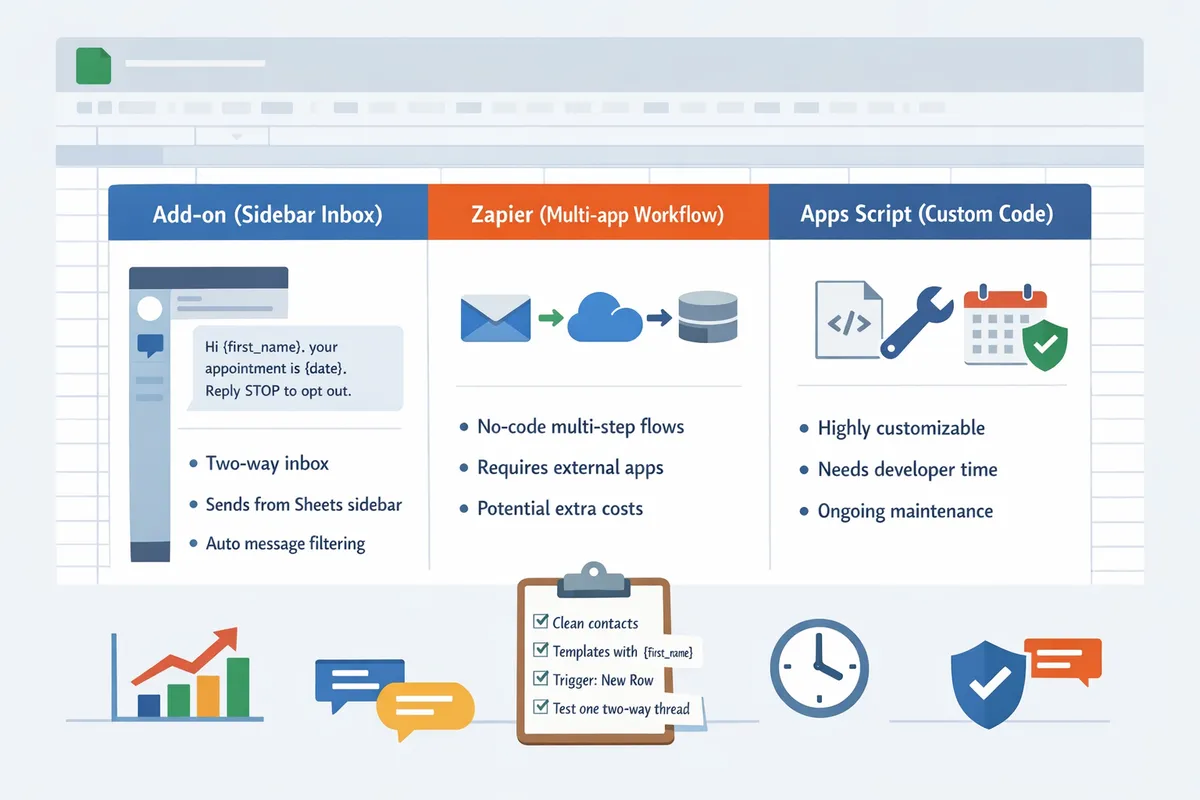
Add-on sidebar, Zapier, and Apps Script each trade different costs for control: setup time, ongoing maintenance, monthly fees, deliverability risk, and two-way support vary by approach. Our Sheet Gurus SMS add-on provides a sidebar UI with a real-time inbox and automatic filtering so teams avoid building and maintaining glue logic. The table and guidance below help you pick the right path for your team size, message volume, and need for inbound replies.
What is the quick comparison table of options? 📊
Here is a side-by-side comparison of a Google Sheets add-on, Zapier flows, and Apps Script across the criteria most teams care about. (A Google Sheets add-on is an extension that installs to a sheet and provides a sidebar UI for actions.)
| Criteria | Sheet Gurus SMS (add-on) | Zapier flows | Apps Script (custom) |
|---|---|---|---|
| Setup time | Minutes to install and authenticate, then configure sidebar options | 15–60 minutes for a basic Zap; more for multi-step flows | Hours to days depending on complexity and developer availability |
| Monthly cost | Pay-per-message plus add-on plan (no separate middleware fees) | Platform subscription plus per-message fees; costs rise with volume | Only messaging fees if you host internal, but developer time is recurring cost |
| Maintenance burden | Low. Our add-on handles inbox, opt-outs, and updates | Medium. Zaps break when sheet structure changes; you must monitor | High. You own triggers, storage, and retry logic; updates required when Sheets change |
| Deliverability risk | Low to medium. Sidebar sends via a managed provider and shows delivery status in-sheet | Medium. Zapier adds latency and extra points of failure | Medium to high. Errors in code or rate limits cause delays or dropped messages |
| Two-way support | Built-in real-time inbox and reply threading inside the sidebar | Possible but requires extra routing and storage (more cost) | Possible but requires building inbound endpoints and message storage |
| Compliance features | Automatic message filtering and opt-out handling built into the add-on | You must build or add middleware to filter and record opt-outs | You must implement opt-out tracking and filtering yourself |
Refer to our full comparison in the 2026 Ultimate Guide to sending messages from Google Sheets for more scenarios and examples.
When should you choose a no-code add-on vs Zapier or Apps Script? 🤔
Choose a no-code add-on like Sheet Gurus SMS when you want low setup time, an inbox for replies, and minimal ongoing maintenance; choose Zapier when you need cross-app automation and can accept extra latency; choose Apps Script when you require full custom control and can budget developer time. For example, a small clinic sending 300 appointment reminders per week will save 4–6 hours weekly by using our sidebar inbox and built-in opt-out filtering instead of cobbling together Zaps and spreadsheets. If your workflow must update a CRM, Zapier can link Sheets to the CRM quickly, but expect a 30–90 second delay per message and extra platform fees. If you need custom logic that matches internal systems (for example, routing replies to a bespoke ticketing system), Apps Script gives the control but demands testing and ongoing maintenance.
See our step-by-step setup in the Guide: Sending SMS from Google Sheets with Sheet Gurus SMS for a hands-on path that avoids building middleware.
Example send using dynamic variables inside the sidebar: “Hi {FirstName}, your appointment at {Location} is at {Time}. Reply 1 to confirm.”
How do two-way replies and opt-outs compare across methods? 💬
Two-way replies and opt-out handling require both an SMS provider that supports inbound messages and a UI or storage layer to manage those replies; Sheet Gurus SMS includes a real-time inbox and automatic opt-out filtering so you do not build that infrastructure. Zapier can forward inbound messages to Sheets or your CRM, but you must add steps to record opt-outs and handle rate limits, which increases cost and latency. Apps Script can store replies in a sheet and trigger workflows, but your team must code duplicate protection, opt-out storage, and retry handling; that creates ongoing risk if staff change the sheet structure. If missed replies would cost revenue or reputation, choose the inbox option.
💡 Tip: Always use double opt-in for SMS signups.
What are the real-world risks of DIY approaches? ⚠️
DIY flows commonly fail in predictable ways that cost hours, expose you to regulatory risk, and erode customer trust. Below are the top six failure modes and the business consequences to watch for.
- Accidental mass sends. (Cause: bad trigger or duplicated rows.) Business consequence: angry customers and potential complaints that require damage control.
- Missing opt-out records. (Cause: no centralized opt-out store.) Business consequence: regulatory fines and carrier blocking.
- Broken triggers after sheet edits. (Cause: renamed columns or moved ranges.) Business consequence: missed messages and manual reconciliation that wastes staff time.
- Duplicate sends from retries. (Cause: lack of duplicate protection.) Business consequence: refunds, unsubscribe spikes, and reduced engagement.
- Stale contact data and high bounce rates. (Cause: no validation or clean-up.) Business consequence: increased carrier filtering and lower deliverability for all messages.
- No inbound inbox. (Cause: relying on emails or disparate tools.) Business consequence: missed replies and lost revenue from unhandled customer responses.
⚠️ Warning: Store opt-out records immediately and make them available to every sending flow; failing to do so risks carrier penalties.
If your team needs a low-maintenance path that handles inboxing, variable personalization, and compliance filtering from inside Sheets, our Sheet Gurus SMS sidebar is designed for that workflow. For planning guidance and ROI examples tailored to small businesses, see our Sheet Gurus SMS for Small Businesses page.
How do you get started with a no-code SMS automation from Google Sheets?
Begin a small pilot that prepares a clean contact sheet, builds templates with curly-brace variables, picks a trigger, and tests a single two-way thread. This approach reduces setup time and prevents broad mistakes that waste hours on cleanup. Follow the four short steps below and use our Sending SMS guide for screenshots and checklists.
How should you structure your spreadsheet for reliable sends?
Use one row per contact and dedicated columns for Phone, OptIn, TimeZone, SendStatus, and every template variable. A predictable column layout prevents mis-sends and makes mapping easy in the Sheet Gurus SMS sidebar.
- Required columns and examples:
- Phone: must use international format, e.g., +12223334444. Use a single value per cell.
- OptIn: values like Yes or No or an ISO timestamp for consent capture.
- TimeZone: IANA or common labels (America/Los_Angeles) to schedule local delivery.
- SendStatus: Pending, Sent, Failed, or Replied for automation control.
- Template variables: FirstName, AppointmentDate, Time, Location mapped exactly to column headers.
- Validation rules to apply in Sheets:
- Phone column: custom text format and a length check example (+12223334444).
- OptIn column: data validation list (Yes, No).
- TimeZone: use a dropdown of supported zones to avoid typos.
💡 Tip: Always use double opt-in for SMS signups to reduce complaints and improve deliverability.
Our Sheet Gurus SMS add-on reads this structure from the sidebar, so keeping headers consistent lets you map variables instantly. See our small business guide on organizing contacts for more examples.
How do you compose templates with curly-brace variables 🎯?
Compose message templates using curly-brace variables that match your sheet headers so each row renders a personalized SMS at send time. This lets you send one campaign that personalizes per recipient without manual edits.
- Example template: Hi {FirstName}, your appointment at {Location} is on {AppointmentDate} at {Time}. Reply YES to confirm.
- Best practices:
- Match variable names exactly to column headers. Sheet Gurus SMS maps {FirstName} to the FirstName column in the sidebar.
- Provide fallback text for missing data (for example, set a default in the sidebar or keep a short backup phrase like “your appointment soon”).
- Keep messages concise to avoid splitting into multiple SMS segments, which increases cost.
Our guide, Sending SMS from Google Sheets with Sheet Gurus SMS, shows the sidebar mapping screen and examples for multi-variable templates.
How do you set up triggers for new rows, form submissions, and updates?
Configure triggers in the Sheet Gurus SMS sidebar by selecting the sheet, the trigger type (new row, form submission, or status change), and a rate limit for sends. Choosing the right trigger prevents duplicates and controls volume during a pilot.
- Trigger options and tradeoffs:
- New row: best for manual imports and CSV drops; easier to audit.
- Form submission: ideal for Google Forms intake; works well with opt-in capture.
- Status change: use SendStatus to control retries and follow-ups.
- Testing checklist:
- Create a test sheet with 3 rows and both OptIn=Yes and OptIn=No.
- Select the test sheet in the Sheet Gurus SMS sidebar and set a low rate limit (for example, 1 message per minute).
- Run a single-row send and confirm the SendStatus updates correctly.
If you consider other no-code paths like Zapier, our Ultimate Guide compares add-on versus Zapier and Apps Script, showing how Zapier automations can require more maintenance and break when sheet structure changes. For a sidebar-based workflow, choose Sheet Gurus SMS to send SMS from Google Sheets sidebar instead of formulas and avoid formula-based fragility.
How do you test two-way messaging and route replies 📥?
Test two-way messaging by sending a pilot message to a verified test number and replying; the incoming reply should appear threaded in the Sheet Gurus SMS inbox with the original row context. Seeing the reply tied to the row is how you confirm routing works and that staff can act on replies.
- Step-by-step test:
- Send a single pilot from the test row with OptIn=Yes.
- Reply from the recipient phone and watch the message appear in our real-time inbox.
- Tag the conversation (example tags: Confirmed, Reschedule, Support) and export the conversation as CSV for CRM handoff.
- Routing and compliance:
- Use automatic message filtering in Sheet Gurus SMS to block keywords and capture opt-outs.
- Configure inbox rules to route certain replies to specific team members or to add a CRM label.
⚠️ Warning: Avoid sending personal health information over SMS unless you have explicit consent and appropriate safeguards.
Our Inbox ties replies back to the originating sheet row so your team retains context when exporting conversations for follow-up. See the step-by-step guide to test inbox flows and exports.
For a complete walk-through with screenshots, follow our Sending SMS guide and compare options in the 2026 Ultimate Guide to decide whether an add-on or a Zapier route best fits your team.
What are the next steps and advanced resources after your first sends?
Add scheduling, delivery monitoring, compliance filters, and ROI tracking with Sheet Gurus SMS as you scale sends from Google Sheets. These capabilities reduce manual checks, prevent costly mistakes, and give clear business metrics as volume rises. The next steps focus on reliable scheduling across time zones, production-grade delivery reports, enforced opt-out handling, and a simple ROI worksheet you can copy into your sheet.
How do you schedule recurring campaigns and handle time zones ⏰?
Use the scheduling UI in the Sheet Gurus SMS sidebar to create recurring campaigns, set per-recipient send windows, and apply time-zone-aware rules. The sidebar accepts a timezone column in your sheet (for example, “Timezone”) so each row sends inside the recipient’s preferred local window. For appointment reminders set a template such as: “Hi {FirstName}, this is a reminder for your appointment at {Location} on {Date} at {Time}. Reply HELP for options.” Then schedule it as “1 day before” with a 9:00–18:00 local send window to avoid late-night texts.
Examples to copy into your sheet:
- Appointment reminder (recurring): schedule as “relative to {Date}” and set per-recipient timezone. Template: “Hi {FirstName}, reminder: {Service} at {Location} on {Date} {Time}. Reply STOP to unsubscribe.”
- Weekly promotion (fixed weekday): set recurrence to every Monday at 10:00 and use a timezone fallback for rows missing timezone.
Use the Guide: Sending SMS from Google Sheets with Sheet Gurus SMS for step-by-step screenshots and scheduling best practices.
How do you monitor deliverability, retries, and calculate ROI 📊?
Monitor delivery with the Sheet Gurus SMS delivery report to see delivered, failed, retry attempts, and reply rates so you can calculate cost per delivered message and revenue per campaign. The sidebar report exports to a sheet with columns like Sent, Delivered, Failed, Retries, and Replies. Copy the following simple ROI worksheet into a new tab:
- Total messages sent (A)
- Delivered (B)
- Cost per sent message (C)
- Total cost = A * C
- Conversions (D)
- Revenue = D * Average order value (E)
- ROI = (Revenue - Total cost) / Total cost
For example, as an illustration: if A = 4,000, B = 3,600, C = $0.03, E = $50, D = 40, then Total cost = $120 and Revenue = $2,000. Use the exported delivery report to validate B and retry counts before claiming conversions. See the 2026 Ultimate Guide for recommended report fields and common delivery troubleshooting steps.
How do you stay compliant and manage opt-outs ⚠️?
Automatic message filtering and recorded opt-out handling in Sheet Gurus SMS reduce compliance risk by blocking flagged content and logging unsubscribe events. Implement a suppression list column in your sheet and configure the sidebar to automatically add any “STOP” replies to that list and to prevent future sends to suppressed numbers. Use the following compliance checklist:
- Maintain a suppression list and enforce it before any send.
- Log consent source and timestamp in a column for each contact.
- Include a clear opt-out string on every promotional message, e.g., “Reply STOP to unsubscribe.”
- Respect local sending windows and content restrictions for regulated industries.
💡 Tip: Always use double opt-in for SMS signups.
⚠️ Warning: Avoid sending personal health information over SMS unless you have documented, explicit consent and appropriate data protections.
For detailed examples of blocked content rules and how Sheet Gurus SMS applies automatic filtering, see How To Send Text Messages From Google Sheets Updated 2025.
When should you switch from DIY automations to Sheet Gurus SMS 🔁?
Switch to Sheet Gurus SMS when maintenance overhead, frequent errors, or compliance exposure from DIY tools like Zapier or Apps Script outweigh the cost of an add-on. Five business signals that indicate it is time:
- You spend more than two hours per week fixing sends or cleaning contact data.
- Automations fail more than once every 1000 sends or require manual retries.
- You need reliable two-way inbox access to manage replies and customer conversations.
- Compliance demands (suppression, consent records) require audit-ready logs.
- Message volume and scheduling complexity make error costs greater than predictable platform fees.
| Aspect | DIY (Zapier / Apps Script / Google Sheets hacks) | Sheet Gurus SMS |
|---|---|---|
| Setup time | 30+ minutes for a basic flow; more for reliability | 10–20 minutes to install and authorize sidebar |
| Ongoing maintenance | High; fragile when sheet structure changes | Low; sidebar handles variable columns and updates |
| Two-way messaging | Limited or complex workarounds | Built-in real-time inbox and reply logging |
| Compliance controls | Manual or multi-step filters | Automatic filtering and suppression logging |
| Cost predictability | Hard to forecast with multi-step zaps | Simple per-message billing and exportable reports |
If you want a structured comparison before switching, read Send Messages from Google Sheets: 2026 Ultimate Guide — Add-on vs Apps Script vs Zapier vs AppSheet, with Two-Way SMS. For small business use cases and budget examples, see Sheet Gurus SMS for Small Businesses.
Frequently Asked Questions
This FAQ answers the most common operational and purchase questions for automating SMS from Google Sheets using a no-code add-on. It covers triggers (new rows, form submissions, status updates), message personalization, two-way replies, compliance, and cost trade-offs.
How do I automate SMS from Google Sheets without code? 🤖
Use a Google Sheets add-on such as Sheet Gurus SMS to send messages from a sidebar and configure triggers for new rows, form submissions, or field updates. Install the Sheet Gurus SMS add-on, prepare a clean contact sheet with columns for phone, name, and status, then compose a template in the sidebar and pick a trigger (for example: send when a new row appears, or when Status changes to “Confirmed”). Run a small pilot of 50–100 rows to check formatting, variable merges, and deliverability before scaling. For a step-by-step checklist and examples, see our Sending SMS guide.
Can I send personalized SMS from Google Sheets using variables? ✉️
Yes. Use curly-brace variables like {FirstName} and {AppointmentDate} in your message template so the add-on inserts per-row values at send time. Example message: “Hi {FirstName}, your appointment at {Location} is at {Time}. Reply YES to confirm.” Sheet Gurus SMS validates missing fields before sending and highlights rows where merges will fail, which reduces undelivered messages and awkward blanks. Test variable merges on a few sample rows to confirm formatting (phone numbers, date style) before a full send.
How does two-way messaging work with Sheet Gurus SMS? ↩️
Two-way messaging delivers recipient replies into a real-time inbox inside the sidebar, where threads are grouped by phone number and can be tagged, assigned, or exported for CRM follow-up. Replies appear live so staff can respond from the same interface, assign follow-up tasks, or mark a conversation as resolved. You can export threads or push them into a CRM workflow to avoid missed leads; our small business guide shows sample inbox triage workflows for teams of 1–10.
Can I use Zapier to connect Google Sheets to an SMS provider instead? 🔗
Yes, Zapier can send SMS from Google Sheets, but it typically adds latency, extra monthly cost, and more maintenance to support two-way replies. Below is a concise comparison of common approaches so you can weigh setup time, ongoing maintenance, two-way support, and cost.
| Method | Setup time | Ongoing maintenance | Two-way replies | Typical cost factors |
|---|---|---|---|---|
| Sheet Gurus SMS add-on | Minutes to an hour | Low (sidebar UI, built-in filters) | Native inbox in sidebar | Platform subscription + per-message carrier fees |
| Zapier (connected to SMS provider) | 30–90 minutes | Medium (Zap updates when sheet changes) | Limited; requires extra plumbing | Zapier plan + provider fees |
| Apps Script (DIY) | Several hours to days | High (breaks when sheet schema changes) | Possible but requires developer work | Developer time + provider fees |
For a broader comparison and examples of failure modes, see our 2026 Ultimate Guide that compares add-on, Apps Script, Zapier, and AppSheet approaches.
How do I handle opt-outs and compliance when sending SMS from Sheets? ⚖️
Record opt-outs in a dedicated column and use Sheet Gurus SMS to automatically filter and log unsubscribe events so you maintain an auditable trail. Configure the add-on to block numbers marked “STOP” or flagged in an Opt-Out column before sends, and store an opt-out timestamp and the source (web form, inbound reply, manual). Keep sending windows and consent records together in the sheet so audits show who consented, when, and by what method.
💡 Tip: Always use double opt-in for SMS signups where possible; capture the opt-in source and timestamp in a separate column.
How much does it cost to send SMS from Google Sheets compared with DIY solutions? 💰
Cost varies with message volume, per-message carrier fees, and any platform subscription; factor in internal hours needed for maintenance when comparing options. Our 2026 Ultimate Guide shows small business operators often spend 3–5 hours weekly cleaning contact lists before sending, which increases the total cost of DIY flows. Compare monthly platform fees, per-message carrier costs, and the labor hours you would otherwise spend maintaining scripts or multi-step automations. For many teams, Sheet Gurus SMS reduces ongoing maintenance and time spent troubleshooting compared with a DIY Apps Script plus external provider setup.
Next steps for Google Sheets SMS automation
Start a free trial of Sheet Gurus SMS to test two-way, sidebar-based messaging from your spreadsheet. Try sending a short test blast to a small list to confirm variables and reply routing.
Sheet Gurus SMS is a Google Sheets add-on for sending bulk SMS from a sidebar rather than spreadsheet formulas. Personalize each message with curly-brace variables such as {FirstName}, handle replies in a real-time two-way inbox, and rely on automatic message filtering to help keep your sends compliant.
You now know how to trigger messages on new rows, form submissions, and updates while keeping replies organized in a two-way inbox. If you want to compare add-ons, Zapier, and scripts before committing, read the 2026 ultimate guide to sending messages from Google Sheets for an objective comparison. To automate SMS in Google Sheets without formulas, start a free trial of Sheet Gurus SMS and follow the Sending SMS from Google Sheets guide to send your first sidebar-based campaign.