A single incorrect service time sent to your congregation can cause dozens to arrive late. This practical guide to church event reminders via text shows how churches can send event and service reminders using SMS, with step-by-step setup, templates, and compliance notes—see our SMS reminders for churches guide for deeper examples. Our Google Sheets add-on, Sheet Gurus SMS, sends messages from a sidebar (not spreadsheet formulas) and supports curly-bracket variables like {event_name}, a real-time inbox for two-way replies, and automatic message filtering for compliance. Building a DIY SMS pipeline forces you to manage credential refresh, rate limits, retry logic, and monitoring. Example: “Reminder: {event_name} at {time} on {date}. Reply YES to confirm.” Want to see how that template reduces no-shows?
Follow these steps to go from an attendee list to scheduled, personalized reminders in minutes. The checklist below shows the exact sheet structure, the sidebar setup for our website’s Sheet Gurus SMS add-on, segmentation rules to avoid message fatigue, and a three-person testing workflow to validate variables before a bulk send.
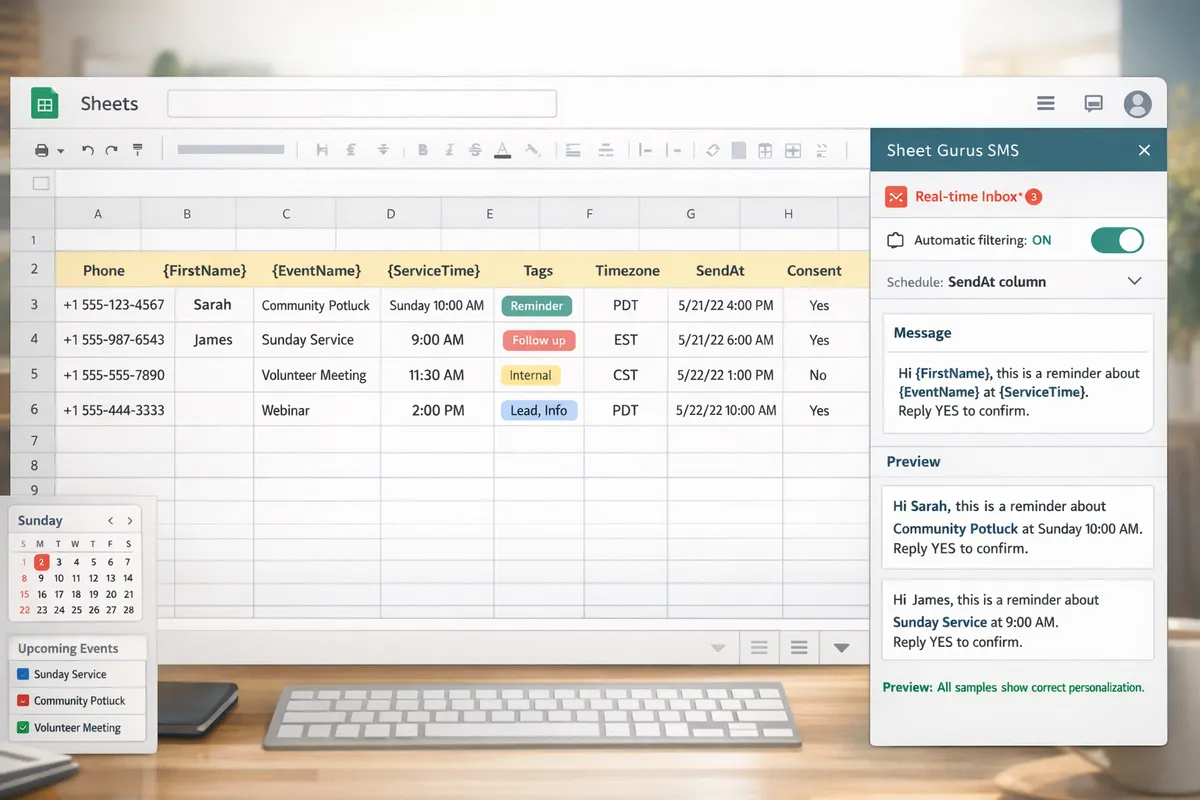
Create a sheet with these exact columns in this order: Phone, {FirstName}, {EventName}, {ServiceTime}, Tags, Timezone, SendAt. Use E.164 phone formatting (+12345556789) in Phone. Our website’s Sheet Gurus SMS sends messages from the sidebar rather than spreadsheet formulas, so you do not need message formulas in cells.
Steps to configure the sidebar.
Open Extensions > Add-ons > Get add-ons and install Sheet Gurus SMS.
Open the Sheet Gurus SMS sidebar and grant the requested permissions.
Select a sender name in the sidebar (church name or department).
Click Connect to Sheet Gurus SMS and authorize the account.
Building a DIY pipeline instead would require credential rotation, token refresh, rate-limit handling, retry logic with exponential backoff, and inbox monitoring. Sheet Gurus SMS removes that operational burden and centralizes permissions in the sidebar. For organizer-focused examples of sheet layouts and bulk sends, see our Sheet Gurus SMS for Event Planners.
Use the Tags column to assign a single tag value per row: Member, Visitor, Volunteer, or Team:[MinistryName]. Keep tags simple to enable bulk cadence rules in the sidebar. Filter rows where Tags equals Visitor to create a first-time-guest cadence. Filter Tags equals Volunteer to apply shift-specific reminders and two-way check-ins.
Practical steps.
Add a filter to the header row and filter by Tags.
Use conditional formatting to highlight blank Tags so no one is missed.
Create separate tabs for high-frequency groups (e.g., Volunteers) if staff will run different cadences.
Tag examples: Member (weekend service cadence), Visitor (welcome + follow-up), Volunteer (shift reminders + confirmation). For volunteer-focused workflows and real-time updates, consult Real-Time Volunteer Updates: How Churches Can Use SMS & Google Sheets.
Use the Timezone and SendAt columns to control per-row timing. Timezone should be a standard tz database name or an offset (America/Chicago or -05:00). SendAt accepts ISO 8601 timestamps (2026-03-08T09:00). The sidebar supports batch windows so Sheet Gurus SMS sends messages during a specified local time range.
Recommended cadences by event type.
Weekend services: send at 48 hours before 10:00 local, then 2 hours before service.
Midweek groups: send at 24 hours before and 3 hours before the meeting.
Volunteer shifts: send at 24 hours before and 1 hour before shift start.
How to set in the sidebar.
Map the SendAt and Timezone columns in the sidebar settings.
Choose a per-row send priority or batch window (for example, 08:00–10:00 local).
Enable retry policy in the sidebar to retry transient failures within the selected window.
Seasonal note: reduce frequency around major holidays to avoid fatigue and set conservative retry windows during high-volume periods.
Run a three-person test before any bulk send: one admin, one volunteer, and one visitor. The first sentence of each test should confirm whether curlied variables render correctly and whether replies route to the real-time inbox.
Test checklist.
Create a test tab with three rows using actual phone numbers for the admin, a volunteer, and a visitor.
In the sidebar, select that tab and preview messages. Confirm {FirstName}, {EventName}, and {ServiceTime} populate correctly in the sample preview pane.
Send test messages from the sidebar, then verify delivery and two-way replies appear in the Sheet Gurus SMS inbox.
Validate and fix missing data.
Use the filter to show blanks in {FirstName} or {ServiceTime}.
Apply a fallback variable in the sidebar (e.g., “{{FirstName | Member}}”) or update the sheet to fill blanks.
Run the preview again until all samples show correct personalization.
💡
Tip: Always use double opt-in for SMS signups and record consent in a Consent column so your sends stay compliant.
Building an in-house SMS pipeline for church event reminders by text adds hidden operational work that quickly outstrips volunteer capacity. This section lists the real technical risks you would face and shows how our website’s Sheet Gurus SMS removes each maintenance burden so staff focus on ministry, not infrastructure.
You must record explicit opt-in, timestamp, consent method, and an easy opt-out record for every contact to reduce legal risk. Missing any of those fields creates TCPA and GDPR exposure and forces manual audits when a member disputes a message. A DIY build requires creating web forms that write canonical opt-in rows, storing immutable timestamps, and adding server-side rules to block sends for unsubscribed numbers.
Sheet Gurus SMS automates consent handling and message filtering so staff do not maintain separate opt-out lists. Features that remove manual work:
Automatic opt-out processing and suppression lists.
Immutable opt-in/timestamp logging captured by the add-on sidebar.
Filters that block messages to opted-out numbers before send.
Example opt-in flow to implement if you DIY (steps you would build):
Capture contact and consent via form with explicit checkbox. 2. Write timestamped record to secured database. 3. Mark number as suppressed on opt-out and propagate to send queue.
⚠️ Warning: Keep explicit opt-in records and timestamps; lack of auditable consent is the most common source of legal disputes over church texting.
You must implement quota awareness, exponential backoff, and delivery reporting to keep sends reliable under heavy load. Without that you will hit carrier rate limits, queue up undelivered messages, and miss failures. A DIY solution needs a rate-limiter, retry engine with backoff, a persistent job queue, and dashboards to surface failed deliveries.
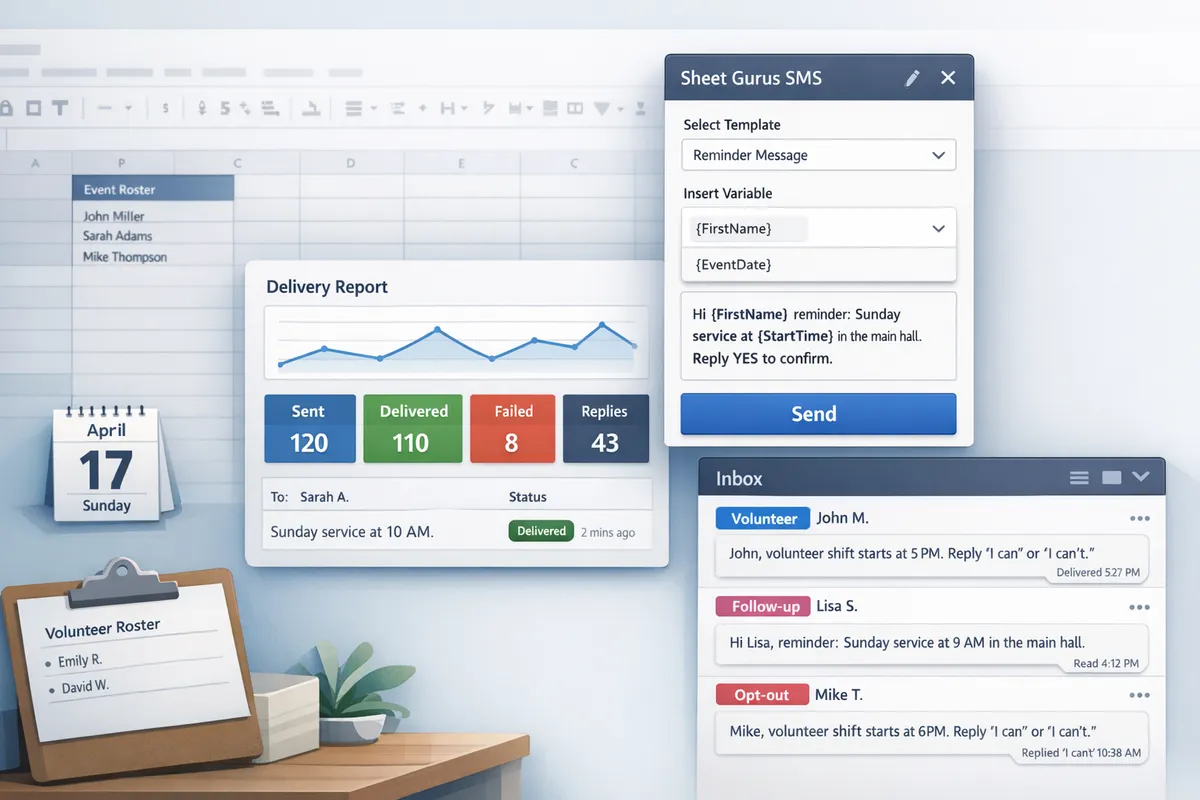
Sheet Gurus SMS handles quota management and provides delivery visibility in the sidebar dashboard so staff avoid writing retry engines. What our website provides:
Built-in send throttling that respects carrier quotas.
Dashboard that surfaces delivery success and specific failure codes.
Retry logic managed by the platform; no separate worker processes to maintain.
Practical cadence example for churches: send initial reminder 72 hours before, follow-up 24 hours before, and a final day-of message; schedule these using Sheet Gurus SMS and let the platform manage throttling and retries.
💡 Tip: Record timezone per contact and schedule sends in local time to avoid high-volume bursts at midnight across a region.
Maintaining API keys, rotating credentials, handling token refresh, and securing ChMS connections is ongoing engineering work. DIY requires secrets storage, automated rotation, monitoring for expired tokens, and retry behavior on auth failures. You must also maintain connectors to church management systems when schemas change, and write reconcilers for sync conflicts and duplicate detection.
Our website’s Sheet Gurus SMS add-on sidebar removes that operational load by keeping credentials and integration logic off your volunteers’ plates. Specific benefits:
Sends originate from the sidebar; no spreadsheet formulas call external APIs.
Token and key rotation handled by the platform; you do not store tokens in Sheets.
Built-in connectors simplify syncing with common ChMS systems without writing sync scripts.
Example of the callout a DIY team would need to build: rotate API key, detect failure, refresh token, requeue failed jobs. Sheet Gurus SMS centralizes that so staff maintain only contact lists and message templates.
Threading replies, tagging conversations, and routing to volunteers without overwhelming staff requires real-time state and assignment logic. DIY teams must implement an inbox, conversation threading, read/unread states, tagging, assignment APIs, and concurrency controls to prevent two volunteers replying at once.
Sheet Gurus SMS provides a real time inbox that centralizes replies, applies automatic tags, and lets staff assign conversations to volunteers without custom code. How churches use it to reduce overload:
Tag replies (“visitor”, “volunteer”, “prayer request”) automatically to surface priority messages.
Assign threads to specific staff or volunteer groups with a single click.
Use curly-brace variables in templates for context-aware replies, for example: “Hi {first_name}, thanks for RSVPing to {event_name}. Which service will you attend?”
Example routing workflow:
Incoming reply tagged as “volunteer”. 2. Staff assigns thread to the volunteer coordinator. 3. Coordinator replies from the inbox; thread state updates for transparency.
For setup tips and templates applicable to outreach and volunteers, see our guide on real-time volunteer updates with SMS and Google Sheets and our event-planner workflow for scheduling sends from Sheets.
Templates and a concrete playbook cut setup time and reduce mistakes when sending church event reminders via text. Below are copy-paste templates that use curly-brace variables so your team sees exactly how dynamic content in SMS for church communications works. Each subsection explains where to paste the templates in your Sheet Gurus SMS template sheet and which cadence to use.
Use these three short templates for regular services. Paste them into your Sheet Gurus SMS template sheet and assign Template IDs for quick selection in the sidebar. Each message fits a single SMS and includes {FirstName}, {ServiceTime}, and {Location}.
Template A (general): Hi {FirstName}, reminder: {ServiceTime} service at {Location}. Reply YES for kid check-in info.
Template B (weather/parking): {FirstName}, {ServiceTime} at {Location} today. Expect limited parking; arrive 10 minutes early.
Template C (last-minute change): {FirstName}, {ServiceTime} moved to {Location} due to weather. Reply HELP for directions.
Suggested service cadence: send 72 hours before, 24 hours before, and 60 minutes before the service. Use Sheet Gurus SMS to map each scheduled send to the correct Template ID so volunteers do not manually send multiple messages.
Send a quick thank-you, an invitation to an event, and a one-word reply flow that triggers volunteer follow-up in the Sheet Gurus SMS inbox. Add these to your template sheet and enable two-way routing for the reply keyword.
Thank-you (within 24 hours): Hi {FirstName}, thanks for visiting. We loved meeting you. Reply CONNECT to get a pastor call.
Invitation (3 days later): {FirstName}, join us for {EventName} this Sunday. Details: {FollowUpLink}
Nudge (2 weeks later): {FirstName}, checking in about {EventName}. Reply VISIT and a volunteer will follow up.
Set the reply keyword VISIT or CONNECT in the Sheet Gurus SMS two-way inbox so volunteers see incoming one-word replies and can pick them up from the queue. Suggested cadence: immediate thank-you, event invite at 72 hours, and one follow-up at 14 days for next steps.
A predictable volunteer cadence reduces no-shows. Use these three messages per assignment and store scheduling metadata in the sheet so Sheet Gurus SMS can queue sends automatically from the sidebar.
Initial assignment (7 days before): Hi {FirstName}, you are scheduled for {Role} at {EventName} on {ServiceTime}. Reply CONFIRM.
3-day reminder: {FirstName}, reminder: {EventName} as {Role} on {ServiceTime}. Need a sub? Reply SUB.
12-hour check-in: {FirstName}, check-in for {EventName} at {ServiceTime}. Reply ON to confirm you are on site.
Timing recommendations: initial at 7 days, reminder at 72 hours, check-in at 12 hours. Sample columns to drive scheduling: EventID, Role, PhoneNumber, FirstName, TemplateID_Initial, TemplateID_Reminder, TemplateID_Checkin, TriggerDate. Building this scheduler yourself requires cron jobs, retry logic for failed sends, rate-limit handling, token refresh, and monitoring for delivery errors. Sheet Gurus SMS removes those operational burdens by queuing and filtering sends from the sidebar and surfacing delivery status in the inbox.
Select the range with phone numbers and TriggerDate.
Choose a Template ID from your template sheet.
Preview personalized messages in the sidebar (spot-check several rows).
Queue the batch and set send windows (respect local time zones).
Monitor delivery and two-way replies in the Sheet Gurus SMS inbox.
For quick imports and sample templates, consult the Sheet Gurus SMS setup guide and pull community templates from the template library. For volunteer-specific examples, see Real-Time Volunteer Updates: How Churches Can Use SMS & Google Sheets. For broader event planning examples, review Sheet Gurus SMS for Event Planners and the school event templates for cadence ideas.
These FAQs answer the operational, legal, and technical questions churches ask about sending church event reminders via text. Each reply shows a concrete action you can take with Sheet Gurus SMS and explains the trade-offs if you tried to build the same flows in-house.
You can send mass reminders directly from Google Sheets using the Sheet Gurus SMS add-on sidebar.
Prepare columns: Phone, FirstName, ServiceTime, OptInStatus, Tag, and any custom fields you need.
Install Sheet Gurus SMS, authorize the add-on, then open the sidebar.
Choose or create a template and map curly-brace variables (for example {FirstName}, {ServiceTime}).
Preview per-row messages in the sidebar, then schedule or send. The sidebar gives an auditable send log and per-row delivery status so you do not rely on fragile spreadsheet formulas or manual mail-merge steps. See our guide for event planners for a Sheets-first workflow using this exact pattern.
Yes. Sheet Gurus SMS substitutes curly-brace variables per row so each recipient receives a personalized message. Write a template like: “Hi {FirstName}, reminder: {ServiceTime} service this Sunday at Main Campus. Reply HELP for options.” The add-on reads the mapped columns, builds each message server-side, and shows a preview before sending. This avoids writing string-concatenation formulas in Sheets and prevents errors from missing or mis-typed columns.
Replies appear in a real-time inbox where staff can tag, assign, and respond from the same interface. Use the two-way SMS inbox for church messaging to route replies by keyword or tag (for example: VOLUNTEER, PRAYER, GUEST). Volunteers see only assigned threads, and supervisors can add canned replies or escalate messages. Sheet Gurus SMS also supports webhook forwarding if you need to push messages into your church management system.
You must record explicit opt-ins, keep a timestamp and source, and honor opt-outs immediately. Capture consent via a checkbox on a connection card, an online form that writes to your sheet, or a keyword opt-in; store the consent date in the OptInTimestamp column. Use Sheet Gurus SMS automatic filtering to exclude unsubscribed numbers and log opt-out events to prevent accidental sends.
⚠️ Warning: Maintain a clear lawful basis for outreach; TCPA and GDPR require different records and timelines depending on location.
Recommended cadences vary by audience and event type; set audience tags and apply different schedules. Suggested cadences: primary service reminders at 48 hours and 2 hours before start; small group reminders 24 hours prior; visitor follow-up within 24 hours after attendance. Tag contacts as MEMBER, VISITOR, or VOLUNTEER and limit VISITOR messages to three within a 30-day window to reduce fatigue. Use Sheet Gurus SMS scheduling to enforce these cadences and prevent accidental re-sends.
Delivery failures fall into two main types: permanent errors (invalid number or blocked) and temporary carrier errors. Check the Sheet Gurus SMS delivery report to see error codes and timestamps. For permanent failures mark the row status as INVALID and stop retries; for temporary errors retry with exponential backoff or schedule a resend 24 hours later. The add-on can automatically flag failed numbers and add them to a follow-up sheet so volunteers do not try to message invalid contacts repeatedly.
Related reading: read our setup walkthrough for event planners and the volunteer updates guide to reuse these workflows across ministry teams.
A consistent SMS workflow reduces missed events and keeps volunteers informed. For small churches, the technical work required to build a reliable sender—credential management, token refresh, quota handling, retry logic, race conditions, cache invalidation, and monitoring—adds ongoing overhead. Our website recommends a managed approach so staff spend time on ministry, not infrastructure. See practical examples in our guide for real-time volunteer updates and our Sheet Gurus SMS for Event Planners overview, or compare school templates in How to Send School Event Reminders via Text.
Sheet Gurus SMS is a platform that helps users save time and money by enabling them to send bulk SMS to their recipients easily from within Google Sheets. The product is a Google Sheets add-on and messages are sent via a sidebar not via spreadsheet formulas. The product has the following features:
Text messages can be sent with curly brackets as variables to allow for dynamic content.
A real time inbox to allow for two way communication with recipients.
Automatic message filtering to keep users compliant with regulations. Any example messages in blog content should include dynamic content variables to show how the product works.
Get started with Sheet Gurus SMS by visiting our SMS reminders for churches getting-started guide and install the add-on to create your first campaign. Subscribe to our newsletter for implementation tips and updates on SMS communications for churches and religious organizations.