




10DLC Registration: Google Sheets SMS Senders (2026)
Carrier filtering and 10DLC registration delays can block more than 30% of unregistered marketing texts, costing small businesses time and lost revenue. 10dlc registration google sheets sms is a step-by-step process that registers your brand and campaign with carriers and connects a Google Sheets SMS add-on so you can send compliant messages from a spreadsheet. Our Sheet Gurus SMS add-on sends from a sidebar (not formulas), supports curly-bracket variables like {first_name}, provides a real-time inbox for two-way replies, and applies automatic message filtering to reduce compliance risk. Follow this how-to to register brand and campaign, connect Sheet Gurus SMS, and send compliant campaigns — but one carrier setting often trips users.
What does 10DLC registration require for Google Sheets SMS senders?
10DLC registration requires a verified business identity, a declared campaign type, sample message templates with opt-out language, and proof of recipient consent. These items let carriers vet who is sending messages and why. Collecting them before you start cuts registration rejections and speed bumps. Sheet Gurus SMS helps capture consent metadata and map templates from Google Sheets to the carrier submission fields.
What documents and details must you gather first? 📄
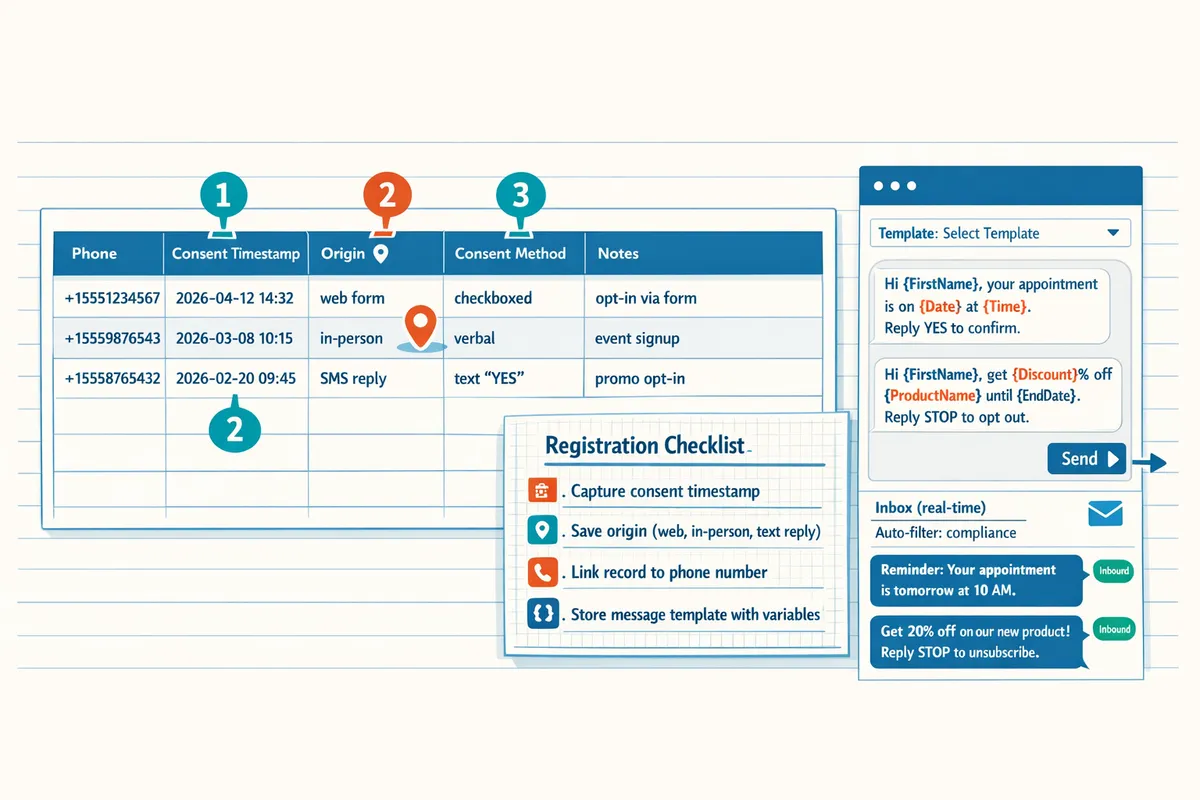
Gather legal business name, EIN or tax ID if available, public website, an authorized contact, sample message templates with clear opt-out language, and proof of opt-in consent. 1) Business identity: legal name exactly as it appears on tax paperwork and a public website that lists the same name. 2) Tax ID: include EIN or local business tax ID if your country requires one; if you do not have one, note the business type and reason. 3) Authorized contact: name, role, phone, and email for the person carriers can contact about the registration. 4) Message templates: provide 3 to 5 representative templates that include the business name, purpose, and opt-out (for example, “Hi {first_name}, your delivery with {company} arrives {date} at {time}. Reply STOP to unsubscribe.”). 5) Consent proof: include timestamped web form records, SMS opt-in replies, or signed paper consent converted to a dated PDF.
For expected outcomes: a complete package reduces vetting time and lower the chance of a rejection for missing consent. Sheet Gurus SMS stores consent metadata (time, source, and message) so you can attach audit-ready records to the campaign submission. Link to the SMS consent record keeping guide for templates and storage best practices.
💡
Tip: Keep consent records tied to the recipient phone number and capture the origin (web form, in-person, text reply) so carrier reviewers can trace each opt-in.
Which campaign type should you choose for each Google Sheets use case? 📊
Choose Informational for delivery updates and appointment reminders, Marketing for promotions and offers, and Mixed only when messages include both promotional content and informational content under the same opt-in. Below is a practical mapping for common Google Sheets workflows.
| Campaign type | Common Google Sheets use cases | Opt-in requirement | Example template (use variables) | Risk if misclassified |
|---|---|---|---|---|
| Informational | Delivery ETA updates, appointment reminders, order confirmations | Opt-in must be explicitly transactional or service-related; promotional language avoided | “Hi {first_name}, your package from {company} will arrive {date} between {window}. Reply STOP to opt out.” | Classified as marketing and carriers may apply stricter filtering or require campaign reclassification |
| Marketing | Promotions, coupons, event invitations, fundraising messages | Explicit marketing opt-in required; must include clear opt-out | “{first_name}, save 20% on your next order at {company}. Use code SPRING20. Reply STOP to unsubscribe.” | Higher carrier scrutiny and possible throughput limits if opt-in proof is missing |
| Mixed | Newsletters that include service notices plus offers, or transactional messages that sometimes include promotions | Best practice is separate opt-ins for service and marketing | “Hi {first_name}, your appointment is {date}. Also, mention our new promo: {promo_text}. Reply STOP to opt out.” | Carriers may block messages if consent does not cover promotional content |
For delivery dispatchers, see the last-mile delivery use case to match templates and capture required fields. For scheduled reminders and automation workflows, see our Automated Text Messaging guide. Sheet Gurus SMS can tag each template with the intended campaign type before submission to reduce rework.
Should you register manually or use Sheet Gurus SMS for managed registration? ✅
Using Sheet Gurus SMS for managed registration typically reduces paperwork, submission errors, and administrative overhead compared with DIY registration. DIY registration requires you to fill out brand and campaign forms on the provider portal, gather attachments in the exact carrier format, and monitor status updates. Managed registration with Sheet Gurus SMS bundles the required documents, pre-validates templates against carrier rules, and submits the brand and campaign on your behalf while retaining audit metadata.
Compare DIY versus managed (example scenario):
| Option | Typical time to complete | Error risk | Typical administrative cost (example) | Outcome for a small business |
|---|---|---|---|---|
| DIY registration | 4 to 12 hours of staff time plus follow-up | Higher; missing consent or misformatted templates cause rejections | Example: 8 hours × $35/hr = $280 in labor plus platform fees you pay directly | Can work for experienced teams but often requires re-submissions and delays |
| Sheet Gurus SMS managed registration | 1 to 3 hours of client-side prep; majority handled by the add-on | Lower; pre-validation and ongoing compliance monitoring reduce rejections | Example: one-time managed fee (varies) plus lower internal time cost; often recovers value by avoiding re-submissions | Faster carrier approval, less admin, and continuous message filtering to remain compliant |
For a quick ROI check: if a busy local shop spends 8 hours to complete registration and then faces a single re-submission that costs another 4 hours, the labor cost alone can exceed a typical managed registration fee while delaying campaigns. Sheet Gurus SMS removes common error points by mapping Google Sheets fields to carrier submission fields and by keeping consent records attached to each phone number. For step-by-step product assistance with blasting or automated workflows, see Effortless SMS Blasts for Effective Communication and Automated Text Messaging.
How do you register a 10DLC brand and campaign and connect Sheet Gurus SMS to Google Sheets?
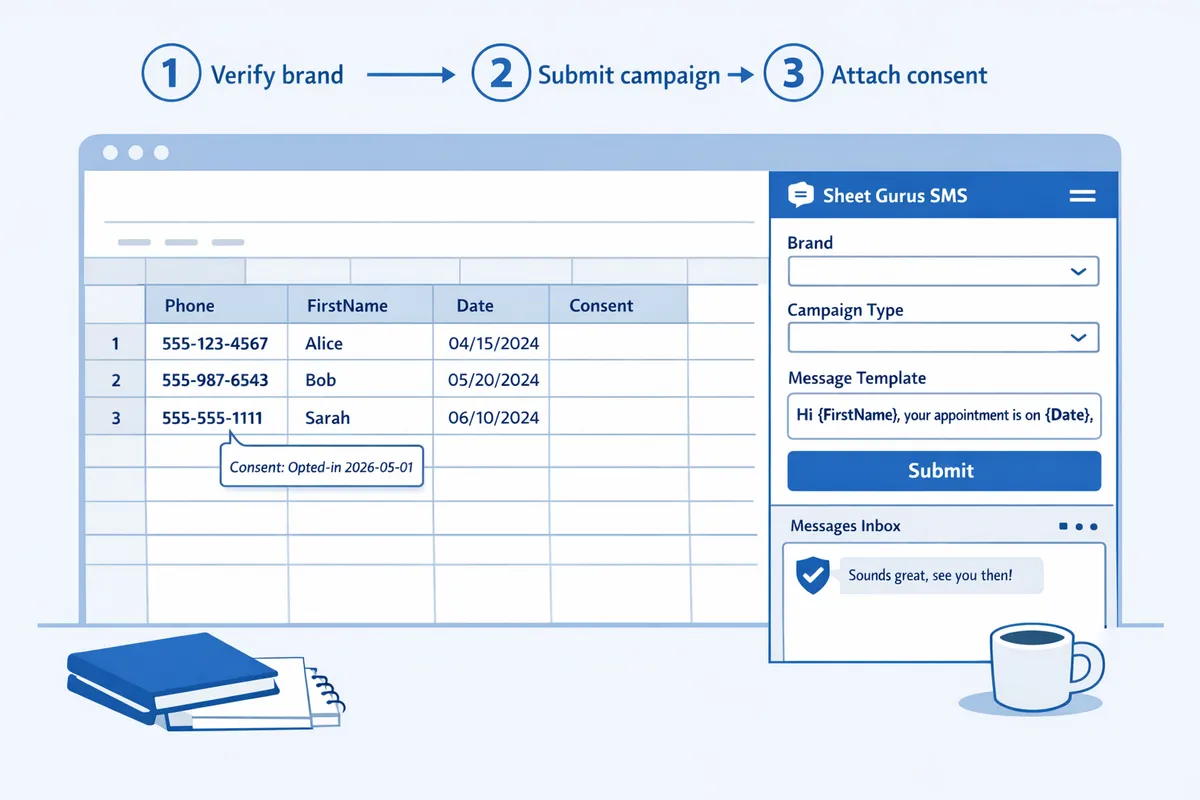
Register a 10DLC brand and campaign by submitting verified business information, consent-backed message templates, and assigning the approved campaign inside Sheet Gurus SMS before authorizing the add-on in Google Sheets. This sequence prepares your sender identity for carrier review, links the approved campaign metadata to your sends, and enables Sheet Gurus SMS features like curly-bracket personalization and the real-time inbox. Follow the numbered steps below to complete registration, map variables in your sheet, test in sandbox, and launch.
Step 1 — Gather required files and sample messages 📁
Prepare two representative templates and proof of consent before starting registration. Include at least two templates that use curly-bracket variables and explicit opt-out language, for example: “Hi {first_name}, your delivery for order {order_id} will arrive today between {window}. Reply STOP to opt out {opt_out}.” Store these templates in a dedicated Google Sheet tab so you can copy-paste them during the brand and campaign forms.
Collect supporting business documents (tax ID, articles of organization, and a current website screenshot) and export a consent ledger that links each phone number to the opt-in source and date. Our SMS consent record keeping guide explains how to store consent logs in Google Sheets for audits and carrier questions. Expected outcome: you complete registration fields without missing attachments and avoid common verification rejections.
💡 Tip: Always use double opt-in for SMS signups and keep a timestamped consent column in your sheet to make audits straightforward.
Step 2 — Create the brand record with your messaging provider 🏷️
Create a brand record by submitting your legal business name, tax ID or EIN if required, website, and authorized contact. Use the same business name and public-facing website that appear in official records to reduce verification friction. If you use Sheet Gurus SMS managed setup, the add-on can guide you through the form and submit the brand on your behalf; otherwise complete the provider portal and copy the issued brand ID into your setup notes.
Expected outcome: carriers issue a brand ID you will reference when creating campaigns. What can go wrong: mismatched names or outdated website pages cause requests for additional proof. Recovery: provide recent filing documents or update the public site to match the legal name.
Step 3 — Create the campaign and submit templates (brand + campaign) 📝
Create a campaign record by selecting the campaign type, describing the message flow, and pasting compliant templates that include {opt_out} placeholders matching your Google Sheet columns. Choose the correct campaign category (for example, delivery updates, appointment reminders, or marketing) and write a short, clear description of how recipients opted in and what they will receive.
Paste templates exactly as they appear in your Google Sheet, using the same curly-bracket variable names (for example, {first_name}, {order_id}). Save a copy of each submitted template in a “Registration” tab for audits. Expected outcome: campaign submitted with templates ready for carrier review; what can go wrong: templates that omit opt-out text or use misleading language can be rejected. Recovery: revise templates to plain language and resubmit.
Step 4 — Monitor approval timelines and respond to requests ⏳
Monitor the provider dashboard and respond quickly to any follow-up document requests to avoid approval delays. Typical approvals take several days to a few weeks depending on supplemental requests and the provider’s backlog. Watch Sheet Gurus SMS notifications and your provider inbox for questions about consent records or additional business verification.
Expected outcome: faster approval when you answer requests within 24–48 hours. What can go wrong: slow responses lead to campaign delays and missed marketing windows. Recovery: escalate via your provider’s support channel and attach clearly labeled documents matching the original submission fields. For context on carrier filtering signals and pre-send checks, see our SMS Compliance for Google Sheets in 2026 guide.
Step 5 — Obtain or provision phone numbers and rate settings 📞
After campaign approval, provision phone numbers or messaging resources and assign them to the approved campaign with the correct throughput settings. Work with Sheet Gurus SMS or your messaging provider to request assignment of the 10-digit numbers to the campaign and confirm allowed messages per second appropriate for your send volume.
Expected outcome: numbers carry the campaign metadata and will route through carrier filters as registered traffic. What can go wrong: wrong number assignment or insufficient throughput leads to queued sends and higher delivery latency. Recovery: request re-assignment of numbers to the campaign or apply for a throughput increase through your provider.
Step 6 — Connect Sheet Gurus SMS to the approved campaign and authorize Google Sheets 🔌
Authorize Sheet Gurus SMS in Google Sheets and map the add-on to the approved brand and campaign ID so messages inherit compliance metadata. Open the Sheet Gurus SMS sidebar, enter the issued brand and campaign IDs in the add-on settings, and select the assigned phone number or sender pool. Confirm the sidebar shows the campaign ID before sending.
Expected outcome: every message sent from the sidebar includes the registered campaign information and benefits from automatic message filtering in Sheet Gurus SMS. What can go wrong: an incorrect campaign ID causes sends to appear unregistered to carriers. Recovery: update the add-on settings and run a sandbox test to confirm the mapping.
For step-by-step UI notes, consult the Sheet Gurus SMS setup and blasting guides on our site under Effortless SMS Blasts for Effective Communication.
Step 7 — Prepare your Google Sheet and variable mapping 🧾
Create a structured sheet with columns for phone, each dynamic field, and a test tab with verified numbers to validate renders. Use exact header names that match your curly-bracket placeholders; for example, a column labeled first_name will replace {first_name} in the add-on preview. Include an {opt_out} column or use a static token in templates if your system appends opt-out language automatically.
Validate phone formats (for example, +12223334444) and use the add-on’s variable preview to spot missing or mismatched fields before any send. Expected outcome: messages render correctly with no broken placeholders and fewer content-based rejections. What can go wrong: header mismatch or invalid phone formats cause personalization failures. Recovery: fix headers, correct phone formatting, and re-run the preview.
Step 8 — Send sandbox tests, verify inbox and delivery, then launch 🚀
Run sandbox tests to internal numbers, confirm delivery and opt-out handling in the Sheet Gurus SMS inbox, then schedule or send to production. Send at least three template variants to multiple carrier networks and verify replies, opt-outs, and delivery receipts appear in the real-time inbox.
Expected outcome: confirmed delivery paths and correctly processed replies and STOP commands. What can go wrong: messages may be filtered if content triggers carrier heuristics. Recovery: revise wording, reduce links/shortened URLs, and re-test. Monitor analytics and delivery status in Sheet Gurus SMS for the first 24–72 hours after launch to catch issues early.
⚠️ Warning: Do not send a full production list before successful sandbox tests and verified opt-out handling. Sending prematurely risks carrier filtering or account suspension.
What are the top tips, common mistakes, and troubleshooting steps for 10DLC and Google Sheets SMS?
Start with a short, pre-send checklist and targeted fixes to resolve the majority of registration rejections and failed sends. These checks focus on brand and campaign consistency, explicit opt-out language in templates, and correct spreadsheet variables so carriers and platforms accept your traffic.
Top troubleshooting steps to fix common registration and send issues 🛠️
Confirm brand and campaign IDs match your sender resource and that templates include explicit opt-out language before retrying a send. Begin here because mismatched IDs and missing opt-outs cause most rejections.
- Verify brand and campaign IDs. Expected outcome: provider accepts messages for that sender. What can go wrong: copy-paste errors between registration portal and Sheet Gurus SMS. Fix: paste the IDs from the registration confirmation into the add-on sidebar and save.
- Check sample templates for explicit opt-out text and a {opt_out} variable. Expected outcome: templates pass carrier pre-checks. What can go wrong: opt-out buried in long text. Fix: use a clear ending such as “Reply STOP to unsubscribe. {opt_out}“.
- Match Google Sheet columns to add-on variables. Expected outcome: messages render with correct personalization. What can go wrong: column headers called “firstname” instead of “first_name”. Fix: rename the header or map it in the sidebar variable preview.
- Normalize phone numbers to E.164 (for example, +12223334444). Expected outcome: provider accepts destination numbers. What can go wrong: local formats or missing country code. Fix: run a quick sheet formula or use the add-on’s phone cleaner before sending.
- Review add-on logs for provider error codes when sends fail. Expected outcome: clear next steps (template, consent, or carrier). What can go wrong: ignoring error codes and resending. Fix: search the error code, correct the root cause, then retry a small test batch.
Checklist to avoid suspension and registration rejection 📋
Keep business identity, consent proof, templates, and suppression lists auditable and current to avoid suspension. Carriers and platforms act on mismatched public records, missing consent, or templates that conflict with your declared campaign type.
- Verify business identity matches public records and the registration portal entry.
- Store consent records and timestamps in an auditable sheet. See our guide on SMS consent record keeping in Google Sheets for a sample ledger and storage tips.
- Use 10dlc compliant sms templates with {opt_out}. Example: “Hi {first_name}, your appointment is at {time}. Reply STOP to unsubscribe. {opt_out}“.
- Maintain a suppression list for opt-outs and complaints and enforce it at send time.
- Audit message cadence and timing to match the campaign type declared during registration.
- Keep sample message templates short and explicit about transactional versus marketing intent.
⚠️ Warning: Do not send personal health or sensitive financial details over SMS without explicit, auditable consent and compliance review.
How Sheet Gurus SMS reduces errors and saves time 🧰
Sheet Gurus SMS reduces common failures by applying automatic filtering, variable previews, and a real-time inbox that highlights opt-outs and format problems before messages send. These features cut the manual review time and reduce carrier escalations caused by inconsistent sender identity or incorrect templates.
- Automatic message filtering flags messages that contradict your declared campaign type and prevents risky content from sending. See real examples in our Effortless SMS Blasts for Effective Communication use case.
- Variable preview shows exactly what a message will look like for a row, preventing personalization errors such as missing {first_name} or misplaced {order_id}. Expected outcome: fewer personalization failures and fewer complaints.
- Real-time inbox captures replies and opt-outs as they arrive so you can add them to a suppression list automatically and maintain compliance. Our Automated Text Messaging page shows workflows for scheduled reminders and consent handling.
- Consent metadata stored by the add-on ties each message to the opt-in source and timestamp, making audits faster and defense against suspension clearer. For dispatch use cases, see how Sheet Gurus SMS supports Last Mile Delivery workflows from Google Sheets.
For implementation details and templates, review SMS Compliance for Google Sheets in 2026 and the message filtering tag to align pre-send checks with carrier expectations.
Frequently Asked Questions
These FAQs provide concise operational guidance for 10DLC registration and sending compliant SMS from Google Sheets using Sheet Gurus SMS. Each answer focuses on what to do next, common failure modes, and the Sheet Gurus SMS features that simplify the task.
Do I need 10DLC to send bulk SMS from Google Sheets? ❓
Yes. Sending application-to-person (A2P) messages at scale to U.S. phone numbers via toll-free or 10-digit long codes generally requires 10DLC registration to meet carrier rules. Carriers increasingly filter or throttle unregistered bulk sends; Sheet Gurus SMS prevents many of those blocks by tying sends to an approved campaign in the sidebar before messages go out. Check your messaging provider settings inside Sheet Gurus SMS and follow the provider’s guidance on volume thresholds that trigger mandatory registration. For more on carrier signals and filtering, see our guide on
SMS Compliance for Google Sheets in 2026.How do I register a 10DLC brand and campaign? 🧾
Register a brand with your messaging provider, then submit one or more campaigns that include declared use case, sample templates, and consent evidence. Use the Sheet Gurus SMS dashboard or request managed registration through Sheet Gurus SMS so the required documents and templates are submitted on your behalf. Expect to provide a business EIN or equivalent ID, an authorized contact, and representative message samples that include opt-out language. If you prefer a step-by-step checklist, consult our registration walkthrough in the Sheet Gurus SMS sidebar when you open the add-on.
Can I use Google Voice or a personal number for Google Sheets SMS? 📵
No for high-volume A2P traffic. Google Voice and many personal numbers are not designed for A2P sending and often cause deliverability problems, carrier blocks, or account restrictions. Provision a number type your provider supports and assign it to your approved 10DLC campaign inside Sheet Gurus SMS to avoid suspension. If you need help choosing the right number type for deliveries or promotions, the Sheet Gurus SMS provisioning workflow recommends carrier-compatible options.
How long does brand and campaign approval usually take? ⏰
Approval generally takes several days to a few weeks depending on provider backlog and completeness of submitted materials. Missing documents, unclear message templates, or insufficient consent evidence typically prompt carrier follow-up that adds days to the timeline. Respond promptly to any requests from Sheet Gurus SMS support or your messaging provider to reduce delays; the add-on flags missing fields and common rejection causes to speed resubmission.
What are example 10DLC-compliant SMS templates with {opt_out}? ✉️
Compliant templates clearly state purpose, include the business name when useful, and provide a simple opt-out instruction or token. Example template for delivery updates: “Hi {first_name}, your package {order_id} will arrive today between {window}. Reply STOP to opt out {opt_out}.” Example appointment reminder: “Reminder: {business_name} appointment on {date} at {time}. Reply STOP to opt out {opt_out}.” Use curly-brace variables in Sheet Gurus SMS to personalize at send time and keep templates short so carrier filters can correctly classify intent.
How should I handle opt-outs and suppression lists in Google Sheets? 🗂️
Maintain a suppression column in your master sheet and exclude any rows marked as opted out before sending. Use Sheet Gurus SMS’s real-time inbox to capture STOP replies and automatically sync those numbers into your suppression column so you never resend to opted-out recipients. Run a weekly audit that compares your suppression list to recent sends and archive changes with a timestamp for compliance.
💡 Tip: Export your suppression list monthly and store it alongside consent records to create an auditable trail that supports carrier or regulatory inquiries.
For deeper reading on consent and record keeping, see our tag on SMS consent record keeping in Google Sheets. For message filtering best practices and carrier expectations, see the message filtering guidance and the explainer on what A2P 10DLC is.
Finish registration and send compliant messages from your sheet.
You now have a clear path for 10dlc registration google sheets sms and the steps needed to register a brand and campaign, connect the Sheet Gurus SMS add-on, and send pre-filtered messages. Following the guide should leave you with an auditable consent ledger, templates that include {opt_out}, and a working sidebar in Google Sheets ready to send personalized blasts.
Sheet Gurus SMS is a Google Sheets add-on for sending bulk SMS from a sidebar rather than spreadsheet formulas. Personalize each message with curly-brace variables such as {FirstName}, handle replies in a real-time two-way inbox, and rely on automatic message filtering to help keep your sends compliant.
💡 Tip: Keep a consent timestamp and source column in your sheet; review consent records alongside the steps in our SMS consent record keeping guide.
Download the Sheet Gurus SMS 10DLC setup checklist to complete brand and campaign registration and connect the add-on. For deeper compliance guidance, see our SMS Compliance for Google Sheets in 2026 and the A2P 10DLC explainer.